'%20d='M0%208a8%208%200%200%201%208-8h24a8%208%200%200%201%208%208v24a8%208%200%200%201-8%208H8a8%208%200%200%201-8-8V8Z'/%3e%3cpath%20fill='%23fff'%20d='M32.576%206C12.293%206%208.776%2025.887%207.424%2034H9.1c.45-2.977%203.493-14.748%2010.899-20.287%200%200-5.633%206.976-6.572%2015.051%203.426-.652%2013.845-3.372%2016.056-12.927l-3.84-.61c1.352-1.351%204.909-5.17%206.931-9.226V6Z'/%3e%3cdefs%3e%3clinearGradient%20id='reapit-lettings__a'%20x1='20.702'%20x2='20.702'%20y1='.351'%20y2='31.228'%20gradientUnits='userSpaceOnUse'%3e%3cstop%20stop-color='%235573FD'/%3e%3cstop%20offset='.575'%20stop-color='%234E56EA'/%3e%3c/linearGradient%3e%3c/defs%3e%3c/svg%3e)
VIC Reforms: Property Disclosure Statement User Guide
This article will run through the Property Disclosure Statement for Victoria
VIC Reforms: Property Disclosure Statement User Guide
This article will run through the Property Disclosure Statement for Victoria in Reapit Lettings.
The processes in this article include:
- How to Activate
- How to Send to Residential Rental Providers
- How to Send to Renters
How to Activate
The Disclosure Statement will first need to be enabled at the agency level.
- Navigate to Settings.
- Click Applications.
- Click References.
- Click Reference Questions.
- Click Property Disclosure Questions.
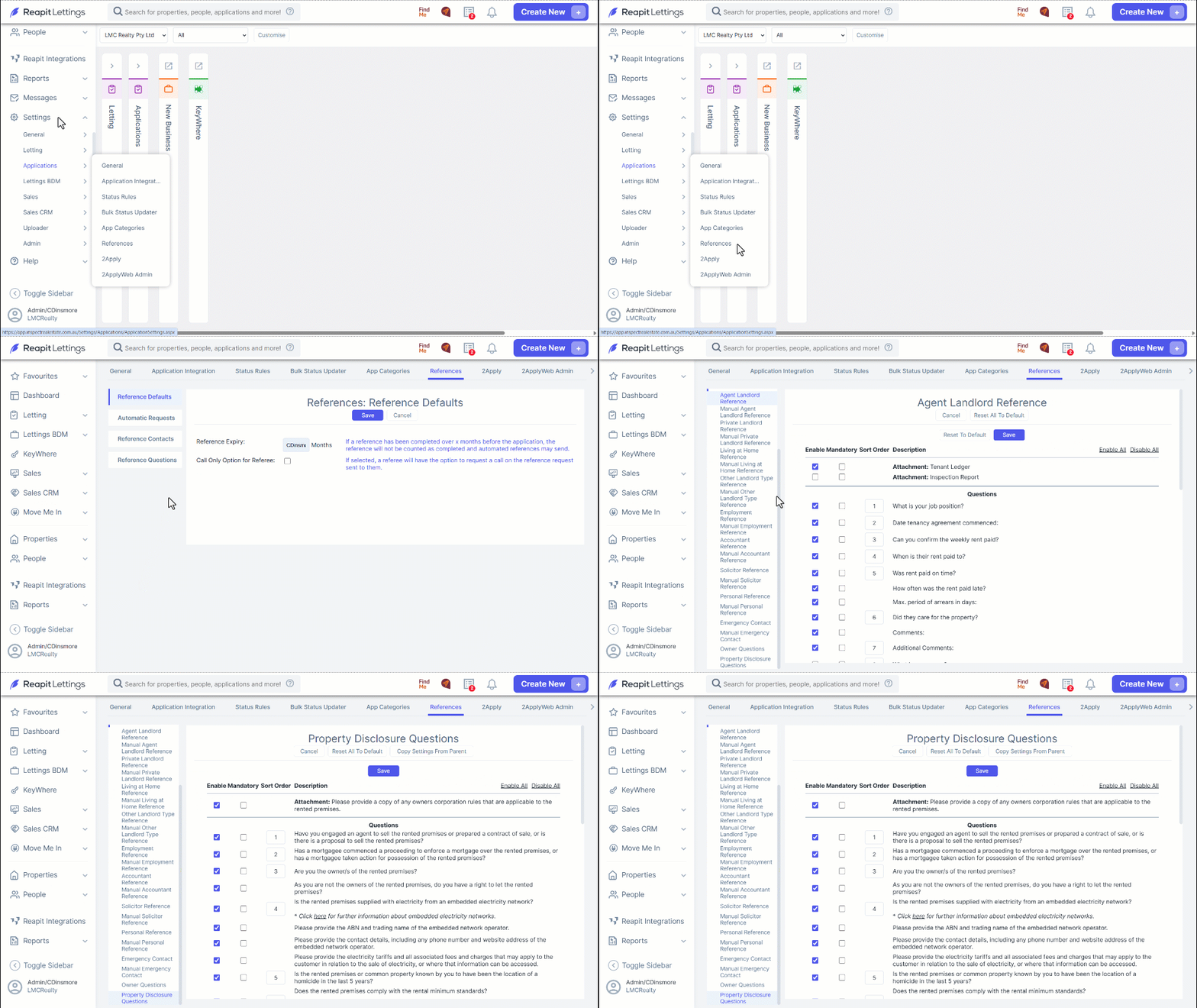
Note: You will need diamond/director user permissions to access the settings.
- You can use the Enable All option or manually enable each question. From here, select which questions are to be mandatory. Click Save.
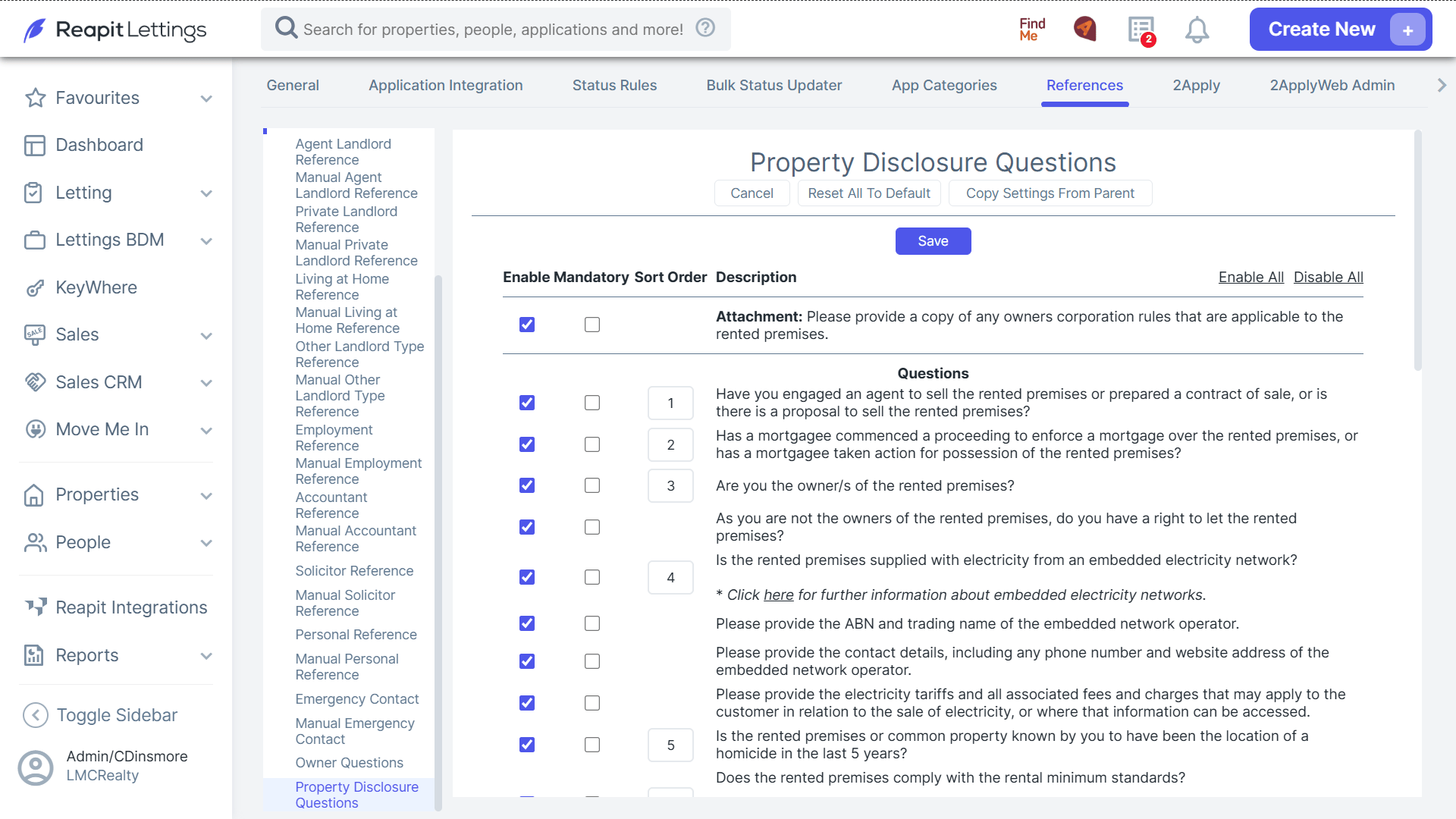
- Once you've enabled some or all questions, you can now go ahead and edit questions on a property level. This would be done if questions on the disclosure do not apply i.e., body corporate/pool questions.
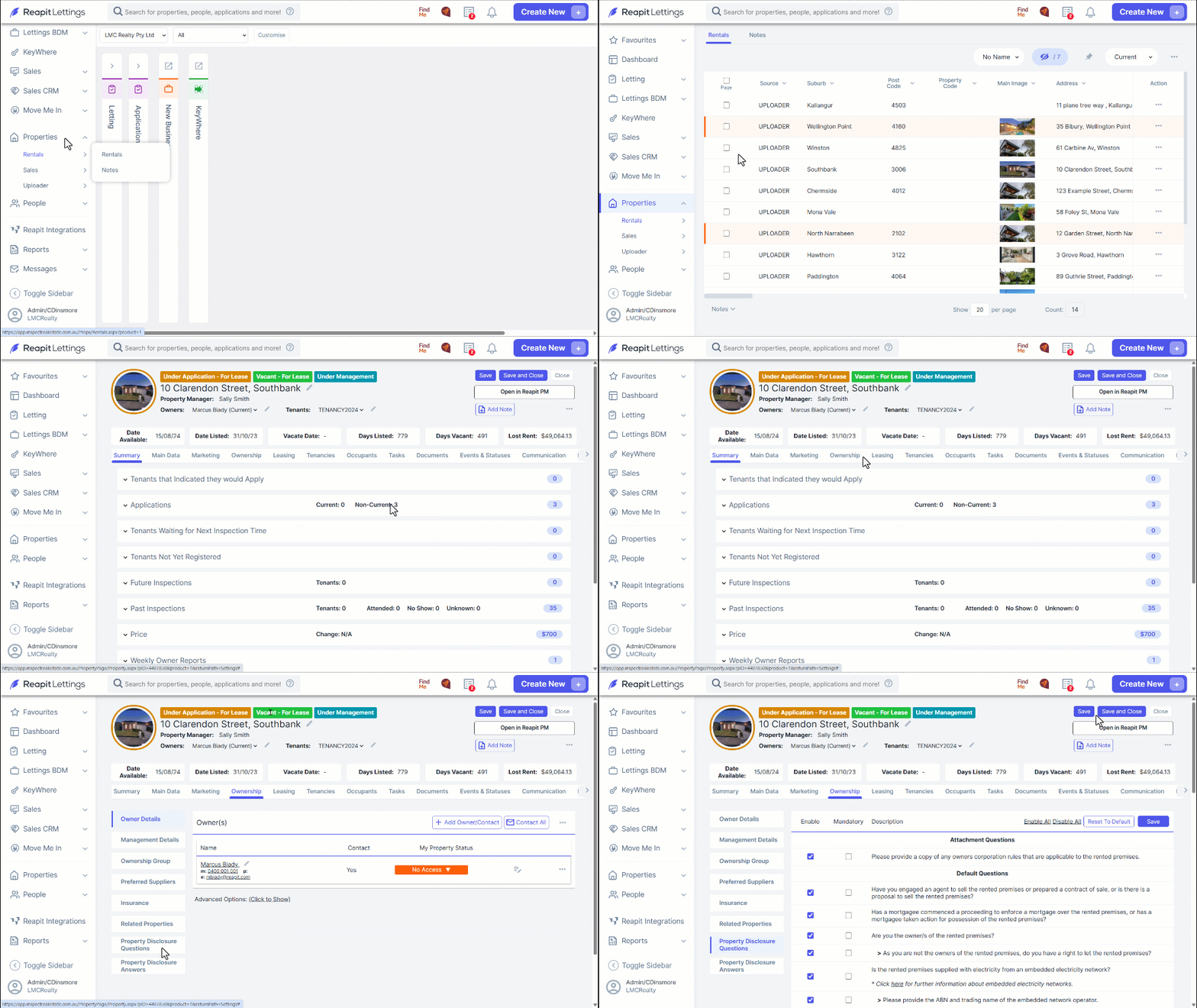
- Navigate to Properties.
- Click Rentals.
- Click on the address.
- Click the Ownership tab.
- Click on Property Disclosure Questions.
- Modify the questions as required.
- Click Save when done.
How to Send to Residential Rental Providers
There are 2 ways to send the Disclosure to an owner. Individually (through the Property screen - even for non-listed properties) or via the On List when the property is listed for rent.
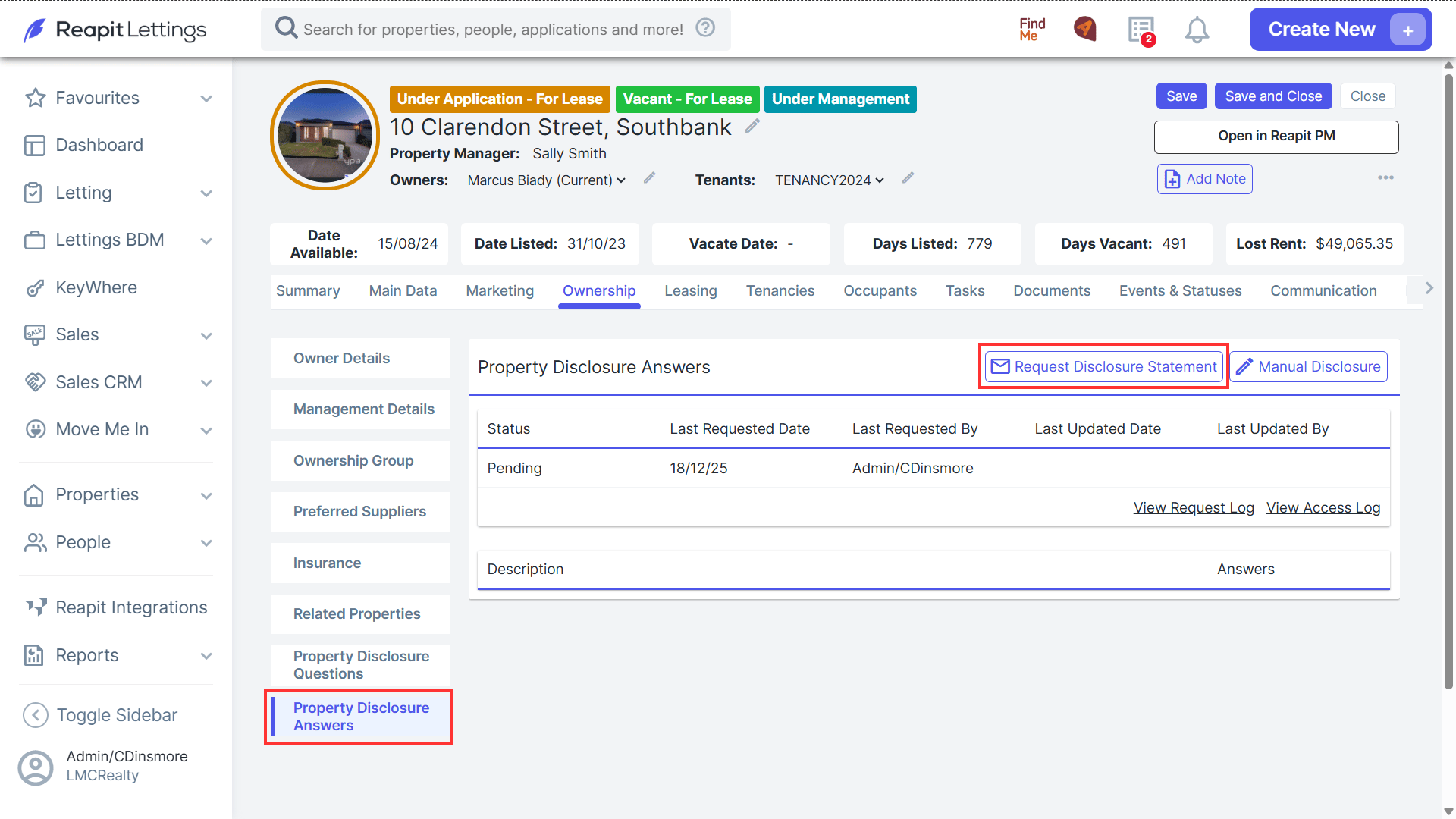
Sending from within the property is done by selecting the Property Disclosure Answers option from the vertical tab menu.
This screen will also show the status of the Disclosure, along with the date it was sent, and the answers will appear under the status section.
When the property is listed for rent, and you receive the on-list, the disclosure can be sent after you have entered the owner's details.
After the owner completes the Disclosure, you, as the agent, will get a notification that it has been completed and can start sending the Disclosure to prospective renters.
How to Send to Renters
- Navigate to Messages.
- Click Letting.
- In the Event Editor, you can select the message you would like to add the Disclosure to by selecting the relevant tab and clicking Edit Message.
- While editing the message, find where you would like the Disclosure to appear and add the {PropertyDisclosurePhrase}: field.
- Doing this ensures that the Disclosure is included in automatic responses when a prospective renter enquires about a property.
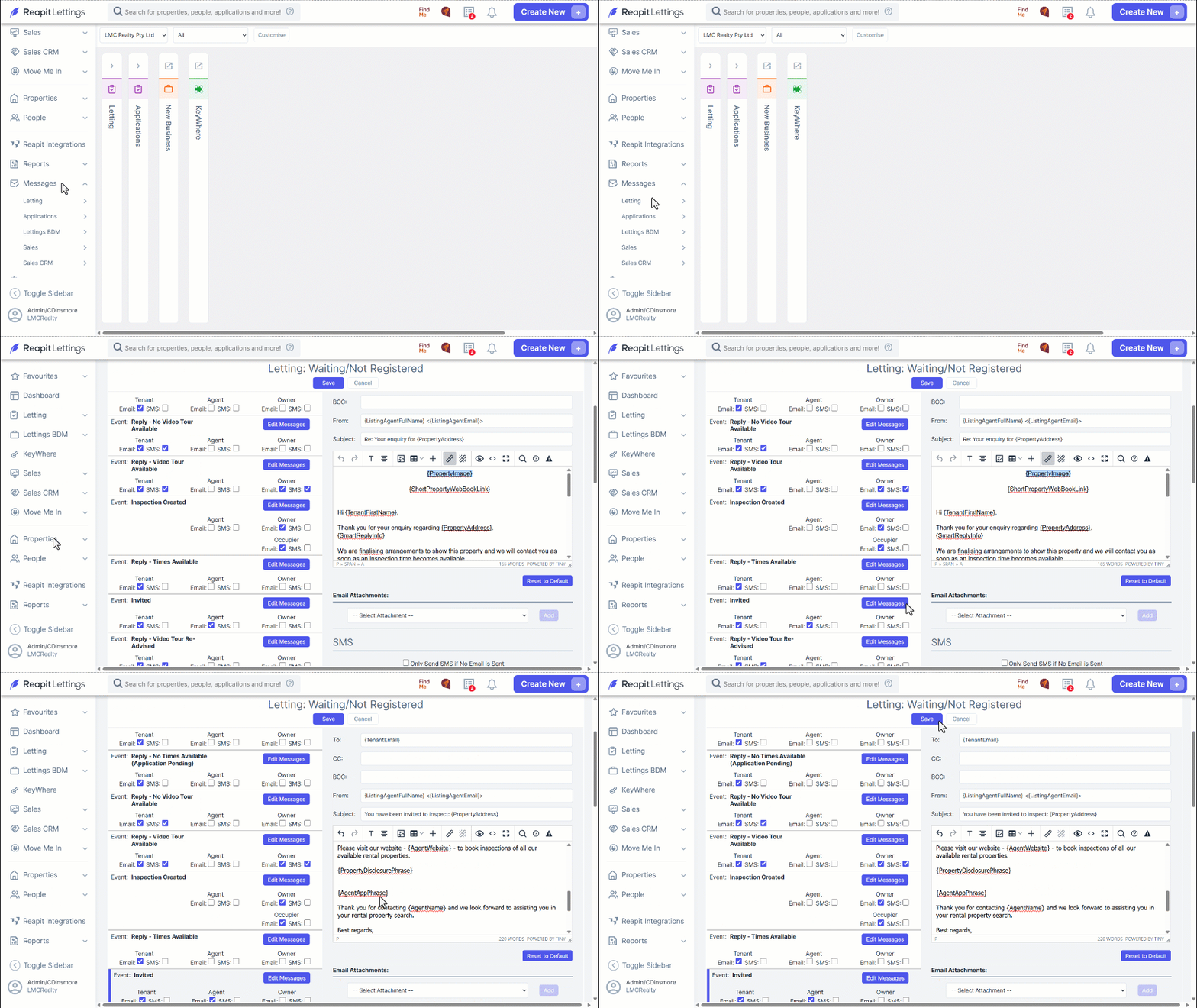
- To update messages for your applications, navigate to Messages > Applications > Statuses and Applications and follow the same steps as referenced above.