'%20d='M0%208a8%208%200%200%201%208-8h24a8%208%200%200%201%208%208v24a8%208%200%200%201-8%208H8a8%208%200%200%201-8-8V8Z'/%3e%3cpath%20fill='%23fff'%20d='M32.576%206C12.293%206%208.776%2025.887%207.424%2034H9.1c.45-2.977%203.493-14.748%2010.899-20.287%200%200-5.633%206.976-6.572%2015.051%203.426-.652%2013.845-3.372%2016.056-12.927l-3.84-.61c1.352-1.351%204.909-5.17%206.931-9.226V6Z'/%3e%3cdefs%3e%3clinearGradient%20id='reapit-lettings__a'%20x1='20.702'%20x2='20.702'%20y1='.351'%20y2='31.228'%20gradientUnits='userSpaceOnUse'%3e%3cstop%20stop-color='%235573FD'/%3e%3cstop%20offset='.575'%20stop-color='%234E56EA'/%3e%3c/linearGradient%3e%3c/defs%3e%3c/svg%3e)
Inspection Entry Notices
This article contains processes relating to Inspection Entry Notices within Reapit Lettings. The processes in this article include: How to Access & View All Entry Notices How to Edit & Print / Send a Current Entry Notice How to Mark an Entry Notice as Not Required How to Generate Entry Notices for Vacant Properties
This article contains processes relating to Inspection Entry Notices within Reapit Lettings.
If you do not see the Entry Notice tab in your account, please contact your account manager or the support team.
The processes in this article include:
- How to Access & View All Entry Notices
- How to Edit & Print / Send a Current Entry Notice
- How to Mark an Entry Notice as Not Required
- How to Generate Entry Notices for Vacant Properties
How to Access & View All Entry Notices
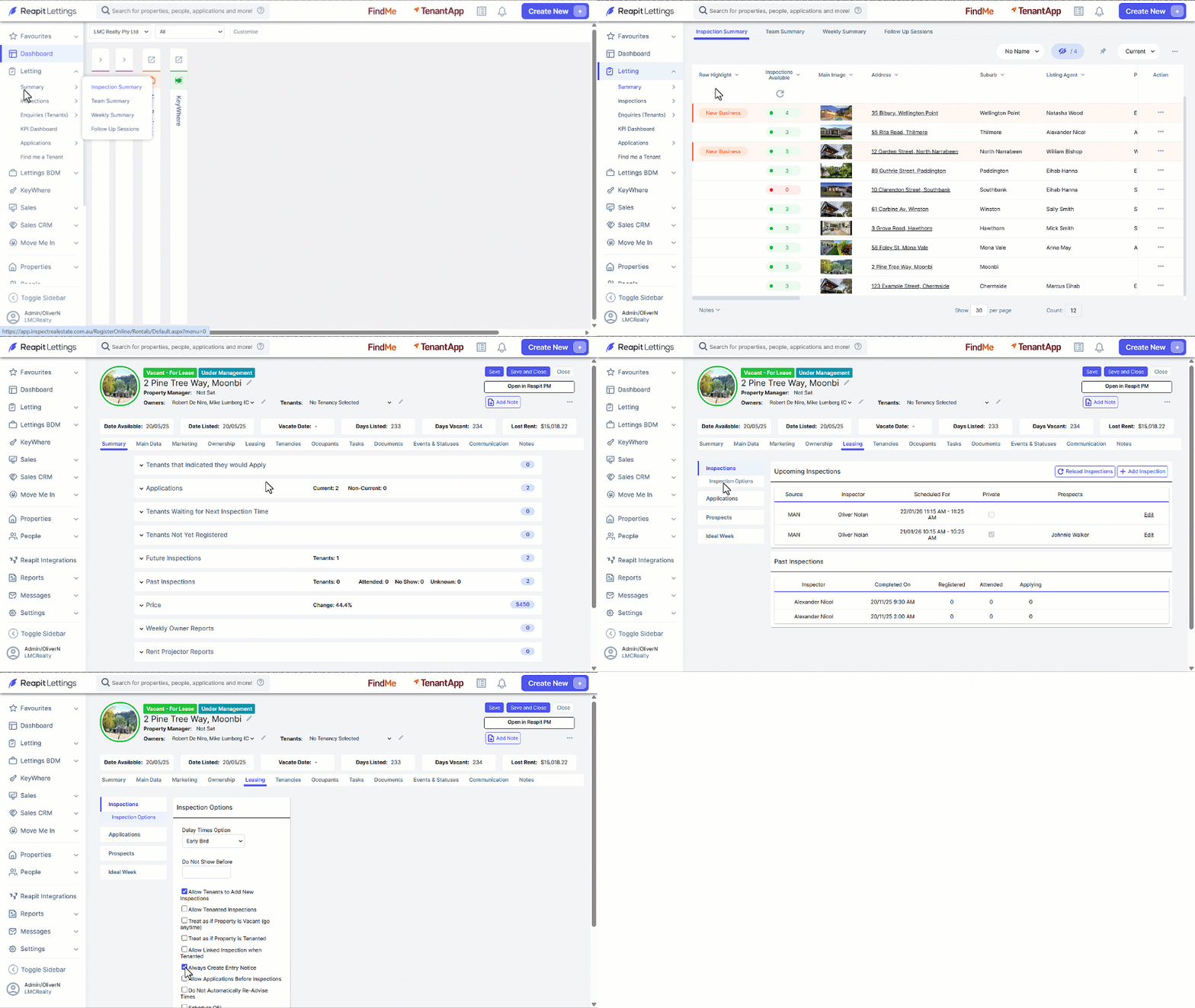
This process outlines how to access entry notices within your account.
- Click on Letting.
- Click on Inspections.
- Click on Entry Notice Log.
- Click the dropdown selector and choose All.
- Click the 3 Dots and select Edit/ View.
How to Edit & Print / Send a Current Entry Notice
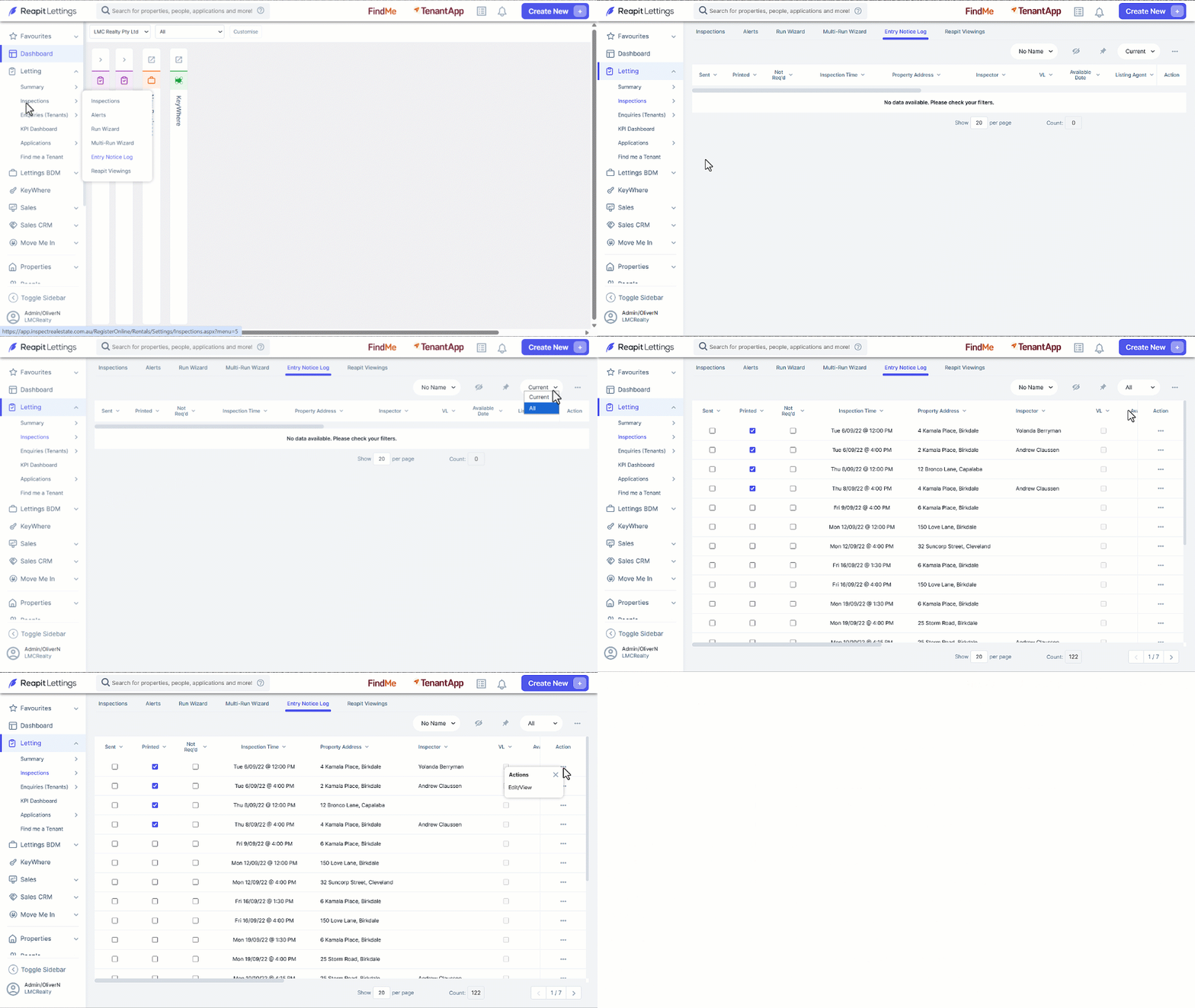
This process outlines how to send an entry notice.
Note: To send to a Tenant directly from Lettings, ensure contact details are current.
- Click on Letting.
- Click on Inspections.
- Click on Entry Notice Log.
- Navigate to the required Entry Notice, Click the 3 Dots and select Edit/ View.
- Review the Blue populated fields and edit as needed. Once complete, click on Save & Print or Save & Send.
How to Mark an Entry Notice as Not Required
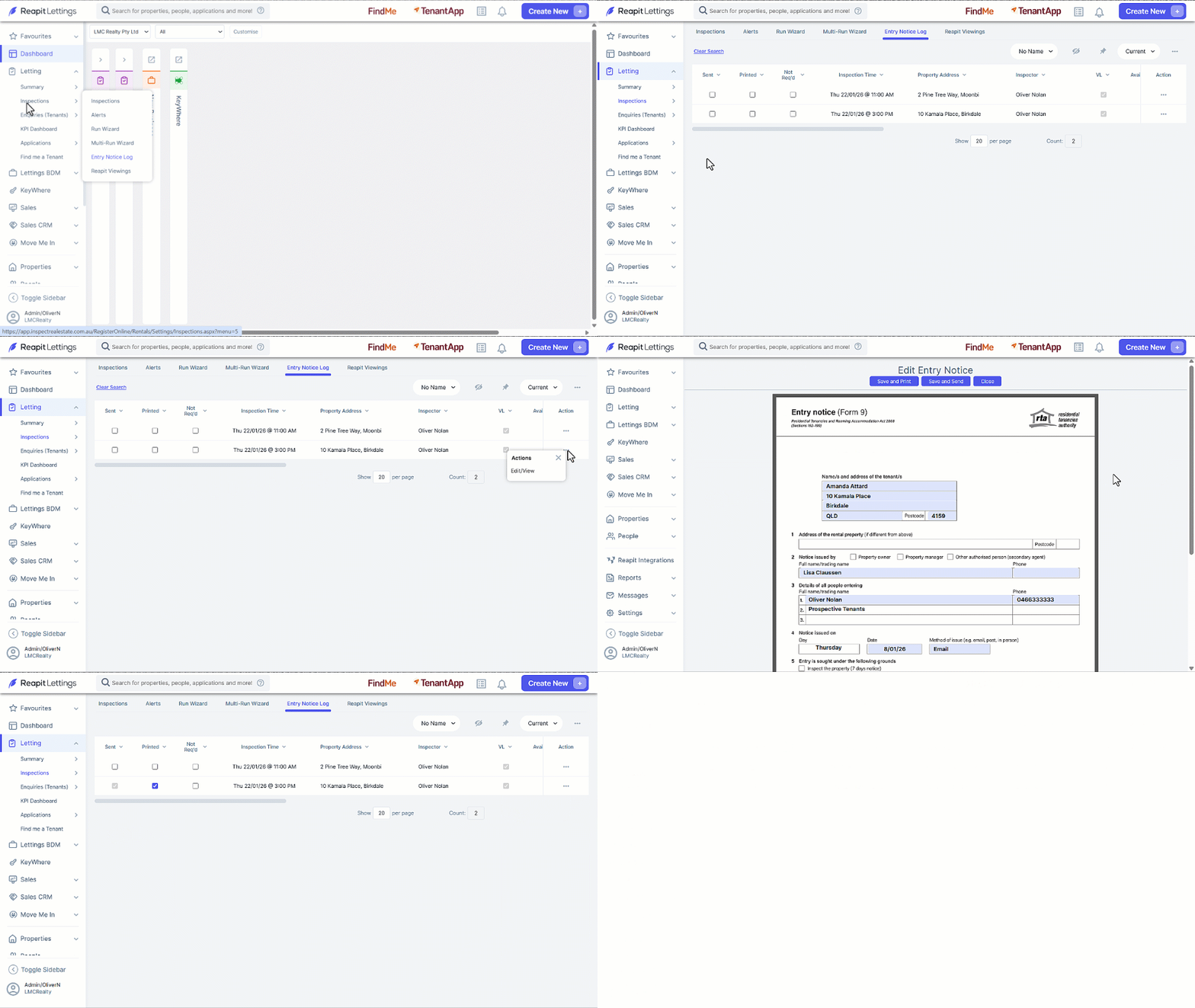
This process outlines how to mark an entry notice as not required within your account.
- Click on Letting.
- Click on Inspections.
- Click on Entry Notice Log.
- Under Not Req’d, select the checkbox against the relevant property inspection.
- Click Save once prompted.
How to Generate Entry Notices for Vacant Properties
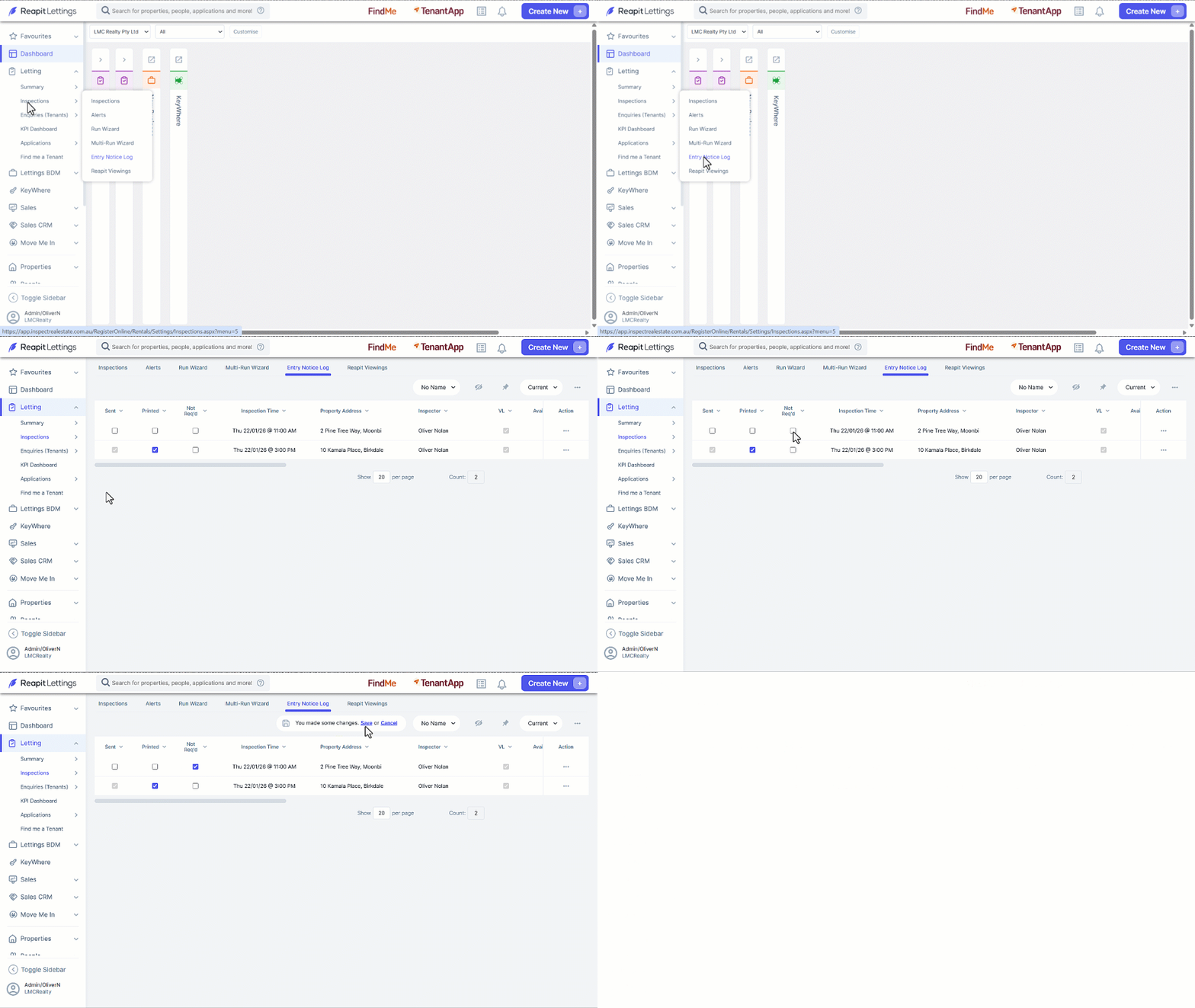
This process outlines the process to be completed prior to being able to generate Entry Notices for vacant properties.
- Click on Letting.
- Click on Summary.
- Click on Inspection Summary.
- Navigate to and select the required address.
- Select the Leasing tab.
- Select Inspection Options.
- Tick Always Create Entry Notice.
- Click Save and Close.