'%20d='M0%208a8%208%200%200%201%208-8h24a8%208%200%200%201%208%208v24a8%208%200%200%201-8%208H8a8%208%200%200%201-8-8V8Z'/%3e%3cpath%20fill='%23fff'%20d='M32.576%206C12.293%206%208.776%2025.887%207.424%2034H9.1c.45-2.977%203.493-14.748%2010.899-20.287%200%200-5.633%206.976-6.572%2015.051%203.426-.652%2013.845-3.372%2016.056-12.927l-3.84-.61c1.352-1.351%204.909-5.17%206.931-9.226V6Z'/%3e%3cdefs%3e%3clinearGradient%20id='reapit-lettings__a'%20x1='20.702'%20x2='20.702'%20y1='.351'%20y2='31.228'%20gradientUnits='userSpaceOnUse'%3e%3cstop%20stop-color='%235573FD'/%3e%3cstop%20offset='.575'%20stop-color='%234E56EA'/%3e%3c/linearGradient%3e%3c/defs%3e%3c/svg%3e)
Tenant Calculator
This article will run through what the tenant calculator is in Reapit Lettings. The processes in this article include: What is the Tenant Calculator? Creating and Sending Tenant Calculator Link How to View Calculator Results
Tenant Calculator
This article will run through what the tenant calculator is in Reapit Lettings.
The processes in this article include:
- What is the Tenant Calculator?
- Creating and Sending Tenant Calculator Link
- How to View Calculator Results
What is the Tenant Calculator?
The Tenant Calculator is a tool within Lettings BDM, available if both Lettings BDM and Lettings are being used. The calculator provides the number of tenants in the agent's account who are currently looking for properties matching the data entered. The calculator will match on Price, Number of Bedrooms, Location and Recent Enquires for a selected number of days. It will return the number of tenants actively looking for a property that matches the search criteria. A Tenant Calculator Link can be generated to share with potential landlords, allowing them to see how the agency's tenant database can assist them.
Creating and Sending Tenant Calculator Link
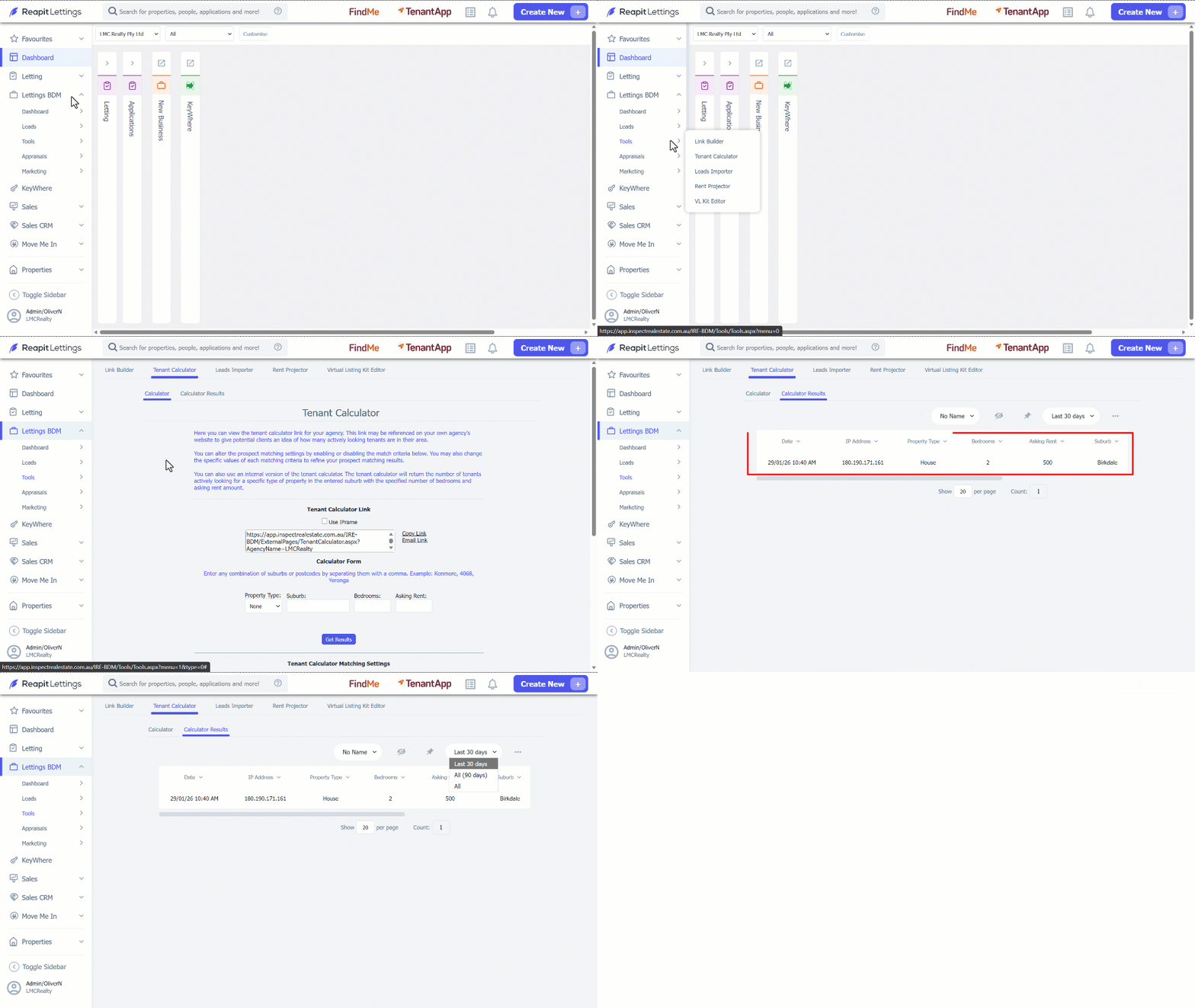
- Click on Lettings BDM. 2. Click on Tools. 3. Select Tenant Calculator. 4. Alter the Tenant Calculator Matching Settings on the webform by enabling or disabling the match criteria through the checkbox provided. 5. Click on Save. This will generate the calculator link for the agency. This link can then be used in SMS messages and emails to potential landlords, as well as being added to the agency website. This allows potential landlords to see how many tenants in the agency database match their property. 6. There are options to Copy Link or Email Link. If the link is copied, this can then be pasted into an internet browser which will display the Calculator form.
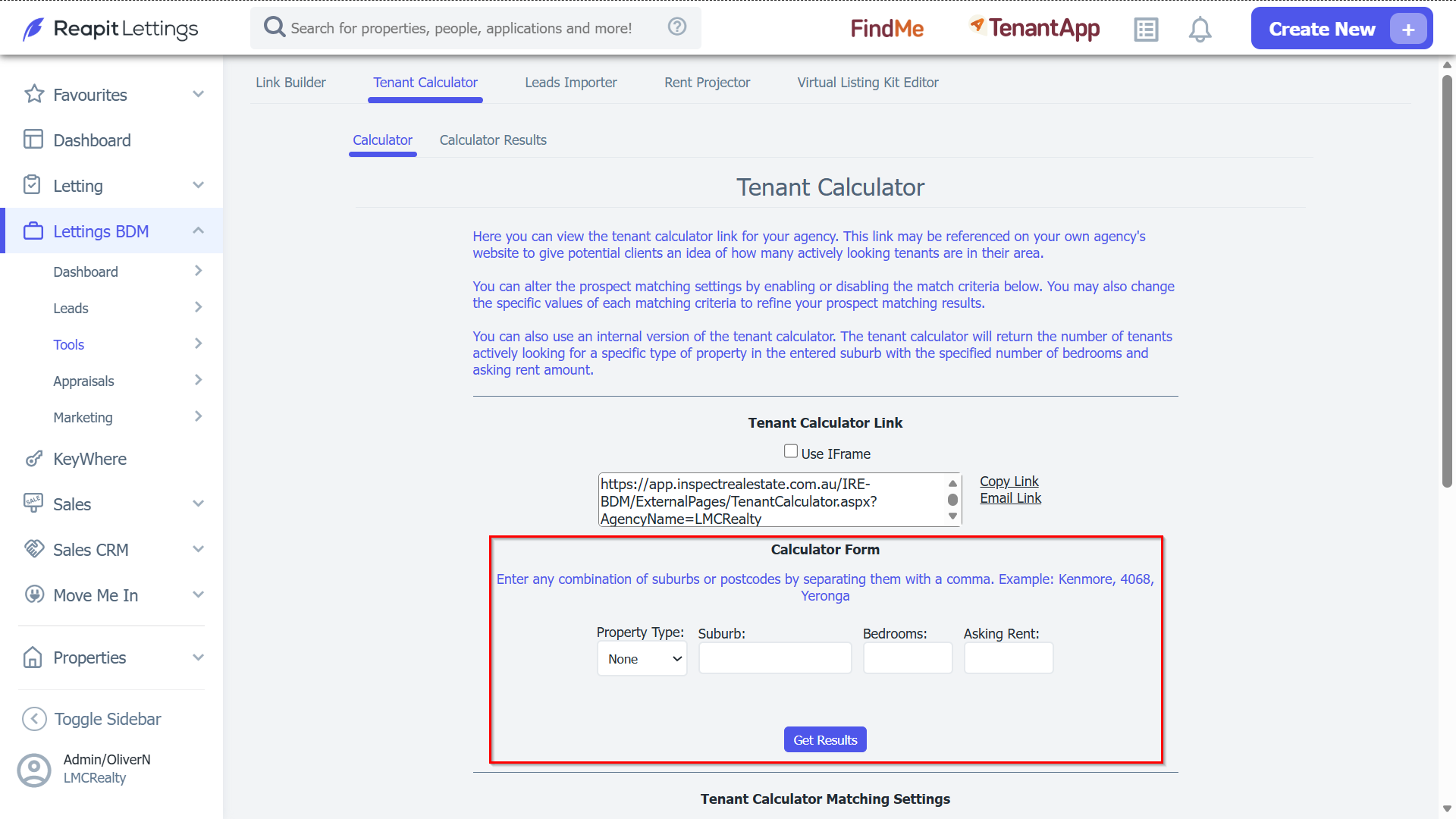
Note: If you select the tick box ‘Use IFrame’, this will simply generate the Tenant Calculator without your agency logo. 7. Below is an example of what the Tenant Calculator will look like in your browser. Please note, this will be branded with your agency logo and colours. 8. Once the details have been filled in, select the Calculate button. This will calculate matching tenants based on current tenant enquiries in ROL Rentals. Any combination of suburbs or postcodes may be entered by separating them with a comma. Example: Kenmore, 4068, Oxley.
9. A simple version of the Tenant Calculator can be found at the bottom of the page for internal office use.
How to View Calculator Results
All External Tenant Calculator searches and their results are logged under Calculator Results tab. 1. Click on Lettings BDM. 2. Click on Tools. 3. Select Tenant Calculator. 4. Navigate to Calculator Results. 5. Within the Calculator Results tab, you can view the results of searches, which are date and time stamped, for the last 30 Days and for All (90 days).