'%20d='M0%208a8%208%200%200%201%208-8h24a8%208%200%200%201%208%208v24a8%208%200%200%201-8%208H8a8%208%200%200%201-8-8V8Z'/%3e%3cpath%20fill='%23fff'%20d='M32.576%206C12.293%206%208.776%2025.887%207.424%2034H9.1c.45-2.977%203.493-14.748%2010.899-20.287%200%200-5.633%206.976-6.572%2015.051%203.426-.652%2013.845-3.372%2016.056-12.927l-3.84-.61c1.352-1.351%204.909-5.17%206.931-9.226V6Z'/%3e%3cdefs%3e%3clinearGradient%20id='reapit-lettings__a'%20x1='20.702'%20x2='20.702'%20y1='.351'%20y2='31.228'%20gradientUnits='userSpaceOnUse'%3e%3cstop%20stop-color='%235573FD'/%3e%3cstop%20offset='.575'%20stop-color='%234E56EA'/%3e%3c/linearGradient%3e%3c/defs%3e%3c/svg%3e)
How To Setup A New Tenant Question For Reapit Viewings
This article will run through how to setup a new tenant question in Reapit Viewings
How to Set Up New Tenant Questions in Reapit Viewings
This article will run through how to set up a new tenant questions in Reapit Viewings.
The Processes in this article include:
- How to Set Up New Tenant Questions in Reapit Viewings
- How to Edit/Delete Questions in Reapit Viewings
How to Set Up New Tenant Questions in Reapit Viewings
- Navigate to Settings.
- Click Letting.
- Click Tenant Questions.
- Click Reapit Viewing Questions.
- Click Add Another Question.
- A new question will appear, which you can customise. You will need to:
Make sure the Enabled checkbox is ticked.
Adjust the Sort Order if required - this is the order the tasks are listed on MobileROL. The Weekly Owner Report will always appear first, then Order 1, then Order 2 etc.
Type your question task into the text box.
Type a short version of your inspection task into the Short Question box. This is used in your reports when displaying the recorded results for this task (e.g., Suitability, Price, Comments)
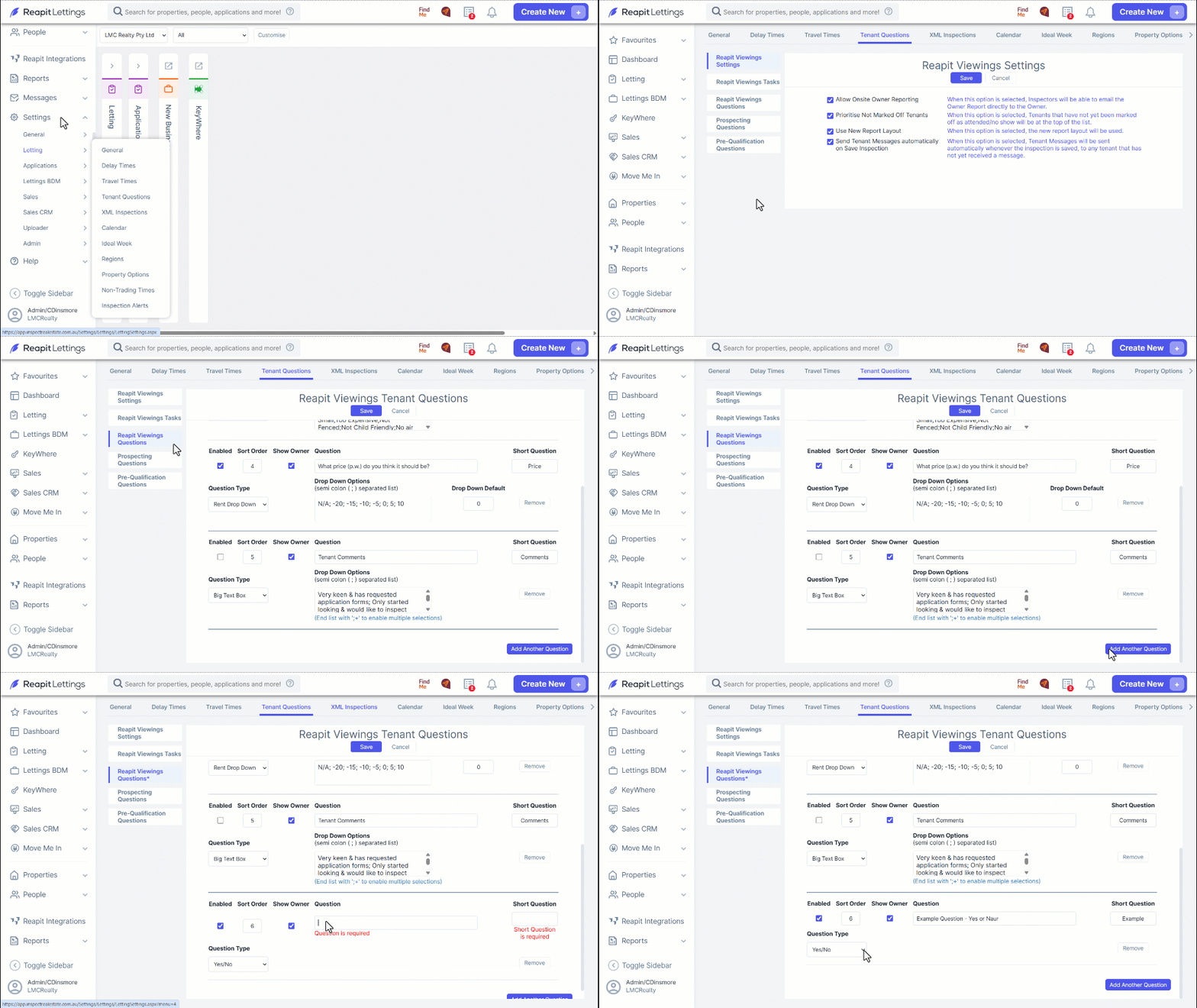
You will then need to set how tenants will answer this question. This can be one of the Question Types:
Yes/No Button press the button to select the answer you want.
A drop-down list select the answer you want from a drop-down list (Price or Other)
A comment box, type your answer into a text box (Small or Big).
If you select a drop-down, you can use the Rent Drop Down or create your own drop down. You will need to complete the Drop Down Options and Drop Down Default boxes.
- If you select Text Box, you have the option to allow your team to write their own comments. However, you can also provide prewritten comments for them to choose from. Type your prewritten comment into the Drop Down Options box and separate with a semicolon ( ; ).
- Click Save when you are finished.
How to Edit/Delete Questions in Reapit Viewings
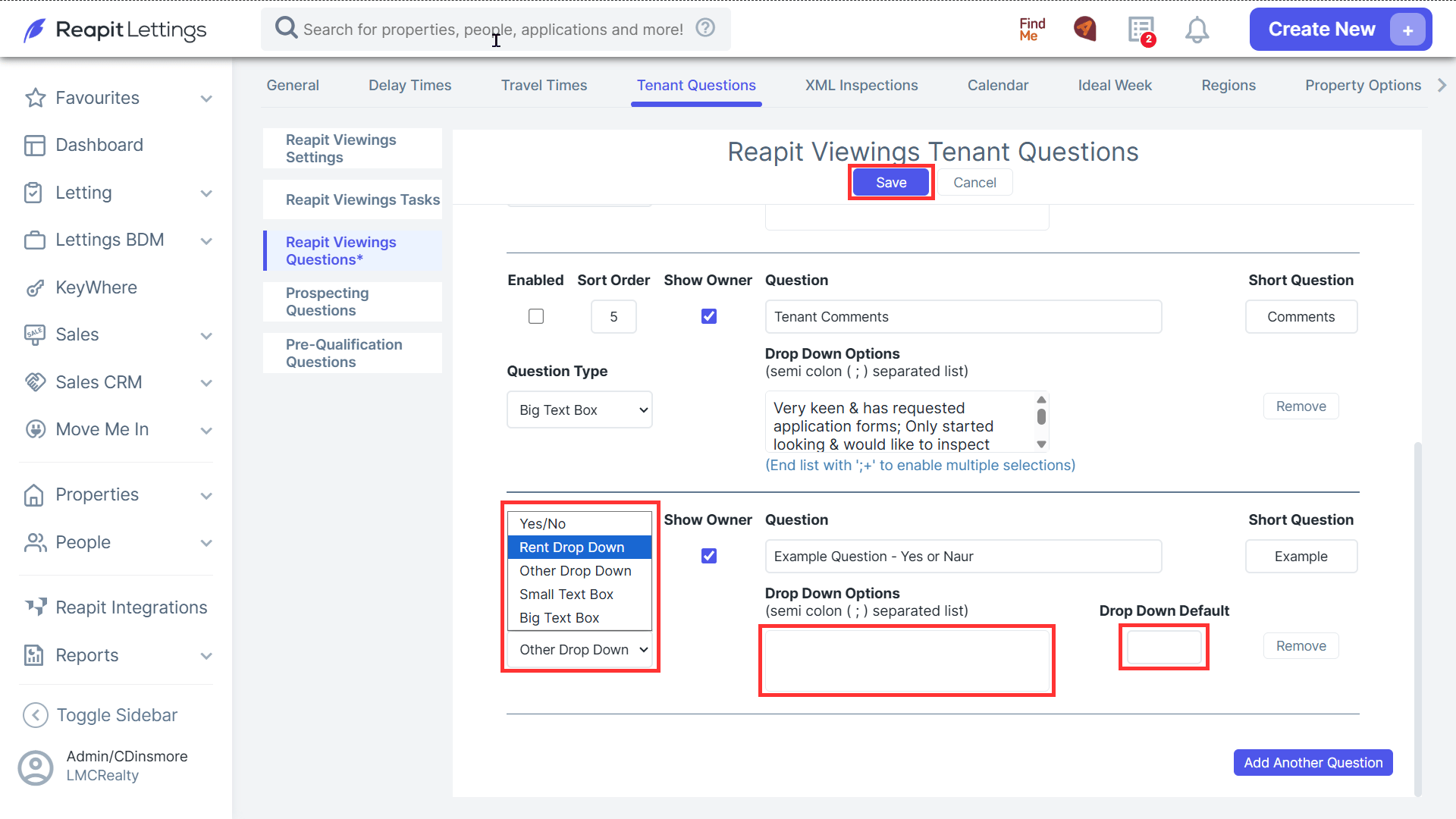
- Navigate to Settings.
- Click Letting.
- Click Tenant Questions.
- Click Reapit Viewing Questions.
- To disable questions that are not currently required, untick the enabled box.
- Click Save.
- Click Remove to delete the question.
- Click OK.