'%20d='M0%208a8%208%200%200%201%208-8h24a8%208%200%200%201%208%208v24a8%208%200%200%201-8%208H8a8%208%200%200%201-8-8V8Z'/%3e%3cpath%20fill='%23fff'%20d='M32.576%206C12.293%206%208.776%2025.887%207.424%2034H9.1c.45-2.977%203.493-14.748%2010.899-20.287%200%200-5.633%206.976-6.572%2015.051%203.426-.652%2013.845-3.372%2016.056-12.927l-3.84-.61c1.352-1.351%204.909-5.17%206.931-9.226V6Z'/%3e%3cdefs%3e%3clinearGradient%20id='reapit-lettings__a'%20x1='20.702'%20x2='20.702'%20y1='.351'%20y2='31.228'%20gradientUnits='userSpaceOnUse'%3e%3cstop%20stop-color='%235573FD'/%3e%3cstop%20offset='.575'%20stop-color='%234E56EA'/%3e%3c/linearGradient%3e%3c/defs%3e%3c/svg%3e)
Properties/Assets: Adding, Viewing, Editing, Deleting
This article will run through how to add, view, edit and delete properties or assets in KeyWhere.
Properties/Assets: Adding, Viewing, Editing, Deleting
This article will run through how to add, view, edit and delete properties or assets in KeyWhere.
The processes in this article include:
- The Properties Tab
- Adding a New Property
- Viewing A Property
- Editing A Property
- Deleting A Property
The Properties Tab
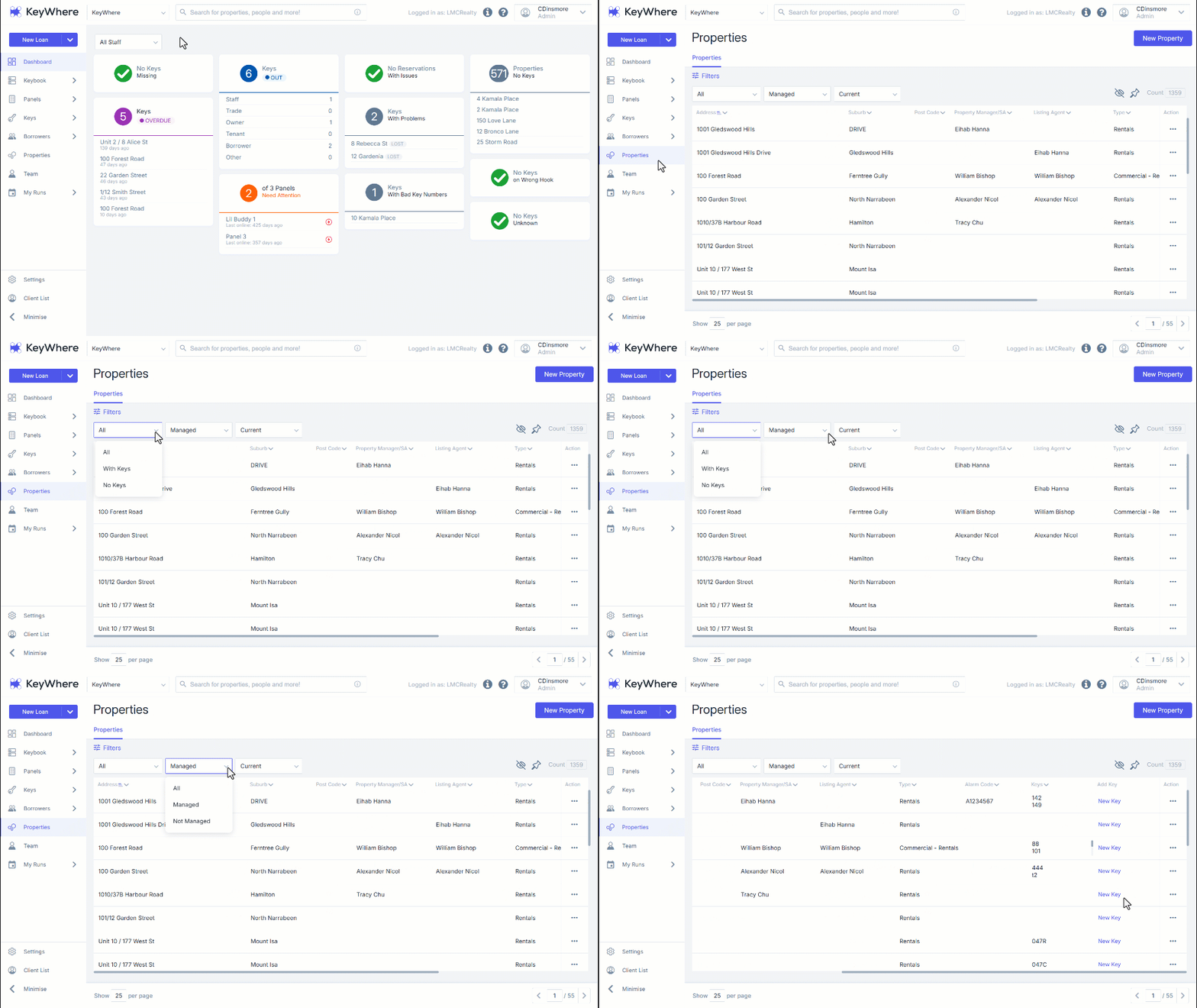
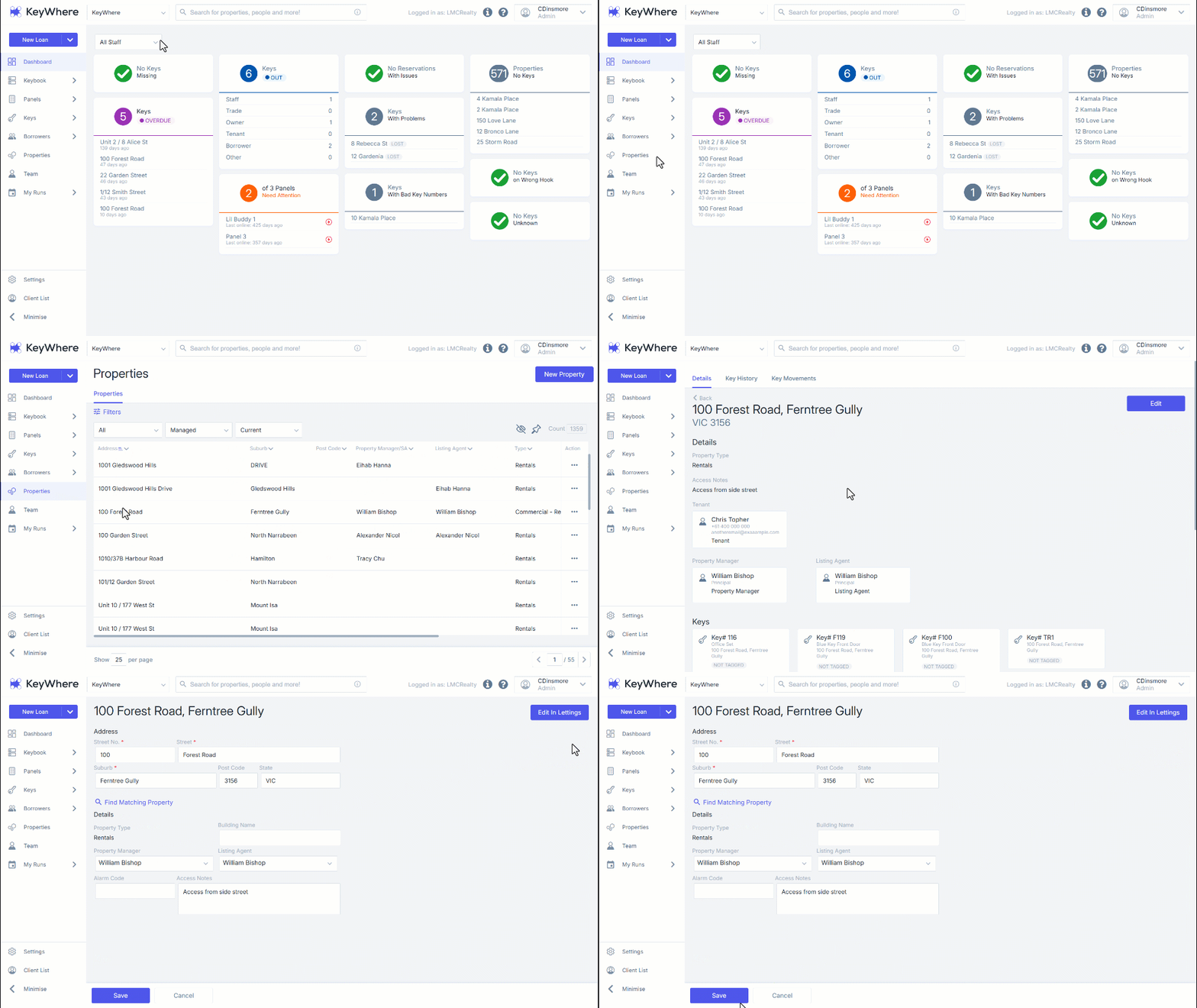
The Properties page of the KeyWhere Web App is used to view and manage properties/assets.
- Using the filter drop-down, the visible properties/assets can be filtered by all properties/assets, with keys and no keys.
- The Properties page contains many property details, including address and the list of all associated keys.
- Scrolling to the right on the Properties page reveals a "New Key" button, which will create a new key for that property.
Adding a New Property
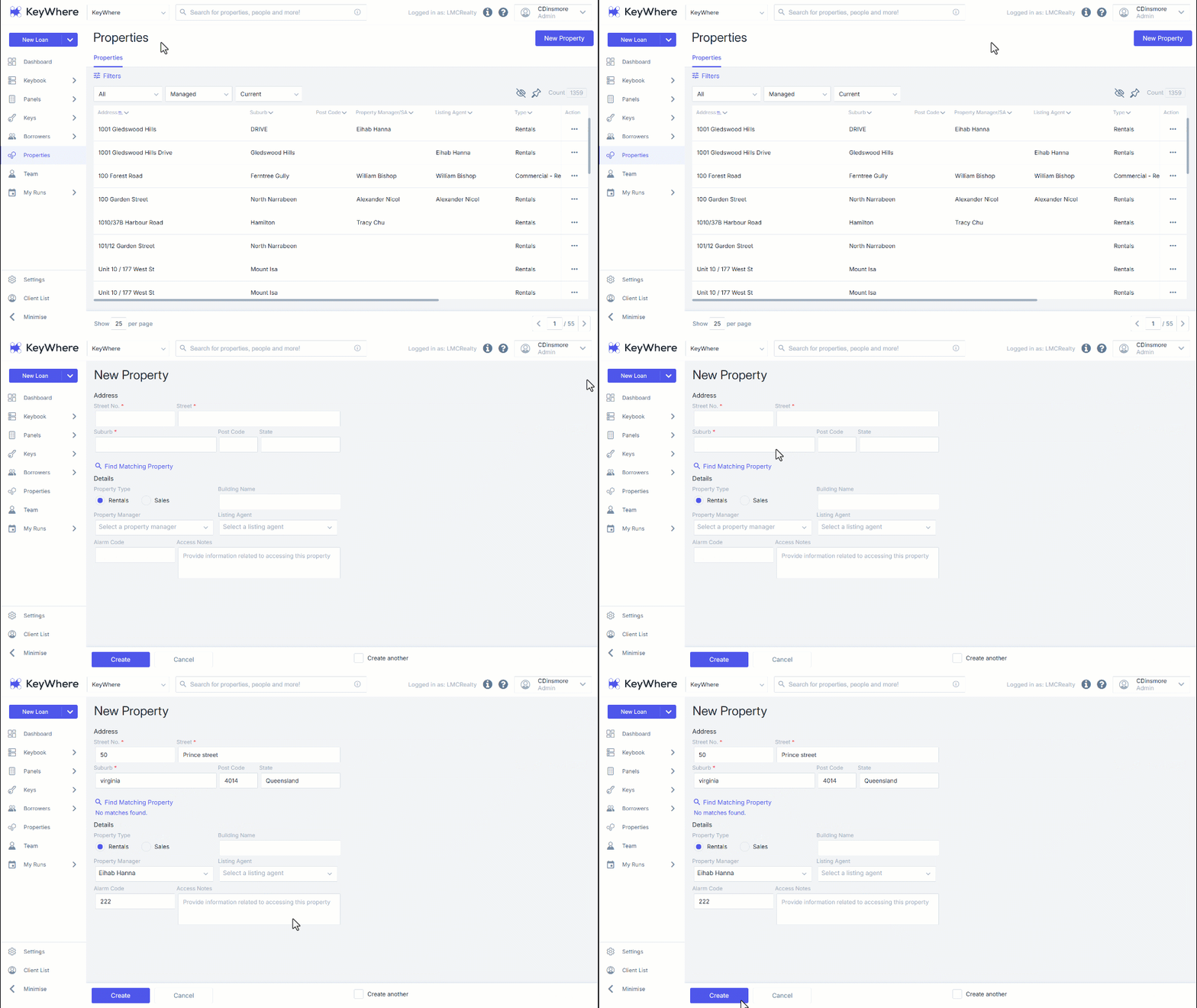
- At the top right-hand corner of the screen, the New Property/Asset button is used to add a new property/asset to KeyWhere.
- If you're unsure whether the property you're creating already exists, once the Street No. Street and Suburb fields have been filled in; you can click "Find Matching Property" to check if any identical properties already exist in the system.
Note: The Building Name field can be used to find addresses quickly that are in the same building when searching for a property.
Having this enabled will mean that clicking "Create" will take you straight back to a blank New Property page, rather than the "Properties" list.
- When the property is ready to be saved, click "Create" in the bottom left of the page.
Note: If you're creating multiple properties in one session, it may be helpful to click the "Create another" checkbox (in the bottom right) before saving.
Viewing A Property
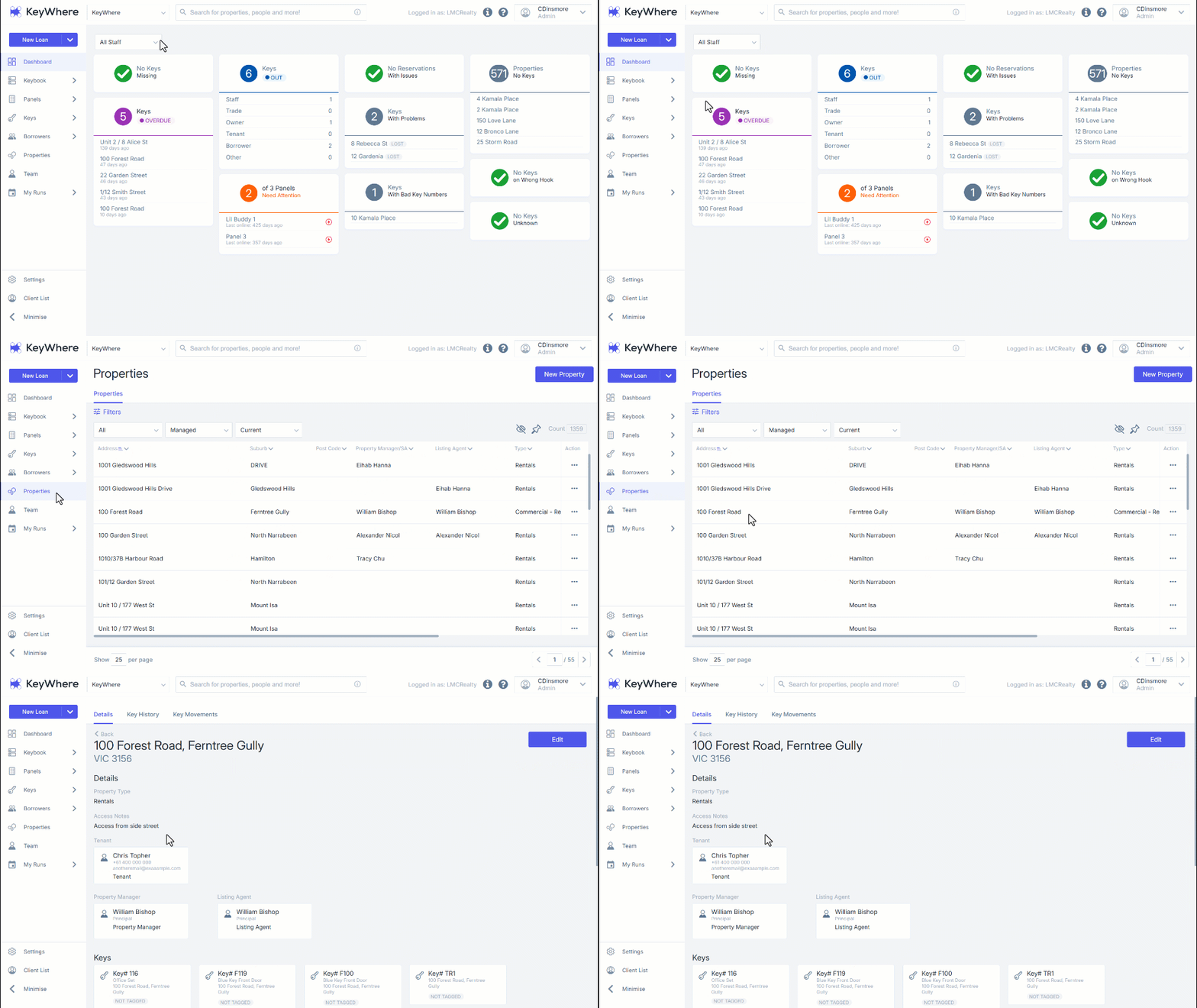
- Clicking on an individual property opens the View Property/Asset page.
- This page displays more detailed information on a specific property/asset, such as the property type (for real estate users), assigned keys and property manager (real estate)/asset authority (generic).
Editing A Property
- To edit a property, navigate to the property you would like to edit. Click on the property to bring you to the viewing page. Then select the edit button in the top right-hand side of the page.
Note: When editing a property you cannot change the property type. If you would like that address to have a new property type, simply create a new property with the same address.
From this page you can make changes to the property. Note that changing the alarm code for the property will also change it for every key associated with the property, and the alarm code will appear on screen when loaning a key associated with the property. Once you have made the changes, press save at the bottom of the page.
For real estate users with other IRE products, you can also edit a property in IRE. This allows you to make more advanced changes. To do this, first go to edit a property in KeyWhere by using the steps above. Then, on the edit page on the top right side, click Edit in Lettings.
You will be redirected to log in to your Reapit Lettings account (if you aren't already). Using your details, please log in. You will then automatically be redirected to the property you would like to edit. You can make any changes necessary and then click Save.
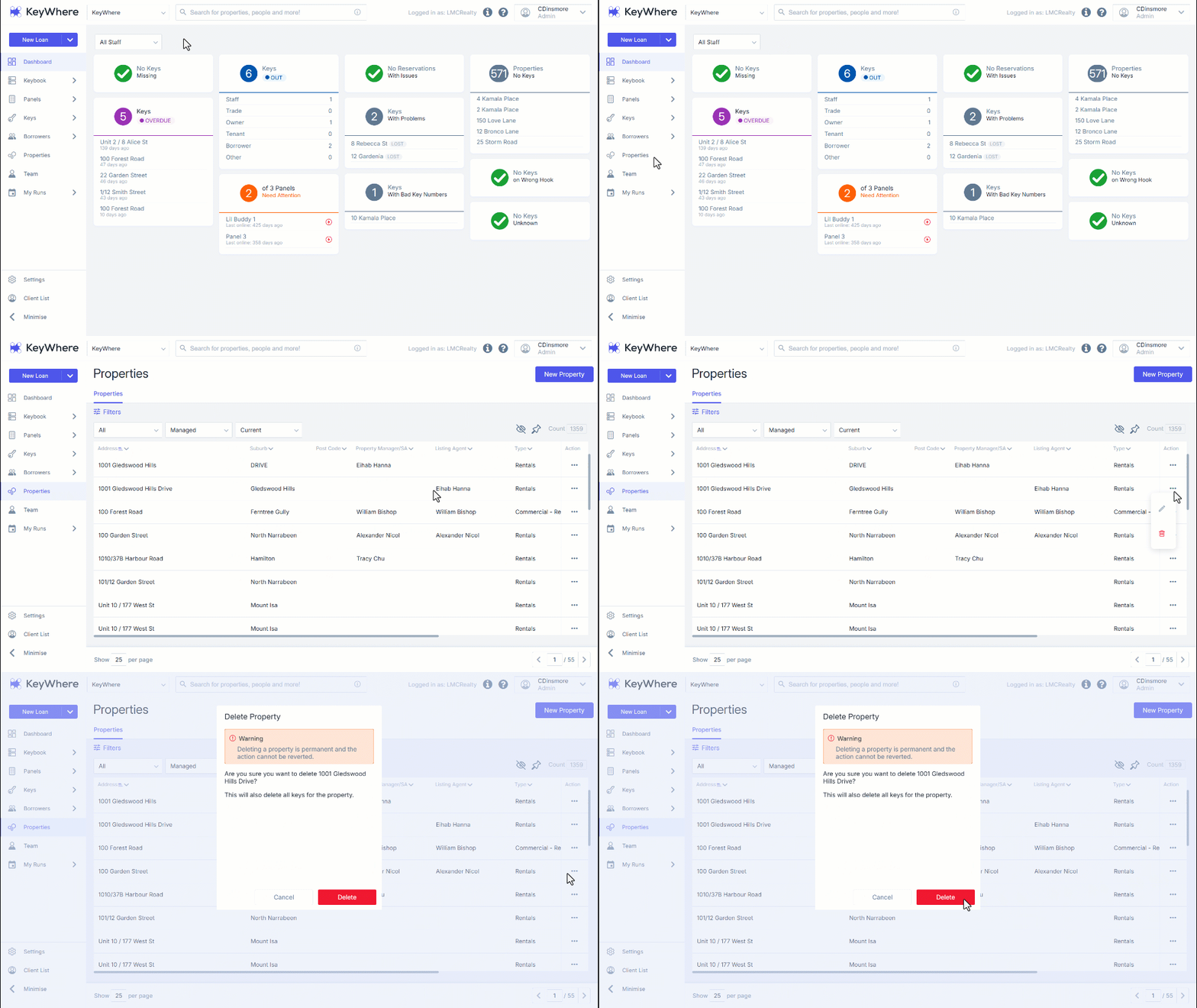
Deleting A Property
- To delete a property, navigate to the properties page and find the property you would like to remove.
- Click the three dots.
- Click the bin icon.
- You will be shown a warning where you will be asked to confirm the address that you would like to delete the property.
Note: this will also delete keys for the property and untag any that might be tagged.
- Click Delete to confirm deletion.