'%20d='M0%208a8%208%200%200%201%208-8h24a8%208%200%200%201%208%208v24a8%208%200%200%201-8%208H8a8%208%200%200%201-8-8V8Z'/%3e%3cpath%20fill='%23fff'%20d='M32.576%206C12.293%206%208.776%2025.887%207.424%2034H9.1c.45-2.977%203.493-14.748%2010.899-20.287%200%200-5.633%206.976-6.572%2015.051%203.426-.652%2013.845-3.372%2016.056-12.927l-3.84-.61c1.352-1.351%204.909-5.17%206.931-9.226V6Z'/%3e%3cdefs%3e%3clinearGradient%20id='reapit-lettings__a'%20x1='20.702'%20x2='20.702'%20y1='.351'%20y2='31.228'%20gradientUnits='userSpaceOnUse'%3e%3cstop%20stop-color='%235573FD'/%3e%3cstop%20offset='.575'%20stop-color='%234E56EA'/%3e%3c/linearGradient%3e%3c/defs%3e%3c/svg%3e)
How to Use the Run Wizard
This article will run through how to use the run wizard in Reapit Lettings - Sales.
The Run Wizard can be used to set up an Inspection Run (multiple inspections on the same day).
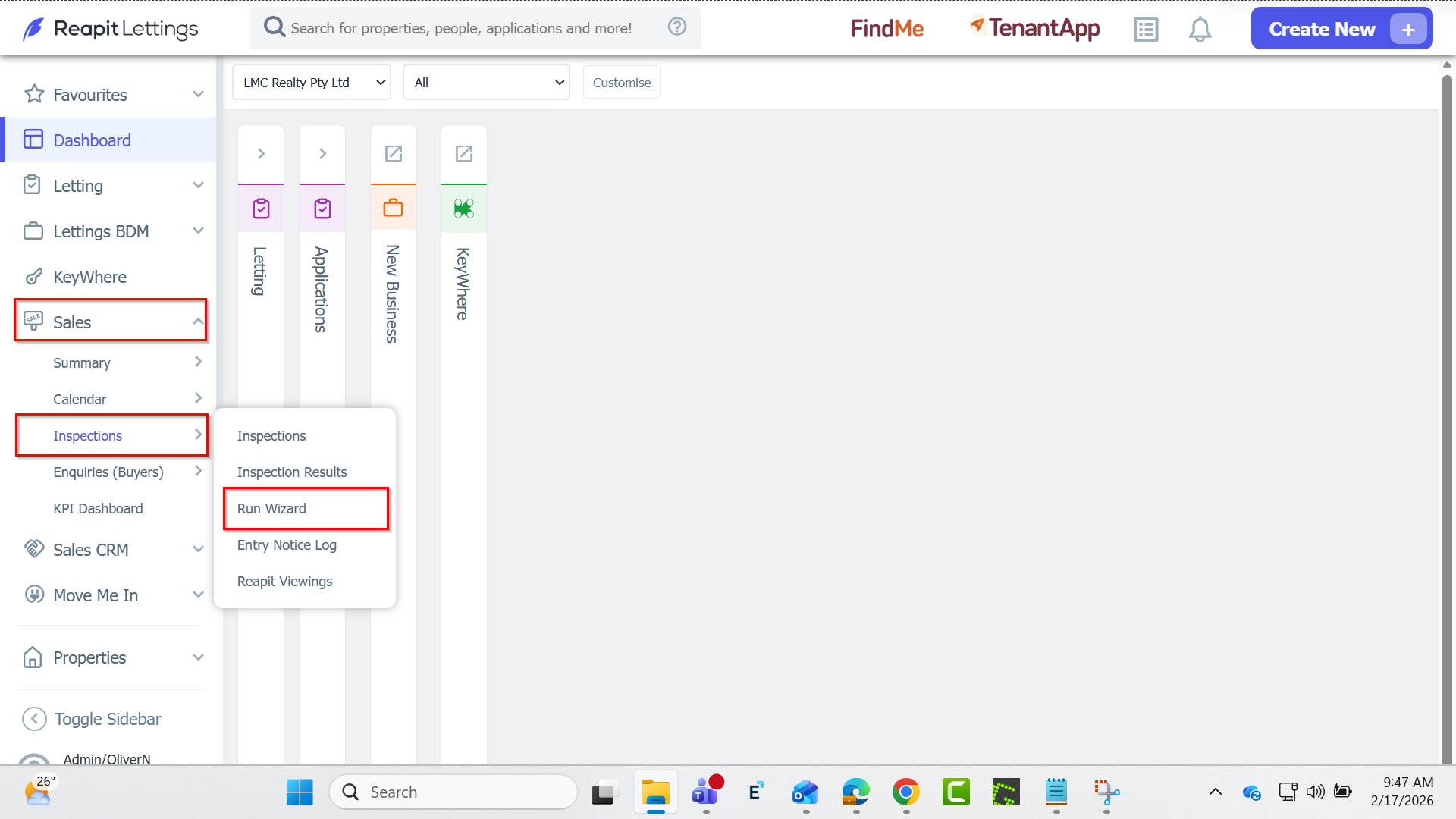
1. To access the Run Wizard. Navigate to Sales > Inspections > Run Wizard.
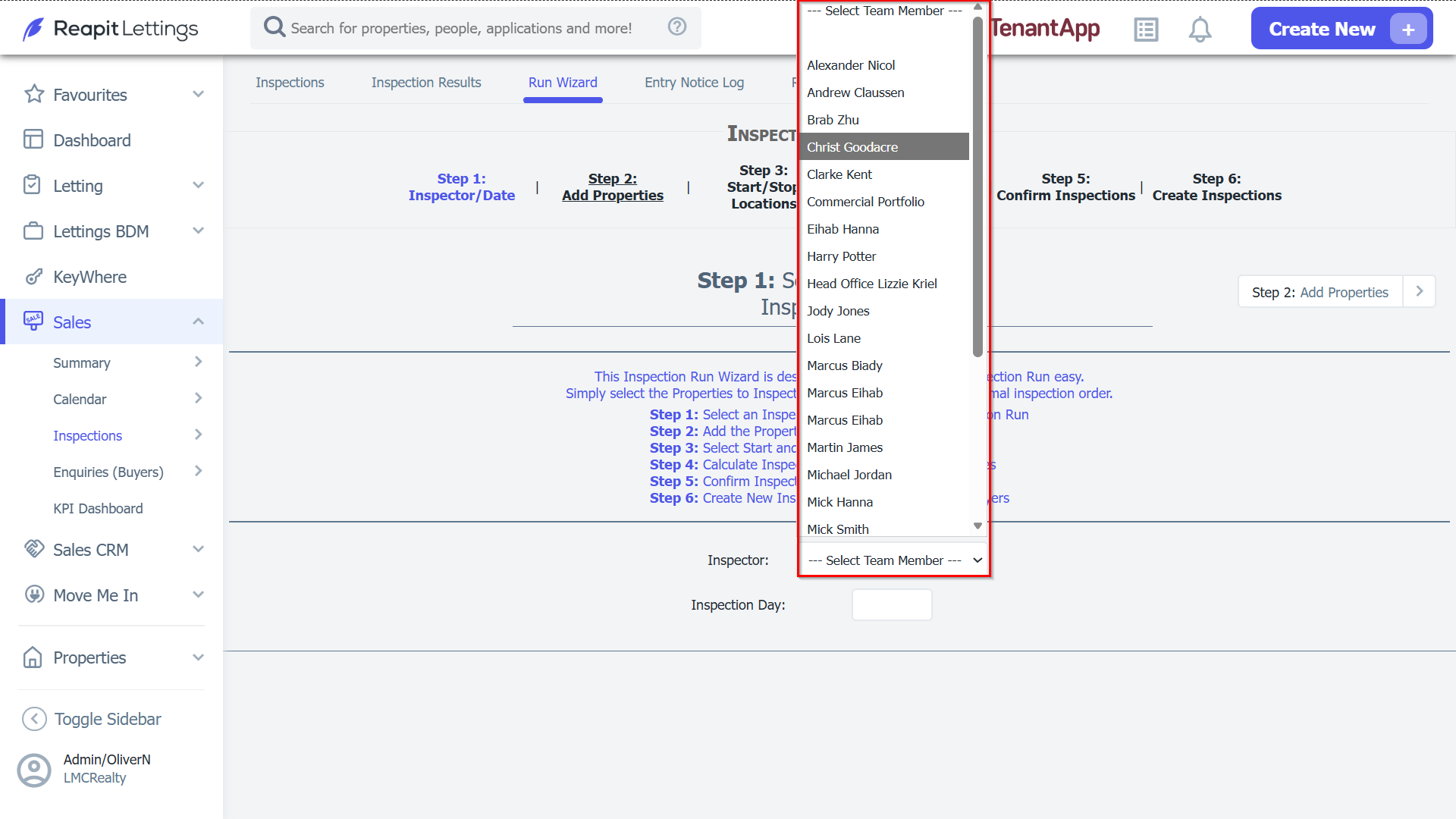
2. Select Inspector & Inspection Date.
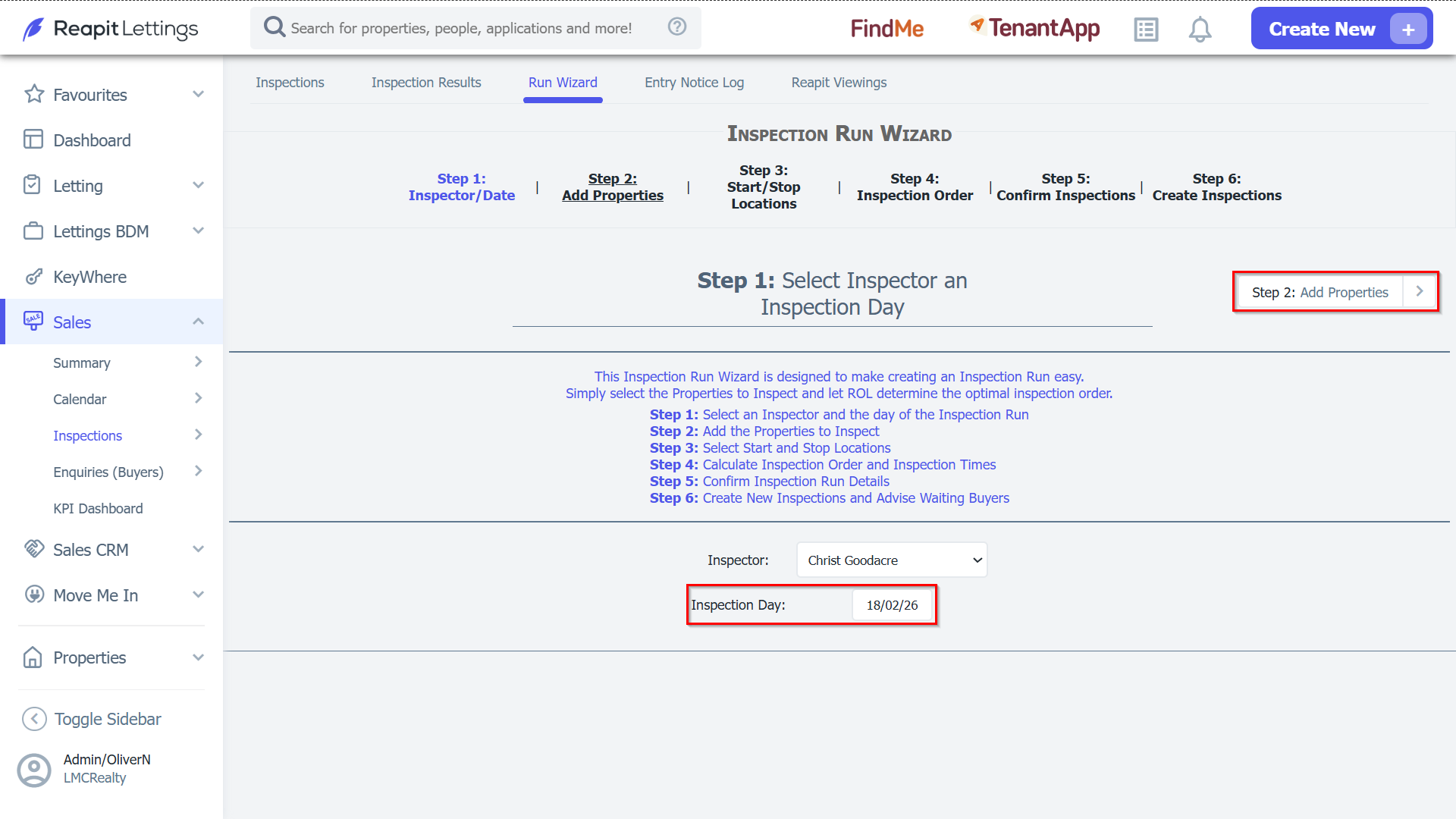
- Choose an inspector from the drop-down list, choose a date, and then press the arrow to continue.
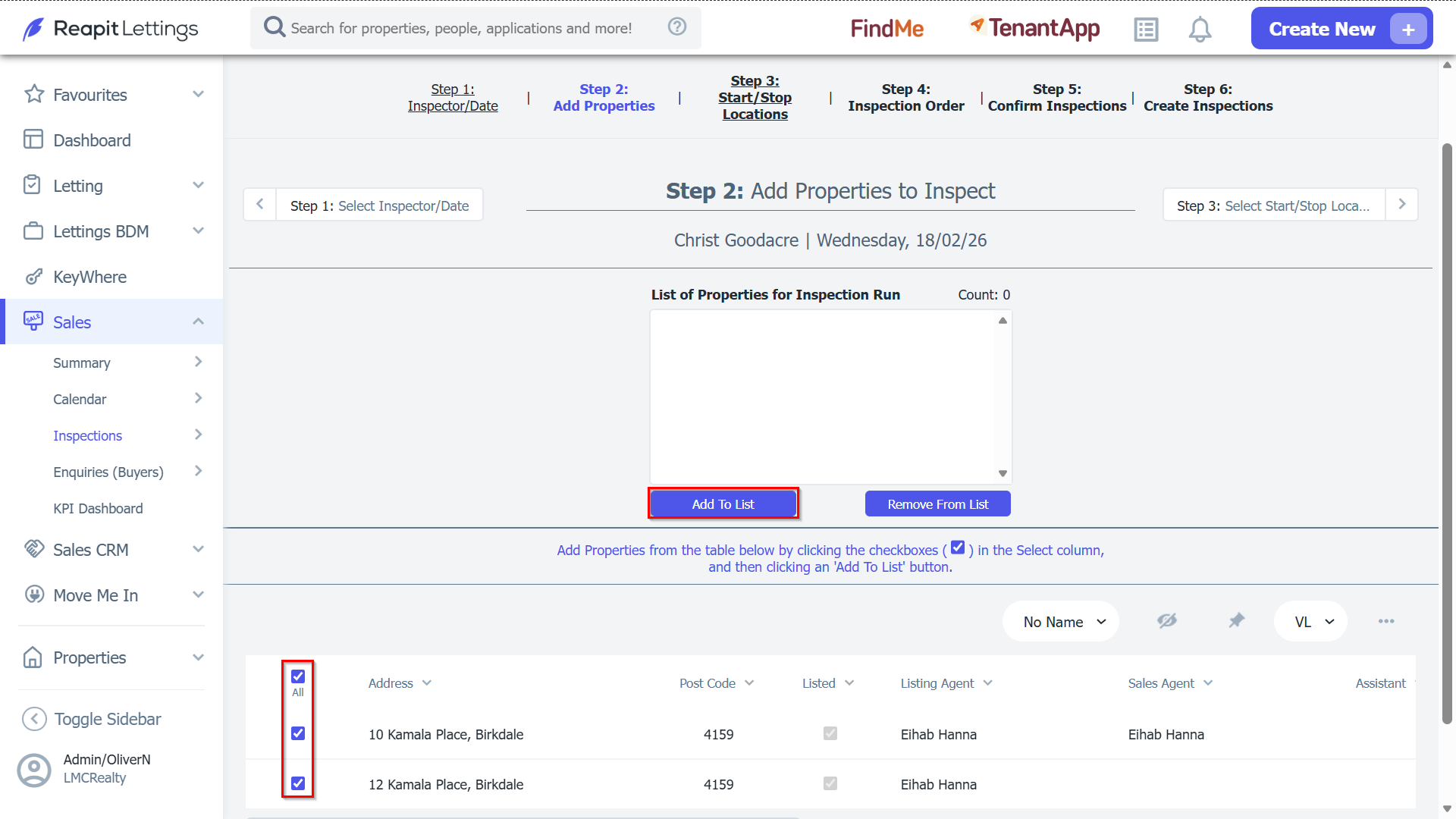
3. Select Properties to Inspect
- Scroll down and select the properties you want to inspect and then click Add to List.
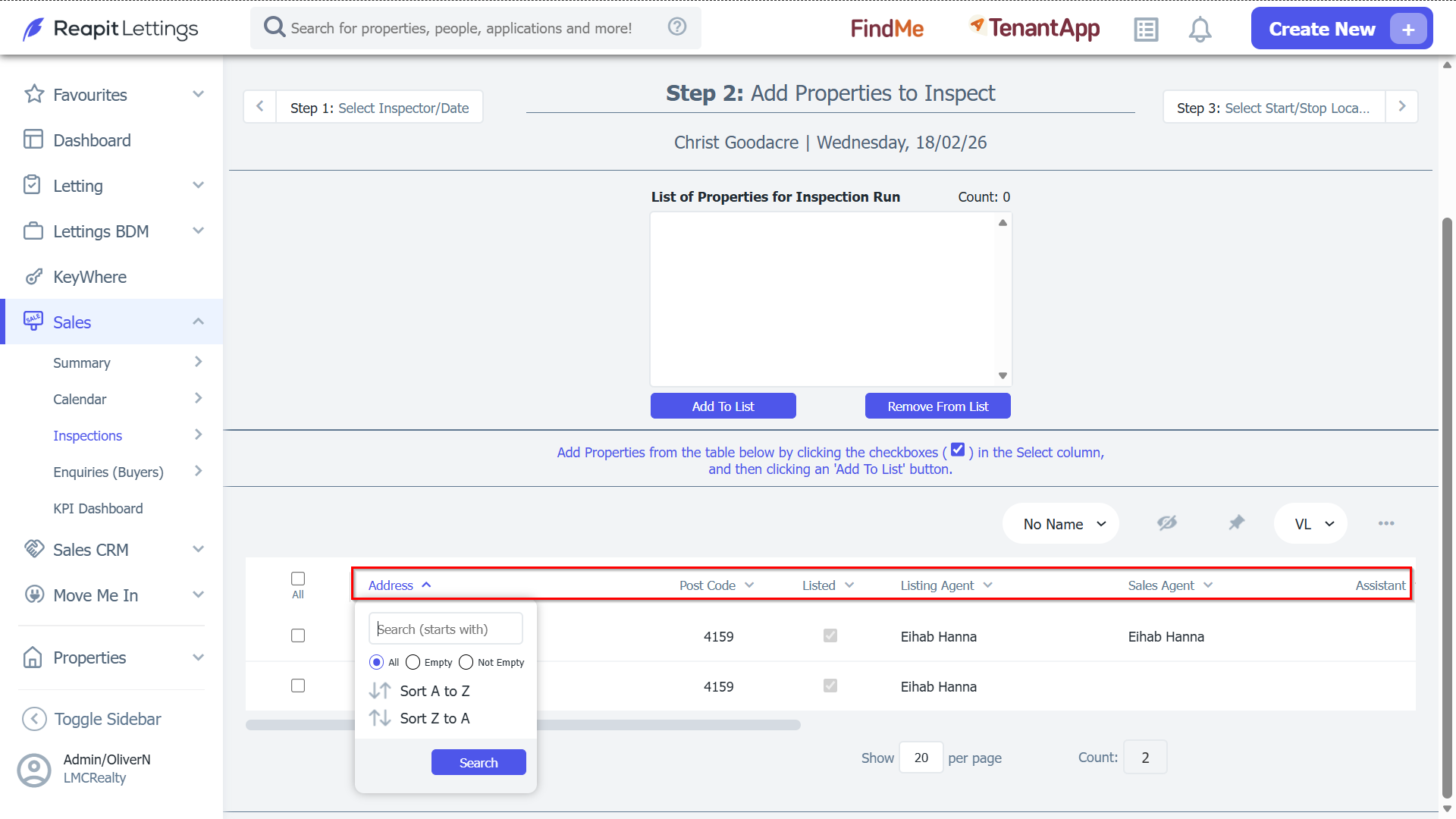
4. You can use the gray search bar to find properties you wish to add.
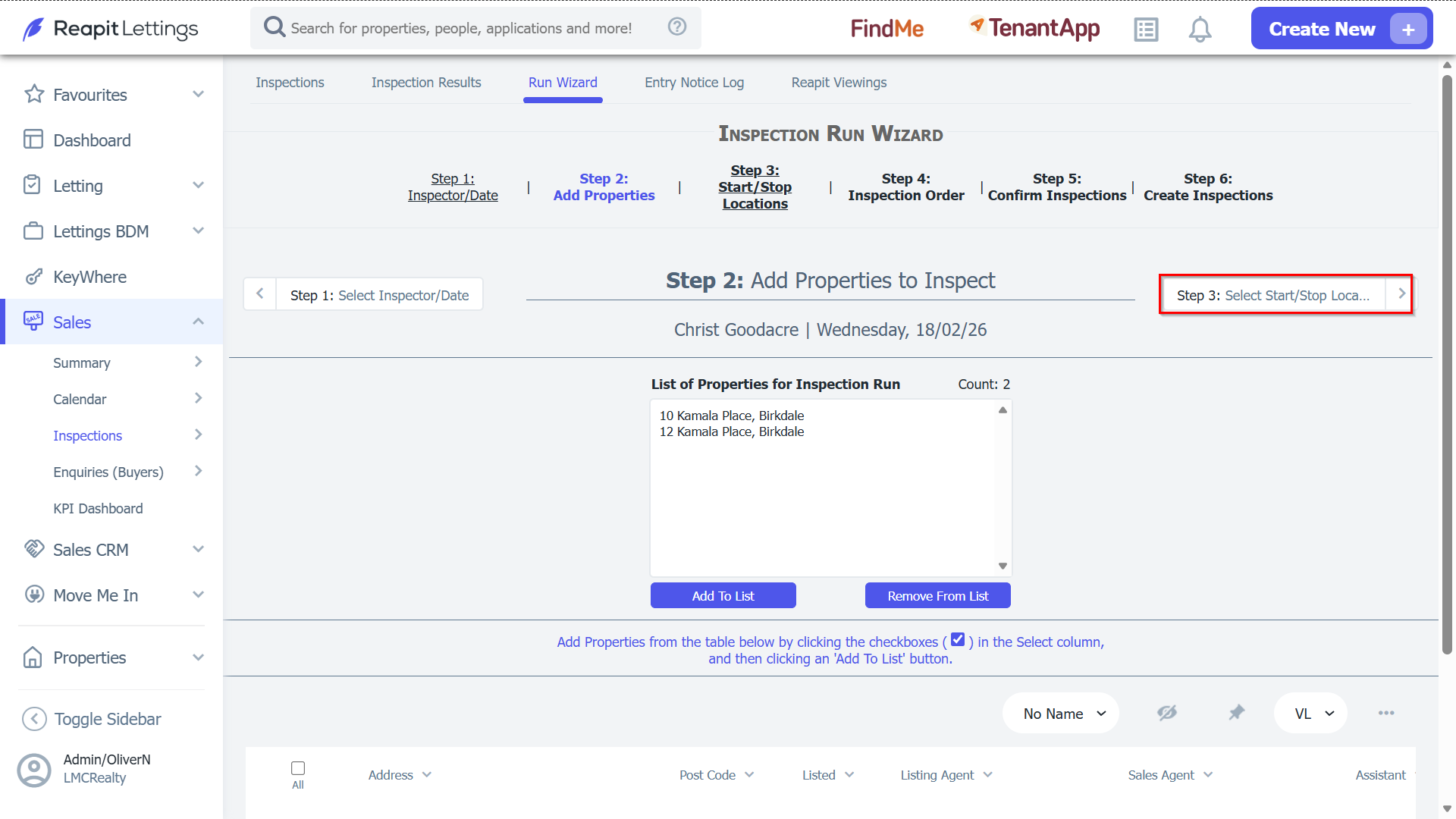
5. Once you have added all the properties, click on the arrow to continue.
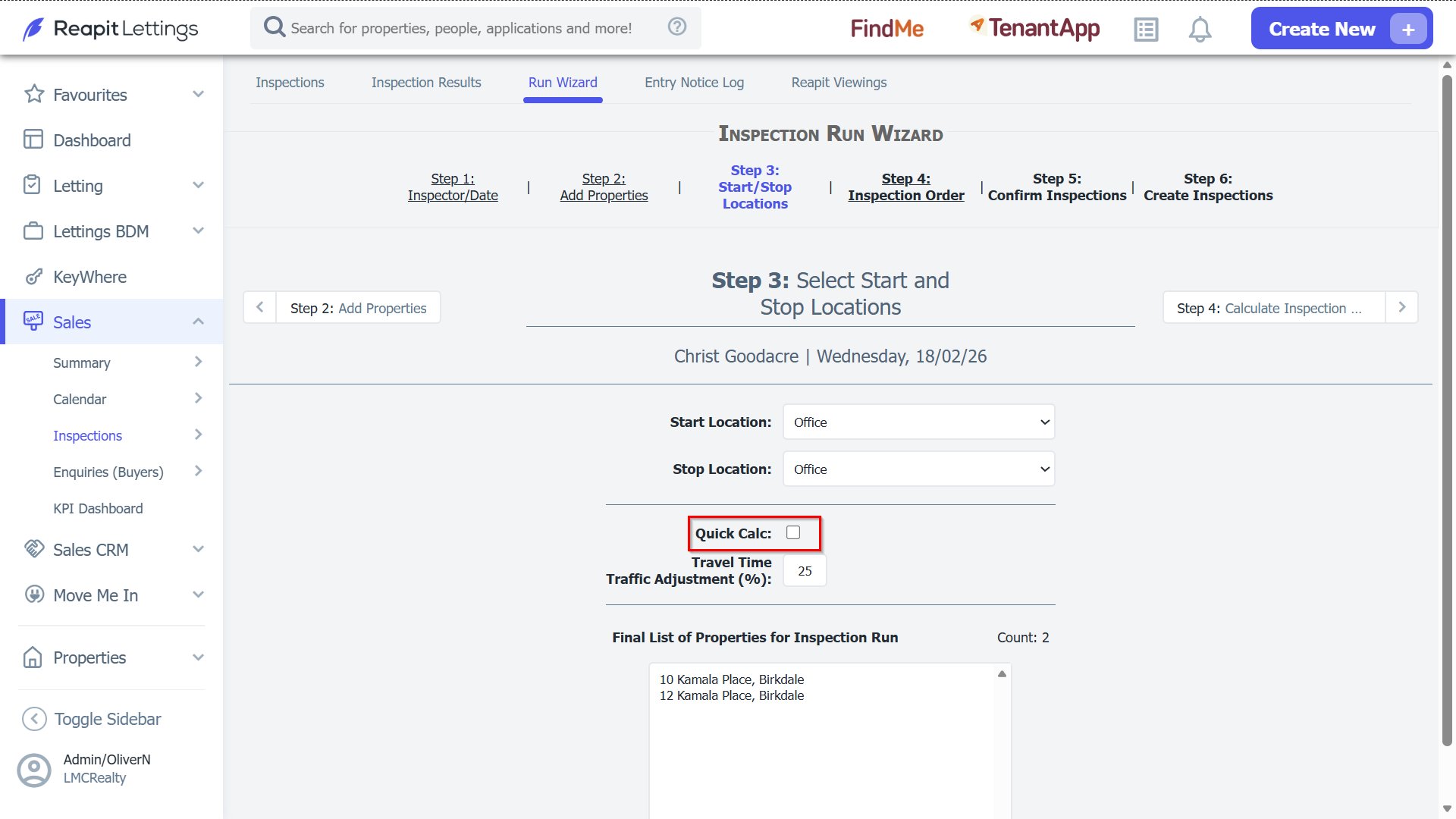
6. Select Where the Run will Start/Stop
- You can choose to Start/Stop your run at the office, or at any property in your inspection run.
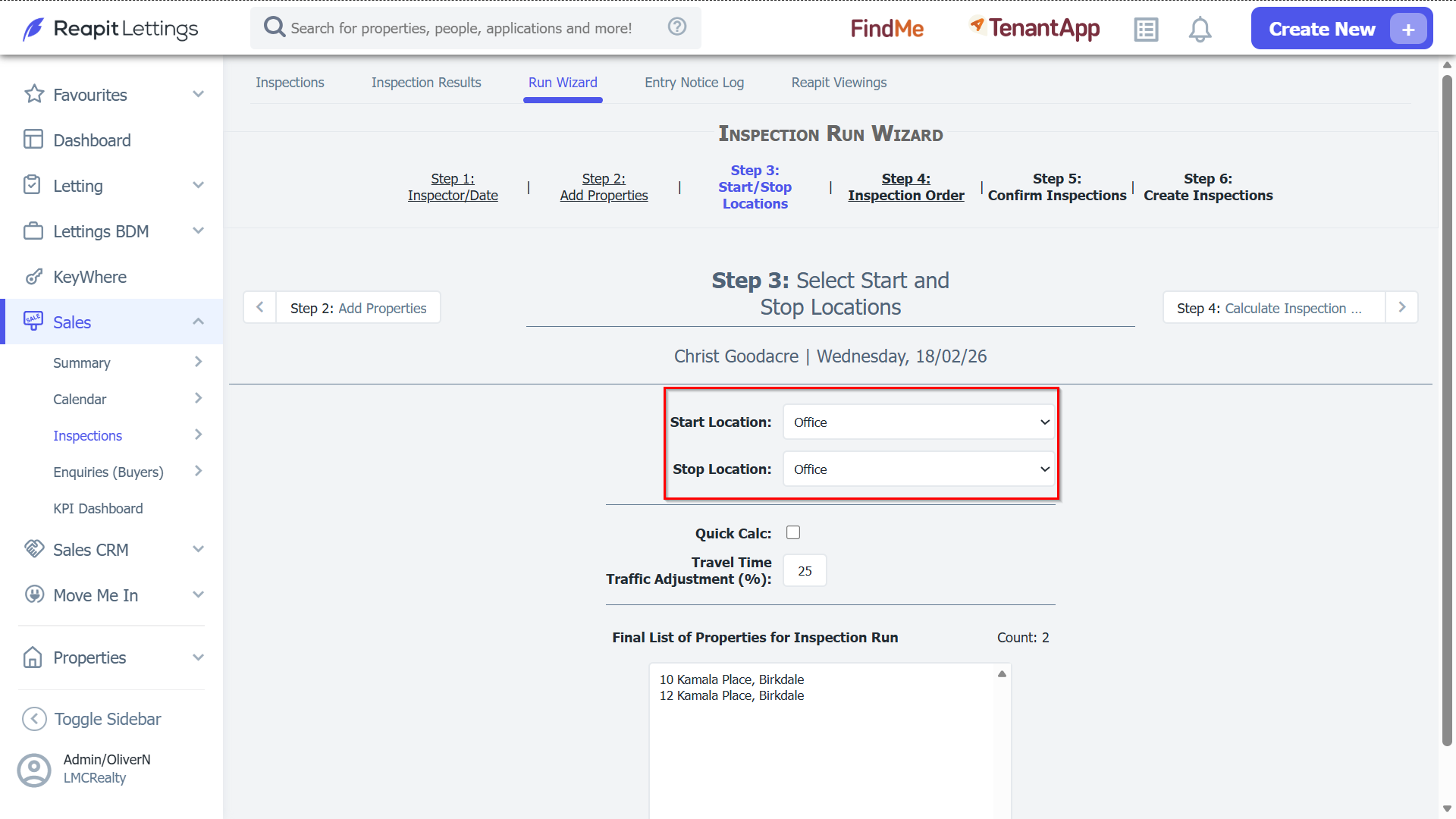
The Quick Calc Checkbox
- If you do not want the system to calculate the quickest route for you, tick the Quick Calc checkbox. Otherwise, leave it un-ticked (when un-ticked the system will calculate the Quickest Route for you).
- Once you have selected the Start/Stop locations, click on the arrow to continue.
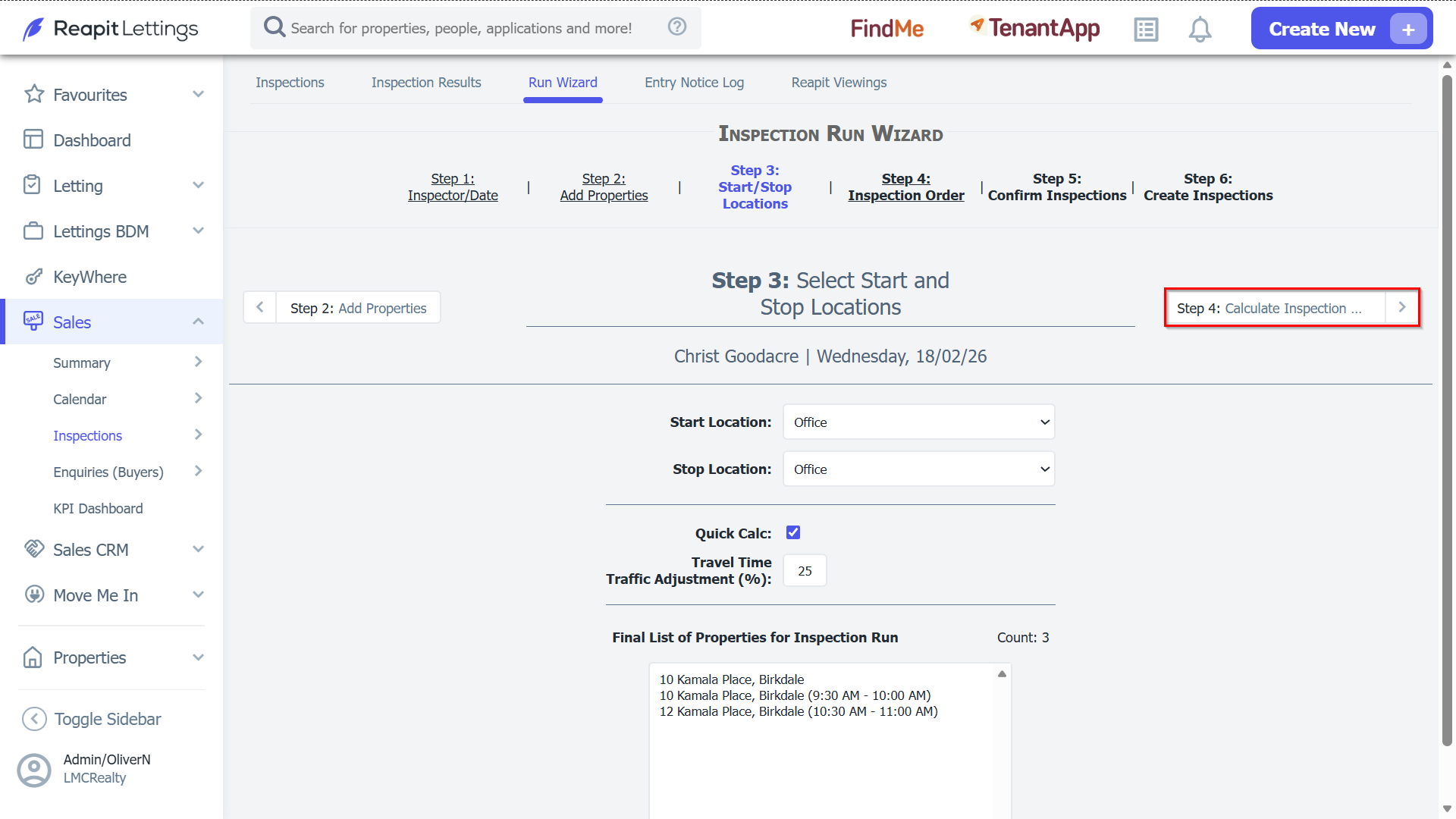
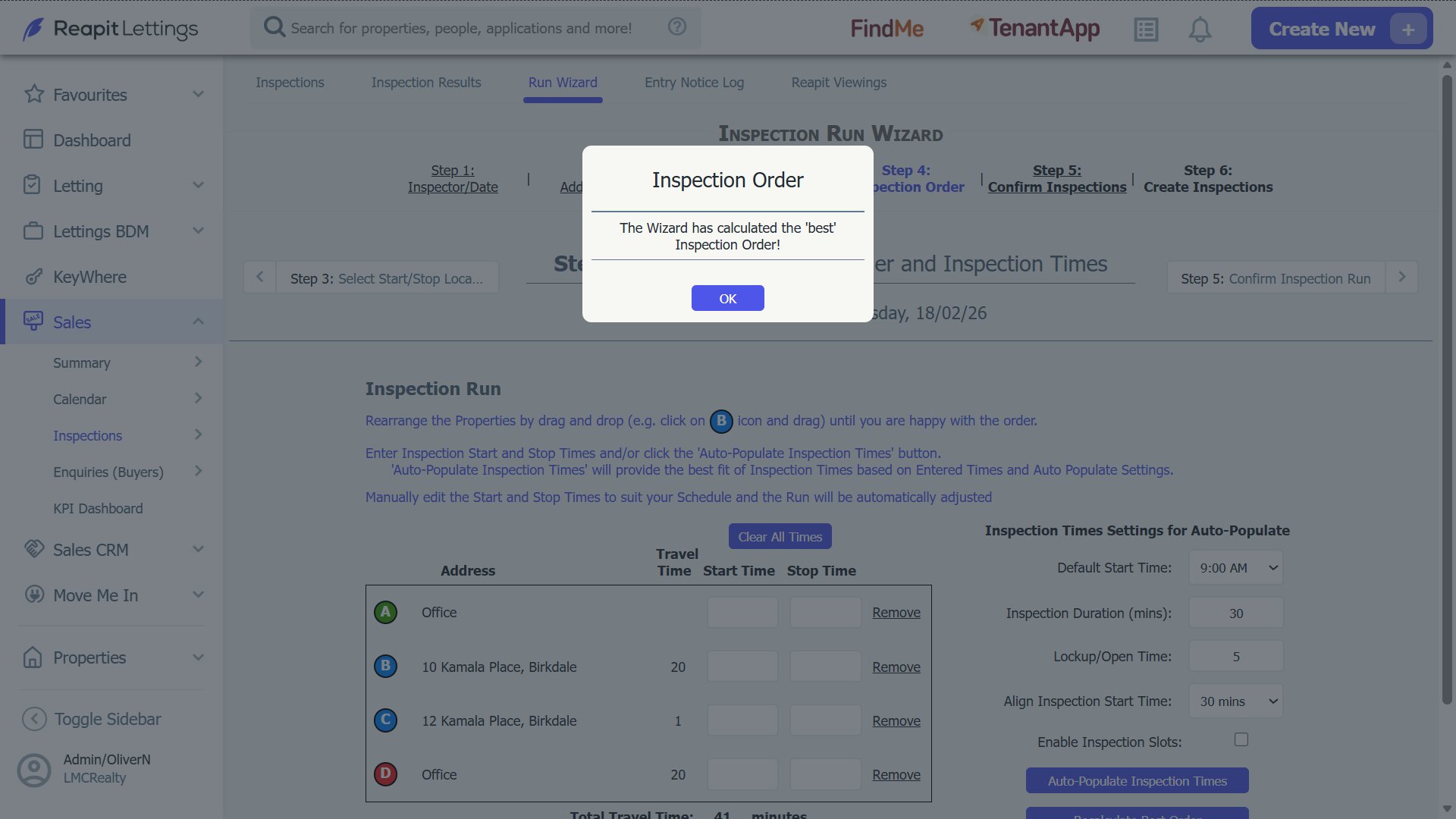
7. Assign Inspection Times
- The system will calculate the quickest way to travel between the properties you selected.
8. You can re-arrange properties by dragging and dropping the letter of the property into the order you want.
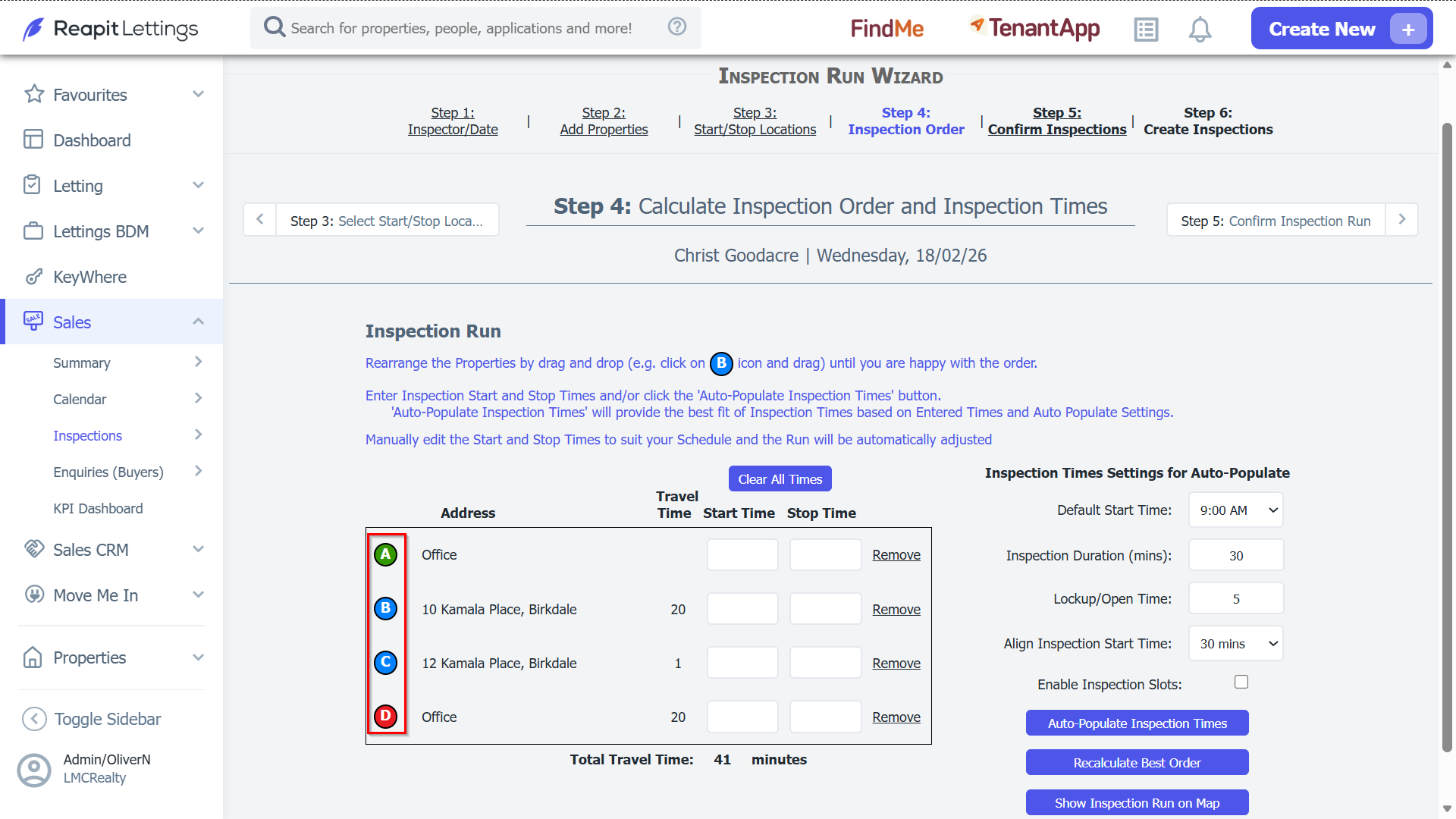
9. Set the Default Start Time, Duration and Alignment, then press Auto Populate Inspection Times.
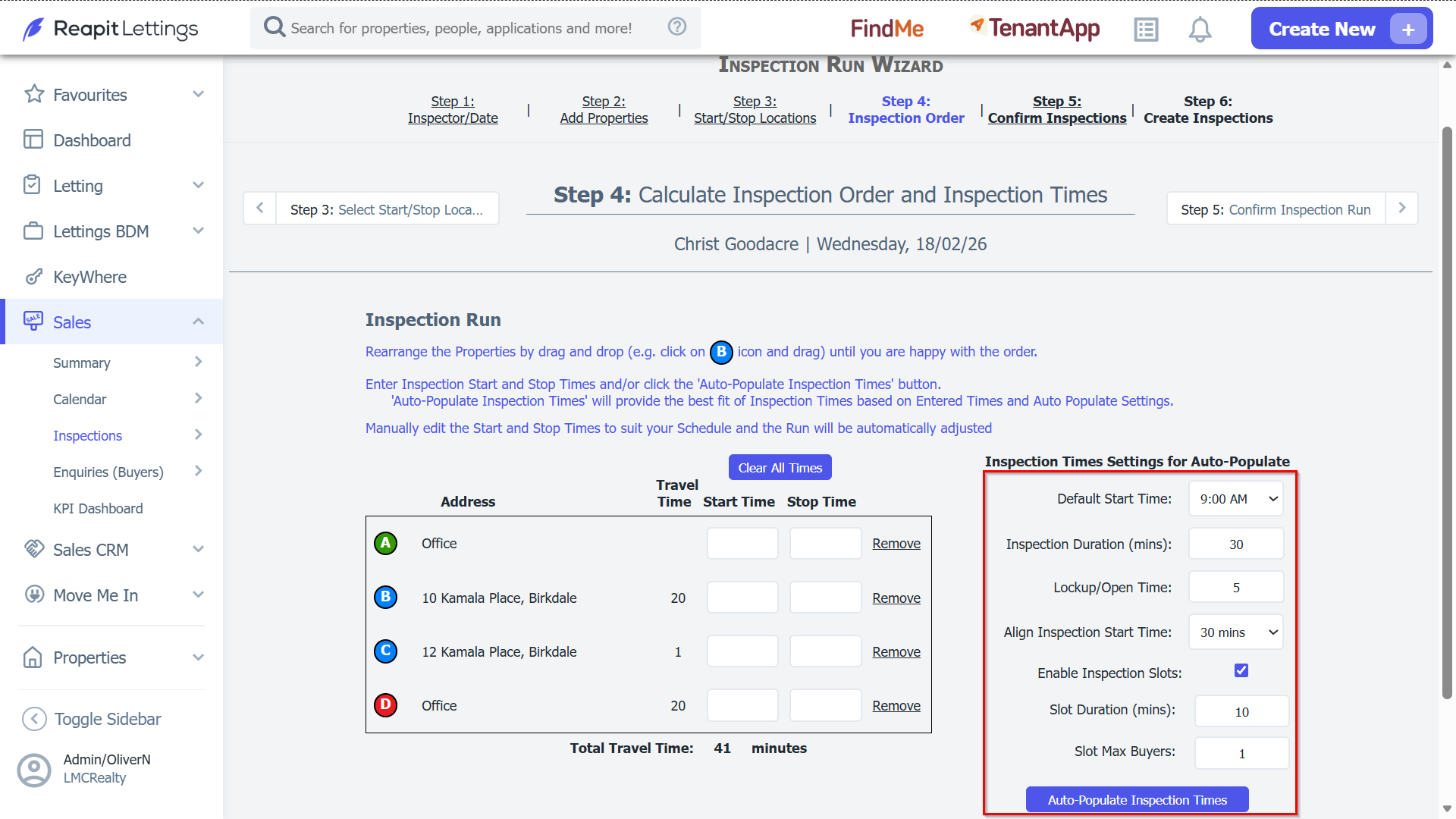
- If you want to change the start time for an inspection in the, adjust a time, then press Auto Populate again. All times after that point will be re-adjusted.
Confirm Your Run Setup
- You will be shown a calendar with the inspections you have created. If you are happy with how these have been arranged, press the right arrow to continue.
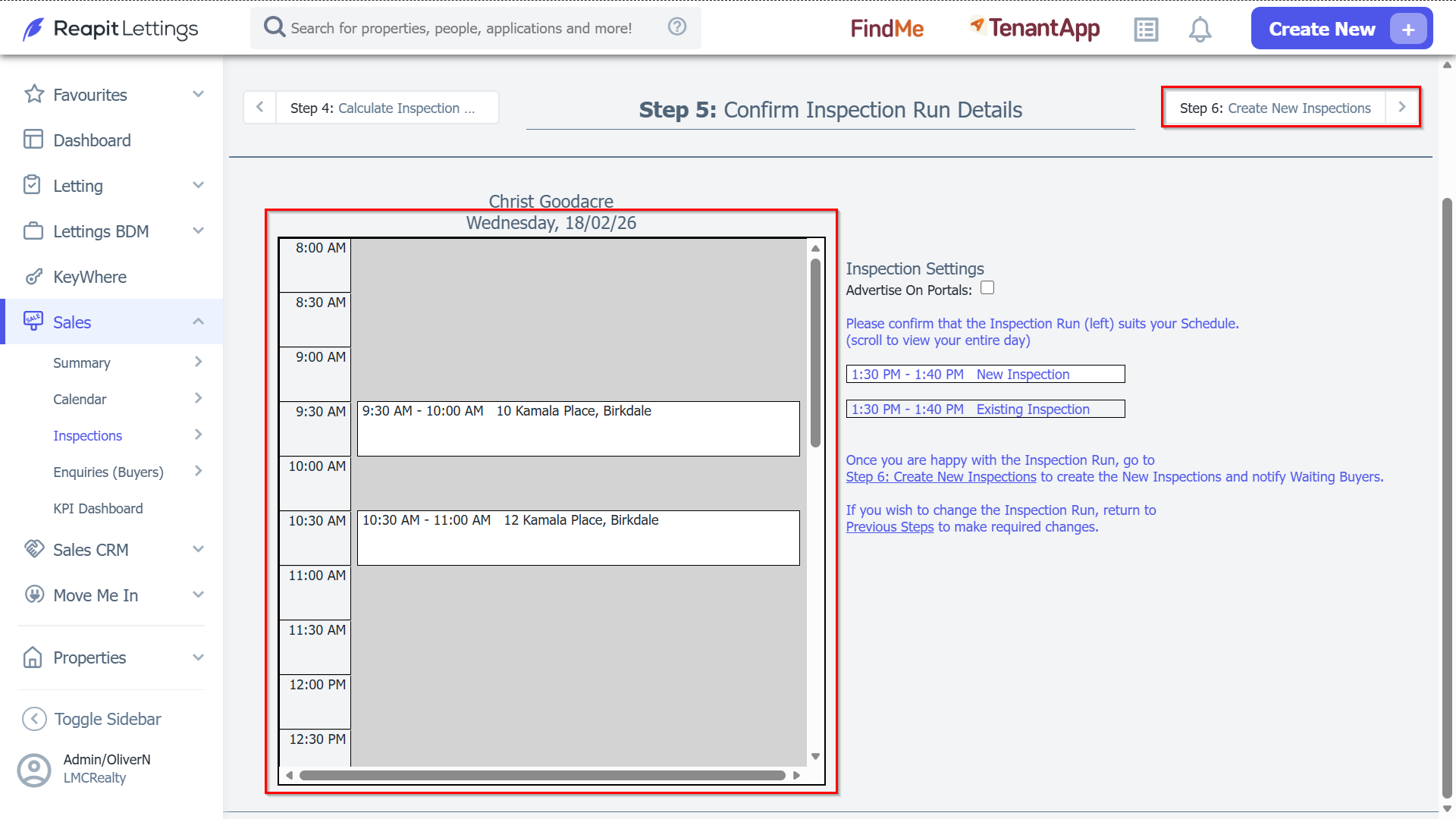
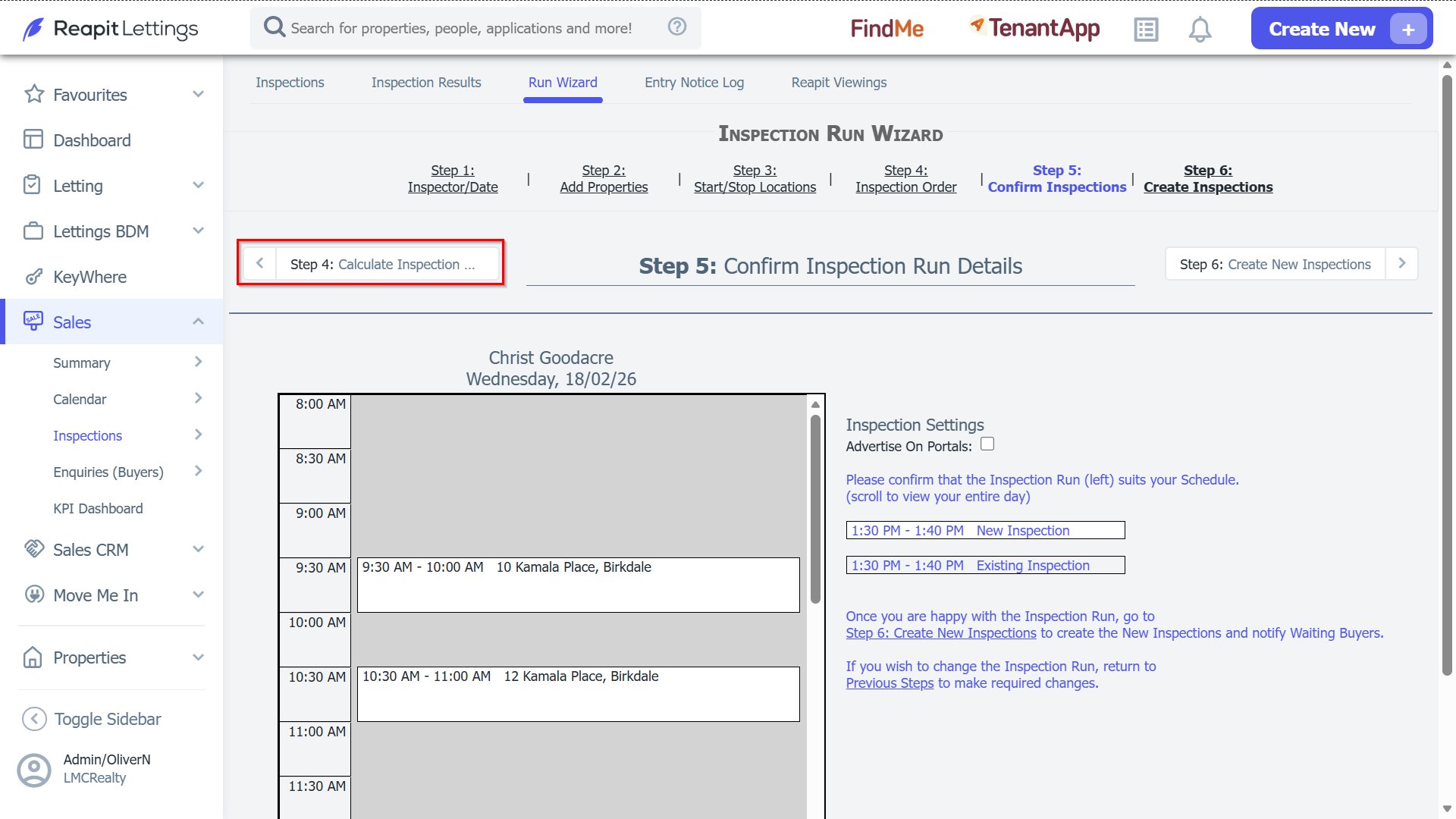
- If you wish to change the Inspection Run, return to the previous Steps to make the required changes.
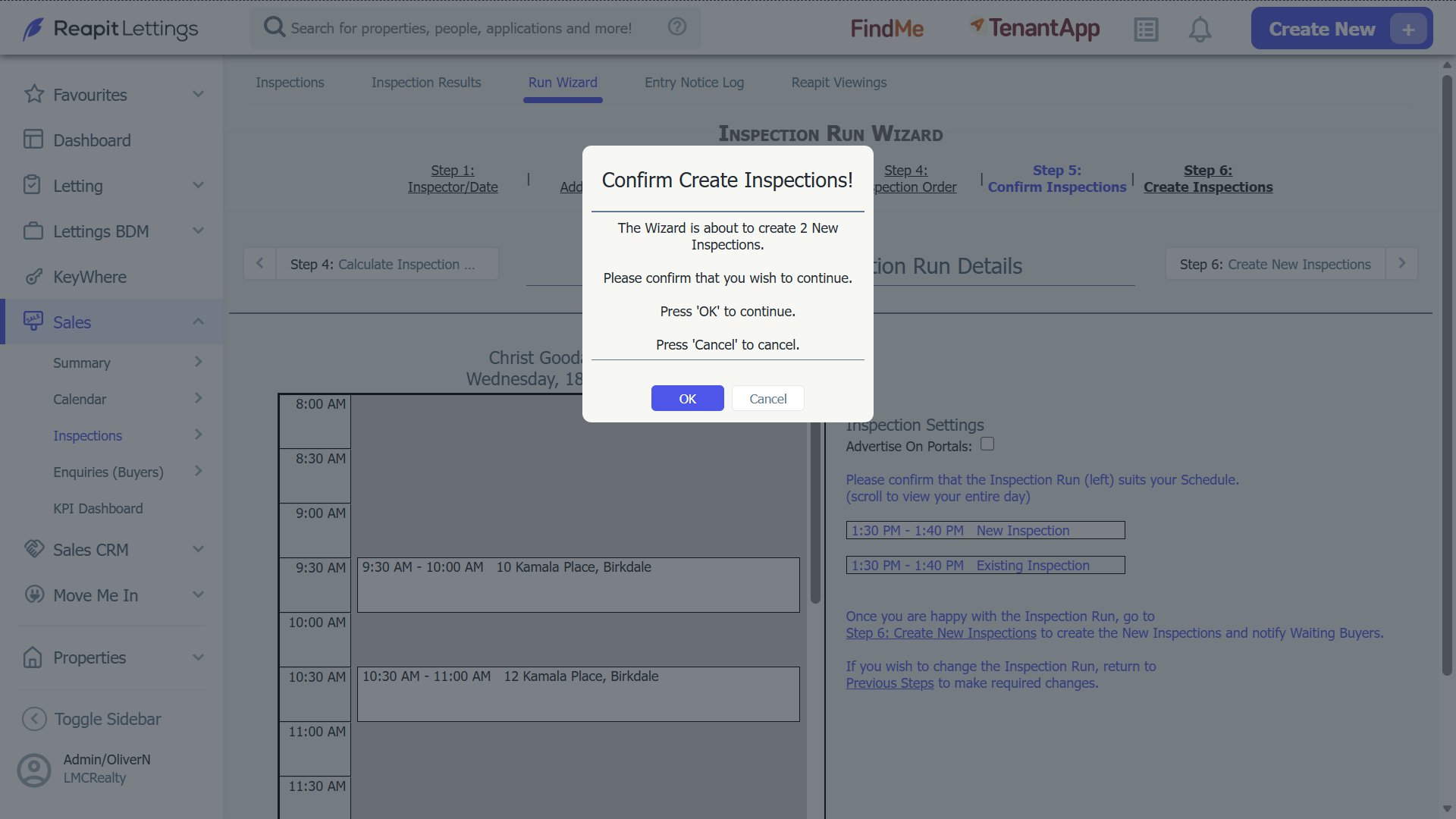
Create the Inspections
- You will be asked to confirm.
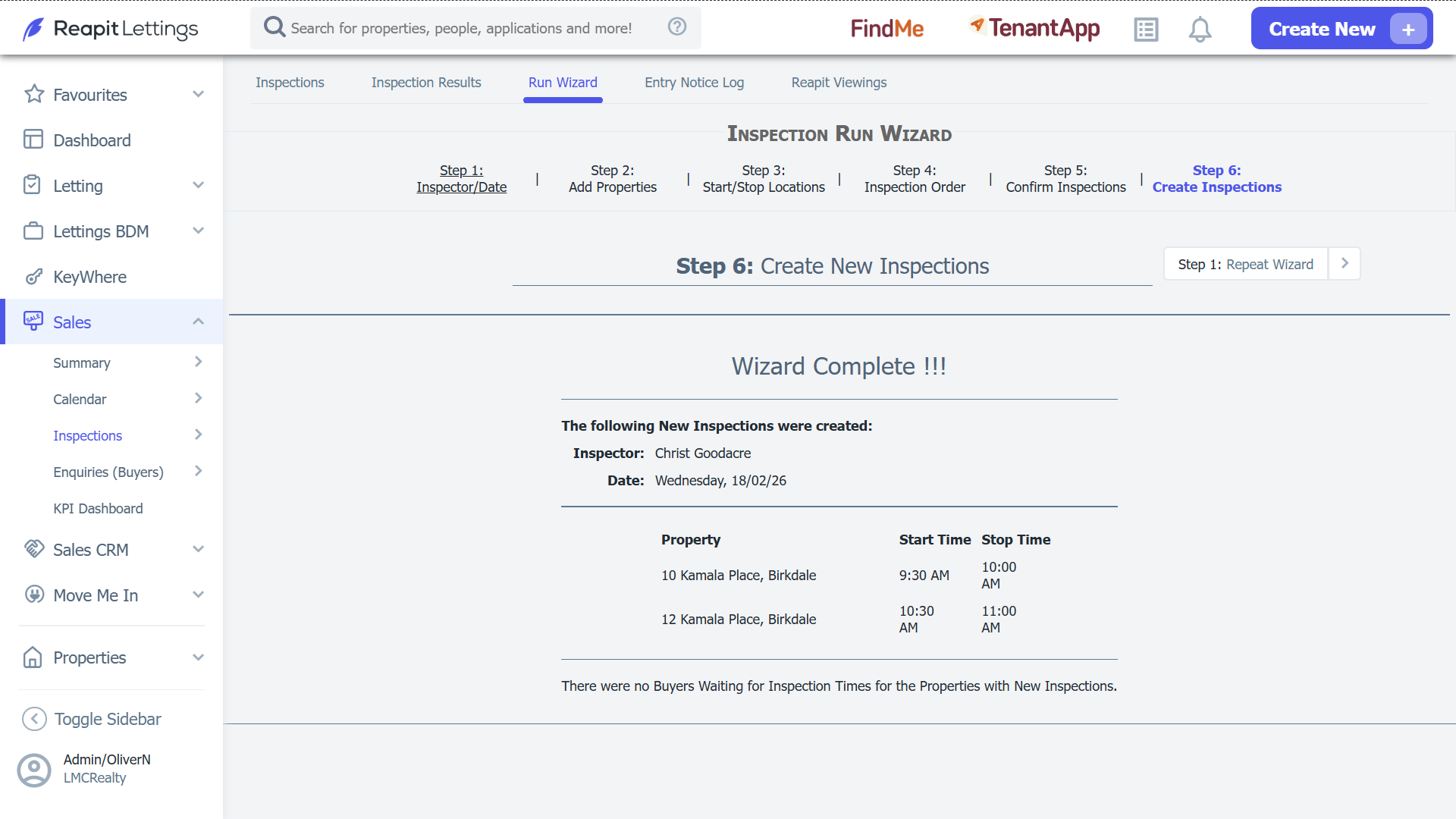
- Once you have confirmed, you will see a summary of the inspections you have created.