'%20d='M0%208a8%208%200%200%201%208-8h24a8%208%200%200%201%208%208v24a8%208%200%200%201-8%208H8a8%208%200%200%201-8-8V8Z'/%3e%3cpath%20fill='%23fff'%20d='M32.576%206C12.293%206%208.776%2025.887%207.424%2034H9.1c.45-2.977%203.493-14.748%2010.899-20.287%200%200-5.633%206.976-6.572%2015.051%203.426-.652%2013.845-3.372%2016.056-12.927l-3.84-.61c1.352-1.351%204.909-5.17%206.931-9.226V6Z'/%3e%3cdefs%3e%3clinearGradient%20id='reapit-lettings__a'%20x1='20.702'%20x2='20.702'%20y1='.351'%20y2='31.228'%20gradientUnits='userSpaceOnUse'%3e%3cstop%20stop-color='%235573FD'/%3e%3cstop%20offset='.575'%20stop-color='%234E56EA'/%3e%3c/linearGradient%3e%3c/defs%3e%3c/svg%3e)
Inspection Calendar Times
This article contains processes relating to enable and disable Calendar Times for properties in Reapit Lettings. The processes in this article include: How to Disable Calendar Times For a Property (Prior to Specific Date) How to Enable Calendar Times For a Property (Prior to Available Date) How to Disable Calendar Times for a Property (Due to Pending Application)
Inspection Calendar Times
This article contains processes relating to enable and disable Calendar Times for properties in Reapit Lettings.
The processes in this article include:
- How to Disable Calendar Times For a Property (Prior to Specific Date)
- How to Enable Calendar Times For a Property (Prior to Available Date)
- How to Disable Calendar Times for a Property (Due to Pending Application)
How To Disable Calendar Times For A Property (Prior To Specific Date)
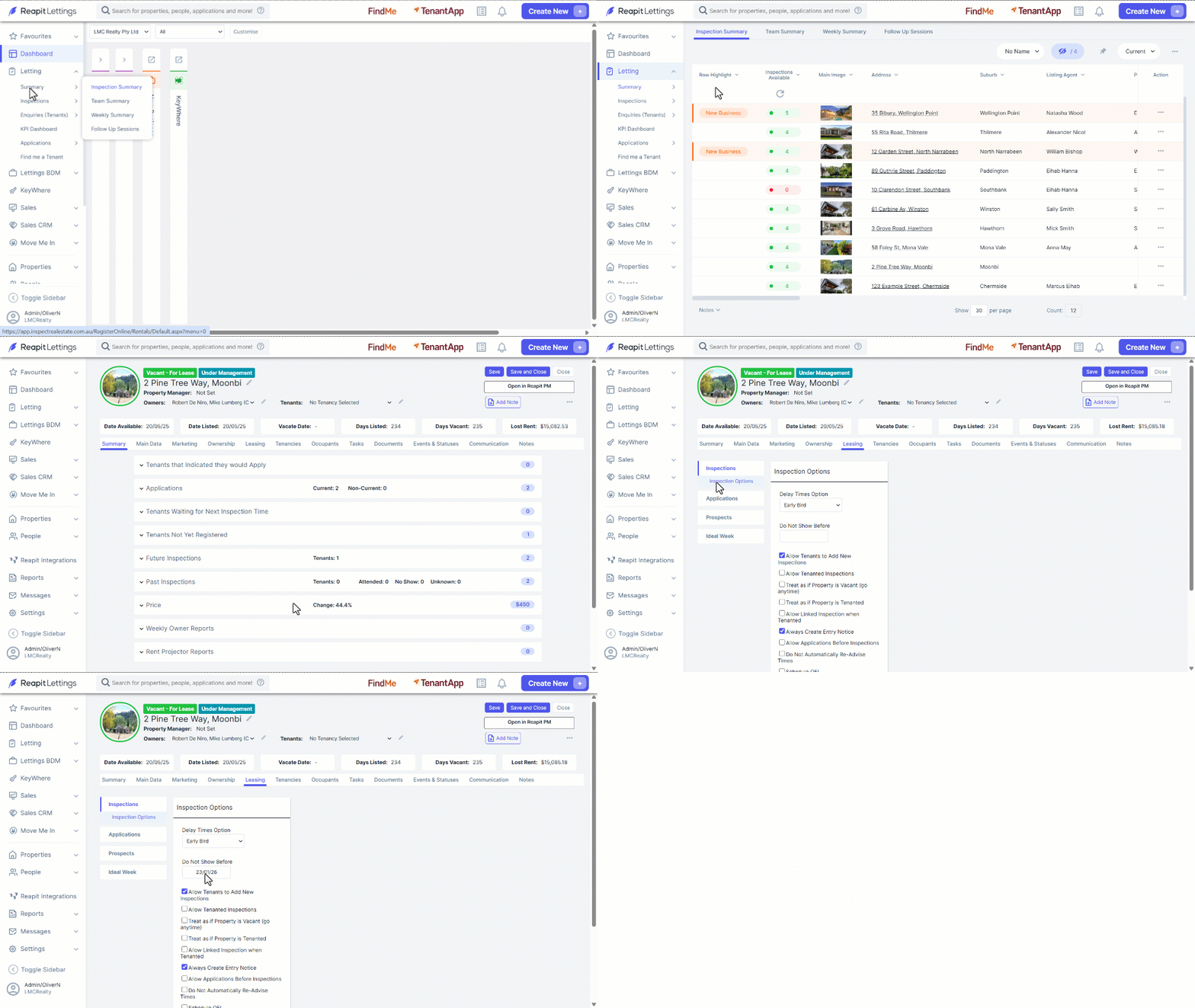
This article will run through how to Disable Calendar Times for a Property, prior to a specific date.
- Click on Letting.
- Click on Summary.
- Click on Inspection Summary.
- Select the property.
- Select the Leasing tab.
- Navigate to Inspections and ****select Inspection Options.
- Enter the date into the “Do Not Show Before” section.
- Click on Save or Save and Close.
Note: This will enable tenants to book inspections from your calendar prior to the Available Date of the property but will stop tenants from being able to book inspections prior to the “Do Not Show Before” date.
How To Enable Calendar Times For A Property (Prior To Available Date)
This article will run through how to enable calendar times for a property, prior to the available date.
- Click on Letting.
- Click on Summary.
- Click on Inspection Summary.
- Select the property.
- Select the Leasing tab.
- Navigate to Inspections and ****select Inspection Options.
- Select Allow Tenanted Inspections.
- Click on Save.
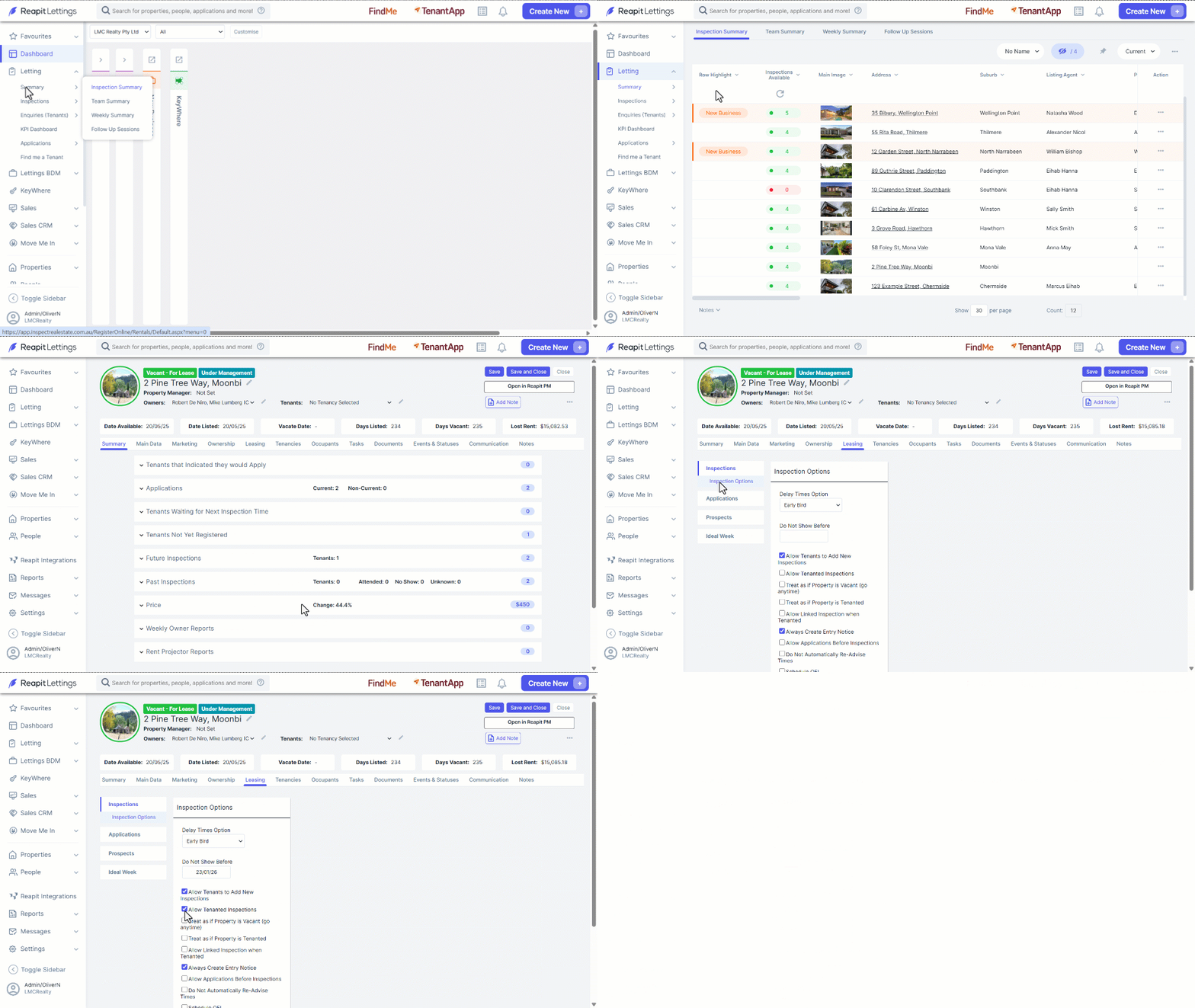
Tenants will now be able to book an inspection from your available calendar times prior to the available date. However, by default, these inspections will only be available to be booked 3 Days in advance and have 3 Days in between. This is intended to allow time to notify the tenants of the upcoming inspection. These settings can be adjusted in the Delay Times if required. If there is a case where you do not need a delay before and between inspections (e.g. if you are showing a property before it has finished construction or renovations), tick the Treat As If Property Is Vacant (go anytime) option instead. Tenants can then book an inspection from any of your available calendar times as if was a vacant property.
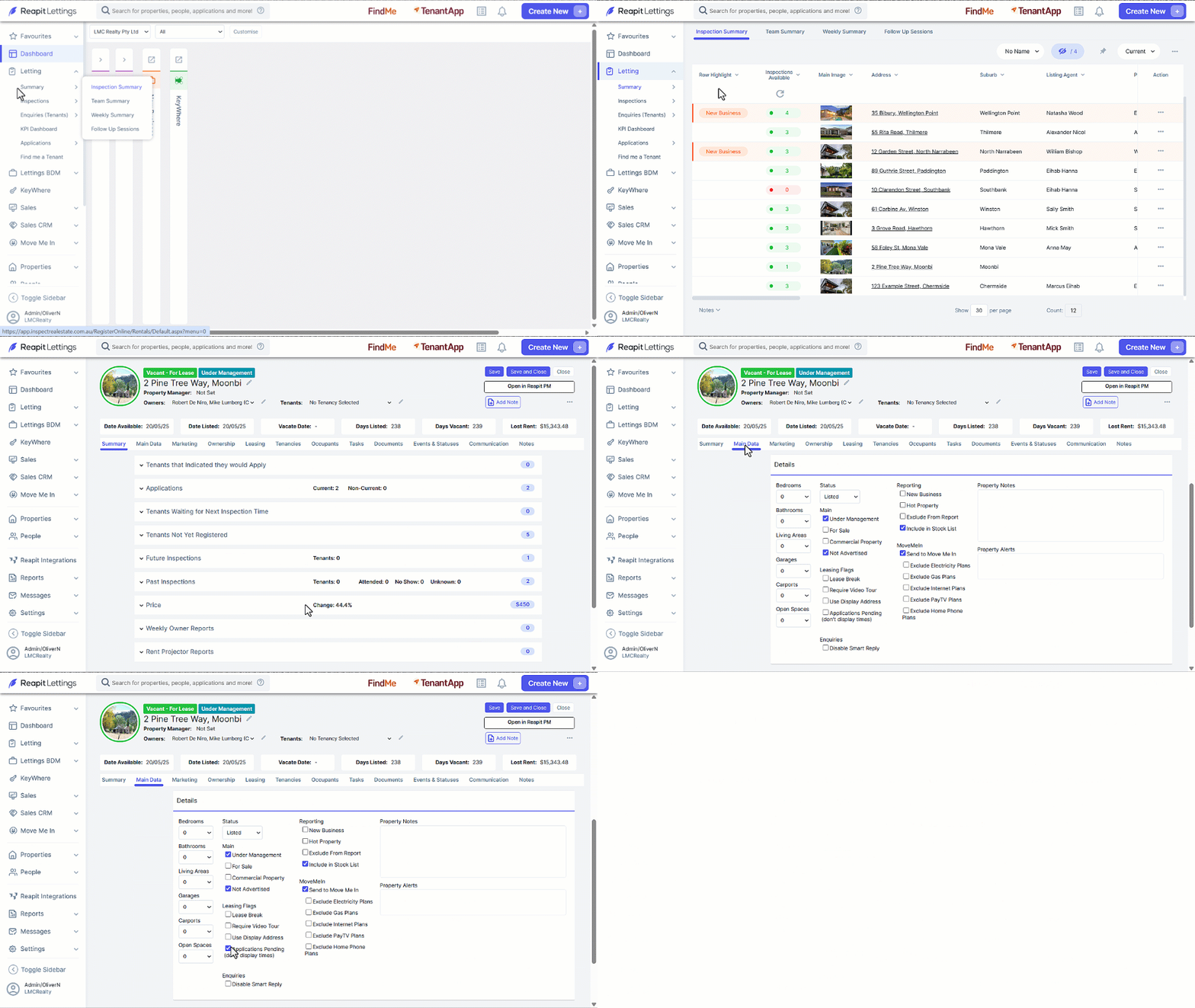
How To Disable Calendar Times For A Property (Due to Pending Application)
- Click on Letting.
- Click on Summary.
- Click on Inspection Summary.
- Select the property.
- Click on the Main Data tab.
- Navigate to the Details section and select Applications Pending (don't display times).
- Click on Save.