'%20d='M0%208a8%208%200%200%201%208-8h24a8%208%200%200%201%208%208v24a8%208%200%200%201-8%208H8a8%208%200%200%201-8-8V8Z'/%3e%3cpath%20fill='%23fff'%20d='M32.576%206C12.293%206%208.776%2025.887%207.424%2034H9.1c.45-2.977%203.493-14.748%2010.899-20.287%200%200-5.633%206.976-6.572%2015.051%203.426-.652%2013.845-3.372%2016.056-12.927l-3.84-.61c1.352-1.351%204.909-5.17%206.931-9.226V6Z'/%3e%3cdefs%3e%3clinearGradient%20id='reapit-lettings__a'%20x1='20.702'%20x2='20.702'%20y1='.351'%20y2='31.228'%20gradientUnits='userSpaceOnUse'%3e%3cstop%20stop-color='%235573FD'/%3e%3cstop%20offset='.575'%20stop-color='%234E56EA'/%3e%3c/linearGradient%3e%3c/defs%3e%3c/svg%3e)
Outstanding Task Icon
This article will run through how to access and action outstanding tasks, as well as create new tasks within your account
Managing Tasks
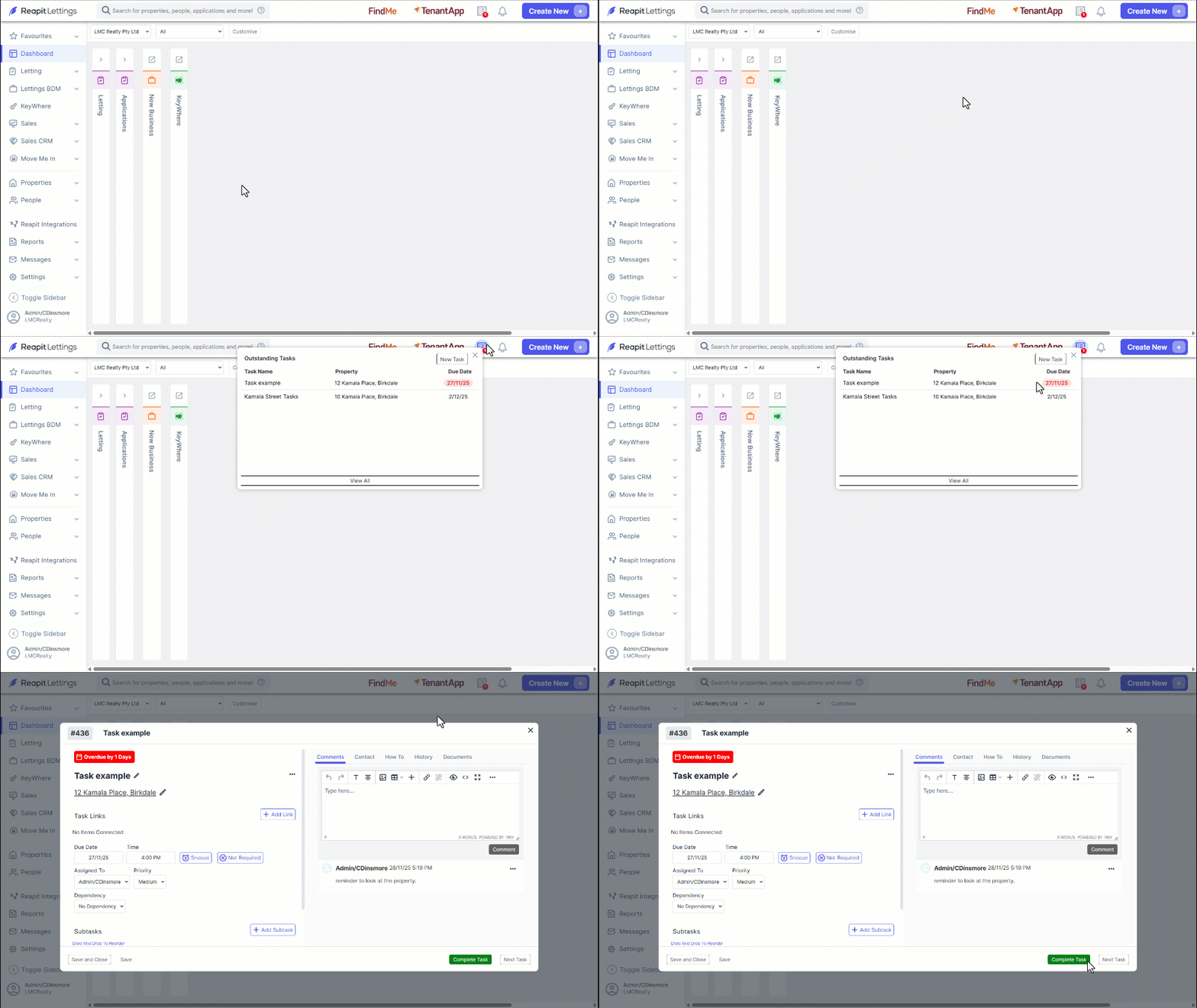
The icon situated at the top right-hand corner of the interface represents the list of outstanding tasks. This feature allows users to efficiently manage and create new tasks, serving as reminders for pending activities.
1. To initiate the creation of a new task, navigate to the Task button.
2. Click New Task.
3. This action redirects to a form where users can input the task's title, assign it to a specific property, and set a due date and time. Click Save once completed.
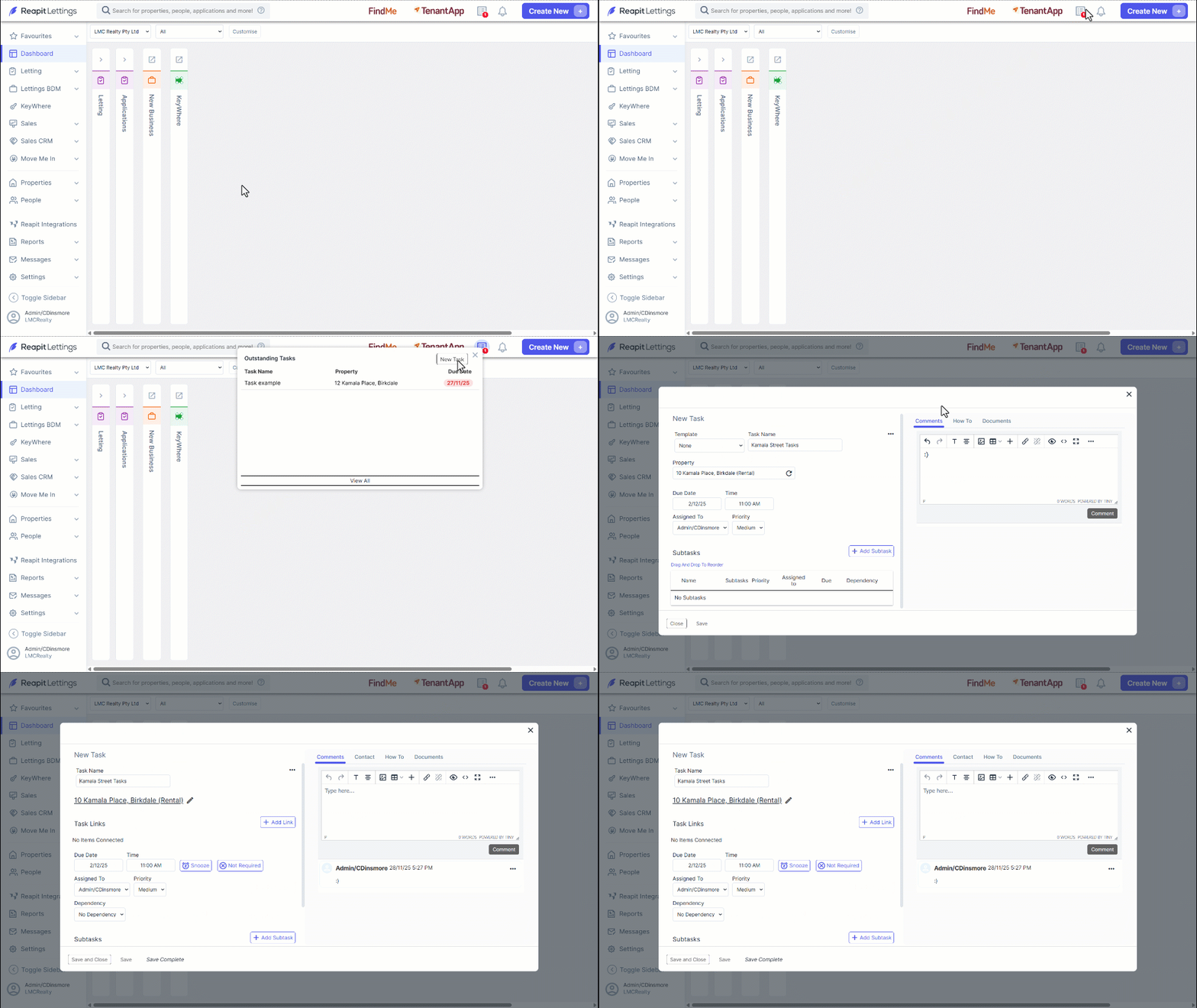
4. Tasks that are pending will be highlighted by turning the due date red.
- Users can navigate to the property card by selecting the property address, providing a direct link to detailed property information.
5. Upon the completion of a task, it can be marked as finished by clicking Complete Task. This feature is designed to streamline task management and ensure that users can effectively track and complete assigned tasks.