'%20d='M0%208a8%208%200%200%201%208-8h24a8%208%200%200%201%208%208v24a8%208%200%200%201-8%208H8a8%208%200%200%201-8-8V8Z'/%3e%3cpath%20fill='%23fff'%20d='M32.576%206C12.293%206%208.776%2025.887%207.424%2034H9.1c.45-2.977%203.493-14.748%2010.899-20.287%200%200-5.633%206.976-6.572%2015.051%203.426-.652%2013.845-3.372%2016.056-12.927l-3.84-.61c1.352-1.351%204.909-5.17%206.931-9.226V6Z'/%3e%3cdefs%3e%3clinearGradient%20id='reapit-lettings__a'%20x1='20.702'%20x2='20.702'%20y1='.351'%20y2='31.228'%20gradientUnits='userSpaceOnUse'%3e%3cstop%20stop-color='%235573FD'/%3e%3cstop%20offset='.575'%20stop-color='%234E56EA'/%3e%3c/linearGradient%3e%3c/defs%3e%3c/svg%3e)
How to use the Transfer Portfolio Feature
This article will run through how to use the transfer portfolio feature within Reapit Lettings.
How to use the Transfer Portfolio Feature
This article will run through how to use the transfer portfolio feature within Reapit Lettings.
If you are transferring the portfolio to a new team member, you will need to ensure a login & team member name has been created before completing the below steps.
The table below outlines to available transfer settings when performing a Portfolio Transfer.
| Only Listing Agent Role | Transfer only the Listing Agent roles on properties from the old staff member to the new one. Key Points: Ensure all properties previously under the old staff member in the vacancy list are updated in external uploaders such as Rex and Mydesktop. Failing to update will result in Lettings generating listings under the old team member's name upon receiving the next xml feed. |
| Only Property Manager/Sales Agent Role | Transfer only the Property Manager / Sales Agent Roles on properties from the old staff member to the new one. |
| Only Tenant Agent Role | Transfer only the Tenant Agent roles on properties from the old staff member to the new one. |
| All Property Roles | Transfer all roles from the old staff member to the new one, including all assigned property roles, future inspections and property sharing permissions. |
| All Property Roles and Product Specific Data | Transfer all roles from the old staff member to the new one, including all assigned property roles, future inspections and property sharing permissions. Will also transfer staff related data for this product. |
| All Property Roles and All Product Data | Transfer all roles from the old staff member to the new one, including all assigned property roles, tasks, future inspections and property sharing permissions. Will also transfer staff related data for this product. |
| Full Data Transfer | Wherever the old staff member appears in the system, they will be replaced by the new staff member. This may overwrite settings and templates relating to the new staff member. |
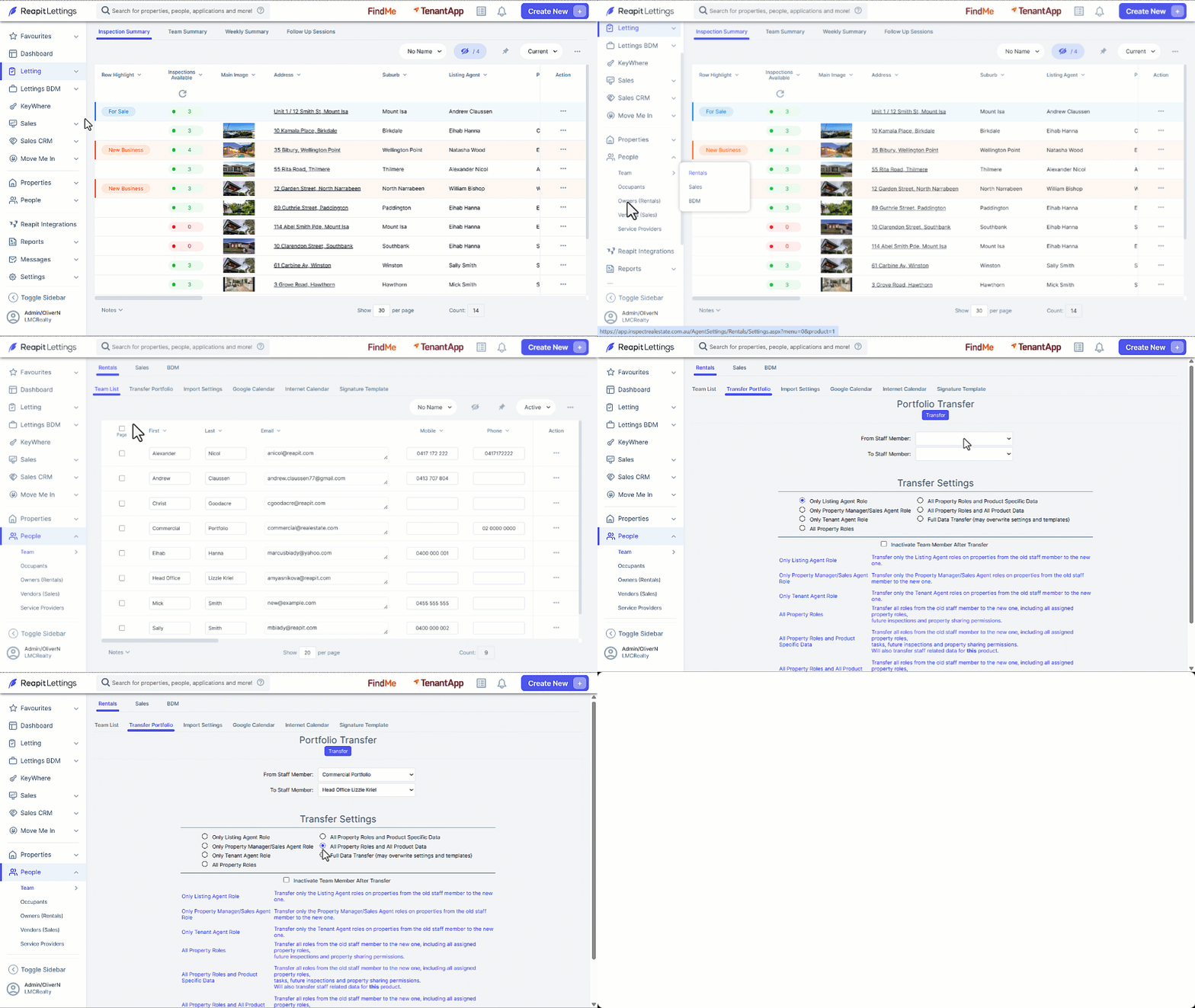
- Click on People.
- Click on Team.
- Click on Rentals.
- Click on the Transfer Portfolio tab.
- From the dropdown, select the team member that you wish to remove the properties from.
- Select the team member that will be receiving the properties from the dropdown.
- Select the relevant action.
- Confirm whether to inactivate the old staff member in the team list post-transfer
- Click on Transfer.