'%20d='M0%208a8%208%200%200%201%208-8h24a8%208%200%200%201%208%208v24a8%208%200%200%201-8%208H8a8%208%200%200%201-8-8V8Z'/%3e%3cpath%20fill='%23fff'%20d='M8.375%2013v14L20.5%2034l12.124-7v-7.737l-1.687-.975-2.806-1.62-1.082-.624v4.83l-.002%204.83H13.95V16.07l3.275-1.89%202.192-1.265%201.082-.625%203.275%201.877%202.192%201.256%201.083.62V9.782L20.5%206%208.376%2013Z'/%3e%3cdefs%3e%3clinearGradient%20id='reapit-pm__a'%20x1='20.702'%20x2='20.702'%20y1='.351'%20y2='31.228'%20gradientUnits='userSpaceOnUse'%3e%3cstop%20stop-color='%235573FD'/%3e%3cstop%20offset='.575'%20stop-color='%234E56EA'/%3e%3c/linearGradient%3e%3c/defs%3e%3c/svg%3e)
Troubleshooting Scenarios for Bond Payments with NZ Tenancy Services
The following article contains troubleshooting scenarios for bond payments with NZ Tenancy Services (New Zealand only) in Reapit PM.
Overview
Troubleshooting Scenarios for Bond Payments with NZ Tenancy Services
The following article contains troubleshooting scenarios for bond payments with NZ Tenancy Services (New Zealand only) in Reapit PM.
The processes in this article include:
- Scenario - How to Manage a Failed API Bond Lodgement
- Scenario - What Happens if our Real-Me Credentials are Lost or the Staff Holder of the Credentials Leaves
- Scenario - Cannot Disburse more than Required (incl Received) Message
Scenario - How to Manage a Failed API Bond Lodgement
- If the Bond fails to lodge, navigate to Marketplace
- Click on the Tenancy Services Bond Lodgements tile.
- Click the Status tab to view a list of all lodgements, the type of payment being sent, and if it has been Sent or Failed. For any failed lodgements, click on the three dots to the right and select Lodge to resubmit.
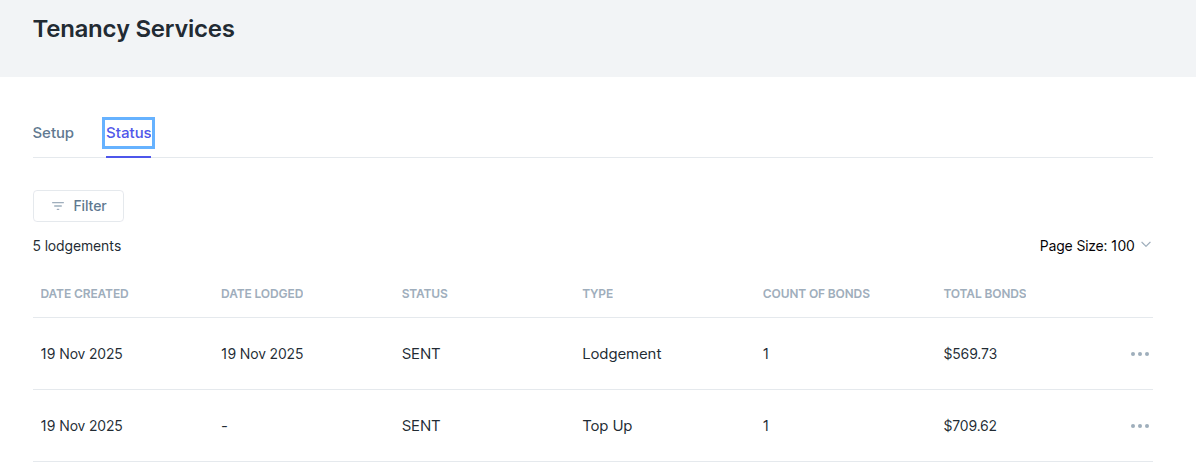
- For details about the bonds that make up any of these lodgements, you can access the disbursement files from the same day from the Disbursement page.
Scenario - What Happens if our Real-Me Credentials are Lost or the Staff Holder of the Credentials Leaves
- Create new real-me credentials under a new identity.
- Deactivate the Marketplace integration.
- Go to Marketplace, select Connect user - enter new realme credentials to authorise Reapit.
- You will then get sent and email with new Landlord Contact ID.
- Login with existing Landlord Id and new Landlord Contact Id in Marketplace.
- Lodge bonds.
Scenario – Cannot Disburse more than Required (incl Received) Message
While on the Disbursement screen, attempting to disburse a bond balance that exceeds the bond received value will notify you with the following banner:
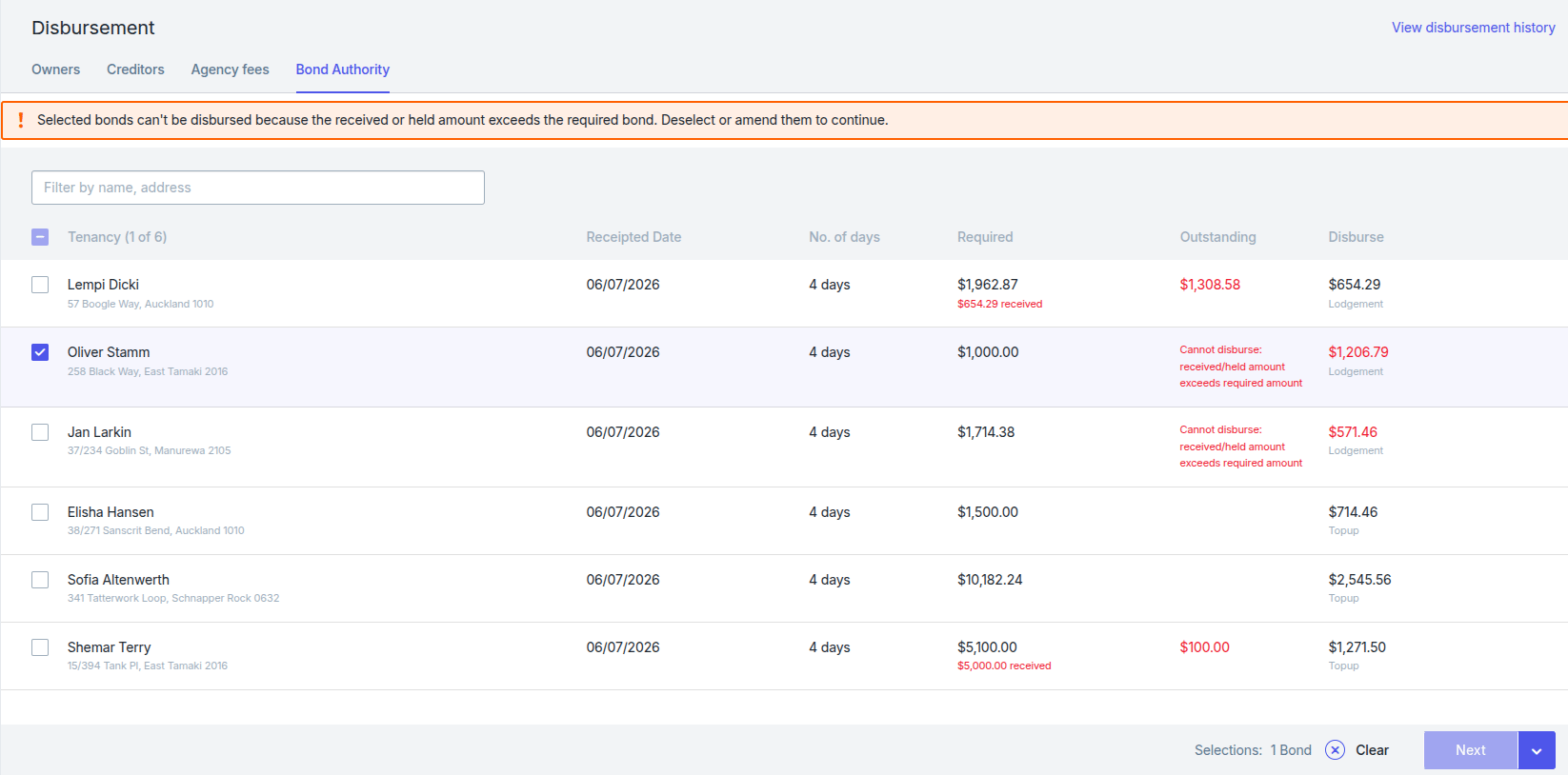
To resolve this, navigate to the Tenant file and edit the agreement. Navigate to the Bond Details section and update the Bond Required amount to the correct value.