'%20d='M0%208a8%208%200%200%201%208-8h24a8%208%200%200%201%208%208v24a8%208%200%200%201-8%208H8a8%208%200%200%201-8-8V8Z'/%3e%3cpath%20fill='%23fff'%20d='M8.375%2013v14L20.5%2034l12.124-7v-7.737l-1.687-.975-2.806-1.62-1.082-.624v4.83l-.002%204.83H13.95V16.07l3.275-1.89%202.192-1.265%201.082-.625%203.275%201.877%202.192%201.256%201.083.62V9.782L20.5%206%208.376%2013Z'/%3e%3cdefs%3e%3clinearGradient%20id='reapit-pm__a'%20x1='20.702'%20x2='20.702'%20y1='.351'%20y2='31.228'%20gradientUnits='userSpaceOnUse'%3e%3cstop%20stop-color='%235573FD'/%3e%3cstop%20offset='.575'%20stop-color='%234E56EA'/%3e%3c/linearGradient%3e%3c/defs%3e%3c/svg%3e)
Periodic Rental Reviews
This is a guide on how to use the lease renewals workflow for your periodic rent reviews in Reapit PM.
Overview
Periodic Rental Reviews
This is a guide on how to use the lease renewals workflow for your periodic rent reviews in Reapit PM.
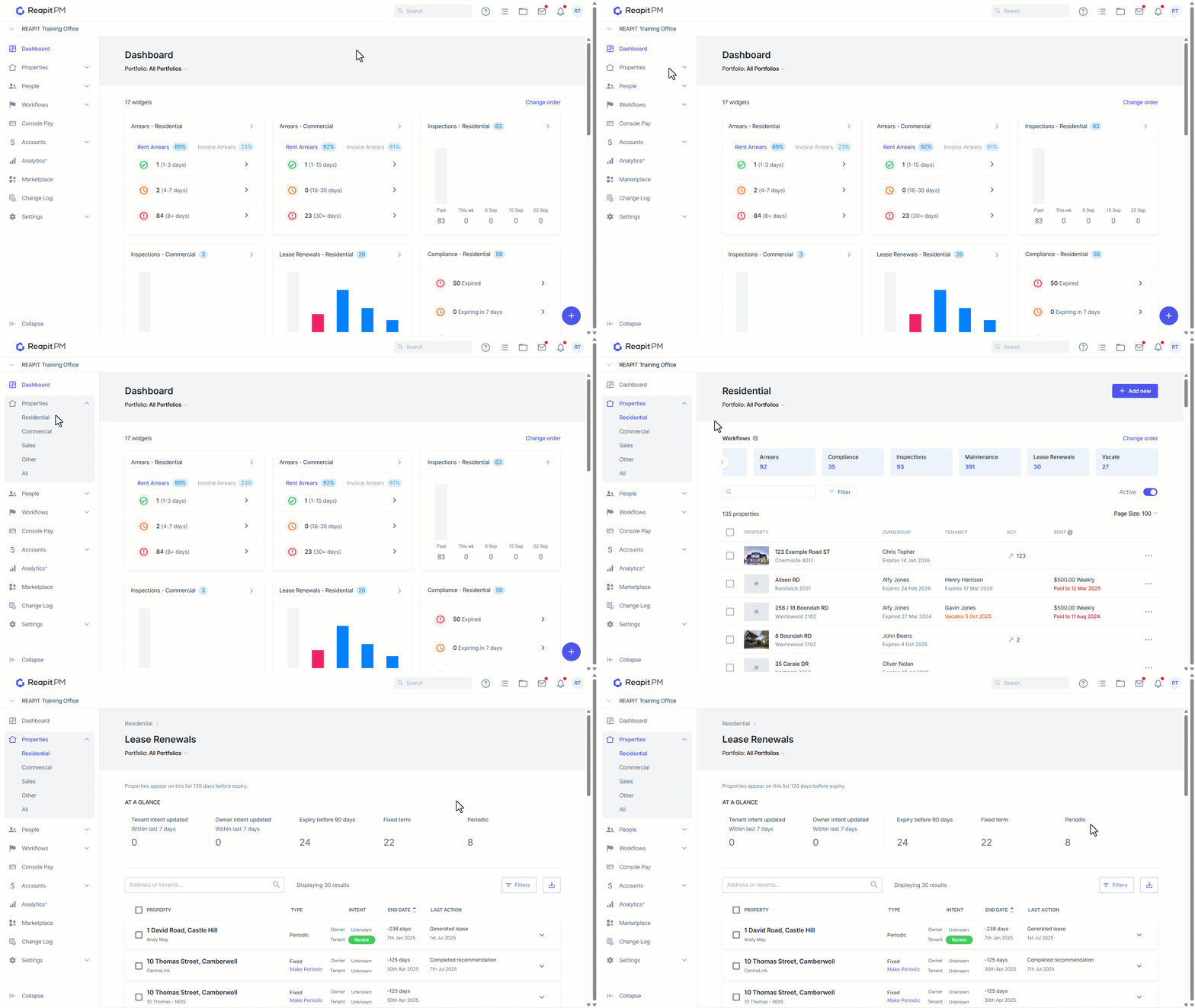
Navigate to Properties > Residential > Lease Renewals > Filter to Periodic.
You can see all of your current periodic tenancies. Select the appropriate property.
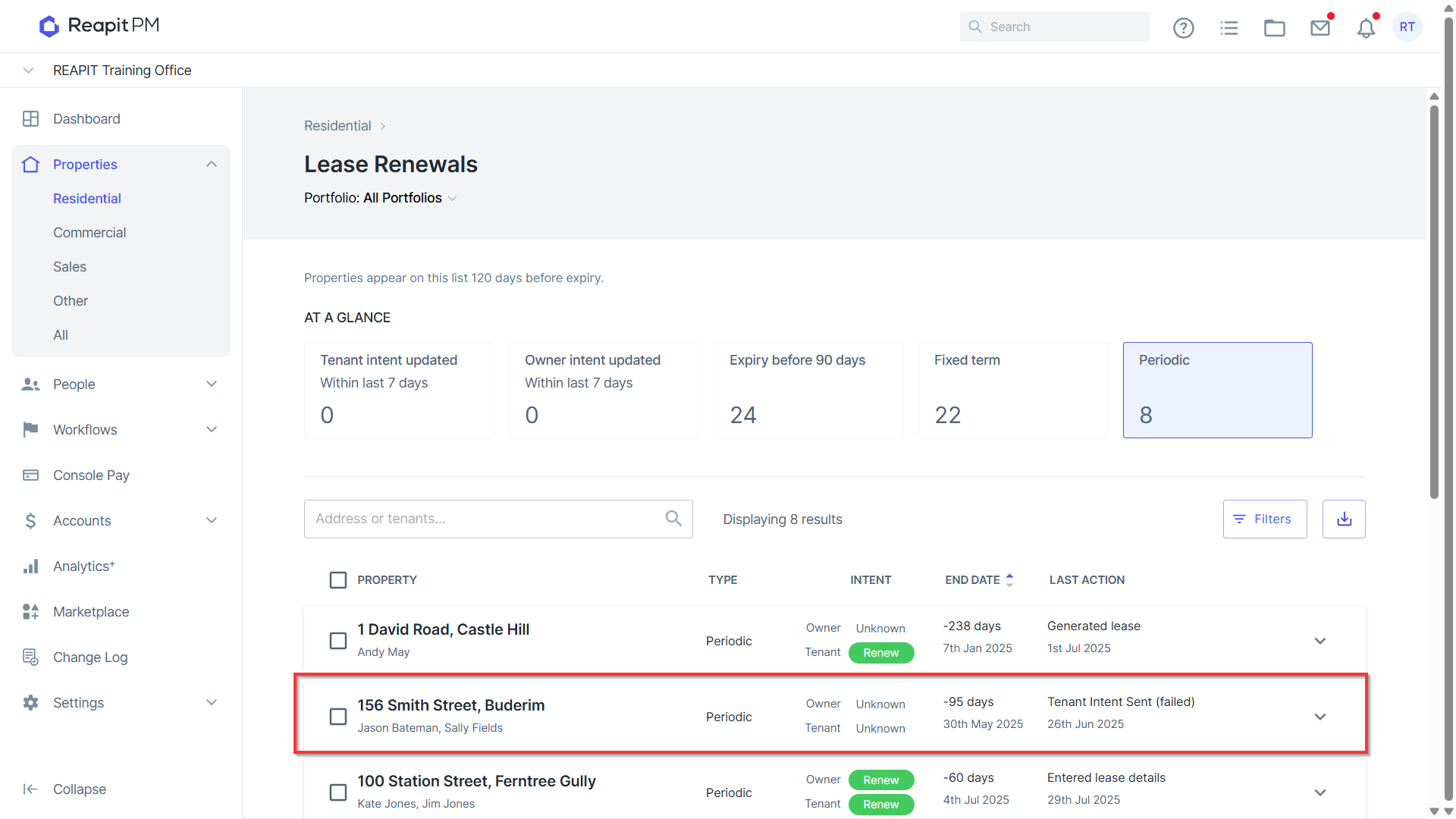
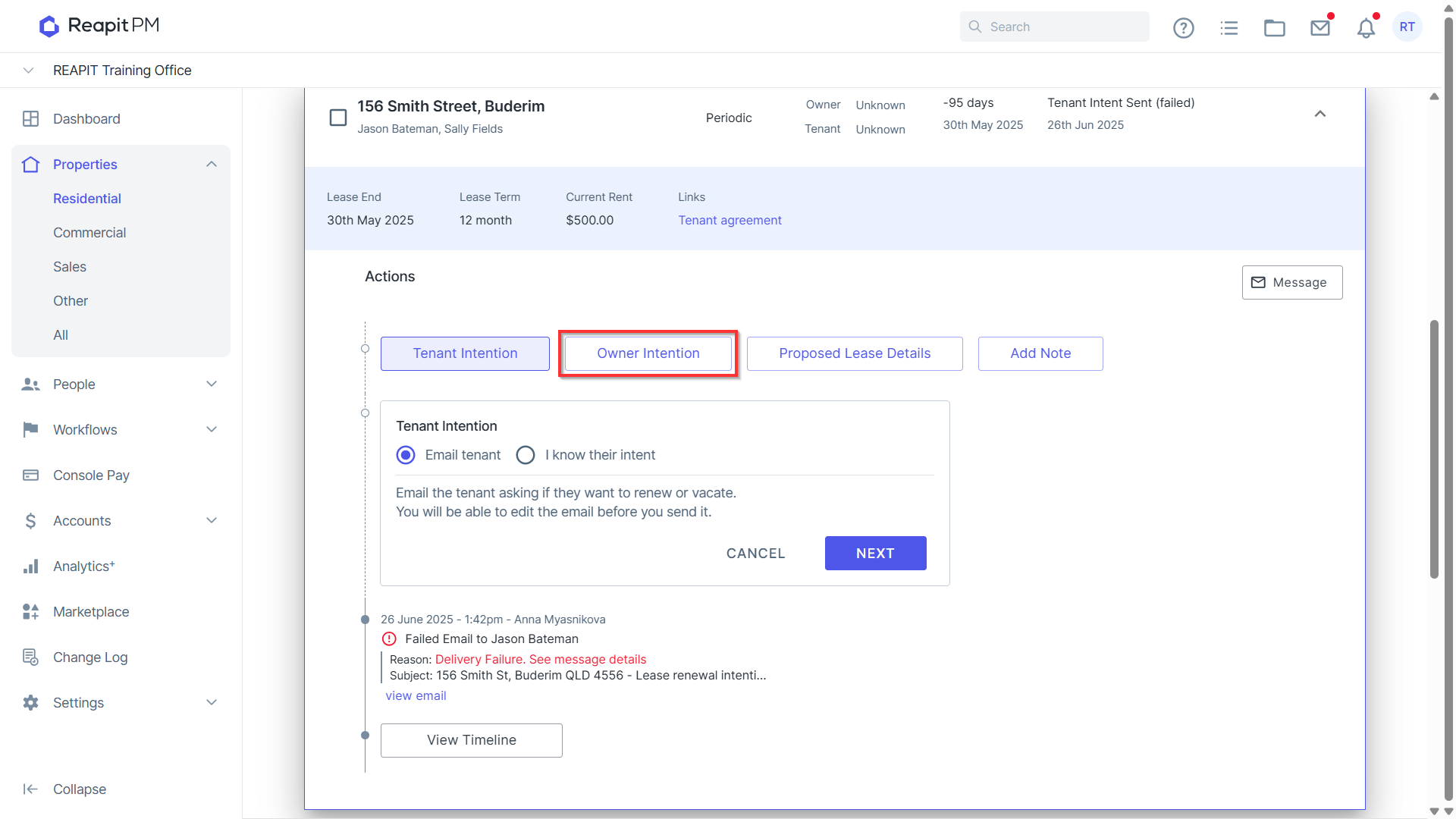
- Select Owner intention.
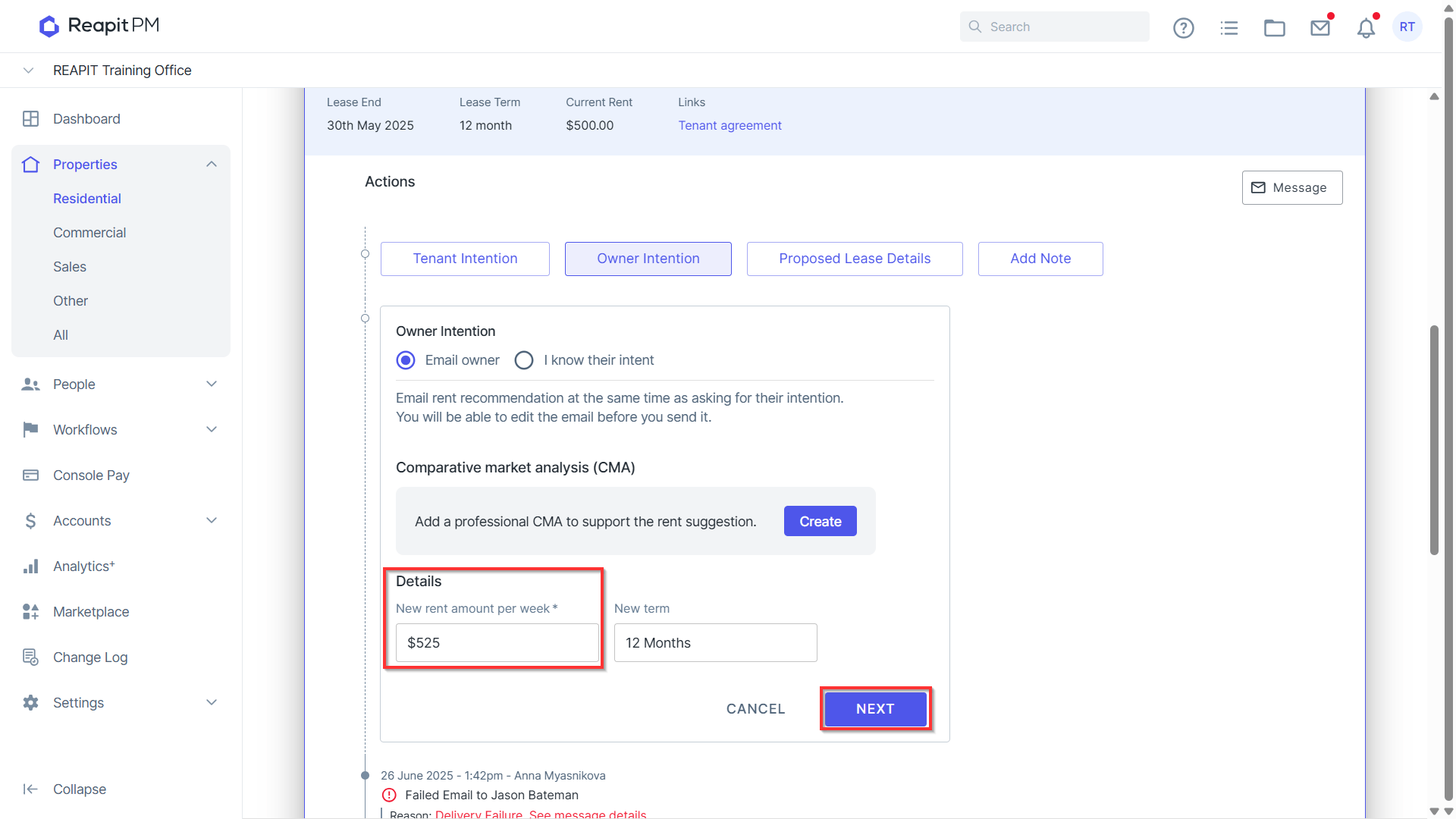
- Add in new rent amount per week. Click Next.
- Send rent recommendation to owner.
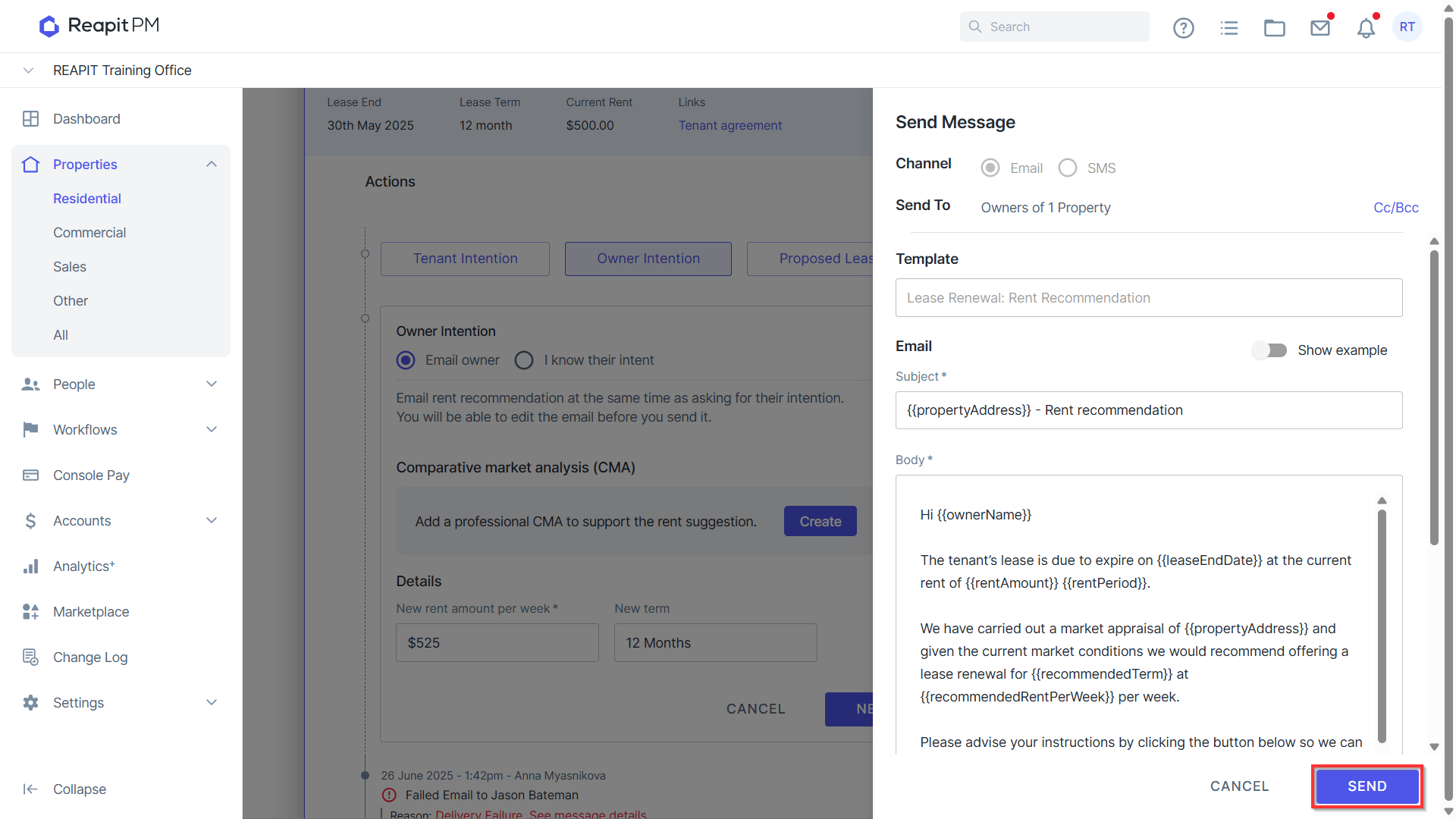
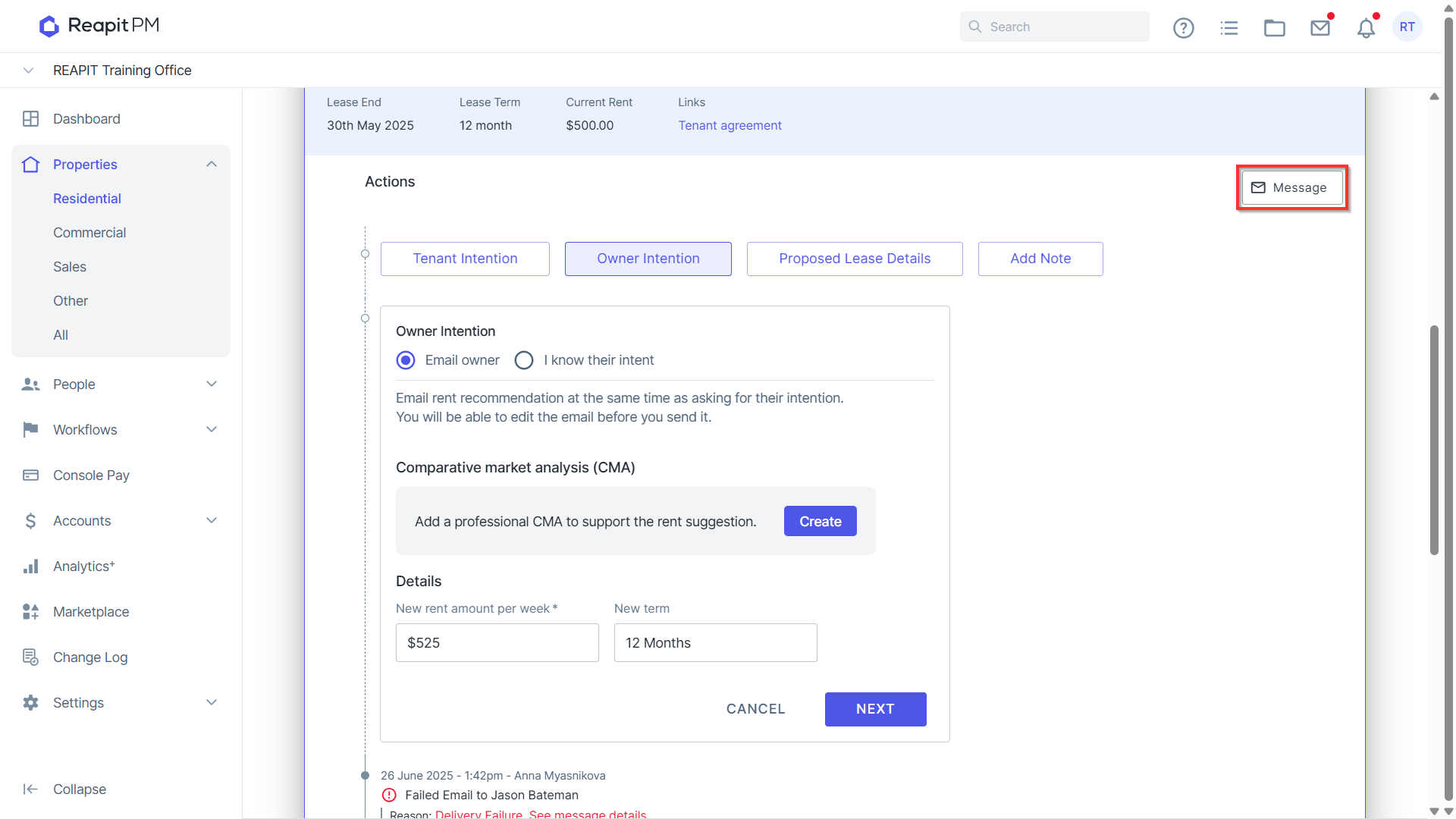
- Once you have received owner instructions, send rental notice to tenant. Select the Message icon and send to tenant. Attach Rent Increase document. *Note: Reapit PM does not provide a Periodic Rent Increase Template. You can create your own by navigating to Settings > Templates.
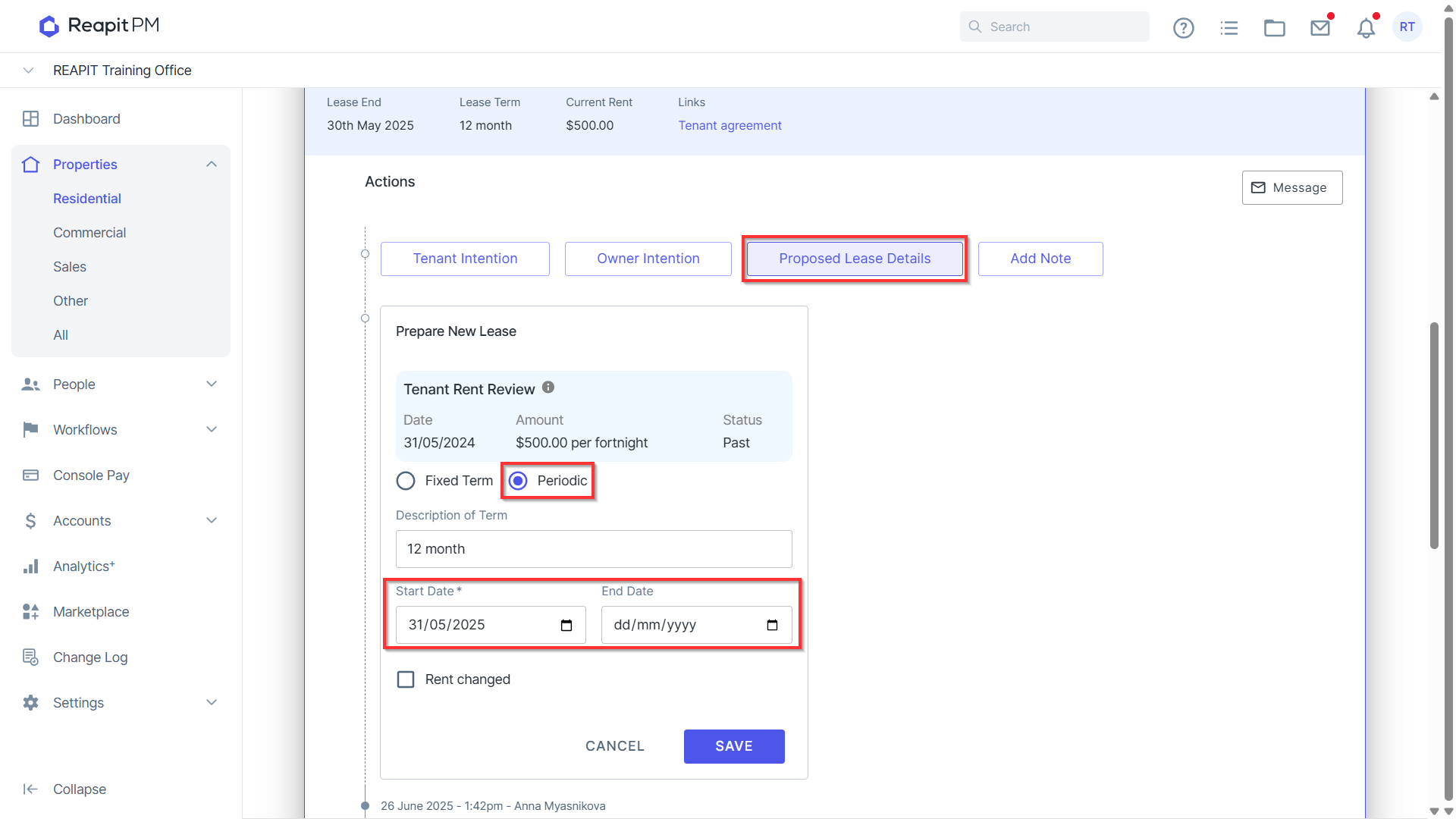
- Select Proposed Lease Details. Select Periodic. Enter the Start and End Date. End Date should line up when you next want to review rent.
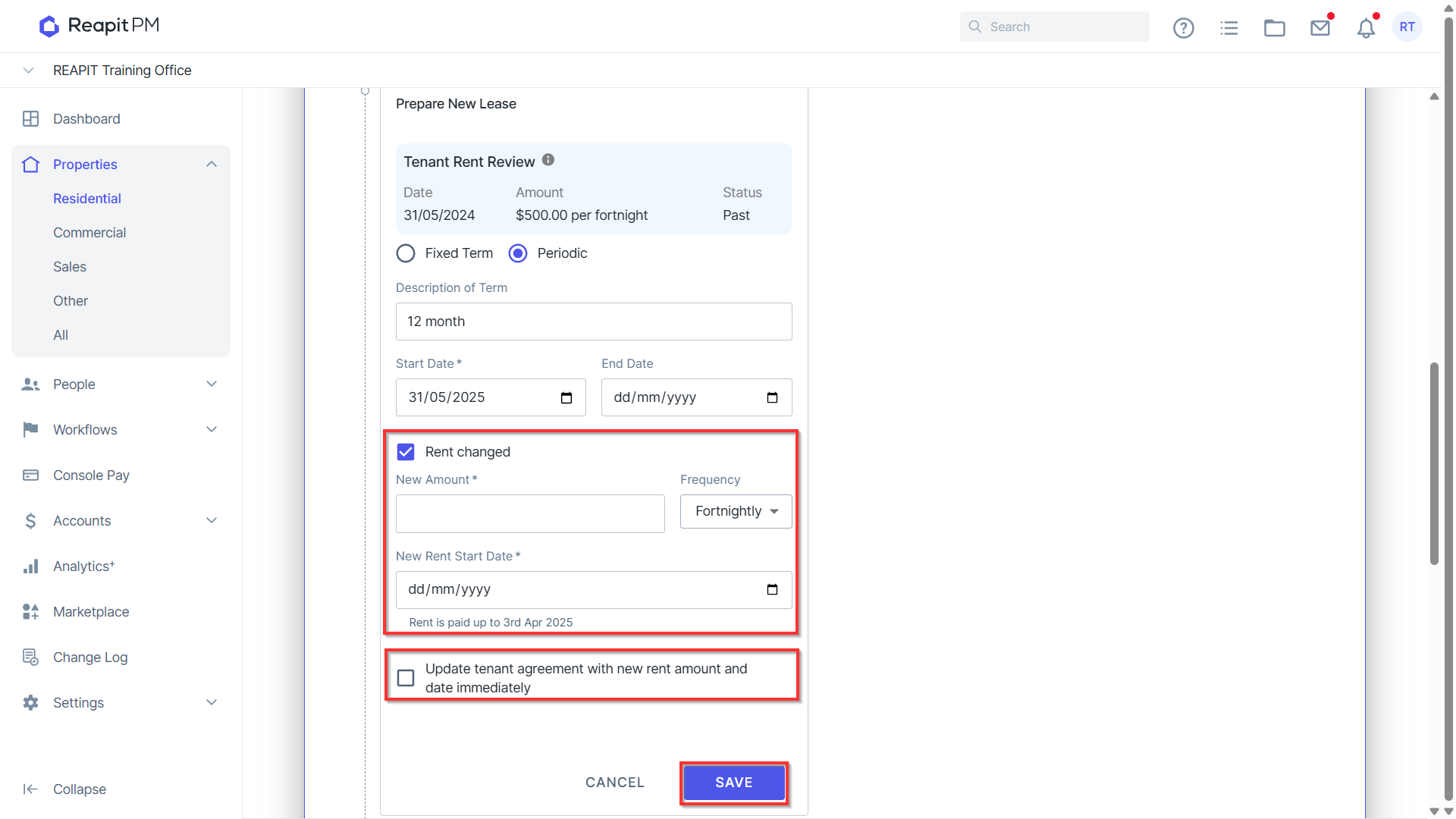
- If rent is increased, tick rent change and enter amount. Enter new rent start date. Tick to update tenancy agreement. Click Save.
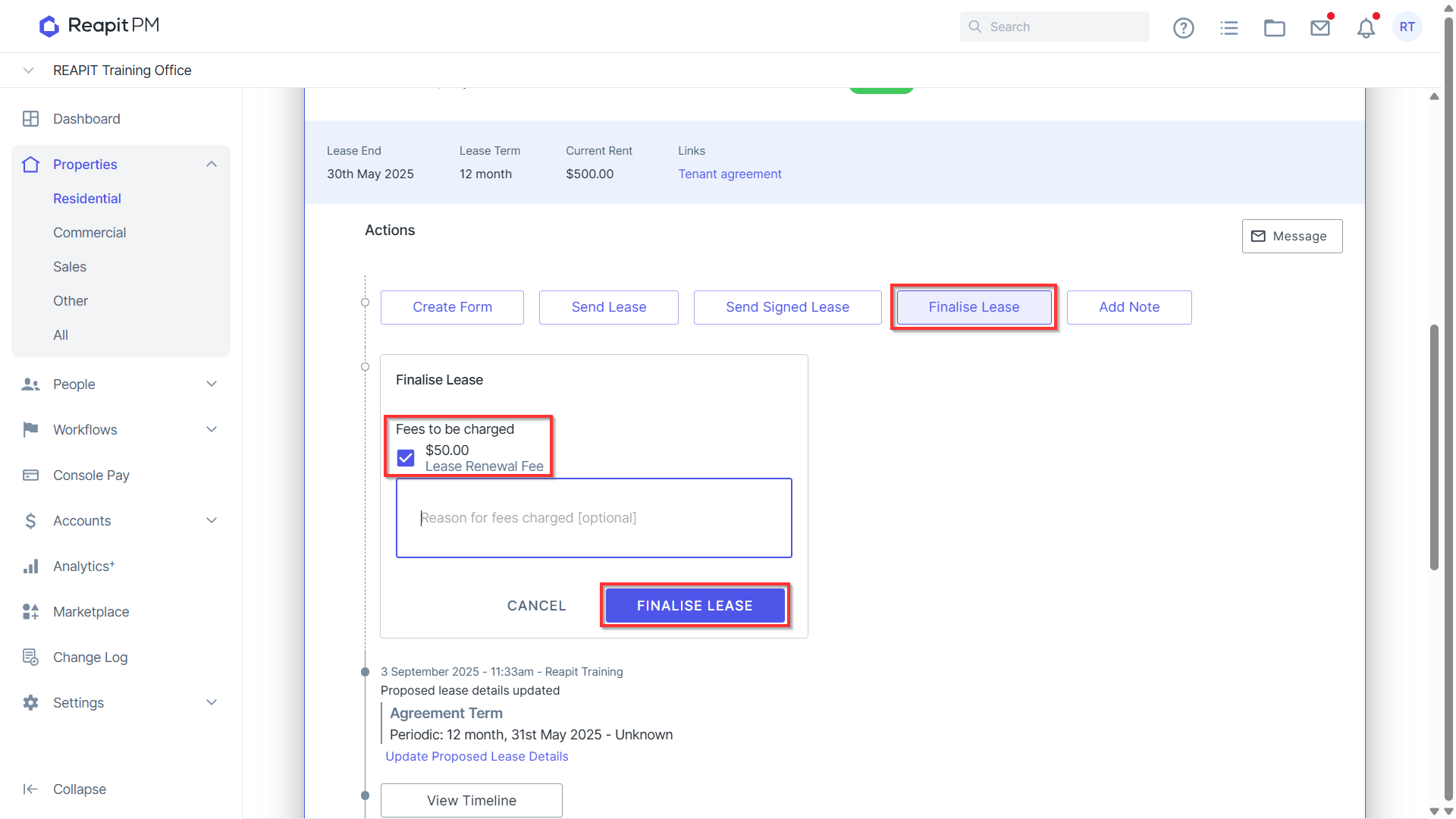
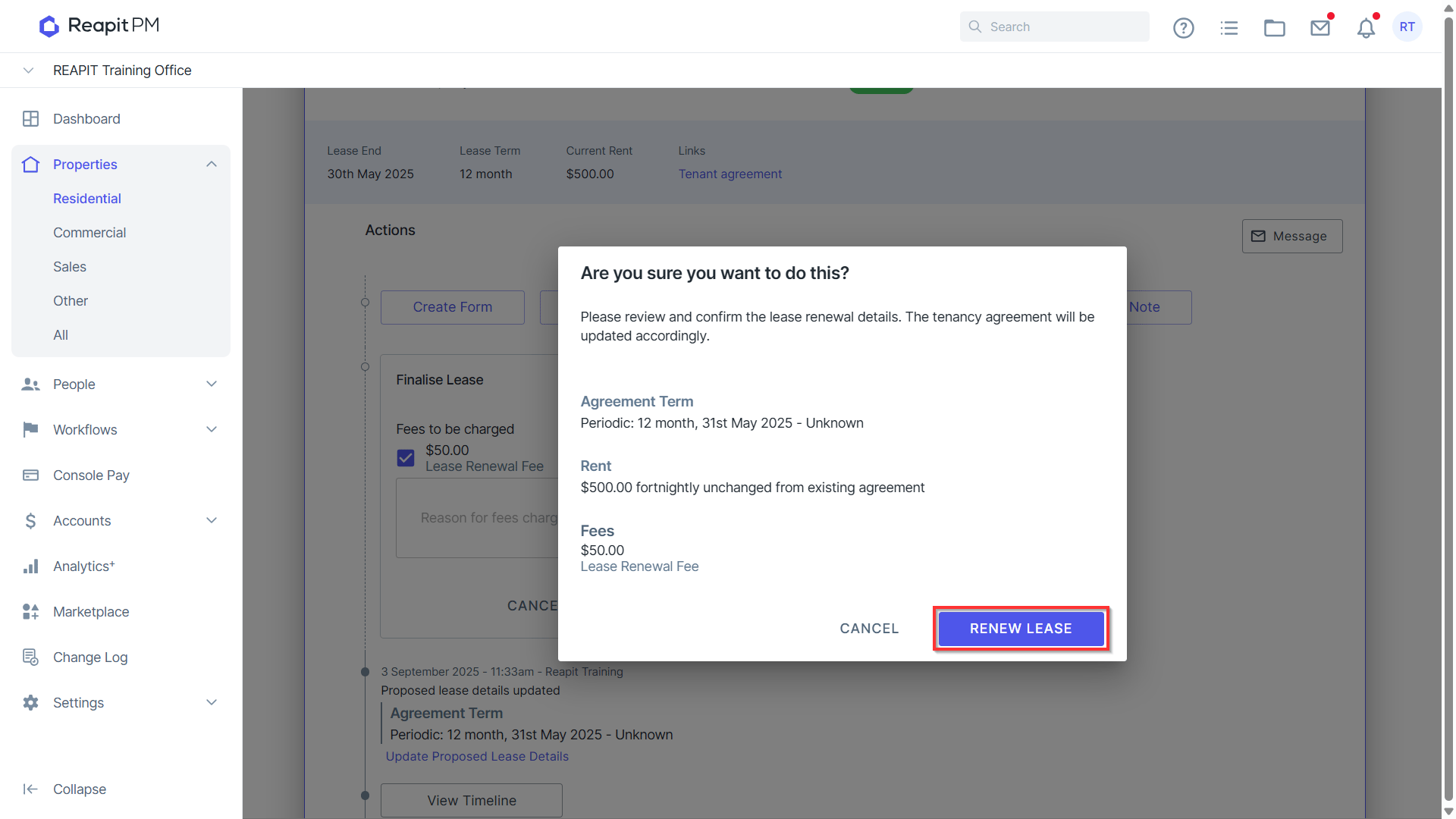
- Select Finalise Lease. Tick any fees to be charged, click Finalise Lease. This will provide a pop up to confirm, click Renew Lease when ready to proceed.
Important Note: Properties set to Periodic will appear 24 hours after finalising the lease. Sorting by End Date will allow you to keep track of properties that are upcoming to be renewed.