'%20d='M0%208a8%208%200%200%201%208-8h24a8%208%200%200%201%208%208v24a8%208%200%200%201-8%208H8a8%208%200%200%201-8-8V8Z'/%3e%3cpath%20fill='%23fff'%20d='M8.375%2013v14L20.5%2034l12.124-7v-7.737l-1.687-.975-2.806-1.62-1.082-.624v4.83l-.002%204.83H13.95V16.07l3.275-1.89%202.192-1.265%201.082-.625%203.275%201.877%202.192%201.256%201.083.62V9.782L20.5%206%208.376%2013Z'/%3e%3cdefs%3e%3clinearGradient%20id='reapit-pm__a'%20x1='20.702'%20x2='20.702'%20y1='.351'%20y2='31.228'%20gradientUnits='userSpaceOnUse'%3e%3cstop%20stop-color='%235573FD'/%3e%3cstop%20offset='.575'%20stop-color='%234E56EA'/%3e%3c/linearGradient%3e%3c/defs%3e%3c/svg%3e)
Realworks (QLD) Integration
This article will cover enabling the RealWorks (QLD) integration in Reapit PM.
Overview
Realworks (QLD) Integration
This article will cover enabling the RealWorks (QLD) integration in Reapit PM.
The processes in this article include:
- Enabling the Realworks (QLD) Integration
- Realworks Form Workflow through to Reapit PM
- What Data is Shared using the Realworks Integration
Enabling the Realworks (QLD) Integration
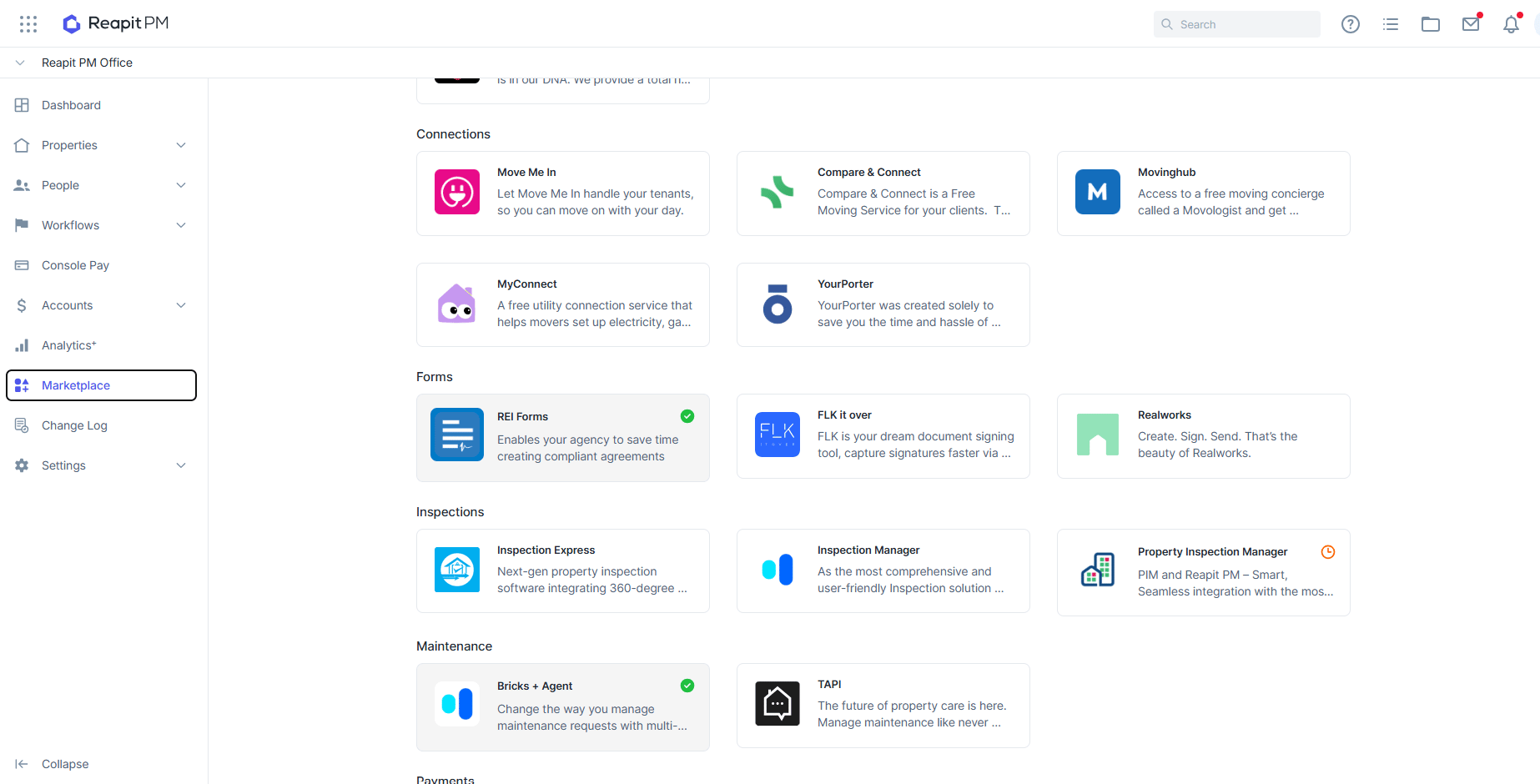
- Navigate to Marketplace.
- Under Forms, click REI Forms.
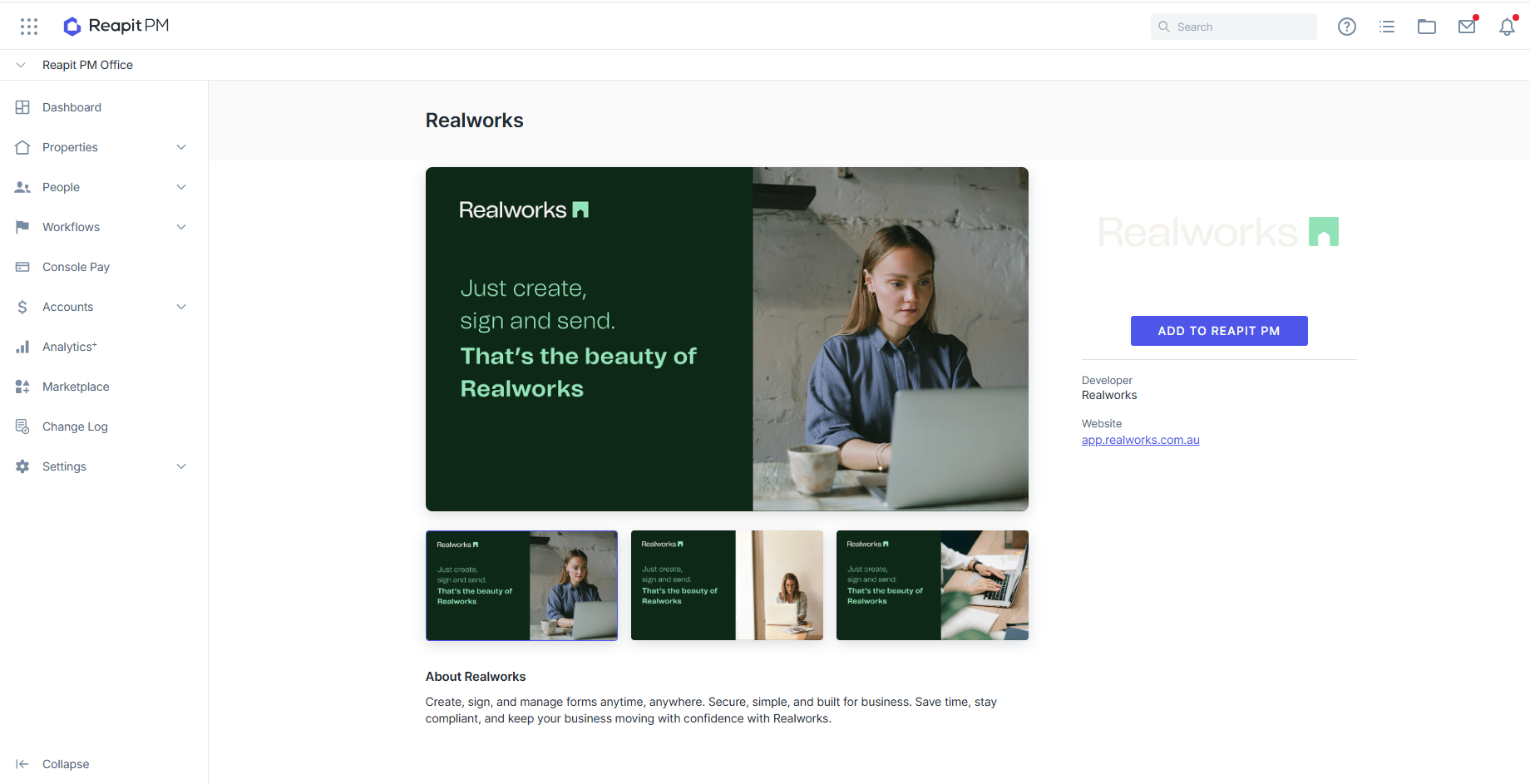
- Click Add to Reapit PM
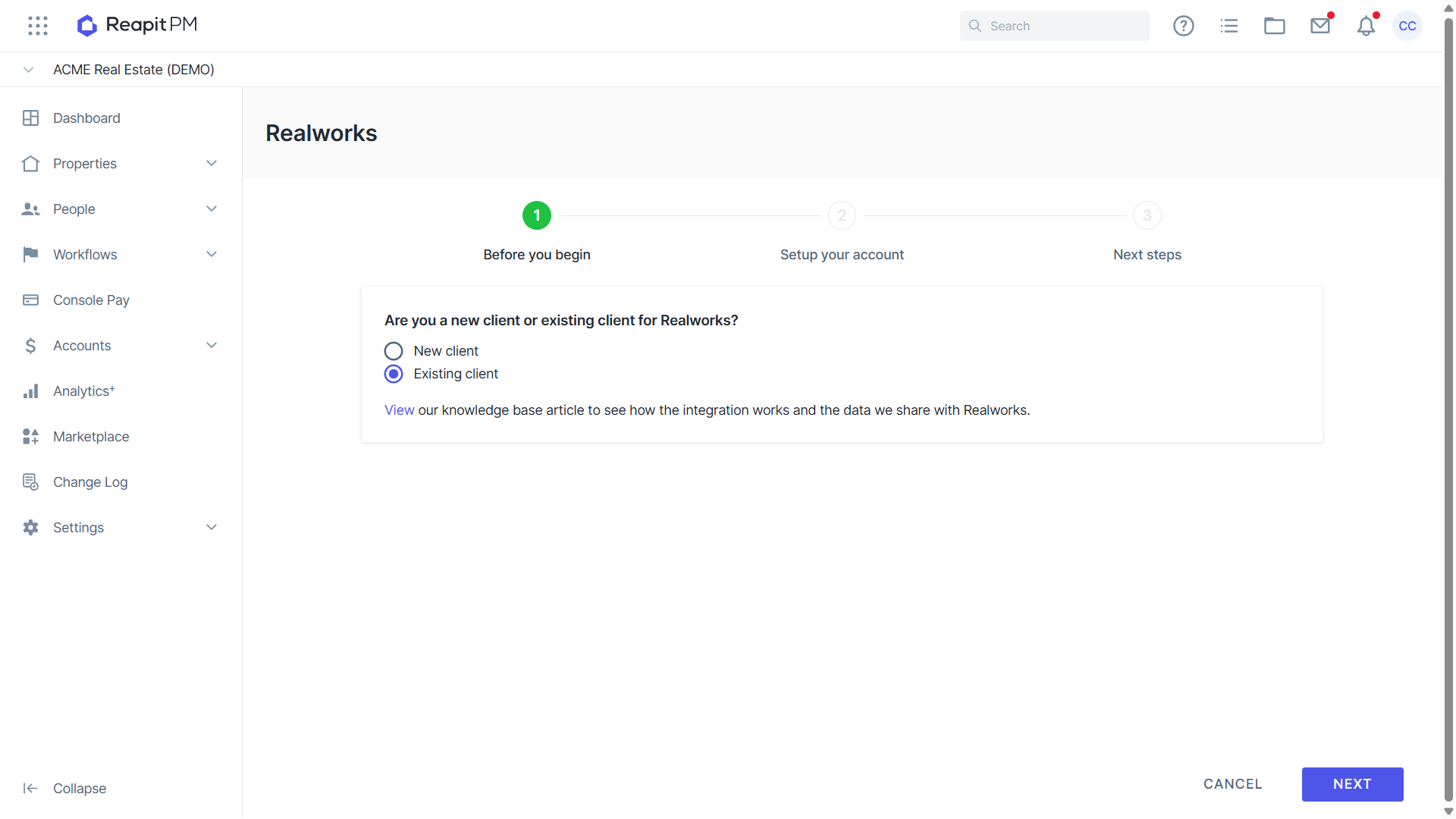
- Select if you are a New or Existing client for Realworks.
- Click Copy key to clipboard.
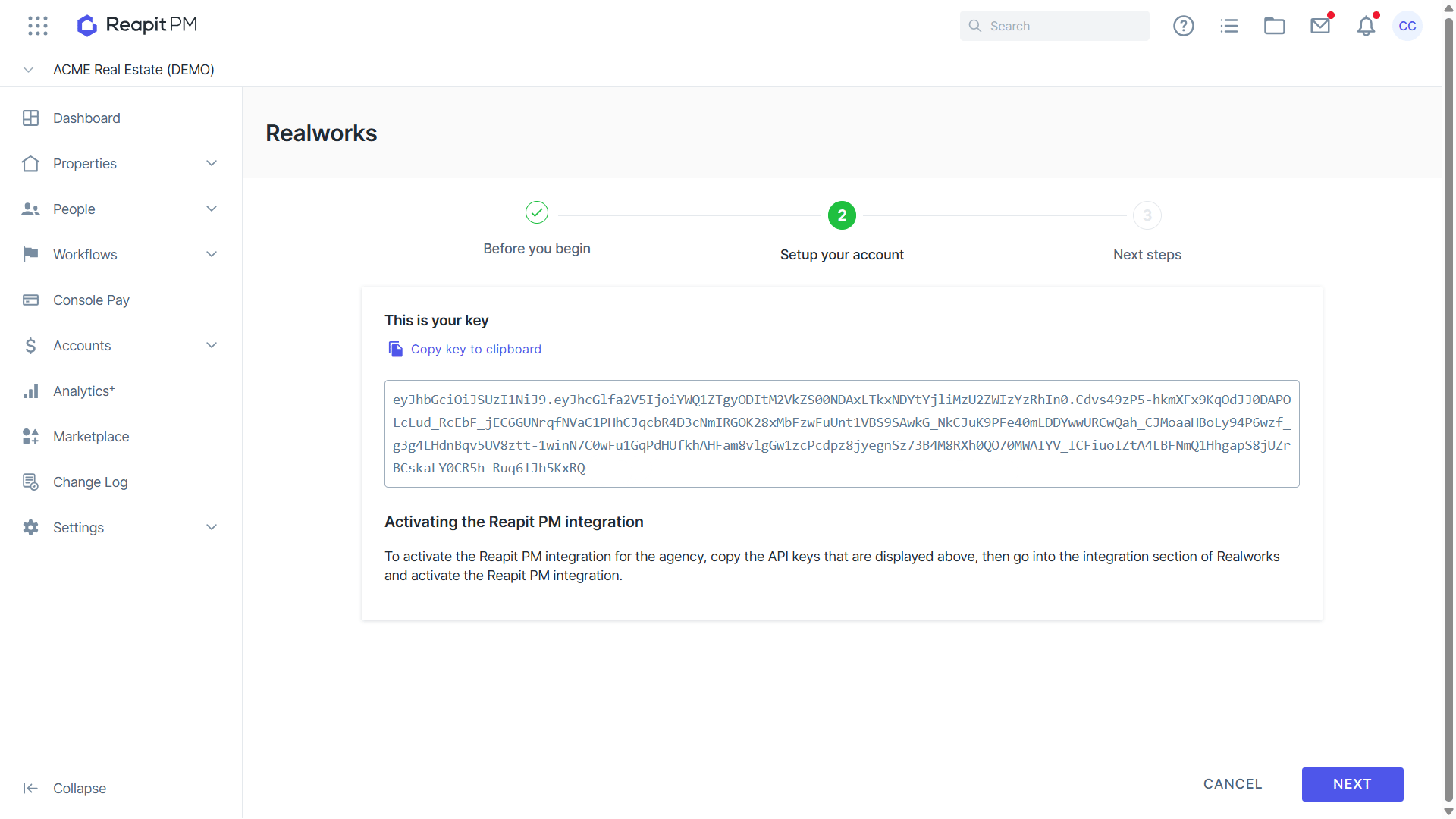
- You will need to navigate and log in to app.realworks.com.au to continue with setting the integration up.
- Once signed into Realworks, click the Connections option on the menu, then select the + New button on the top right corner.
- Copy the access token and return to Reapit PM. Enter the token and click Save.
- A confirmation message will appear to notify you that the process has been completed.
Realworks Form Workflow through to Reapit PM
- Navigate and log in to app.realworks.com.au
- Proceed with the form creation.
- Send the form to the party for completion.
- Once the form has been finalised, the agreement will be sent through to Reapit PM and located under Forms or Documents, depending on the type of form.
Data that is shared using the Realworks Integration
When creating a form, you will be able to select the Entity it is for by searching related Reapit PM contacts. The form will then prepopulate the entities data based on your search selection.