'%20d='M0%208a8%208%200%200%201%208-8h24a8%208%200%200%201%208%208v24a8%208%200%200%201-8%208H8a8%208%200%200%201-8-8V8Z'/%3e%3cpath%20fill='%23fff'%20d='M8.375%2013v14L20.5%2034l12.124-7v-7.737l-1.687-.975-2.806-1.62-1.082-.624v4.83l-.002%204.83H13.95V16.07l3.275-1.89%202.192-1.265%201.082-.625%203.275%201.877%202.192%201.256%201.083.62V9.782L20.5%206%208.376%2013Z'/%3e%3cdefs%3e%3clinearGradient%20id='reapit-pm__a'%20x1='20.702'%20x2='20.702'%20y1='.351'%20y2='31.228'%20gradientUnits='userSpaceOnUse'%3e%3cstop%20stop-color='%235573FD'/%3e%3cstop%20offset='.575'%20stop-color='%234E56EA'/%3e%3c/linearGradient%3e%3c/defs%3e%3c/svg%3e)
Creating REI Forms in Reapit PM
This article will guide you through creating REI forms in Reapit PM.
Overview
Creating REI Forms in Reapit PM
This article will guide you through creating REI forms in Reapit PM.
Note: With forms active, you can create forms in different locations, i.e. lease renewals/applications/arrears depending on the circumstance; however, the process is the same.
Note: To create a form in Reapit PM, you first need to have REI set up in your office.
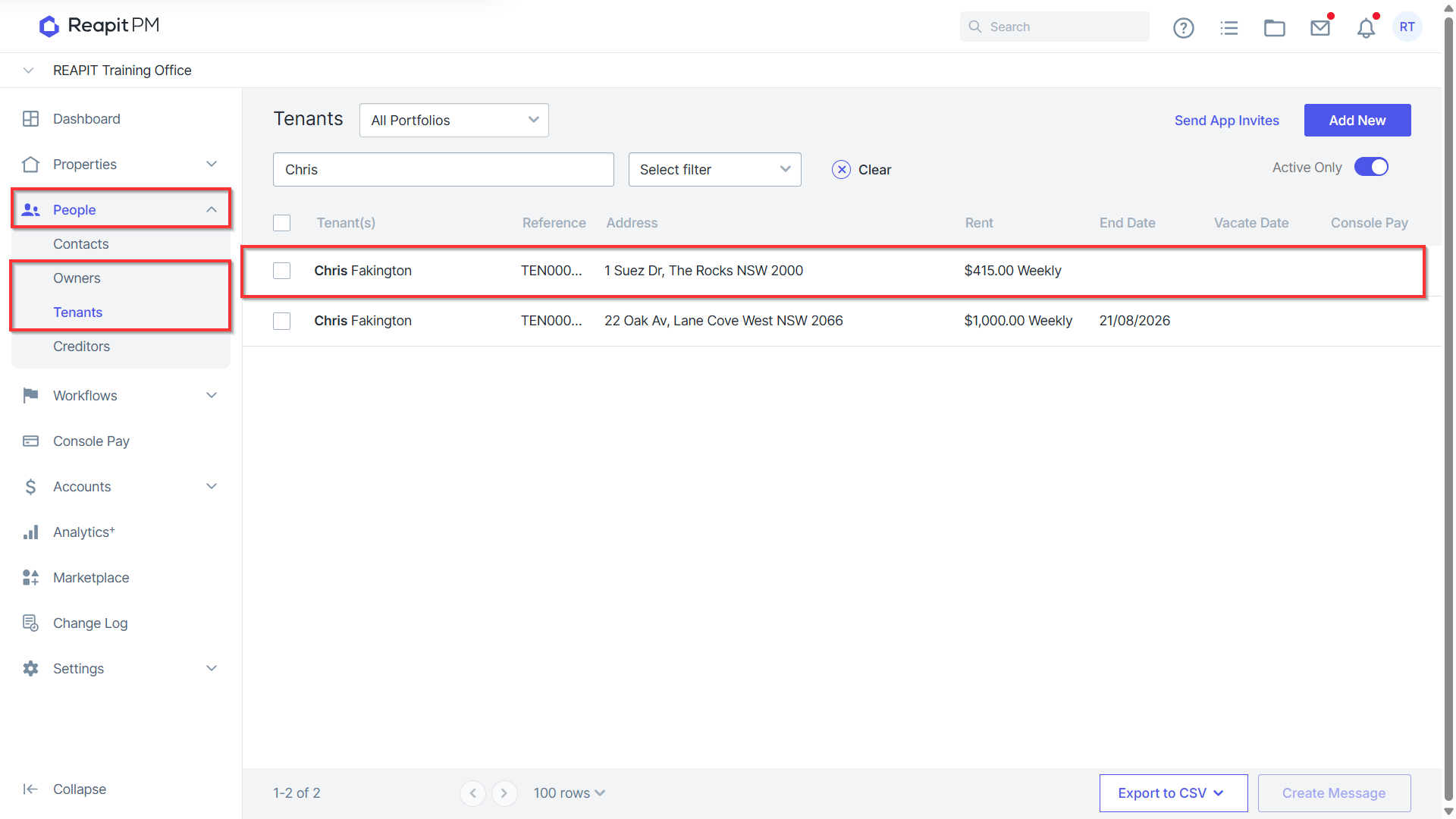
- Once this has been set up, click People > Owners or Tenants.
- Search and select the tenant or owner.
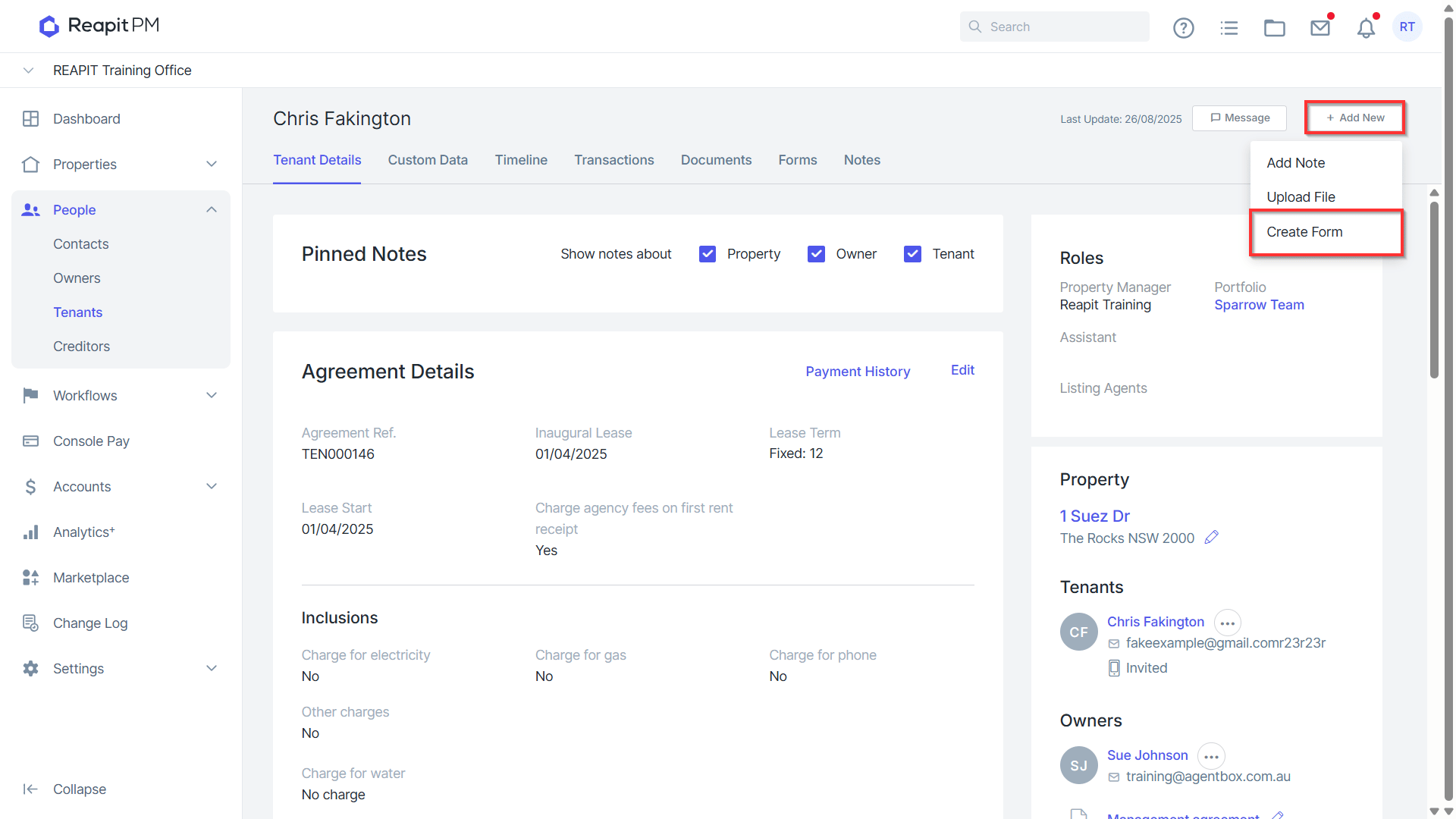
- Navigate to Add New and click on the Create Form ****button at the top right of the page.
Note: If the button isn't displayed there, you can press CTRL + F5 to reload your page.
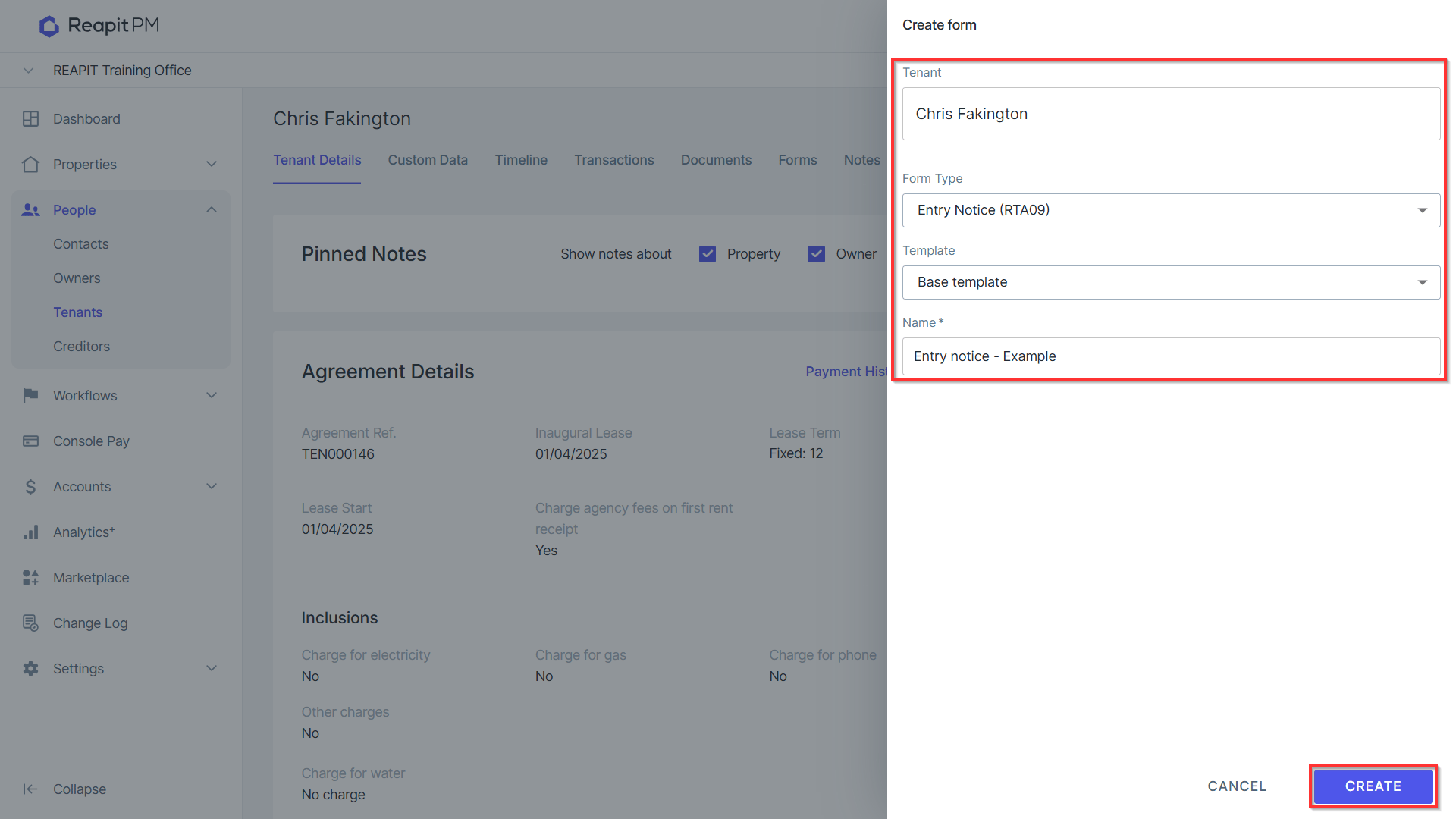
- Once selected, the drawer will appear where you can select the form, template and a name. Fill in the details and click Create. You will then be redirected to the REI website.
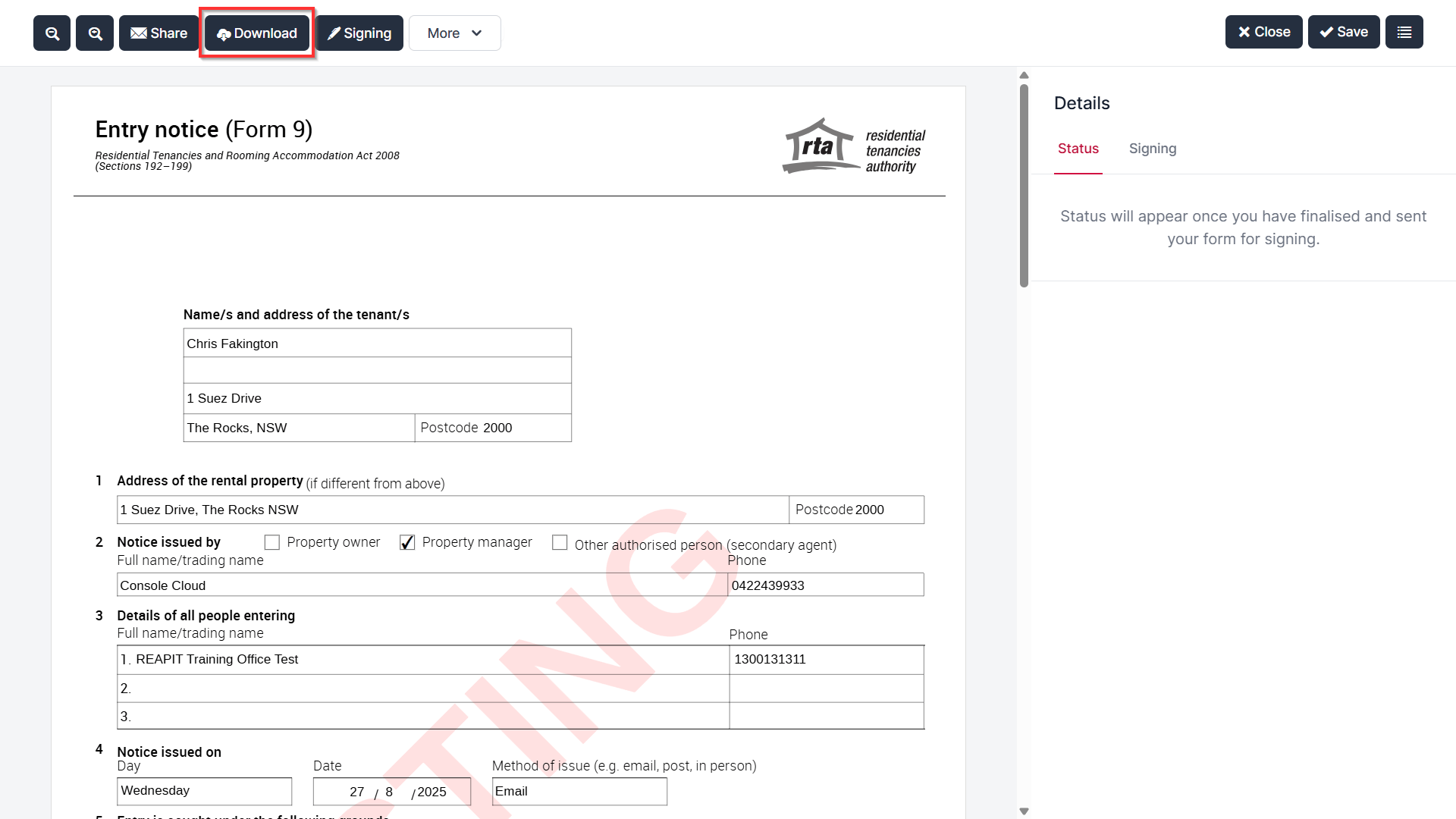
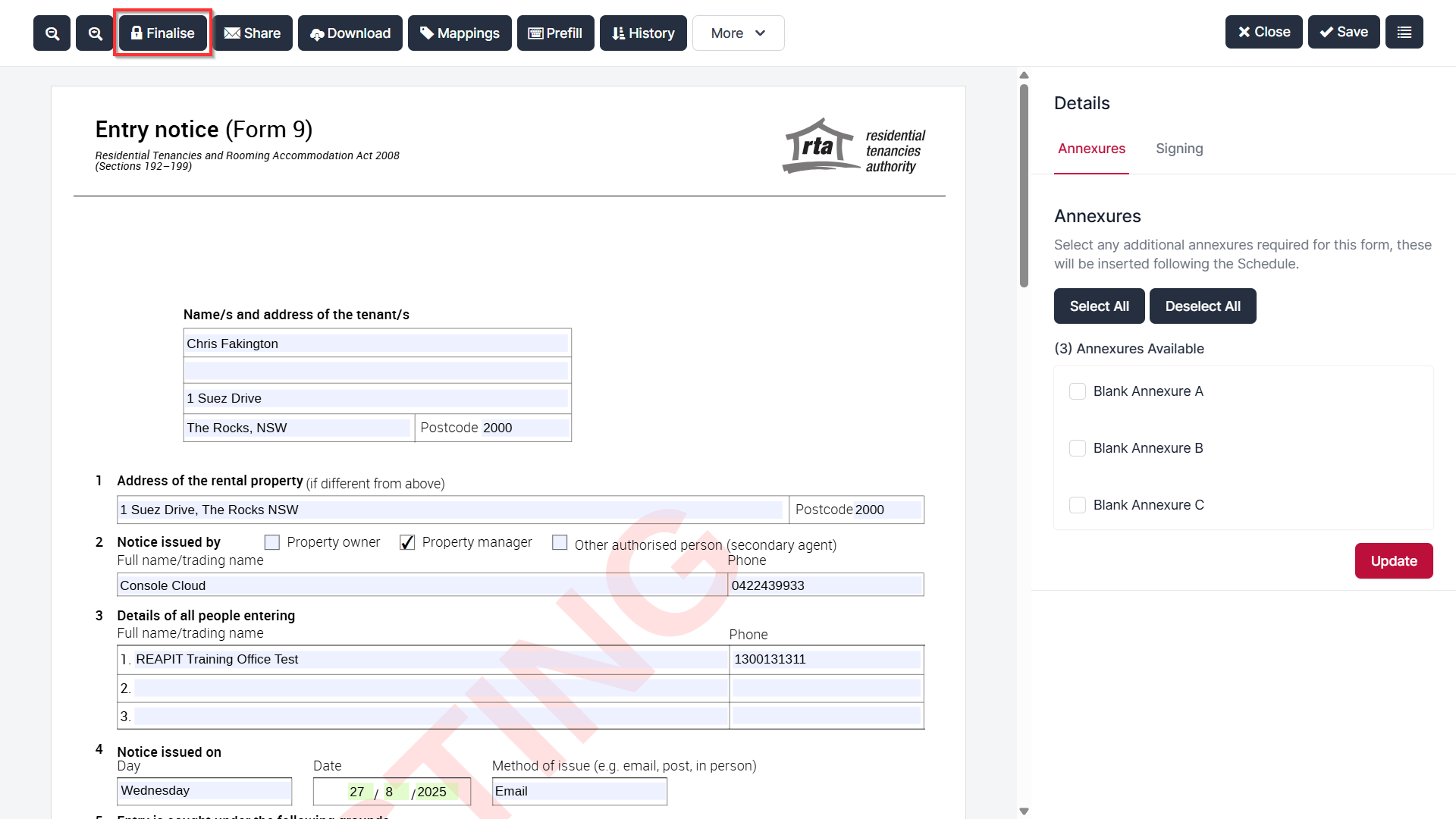
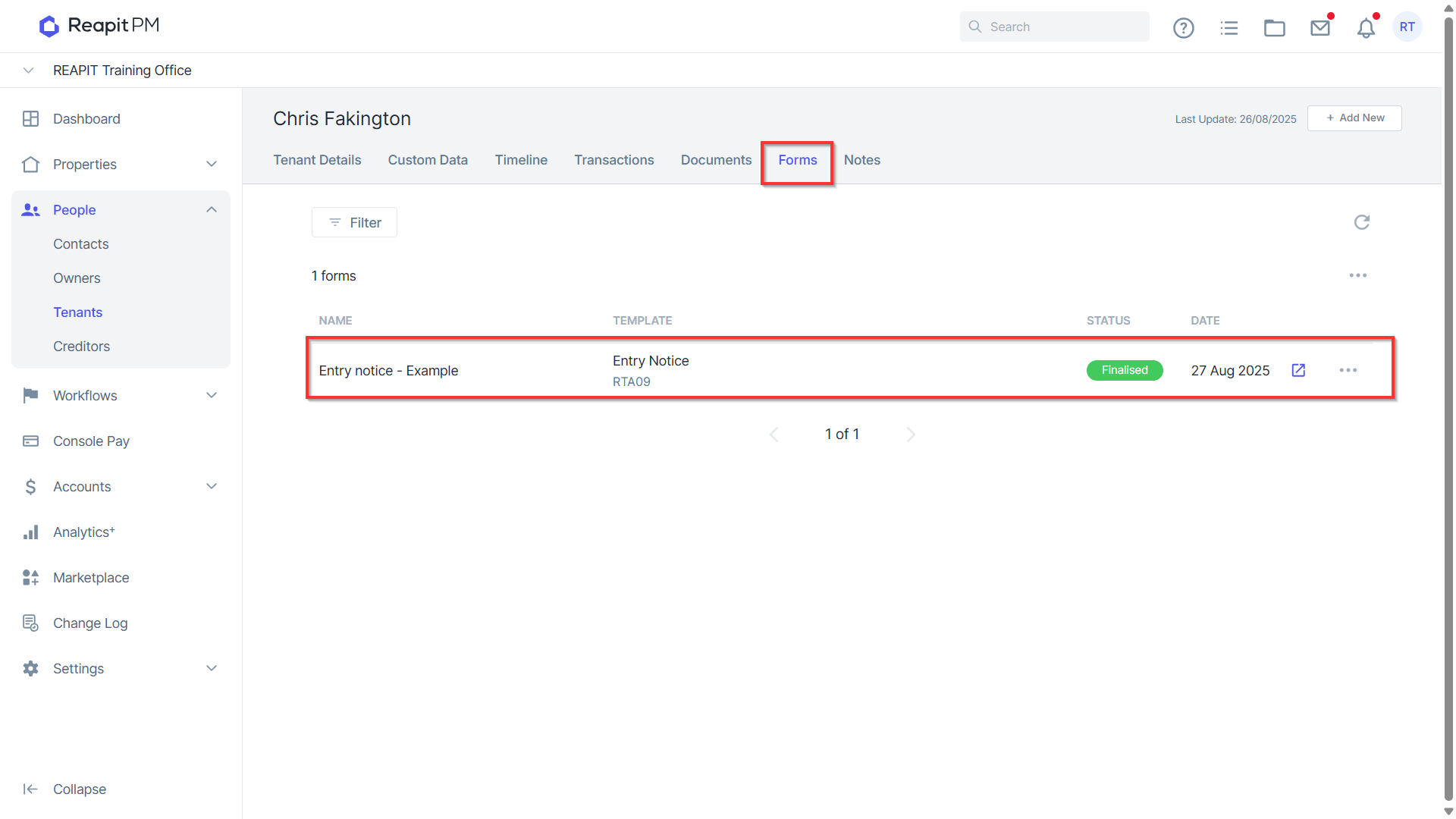
- When all details have been entered on the REI site you can click the Finalise button. By doing so, this will attach the form to the relevant files Forms tab.
- From there, you can open the form using the blue arrow icon or remove it by pressing the 3-dot icon.
Note: Removed forms can not be re-added to this tab.
- If you need to send a copy of the form to the tenant or owner, you would need to download the file from the REI page and then message the recipient with the document.