'%20d='M0%208a8%208%200%200%201%208-8h24a8%208%200%200%201%208%208v24a8%208%200%200%201-8%208H8a8%208%200%200%201-8-8V8Z'/%3e%3cpath%20fill='%23fff'%20d='M8.375%2013v14L20.5%2034l12.124-7v-7.737l-1.687-.975-2.806-1.62-1.082-.624v4.83l-.002%204.83H13.95V16.07l3.275-1.89%202.192-1.265%201.082-.625%203.275%201.877%202.192%201.256%201.083.62V9.782L20.5%206%208.376%2013Z'/%3e%3cdefs%3e%3clinearGradient%20id='reapit-pm__a'%20x1='20.702'%20x2='20.702'%20y1='.351'%20y2='31.228'%20gradientUnits='userSpaceOnUse'%3e%3cstop%20stop-color='%235573FD'/%3e%3cstop%20offset='.575'%20stop-color='%234E56EA'/%3e%3c/linearGradient%3e%3c/defs%3e%3c/svg%3e)
Property Roles
This article will run through the property roles available within Reapit PM. The processes in this article include: Property Roles Property Manager - Assigning a Property Manager Assistant Listing Agent
Overview
Property Roles
This article will run through the property roles available within Reapit PM.
The processes in this article include:
- Property Roles
- Property Manager - Assigning a Property Manager
- Assistant
- Listing Agent
Property Roles
- Property Roles can be viewed from the Property Page.
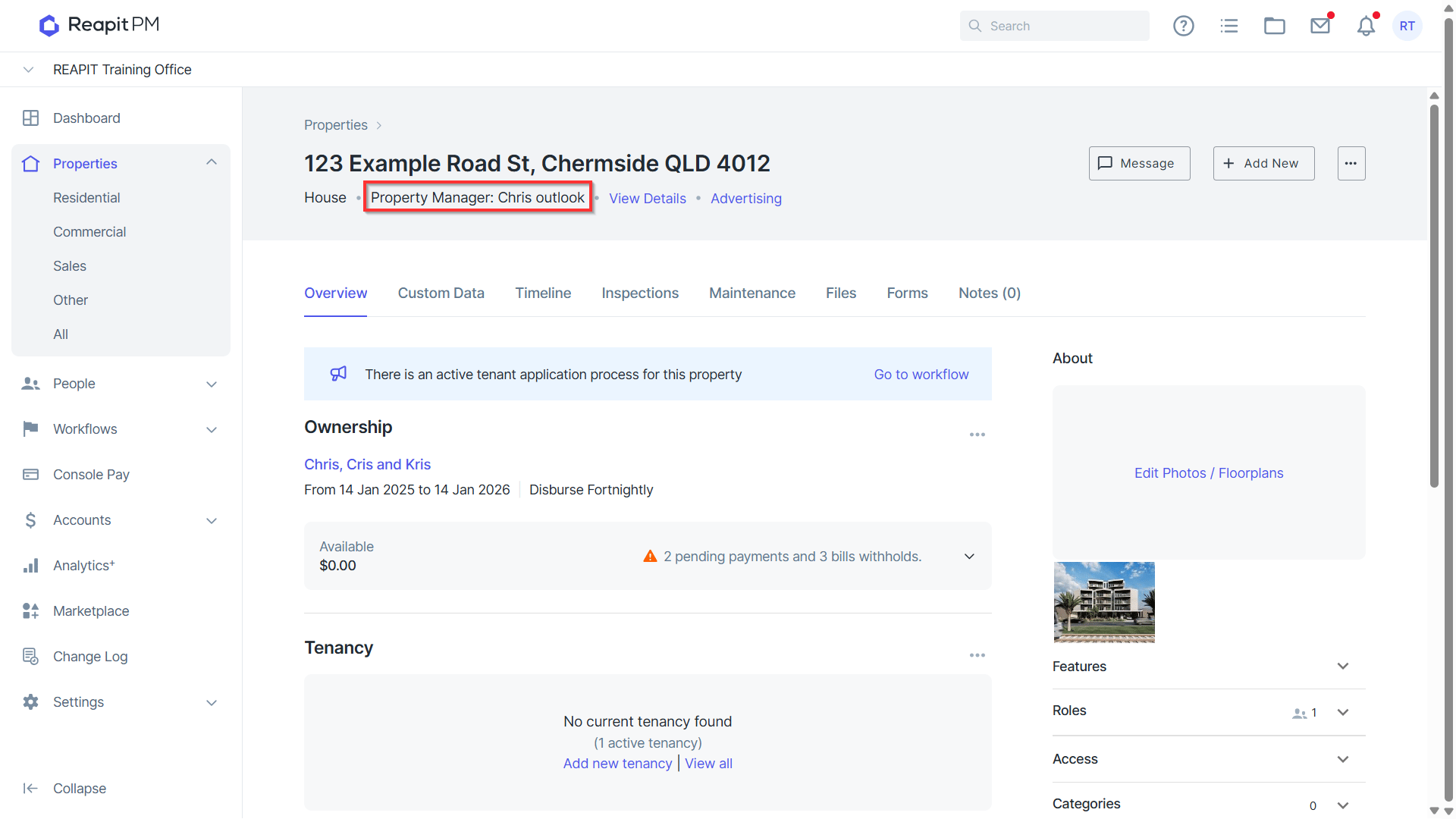
Under the property address, the property manager's name is visible.
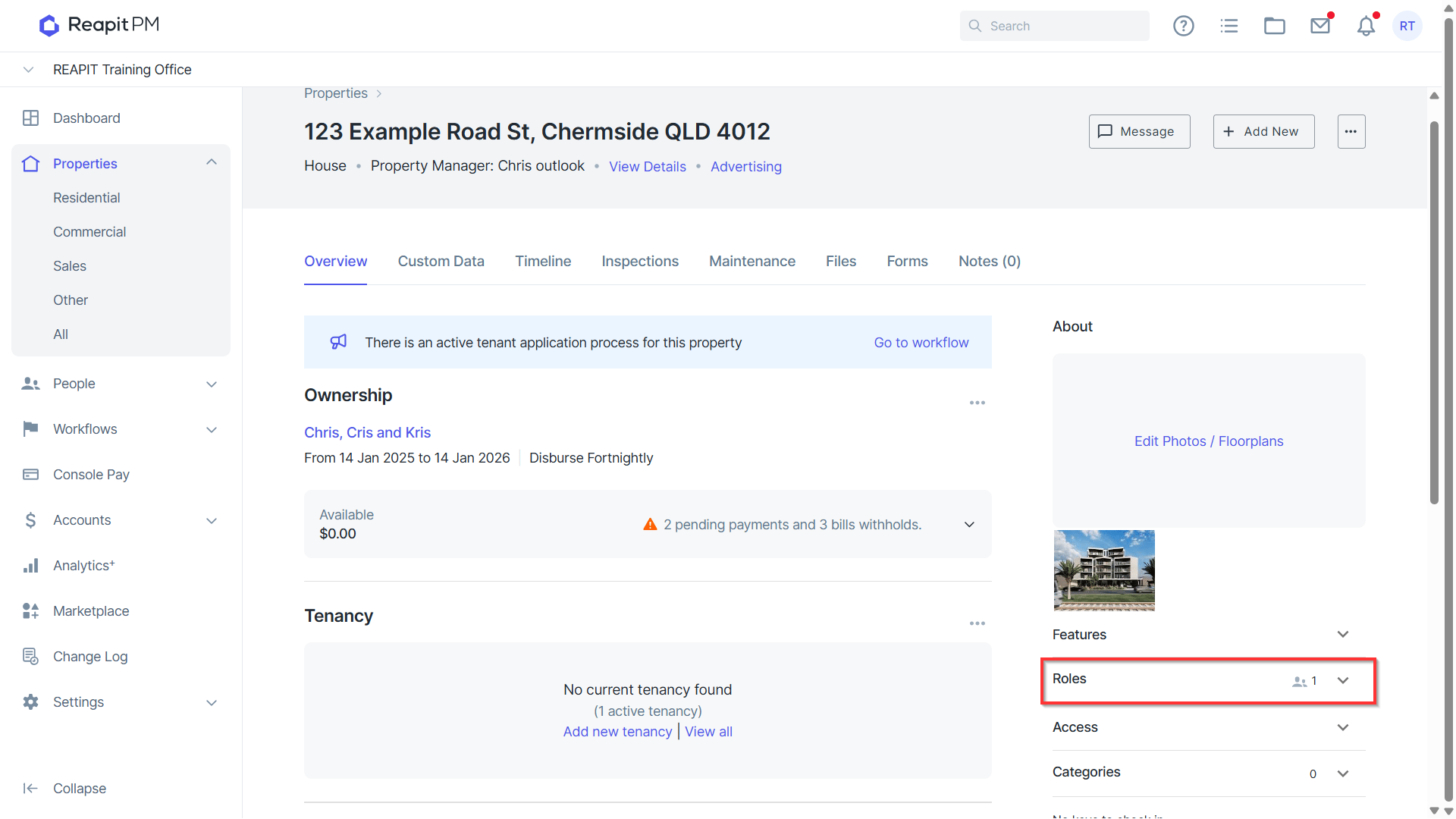
- On the right under Property photos and features, all roles can be viewed in the drop-down.
Property Manager - Assigning a Property Manager
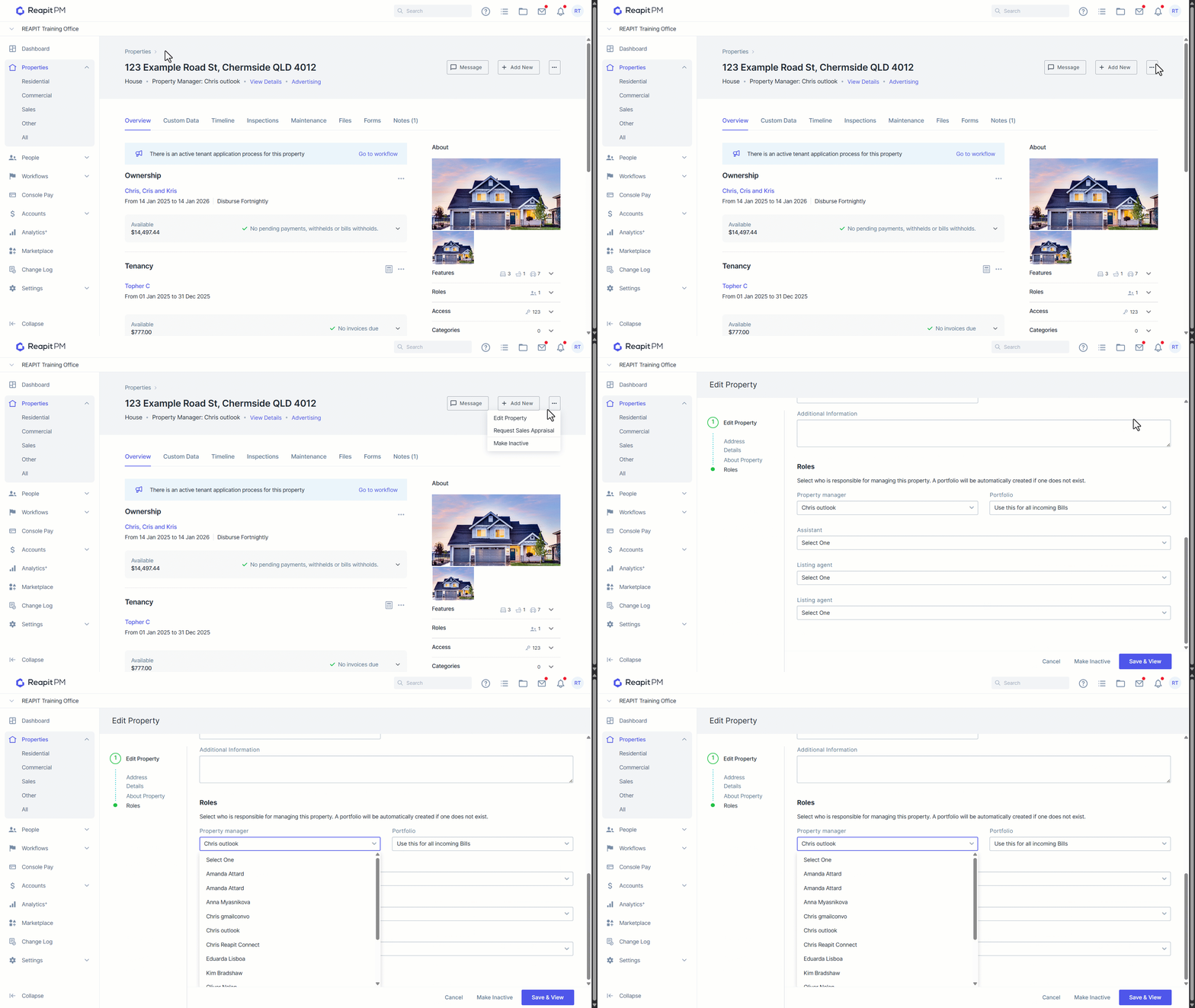
- From the Property page, click the three dots.
- Click Edit Property.
- Navigate to Roles.
- Select a user as the Property Manager.
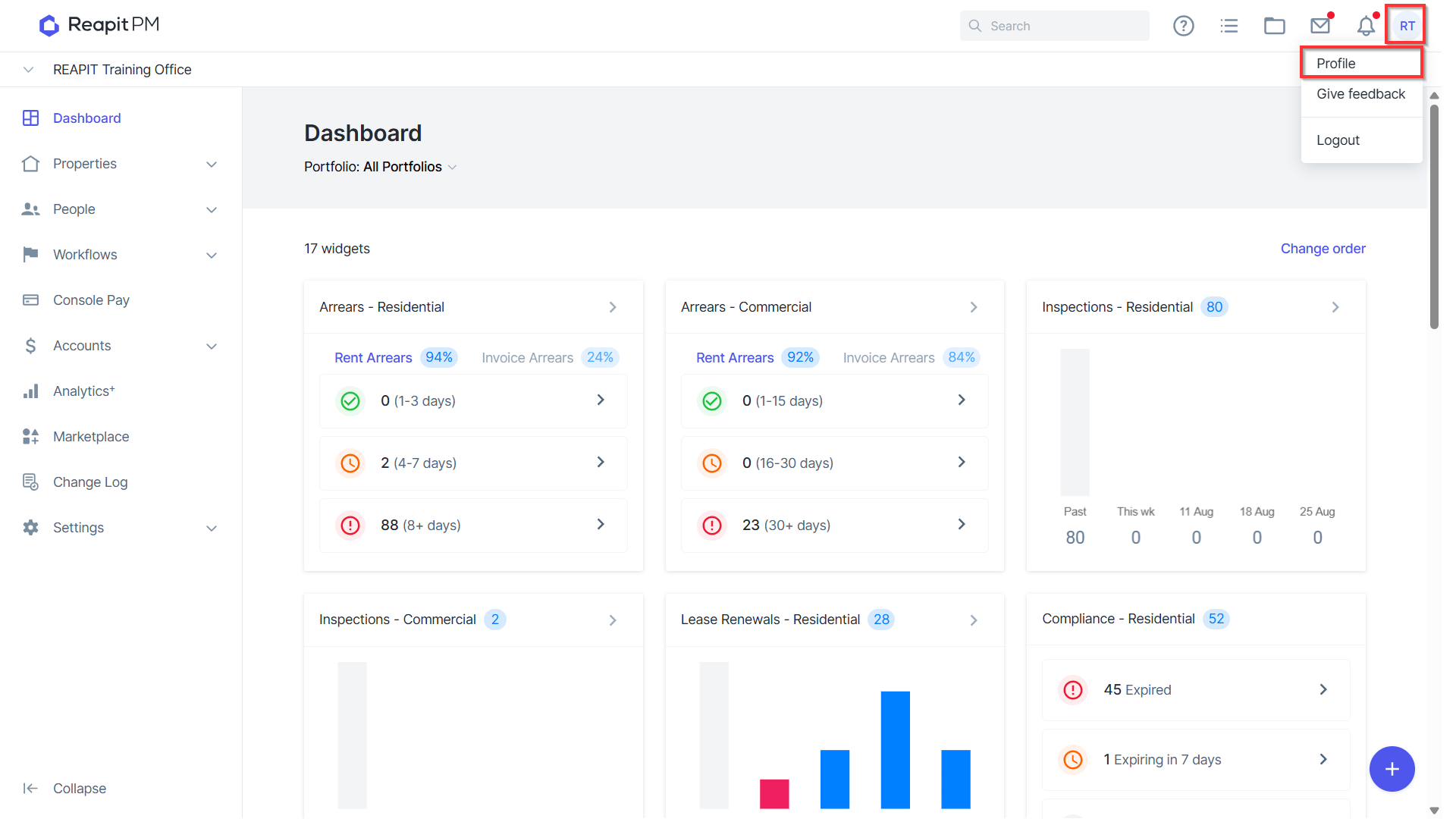
- If this is the first time the user has been added to a property a new group will be created using the Property Managers name and reply to address that is created and stored in the profile page.
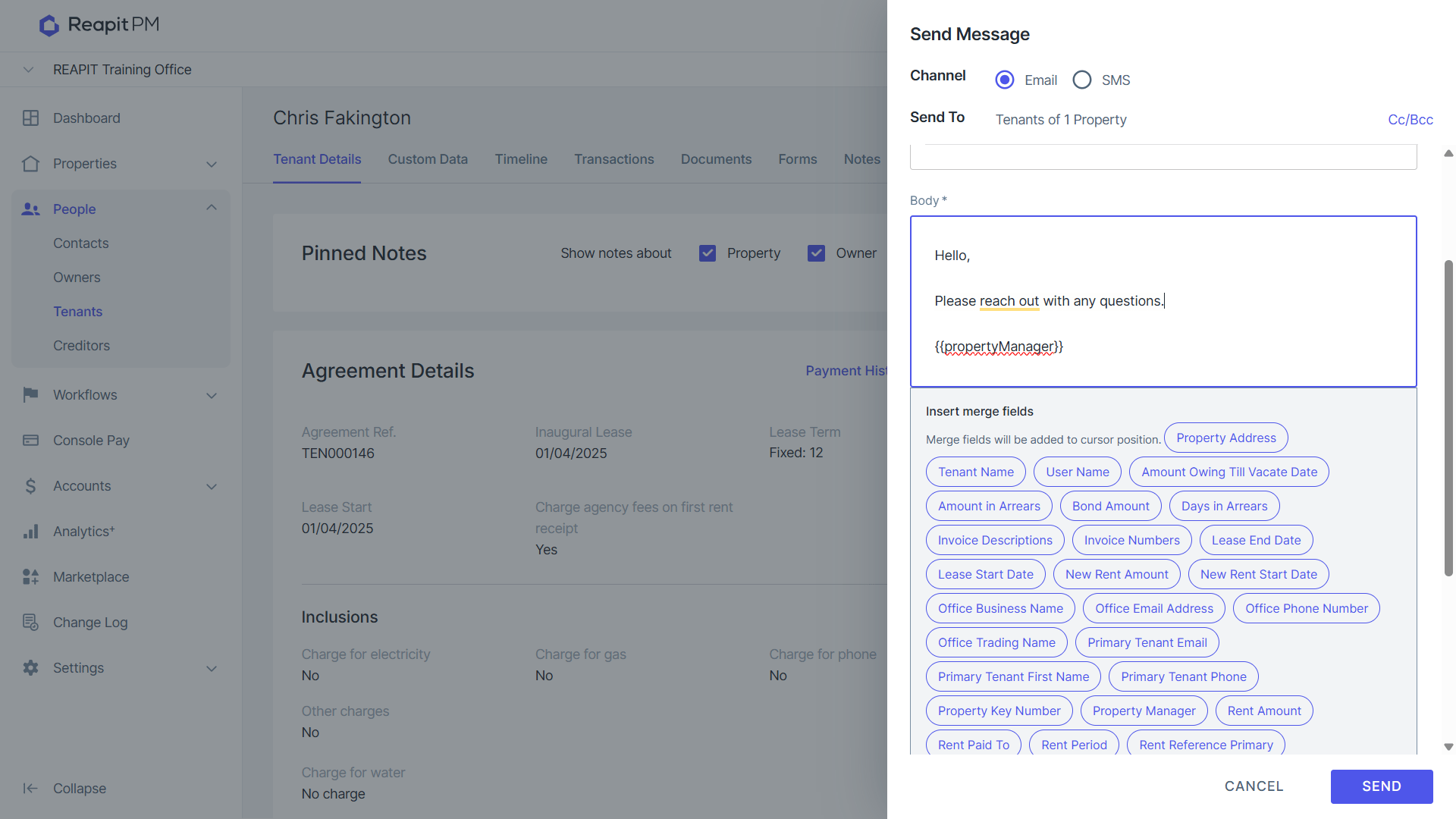
- You can also use the merge field {{propertymanager}} to add to ad-hoc communications including any templates.
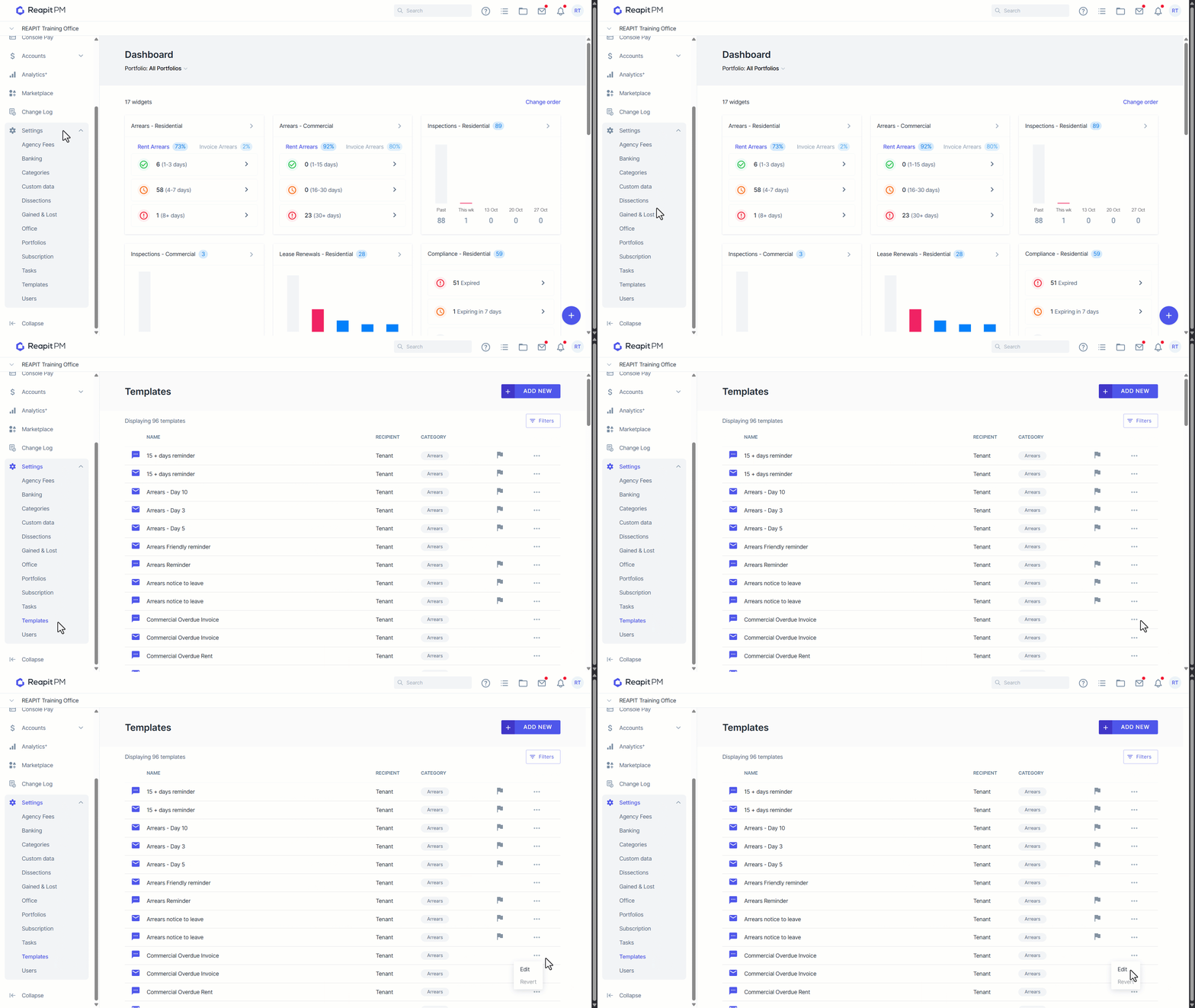
- To add this merge field to templates, navigate to Settings.
- Navigate to Templates.
- Search and Select the Template.
- Click the three dots.
- Click Edit.
- To add additional roles follow the same steps.
Assistant
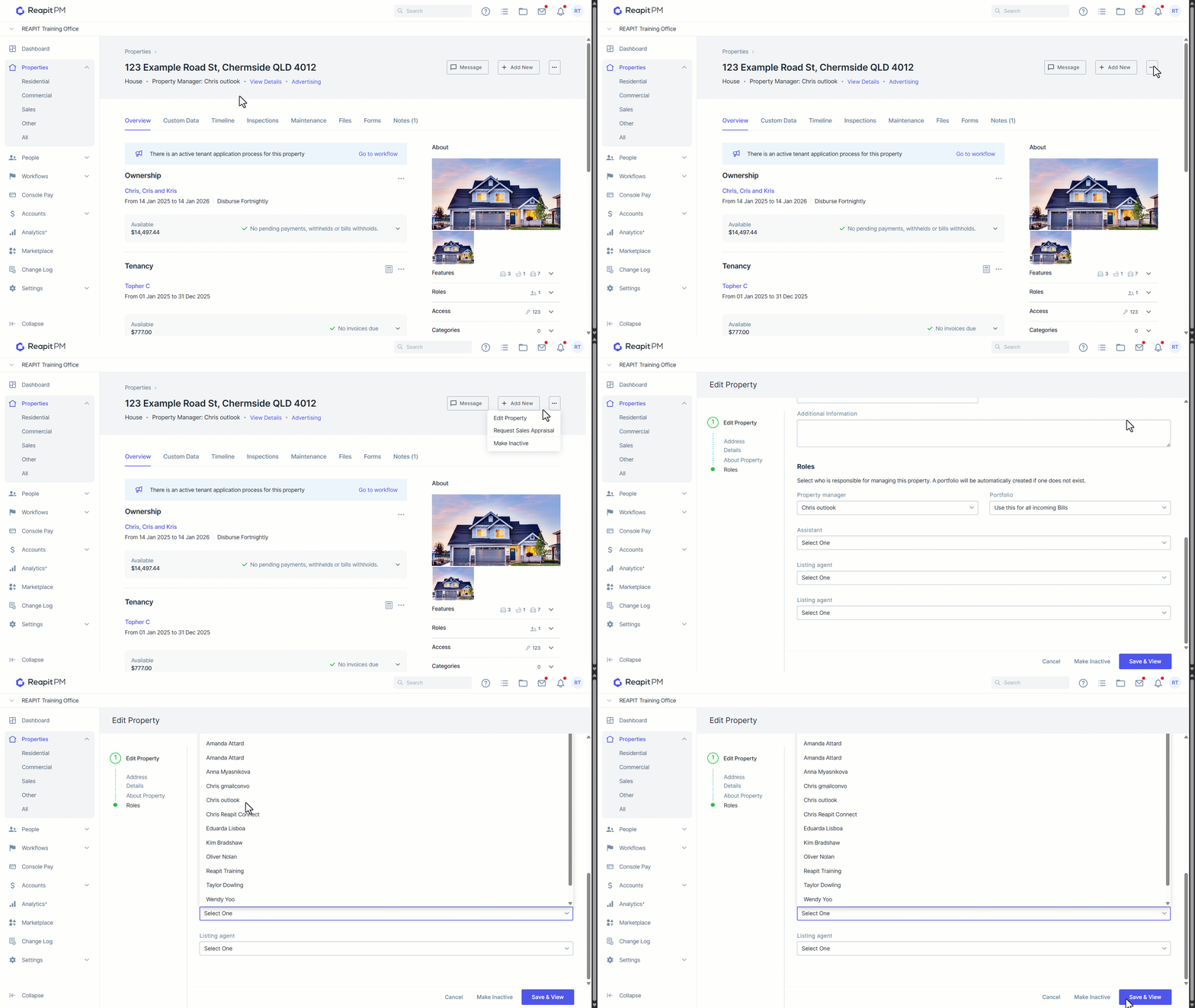
- Navigate to the Property page.
- Click the three dots.
- Click Edit Property.
- Select the Assistant from the drop down list.
- Click Save & View.
Listing Agent
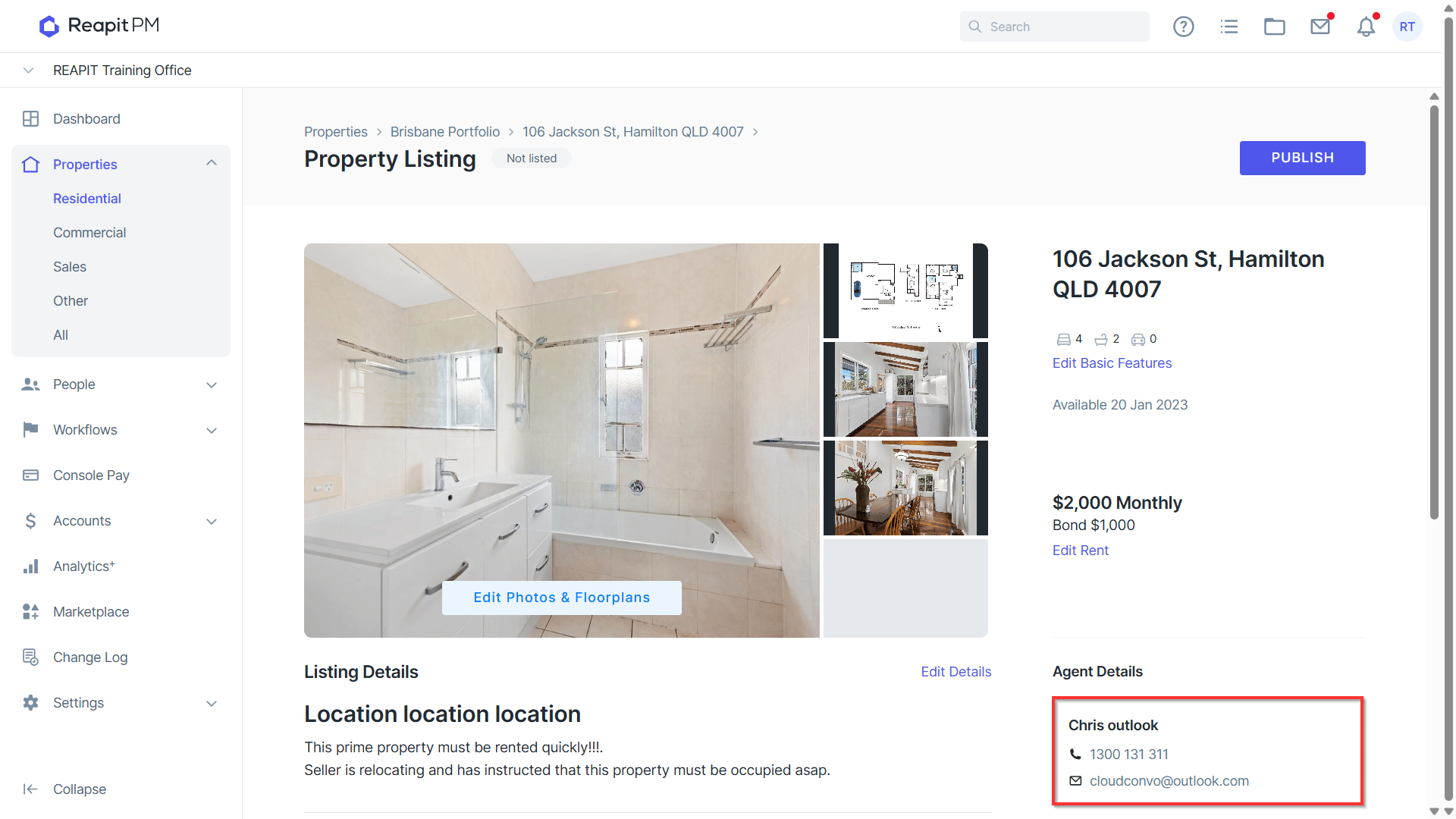
- The listing agent/s will be visible on the property page and Advertising workflow.