'%20d='M0%208a8%208%200%200%201%208-8h24a8%208%200%200%201%208%208v24a8%208%200%200%201-8%208H8a8%208%200%200%201-8-8V8Z'/%3e%3cpath%20fill='%23fff'%20d='M8.375%2013v14L20.5%2034l12.124-7v-7.737l-1.687-.975-2.806-1.62-1.082-.624v4.83l-.002%204.83H13.95V16.07l3.275-1.89%202.192-1.265%201.082-.625%203.275%201.877%202.192%201.256%201.083.62V9.782L20.5%206%208.376%2013Z'/%3e%3cdefs%3e%3clinearGradient%20id='reapit-pm__a'%20x1='20.702'%20x2='20.702'%20y1='.351'%20y2='31.228'%20gradientUnits='userSpaceOnUse'%3e%3cstop%20stop-color='%235573FD'/%3e%3cstop%20offset='.575'%20stop-color='%234E56EA'/%3e%3c/linearGradient%3e%3c/defs%3e%3c/svg%3e)
Portal Set Up and Invites
This article will run through how to send an individual invite to the owner portal as well as sending invites in bulk. It will also show how to set up the branding in Reapit PM. Note: The invite can also be automatically sent at the point of creating a management agreement. The process in this article include: How to Send an Invite to the Owner Portal How to Send an Invite to the Owner Portal in Bulk Setting up the Branding
Overview
Portal Set Up and Invites
This article will run through how to send an individual invite to the owner portal as well as sending invites in bulk. It will also show how to set up the branding in Reapit PM.
Note: The invite can also be automatically sent at the point of creating a management agreement.
The process in this article include:
- How to Send an Invite to the Owner Portal
- How to Send an Invite to the Owner Portal in Bulk
- Setting up the Branding
How to Send an Invite to the Owner Portal
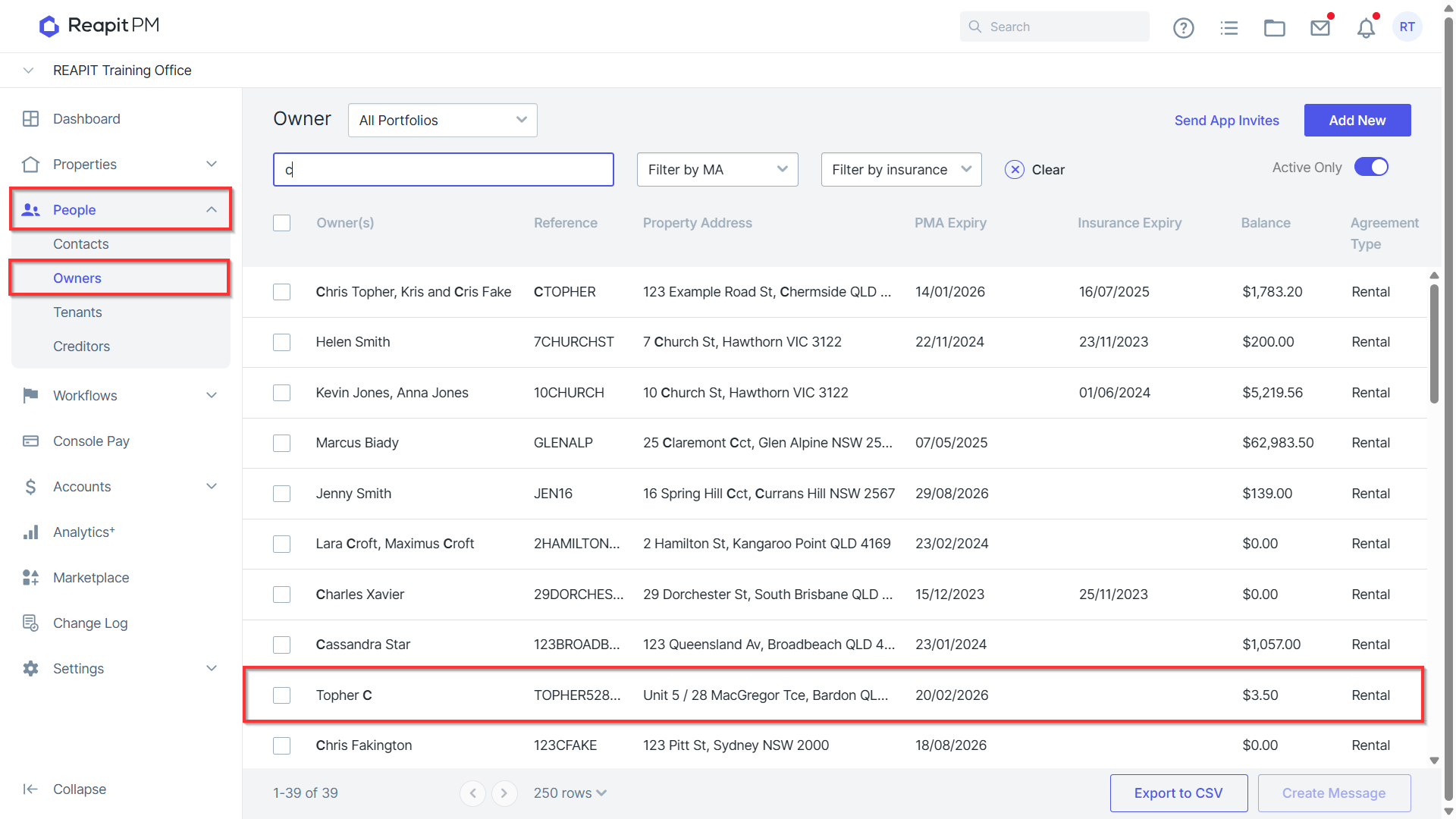
- Navigate to the drawer and select People > Owners.
- Search and select your owner.
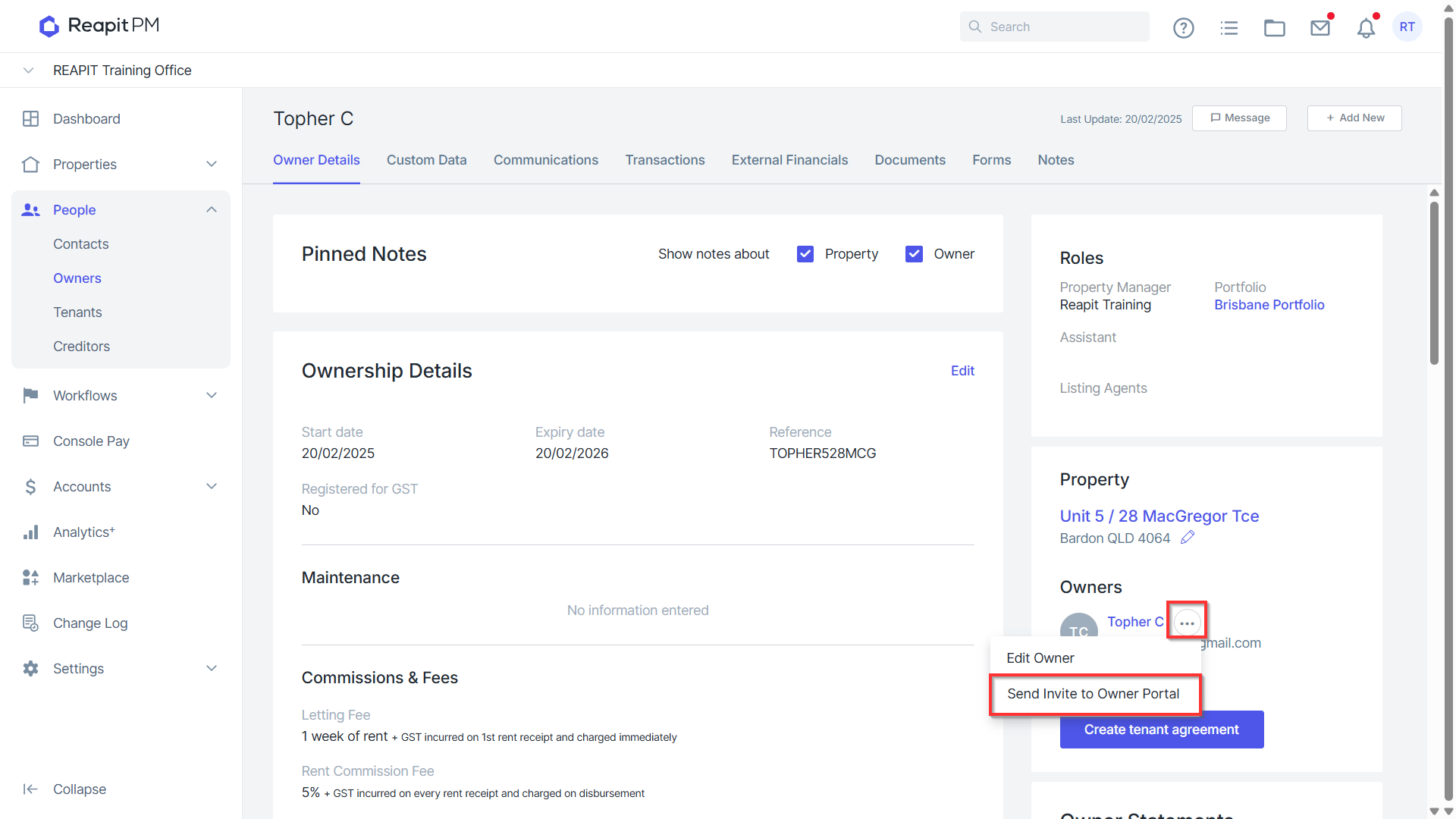
- Navigate to the 3 dots and select Send Invite to Owner Portal.
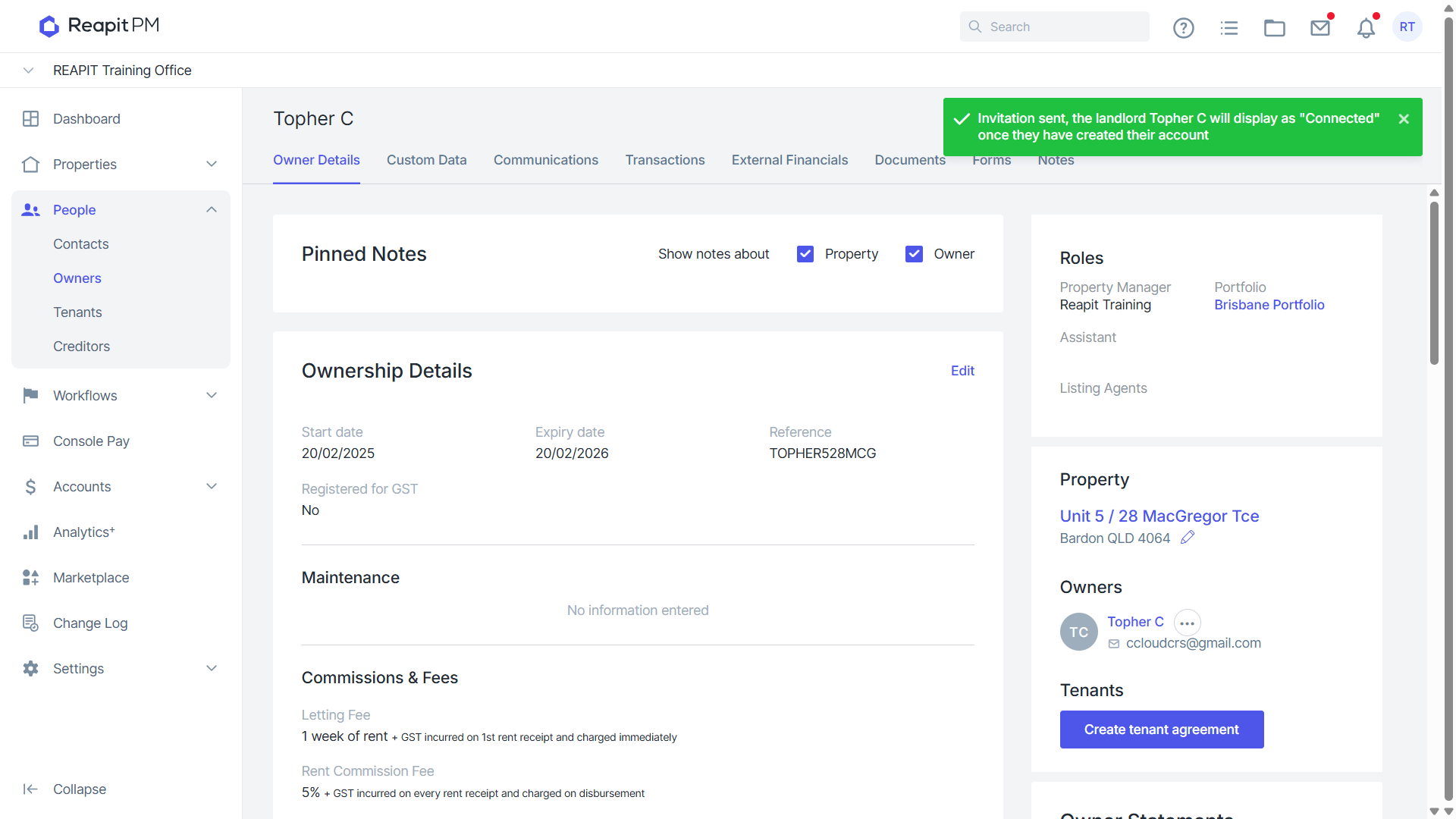
- A confirmation note will appear on the top right of the screen. The owner will then receive an email invitation and will need to click ‘Accept Invite’ to proceed.
How to Send an Invite to the Owner Portal in Bulk
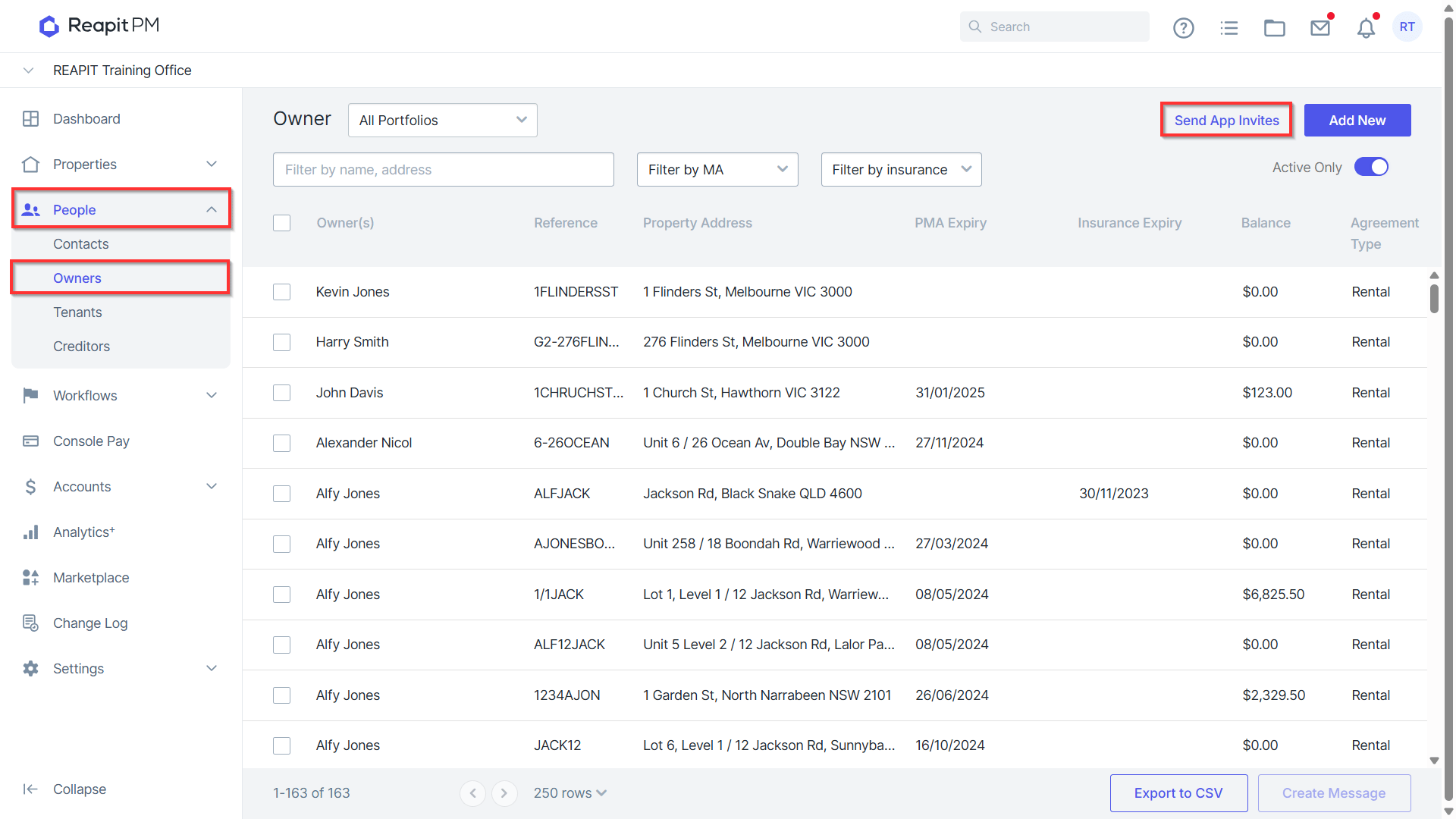
- Navigate to People > Owners.
- Navigate to the top right corner and click Send App Invites.
- Click Send Invites.
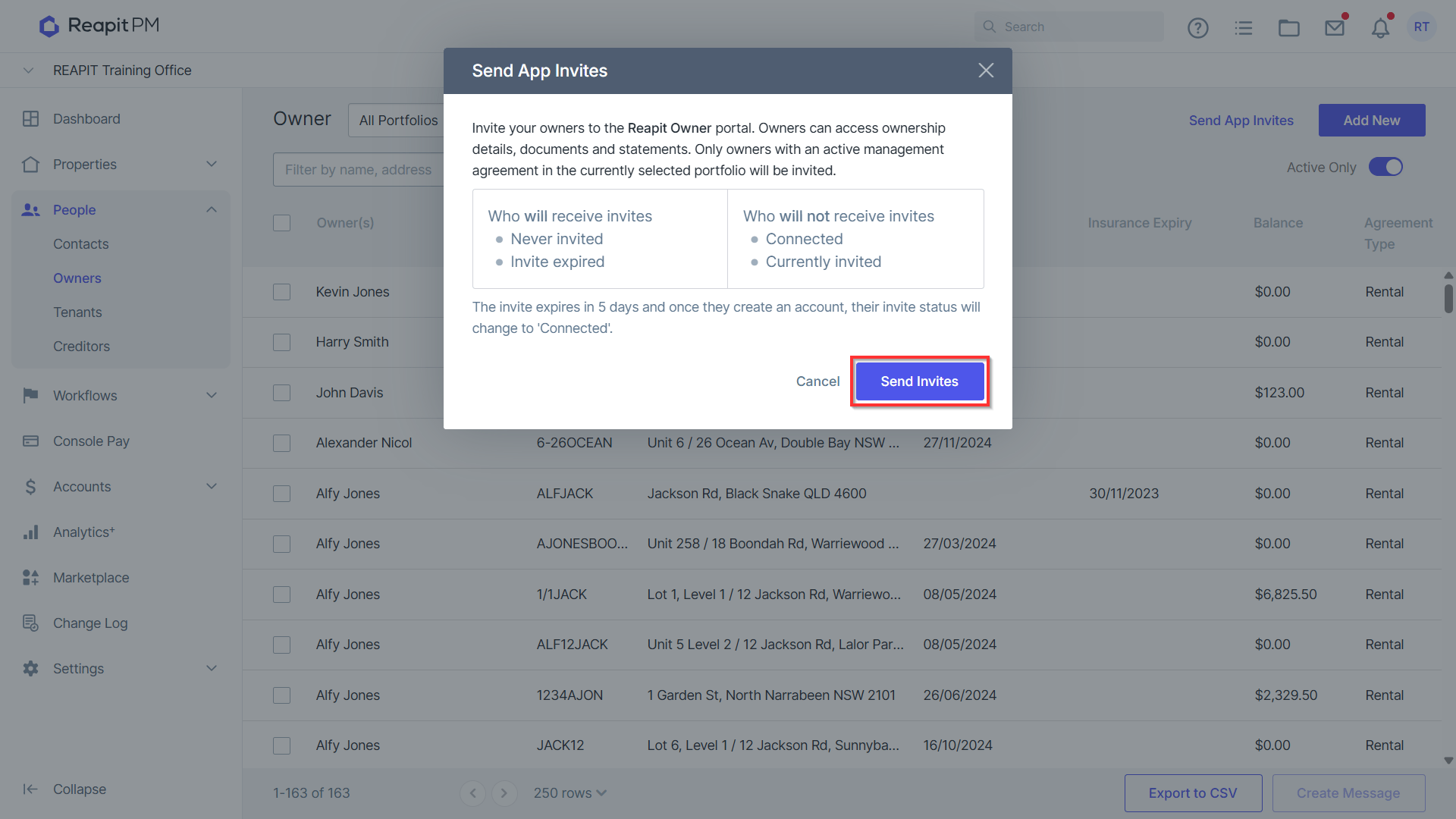
- A confirmation note will appear on the top right of the screen.
Setting up the Branding
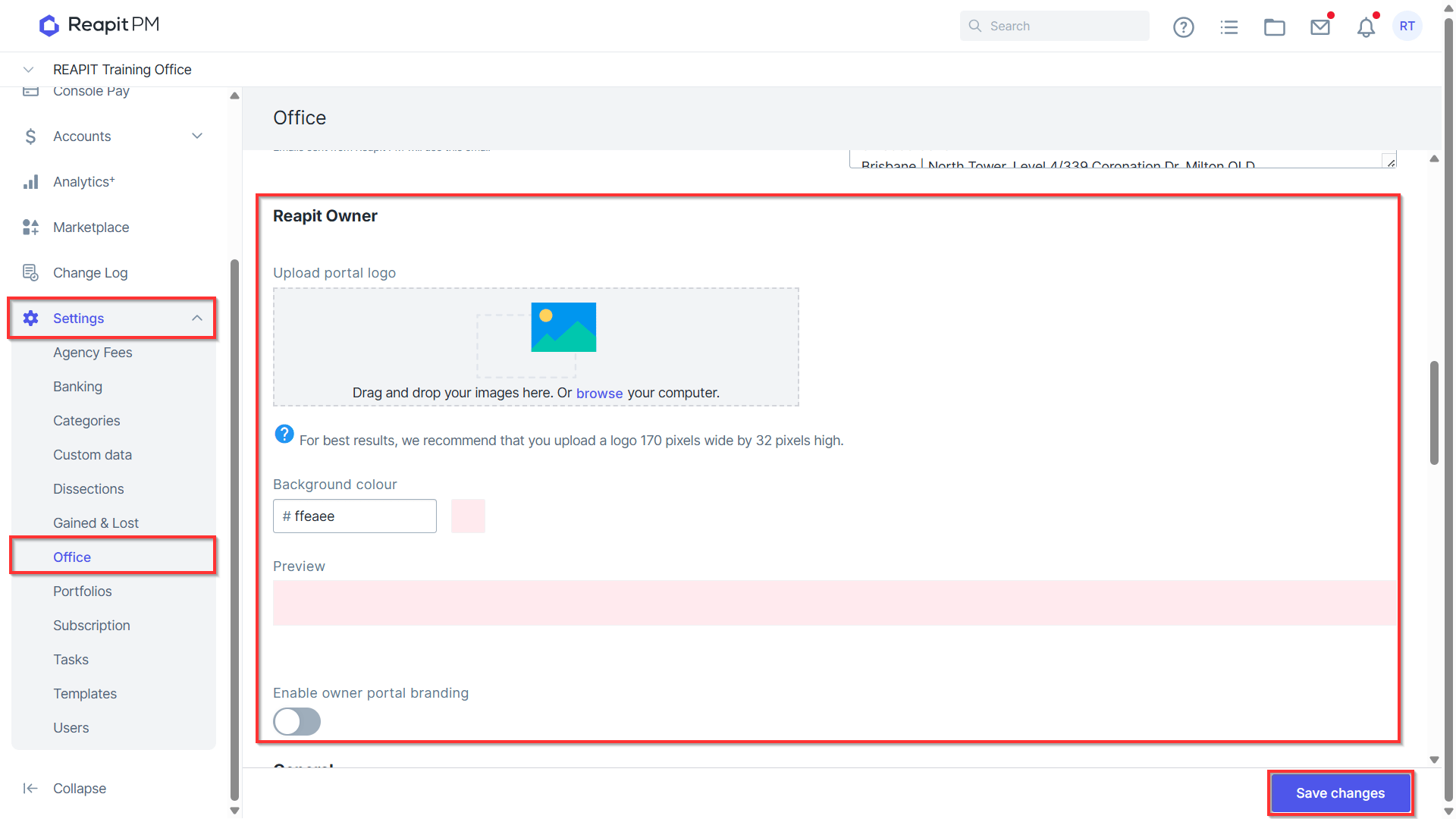
- Navigate to Settings > Office.
- Scroll to the Reapit Owner section and set up the details. Once completed, click Save Changes.