'%20d='M0%208a8%208%200%200%201%208-8h24a8%208%200%200%201%208%208v24a8%208%200%200%201-8%208H8a8%208%200%200%201-8-8V8Z'/%3e%3cpath%20fill='%23fff'%20d='M8.375%2013v14L20.5%2034l12.124-7v-7.737l-1.687-.975-2.806-1.62-1.082-.624v4.83l-.002%204.83H13.95V16.07l3.275-1.89%202.192-1.265%201.082-.625%203.275%201.877%202.192%201.256%201.083.62V9.782L20.5%206%208.376%2013Z'/%3e%3cdefs%3e%3clinearGradient%20id='reapit-pm__a'%20x1='20.702'%20x2='20.702'%20y1='.351'%20y2='31.228'%20gradientUnits='userSpaceOnUse'%3e%3cstop%20stop-color='%235573FD'/%3e%3cstop%20offset='.575'%20stop-color='%234E56EA'/%3e%3c/linearGradient%3e%3c/defs%3e%3c/svg%3e)
Setting up Property Details in Console Sales
This article will walk you through how to set up property details and features in Reapit PM. The process in this article include: How to Set up Property Details
Overview
Setting up Property Details in Console Sales
This article will walk you through how to set up property details and features in Reapit PM.
The process in this article include:
- How to Set up Property Details
How to Set up Property Details
- Click on Properties.
- Click on Sales.
- Search or select the property.
- Click Add Photos / Floorplans in the grey square.
- The Add Photo window will appear. Drag your image to the grey square or use the Choose Image button to search for the image.
- Your image will display as a thumbnail once added.
- Click Save.
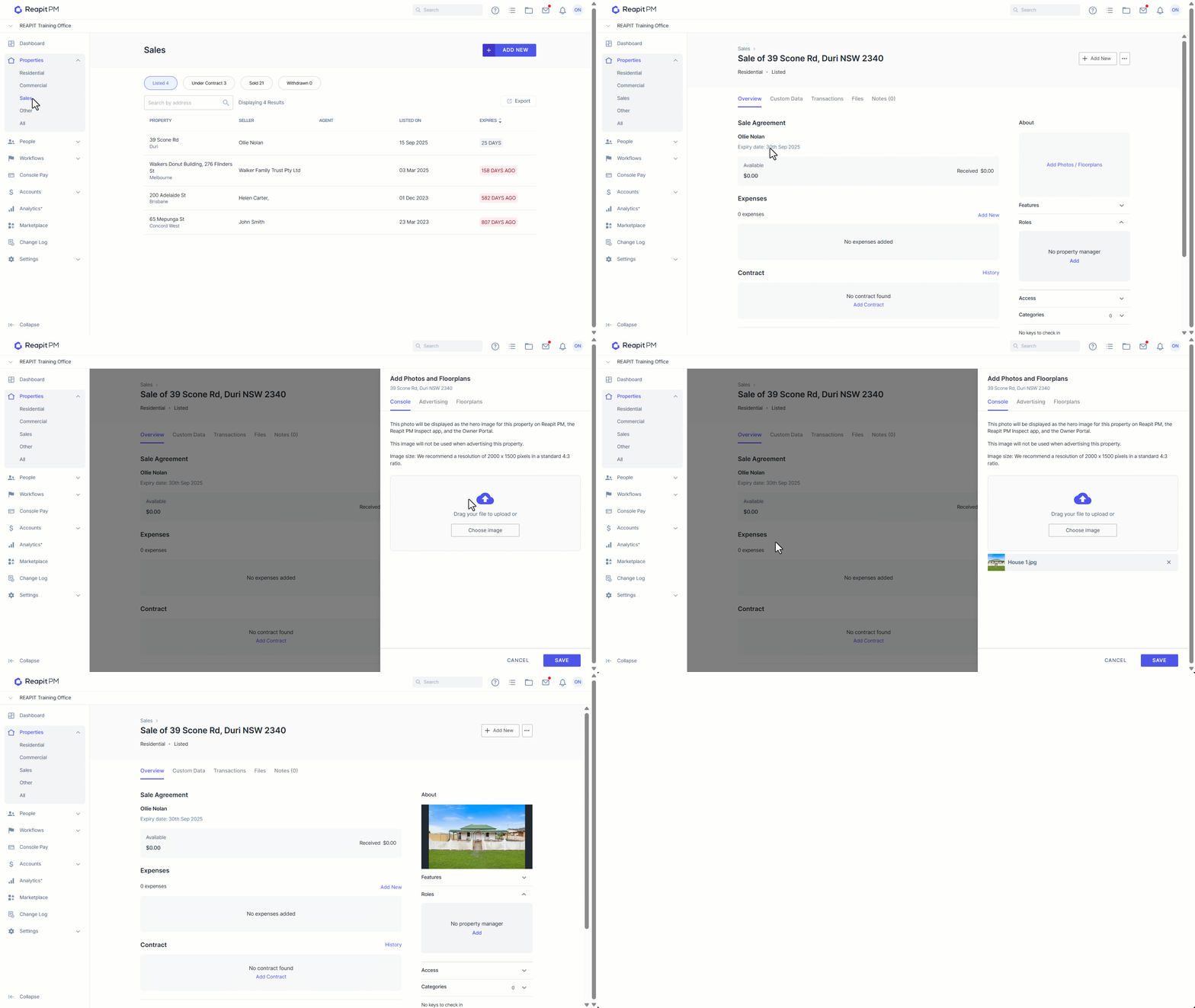
- Your property image will now show in the about section.
Note: Reapit PM will show your image only in this box, you may need to reduce the size of your image to display more of the property. Alternatively, click on the photo to view the full size photo.
- Click Add Features.
- Enter in the features of the property.
- Click Save.
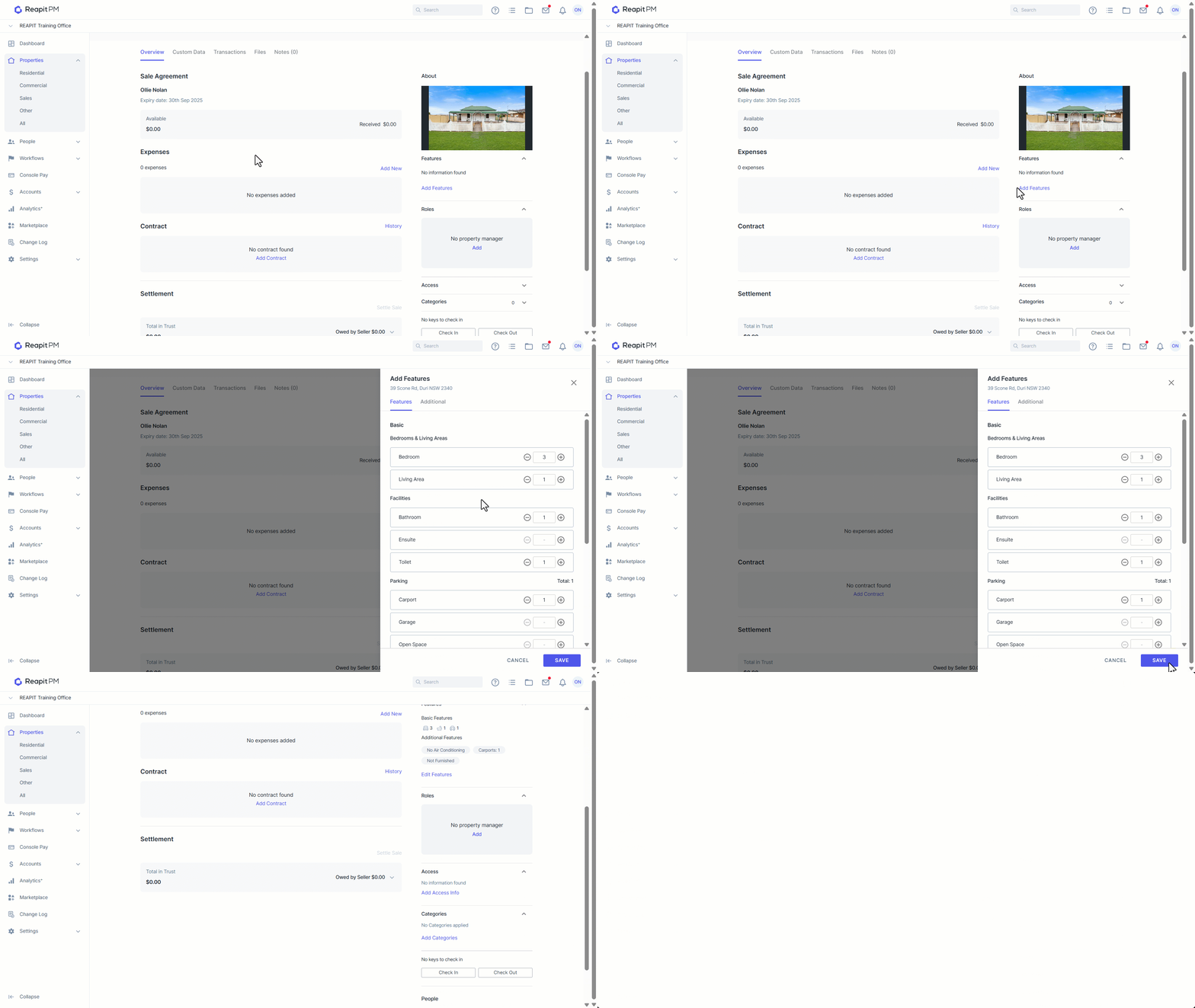
- Your features will now appear in the property about section, you can edit these features using the Edit Features link.
- To add property access details, click ****Add Access Info.
- Enter the Key Number and Access Details.
- Click Save.
- Access details will now appear in the about section.