'%20d='M0%208a8%208%200%200%201%208-8h24a8%208%200%200%201%208%208v24a8%208%200%200%201-8%208H8a8%208%200%200%201-8-8V8Z'/%3e%3cpath%20fill='%23fff'%20d='M8.375%2013v14L20.5%2034l12.124-7v-7.737l-1.687-.975-2.806-1.62-1.082-.624v4.83l-.002%204.83H13.95V16.07l3.275-1.89%202.192-1.265%201.082-.625%203.275%201.877%202.192%201.256%201.083.62V9.782L20.5%206%208.376%2013Z'/%3e%3cdefs%3e%3clinearGradient%20id='reapit-pm__a'%20x1='20.702'%20x2='20.702'%20y1='.351'%20y2='31.228'%20gradientUnits='userSpaceOnUse'%3e%3cstop%20stop-color='%235573FD'/%3e%3cstop%20offset='.575'%20stop-color='%234E56EA'/%3e%3c/linearGradient%3e%3c/defs%3e%3c/svg%3e)
Conversations - Connecting your Outlook Account to Reapit PM
This article will guide you through connecting your Outlook account to Reapit PM.
Conversations - Connecting your Outlook Account to Reapit PM
This article will guide you through connecting your Outlook account to Reapit PM.
The process in this article includes:
- Connecting your Outlook Account to Reapit PM
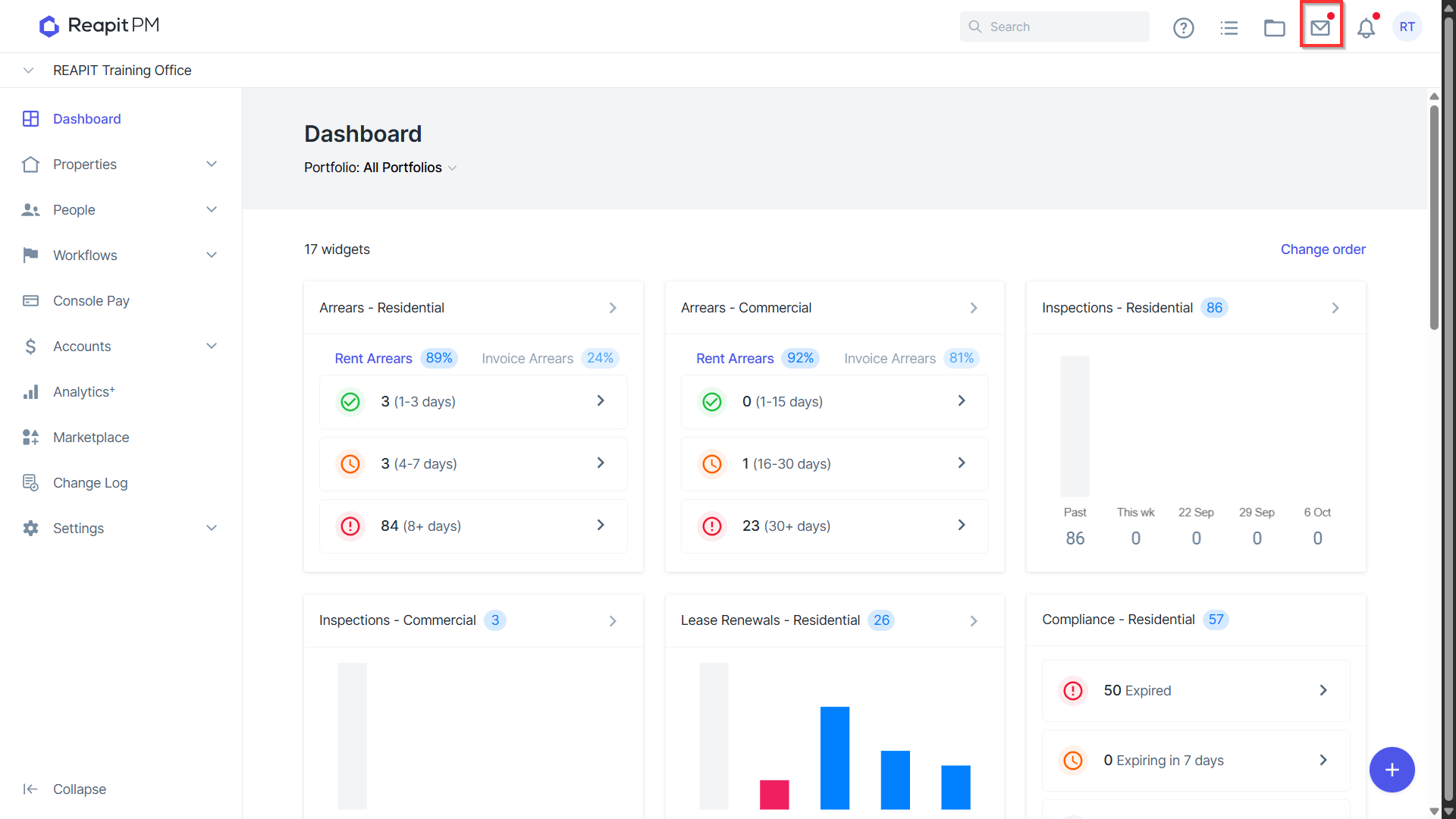
- From the Dashboard, navigate to Conversations.
- Conversations will now display a welcome to conversations email, which provides guidance on getting started. It also explains how recognised emails from Contacts, Creditors, Tenants, and Owners are brought into Conversations.
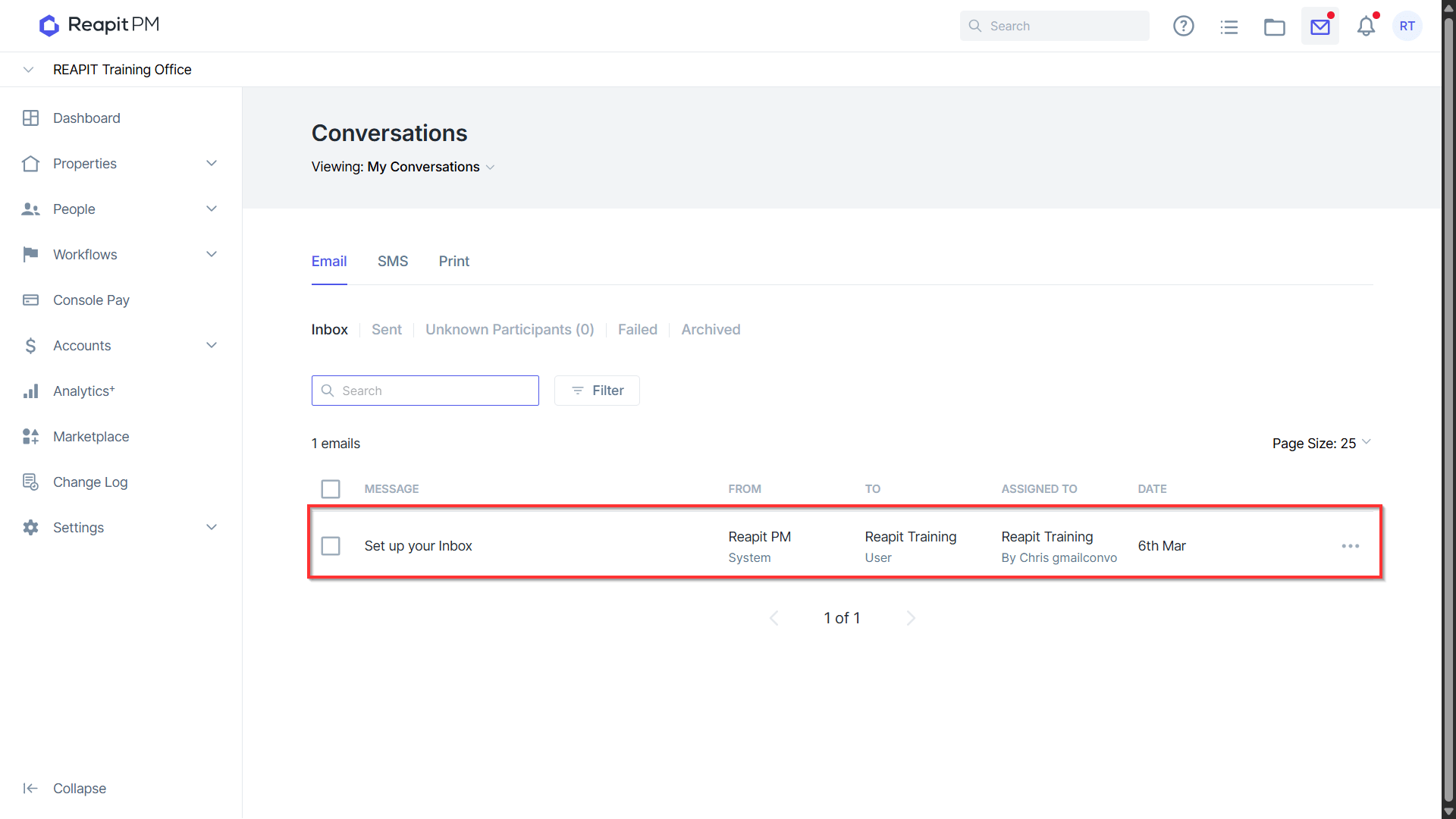
Note: The welcome email received is from a noreply address. When viewing the email, clicking the Reply, or Reply All buttons will appear as functioning but will not send an email out.
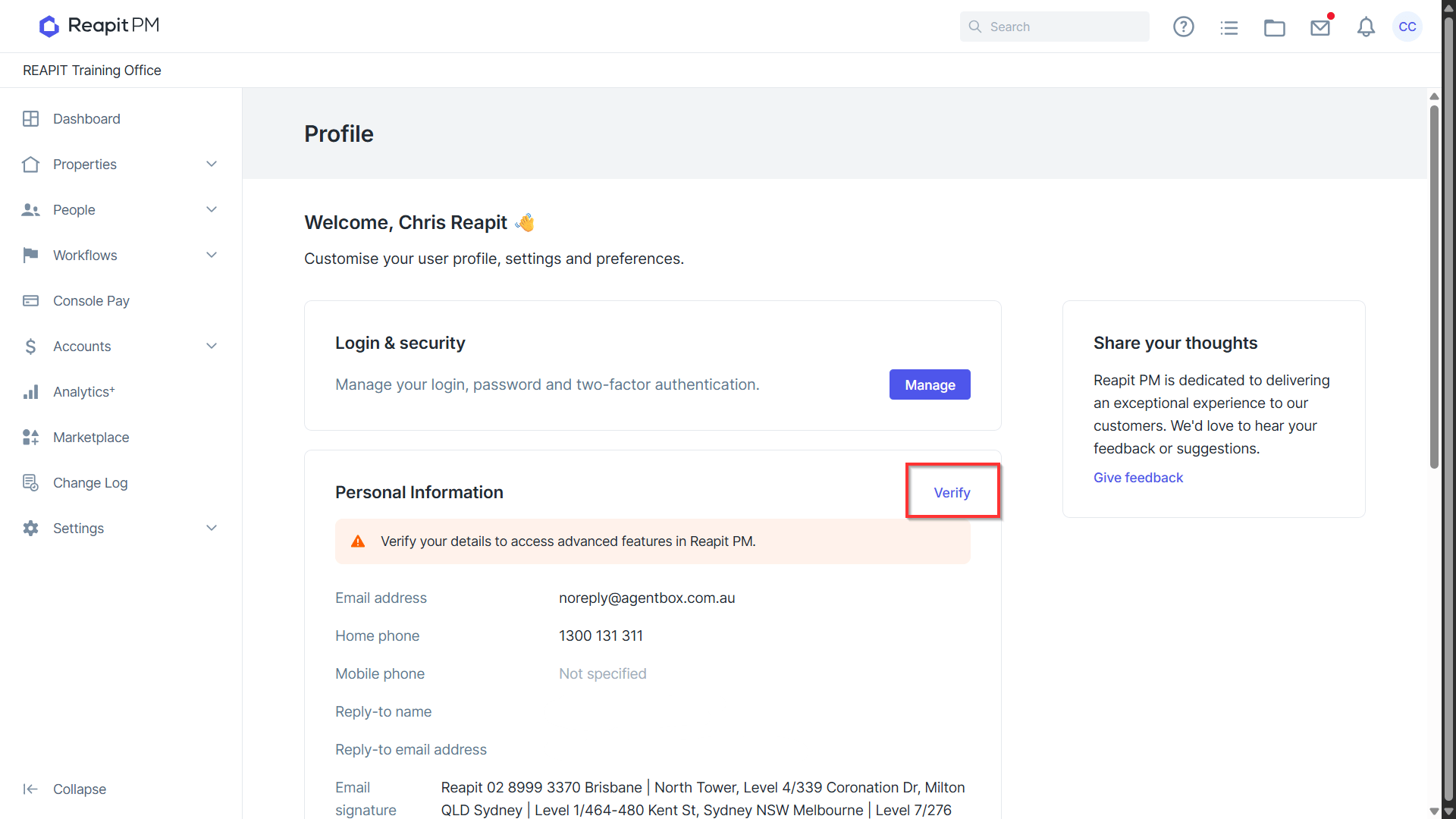
3.Navigate to the User Profile on the top right of the page and scroll down to the Verify button under personal information.
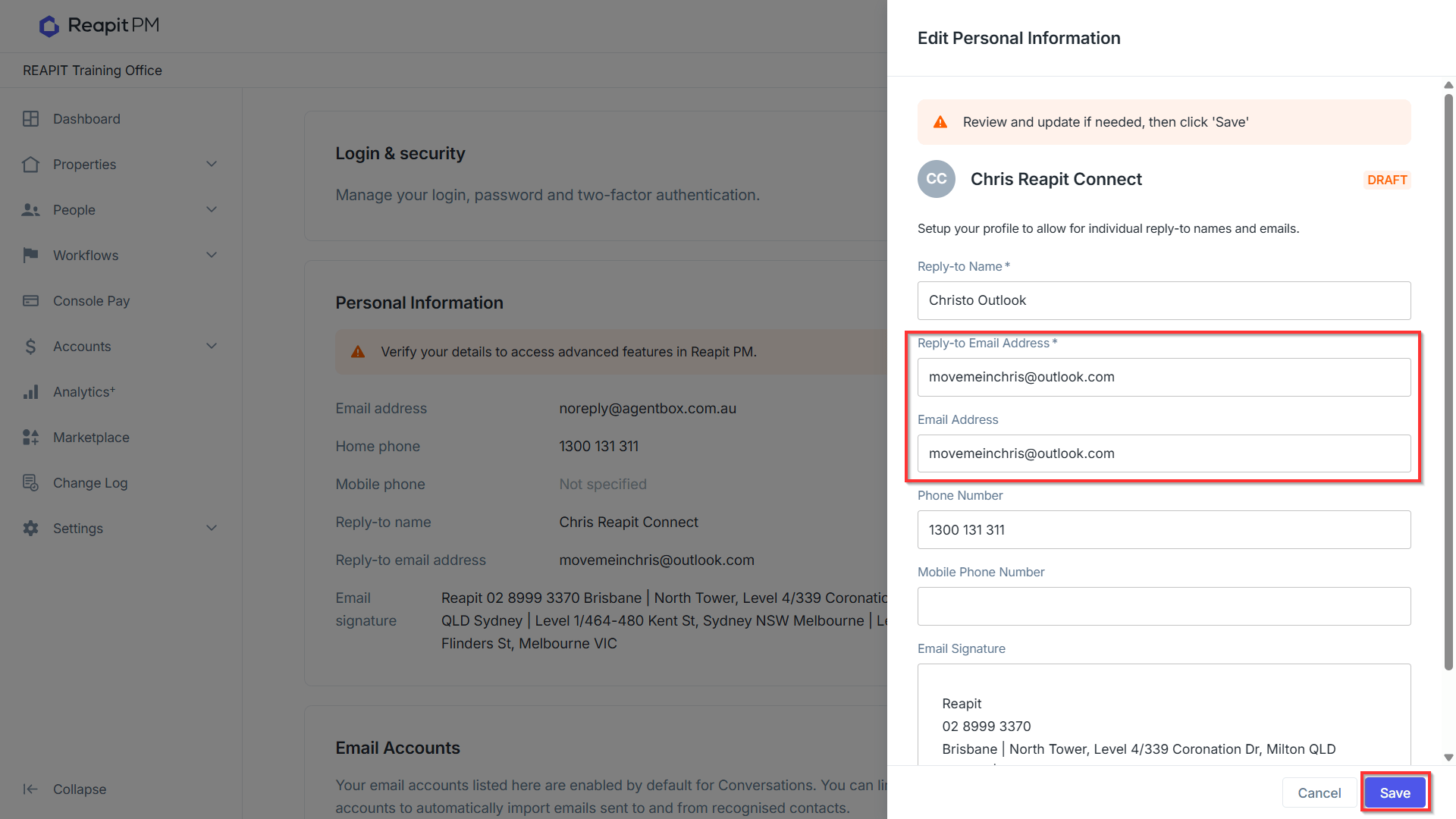
- Verify will now display and ask for you to confirm the email address. For Outlook syncing, the reply-to email address will need to be the same as the Outlook account used to log into Reapit PM. Press Save to update the changes.
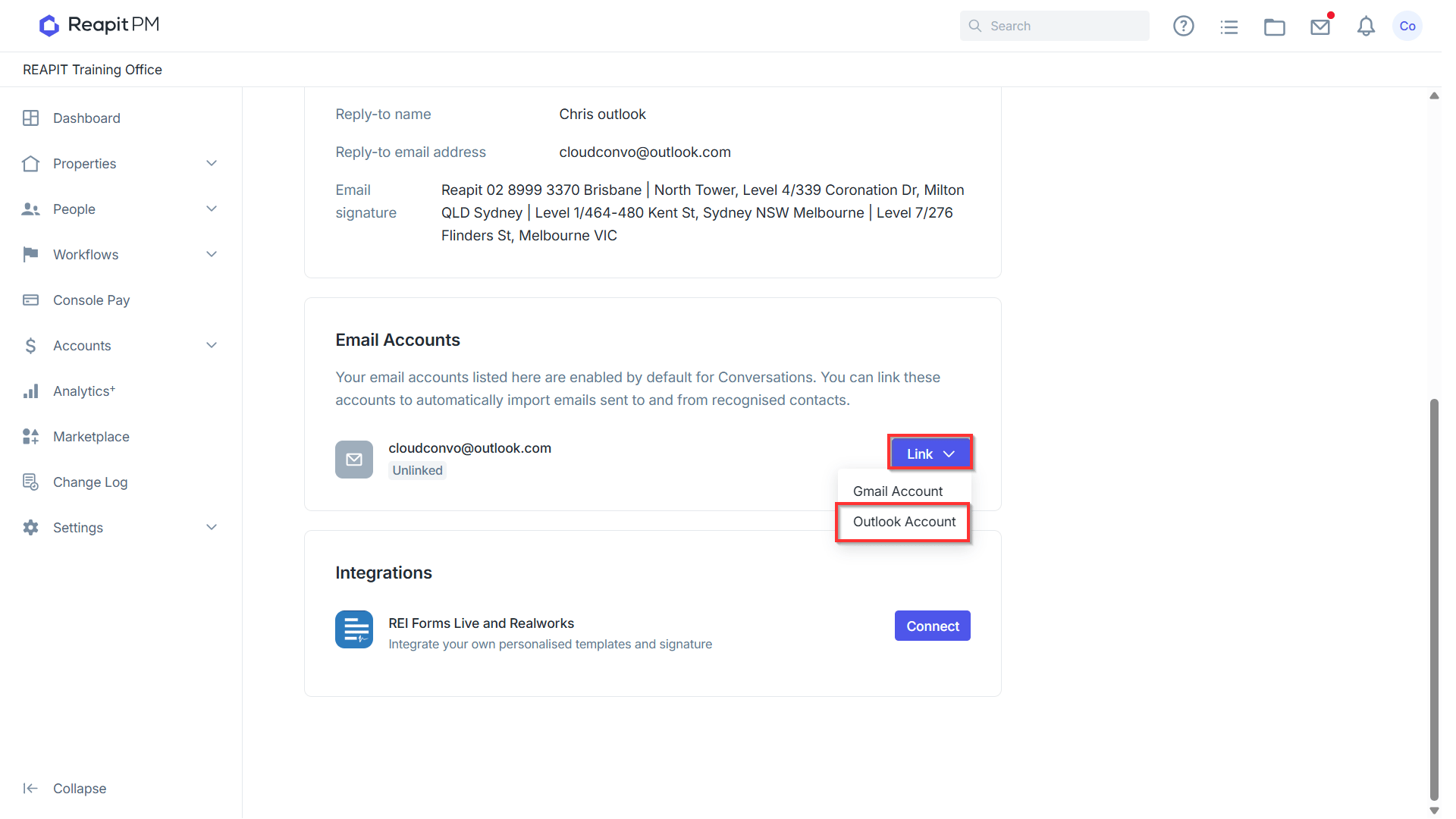
- With the account now verified, scroll down to the Email Accounts field and select Link > Outlook Account.
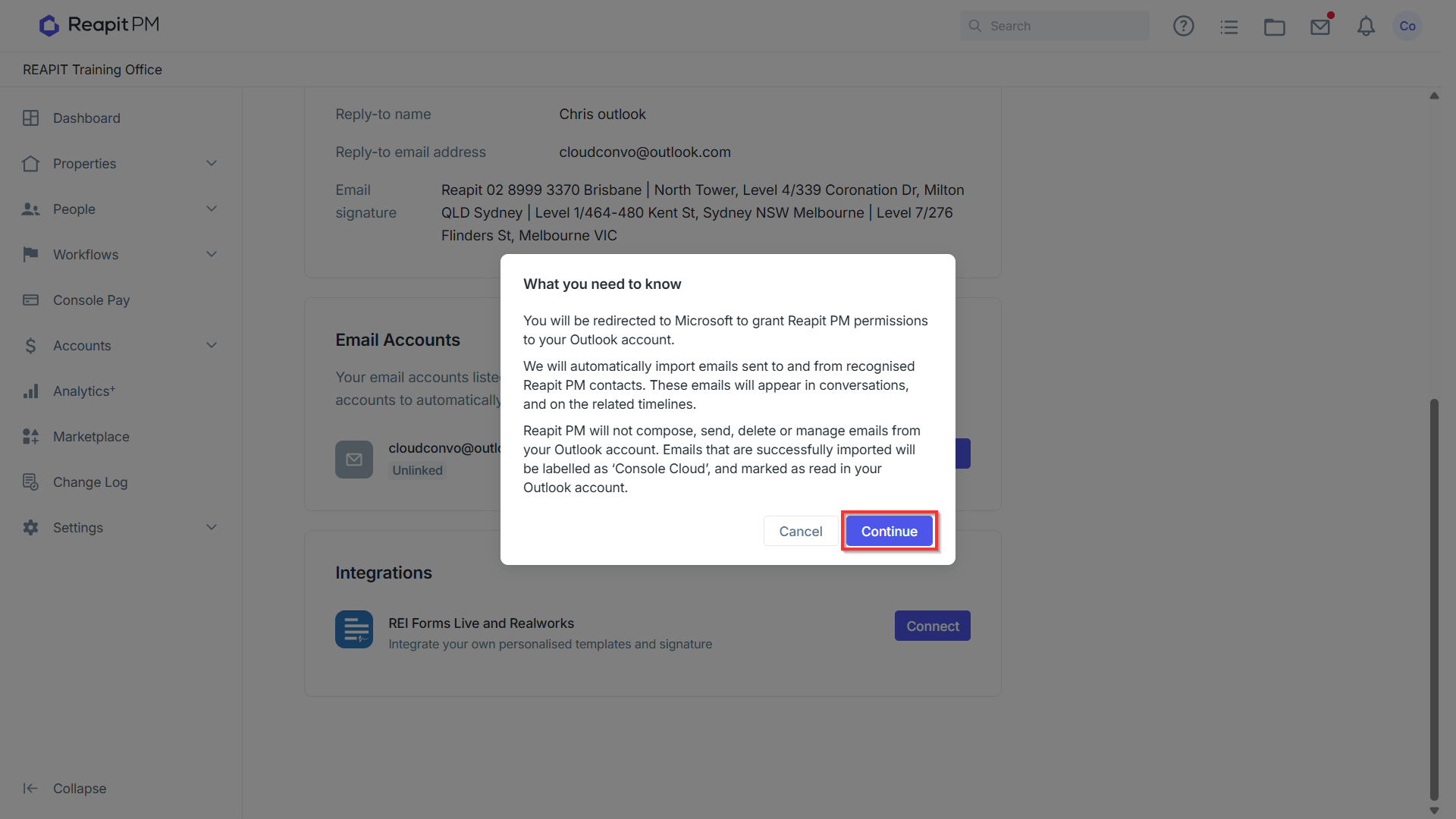
- Reapit PM will display a notification on what will happen with permissions being granted to your Outlook account. By granting permission, it will automatically import emails sent to and from recognised Reapit PM contacts. These emails will appear in conversations and on the related timelines. Reapit PM will not compose, send, delete or manage emails from your Outlook account. Emails that are successfully imported will be labelled as 'Reapit PM', and marked as read in your Outlook account. Select Continue to proceed.
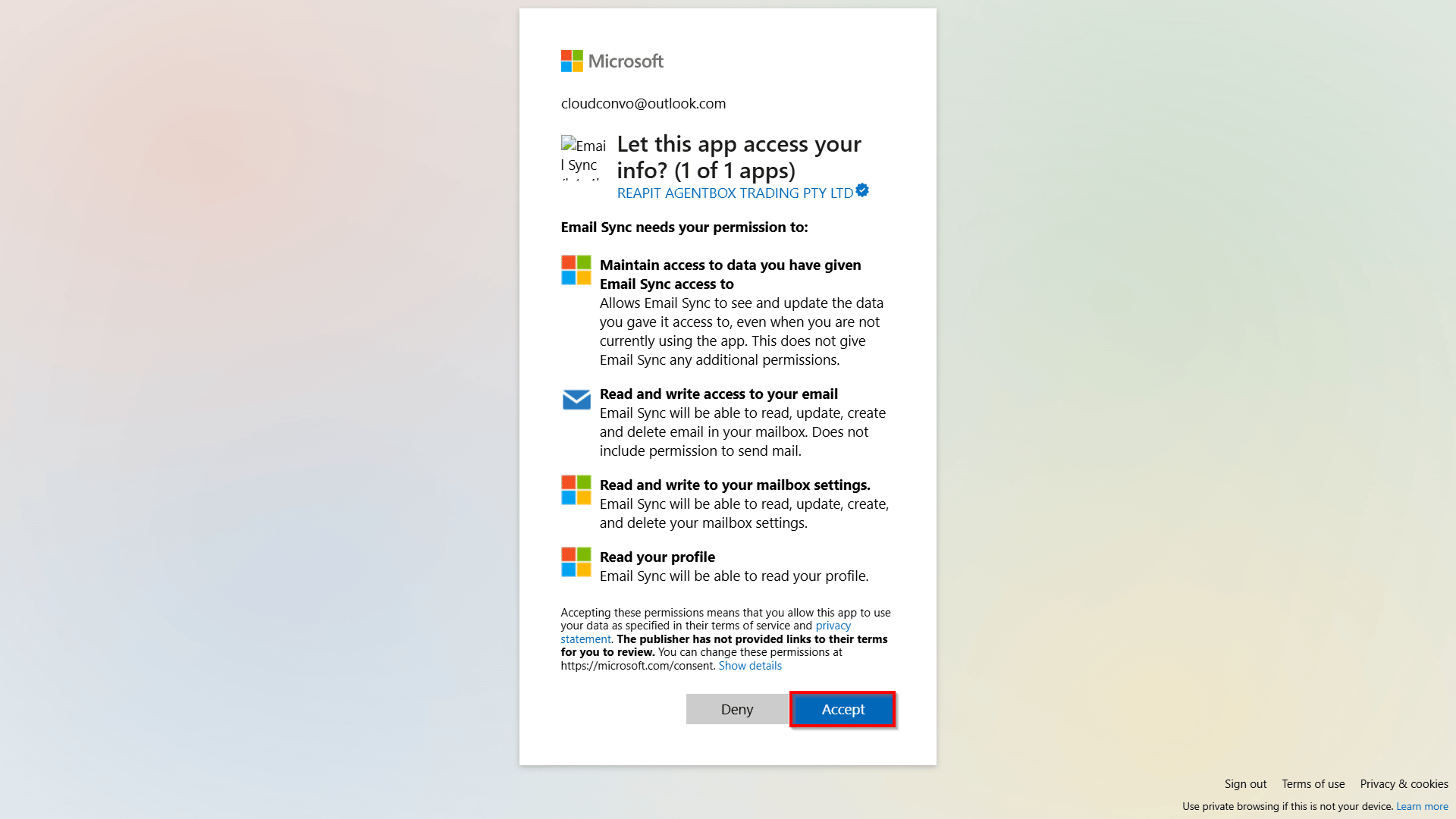
- You will be redirected to the Outlook sign in page, and once logged in with the Outlook email address, you will need to grant access for the email sync to go ahead. When ready to proceed, click Accept.
- A connecting screen will be displayed while the integration completes the setup.
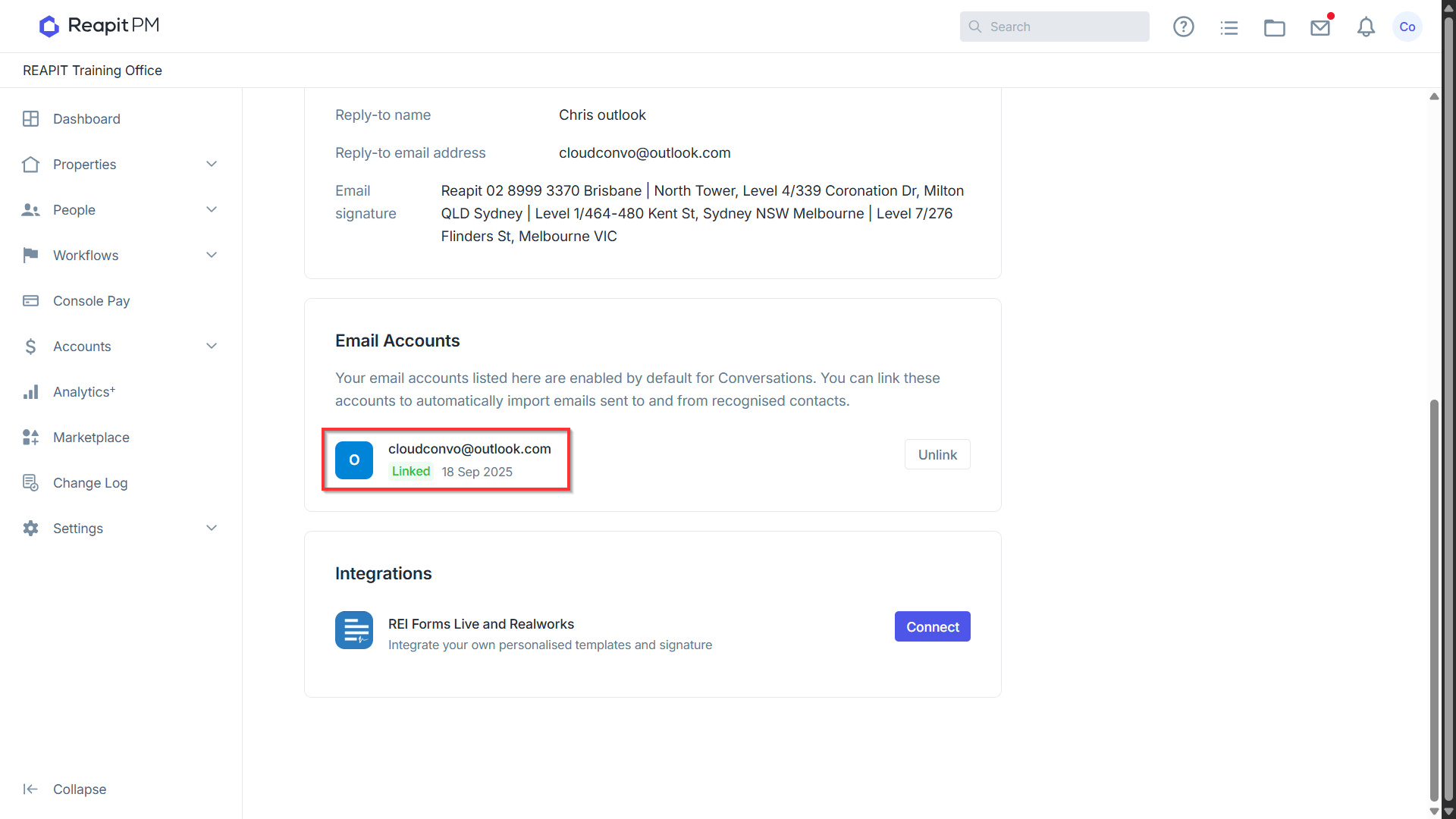
- You will be returned to the user profile page where a successfully linked Outlook account will now display.
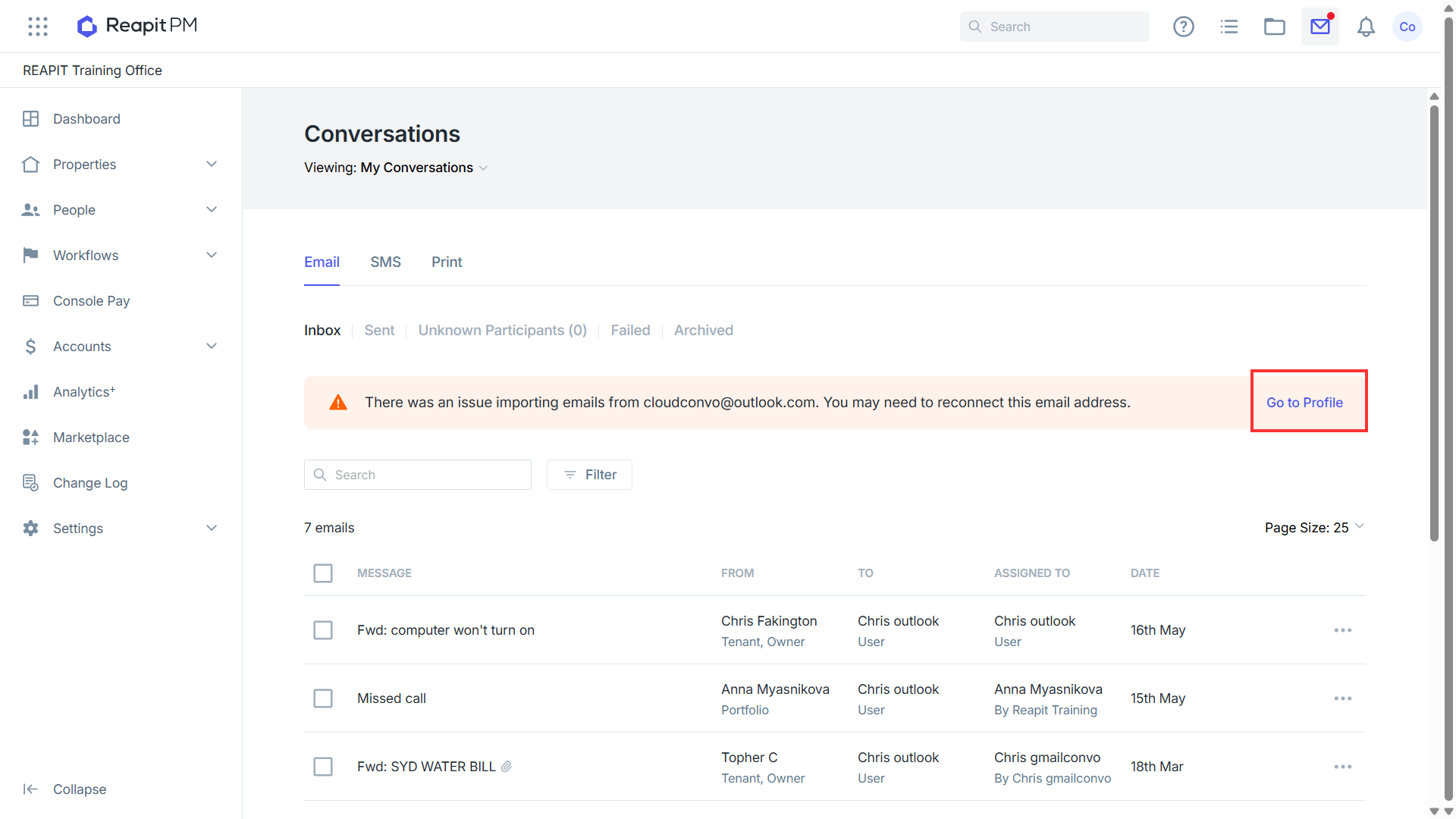
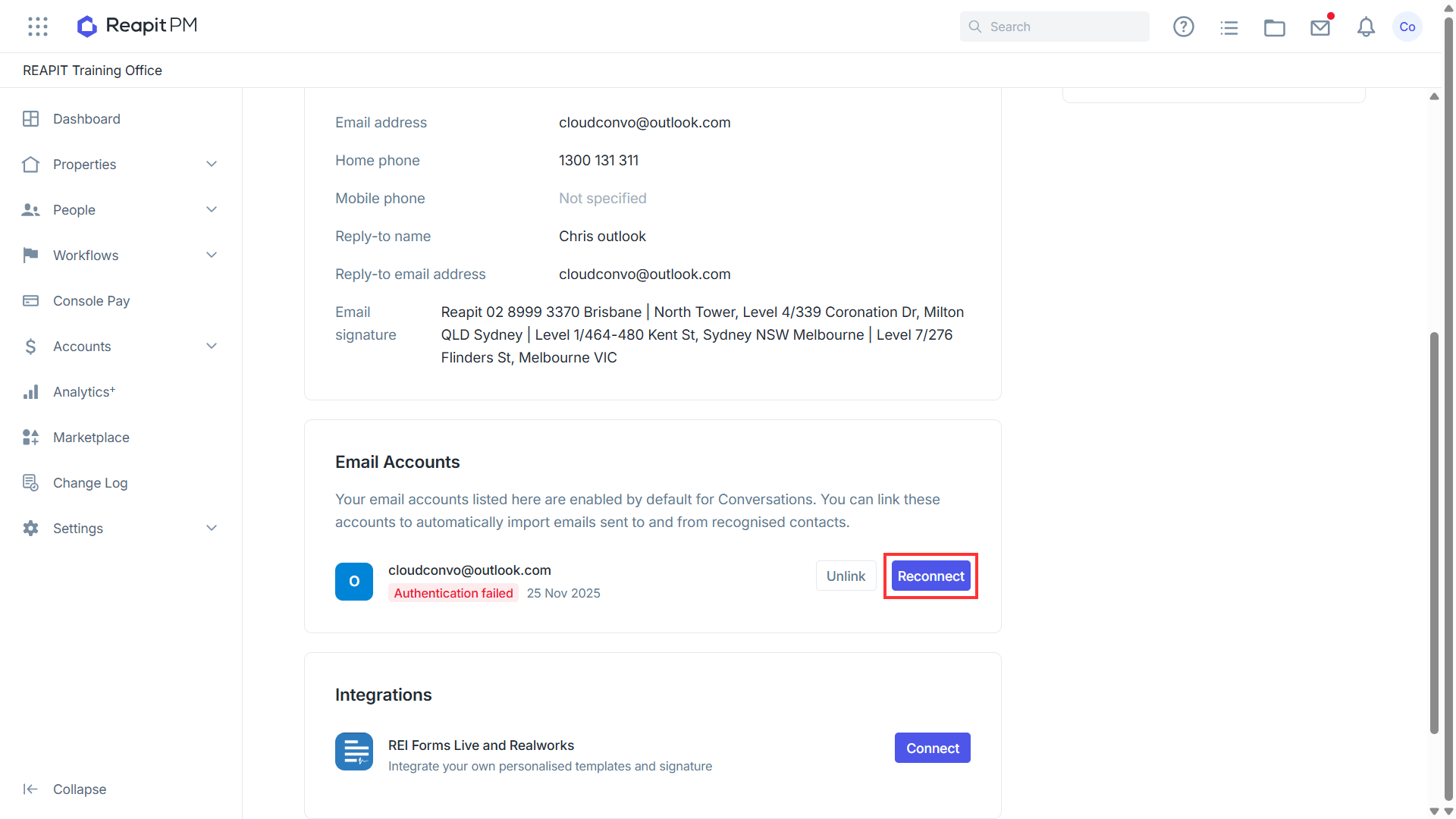
Please note: If you reset your Outlook password while Conversations is connected, the link between Conversations and Outlook will be disconnected due to the login credentials changing, and you will be notified through Conversations that there's an issue with importing the emails, and that you need to reconnect. Click Go to Profile to restore the connection. You will need to reconnect your Outlook account to Conversations with your updated password.
- By navigating to Settings > Subscription > Manage Accounts, ****this will display any linked email accounts, including who the account was added by, last import and the status of the connection.
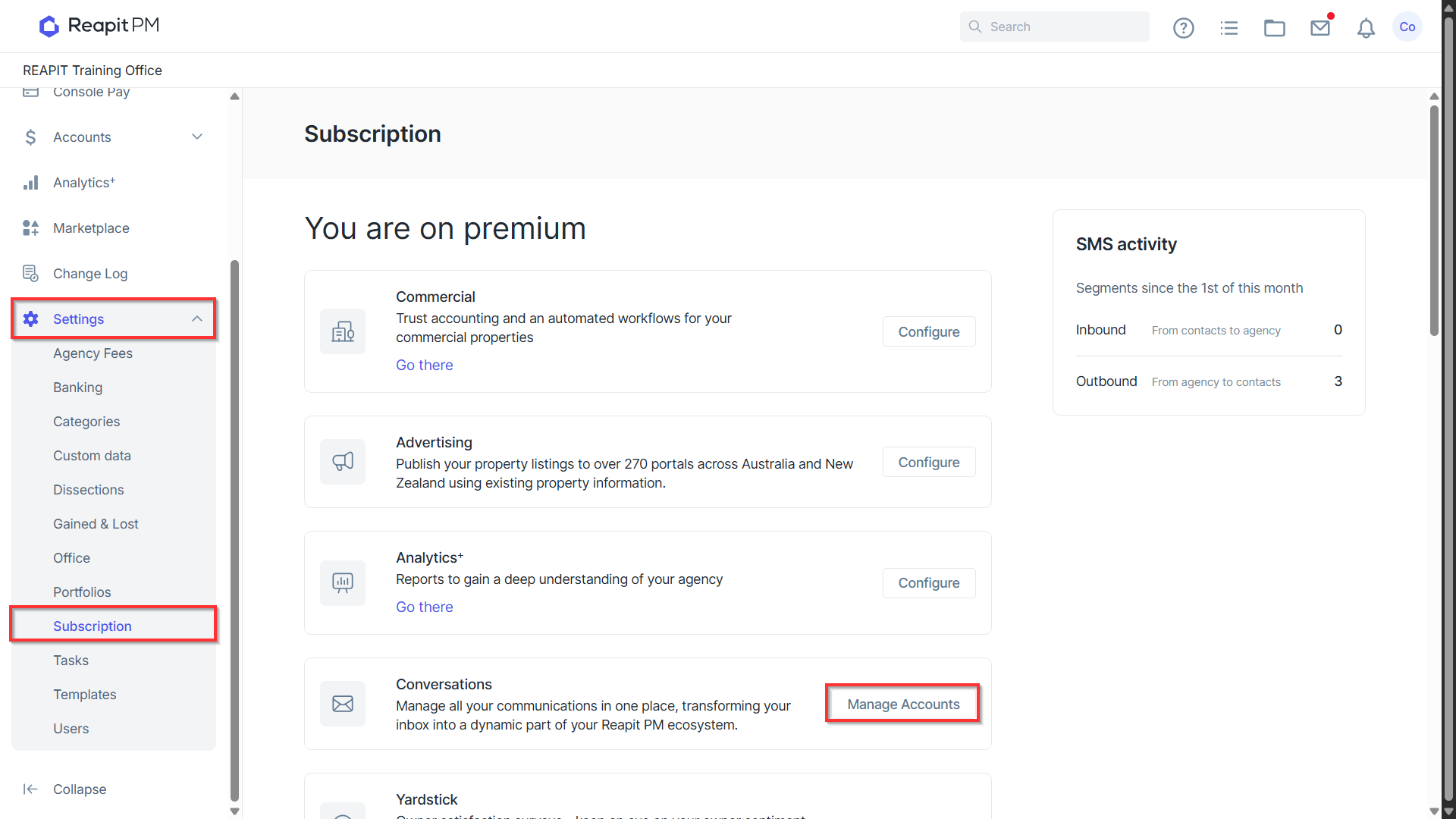
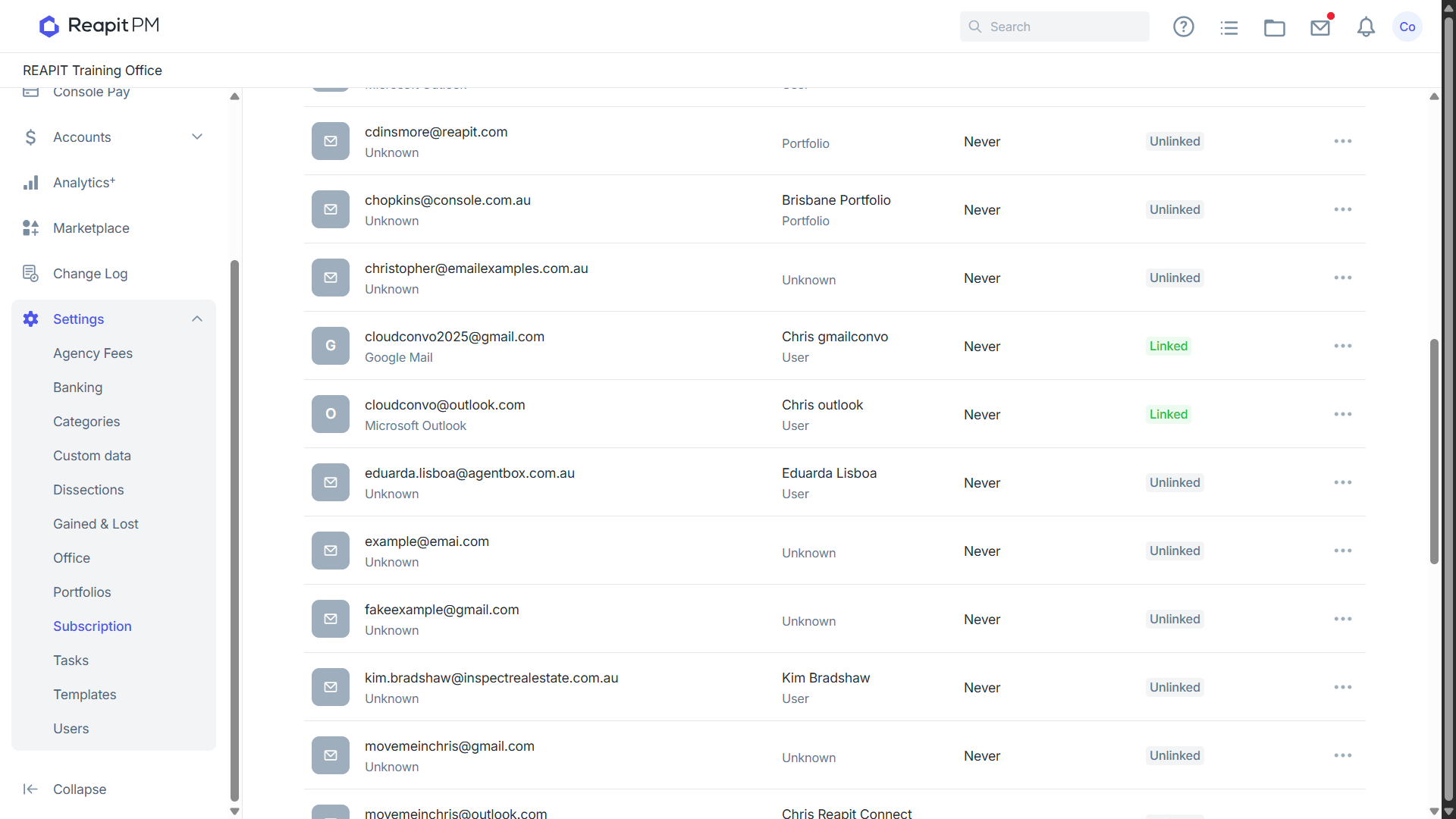
Note: You will need to have Office Administrator access or higher to view the Settings menu.
- If you need to remove the link between Outlook and Reapit PM, select the three action dots to the right of the account and Unlink account.
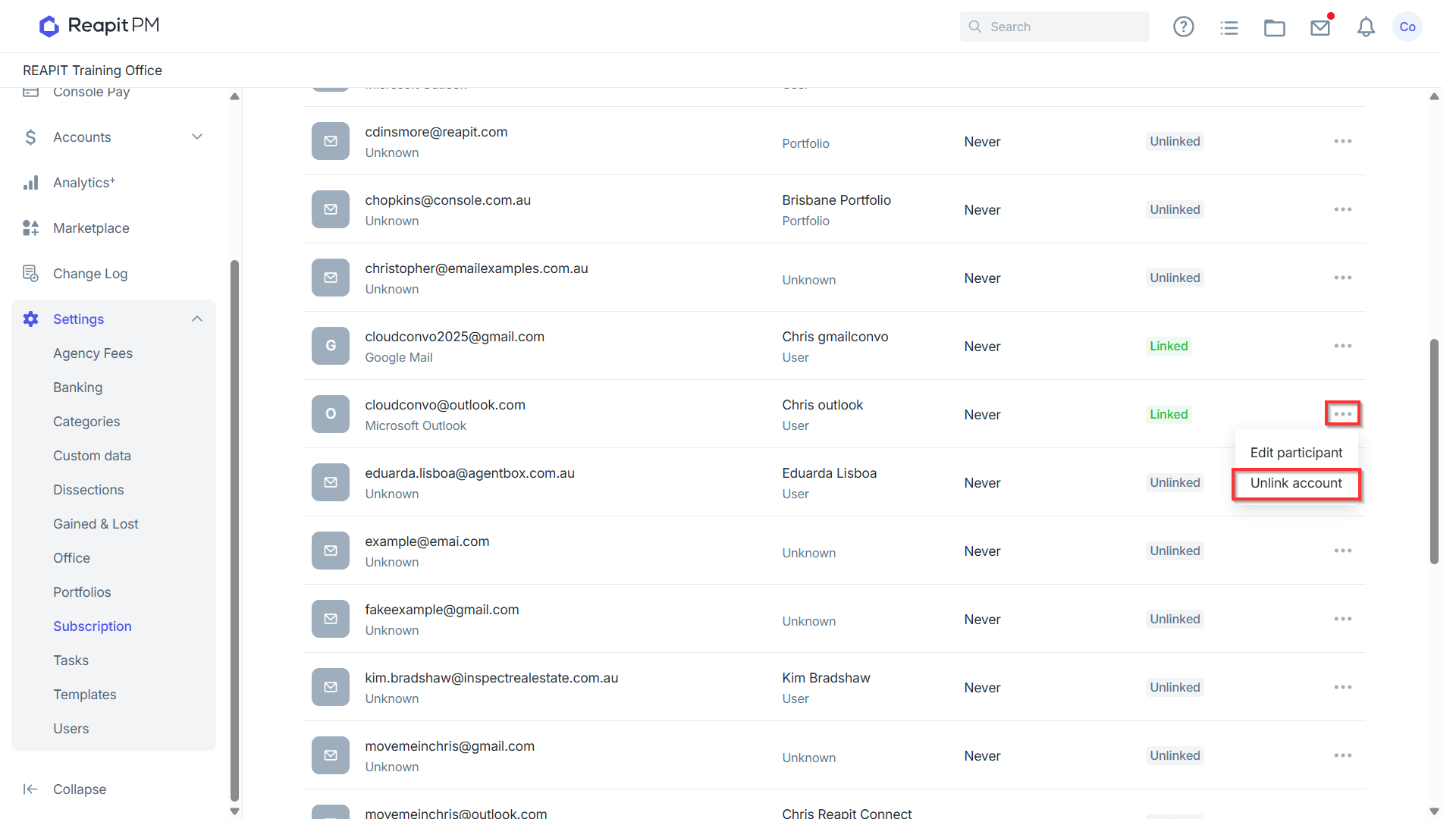
Note: If you experience any syncing issues between Outlook and Reapit PM such as emails not syncing or importing, we recommend removing the account and re-syncing it. To do this, navigate to the user initials on the top right of the page and use the Link Email option.
- With the integration between Outlook and Reapit PM now enabled, when viewing your Outlook inbox, you will see a new label for Reapit PM created. Emails received by contacts from your office to this email will be tagged as Reapit PM and appear under the Console Cloud Folder.
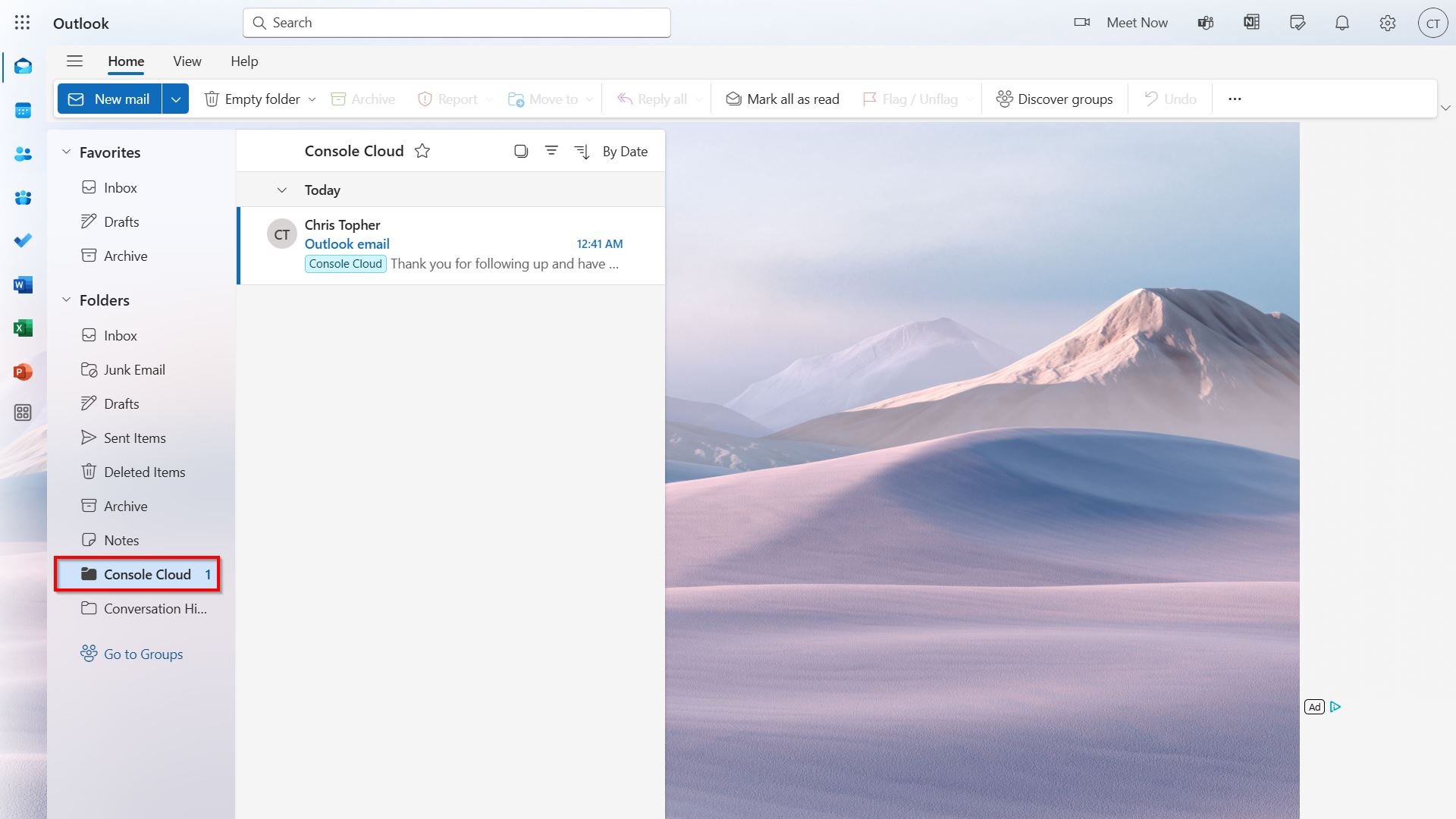
- If you prefer that emails received from your Outlook account continue displaying in the Inbox rather than being moved to the Reapit PM label, navigate to Email Settings.
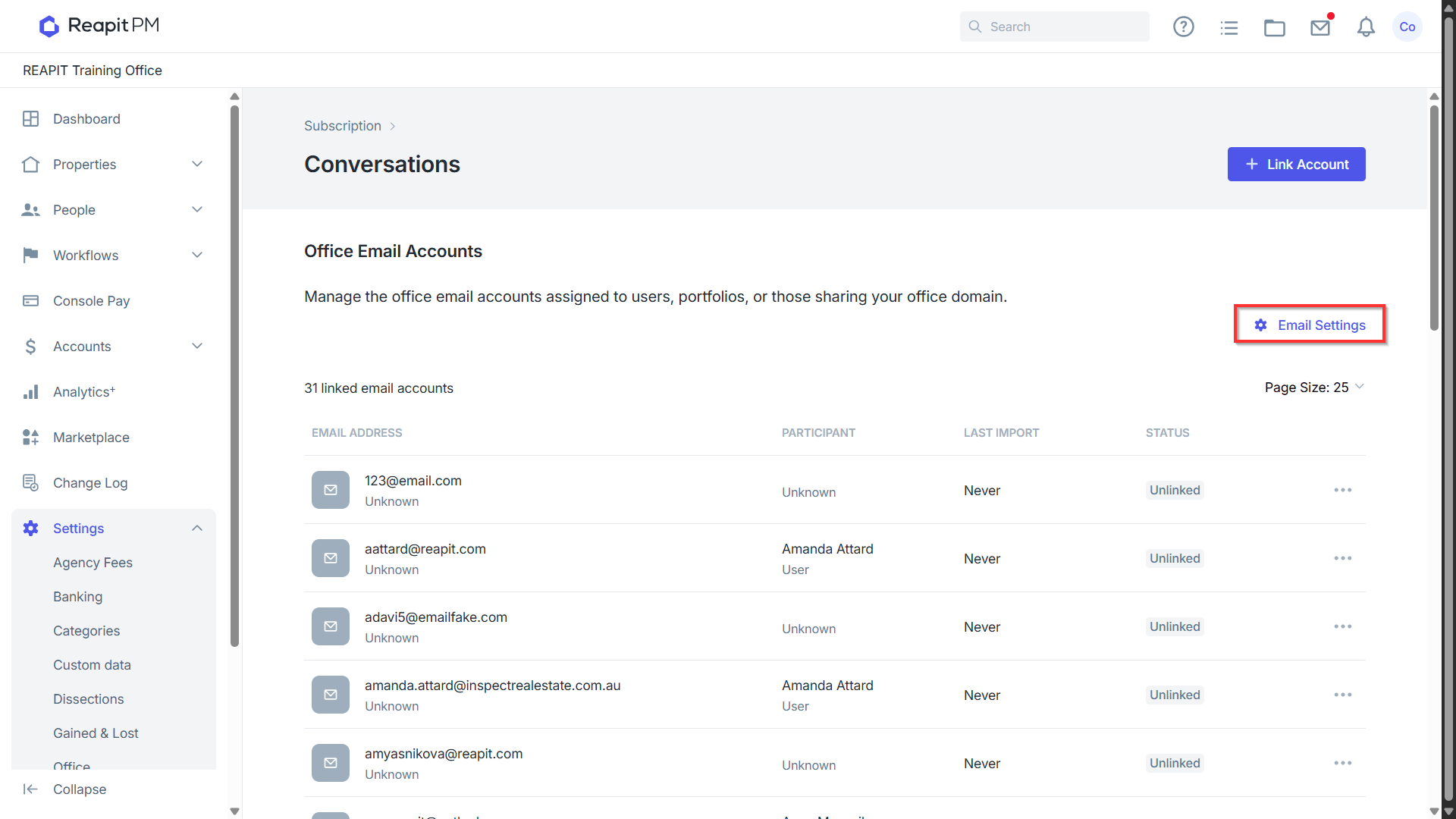
- Untick 'Move emails to Console Cloud folder' and close the window.
- To block incoming emails from certain email domains, enter the domain address to apply the rule. Multiple domains can be added to the block rule.
- Click Save.
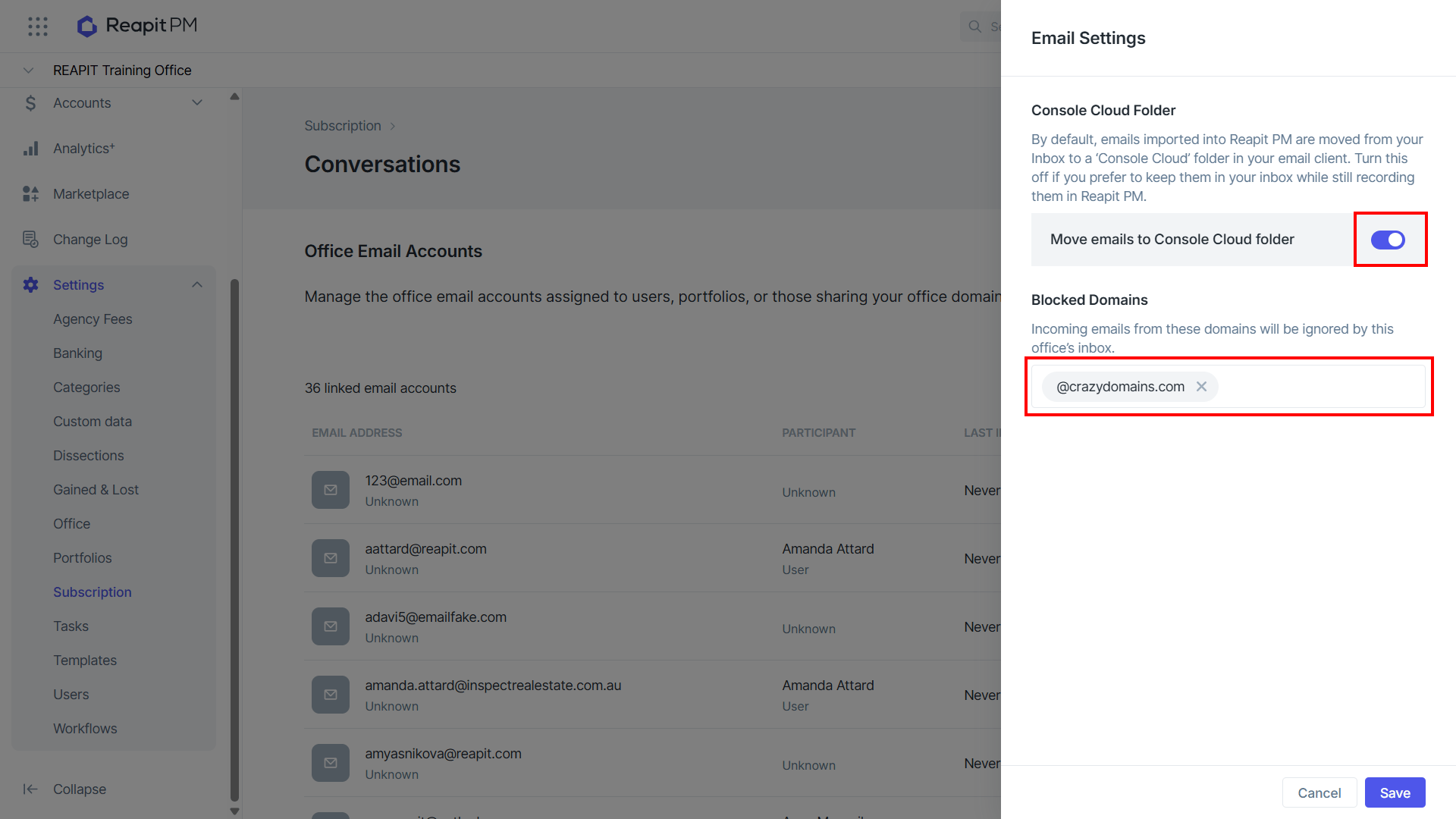
Note: Move emails to Reapit PM folder is enabled by default. This is a global setting, so if any user switches it off, it will apply to the whole office and linked email accounts.