'%20d='M0%208a8%208%200%200%201%208-8h24a8%208%200%200%201%208%208v24a8%208%200%200%201-8%208H8a8%208%200%200%201-8-8V8Z'/%3e%3cpath%20fill='%23fff'%20d='M8.375%2013v14L20.5%2034l12.124-7v-7.737l-1.687-.975-2.806-1.62-1.082-.624v4.83l-.002%204.83H13.95V16.07l3.275-1.89%202.192-1.265%201.082-.625%203.275%201.877%202.192%201.256%201.083.62V9.782L20.5%206%208.376%2013Z'/%3e%3cdefs%3e%3clinearGradient%20id='reapit-pm__a'%20x1='20.702'%20x2='20.702'%20y1='.351'%20y2='31.228'%20gradientUnits='userSpaceOnUse'%3e%3cstop%20stop-color='%235573FD'/%3e%3cstop%20offset='.575'%20stop-color='%234E56EA'/%3e%3c/linearGradient%3e%3c/defs%3e%3c/svg%3e)
Pop-Up Notes / Contextual Notes
This article provides a guide on how to use Pop-Up Notes (also known as Contextual Notes) in Reapit PM. You will learn how these notes appear and function within the Receipting, Bills, and Disbursement sections. The processes in this article include: Adding Contextual Notes to a Property Viewing Contextual Notes
Overview
Pop-Up Notes / Contextual Notes
This article provides a guide on how to use Pop-Up Notes (also known as Contextual Notes) in Reapit PM.
You will learn how these notes appear and function within the Receipting, Bills, and Disbursement sections.
The processes in this article include:
- Adding Contextual Notes to a Property
- Viewing Contextual Notes
Adding Contextual Notes to a Property
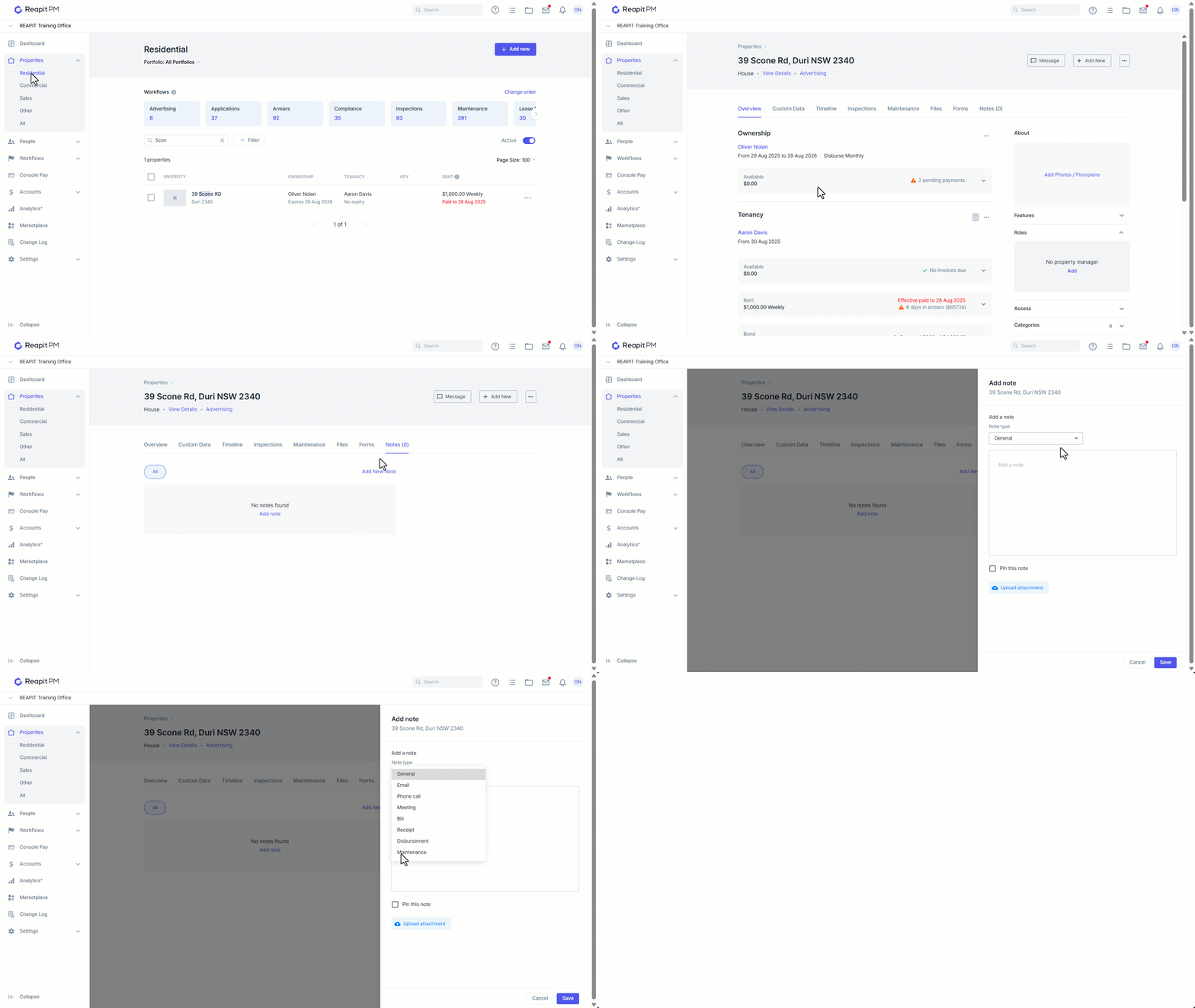
- Navigate to Properties > Commercial, Residential, or All.
- Select the Property File. Note: Contextual Notes for Receipting, Bills, Maintenance and Disbursement are available exclusively through the Property file.
- Navigate to Notes.
- Select Add New Note.
- Choose the Note Type.
- When selecting the Bill, Receipt, or Disbursement type notes, a banner will display advising that these notes will appear in the areas mentioned when performing an action for this Property. Fill in the note details, Pin the note, or upload attachments if needed. Click Save.
- Confirmation for the Note being added will appear.
Viewing Contextual Notes
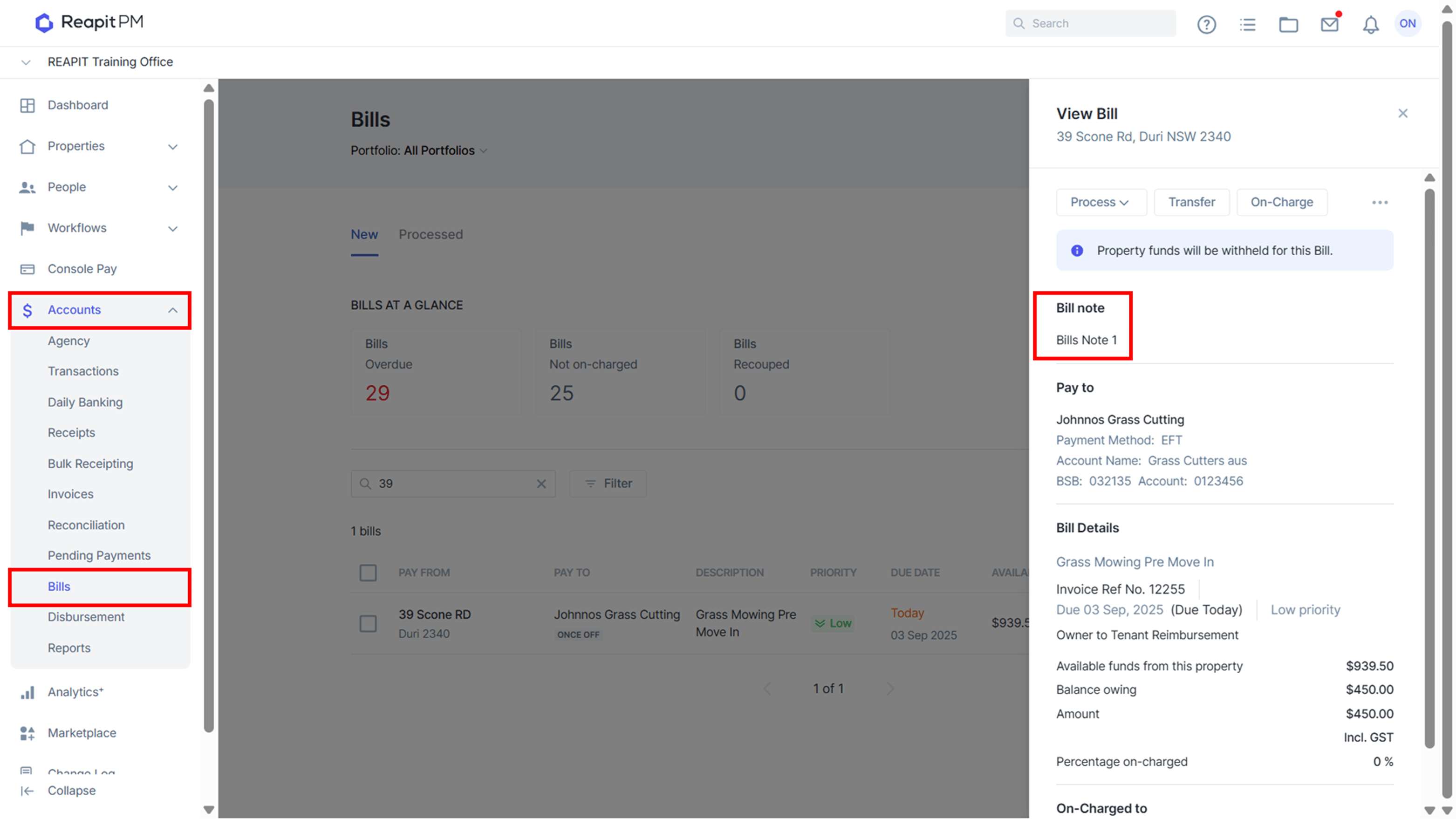
Contextual notes are visible when you view the property through the following Account sections:
- Bills,
- Receipts,
- Bulk Receipting, or
- Disbursement.
Where multiple notes are added, they will appear within the same area as single notes.
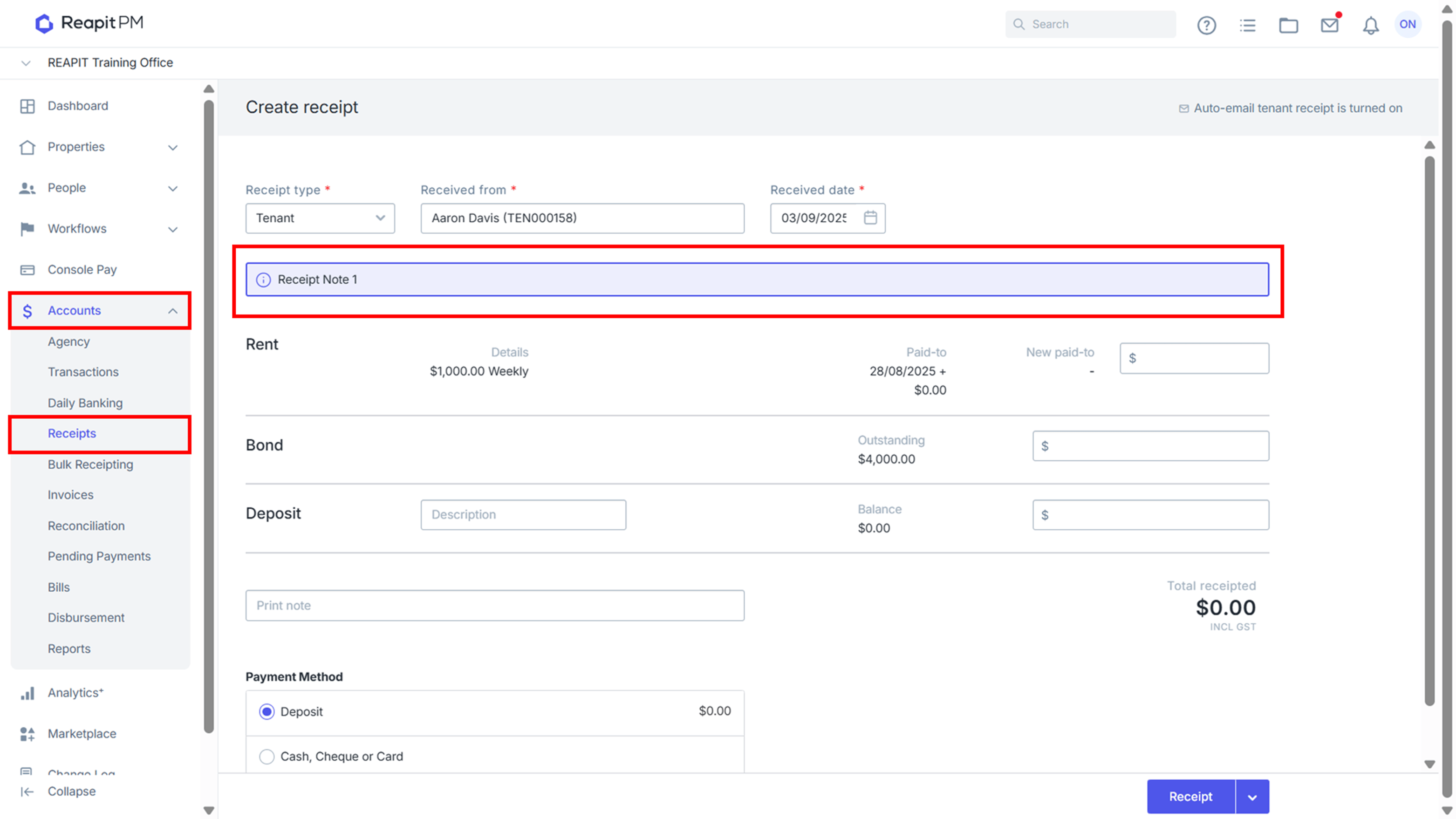
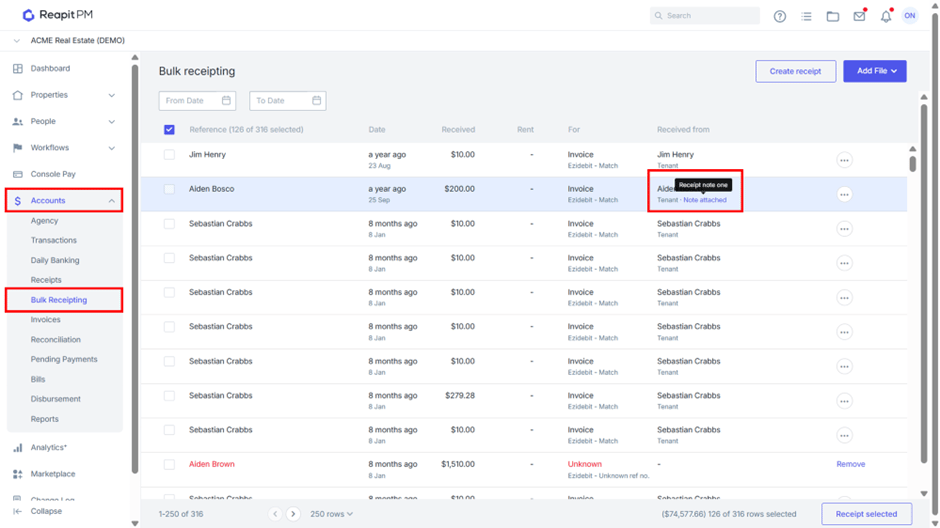
Contextual Notes for the selected Property Address will display within these fields:
Receipts:
Bulk Receipts:
Bills
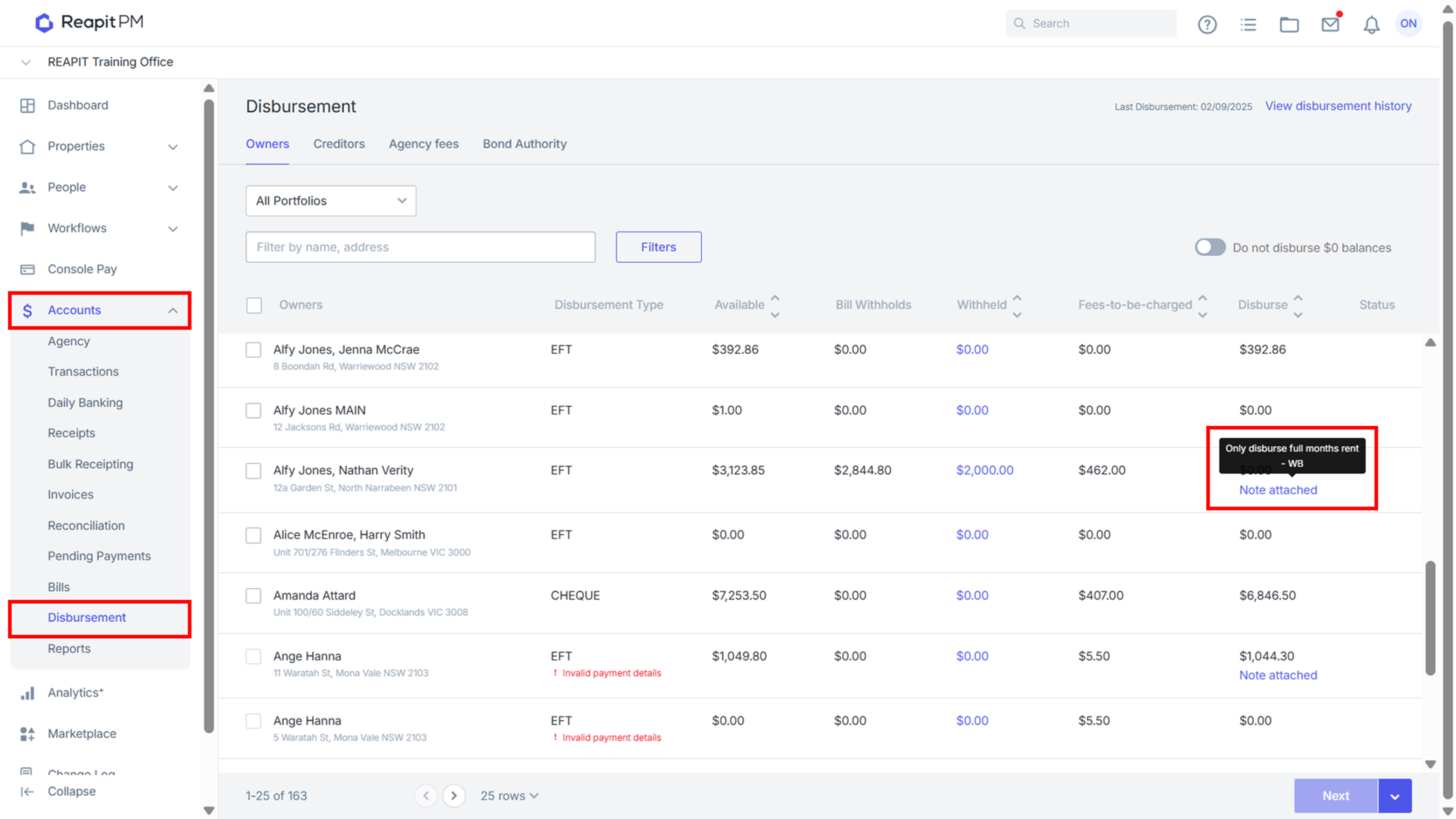
Disbursements