'%20d='M0%208a8%208%200%200%201%208-8h24a8%208%200%200%201%208%208v24a8%208%200%200%201-8%208H8a8%208%200%200%201-8-8V8Z'/%3e%3cpath%20fill='%23fff'%20d='M8.375%2013v14L20.5%2034l12.124-7v-7.737l-1.687-.975-2.806-1.62-1.082-.624v4.83l-.002%204.83H13.95V16.07l3.275-1.89%202.192-1.265%201.082-.625%203.275%201.877%202.192%201.256%201.083.62V9.782L20.5%206%208.376%2013Z'/%3e%3cdefs%3e%3clinearGradient%20id='reapit-pm__a'%20x1='20.702'%20x2='20.702'%20y1='.351'%20y2='31.228'%20gradientUnits='userSpaceOnUse'%3e%3cstop%20stop-color='%235573FD'/%3e%3cstop%20offset='.575'%20stop-color='%234E56EA'/%3e%3c/linearGradient%3e%3c/defs%3e%3c/svg%3e)
Processing Bills
This article will take you through how to process bills in Reapit PM. The processes in this article include: Processing a Bill Property Funds Transfer Ownership Funds Transfer
Overview
Processing Bills
Bills are a list of all owner expense invoices that need to be processed and disbursed (paid to a creditor) within Reapit PM.
Admin and Trust Account users can access and configure Bills settings in the Bills page and the Banking Settings page.
The processes in this article include:
- Processing a Bill
- Property Funds Transfer
- Ownership Funds Transfer
Processing a Bill For further information on Bills see our articles on adding bills, editing, write offs and deleting bills and bill settings.
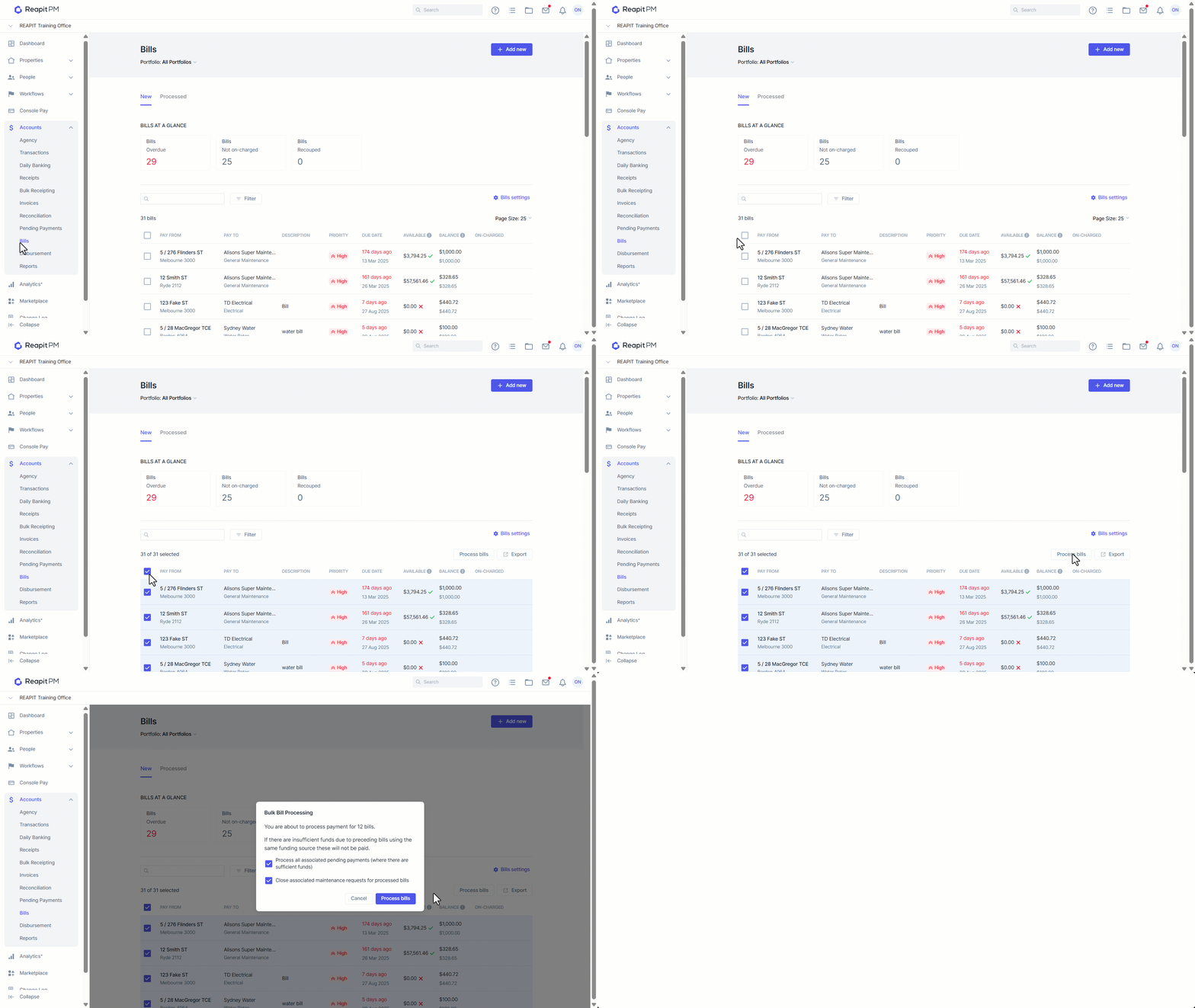
- Click on Bills.
- Click on Accounts.
- Tick Select All to bulk select Bills to pay, PM will select all Bills, in date order, that have sufficient property funds to pay the bill.
Note:
- Bills settings will apply here if you have selected to use Auto Transfer Ownership Funds when Bulk Processing, this may cause internal journals between commonly owned properties when there are insufficient funds on the property with the Bill.
- Bill Prioritisation is available to Premium and Enterprise clients only.
- Click on Process Bills. To pay creditors you will then need to perform a disbursement. See further information on disbursements here.
- The summary page will appear confirming the Bulk Bill Processing. Select Process Bills. Note: When processing Bills in Bulk and with multiple priority levels set, the Bill priority will process Bills in the following order of Prioritisation: a. All High Priority processed in due date order followed by b. All Medium Priority processed in due date order followed by c. All Low Priority processed in due date order.
Note: If you have Bills that are attached to maintenance requests, you will also see a prompt asking if you would like to close associated maintenance requests when processing the Bill.
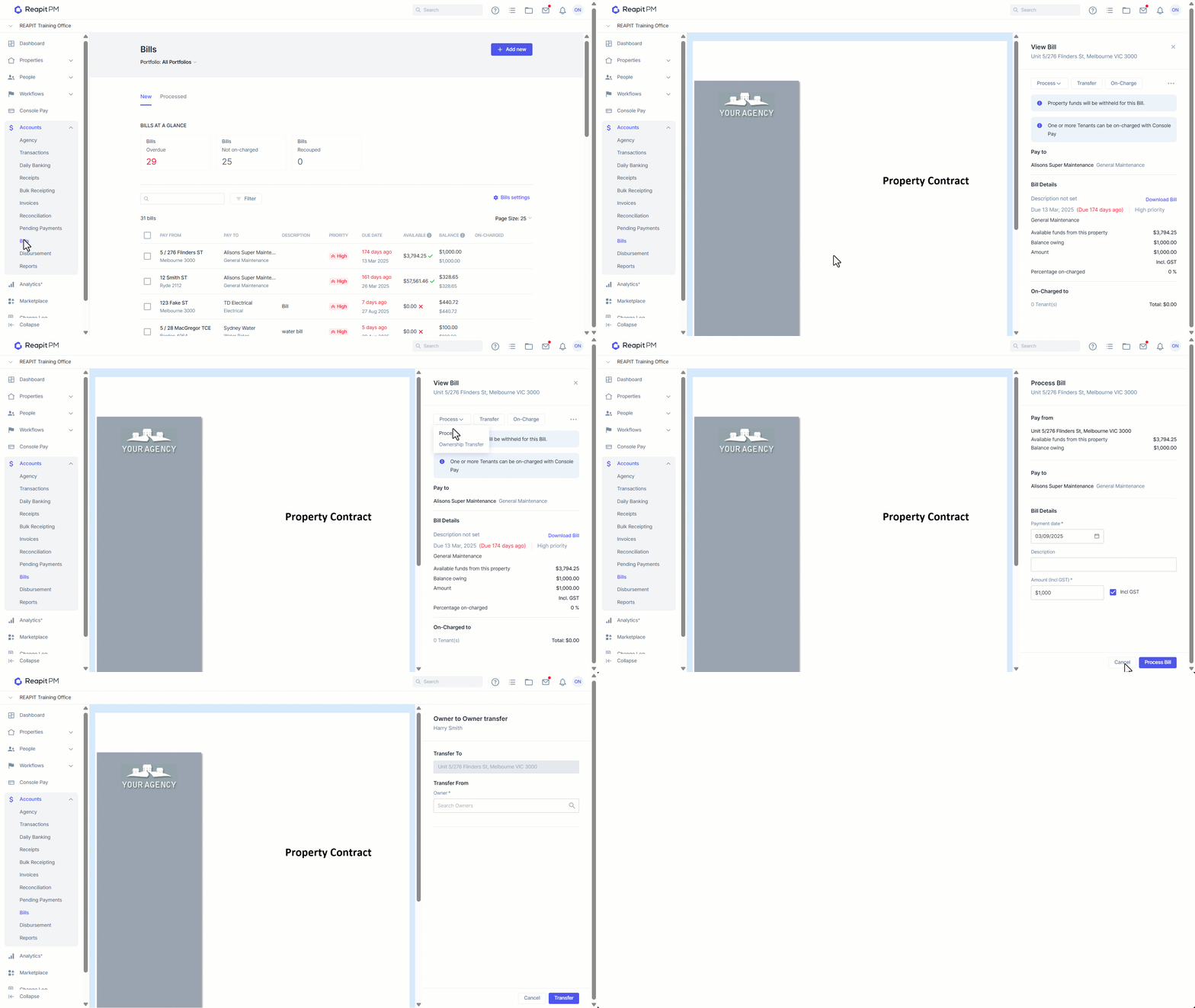
- Search and select an individual Bill to process a single payment.
- Click on Process Bill.
- If there are insufficient funds, you can choose to process a part payment. Select Process.
- Select Process Bill.
- If the property has insufficient funds to process, you will be able to transfer funds between ownerships via the Transfer Button or between commonly owned properties via the Process Dropdown > Ownership Transfer.
- Search and Select your Owner, enter the Amount and Description. Click Transfer.
Once Bills have been processed, they will appear in the processed section of Bills.
Property Funds Transfer
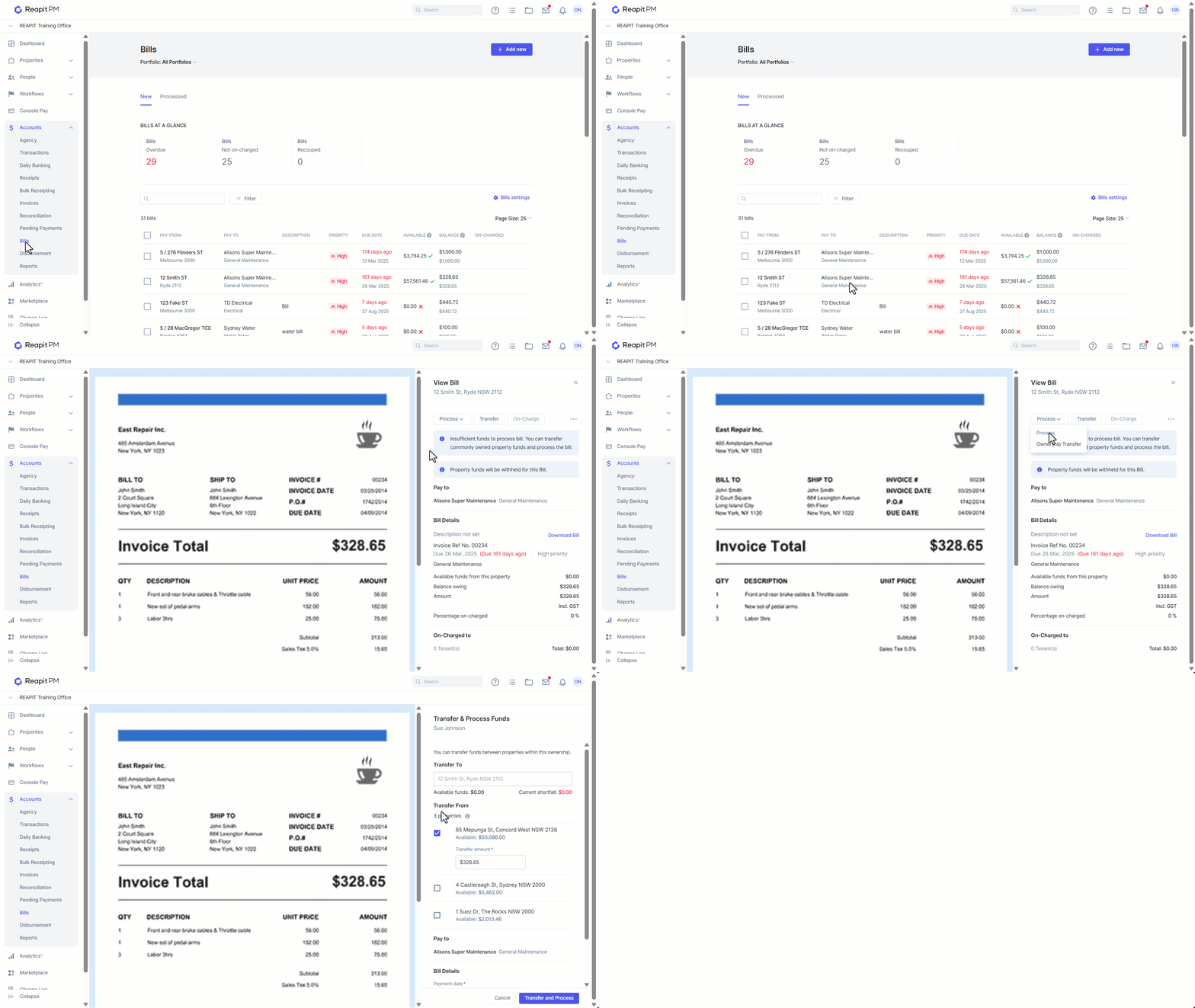
Property Transfer allows you to transfer funds between commonly owned properties.
- Click on Process.
- Click on Ownership Transfer.
- Select the Property to transfer from and enter the transfer amount.
- Click Transfer and Process.
- Click Confirm.
Ownership Funds Transfer
This functionality allows you to transfer funds between separate ownerships that are not linked by the same Owner Contact.
- Click on Transfer.
- Search and select the Transfer To owner.
- Enter an Amount & Description.
- Click Transfer.
- Select Confirm.