'%20d='M0%208a8%208%200%200%201%208-8h24a8%208%200%200%201%208%208v24a8%208%200%200%201-8%208H8a8%208%200%200%201-8-8V8Z'/%3e%3cpath%20fill='%23fff'%20d='M8.375%2013v14L20.5%2034l12.124-7v-7.737l-1.687-.975-2.806-1.62-1.082-.624v4.83l-.002%204.83H13.95V16.07l3.275-1.89%202.192-1.265%201.082-.625%203.275%201.877%202.192%201.256%201.083.62V9.782L20.5%206%208.376%2013Z'/%3e%3cdefs%3e%3clinearGradient%20id='reapit-pm__a'%20x1='20.702'%20x2='20.702'%20y1='.351'%20y2='31.228'%20gradientUnits='userSpaceOnUse'%3e%3cstop%20stop-color='%235573FD'/%3e%3cstop%20offset='.575'%20stop-color='%234E56EA'/%3e%3c/linearGradient%3e%3c/defs%3e%3c/svg%3e)
Creditor Withhold
This article will guide you through the steps on creating creditor withholds in Reapit PM. The processes in this article include: How to Create a Creditor Withhold How to Edit or Remove a Withhold from a Creditor File How to Add, Edit, or Delete a Creditor Withhold from the Disbursement Screen
Overview
Creditor Withholds
This article will guide you through the steps on creating creditor withholds in Reapit PM.
The processes in this article include:
- How to Create a Creditor Withhold
- How to Edit or Remove a Withhold from a Creditor File
- How to Add, Edit, or Delete a Creditor Withhold from the Disbursement Screen
- Go to People > Creditors. Select the Creditor you wish to withhold funds from.
- Scroll down to the balances section at the bottom of the Creditor Details tab and click Withheld.
- Click + Withhold from the withheld fund's drawer.
- Enter the Amount to be withheld, enter the reason and tick if you would like to only withhold until the next disbursement or not. Click Withhold to finish.
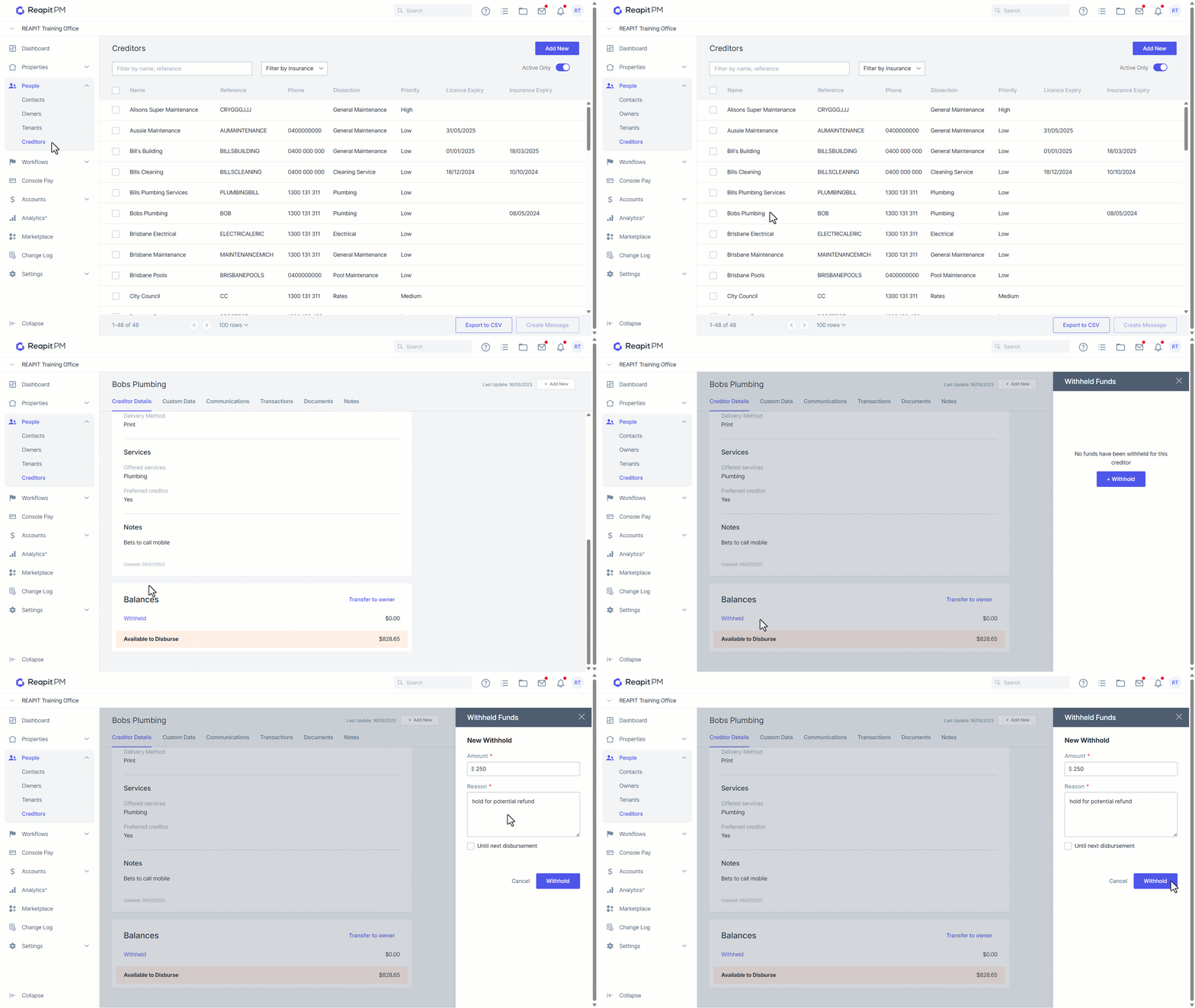
Your withhold is now applied and visible from the Creditor File.
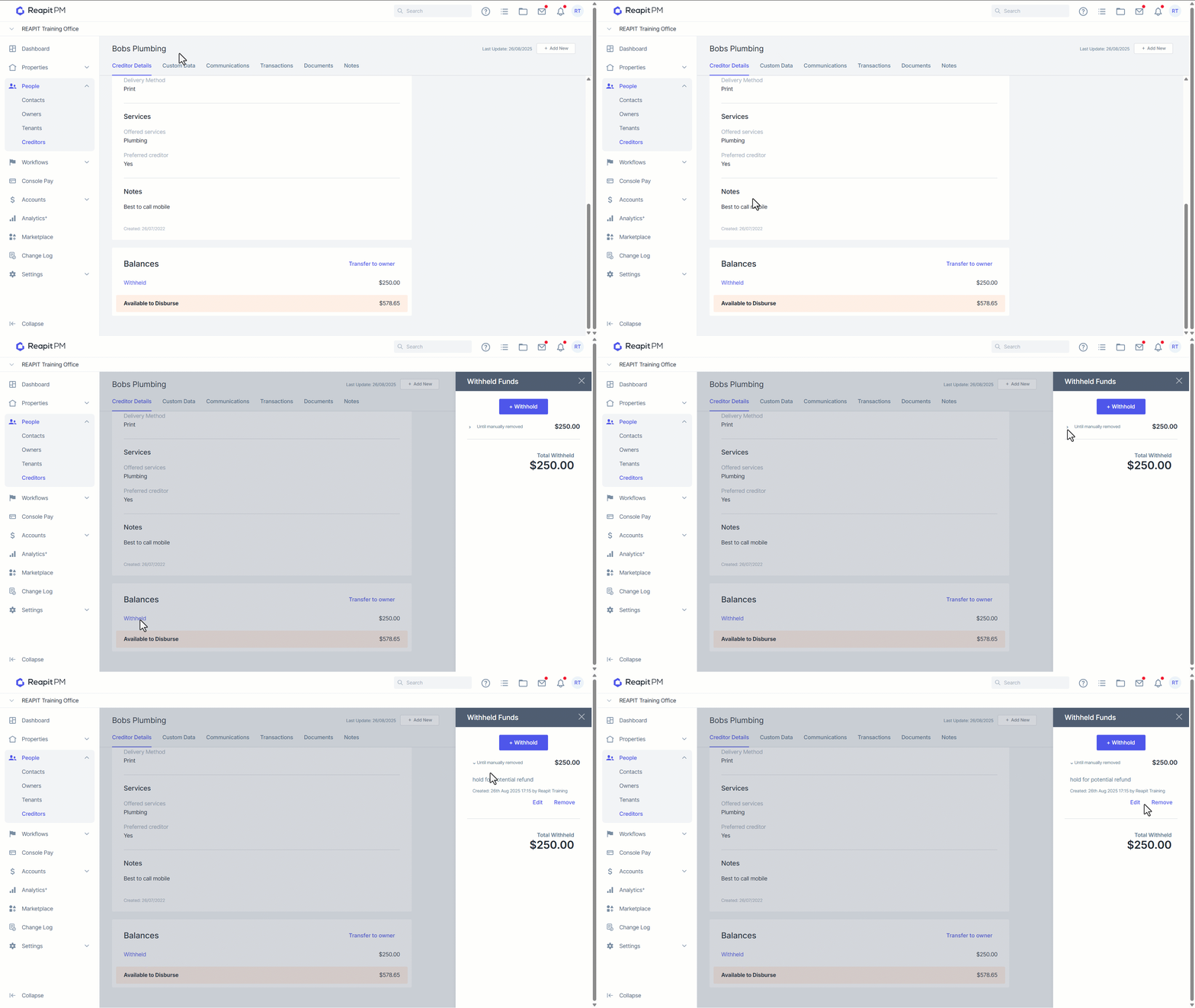
Editing or Removing a Withhold from a Creditor File
- From the Withhold Funds drawer, tap the drop down to expand the funds information. Select either Edit or Remove.
- Edit will allow you to update the Withheld Funds as required. Click Save once any updates have been made.
- Clicking Remove will prompt you to confirm that you wish to delete the Withheld Funds. Once confirmed the funds will be completely removed.
Add, Edit or Delete a Creditor Withhold from the Disbursement Screen
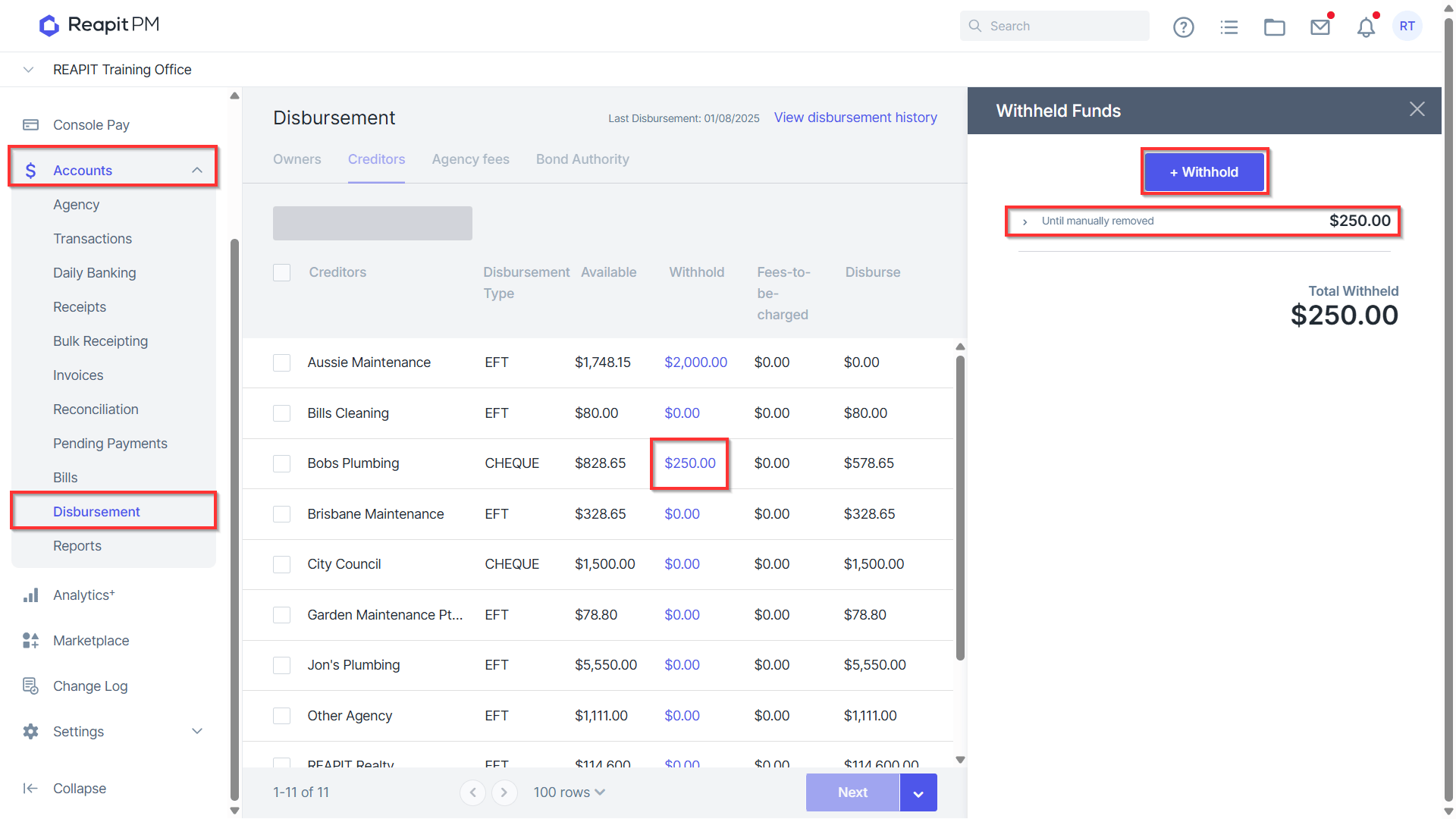
- Navigate to Accounts > Disbursements and Filter by Creditors. Click the value in the Withhold column to open the Withhold Drawer for the Creditor.
- Click + Withhold to create a new withheld amount, Edit to change existing records or Remove to remove the withhold.