'%20d='M0%208a8%208%200%200%201%208-8h24a8%208%200%200%201%208%208v24a8%208%200%200%201-8%208H8a8%208%200%200%201-8-8V8Z'/%3e%3cpath%20fill='%23fff'%20d='M8.375%2013v14L20.5%2034l12.124-7v-7.737l-1.687-.975-2.806-1.62-1.082-.624v4.83l-.002%204.83H13.95V16.07l3.275-1.89%202.192-1.265%201.082-.625%203.275%201.877%202.192%201.256%201.083.62V9.782L20.5%206%208.376%2013Z'/%3e%3cdefs%3e%3clinearGradient%20id='reapit-pm__a'%20x1='20.702'%20x2='20.702'%20y1='.351'%20y2='31.228'%20gradientUnits='userSpaceOnUse'%3e%3cstop%20stop-color='%235573FD'/%3e%3cstop%20offset='.575'%20stop-color='%234E56EA'/%3e%3c/linearGradient%3e%3c/defs%3e%3c/svg%3e)
Conversations – Updating Assigned Users on Emails
This article outlines how to assign another user on emails in Conversations.
Overview
Conversations – Updating Assigned Users on Emails
This article outlines how to assign another user on emails in Conversations.
The process in this article include:
- Assigning Emails to Other Users
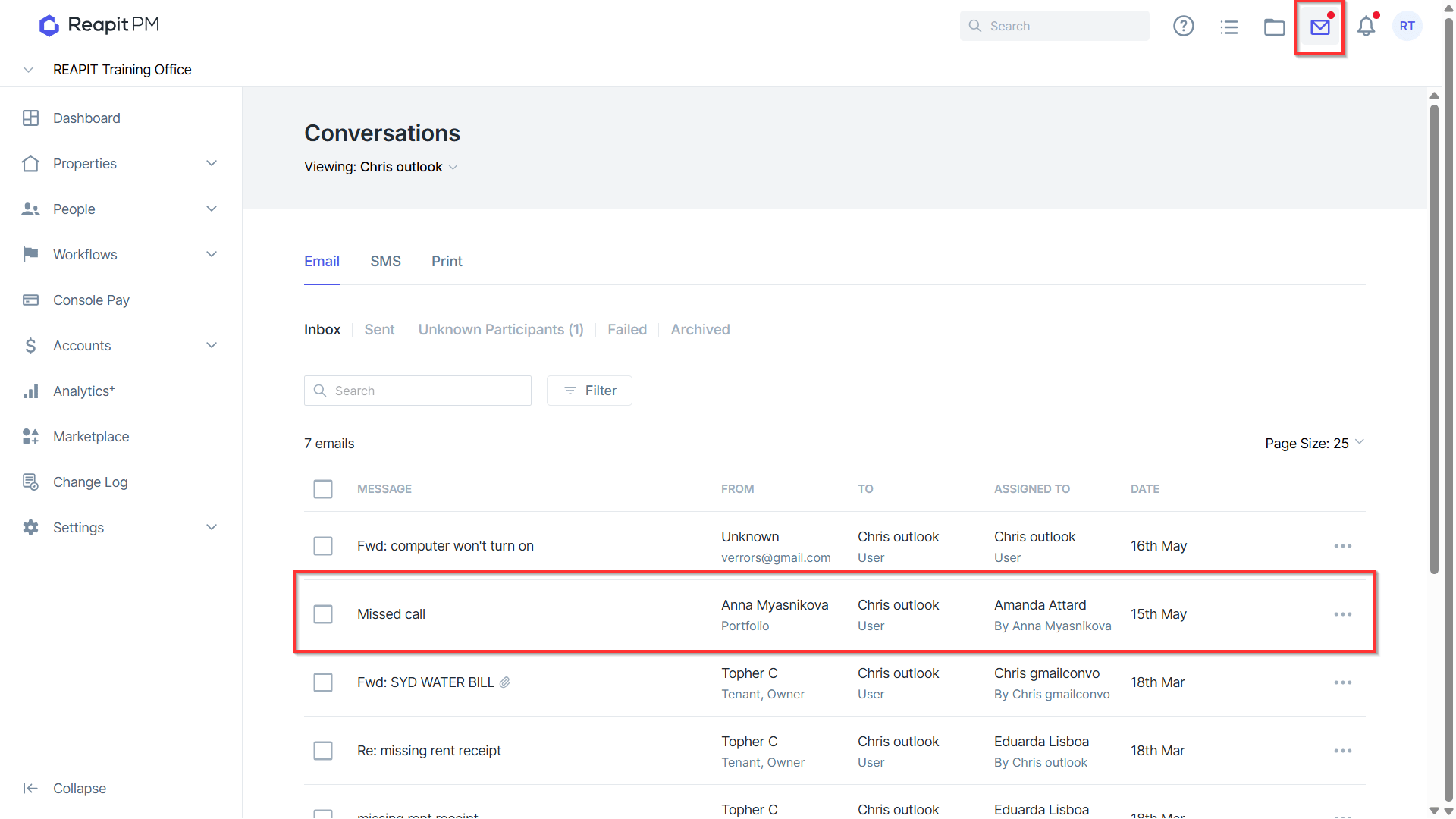
- To make changes to participants on an email, navigate to Conversations.
- Select the email you wish to reassign to another user.
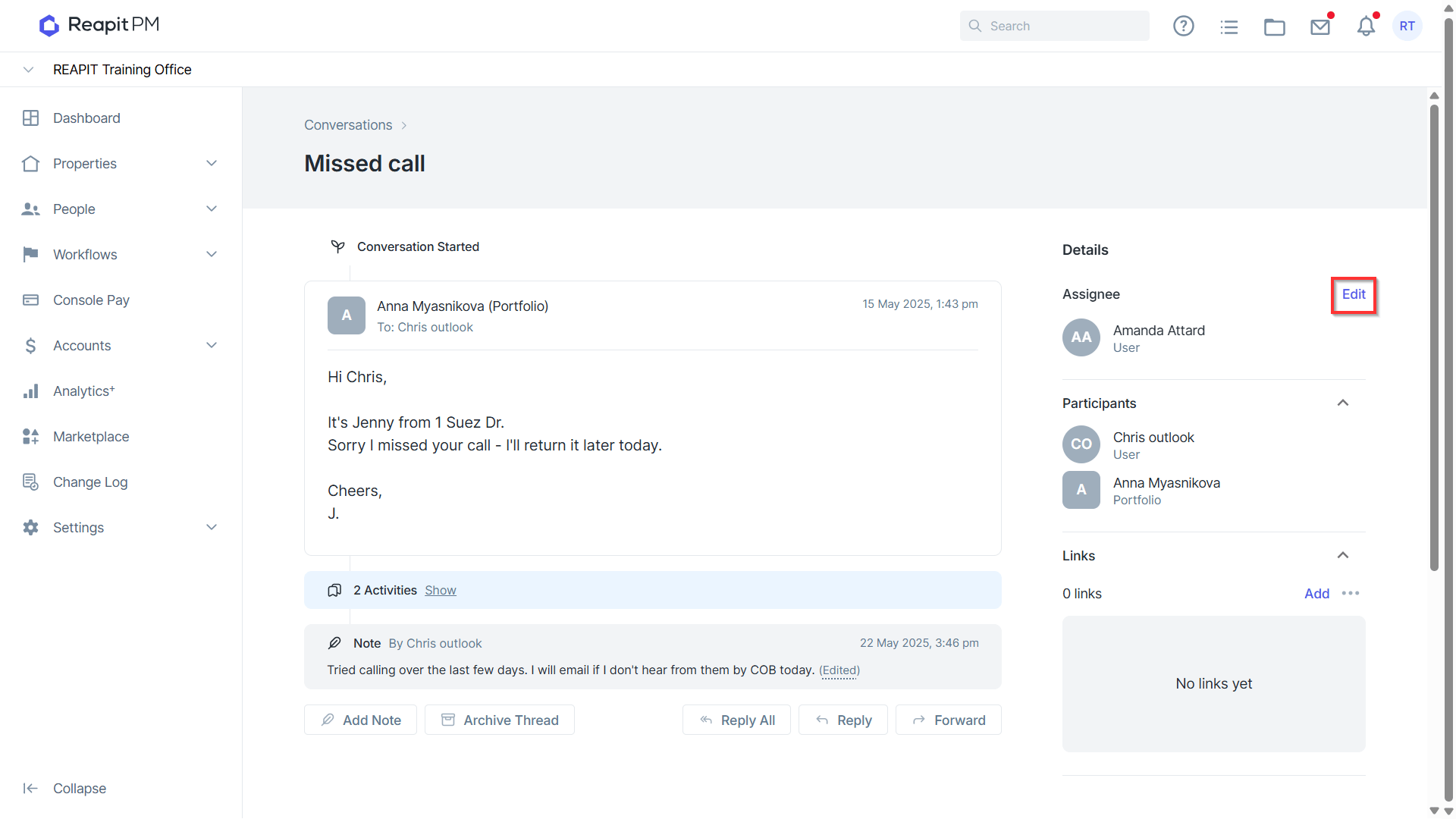
- From the overview of the email, click on the Edit button next to Assignee.
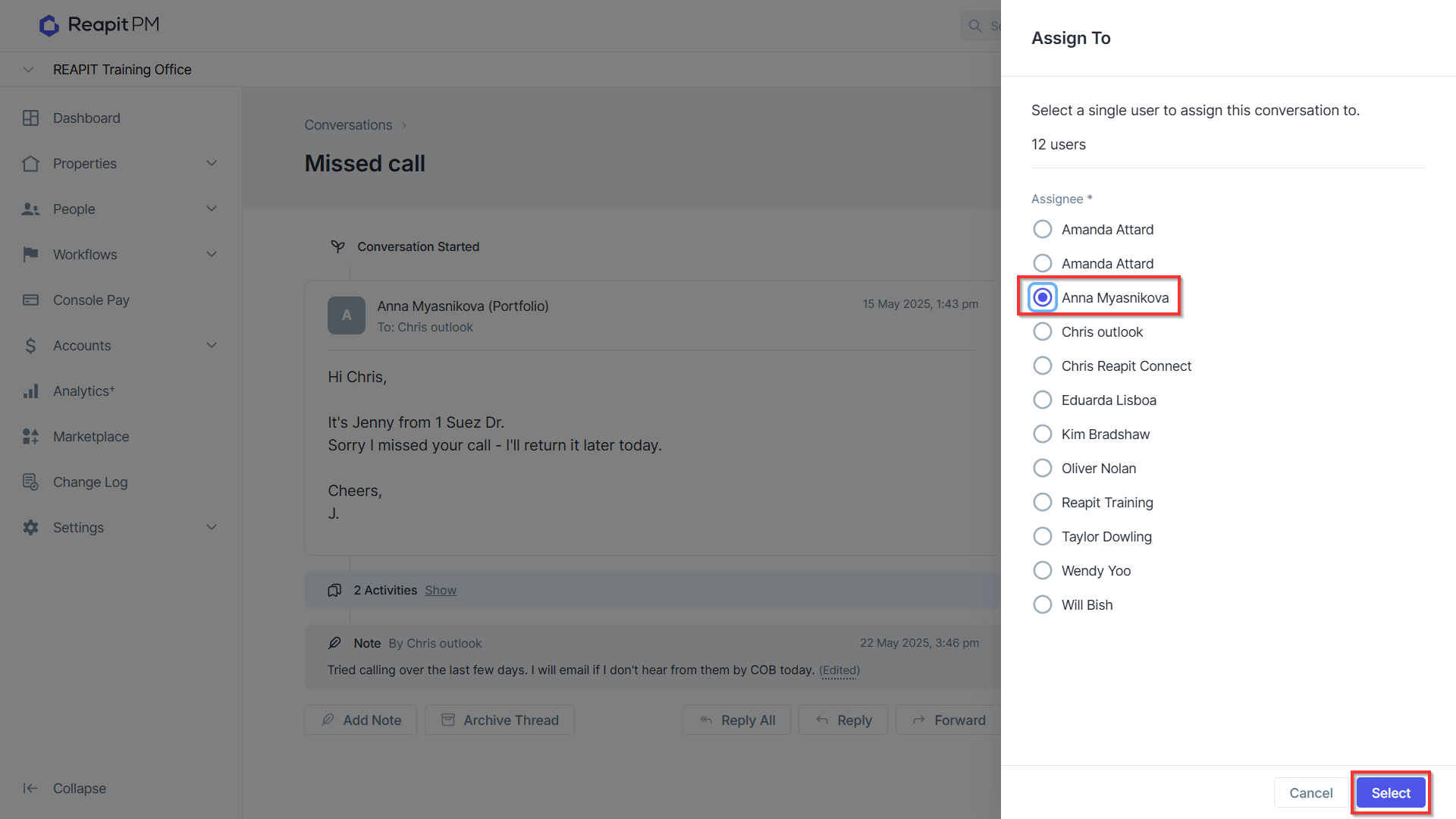
- The Assign To drawer will appear. Click on the nominated user you will be assigning the conversation to, and press Select.
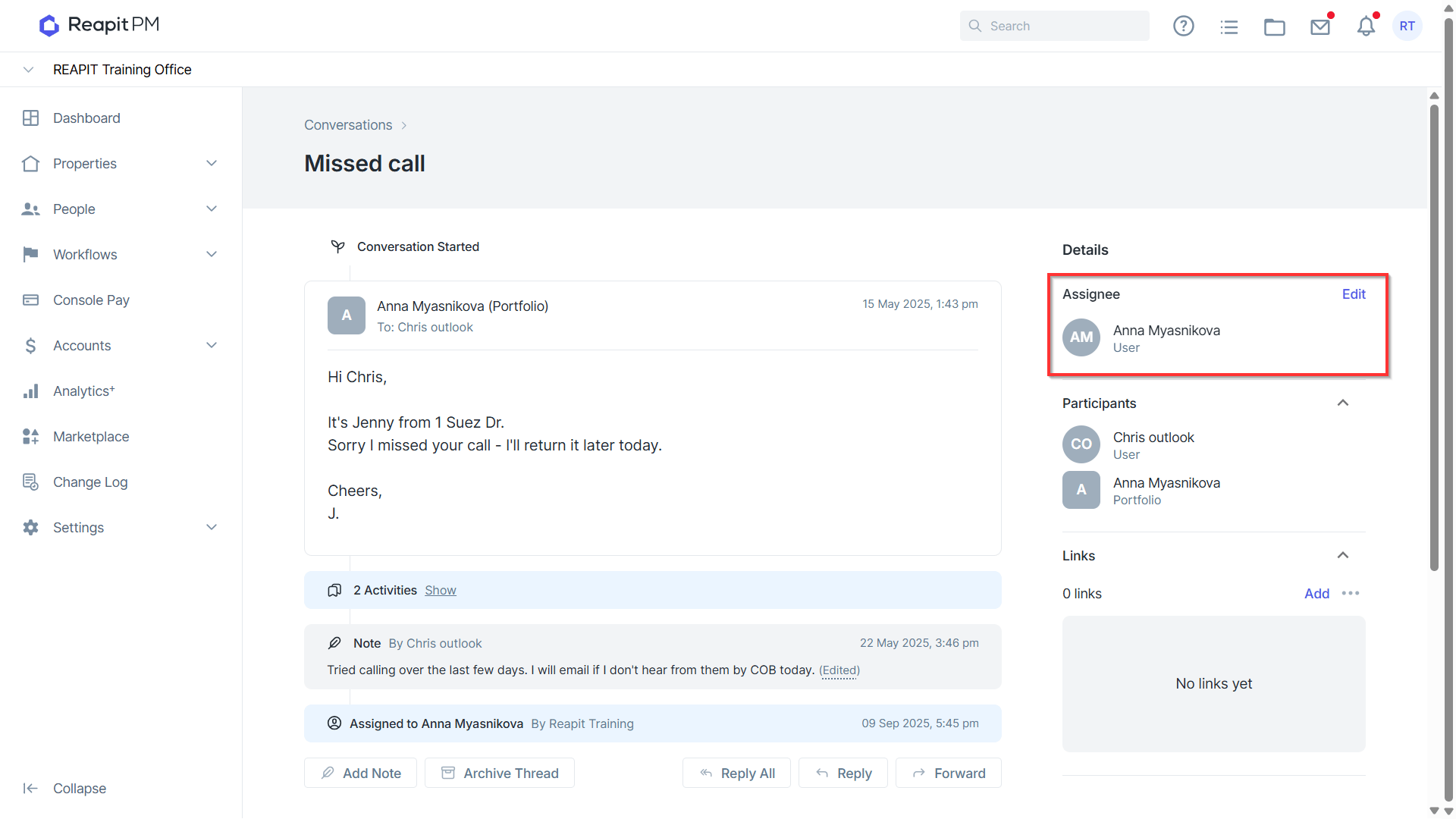
- The page will update the user assigned to the conversation.
- Returning to the Conversations screen, viewing the nominated assignee’s inbox you will see the email in the user's inbox along with who the email was originally sent to.
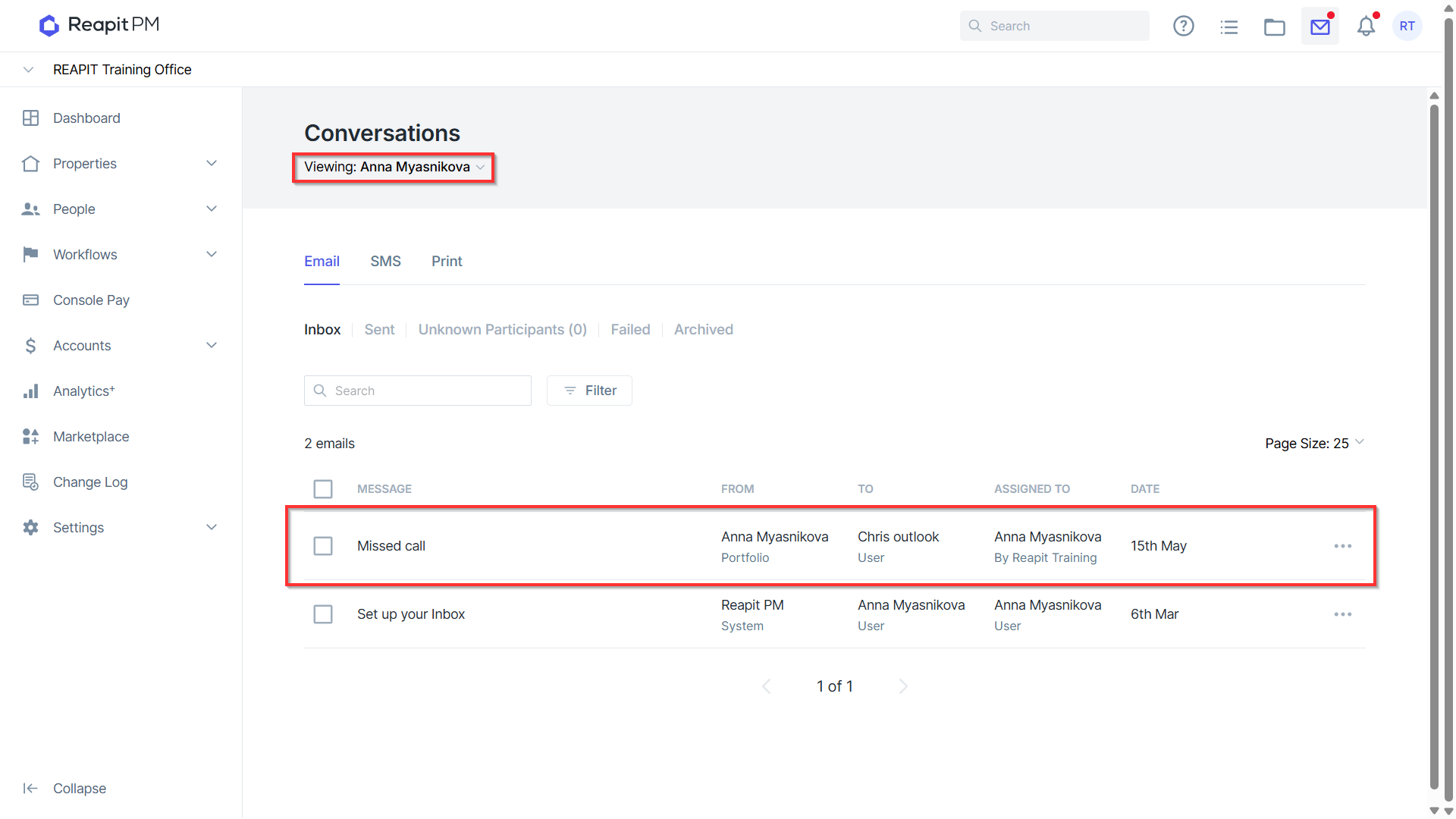
Note: When reassigning emails through to another user, it’s important to remember that the email will still display in the original recipient's inbox and will display in the user’s inbox it has been reassigned to.
If the email is archived, this will archive it in both the original recipient and the reassigned users inboxes. And if unarchived, will display in both again.