'%20d='M0%208a8%208%200%200%201%208-8h24a8%208%200%200%201%208%208v24a8%208%200%200%201-8%208H8a8%208%200%200%201-8-8V8Z'/%3e%3cpath%20fill='%23fff'%20d='M8.375%2013v14L20.5%2034l12.124-7v-7.737l-1.687-.975-2.806-1.62-1.082-.624v4.83l-.002%204.83H13.95V16.07l3.275-1.89%202.192-1.265%201.082-.625%203.275%201.877%202.192%201.256%201.083.62V9.782L20.5%206%208.376%2013Z'/%3e%3cdefs%3e%3clinearGradient%20id='reapit-pm__a'%20x1='20.702'%20x2='20.702'%20y1='.351'%20y2='31.228'%20gradientUnits='userSpaceOnUse'%3e%3cstop%20stop-color='%235573FD'/%3e%3cstop%20offset='.575'%20stop-color='%234E56EA'/%3e%3c/linearGradient%3e%3c/defs%3e%3c/svg%3e)
Dissections in Reapit PM
This article will help you understand the basics of creating and managing dissections in Reapit PM.
Overview
Dissections in Reapit PM
Dissections allow you to control how an income or expense is displayed on the Owners End of Financial Year Statement. This may also be known as accounts or a chart of accounts.
Reapit PM will have several dissections already set up, some of which are locked for editing as they are required for import or default functionality (i.e. Rent).
Creating Dissections
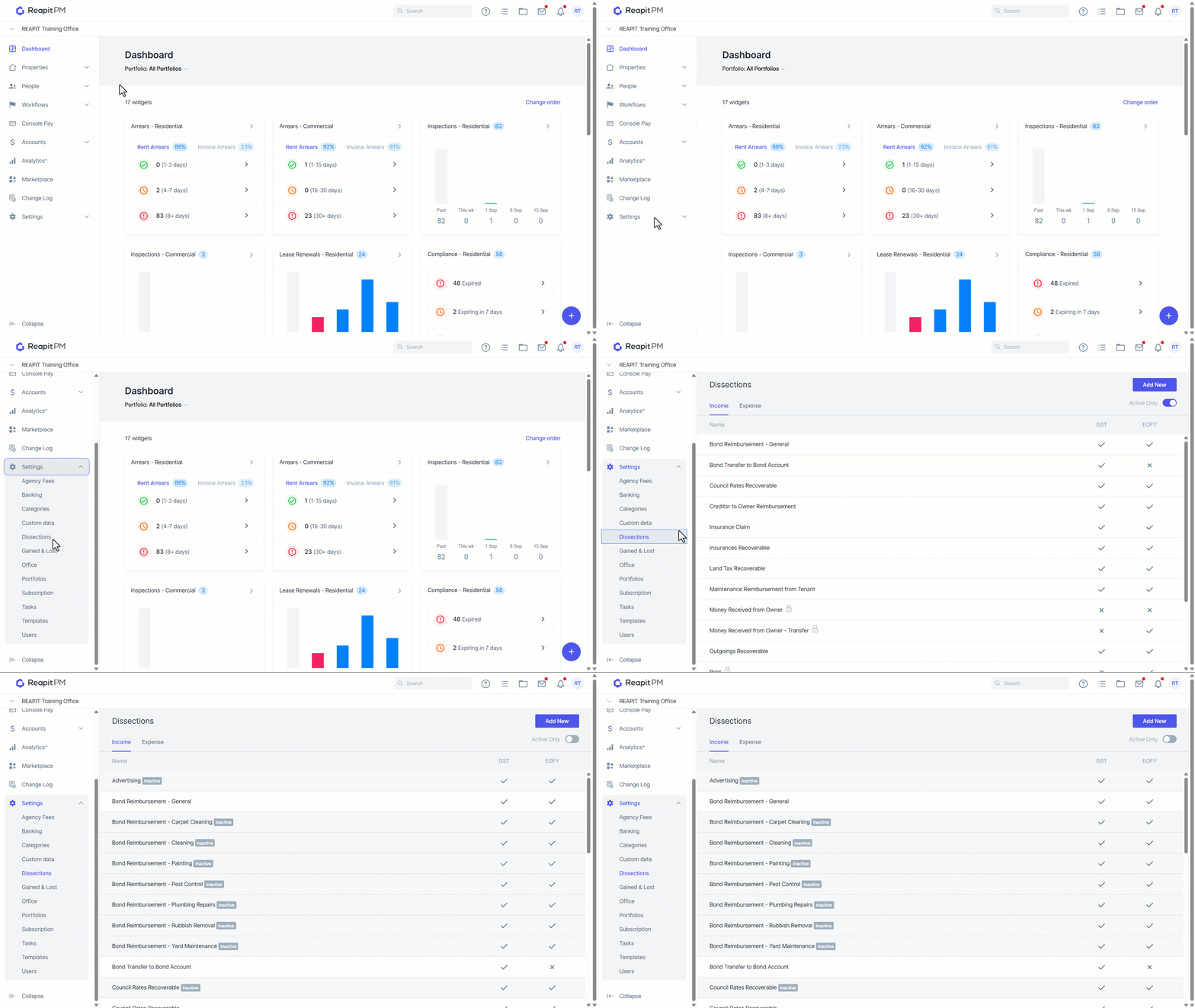
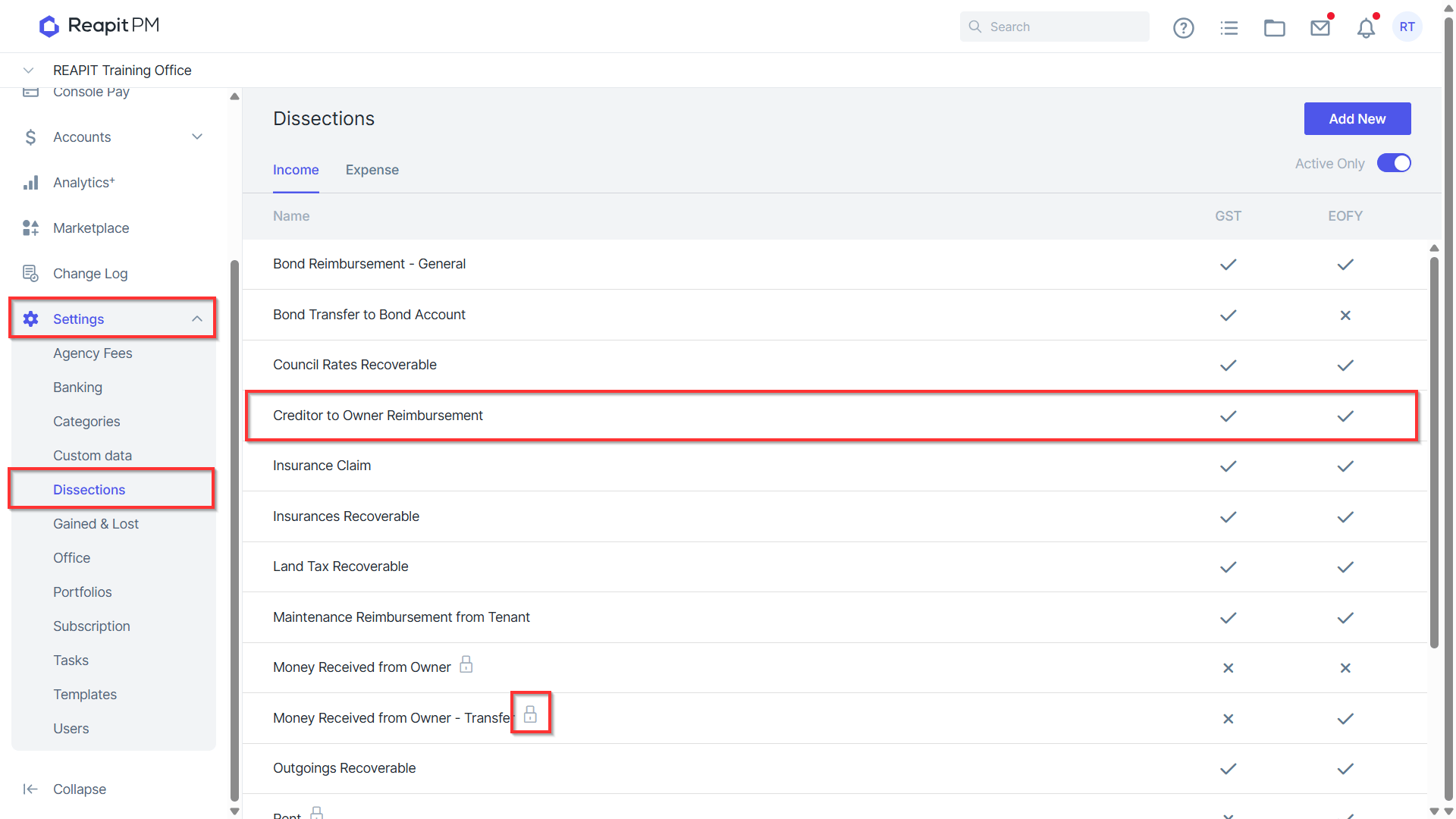
- Navigate to Settings > Dissections. In this location, you will see all active Income and Expense Dissections.
- Flip the Active Only to view any Inactive Dissections.
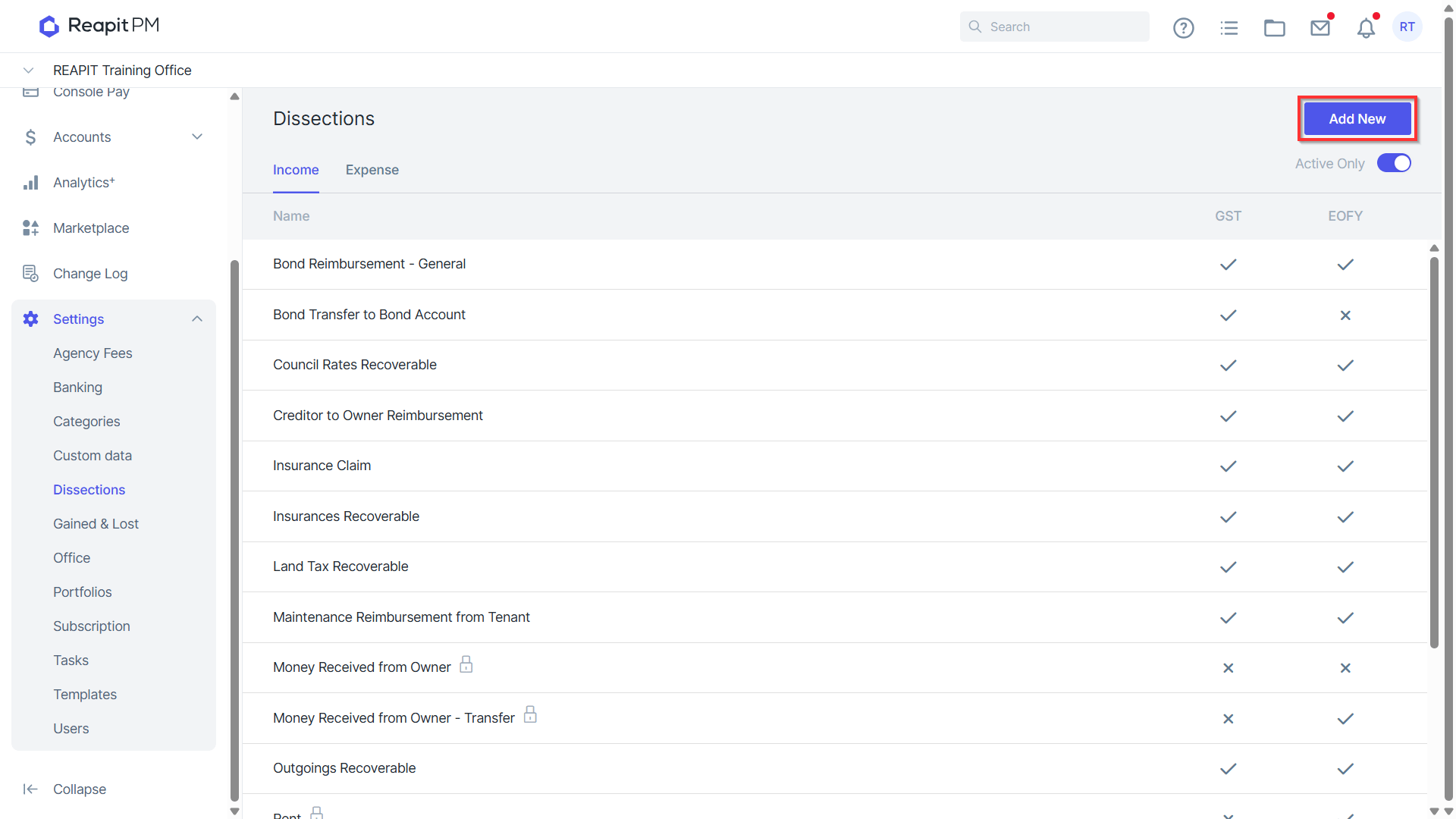
- Click Add New to add a new dissection.
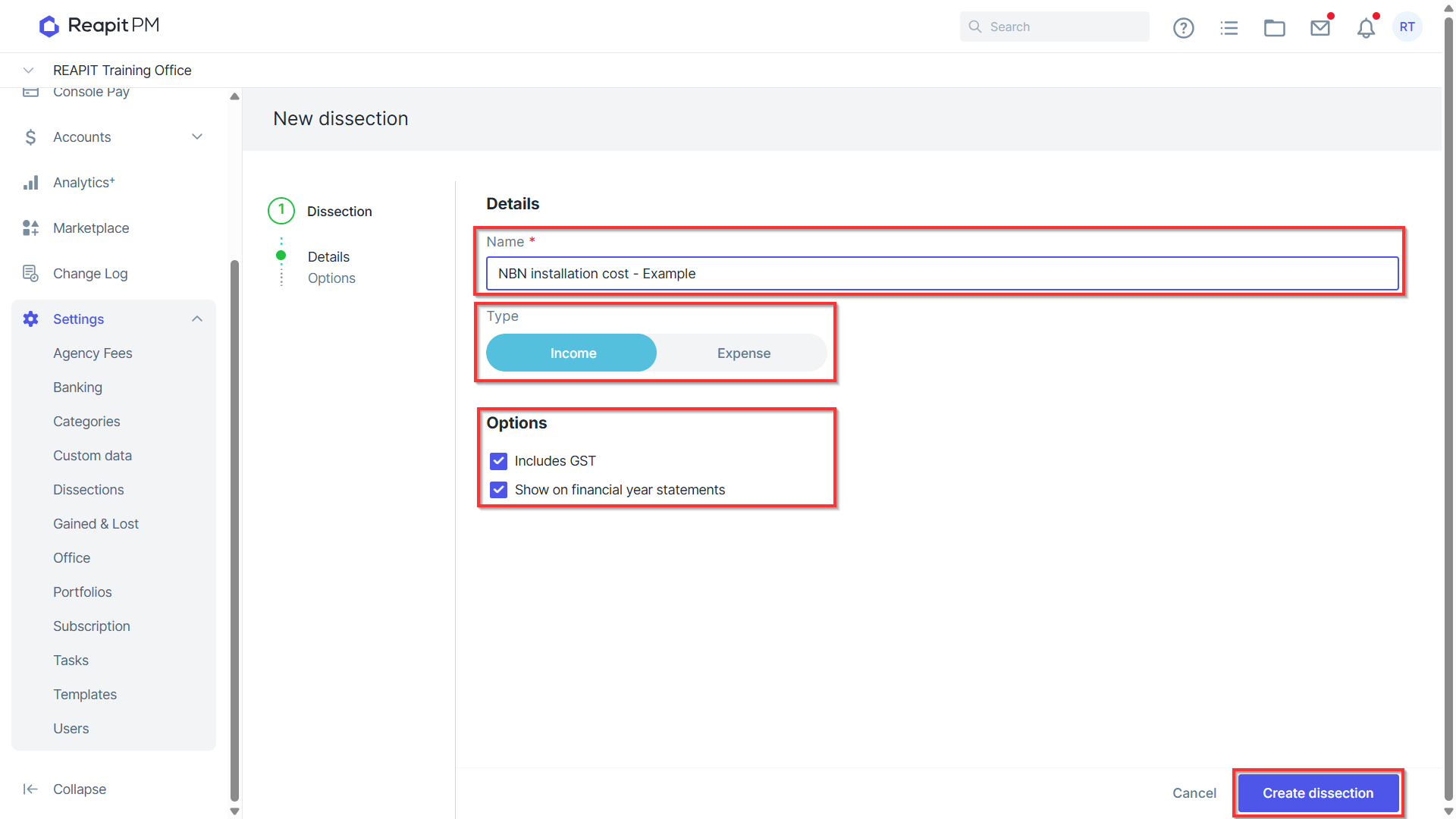
- Enter Name and select whether it is Income to the Owner or an Expense.
- Select whether it includes GST or not, and whether it should appear on the financial year statement.
- Click Create Dissection.
Editing or Making Inactive
- Navigate to Settings > Dissections.
- Click into the relevant Dissection to Edit or Make Inactive.
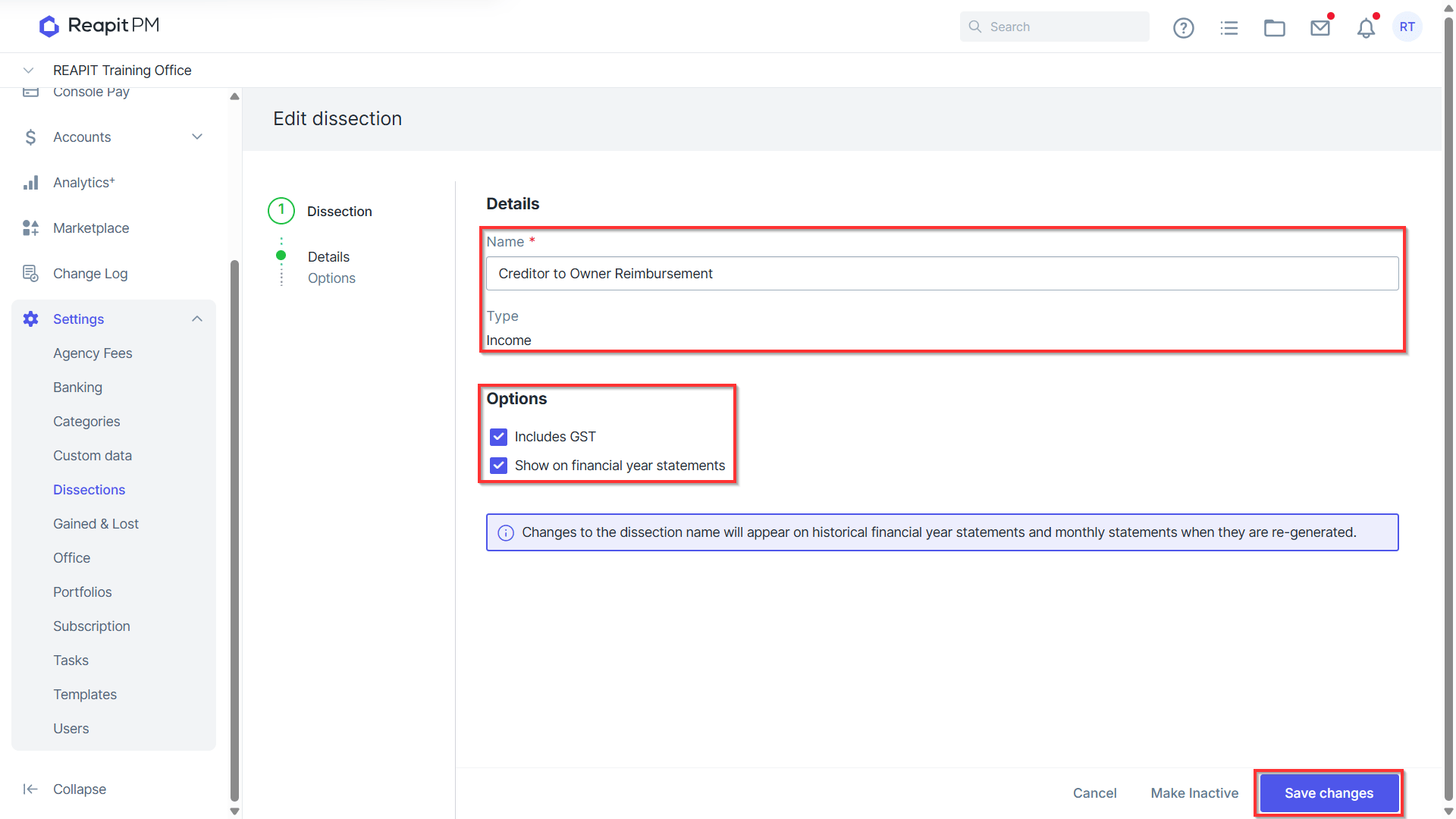
- When Editing update the Name and Options as appropriate. You will not be able to update the dissection type.
- Click Save Changes.
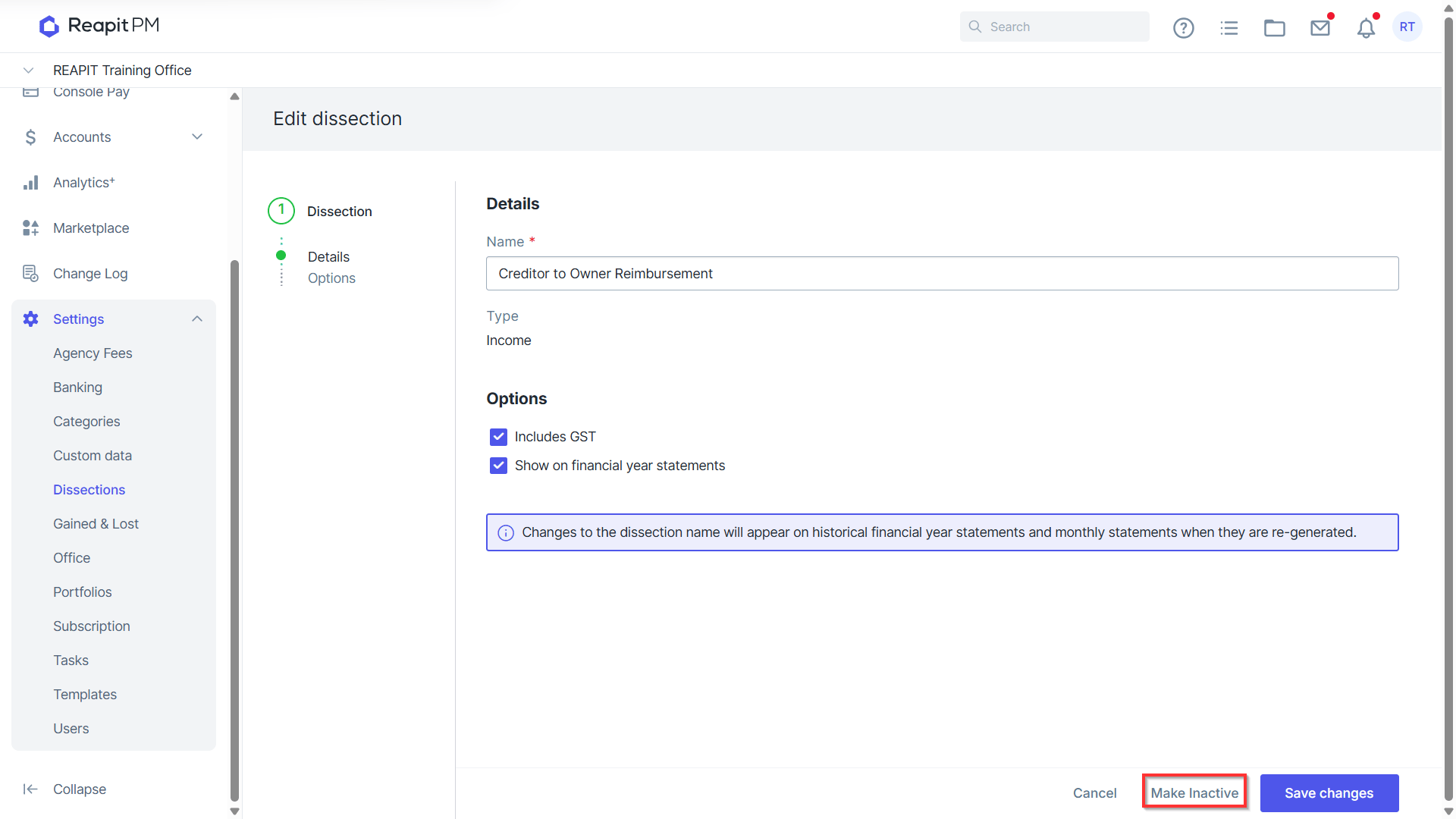
- To make inactive, click on Make Inactive.
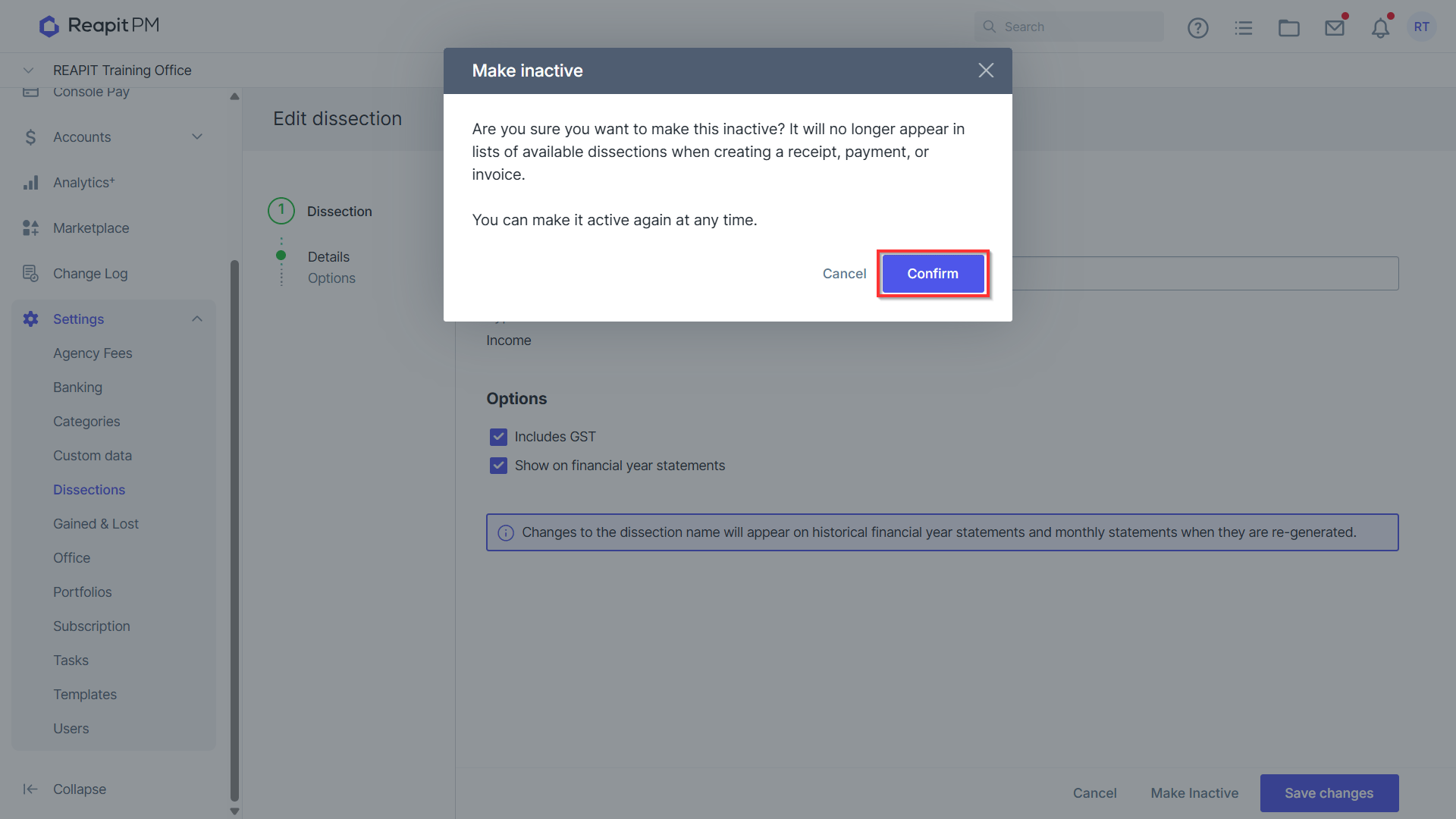
- Click Confirm.
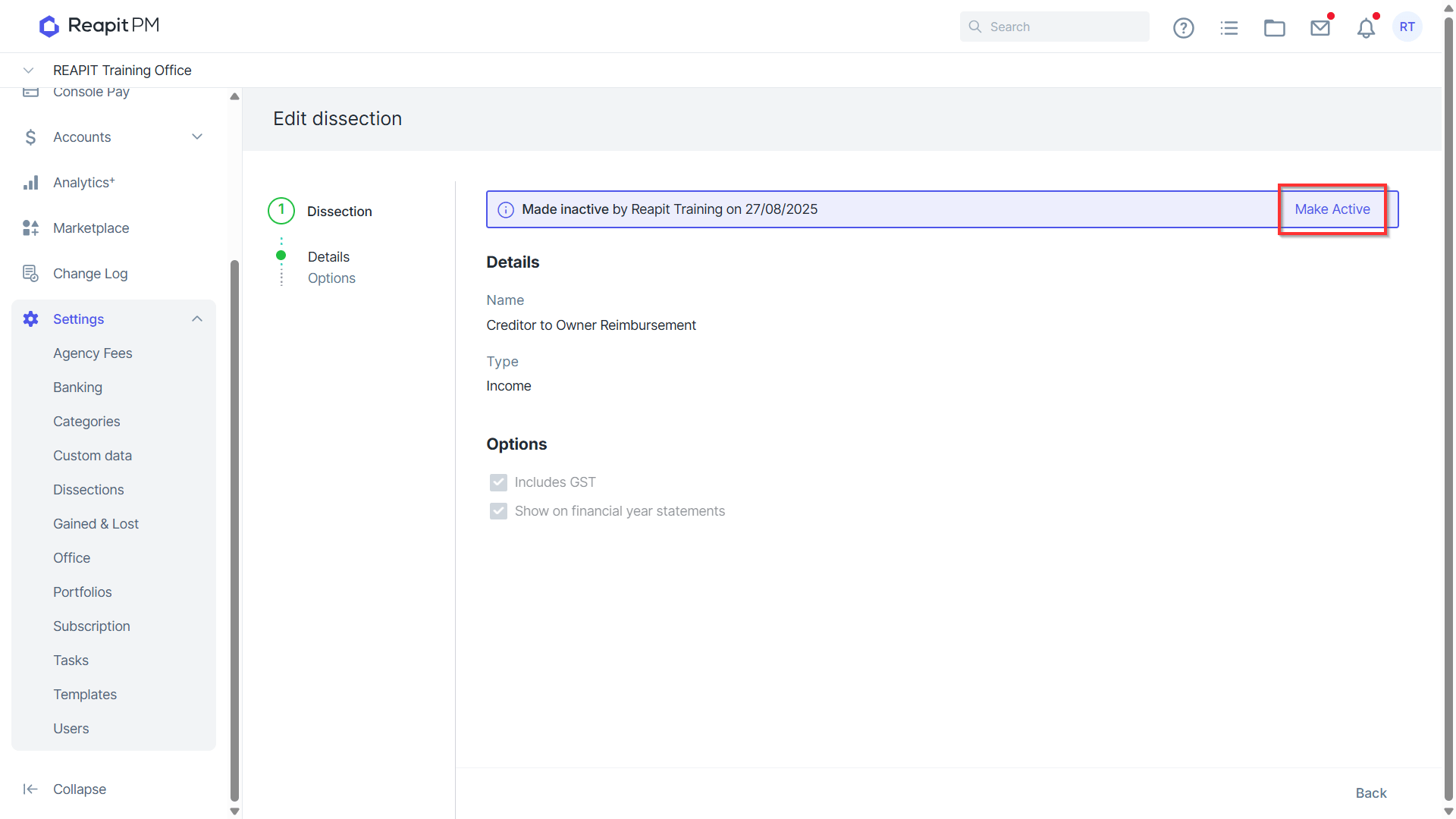
- Inactive dissections can be reactivated at any time by clicking into the inactive dissections and clicking Make Active.