'%20d='M0%208a8%208%200%200%201%208-8h24a8%208%200%200%201%208%208v24a8%208%200%200%201-8%208H8a8%208%200%200%201-8-8V8Z'/%3e%3cpath%20fill='%23fff'%20d='M8.375%2013v14L20.5%2034l12.124-7v-7.737l-1.687-.975-2.806-1.62-1.082-.624v4.83l-.002%204.83H13.95V16.07l3.275-1.89%202.192-1.265%201.082-.625%203.275%201.877%202.192%201.256%201.083.62V9.782L20.5%206%208.376%2013Z'/%3e%3cdefs%3e%3clinearGradient%20id='reapit-pm__a'%20x1='20.702'%20x2='20.702'%20y1='.351'%20y2='31.228'%20gradientUnits='userSpaceOnUse'%3e%3cstop%20stop-color='%235573FD'/%3e%3cstop%20offset='.575'%20stop-color='%234E56EA'/%3e%3c/linearGradient%3e%3c/defs%3e%3c/svg%3e)
1300 Smoke Alarms Integration
This integration removes the need to manually engage 1300 Smoke Alarms for compliance items and allows 1300 Smoke Alarms to add a compliance certificate directly into Reapit PM along with the invoice into the Bills Workflow in Reapit PM. It will automate 3 different lead types; new tenancy leads, vacating leads, and lease renewal leads. The processes in this article include: Activating the 1300 Smoke Alarms Integration Assigning Compliance to a Partner - New Compliance Assigning Compliance to a Partner - Existing Compliance Invoices Receiving Updates from 1300 Smoke Alarms Integration Activity Log Bulk Assignment Deactivating the 1300 Smoke Alarms Integration
Overview
1300 Smoke Alarms is an independently owned (separate to PM) company that offers compliance services.
This integration removes the need to manually engage 1300 Smoke Alarms for compliance items and allows 1300 Smoke Alarms to add a compliance certificate directly into Reapit PM along with the invoice into the Bills Workflow in Reapit PM.
It will automate 3 different lead types; new tenancy leads, vacating leads, and lease renewal leads.
The processes in this article include:
- Activating the 1300 Smoke Alarms Integration
- Assigning Compliance to a Partner - New Compliance
- Assigning Compliance to a Partner - Existing Compliance
- Invoices
- Receiving Updates from 1300 Smoke Alarms
- Integration Activity Log
- Bulk Assignment
- Deactivating the 1300 Smoke Alarms Integration
Activating the 1300 Smoke Alarms Integration
Note: Only Office Administrators are able to complete the process.
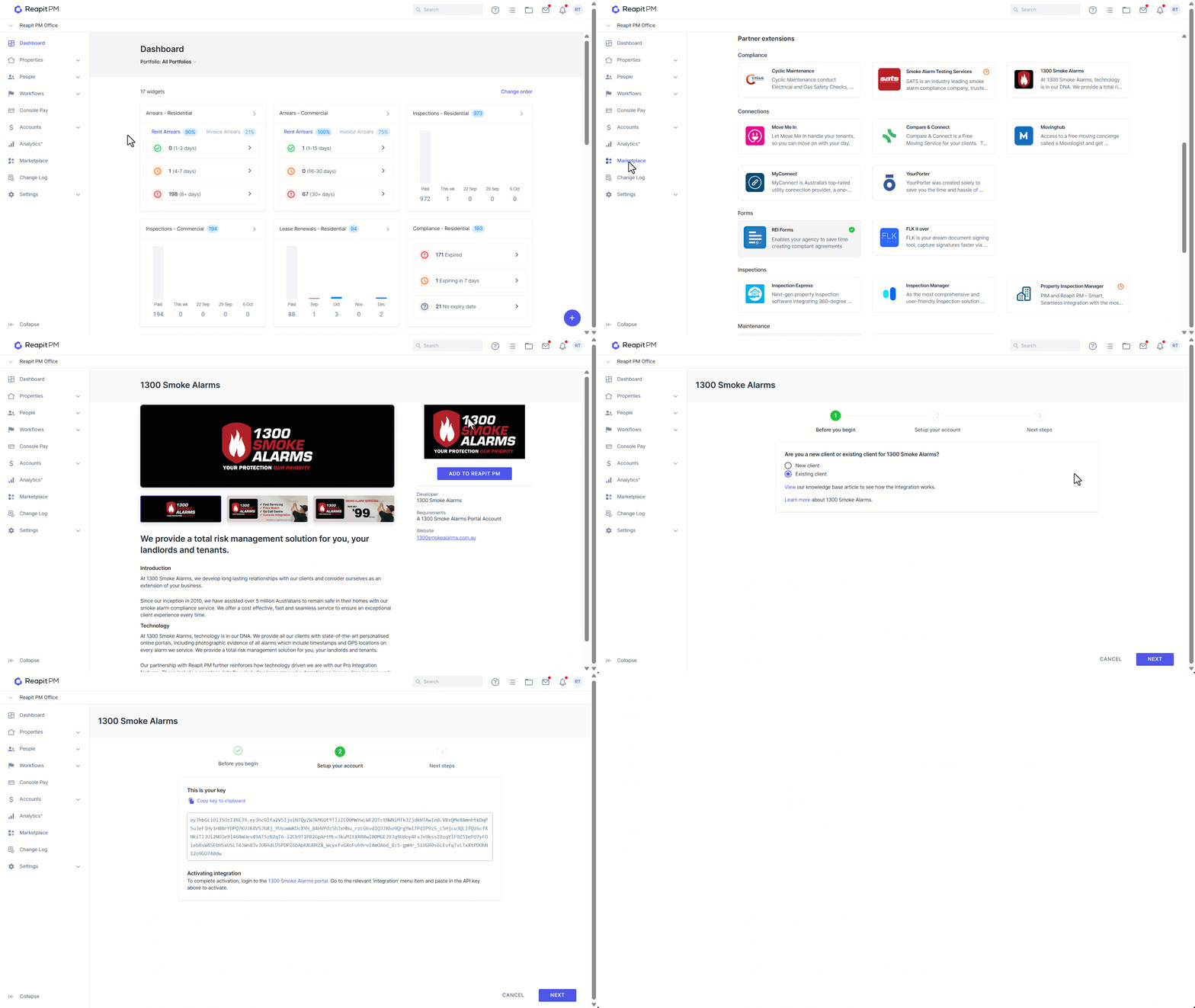
- Click on Marketplace.
- Navigate to Partner Extensions and click on 1300 Smoke Alarms.
- Click Add to Reapit PM.
- You will now be guided through the integration setup via the activation wizard.
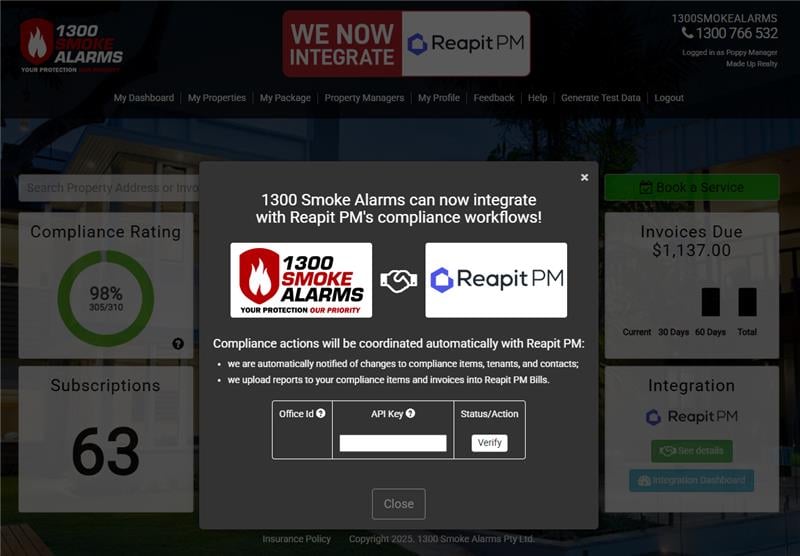
Go to the 1300 Smoke Alarm client portal to activate the integration. Go to the menu item ‘Integrations’ and locate the Reapit PM tile. Paste the API key here to activate.
Assigning Compliance to a Partner - New Compliance
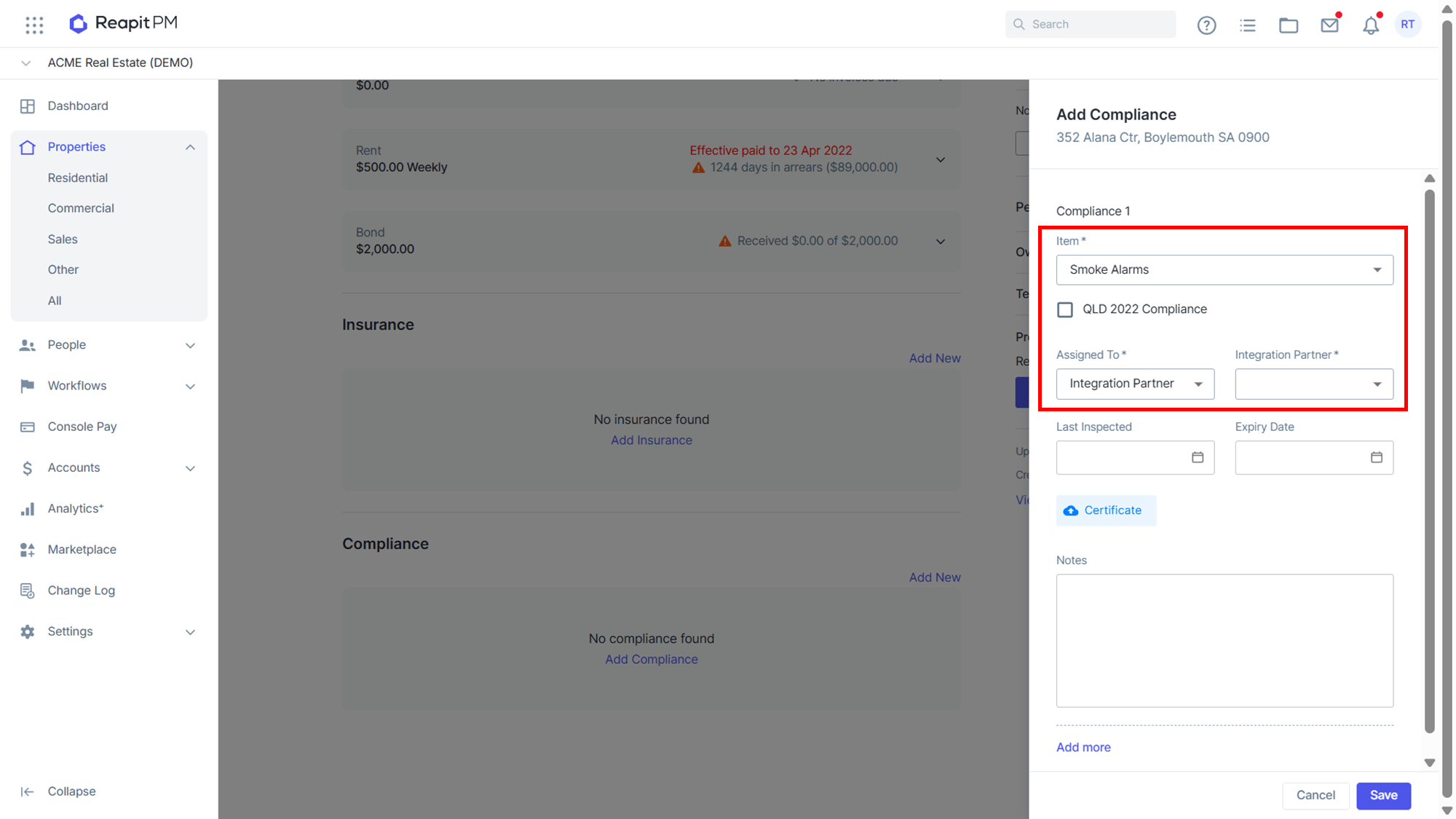
- Go to the property's compliance items located at the bottom of the Property page and click Add New.
- Add the item as Smoke Alarms. (Note: Check other compliance items that may be included with the 1300 Smoke Alarms package that you have purchased).
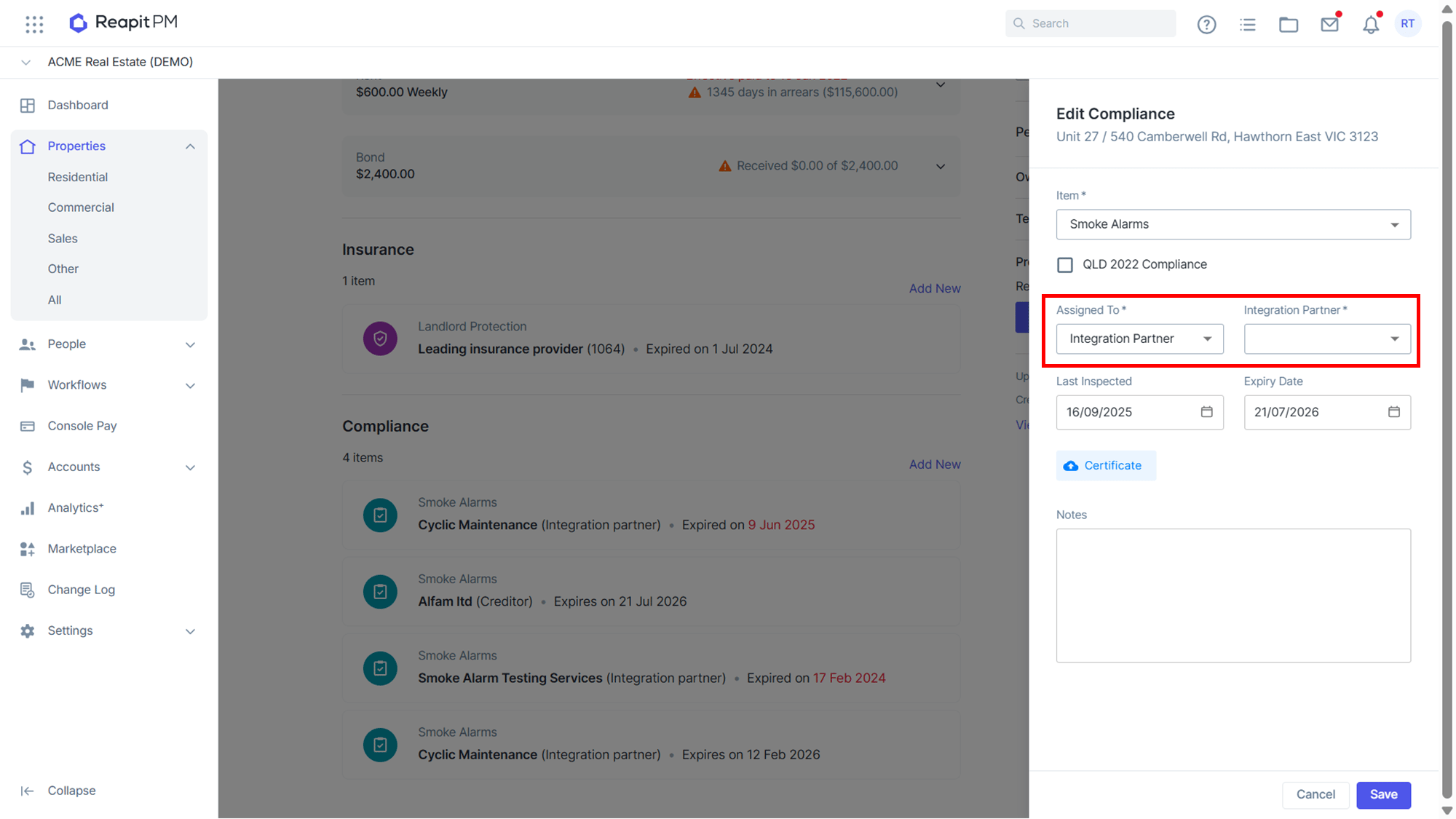
- Under Assigned To, click Integration Partner then select 1300 Smoke Alarms as the integration partner.
- Once you click Save you will be able to track and manage the compliance item using the Compliance Workflow (Go to the ‘Workflows’ tab in PM and select ‘Compliance’).
The Compliance instruction is automatically sent to 1300 Smoke Alarms and they will now manage the compliance service.
You can monitor property details and the status of all services by logging into the 1300 Smoke Alarms agent portal.
When a compliance certificate is issued, it will automatically be added to the compliance item with the last inspected and expiry dates updated. It is then ready to be finalised. (Go to the ‘Workflows’ tab in PM and select ‘Compliance’).
Assigning Compliance to a Partner - Existing Compliance
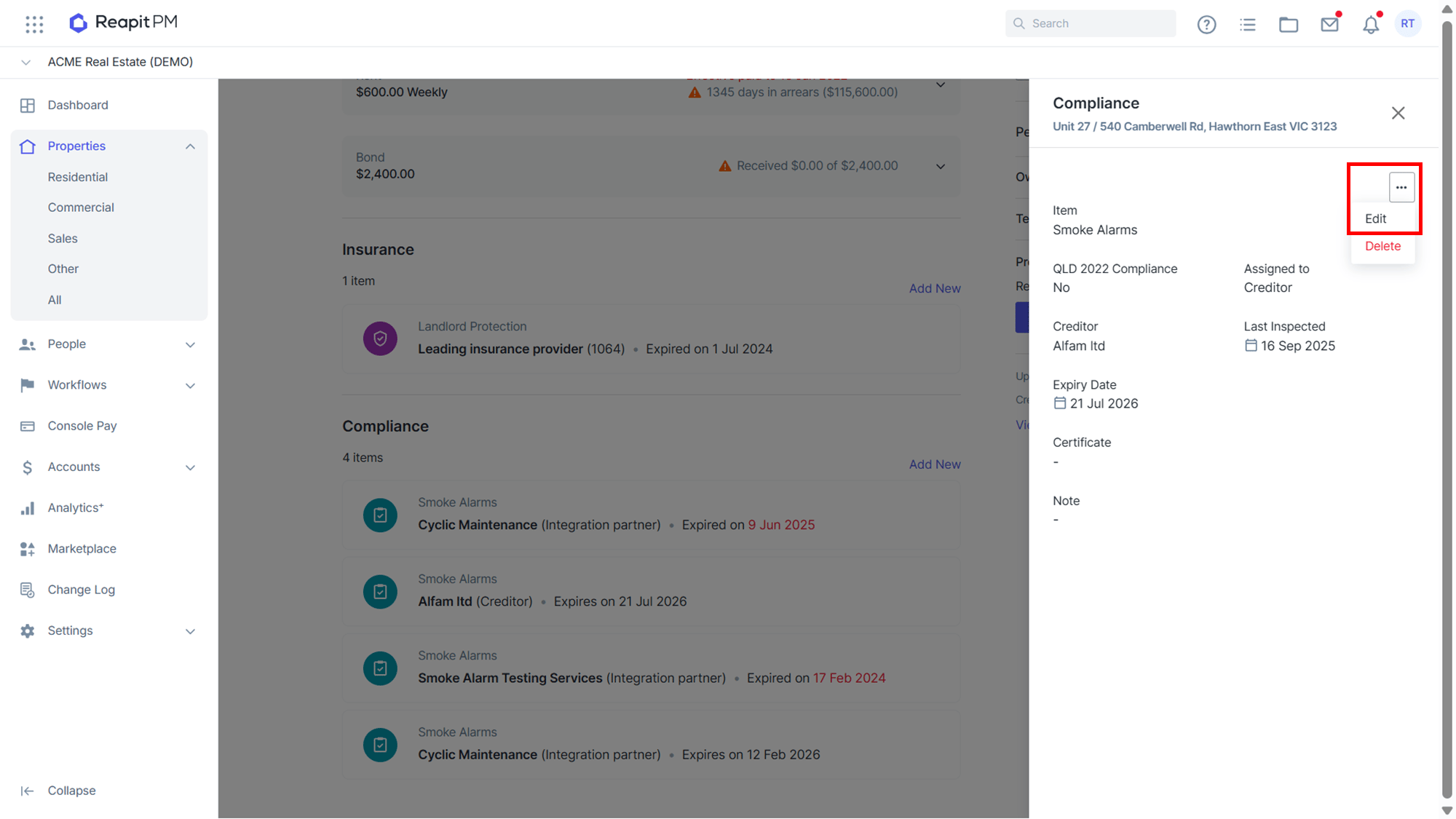
- Go to the property's compliance items located at the bottom of the property page and click on the existing compliance item you would like to reassign.
- Click the 3-dots and select Edit.
- Under Assigned To, click Integration Partner then select 1300 Smoke Alarms as the integration partner.
- Once Saved you will be able to track the Compliance using the Compliance Workflow. (Go to the ‘Workflows’ tab in PM and select ‘Compliance’).
- The Compliance instruction is automatically sent to 1300 Smoke Alarms and they will now manage the Compliance item.
- When a compliance certificate is issued, it will automatically be added to the compliance with the last inspected and expiry dates updated. It is then ready to be finalised in the compliance workflow. (Go to the ‘Workflows’ tab in PM and select ‘Compliance’).
Invoices
Invoices created may appear as “Unknown Creditor” in PM.
An invoice submitted by a partner will appear in the Bills screen and display as an "Unknown Creditor" in the “Pay To” column when an agency has never processed a bill from this creditor in the past.
A creditor needs to be set up in PM to represent the integration partner so that invoices can be paid.
Once a bill is processed and the correct creditor is selected to pay, PM will remember this so that any subsequent bills will automatically be linked to the same creditor without the user needing to select it.
Receiving Updates from 1300 Smoke Alarms
For each compliance item assigned to 1300 Smoke Alarms they can update the following compliance item details.
Last inspected.
Expiry date.
Add a compliance certificate.
Add a related file e.g. photos, non-compliant report, etc.
Post back notes to add to the item.
Integration Activity Log
- Click on Marketplace.
- Navigate to Partner Extensions and click on 1300 Smoke Alarms.
- Click on Activity Log.
- You will then see an activity log of information sent to and received by 1300 Smoke Alarms.
Bulk Assignment
- Click on Marketplace.
- Navigate to Partner Extensions and click on 1300 Smoke Alarms.
- Click on Bulk Assignment. Select the compliance type and Reassign.
*Please note that this will bulk assign all of your compliance items for the selected portfolio that have the compliance type you are requesting to change. Current providers (including Creditors, Owners and Body Corporate) will not be notified of this change.
Deactivating the Integration
Note: Only Office Administrators are able to complete the process.
- Click on Marketplace.
- Navigate to Partner Extensions and click on 1300 Smoke Alarms.
- Click on Deactivate.
Confirm you wish to deactivate the integration. Once deactivated no further information will pass between the systems.
You will need to reassign any compliance items assigned to the partner to another partner or creditor in Reapit PM.
You may also need to instruct 1300 Smoke Alarms on how to proceed with each compliance item.