'%20d='M0%208a8%208%200%200%201%208-8h24a8%208%200%200%201%208%208v24a8%208%200%200%201-8%208H8a8%208%200%200%201-8-8V8Z'/%3e%3cpath%20fill='%23fff'%20d='M8.375%2013v14L20.5%2034l12.124-7v-7.737l-1.687-.975-2.806-1.62-1.082-.624v4.83l-.002%204.83H13.95V16.07l3.275-1.89%202.192-1.265%201.082-.625%203.275%201.877%202.192%201.256%201.083.62V9.782L20.5%206%208.376%2013Z'/%3e%3cdefs%3e%3clinearGradient%20id='reapit-pm__a'%20x1='20.702'%20x2='20.702'%20y1='.351'%20y2='31.228'%20gradientUnits='userSpaceOnUse'%3e%3cstop%20stop-color='%235573FD'/%3e%3cstop%20offset='.575'%20stop-color='%234E56EA'/%3e%3c/linearGradient%3e%3c/defs%3e%3c/svg%3e)
Managing Rent Reviews
This article will cover managing a rent review. The process in this article include: Adding a Rent Review Date Filtering for Rent Reviews that are Due Managing Rent Reviews Rent Review Settings Historical Rent Changes Rent Reviews and Rent Calculations Scenario
Overview
Managing Rent Reviews
This article will cover managing a rent review.
The process in this article include:
- Adding a Rent Review Date
- Filtering for Rent Reviews that are Due
- Managing Rent Reviews
- Rent Review Settings
- Historical Rent Changes
- Rent Reviews and Rent Calculations Scenario
Adding a Rent Review Date
Adding a rent review date will allow you to filter via the rent review due filter in the tenants list.
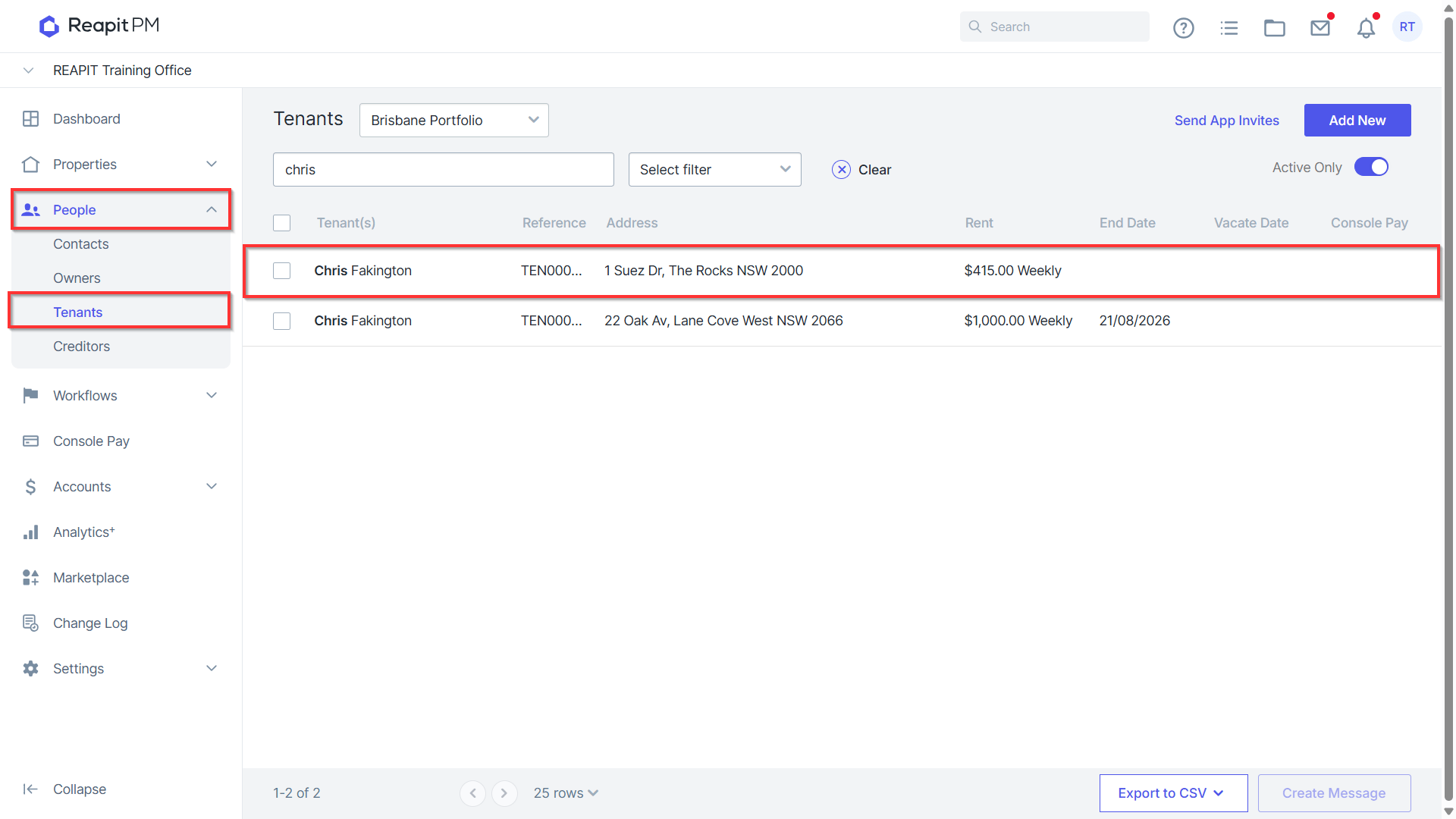
- Click on People.
- Click Tenants.
- Search or select the tenant.
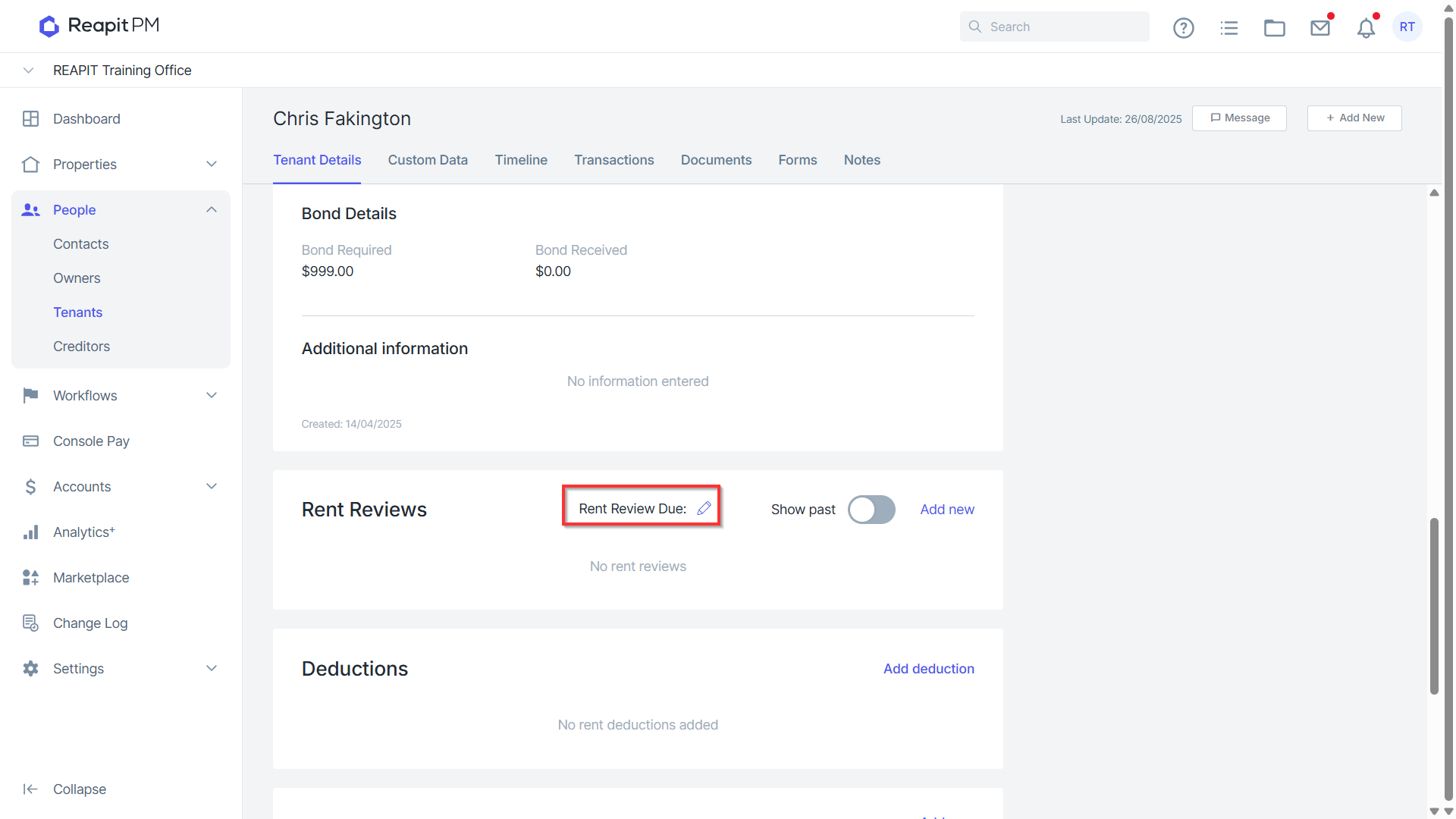
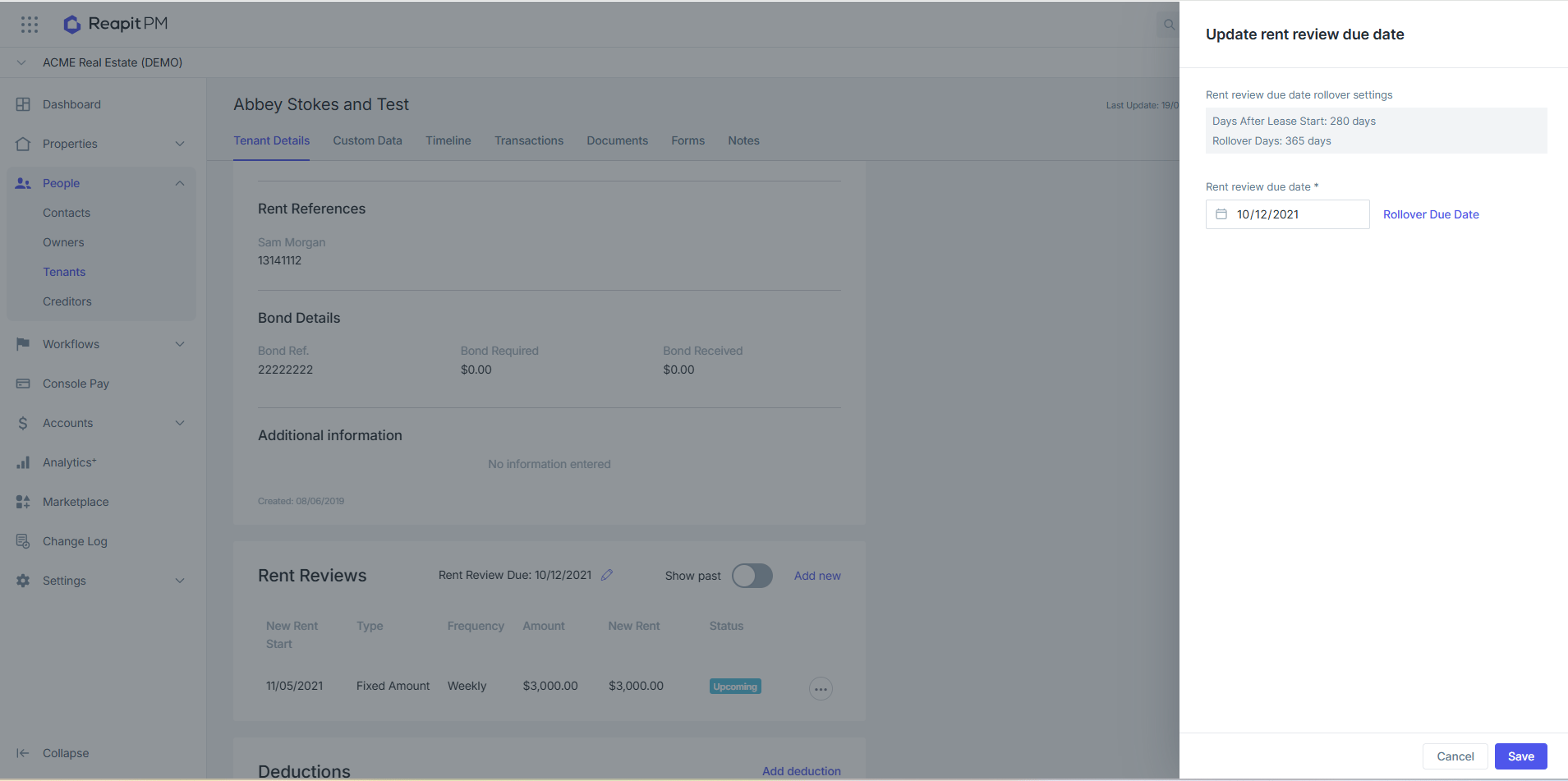
- Under the rent reviews heading, click on the little pencil icon next to Rent review due.
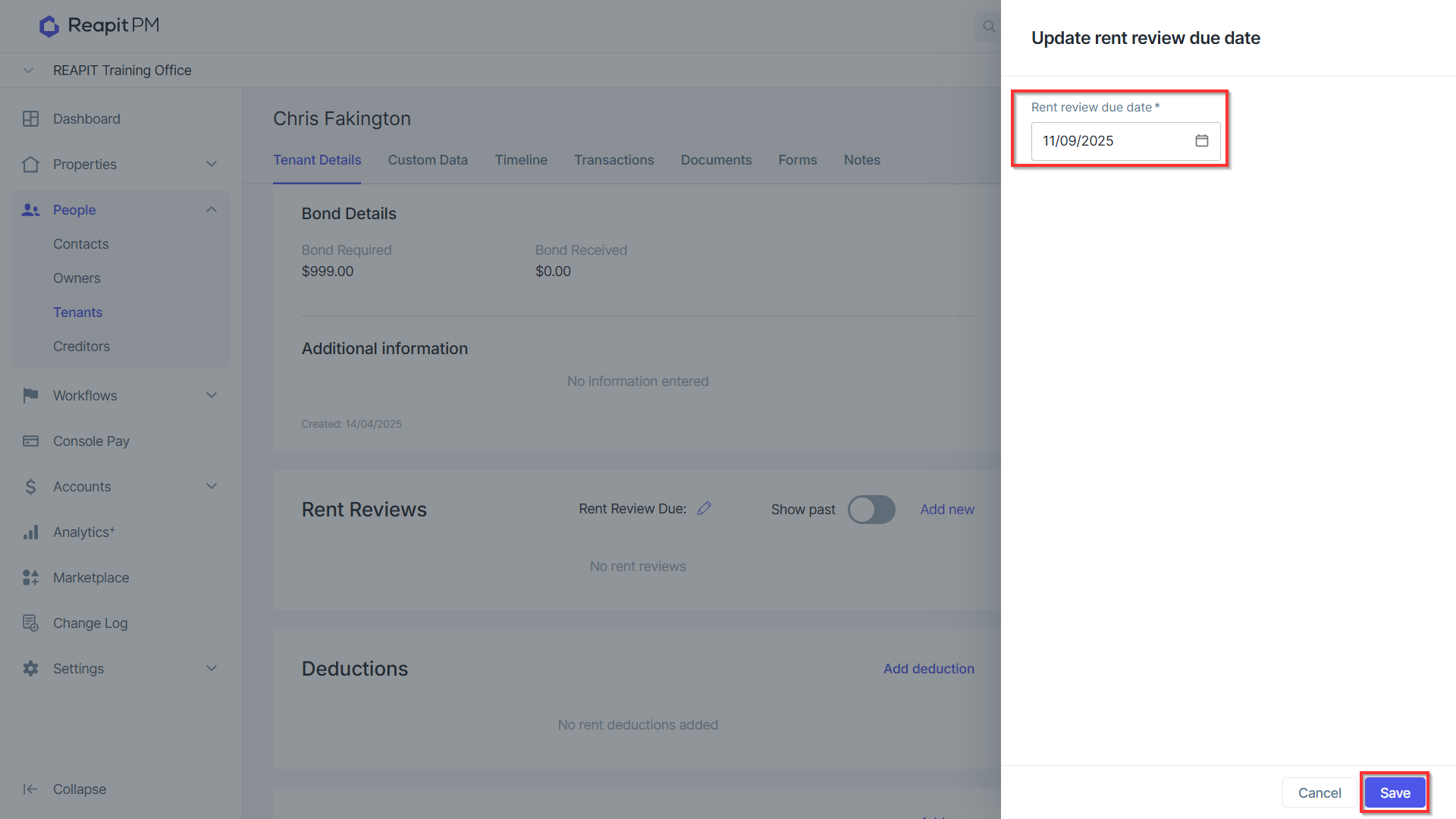
- Enter the rent review due date and click Save.
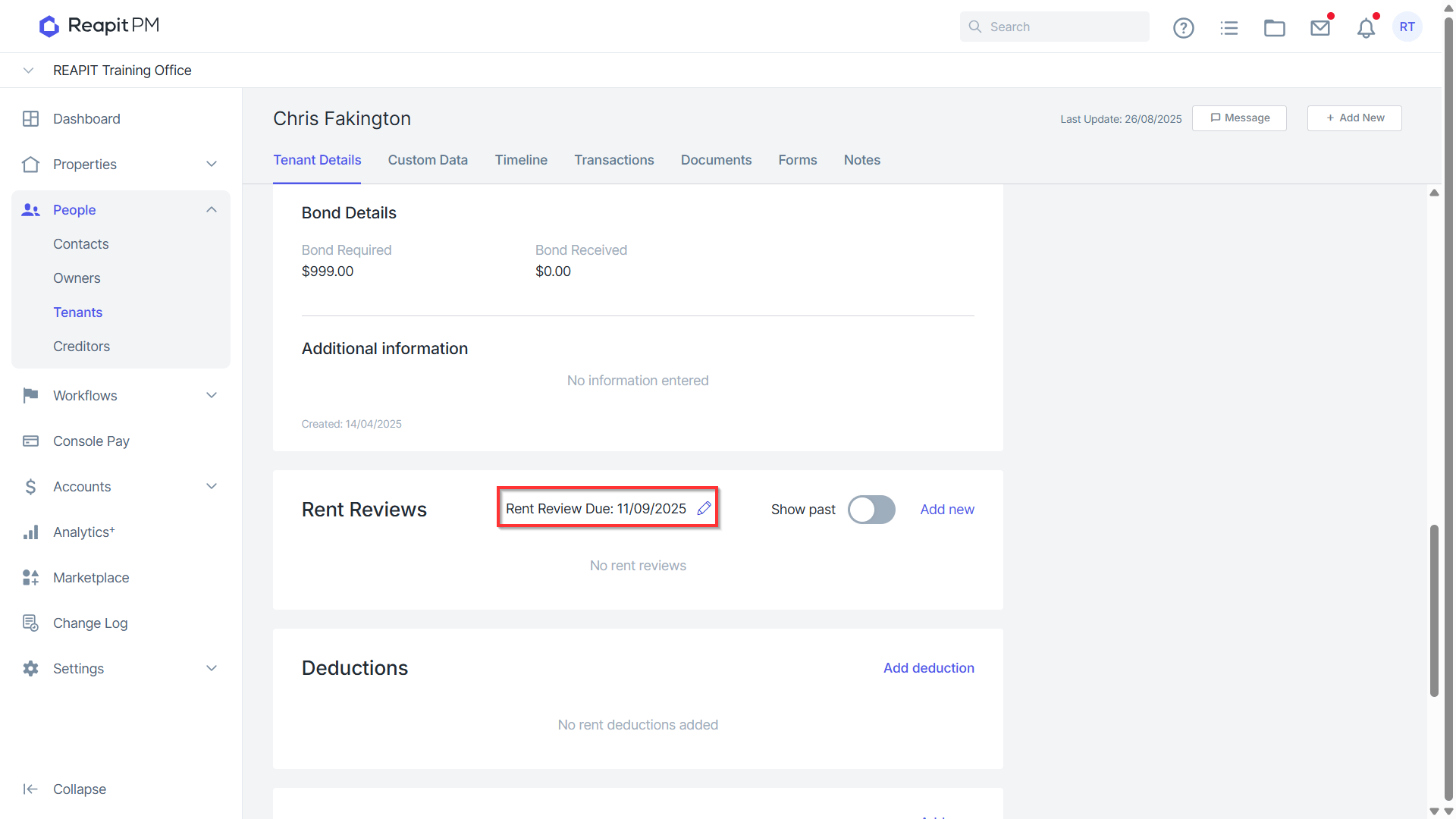
- Your Rent Review Due date has been saved & will apply in any review filters.
Filtering for Rent Reviews that are Due
- Select Rent Review Due from the select filter box.
- Select the number of days to view reviews for.
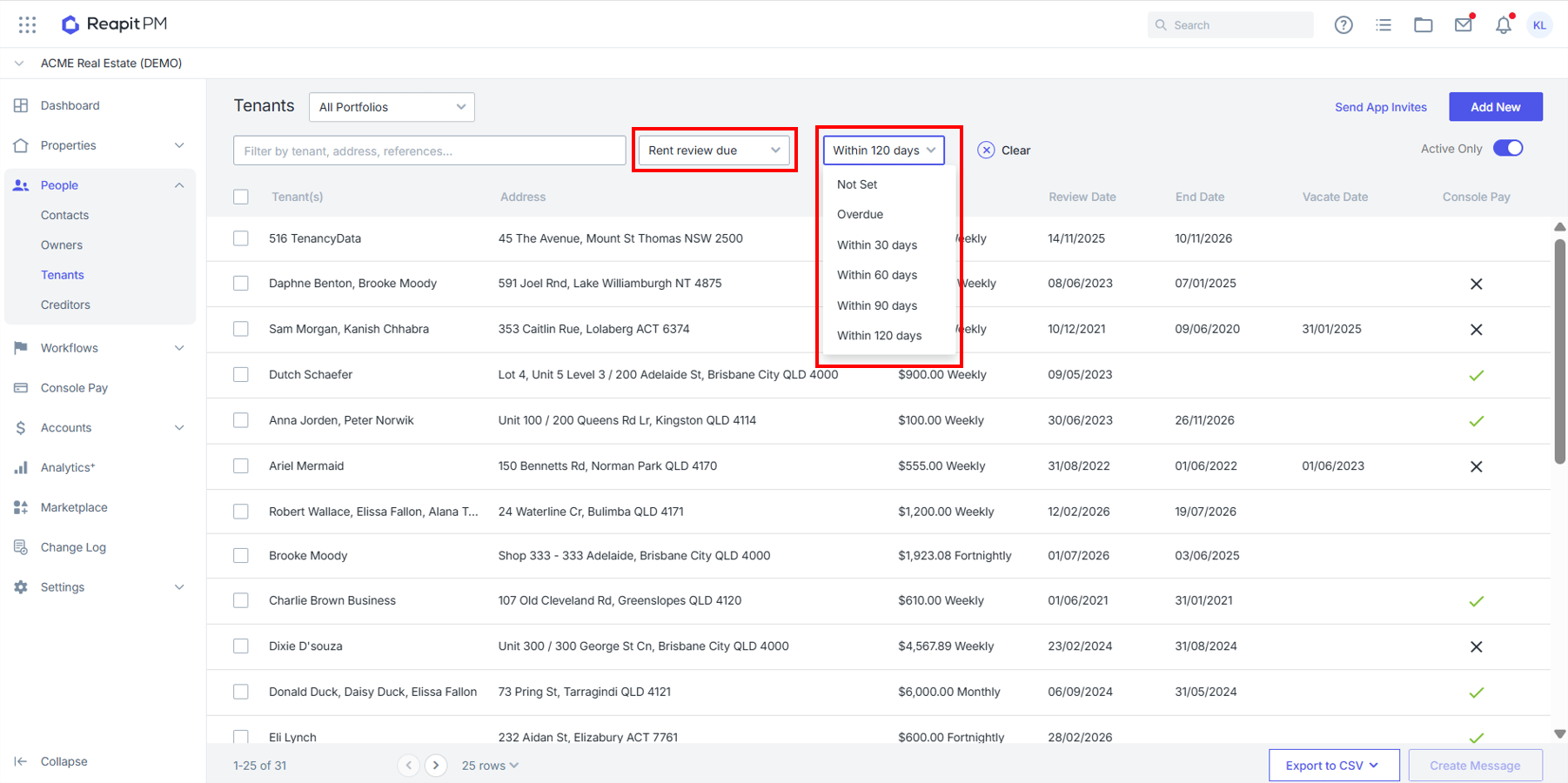
Managing Rent Reviews
Note: This will not display on the tenant payment history.
This process can also be followed for adding future rent reviews for rent increases and reductions. Your new rent amount will be listed in the Rent Reviews area and will apply when the new rent start date is reached.
*Note: Part Payment - A Part Payment is a payment that is less than the whole amount owed.
- Navigate to People > Tenants.
- Search or select the tenant.
- Under Reviews, click Add new.
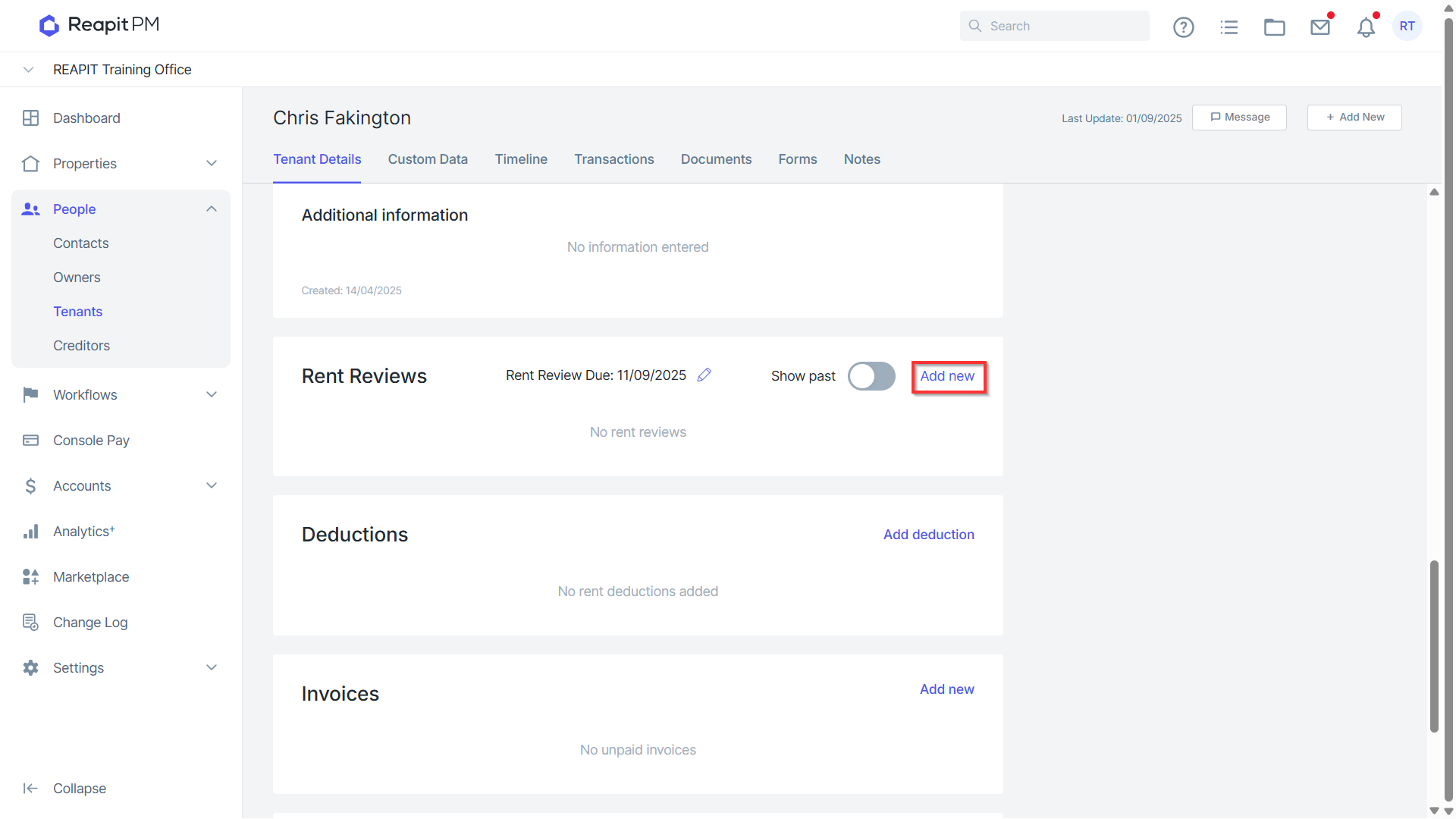
- Enter the New Rent Start date, select the Type, enter the new rent amount frequency, and the new bond amount.
- Click S****ave.
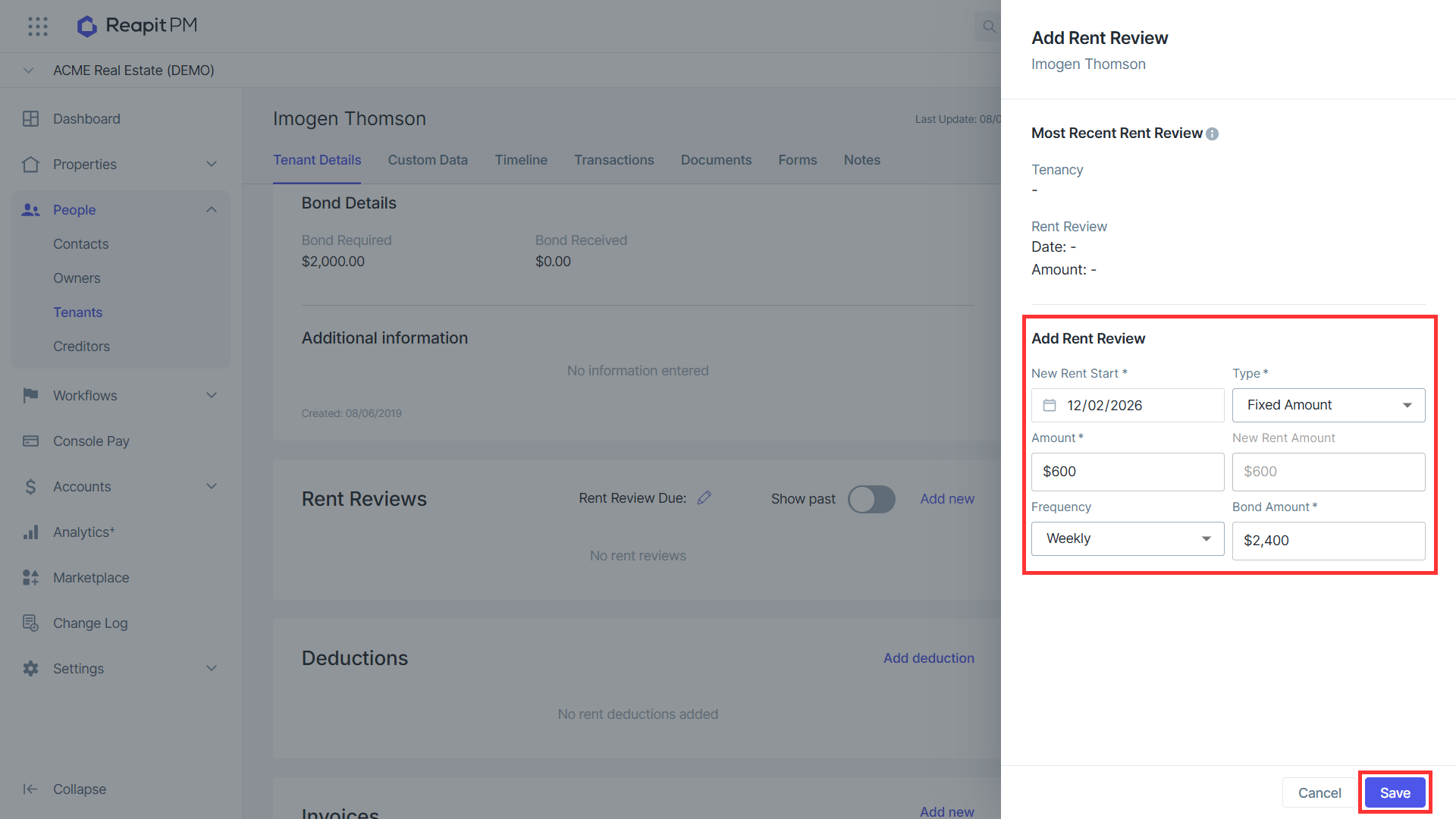
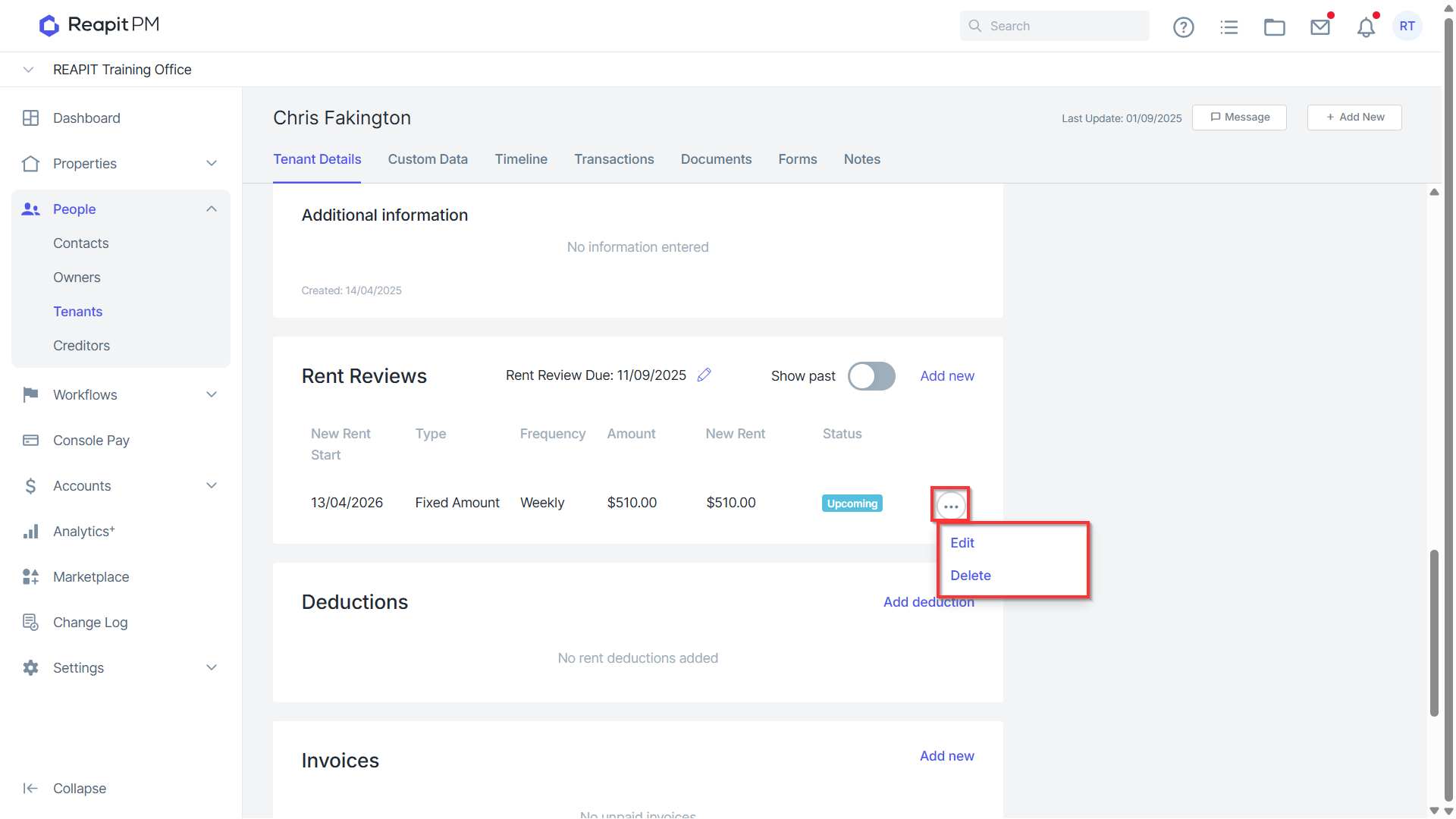
- Your new rent amount will be listed in the Rent Reviews area and will apply when the new rent start date is reached. You will also see the new rent amount and new rent start date listed on the Tenant Payment history.
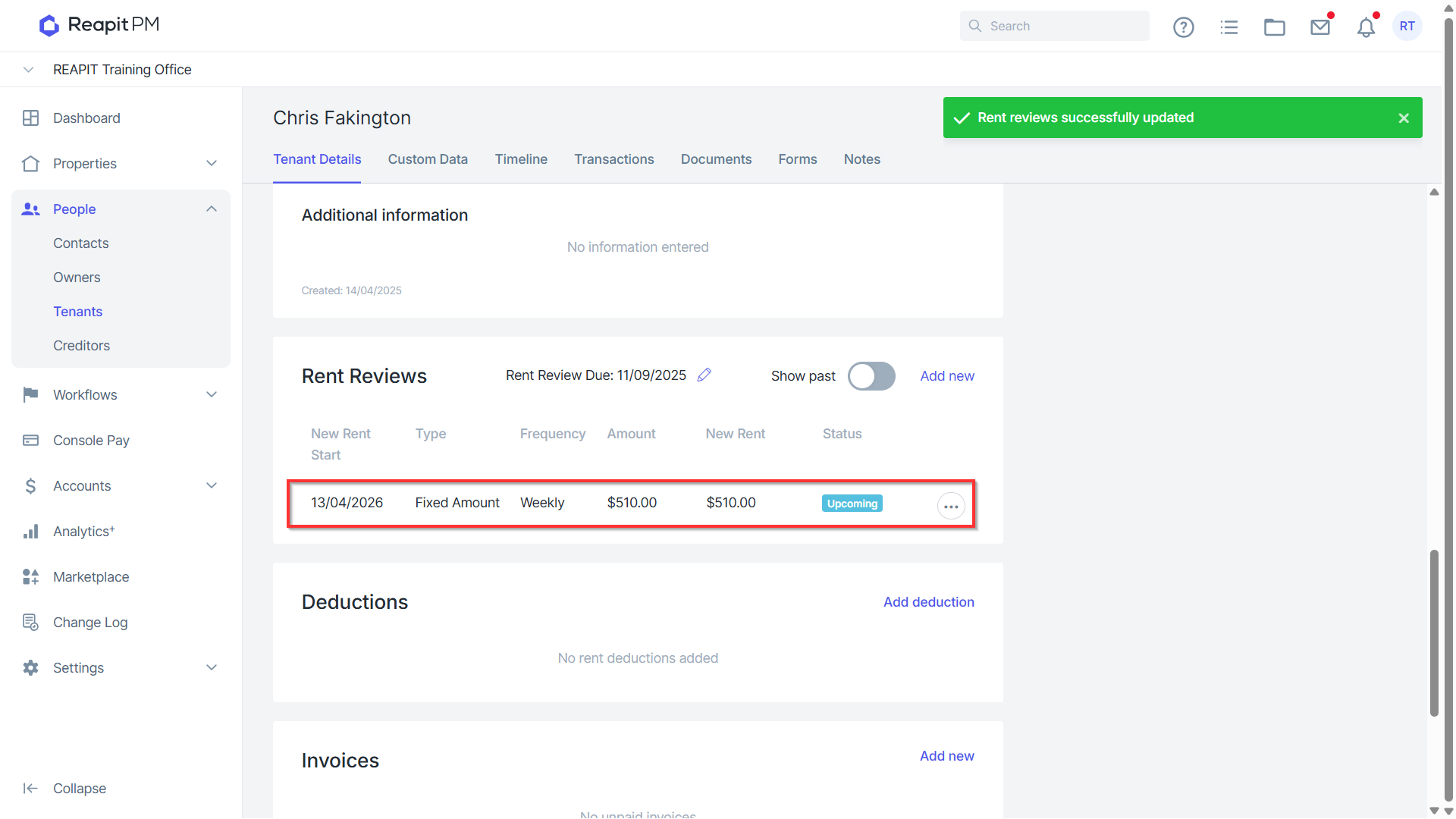
- You may also use the Edit or Delete options to remove or edit this rent change.
- Clicking the Rollover Due Date button located in the rent review drawer will update the rent review due date displayed in the date field to the new date based on the value applied in the settings.
Rent Review Settings
Set Rent Review Due Date allows you to automatically set a rent review due date based on the date interval set in the settings, working off the lease start date set to perform a rent review.
Enable the Automatically Set Rent Review Due Date toggle in Office Settings and enter the number of days before the review should occur.
The system will automatically create a Rent Review Due Date whenever you:
Renew a fixed‑term lease
Create a new fixed‑term tenancy
Create or renew a periodic tenancy
- The Rollover function will continue to generate a new Rent Review Due Date each cycle, based on the number of days you entered.
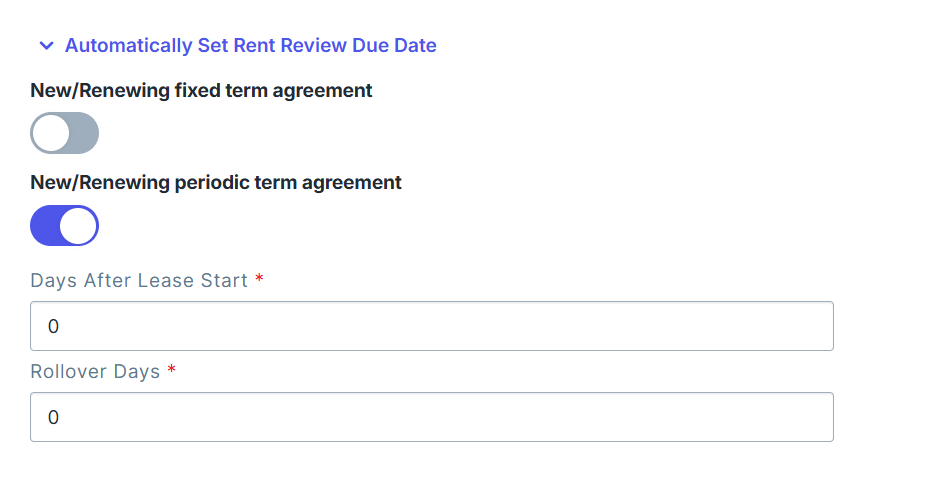
- After making any changes, click Save.
Historical Rent Changes
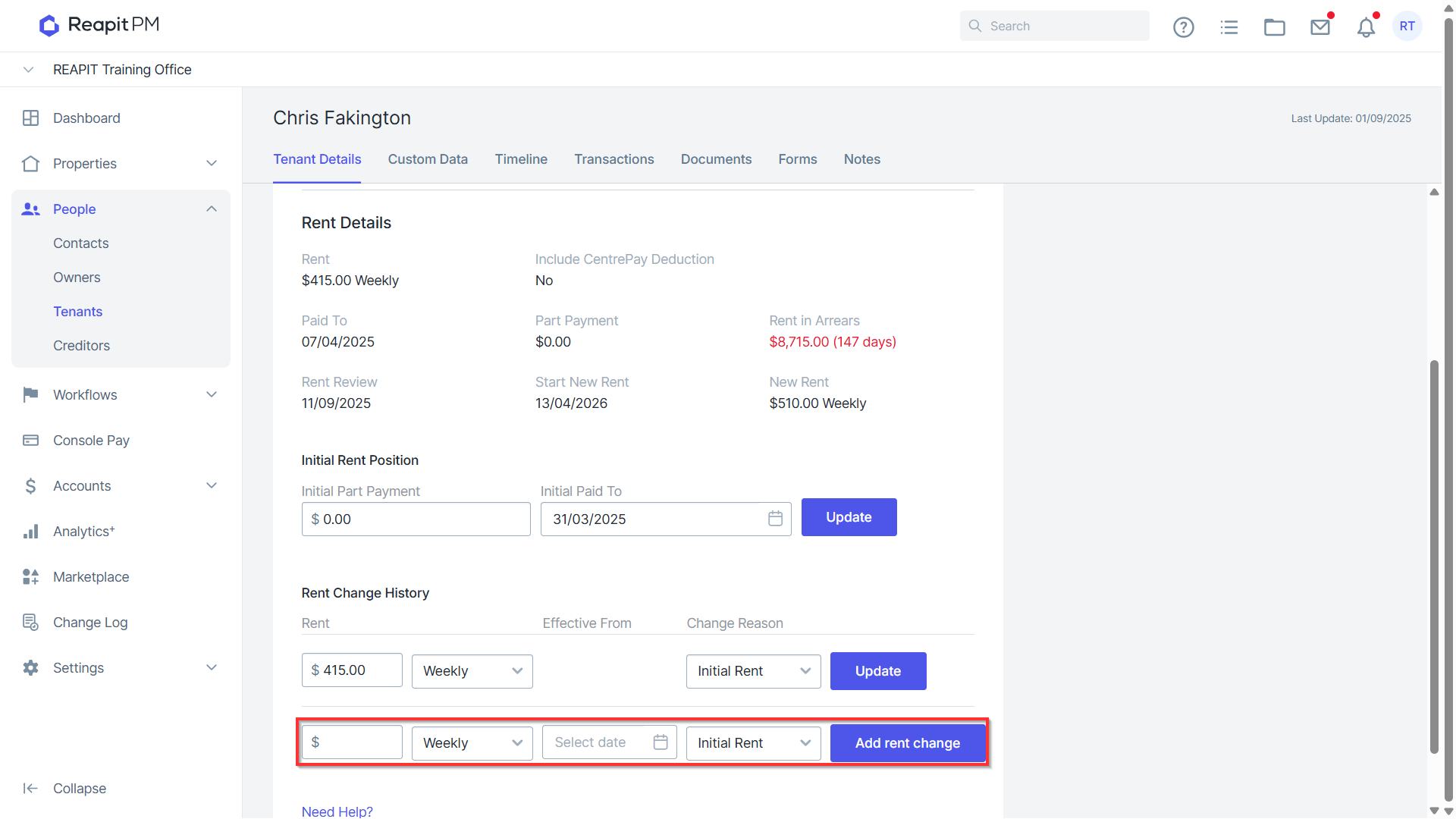
- From the Tenancy Details screen you can add a rent change that has been missed. Navigate to the Rent Details section, select Edit and click Rent History
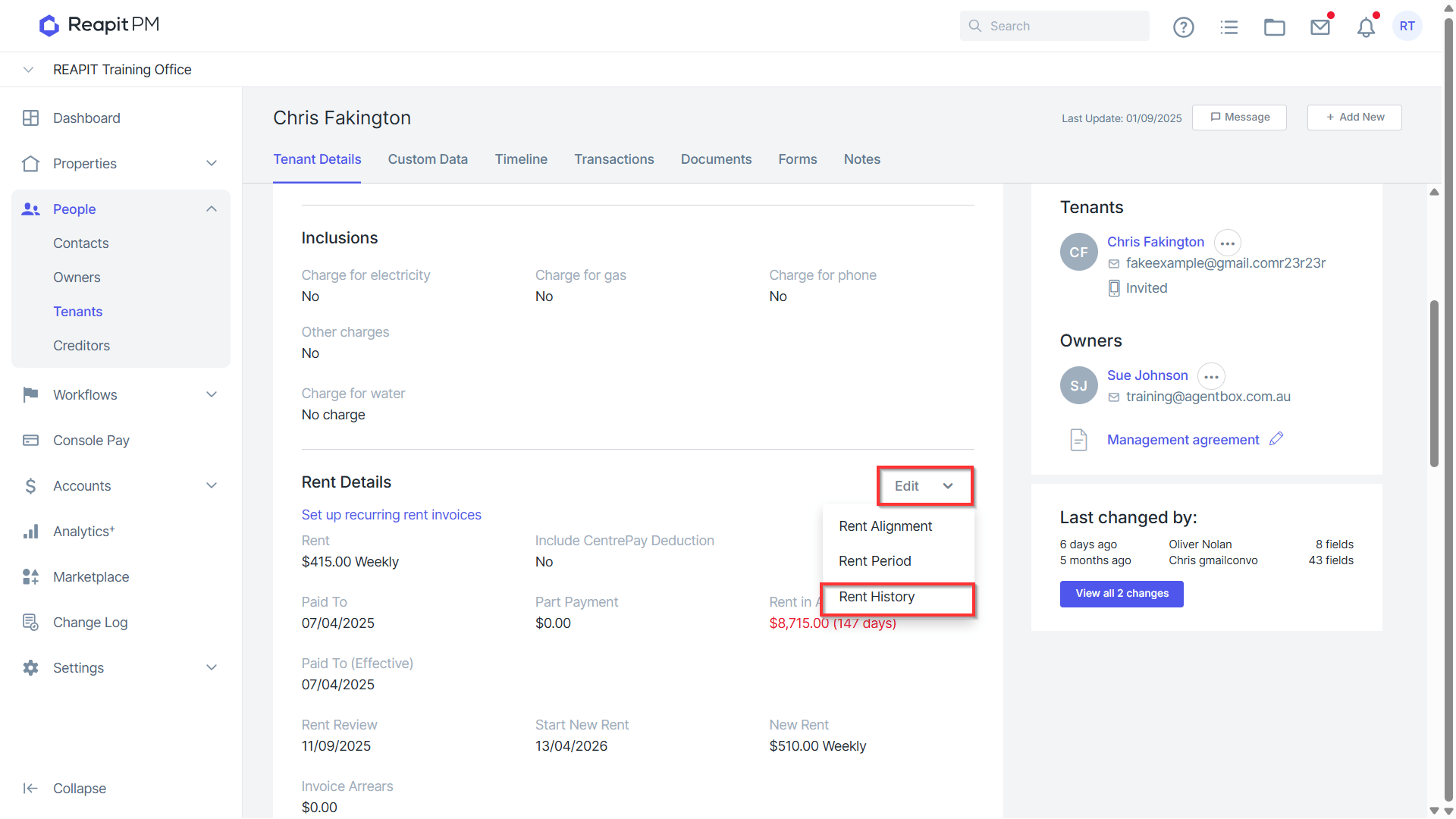
- From the Rent Change History section, enter the date the new rent was to take place and the rent amount. Click Add rent Change.
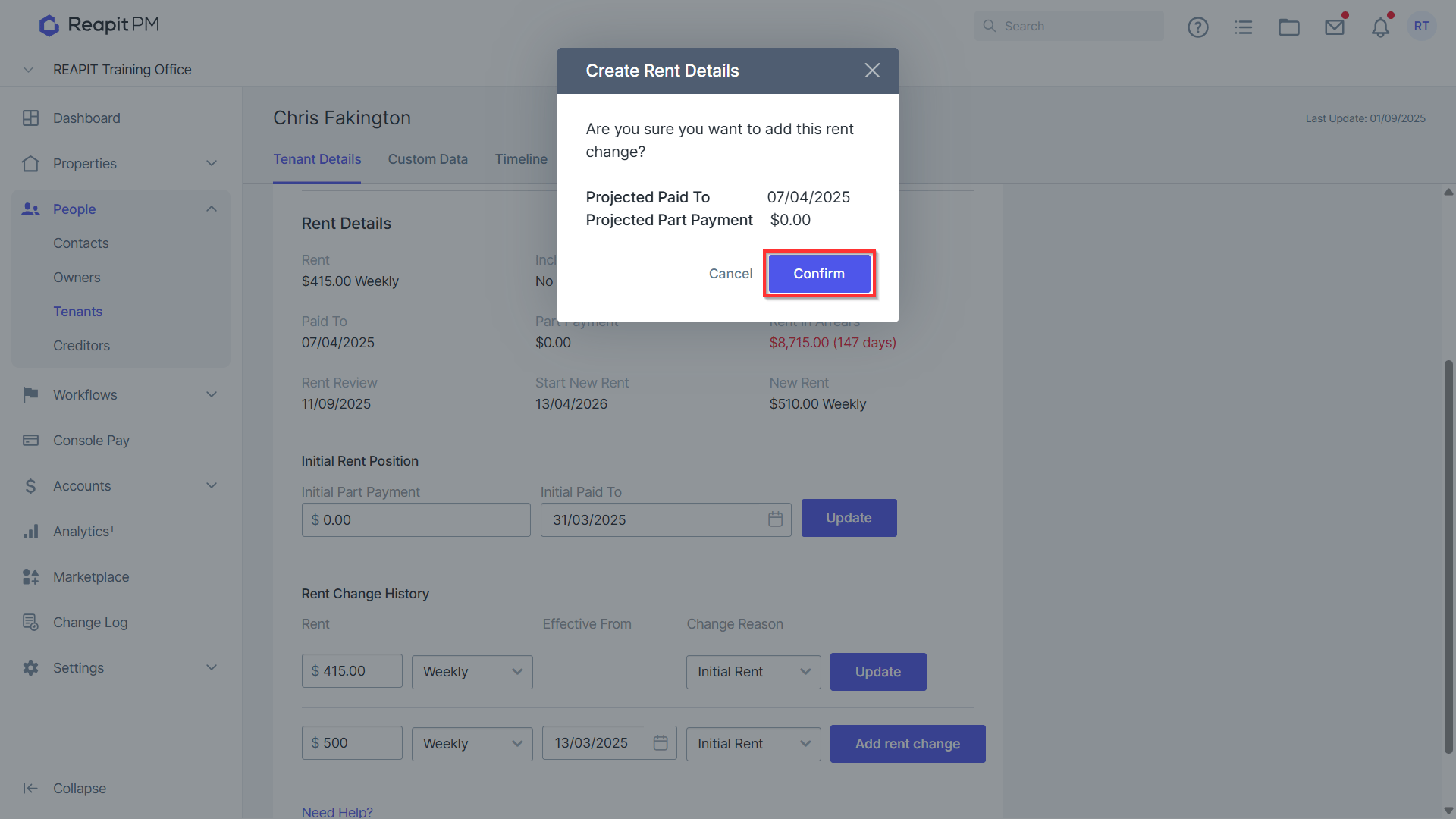
- You will be asked to confirm the rent change. Select Confirm to proceed.
- The confirmation banner will appear along with the new value in the rent change history. A new value may appear under the newly added change. This is fine to ignore as it's relating to the page refreshing once the change has been introduced.
Rent Reviews and Rent Calculations Scenario When a user enters a rent review that does NOT align with the start date of the Tenants rent cycle (i.e mid rent cycle period), how does Reapit PM calculate the pro rata amounts to be added to the current and next rent cycle?
Weekly - if a tenant is on a weekly cycle rent is divided by 7. Example: A tenants rent cycle is Sun-Sat, they have a rent review on a Wednesday, rent increases from $2000PW to $2500PW. Sun-Tues will be calculated at old daily rate. (2000/7)*3 Wed-Sat will be calculated at new daily rate. (2500/7)*4
Fortnightly - if a tenant is on a fortnightly cycle rent is divided by 14. Example: A tenants rent cycle is Sun-Sat over 14 days, they have a rent review on day 4 (Wednesday), rent increases from $2000FN to $2500FN. Sun-Tues will be calculated at old daily rate. (2000/14)*3 Wed-Sat will be calculated at new daily rate. (2500/14)*11
Monthly - if a tenant is on a monthly cycle, rent is extrapolated to a daily rate by (Monthly Rent12/365). Example: A tenants rent cycle is 1-30th, they have a rent review on day 15 (mid cycle), rent increases from $2000PM to $2500PM. Days 1-14 will be calculated at old daily rate. (200012)/365 = daily rate. Multiplied by 14 Days 15-30 will be calculated at new daily rate. (2500*12)/365 = new daily rate. Multiplied by 16