'%20d='M0%208a8%208%200%200%201%208-8h24a8%208%200%200%201%208%208v24a8%208%200%200%201-8%208H8a8%208%200%200%201-8-8V8Z'/%3e%3cpath%20fill='%23fff'%20d='M8.375%2013v14L20.5%2034l12.124-7v-7.737l-1.687-.975-2.806-1.62-1.082-.624v4.83l-.002%204.83H13.95V16.07l3.275-1.89%202.192-1.265%201.082-.625%203.275%201.877%202.192%201.256%201.083.62V9.782L20.5%206%208.376%2013Z'/%3e%3cdefs%3e%3clinearGradient%20id='reapit-pm__a'%20x1='20.702'%20x2='20.702'%20y1='.351'%20y2='31.228'%20gradientUnits='userSpaceOnUse'%3e%3cstop%20stop-color='%235573FD'/%3e%3cstop%20offset='.575'%20stop-color='%234E56EA'/%3e%3c/linearGradient%3e%3c/defs%3e%3c/svg%3e)
Creditors in Reapit PM
This article will guide you through the steps on creating and managing creditors in Reapit PM. The processes in this article include: How to Create a New Creditor File How to Edit the Creditor File
Overview
Creditors in Reapit PM
This article will guide you through the steps on creating and managing creditors in Reapit PM.
The processes in this article include:
- How to Create a New Creditor File
- How to Edit the Creditor File
Note: In order for a Creditor File to be created for a Contact they must be a Business.
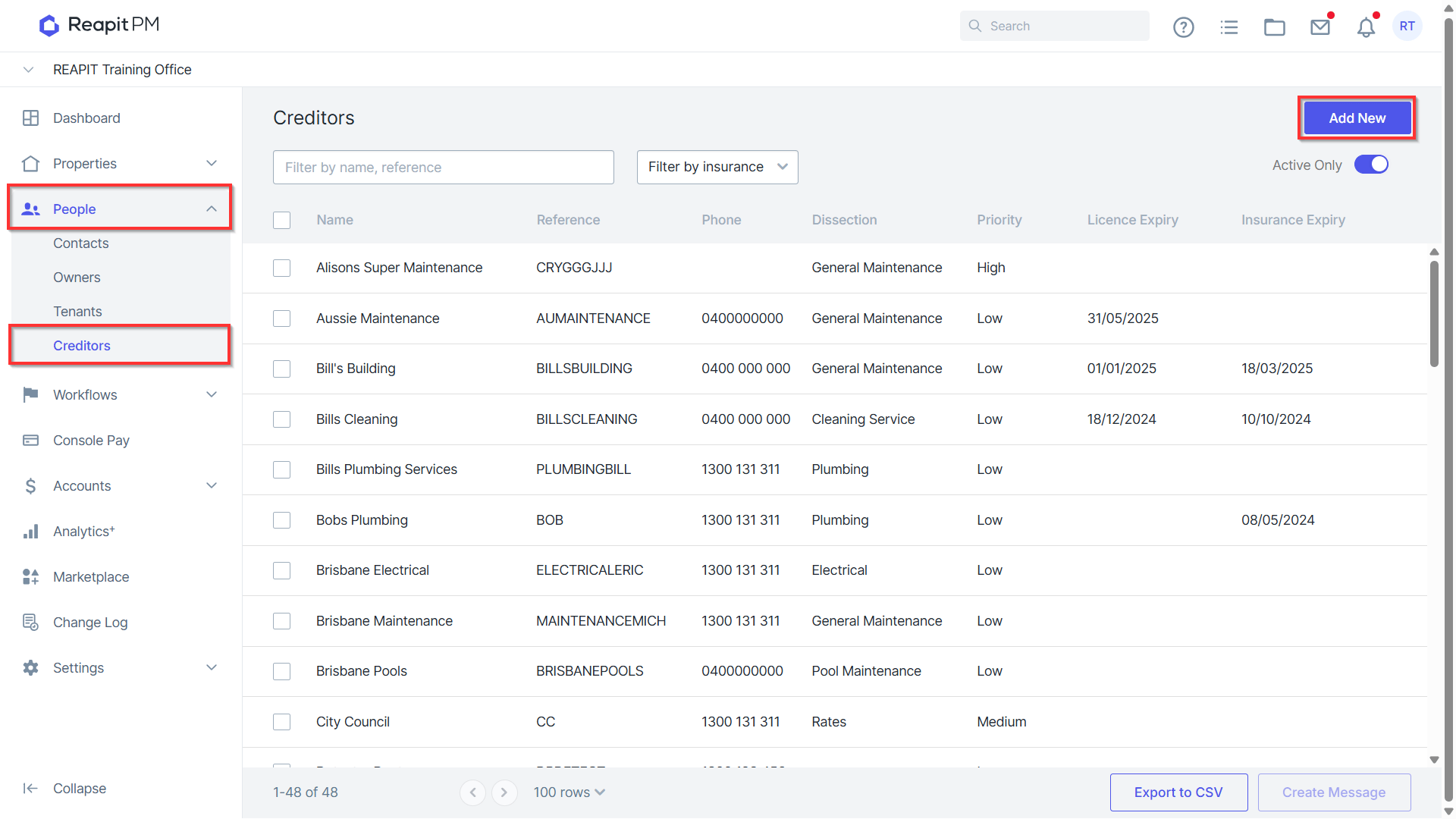
- Navigate to People > Creditors and click Add New.
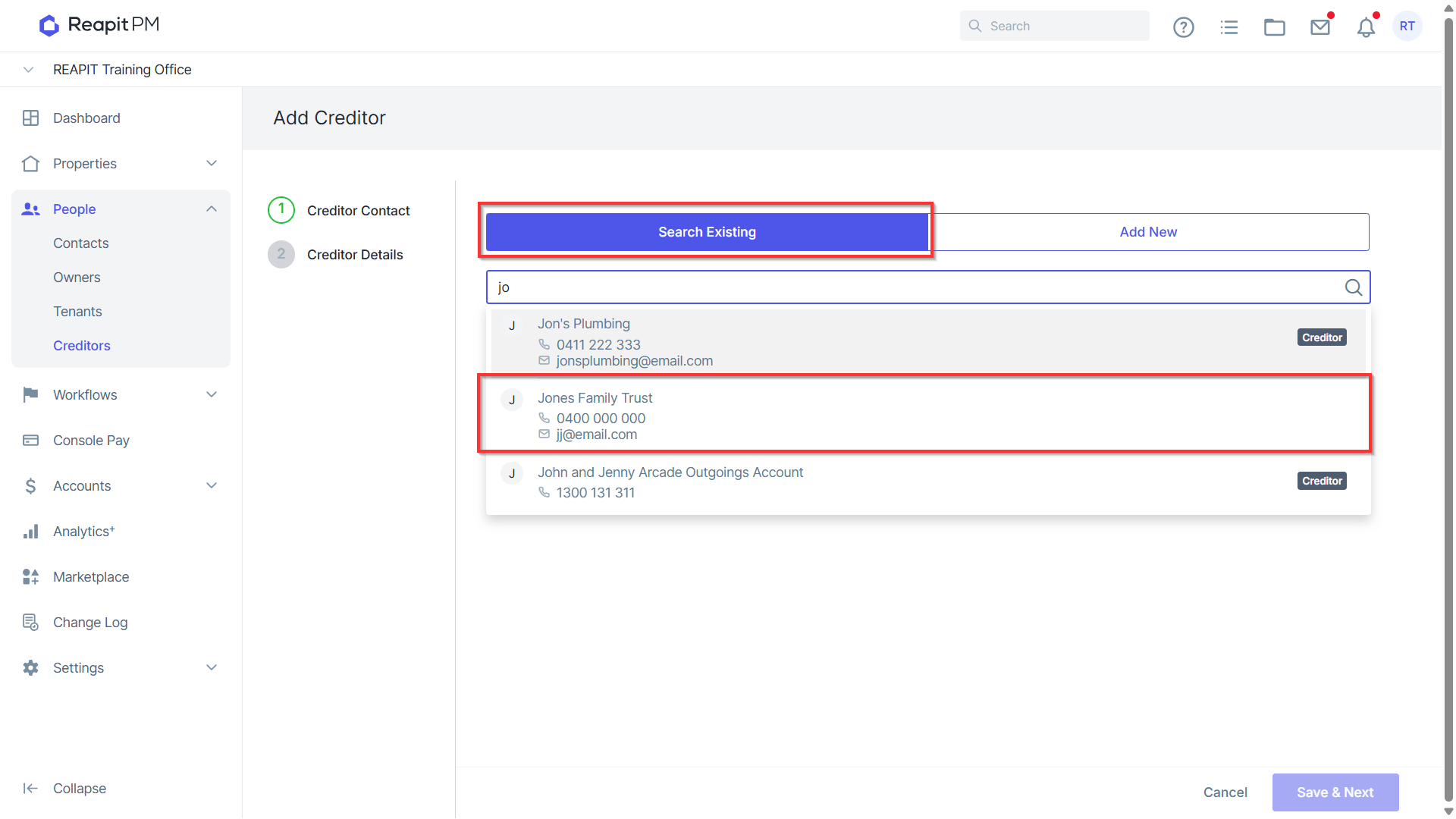
Note: Those that already have a creditor file will have Creditor to next to their name.
If no Business contact is found you need to create a new one by clicking Add New. Enter the Business Name, First and Last Name.
Scroll down and add Additional information as required before clicking Create Contact.
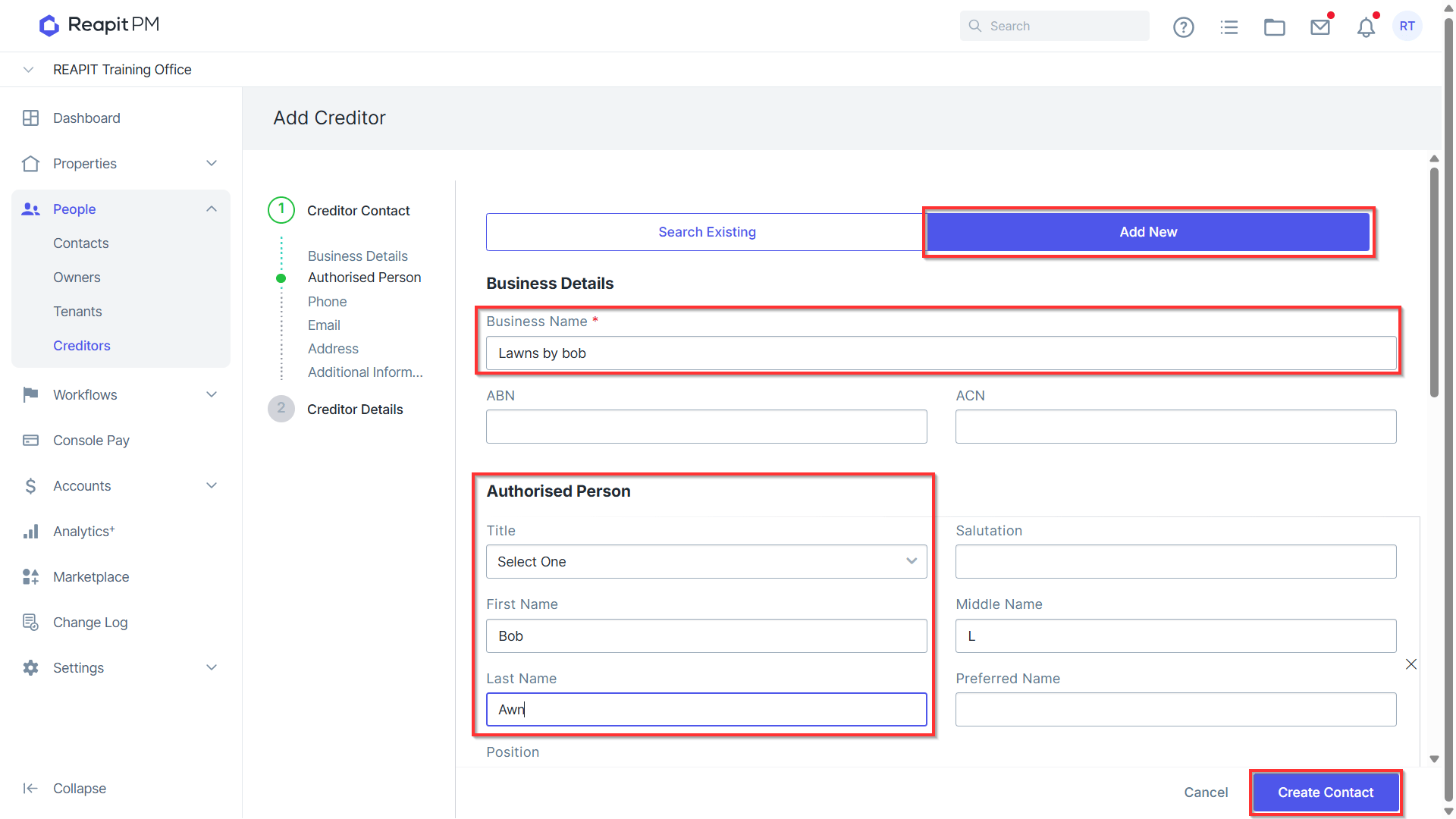
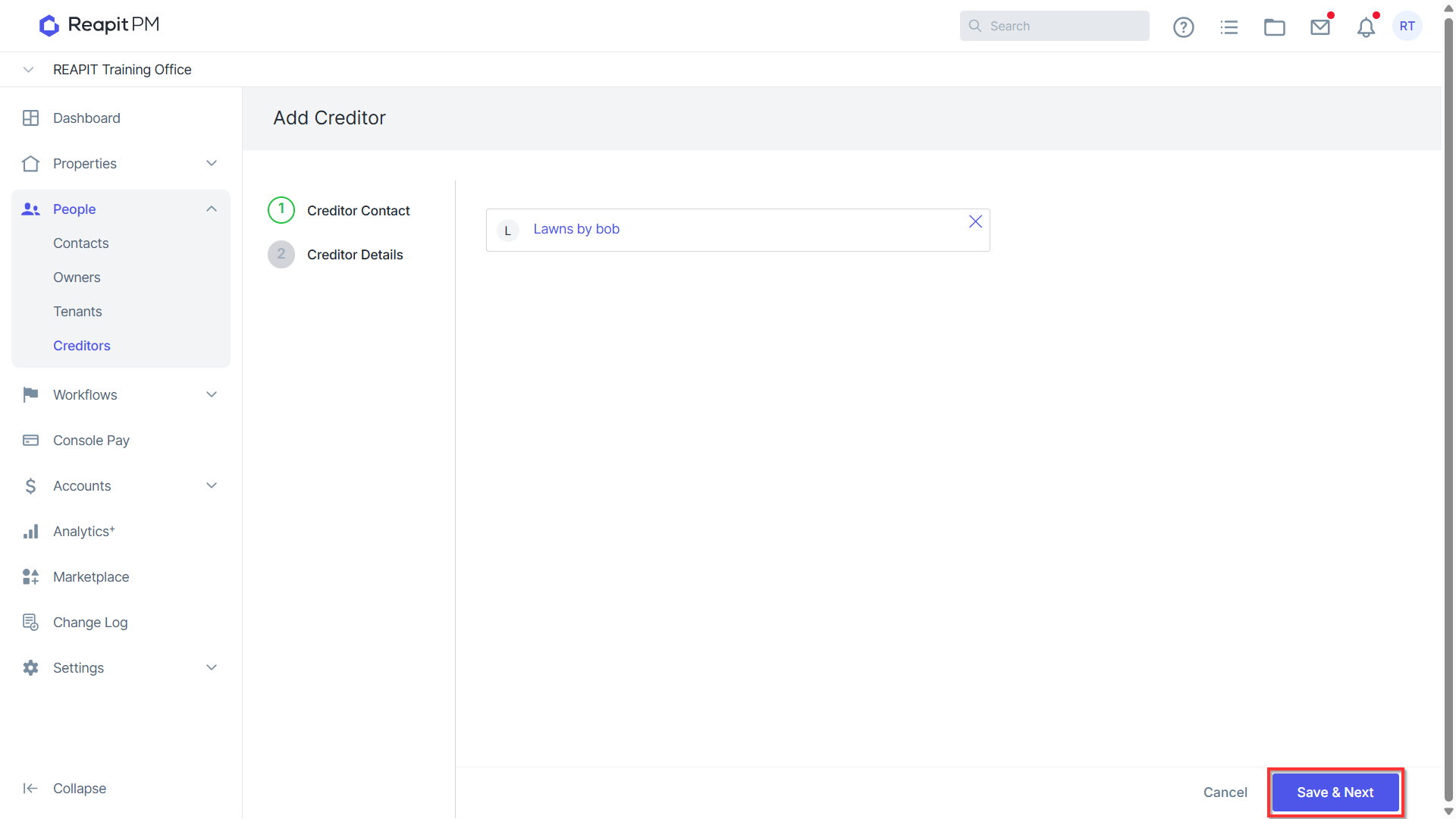
- Click Save & Next to proceed with updating the Creditor Details.
- Create a new Creditor Reference and then update Bill Priority, Licence Details, Insurance, and Dissection as required.
Note: Bill Prioritisation is available to Premium and Enterprise clients only.
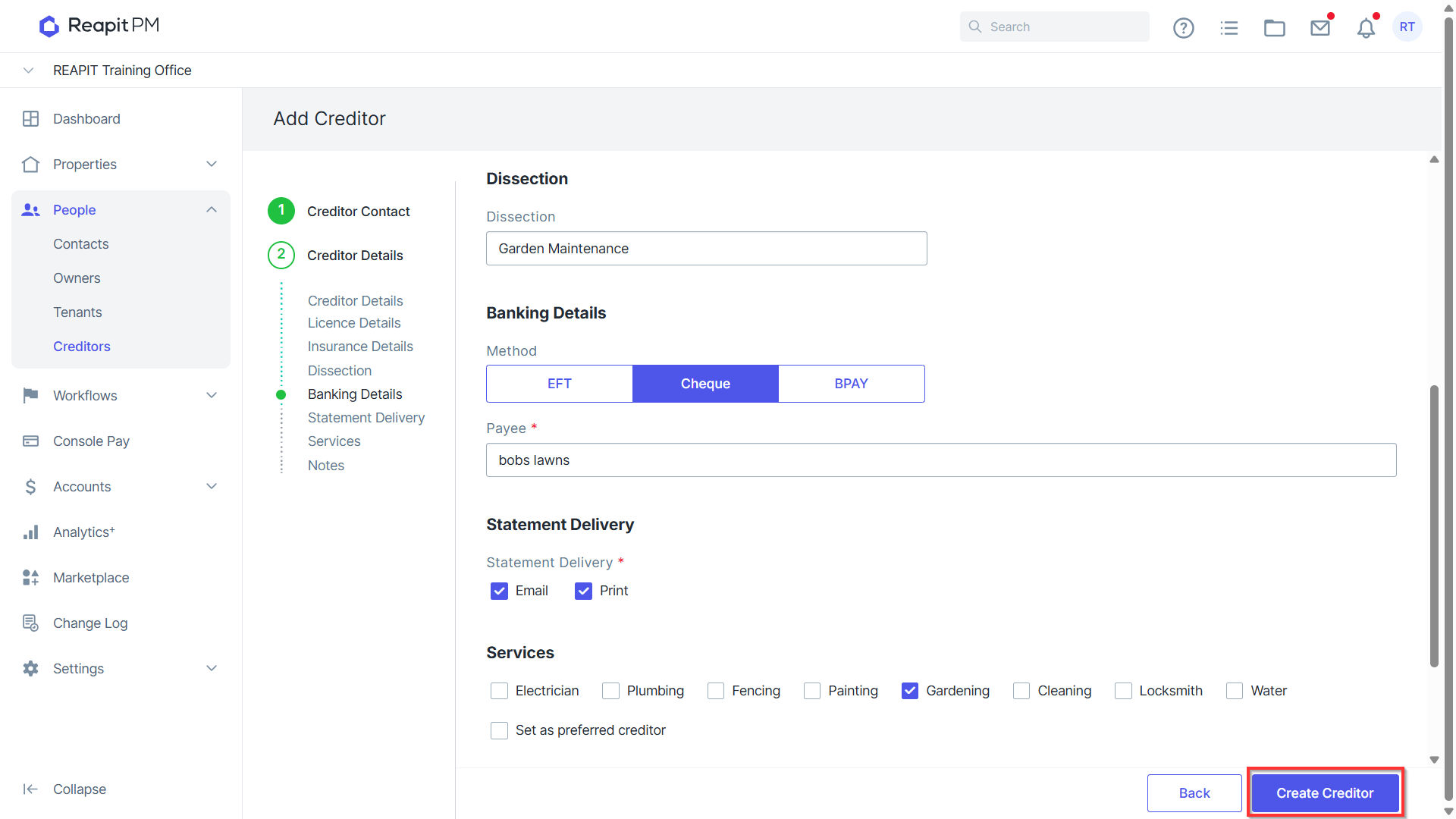
- Scroll down to Banking Details, Select a payment Method and add required information. Update Services and Notes as required and click Create Creditor to finish.
Editing and Updating the Creditor File
- Open the Creditor you wish to edit from People > Creditors and click Edit on the Creditor Details panel.
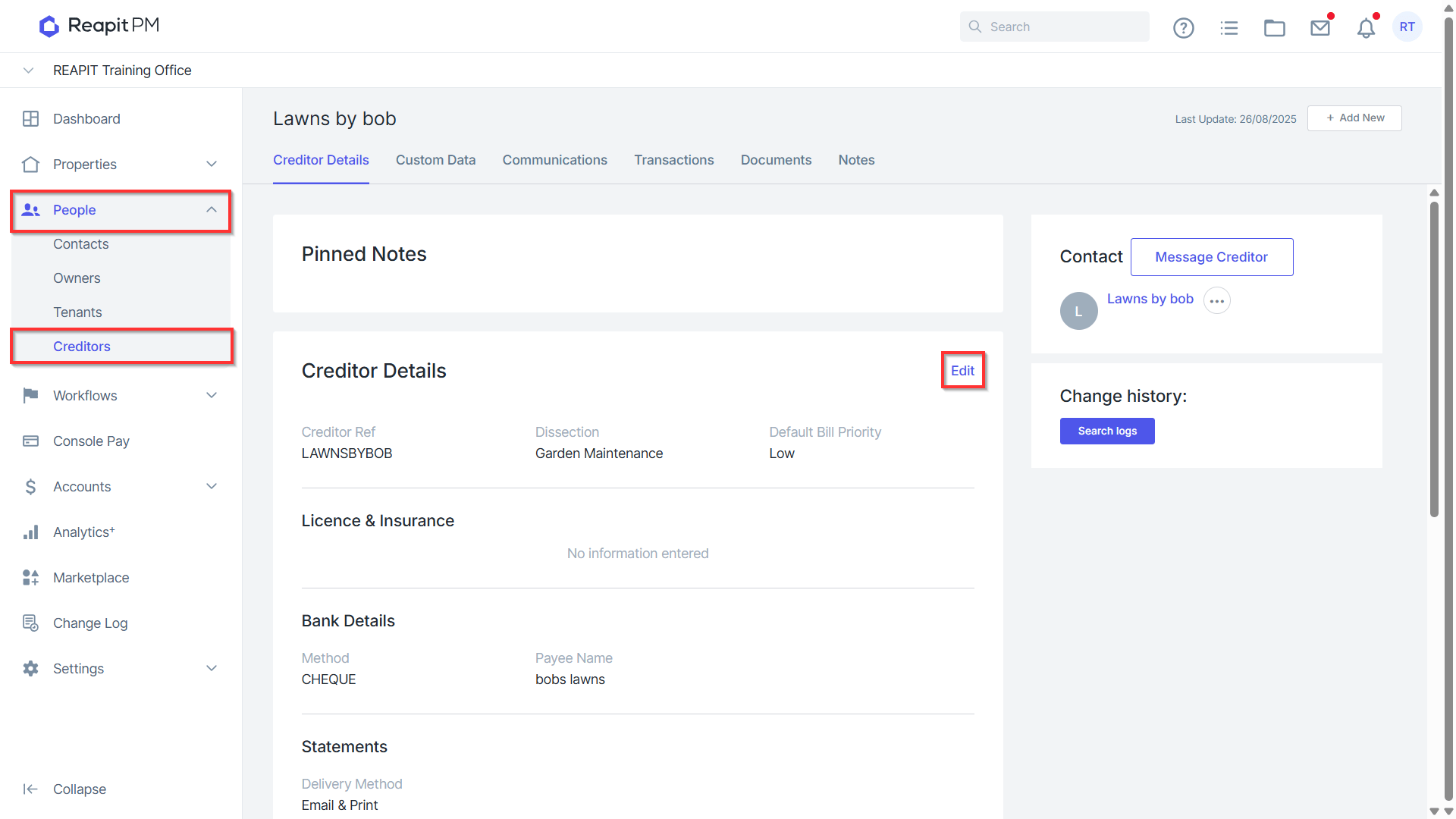
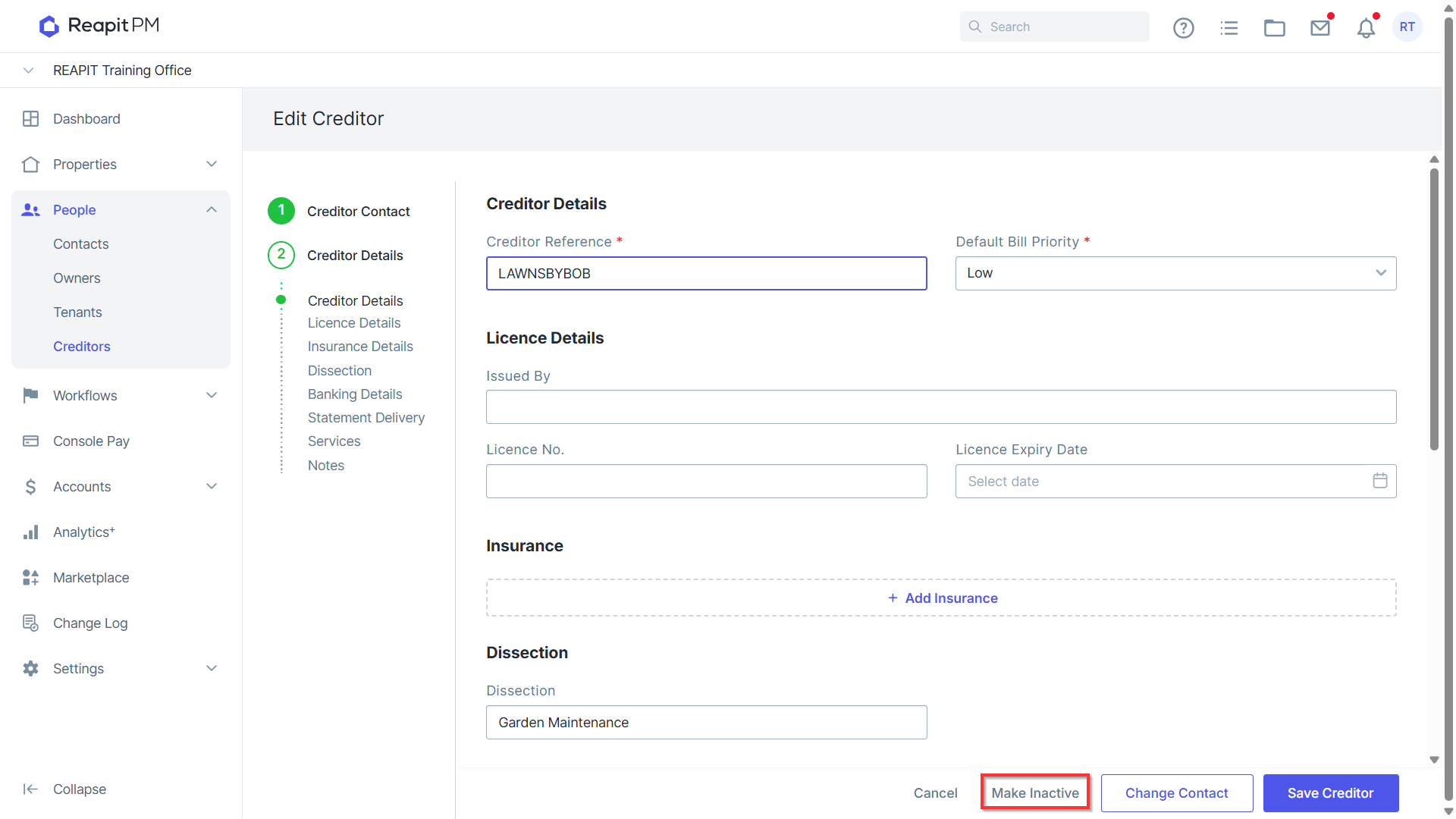
- To update the assigned business contact for the Creditor File click Change Contact.
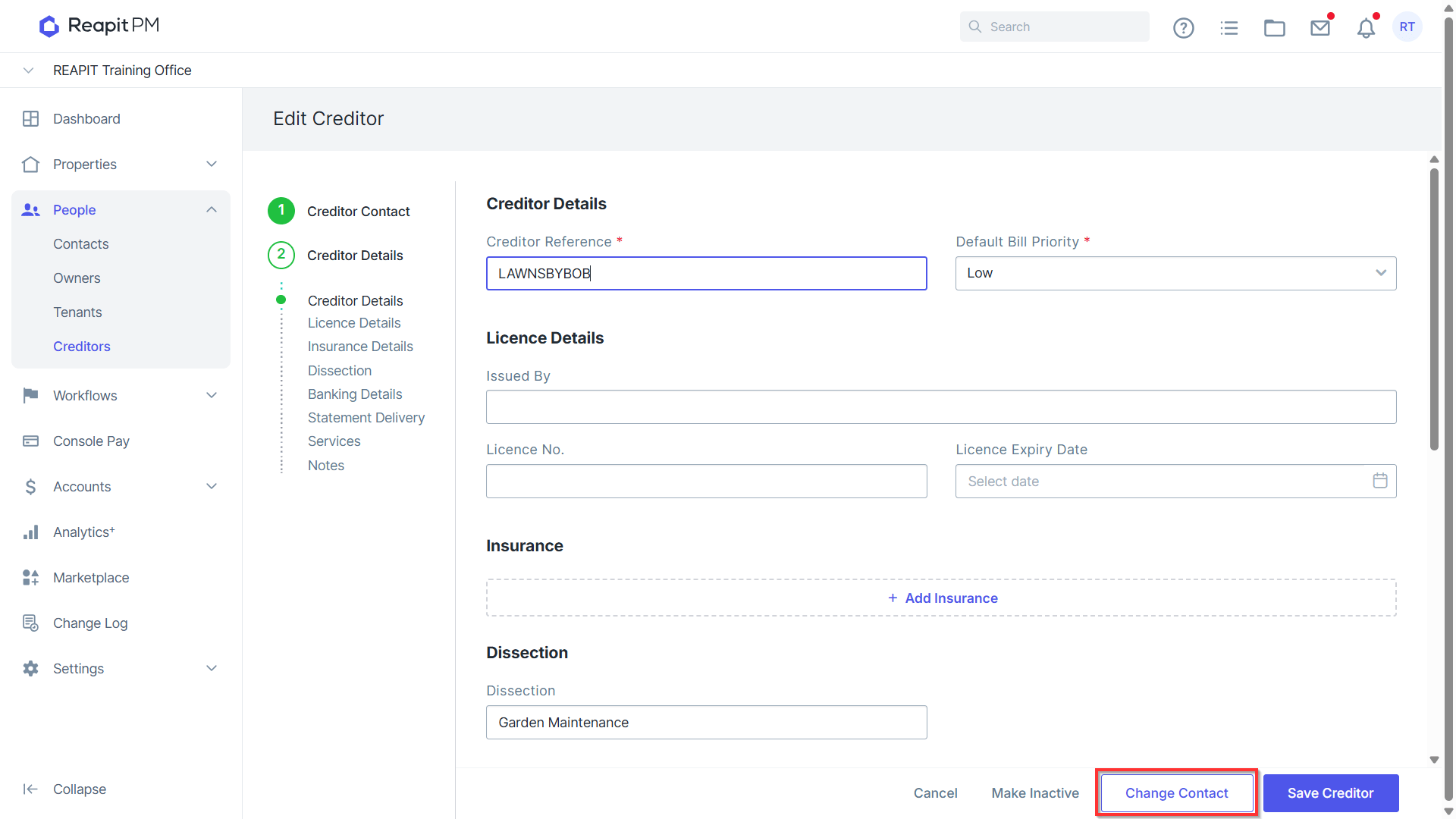
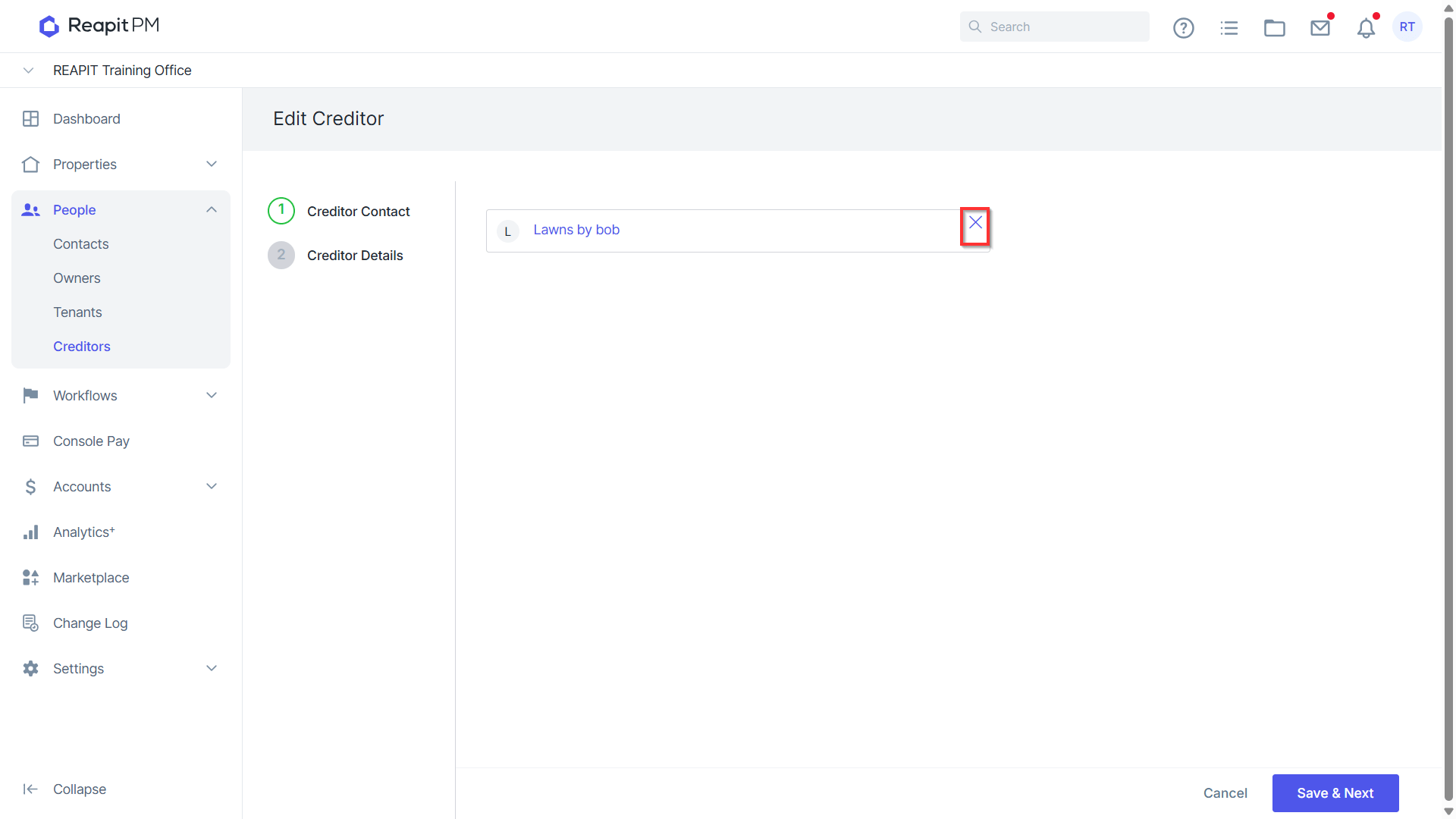
- Remove the existing assigned Contact using the X next to their name.
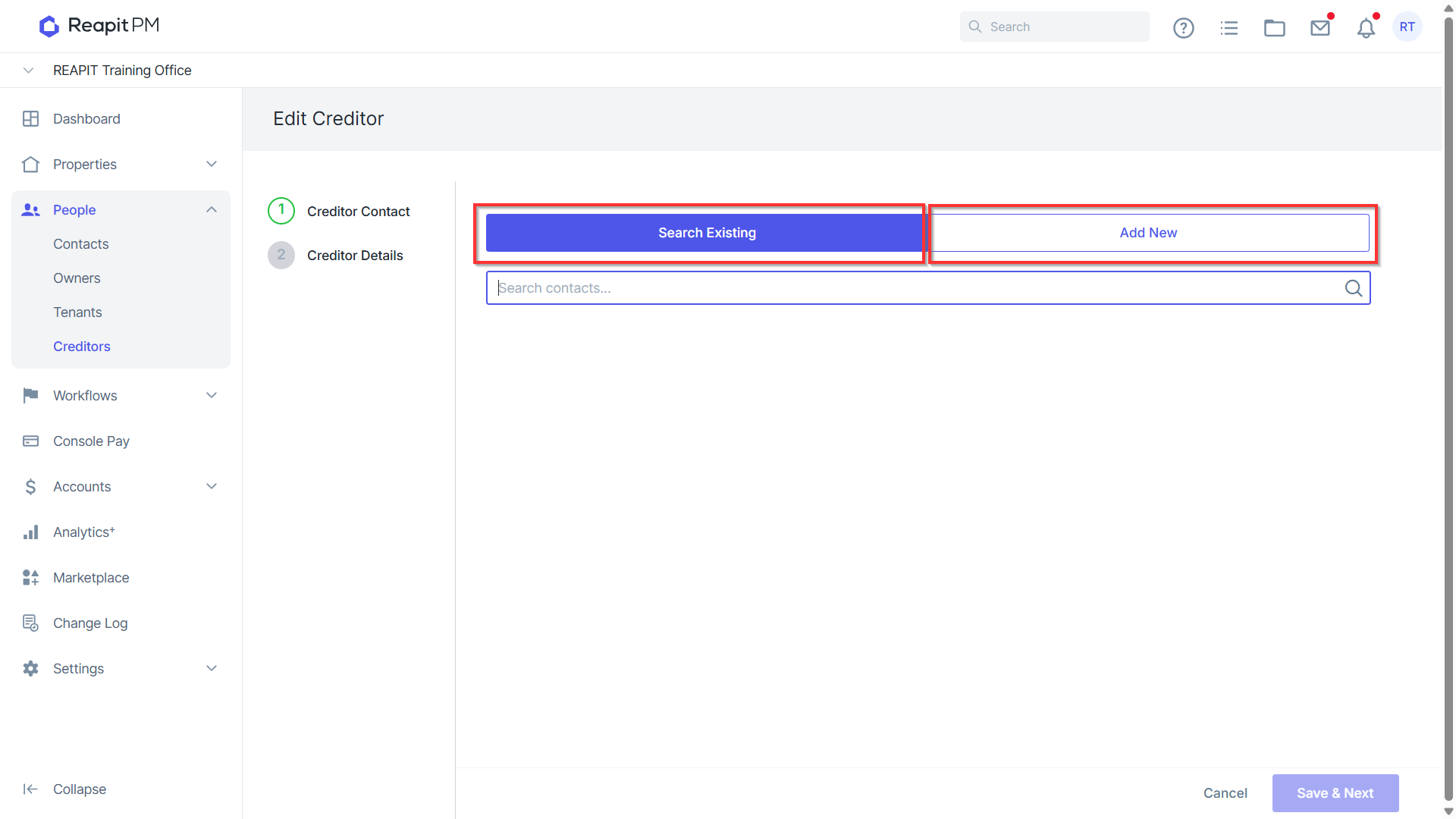
- Next, either use Search Existing or Add New to assign the Business you wish to now link to the Creditor File.
- Clicking Make Inactive from the bottom of the Creditor Details will allow you to move the Creditor to Inactive.