'%20d='M0%208a8%208%200%200%201%208-8h24a8%208%200%200%201%208%208v24a8%208%200%200%201-8%208H8a8%208%200%200%201-8-8V8Z'/%3e%3cpath%20fill='%23fff'%20d='M8.375%2013v14L20.5%2034l12.124-7v-7.737l-1.687-.975-2.806-1.62-1.082-.624v4.83l-.002%204.83H13.95V16.07l3.275-1.89%202.192-1.265%201.082-.625%203.275%201.877%202.192%201.256%201.083.62V9.782L20.5%206%208.376%2013Z'/%3e%3cdefs%3e%3clinearGradient%20id='reapit-pm__a'%20x1='20.702'%20x2='20.702'%20y1='.351'%20y2='31.228'%20gradientUnits='userSpaceOnUse'%3e%3cstop%20stop-color='%235573FD'/%3e%3cstop%20offset='.575'%20stop-color='%234E56EA'/%3e%3c/linearGradient%3e%3c/defs%3e%3c/svg%3e)
Accessing the Reapit PM App
This article will cover setting up and using the Reapit PM App for Reapit PM.
The processes in this article include:
- Activating the Reapit PM App
- Downloading the Reapit PM App
- Setting up Users
- Reapit PM Settings
- Setting up and Using Quick Notes
Activating the Reapit PM App
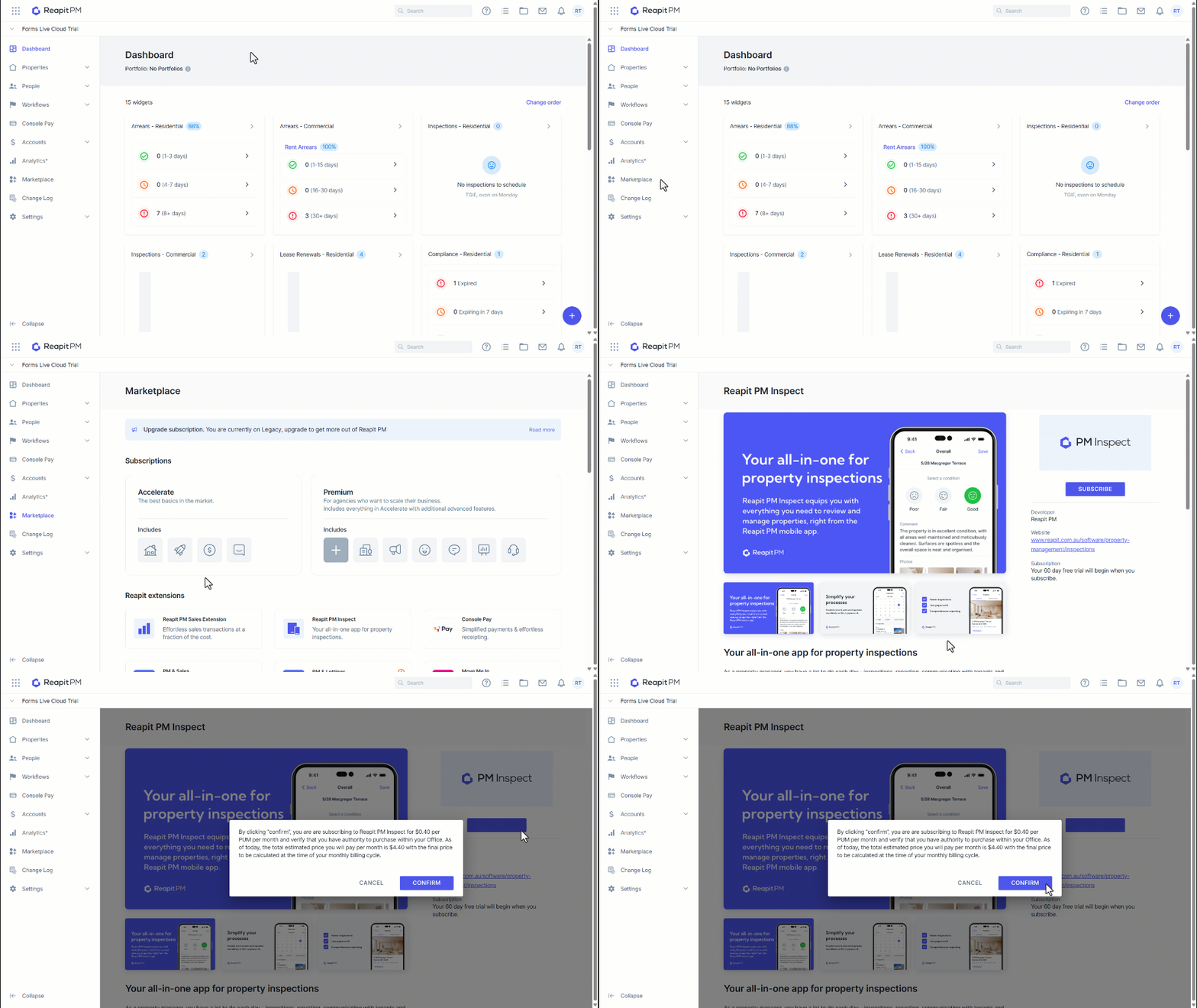
1. Navigate to Marketplace.
2. Under Reapit extensions, click Reapit PM Inspect App.
3. Click Subscribe.
4. Confirmation will appear to advise that by clicking confirm you will be subscribing to the Reapit PM App service based on your properties under management per month. Click Confirm to proceed.
5. Reapit PM inspect will now be active in your office.
Please note: If you are using another 3rd-party inspection service, such as Inspection Express, you will need to deactivate this prior to activating Reapit PM Inspect to avoid any clashing between the two services.
Proceed to Marketplace and deactivate the service. For any inspection which might have been scheduled during this time, you will need to go into the inspection and click on the “Use Reapit PM” instead button on the top of the page.
Downloading the Reapit PM App
The Reapit PM App can be downloaded from the iOS App Store and the Google Play Store:
iOS App Store – Requires iOS 16.4 or later - https://apps.apple.com/au/app/reapit-pm/id1515687036
Google Play Store - https://play.google.com/store/apps/details?id=au.com.console.app.propertymanager&hl=en_AU
Setting up Users to Access the Reapit PM App
For new users accessing the Reapit PM App, proceed to the iOS App Store or Google Play Store, depending on your device.
iOS App Store – Requires iOS 16.4 or later - https://apps.apple.com/au/app/reapit-pm/id1515687036
Google Play Store - https://play.google.com/store/apps/details?id=au.com.console.app.propertymanager&hl=en_AU
Once downloaded, you can log into the Reapit PM App with the same email and password credentials used to log into the Reapit PM website.
Reapit PM App Settings
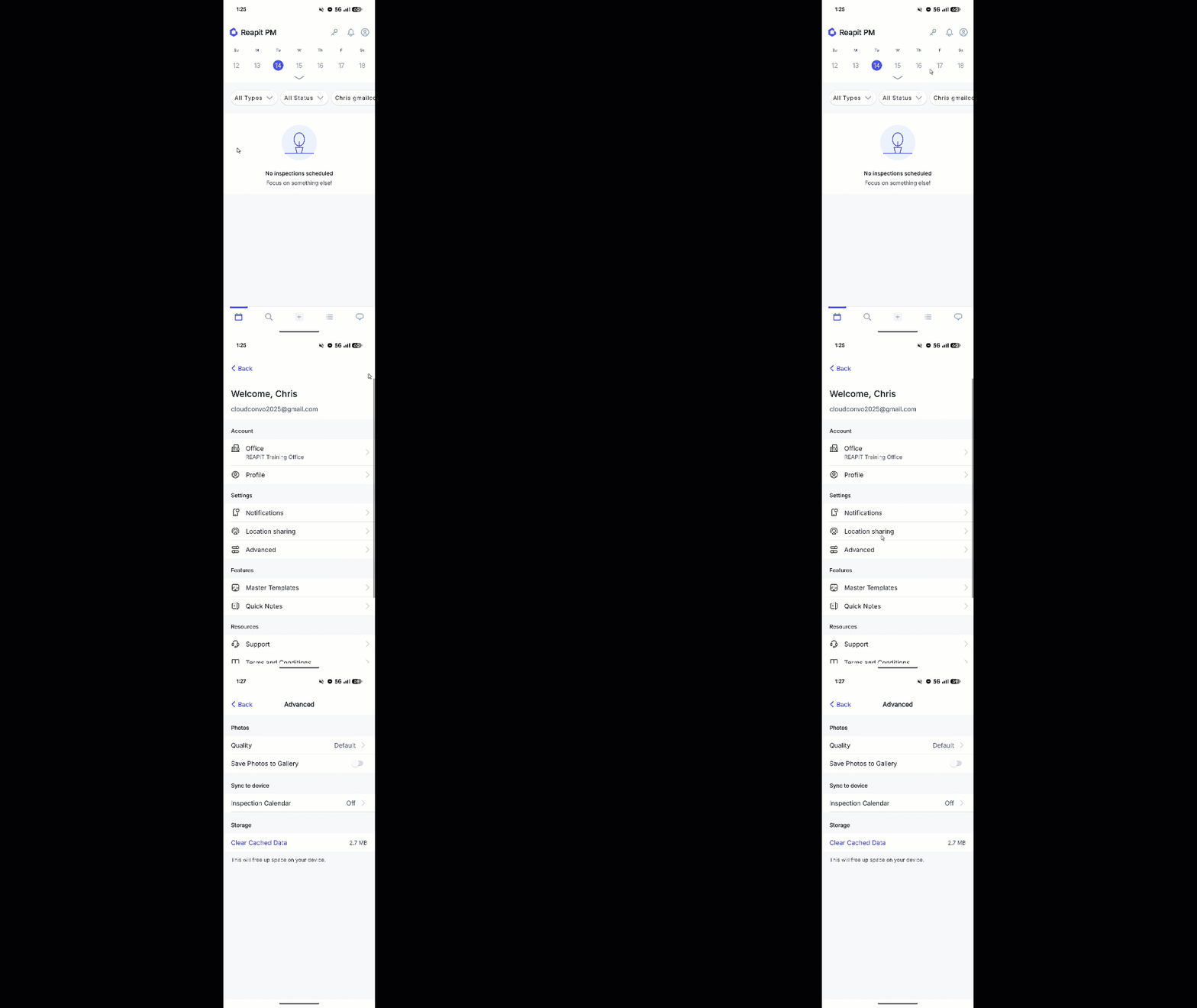
1. To access the settings in Reapit PM, navigate to the user icon.
2. The following settings are available:
- Notifications – Enable push notifications to get real-time activity updates and important reminders directly to your device
- Location Sharing – Location sharing will use your precise location for route planning and travel time estimates.
- Advanced:
- Quality of photos: Default (Good quality, smaller file size) or High (Better quality, bigger file size)
- Save Photos to Gallery – Will save a copy of the image to your device’s photo gallery or library.
- Inspection Calendar – Enabling this will sync inspections to display on your calendar.
- Clear Cached Data – This will clear any app data from the device to refresh the app and clear up space.
Please note: Clear Cached Datashould only be used under the advice of the support team, as there is the potential for data loss if there are ongoing inspections within the app.
Setting up and Using Quick Notes
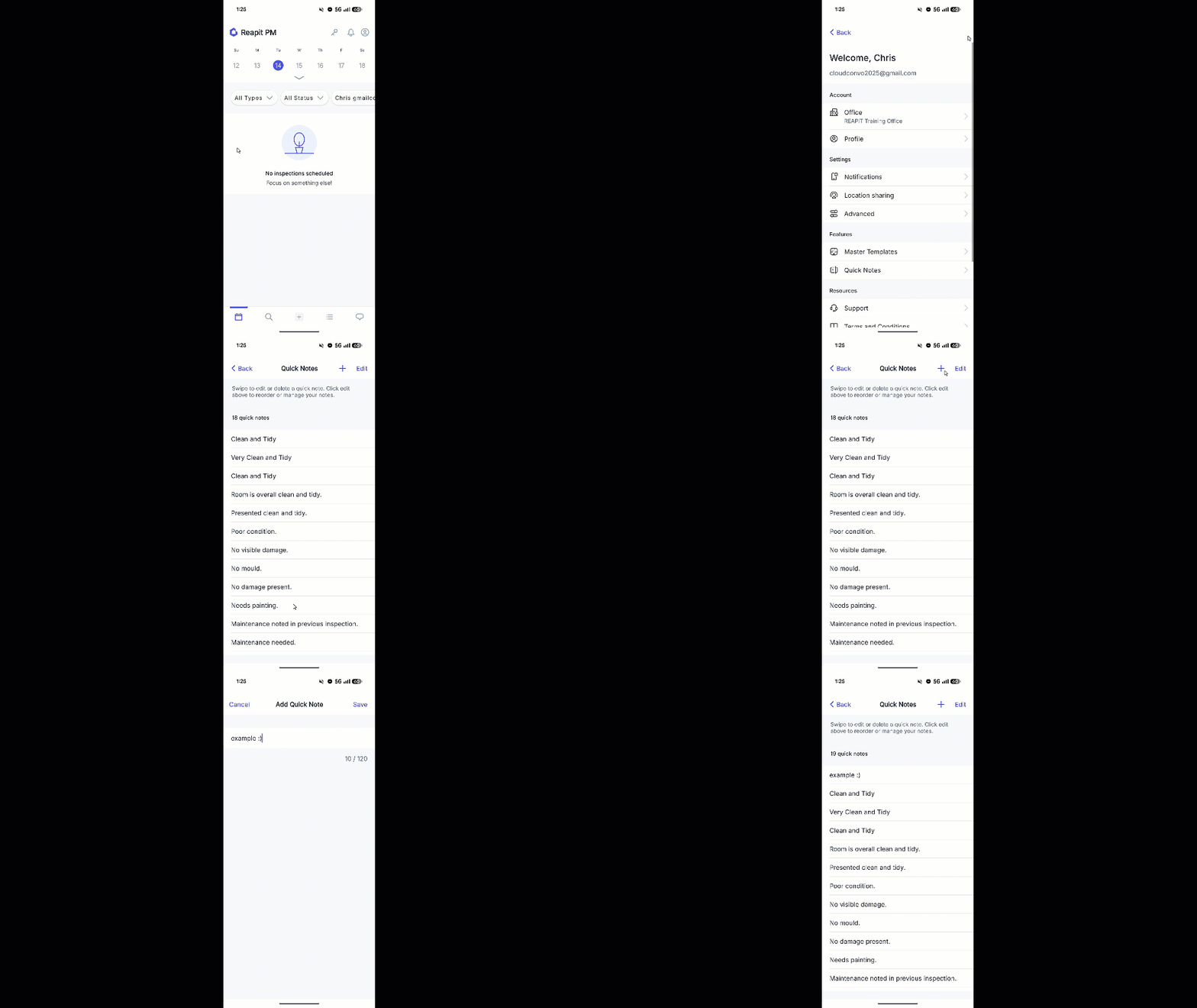
Quick Notes are short, reusable text snippets you can add during an inspection to speed up writing room descriptions. They’re shared across the entire office, so any Quick Notes you create — or those created by other agents — will automatically appear in the App for everyone to use.
1. Within the App, navigate to the user icon on the top right of the screen.
2. Click Quick Notes.
3. Existing quick notes will appear on this screen.
4. Tap Edit to make changes or to delete any existing quick notes.
5. Alternatively, click the + to add a new quick note.
6. Enter the quick note description.
7. Click Save.
8. While performing an inspection, quick notes that have been created will appear when entering comments on areas.