'%20d='M0%208a8%208%200%200%201%208-8h24a8%208%200%200%201%208%208v24a8%208%200%200%201-8%208H8a8%208%200%200%201-8-8V8Z'/%3e%3cpath%20fill='%23fff'%20d='M8.375%2013v14L20.5%2034l12.124-7v-7.737l-1.687-.975-2.806-1.62-1.082-.624v4.83l-.002%204.83H13.95V16.07l3.275-1.89%202.192-1.265%201.082-.625%203.275%201.877%202.192%201.256%201.083.62V9.782L20.5%206%208.376%2013Z'/%3e%3cdefs%3e%3clinearGradient%20id='reapit-pm__a'%20x1='20.702'%20x2='20.702'%20y1='.351'%20y2='31.228'%20gradientUnits='userSpaceOnUse'%3e%3cstop%20stop-color='%235573FD'/%3e%3cstop%20offset='.575'%20stop-color='%234E56EA'/%3e%3c/linearGradient%3e%3c/defs%3e%3c/svg%3e)
Communications in the Reapit PM App
This article will cover viewing and sending emails, SMS, and the full conversation history in the Reapit PM App The processes in this article include: Calls, Emails, and SMS in the Reapit PM App View Communications in the Reapit PM App View Conversation in the Reapit PM App
This article will cover viewing and sending emails, SMS, and the full conversation history in the Reapit PM App
The processes in this article include:
- Calls, Emails, and SMS in the Reapit PM App
- View Communications in the Reapit PM App
- View Conversation in the Reapit PM App
Calls, Emails, and SMS in the Reapit PM App
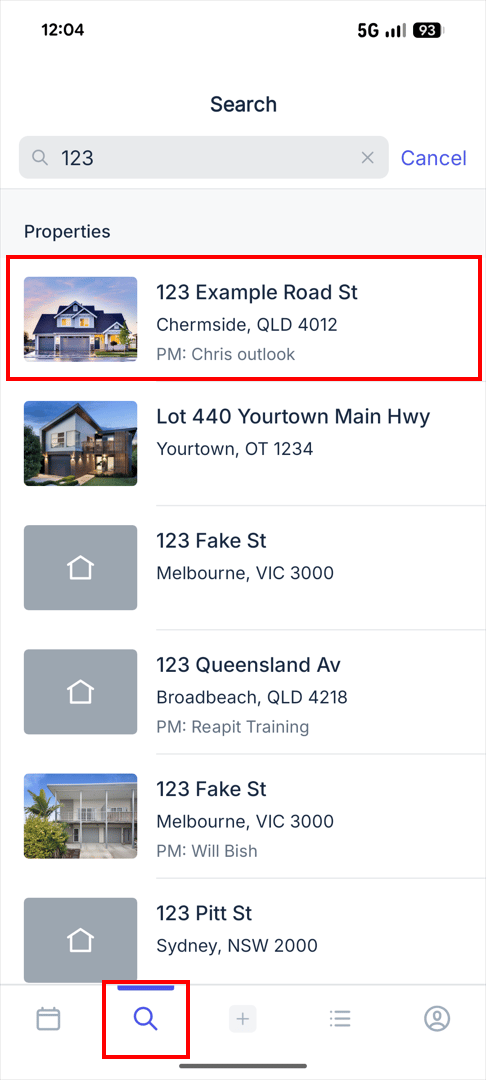
- Navigate to the Search icon.
- Search and select the Property.
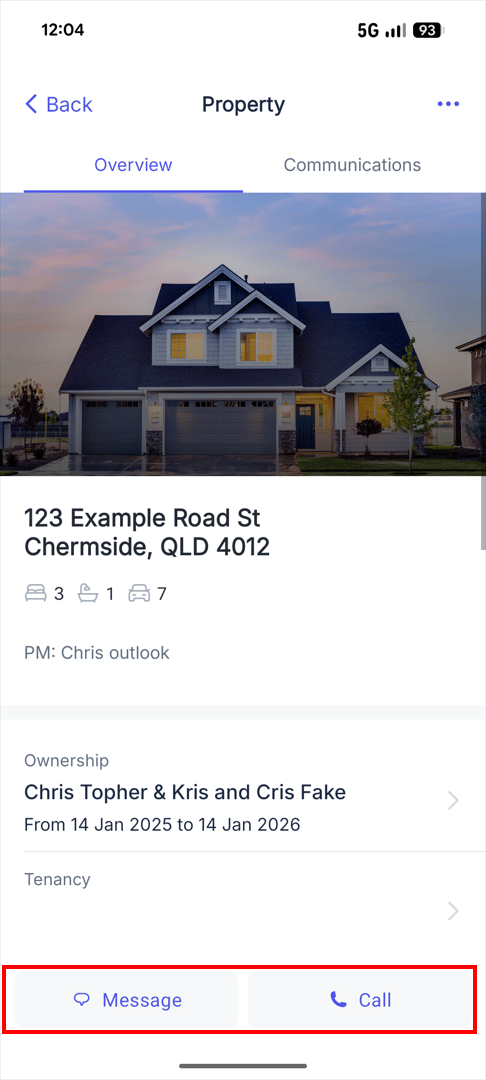
- Click Message or Call.
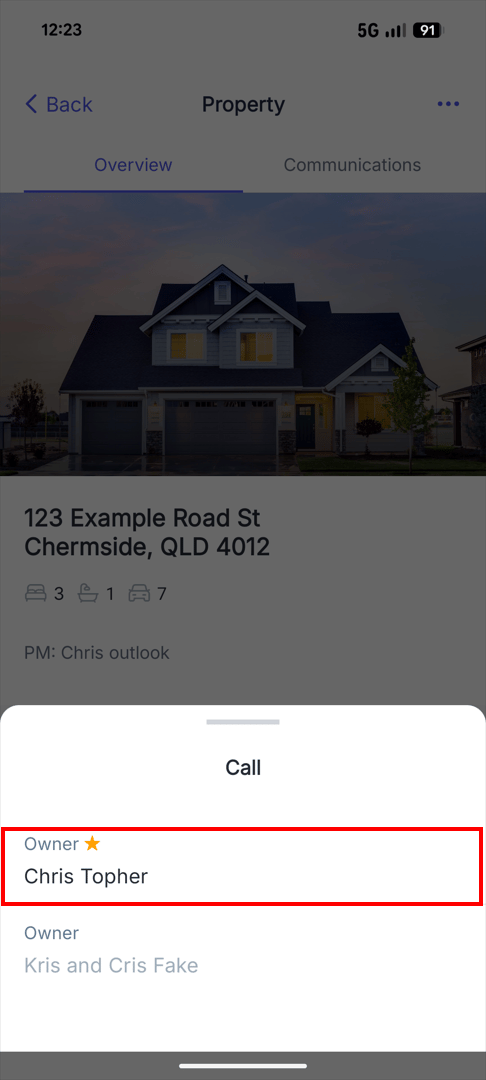
- Select the contact to call. This will re-direct you to the phone app on your device to contact the recipient.
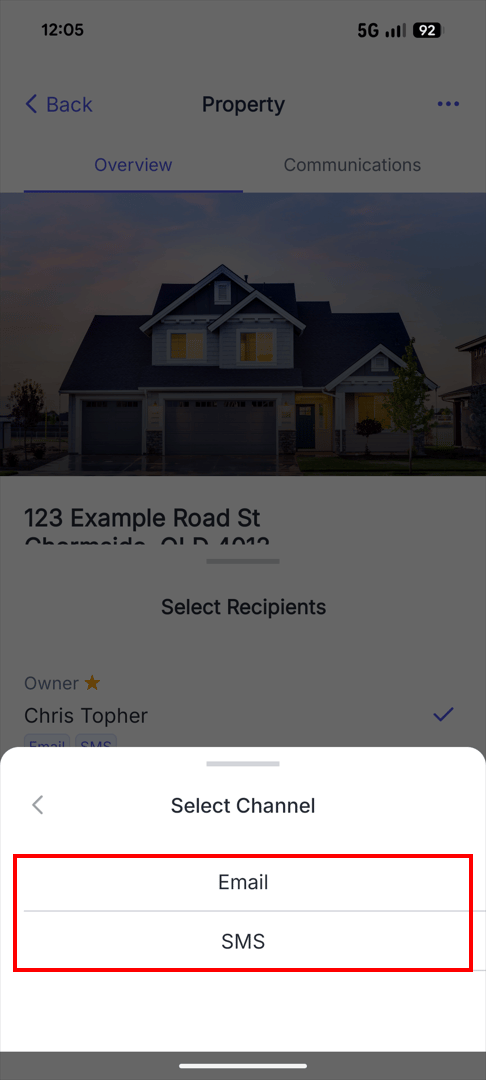
- Message will ask you to choose Email or SMS.
- Select the recipient you wish to contact.
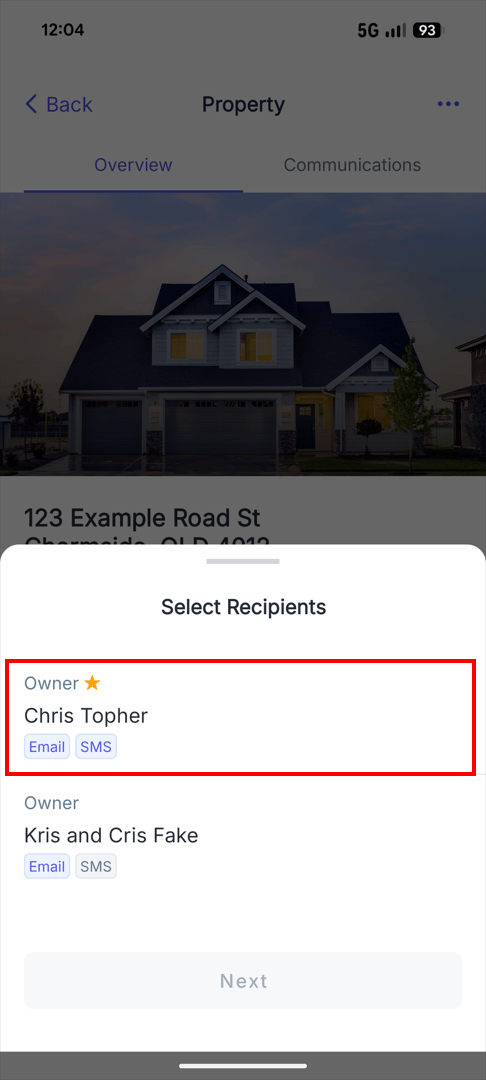
Note: Recipients without a mobile number will not be able to use the SMS function.
- Enter in the Email/SMS message to the recipient.
- Click Send.
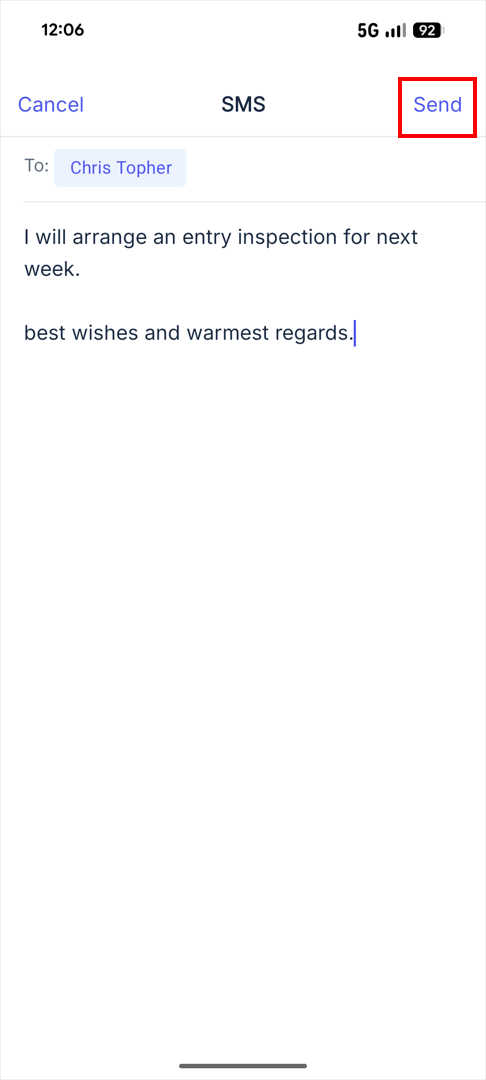
Note: Standard SMS charges from your mobile services apply.
View Communications with Reapit PM App
1. From the Property record, tap on the Communications tab.
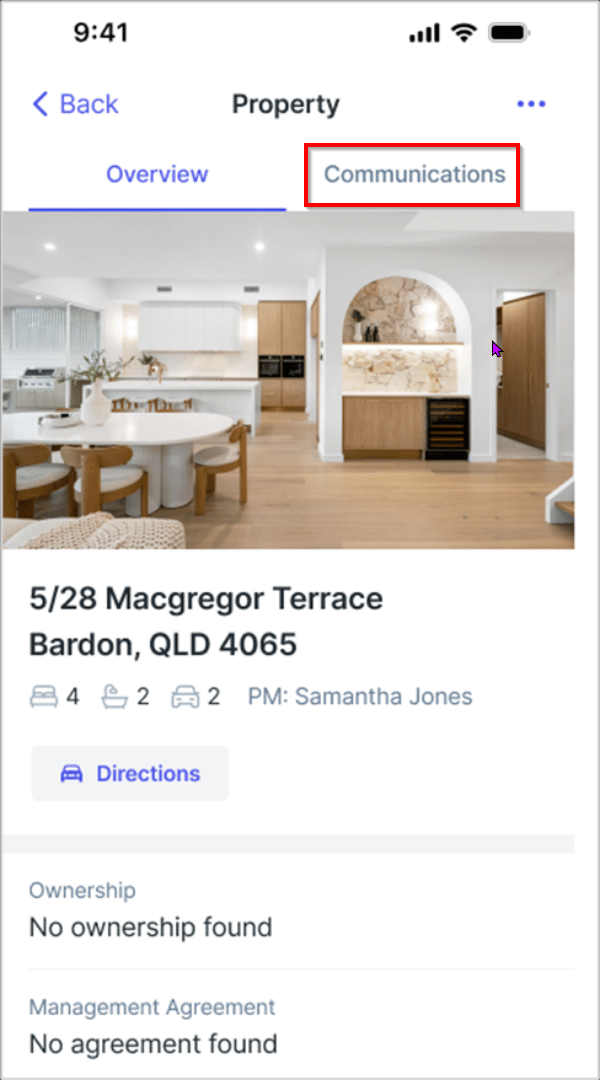
2. Communications will allow you to view both Owner or Tenant emails and SMS communication which has been sent through the system.
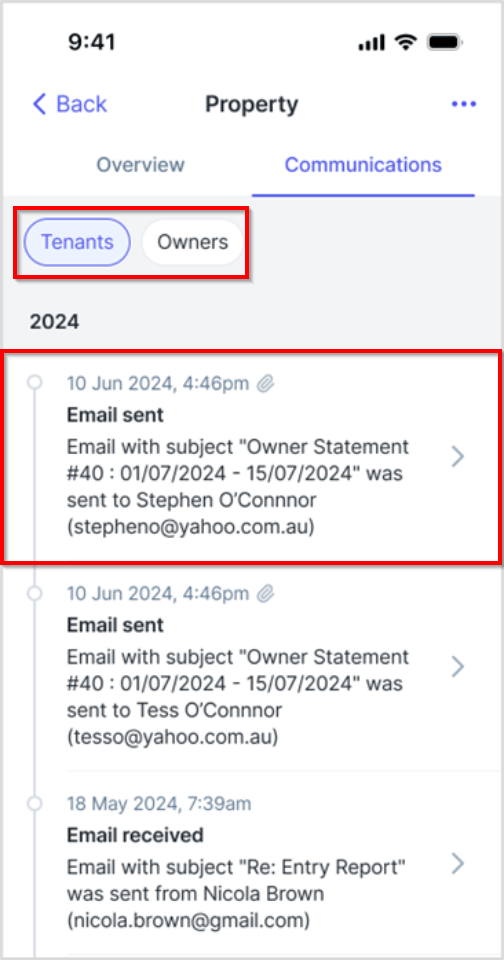
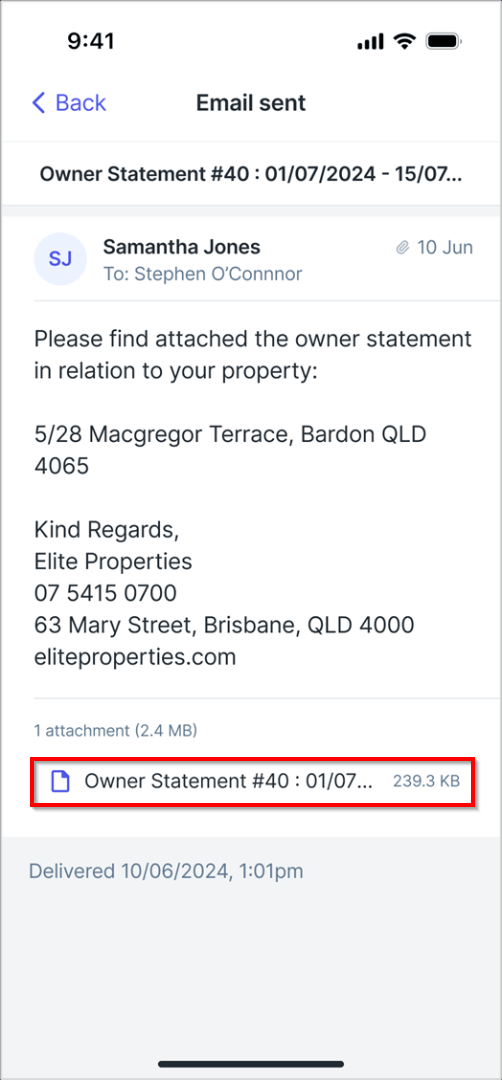
3. Tapping on the email will open the full message and allow you to view any attachments.
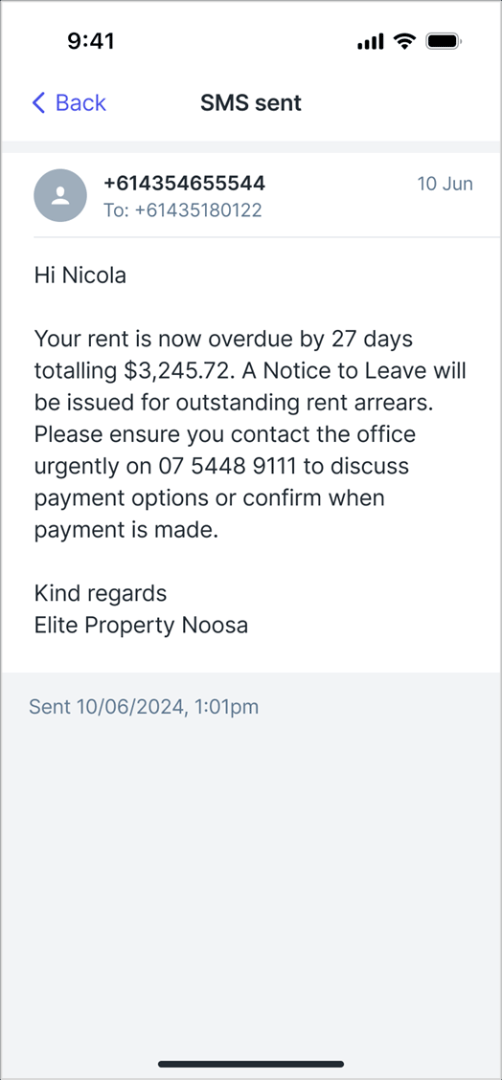
4. Tapping on any SMS communication will also bring up the sent or received items as well.
View Conversations in the Reapit PM App
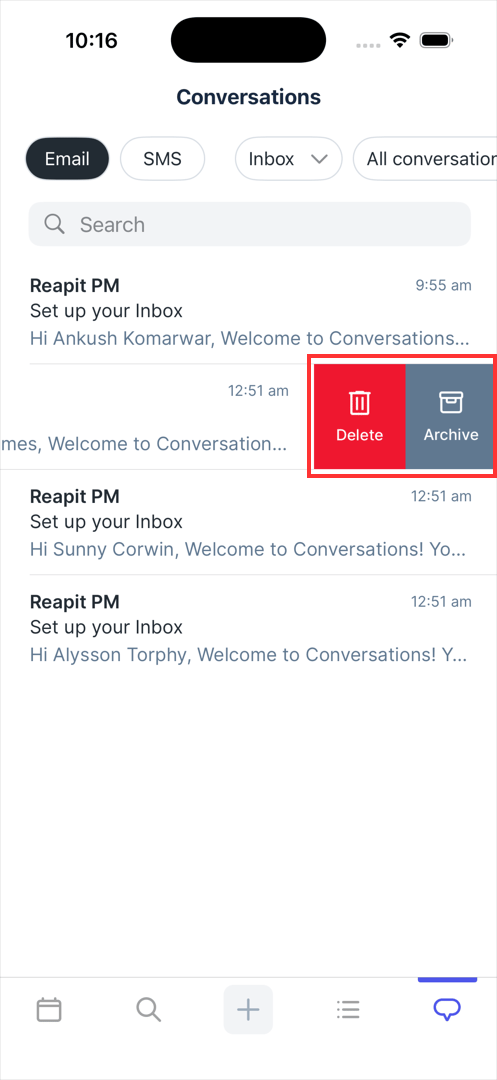
1. Navigate to the Conversations button.
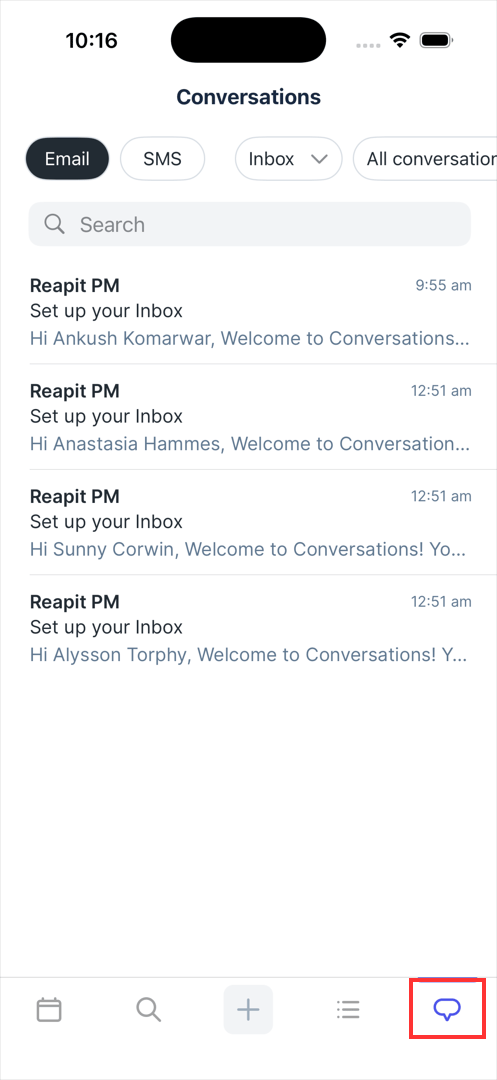
2. Conversations will allow you to filter and search by user, and Email/SMS status, just as you can in the web version.
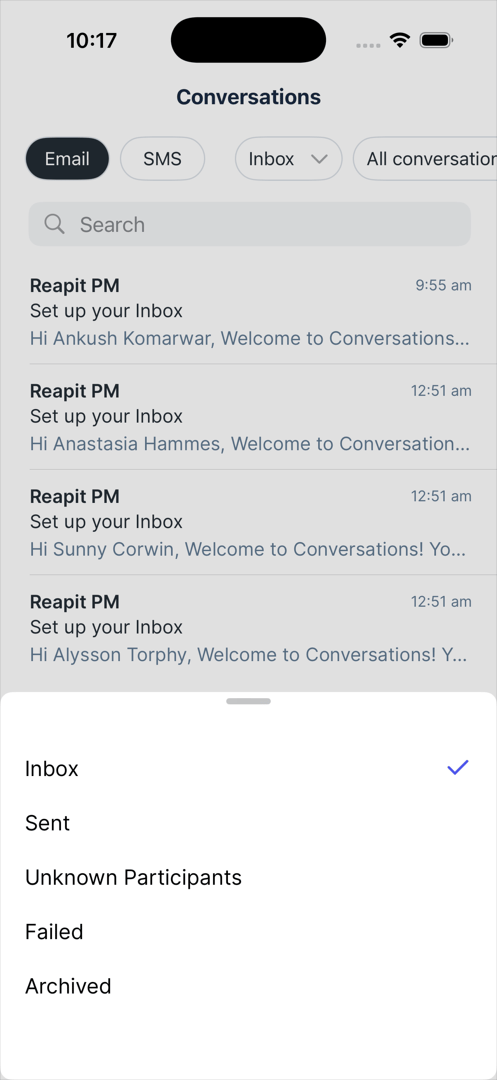
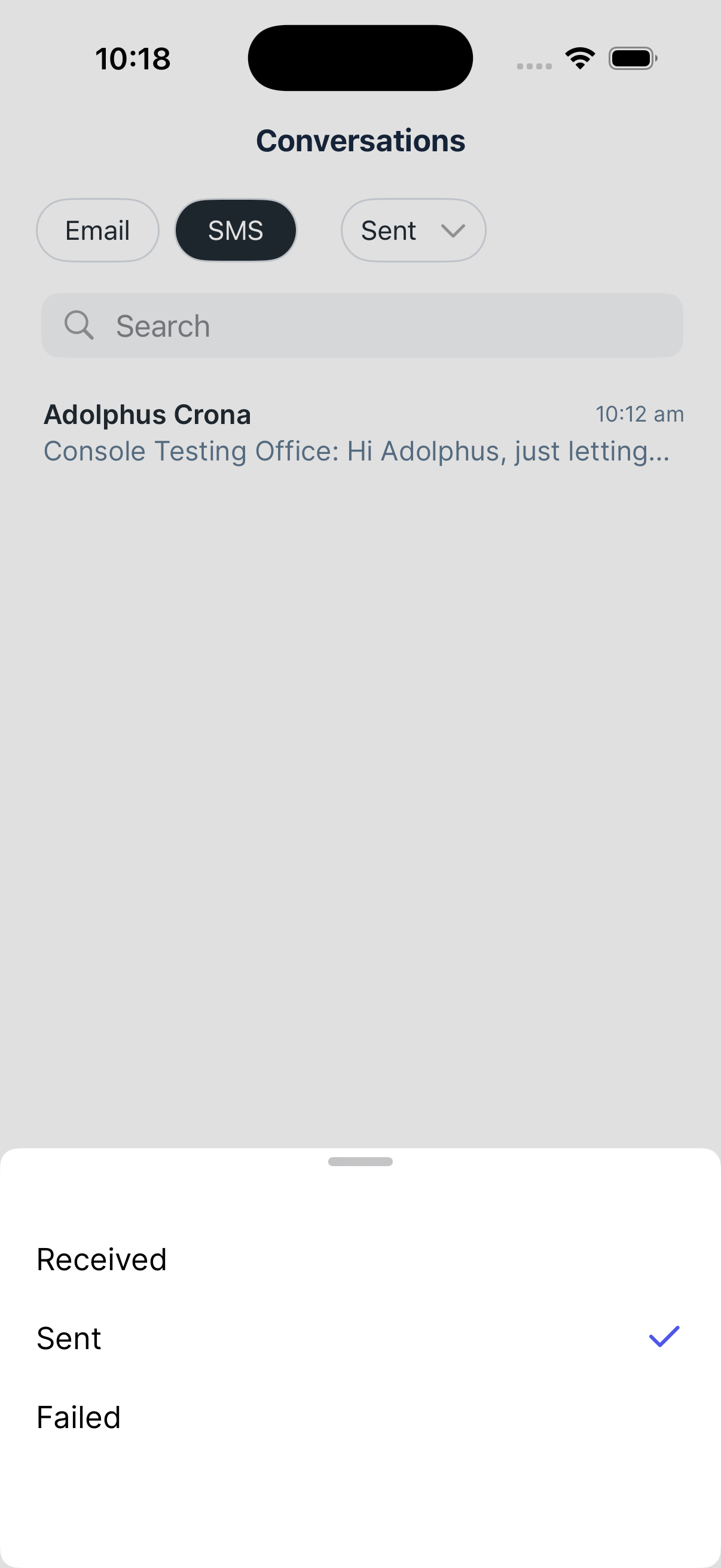
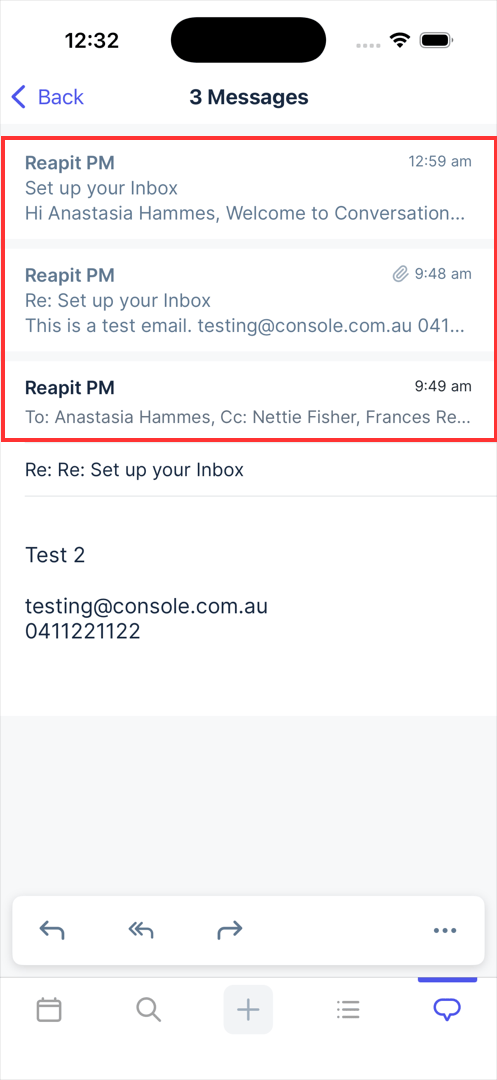
3. Tapping on an email within a thread will show the entire message history in one clear timeline, so you always have the full context.
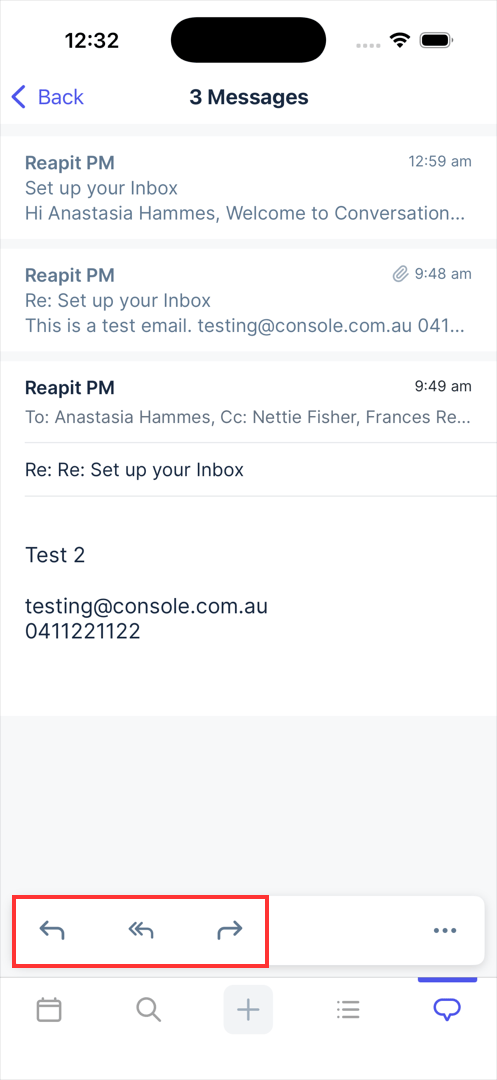
4. Forward or send replies directly from the app and keep work moving smoothly, even when you are away from the office.
5. Swiping left on an email gives you quick options to delete or archive the email.