'%20d='M0%208a8%208%200%200%201%208-8h24a8%208%200%200%201%208%208v24a8%208%200%200%201-8%208H8a8%208%200%200%201-8-8V8Z'/%3e%3cpath%20fill='%23fff'%20d='M8.375%2013v14L20.5%2034l12.124-7v-7.737l-1.687-.975-2.806-1.62-1.082-.624v4.83l-.002%204.83H13.95V16.07l3.275-1.89%202.192-1.265%201.082-.625%203.275%201.877%202.192%201.256%201.083.62V9.782L20.5%206%208.376%2013Z'/%3e%3cdefs%3e%3clinearGradient%20id='reapit-pm__a'%20x1='20.702'%20x2='20.702'%20y1='.351'%20y2='31.228'%20gradientUnits='userSpaceOnUse'%3e%3cstop%20stop-color='%235573FD'/%3e%3cstop%20offset='.575'%20stop-color='%234E56EA'/%3e%3c/linearGradient%3e%3c/defs%3e%3c/svg%3e)
Reapit PM Inspect App
This article will cover the use of the Reapit PM Inspect app.
Reapit PM Inspect
How to Complete an Inspection Using the Reapit PM Inspect App
- Once you have logged into the app, select which property you would like to inspect.
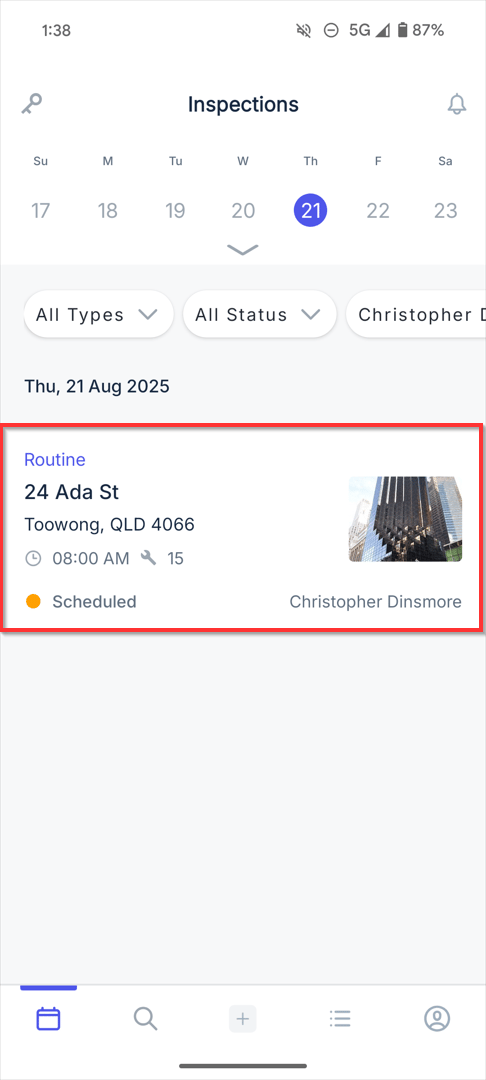
- Once you are ready to commence, click Start Inspection.
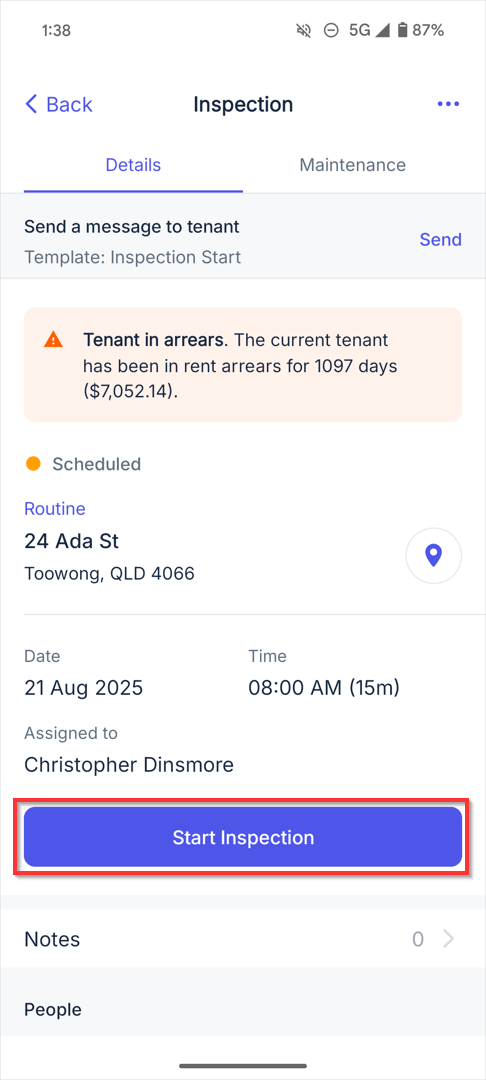
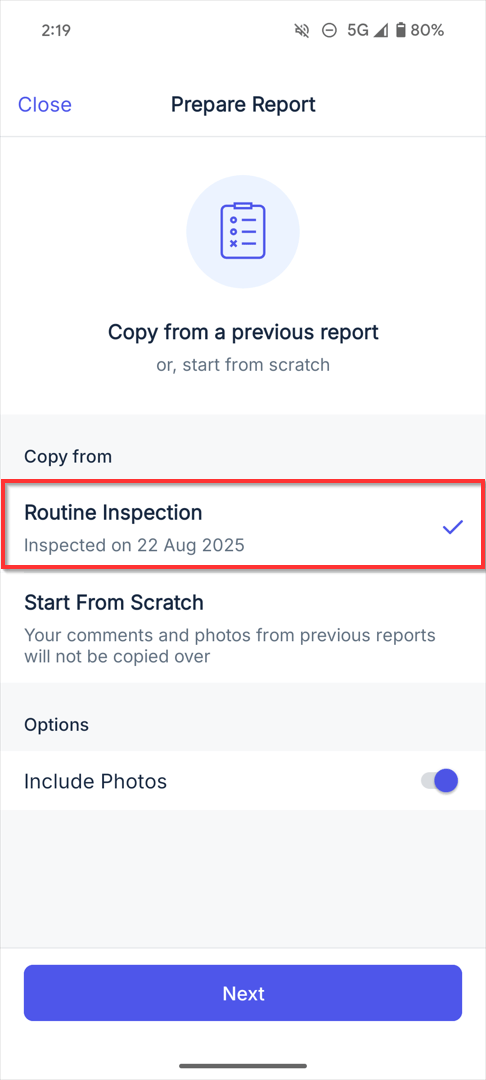
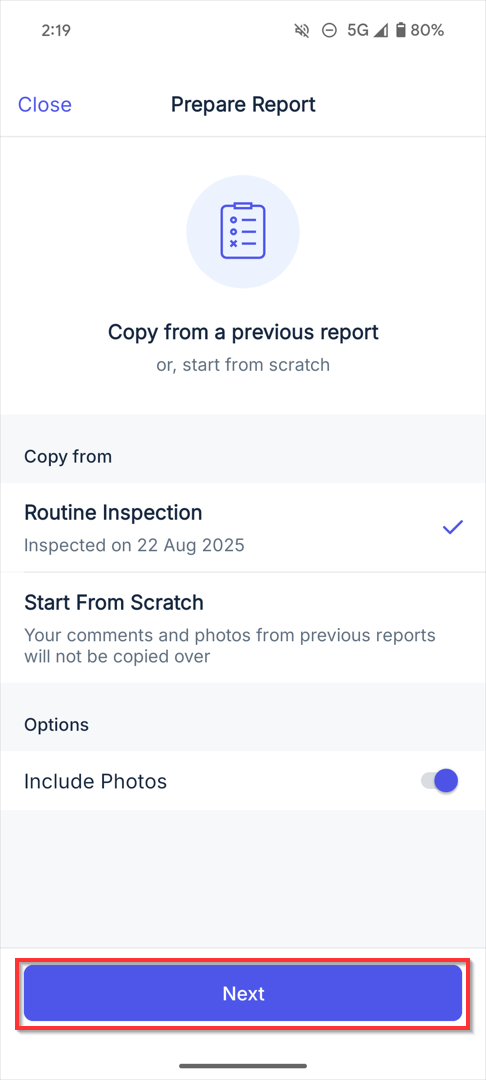
- If you have previously completed any inspections on the property, a list of closed inspections for the property will appear that you can copy from. Choose to copy from the inspection and if you wish to also include the photos.
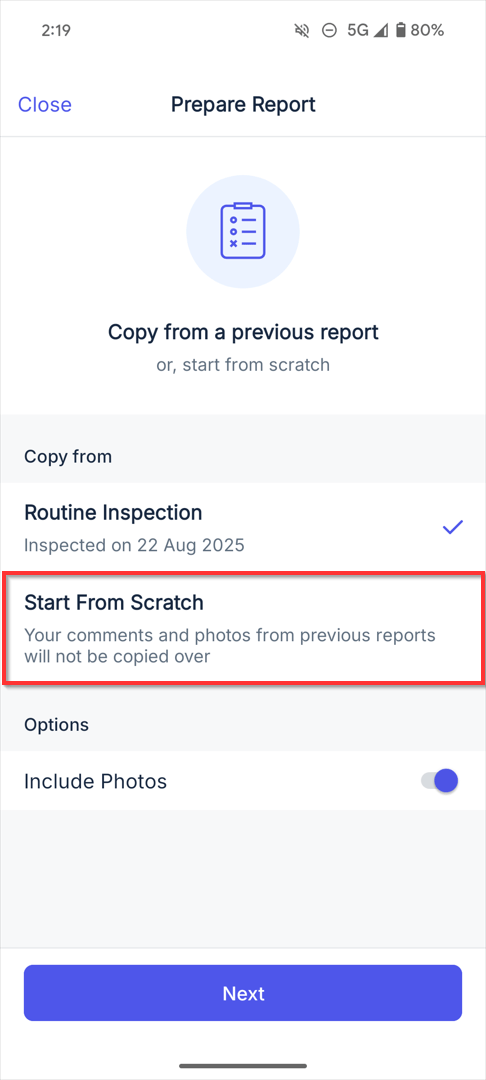
- Alternatively, select Start From Scratch to perform a new inspection.
- To begin the inspection, click Next.
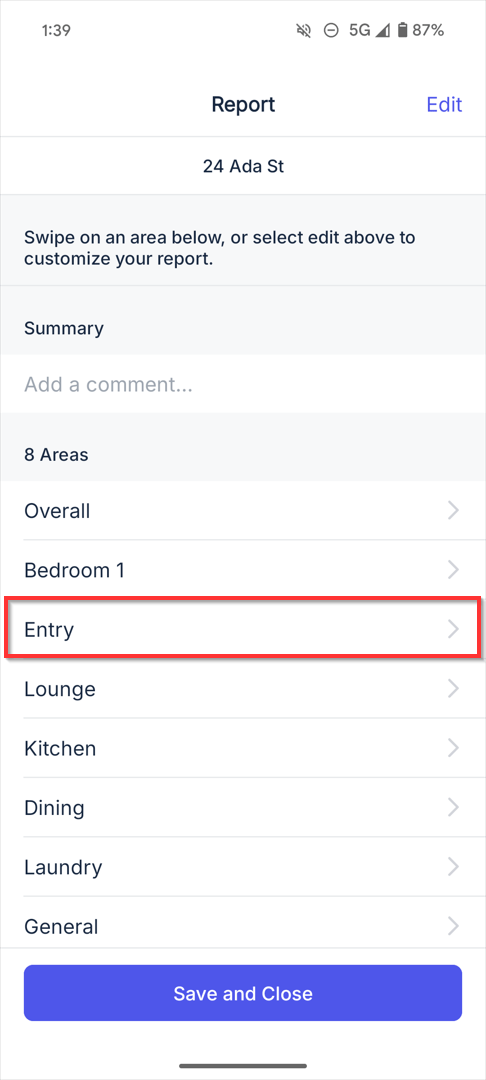
- Select a section.
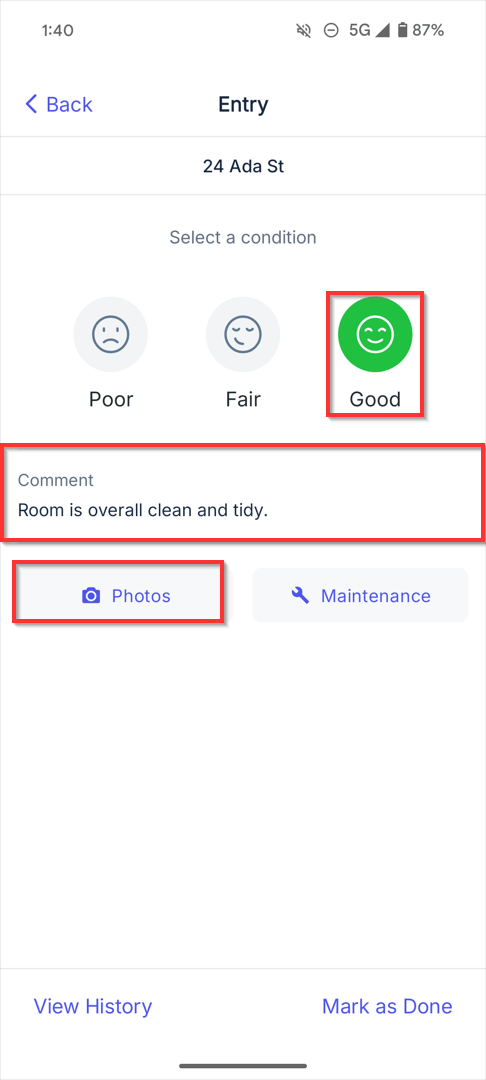
- Select the Condition, add a comment and insert photos and maintenance. Mark as Done. Additionally, you can manage your maintenance by creating a work order.
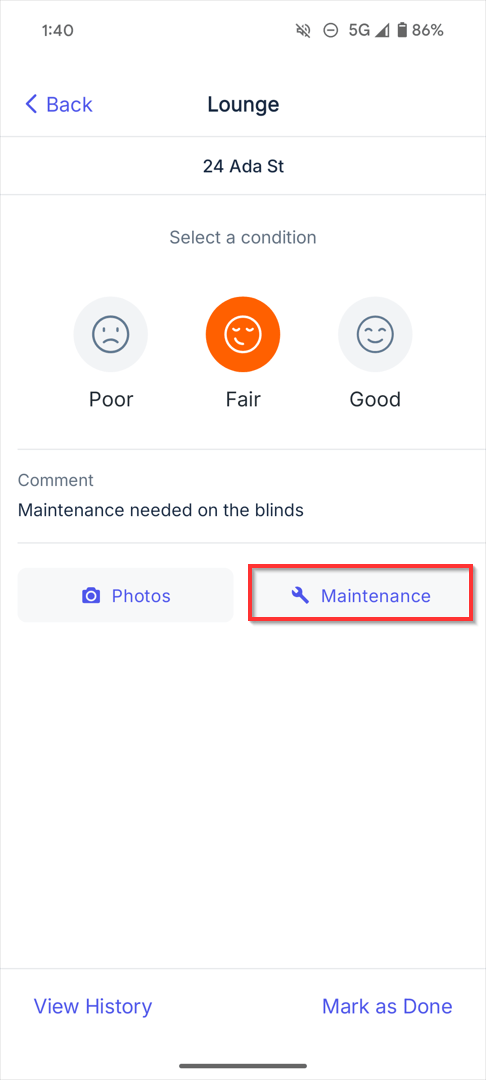
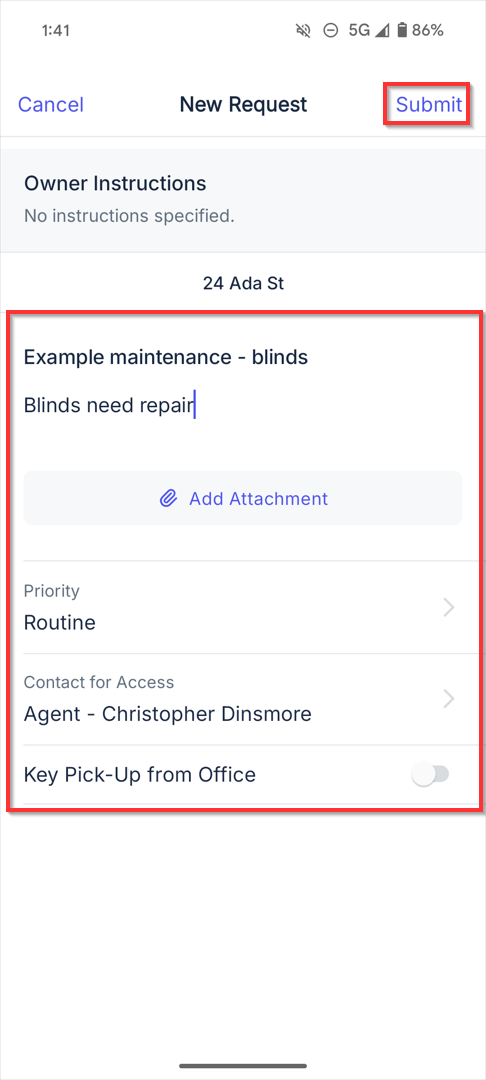
Note: If you notice something requires maintenance, tap the Maintenance button to create a new maintenance request. Enter in the details and press Submit.
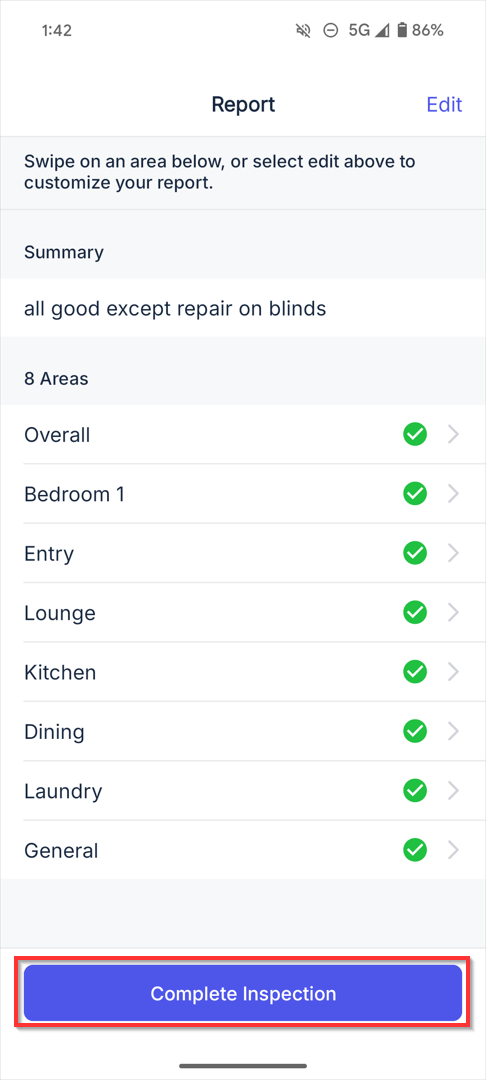
- Once all sections are done, write a summary and click Complete Inspection.
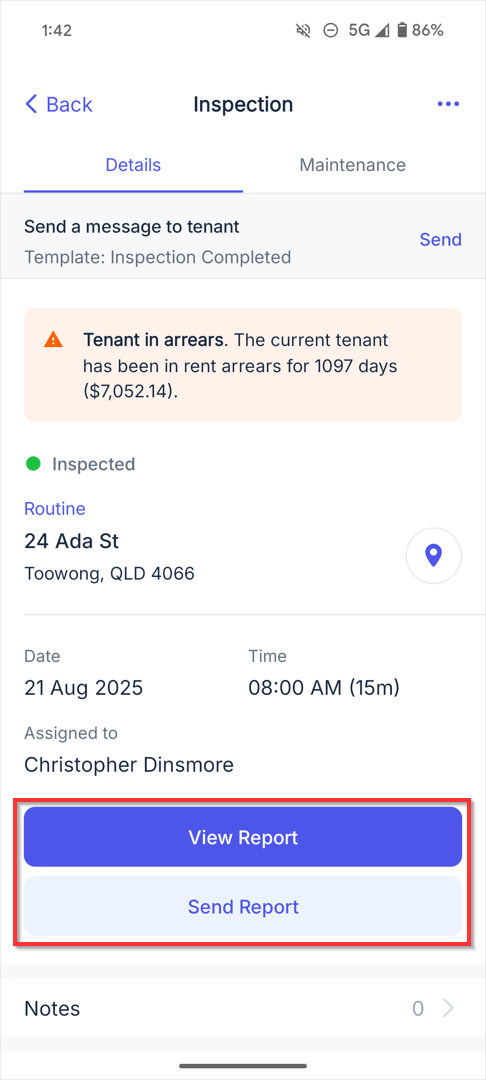
- To view the report, click View Report and to send the report to the owner or tenant click Send Report.
How to Check Keys In and Out
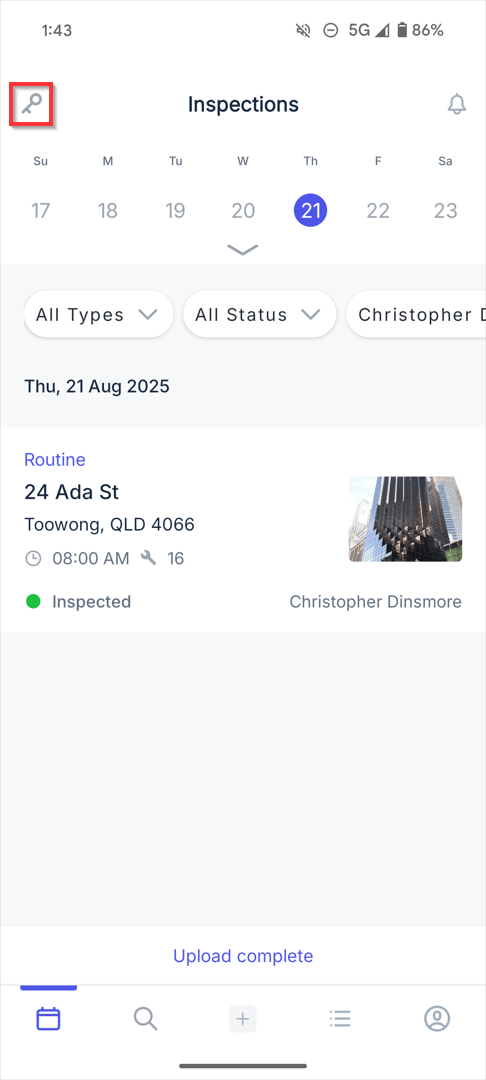
- Click on the key icon.
- Select Check Out or Check In.
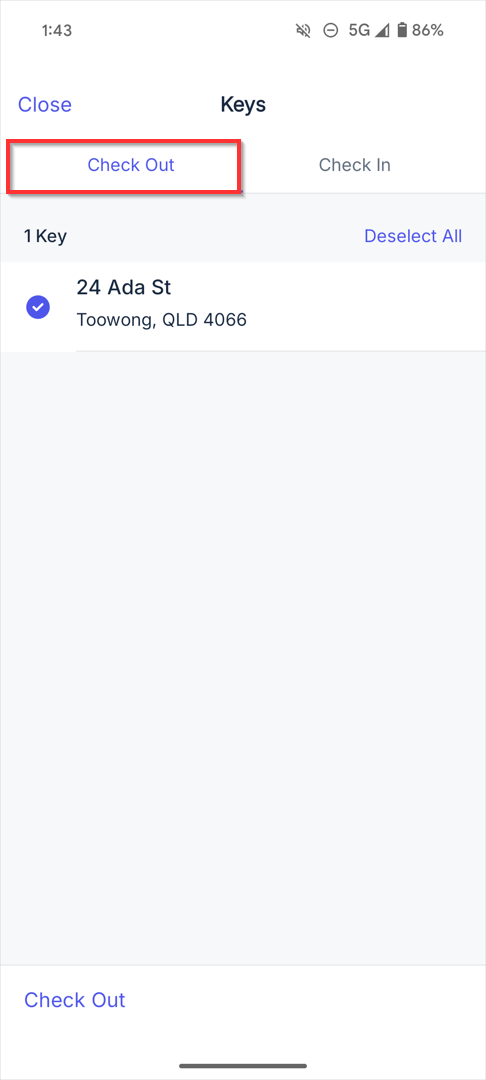
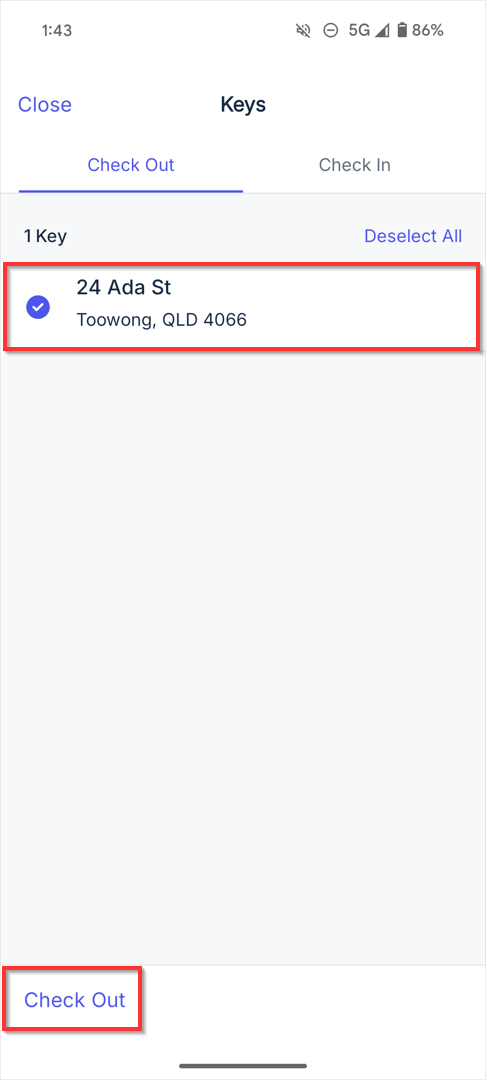
- Click on the appropriate address and check the tick box. Select Check Out.
Add New Menu in Reapit PM Inspect
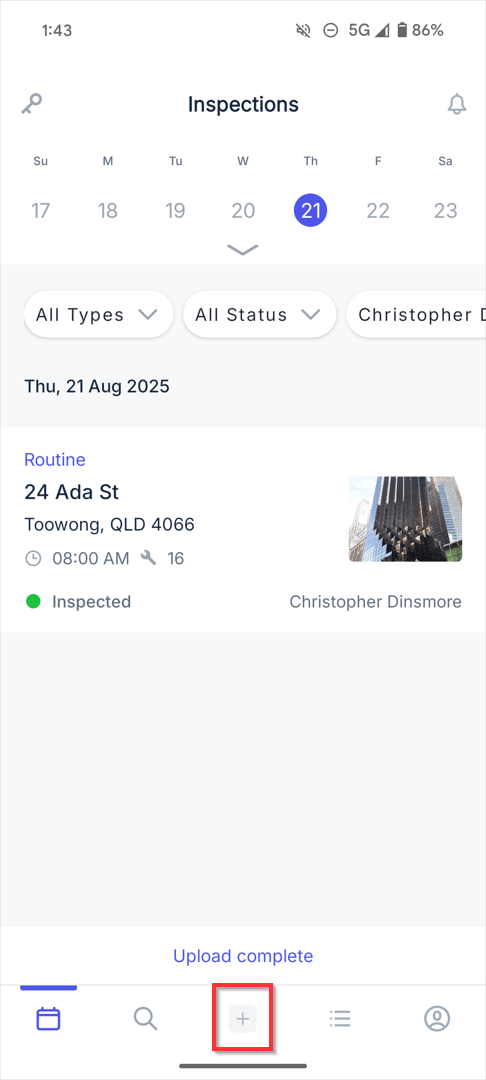
- From the Inspections screen, click the + on the bottom of the app.
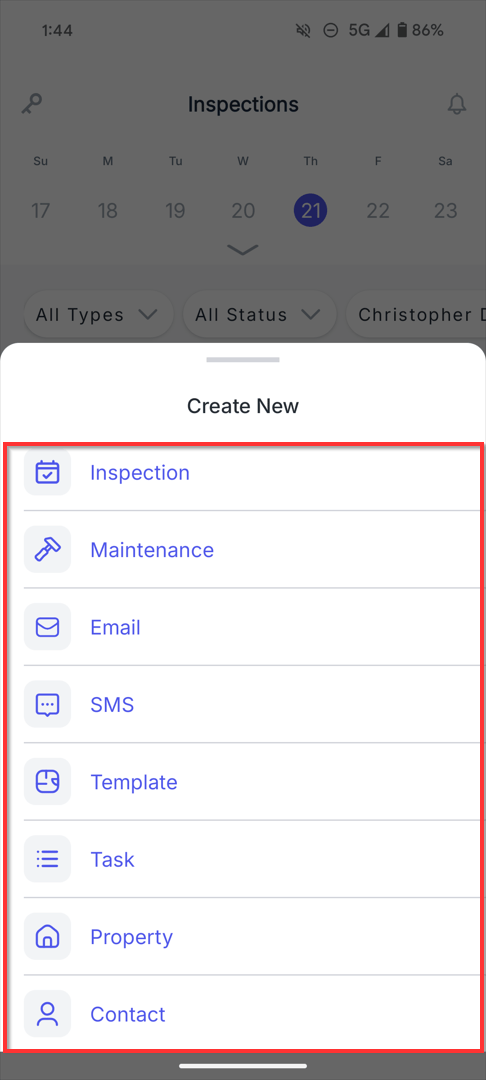
- Tap on the Add New option to create the specific item.
How to Sign the Exit Report from the App
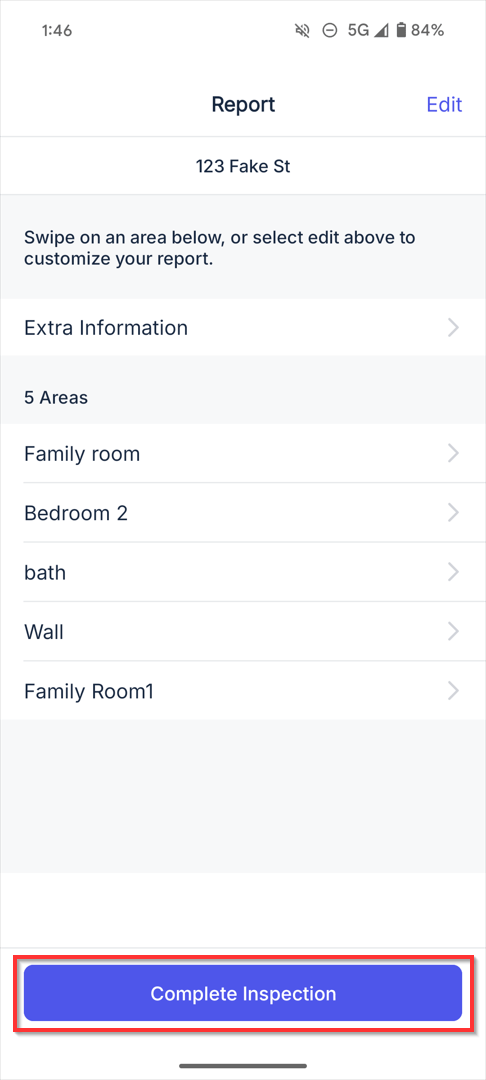
1. Once the exit inspection report is complete, select Complete Inspection.
2. Acknowledge that you want to complete the review and agree to use electronic records and signatures for the inspection.
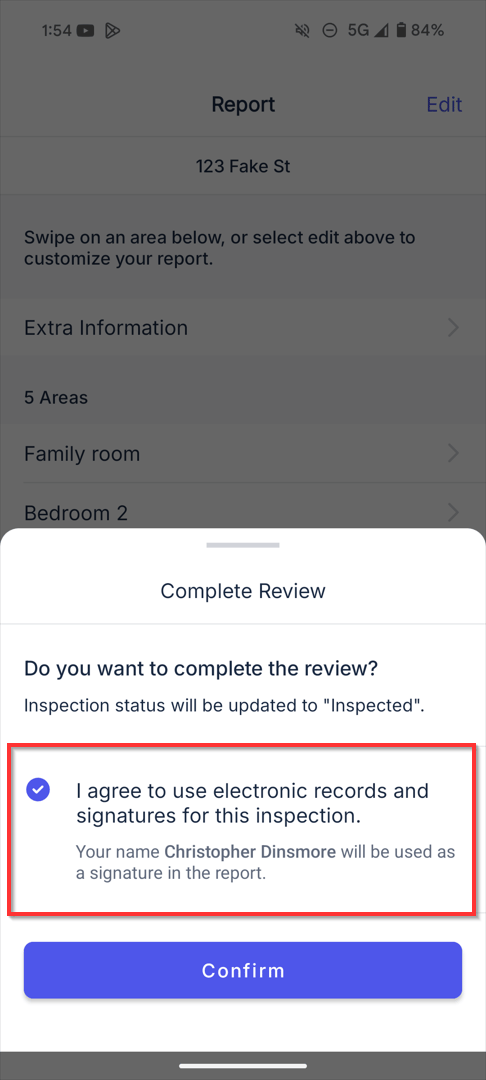
3. On selection of the Confirm button, the inspection report will update to Inspected.