'%20d='M0%208a8%208%200%200%201%208-8h24a8%208%200%200%201%208%208v24a8%208%200%200%201-8%208H8a8%208%200%200%201-8-8V8Z'/%3e%3cpath%20fill='%23fff'%20d='M8.375%2013v14L20.5%2034l12.124-7v-7.737l-1.687-.975-2.806-1.62-1.082-.624v4.83l-.002%204.83H13.95V16.07l3.275-1.89%202.192-1.265%201.082-.625%203.275%201.877%202.192%201.256%201.083.62V9.782L20.5%206%208.376%2013Z'/%3e%3cdefs%3e%3clinearGradient%20id='reapit-pm__a'%20x1='20.702'%20x2='20.702'%20y1='.351'%20y2='31.228'%20gradientUnits='userSpaceOnUse'%3e%3cstop%20stop-color='%235573FD'/%3e%3cstop%20offset='.575'%20stop-color='%234E56EA'/%3e%3c/linearGradient%3e%3c/defs%3e%3c/svg%3e)
Reapit PM Master Templates
This article provides a step-by-step guide on how to create and manage Master Inspection Templates on Reapit PM Inspect.
Use a Master Inspection Template when Completing an Inspection
This article provides a step-by-step guide on how to create and manage Master Inspection Templates on Reapit PM Inspect.
*Note: Master templates can only be selected if it is the first inspection for that property. Subsequent inspections for that same property will use the previous inspection layout.
*Note: When starting an inspection for a property for the first time, you can also set up the property details and opt to skip the saving of a master template.
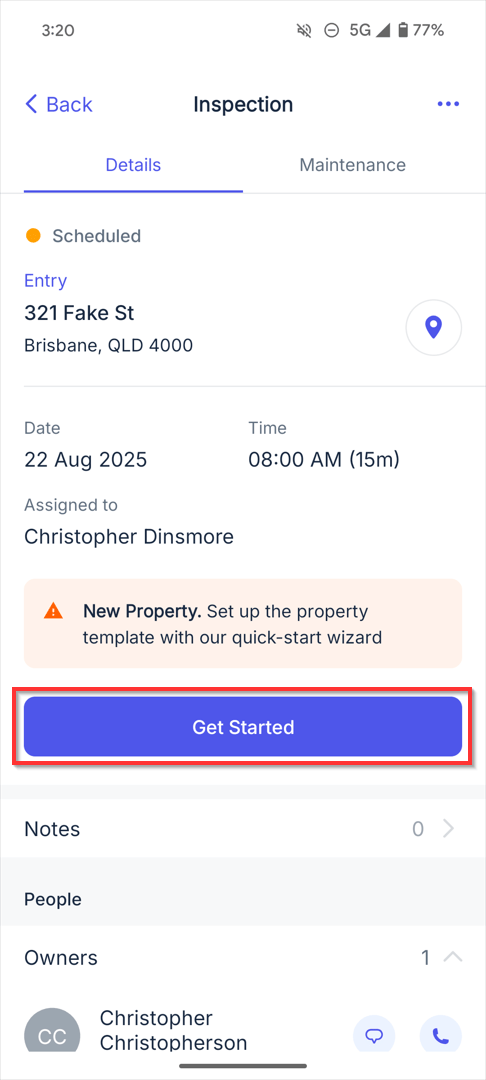
- Select the inspection and click Get Started.
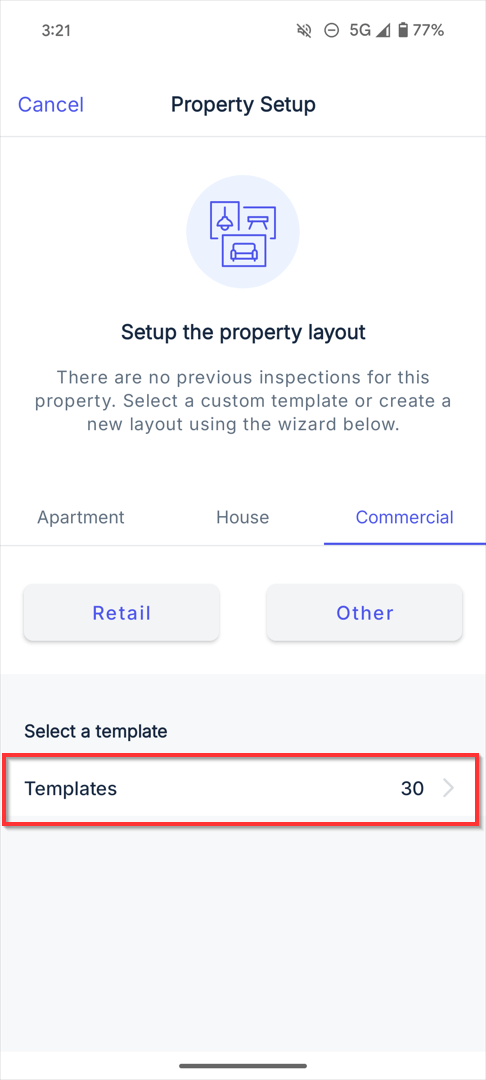
- Select Templates.
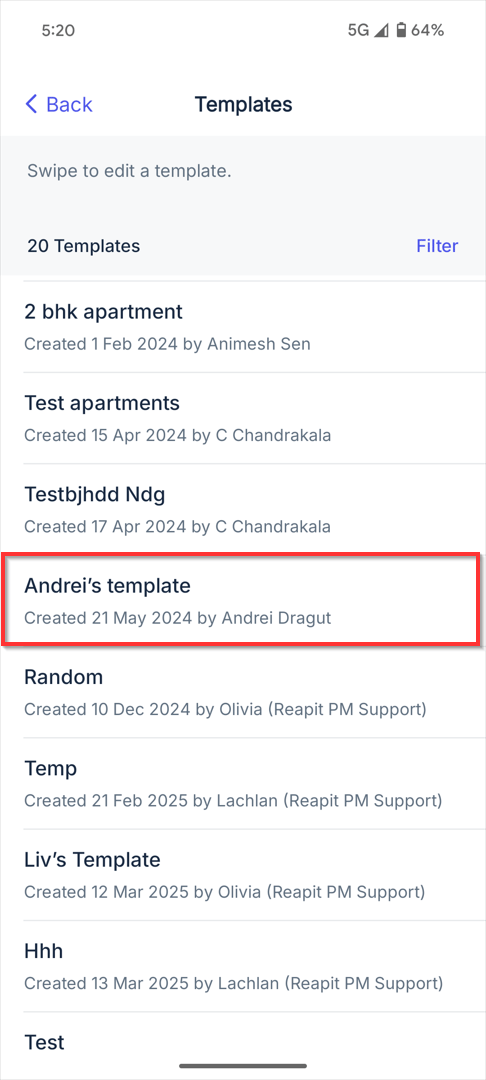
- Select Start Inspection.
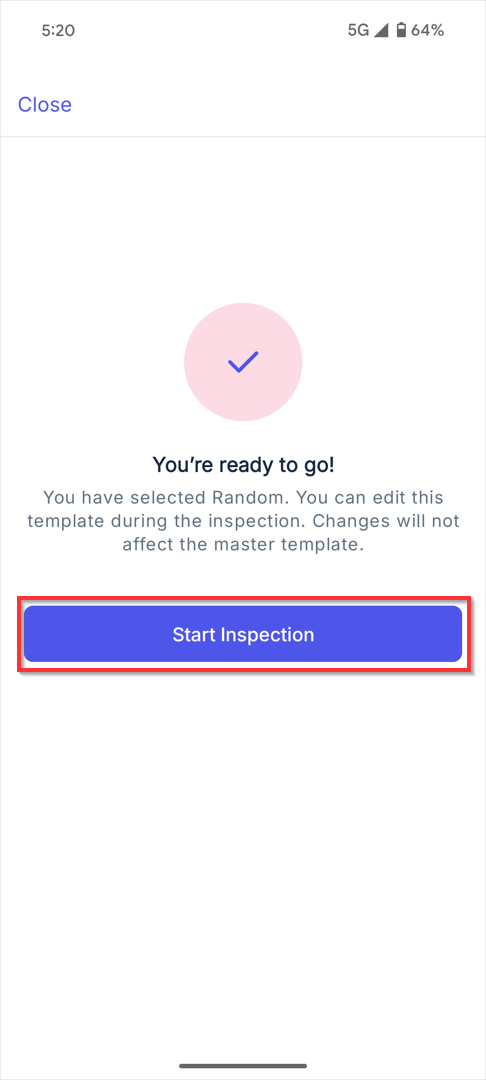
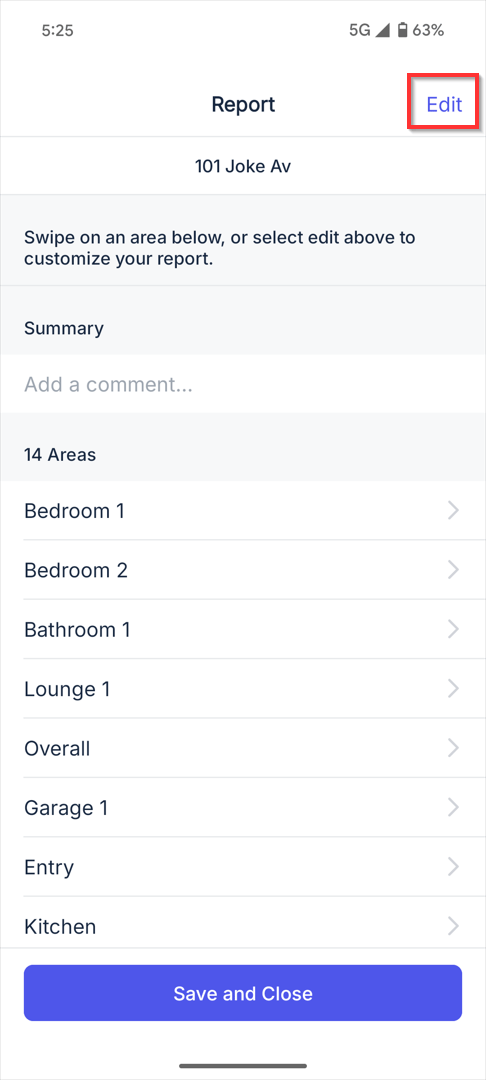
- Click Edit to make any changes to the template.
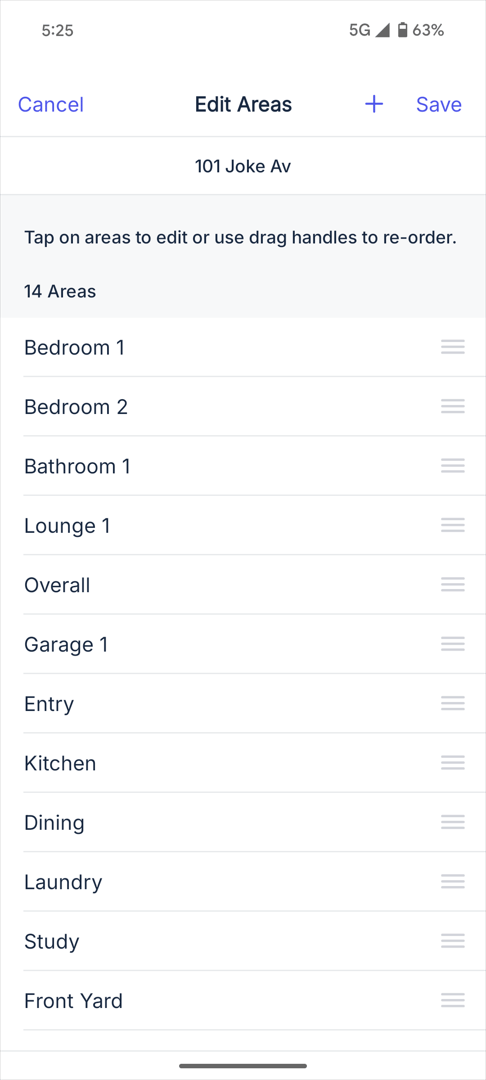
- Use Edit Areas to edit or re-order the areas as desired. Click Save when done.
Additional Access to Reapit PM Inspect Master Templates.
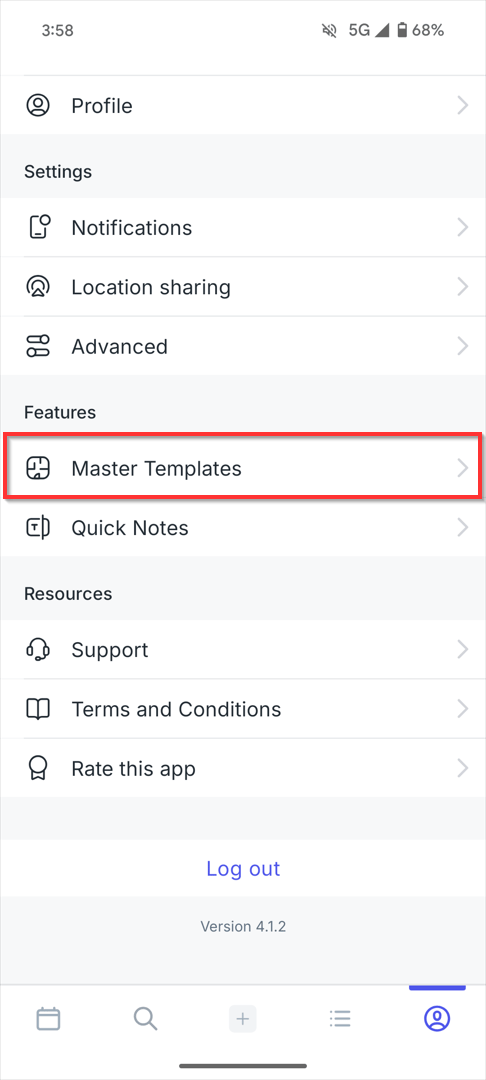
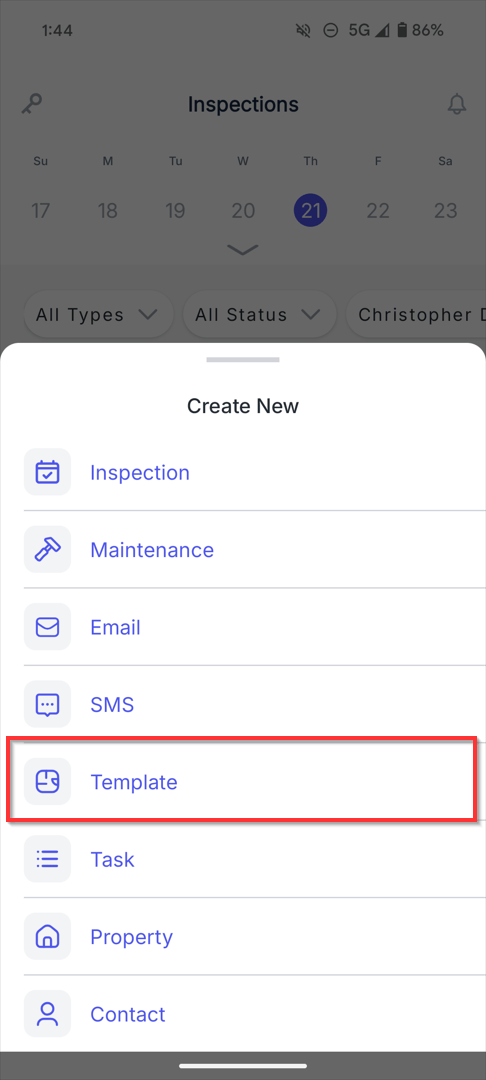
Master Templates can be access from the More Tab as well as the Quick Add Function.