'%20d='M0%208a8%208%200%200%201%208-8h24a8%208%200%200%201%208%208v24a8%208%200%200%201-8%208H8a8%208%200%200%201-8-8V8Z'/%3e%3cpath%20fill='%23fff'%20d='M8.375%2013v14L20.5%2034l12.124-7v-7.737l-1.687-.975-2.806-1.62-1.082-.624v4.83l-.002%204.83H13.95V16.07l3.275-1.89%202.192-1.265%201.082-.625%203.275%201.877%202.192%201.256%201.083.62V9.782L20.5%206%208.376%2013Z'/%3e%3cdefs%3e%3clinearGradient%20id='reapit-pm__a'%20x1='20.702'%20x2='20.702'%20y1='.351'%20y2='31.228'%20gradientUnits='userSpaceOnUse'%3e%3cstop%20stop-color='%235573FD'/%3e%3cstop%20offset='.575'%20stop-color='%234E56EA'/%3e%3c/linearGradient%3e%3c/defs%3e%3c/svg%3e)
Maintenance Requests & Work Orders
In this article you will learn how to create and manage maintenance tasks within Reapit PM.
The processes in this article include:
- How to enter a Maintenance Request
- How to Request a Quote from a Creditor
- How to Search and Communicate through Maintenance Requests
- How to create a Work Order
- How to track a Work Order
- How to add a Bill and Close a Request
How to enter a Maintenance Request
1. Click on Properties and select the required Property Type.
2. Click on the Maintenance Workflow.
3. Click Add New.
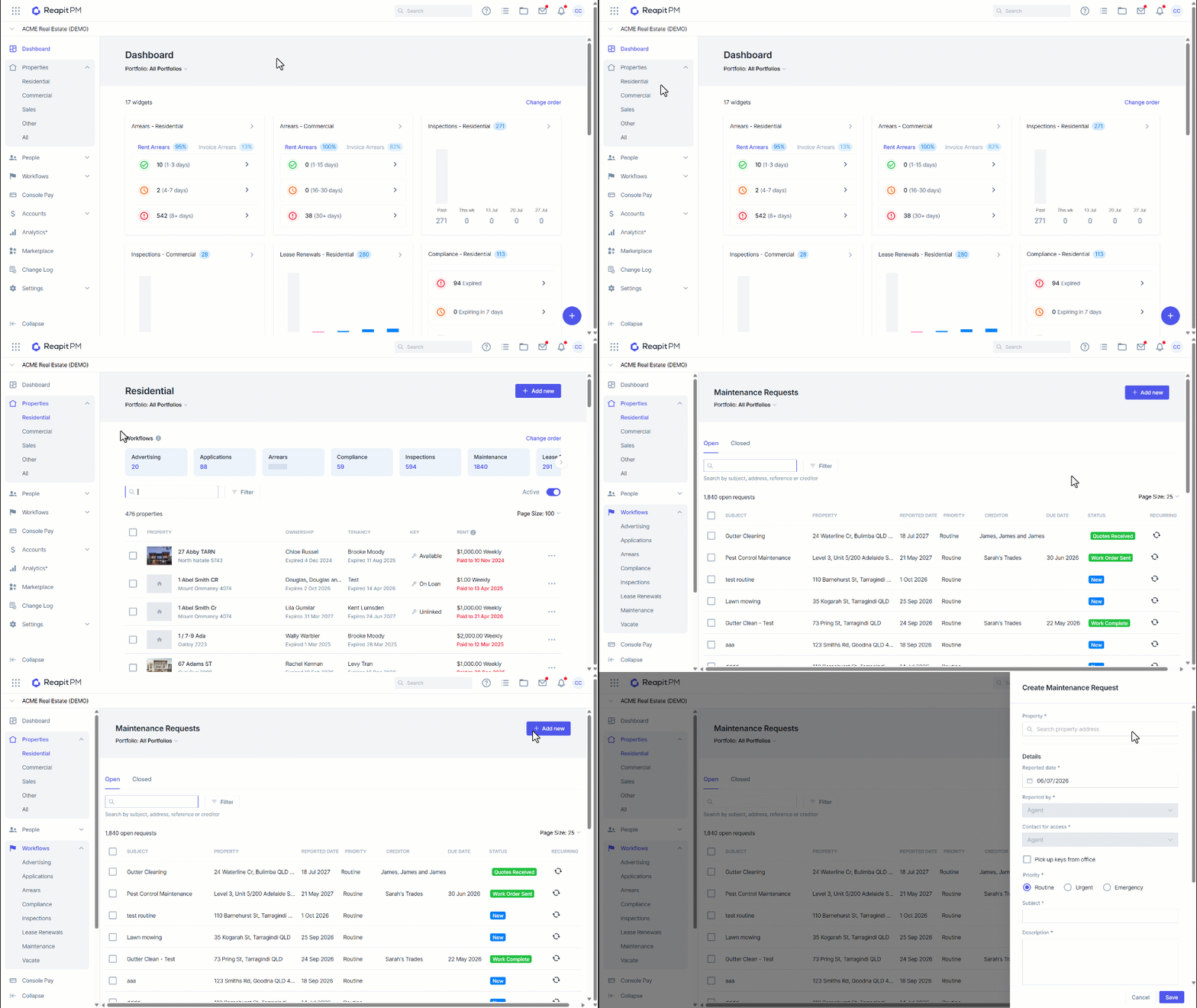
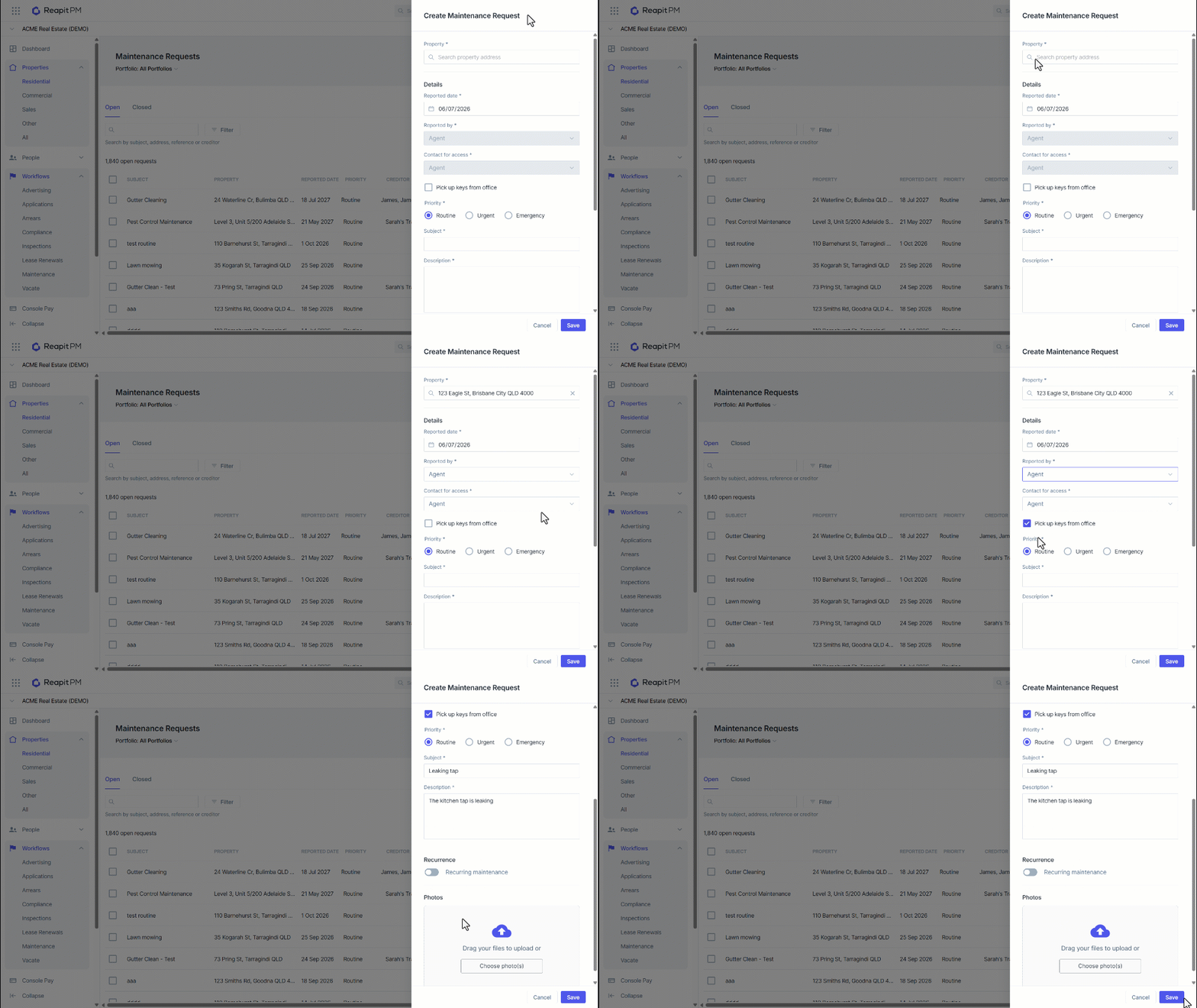
4. Type and select a property address.
5. Set Reported Date, Reported by & Contact for access.
6. Click Pick up keys from office if required.
7. Select the priority.
8. Enter a Subject, description and image.
9. Click on Create request.
10. A confirmation pop-up appears in the top right corner.
How to Search and Communicate through Maintenance Requests
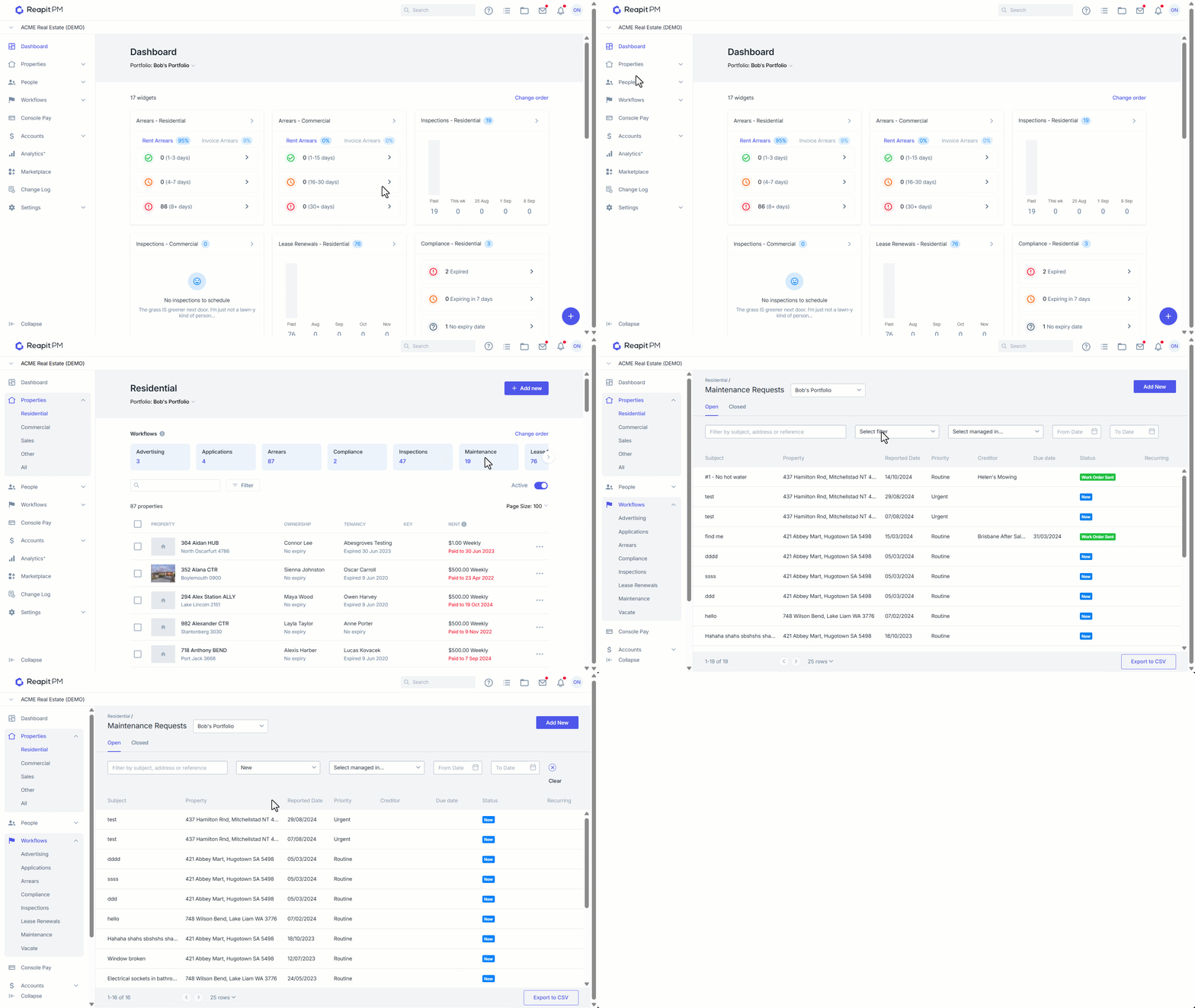
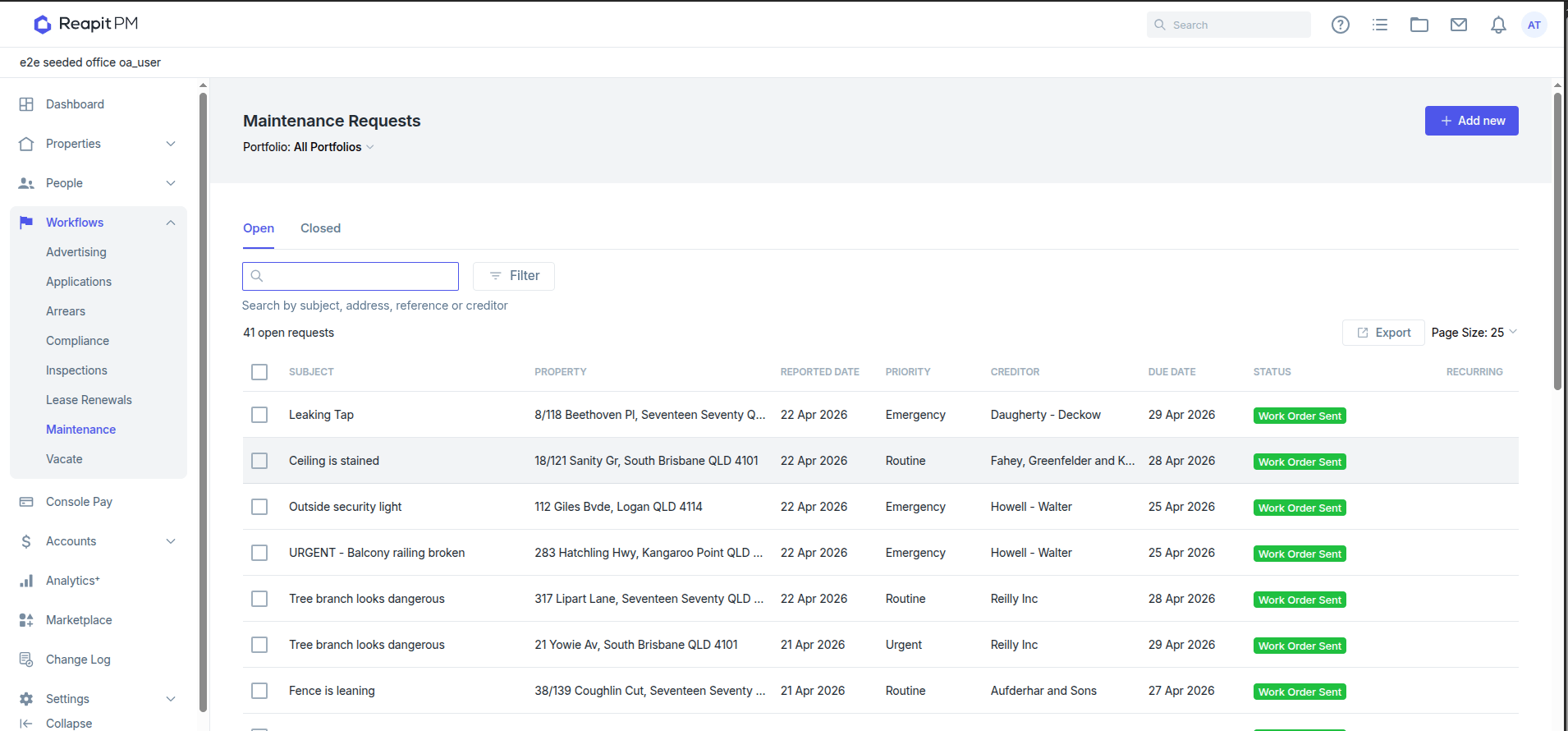
You can filter by:
- Text entry of subject, address or reference
- Status
- From Date & To Date
- Creditor

1. Click on Properties and select the required Property Type.
2. Click on the Maintenance Workflow.
3. Apply filters as needed
4. Click on the Maintenance Request from the results to view.
5. Selecting one or more maintenance jobs, you can send an email to the relevant parties (Tenants, Owners, Creditors) and use the merge fields available in the current Conversations capabilities.
How to Request Quotes from a Creditor
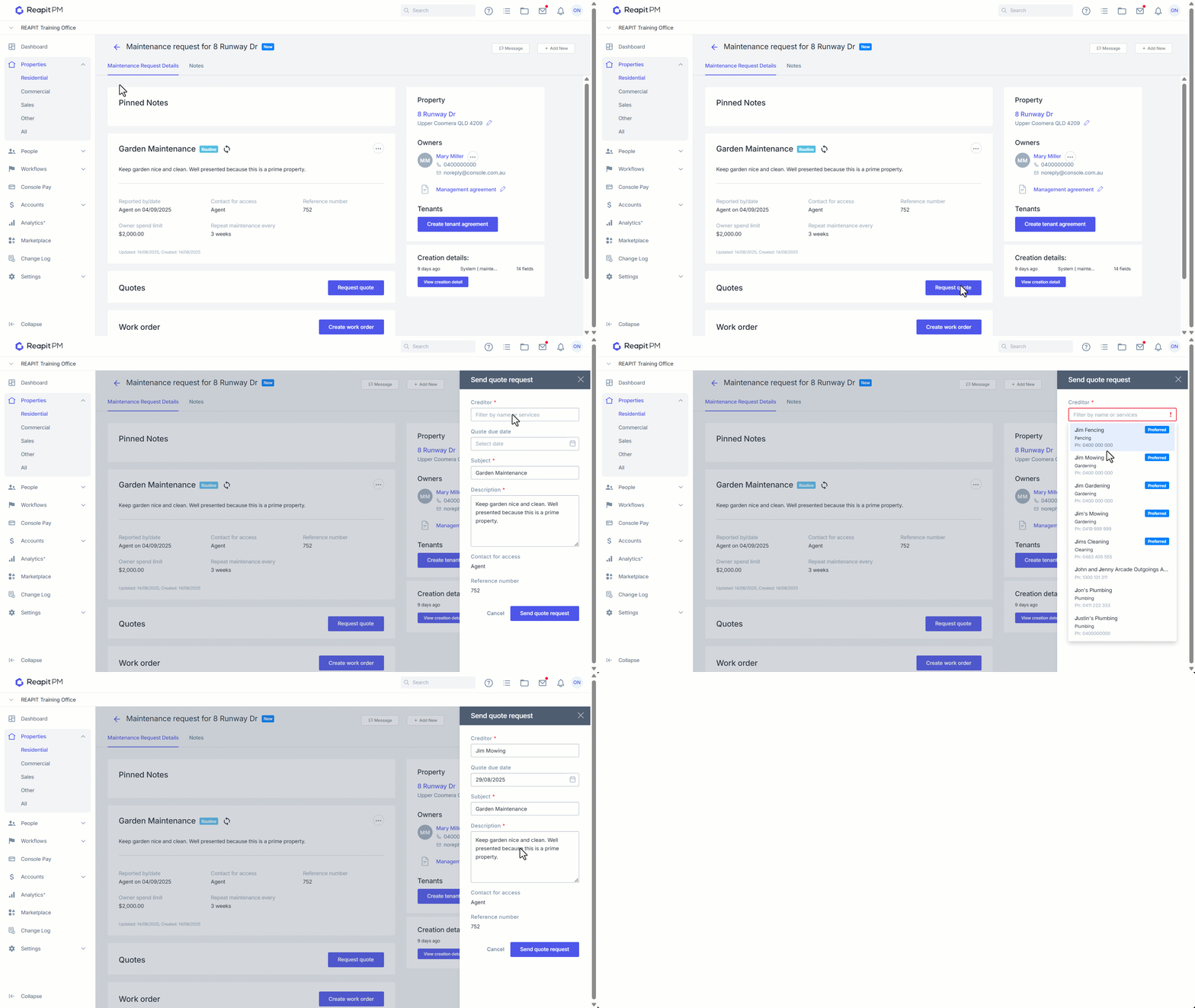
- Click Request quote from within the Maintenance Request.
- Search for and Select the Creditor.
- Enter a due date.
- Enter a subject and description for the request.
- Click Send Quote Request.
How to Create a Work Order
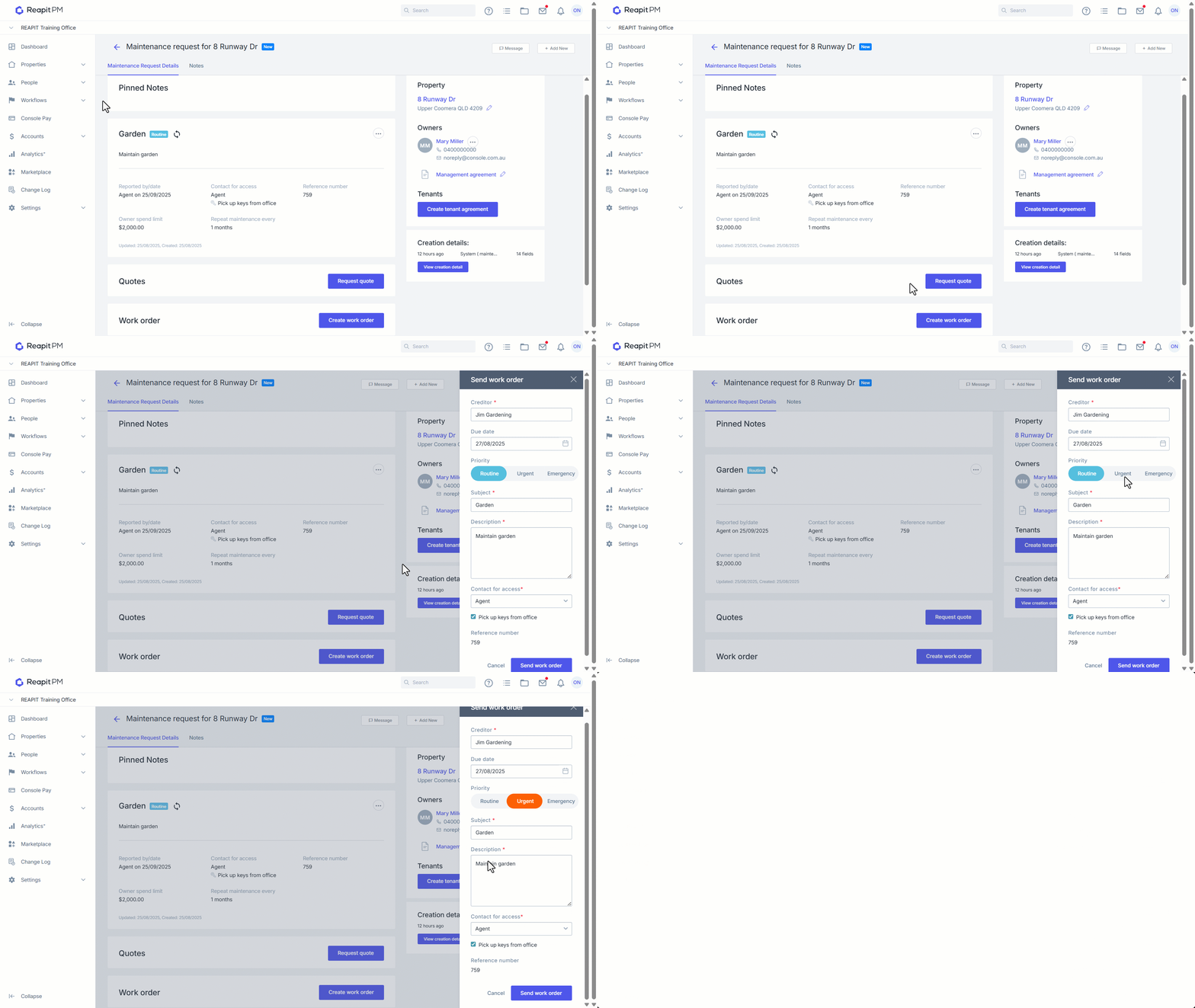
- To create a work order, you can either Approve a quote or click Create Work Order
- Enter and select the relevant Creditor.
- Select a Due Date for completion of the work order.
- Select a Priority.
- The Subject and Description fields auto-fill from the maintenance request however they may be changed if required.
- Select who to contact for Access and if the keys are to be picked up from the office.
- Click Send work order to proceed or click Cancel if required.
- A confirmation pop-up briefly appears confirming the Work order successfully created.
How to Track a Work Order
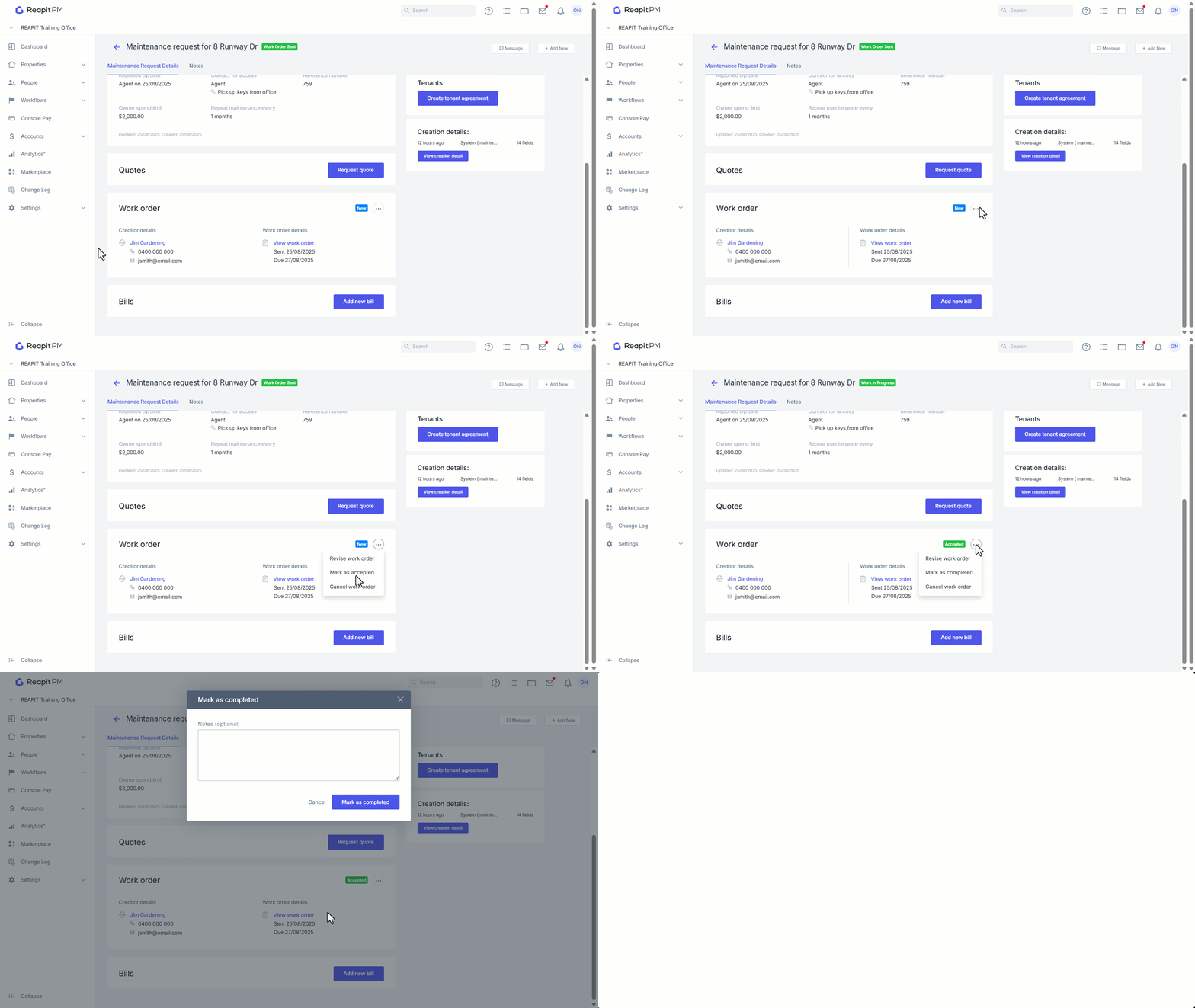
- Click the 3 dots to revise Work Order, Mark as Accepted or Cancel Work Order.
- Once the work has been completed by the creditor, click the 3 dots and select Mark as done.
- The Mark as done dialog box appears - complete as required then click Mark as completed.
How to Add a Bill and Close a Request
- Against the relevant maintenance, request Click Add new bill.
- Upload the relevant Bill via the Choose File option, or drag files into cloud. Update any relevant information and click Add Bill. For detailed information on adding Bills to cloud see our Bills article.
- Once the bill has been entered it will be visible against the maintenance request. Click on the three dots to pay, process or mark the bill as cancelled.
- Maintenance can be closed when a Bill has been processed, or in the maintenance request. To Close the Maintenance Request, click on the 3 dots and select Close Request.
- Add a reason or note if required. The request now displays in the Close tab of the maintenance lists.