'%20d='M0%208a8%208%200%200%201%208-8h24a8%208%200%200%201%208%208v24a8%208%200%200%201-8%208H8a8%208%200%200%201-8-8V8Z'/%3e%3cpath%20fill='%23fff'%20d='M8.375%2013v14L20.5%2034l12.124-7v-7.737l-1.687-.975-2.806-1.62-1.082-.624v4.83l-.002%204.83H13.95V16.07l3.275-1.89%202.192-1.265%201.082-.625%203.275%201.877%202.192%201.256%201.083.62V9.782L20.5%206%208.376%2013Z'/%3e%3cdefs%3e%3clinearGradient%20id='reapit-pm__a'%20x1='20.702'%20x2='20.702'%20y1='.351'%20y2='31.228'%20gradientUnits='userSpaceOnUse'%3e%3cstop%20stop-color='%235573FD'/%3e%3cstop%20offset='.575'%20stop-color='%234E56EA'/%3e%3c/linearGradient%3e%3c/defs%3e%3c/svg%3e)
Copy Comments and Photos from a Previous Inspection
This article will cover how to copy comments and photos from a previously completed inspection over to a new one for a property in Reapit PM.
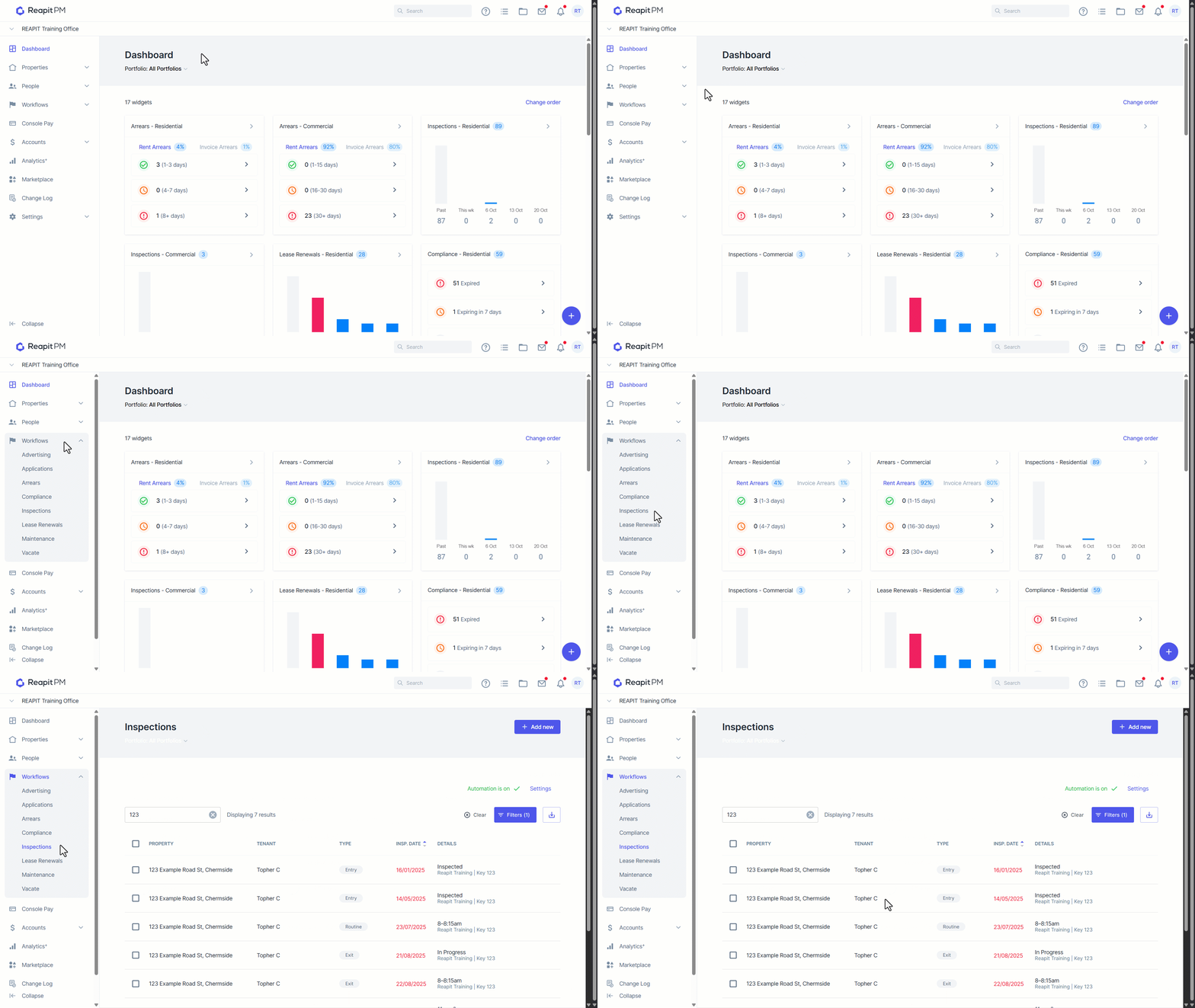
Click on Workflows
Click on Inspections.
Click on your upcoming scheduled inspection.
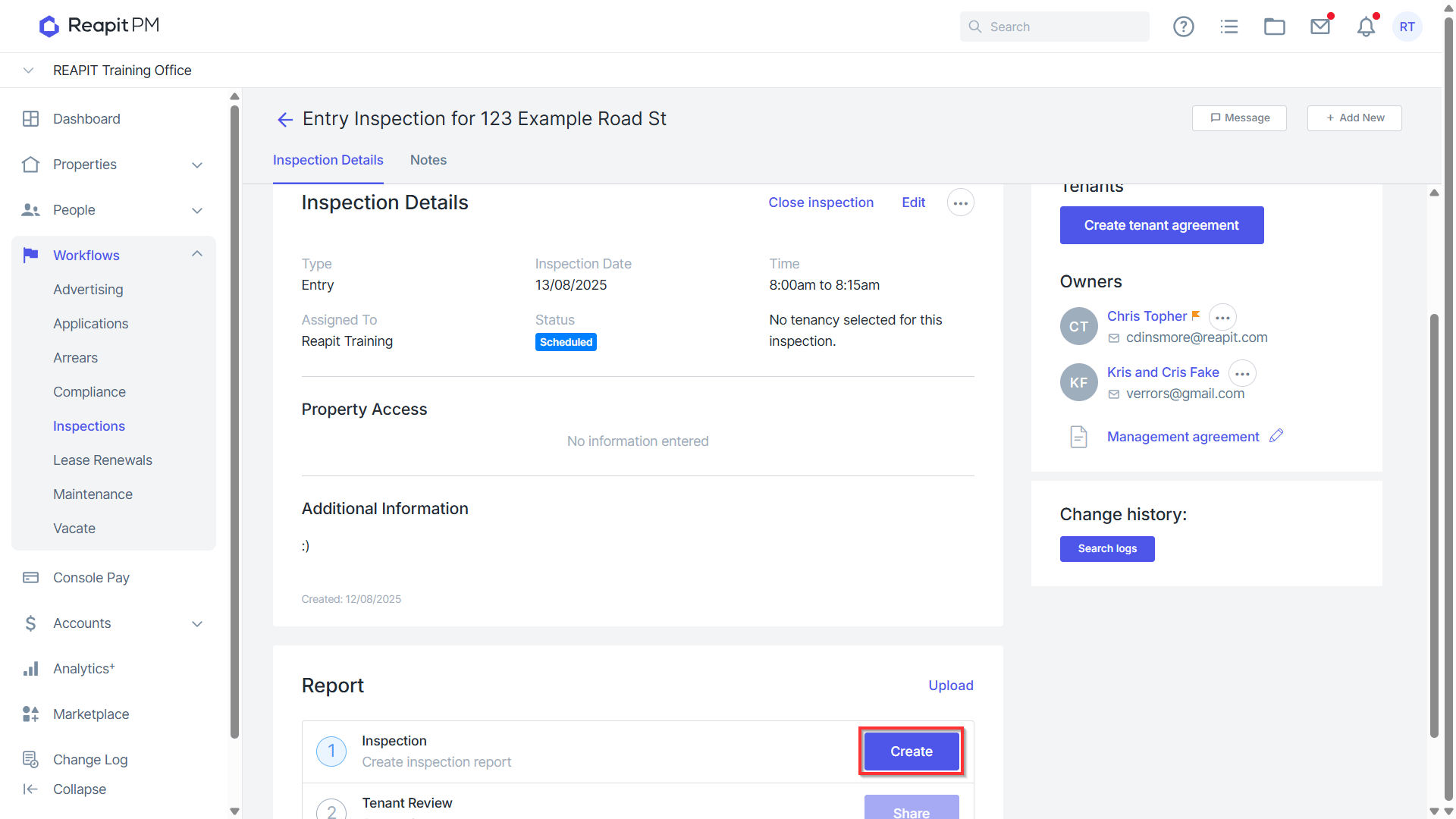
Click Create on theinspection report.
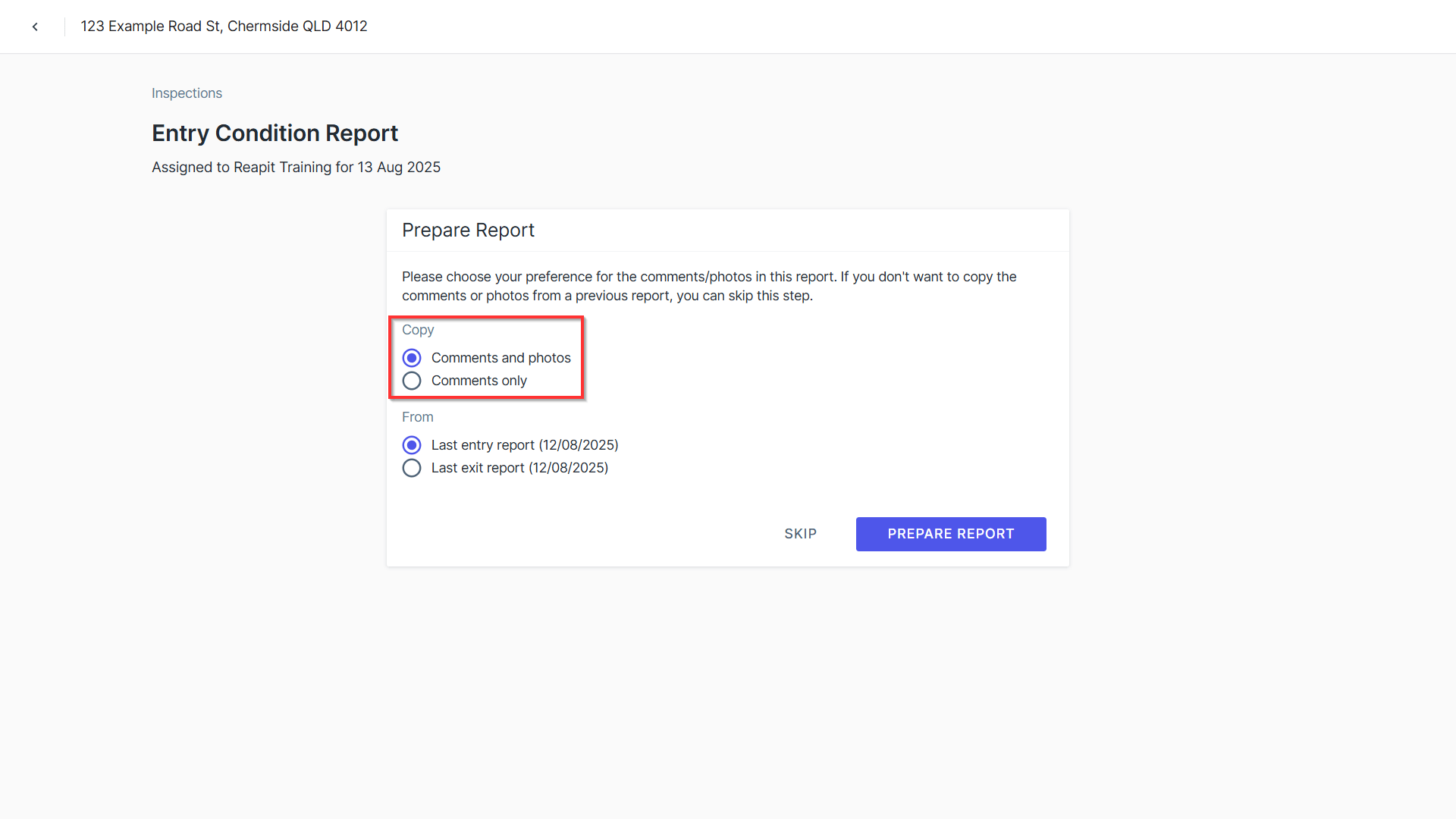
- The Prepare Report screen will appear. The Copy menu will allow you to copy comments and photos from a previously closed inspection report. You can choose to copy just the comments over to the new inspection report, or comments and photos.
Note: Copying inspection data to a new inspection will only work in these formats:
- You can copy a closed Entry inspection to a new Entry or Exit inspection
- You can only copy a closed Exit inspection to a new Entry inspection
- Closed Routine inspections can only be copied to new Routine inspections.
- The From menu will display previously closed inspection reports you can choose from. Click the previously closed inspection you wish to copy from.
- Click Prepare Report.
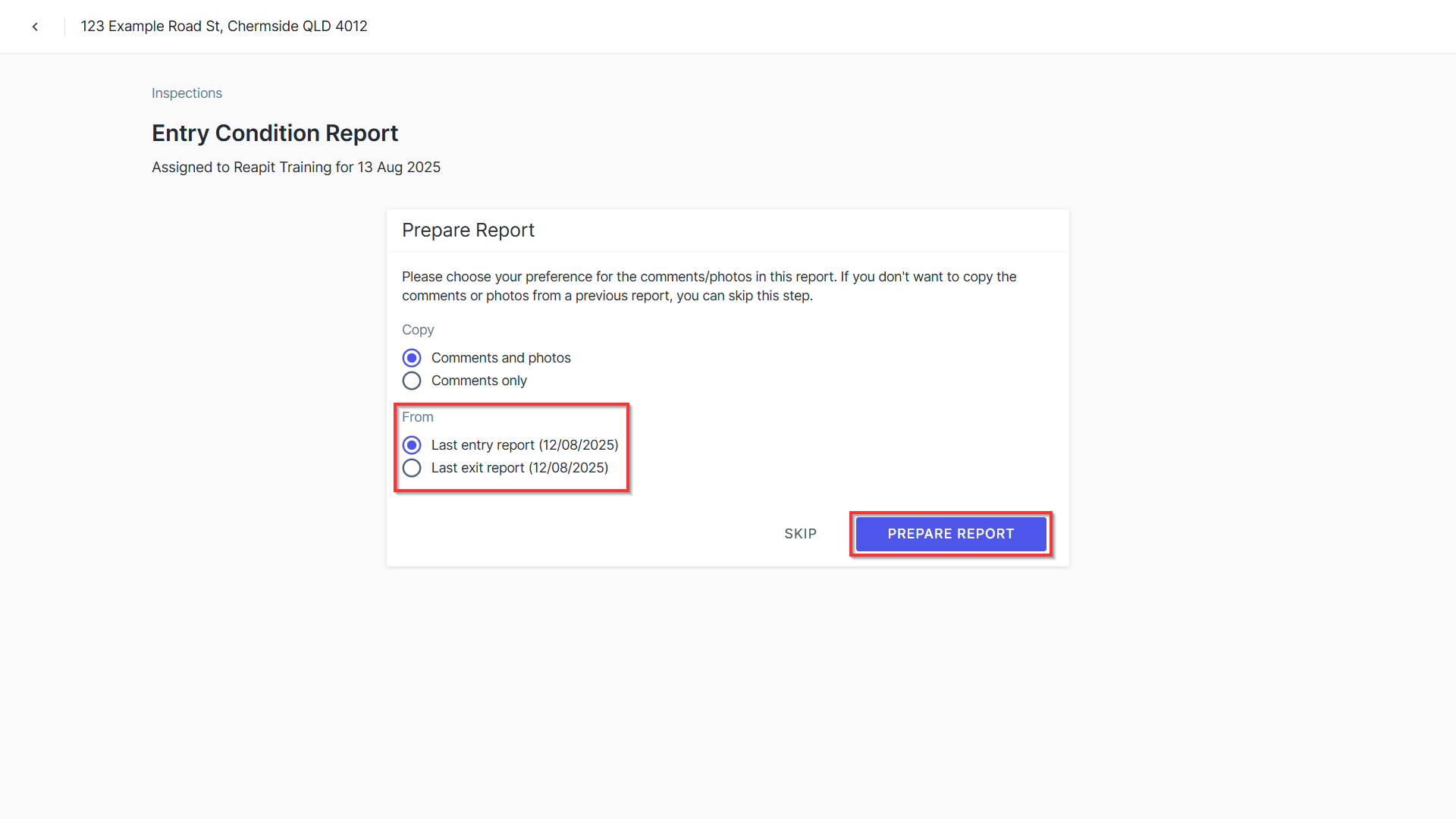
Note: It's important to note that you can only copy from previously closed inspections that are not from the same date. For example, if you have an inspection from the 1/1/2025 that has been completed but you have not yet closed it, closing it as of the 14/1/2025 and then creating a new inspection report for the 14/1/2025 to copy over from it will not work. You will need to create a new inspection 1 day later after the close date of the previous inspection for the copy option to appear. So in the example used here, the new inspection have to have an inspection date as of the 15/1/2025 or later.
- The duplicating report screen will appear. Depending on size of the inspection report we are copying from, this may take some time to complete.
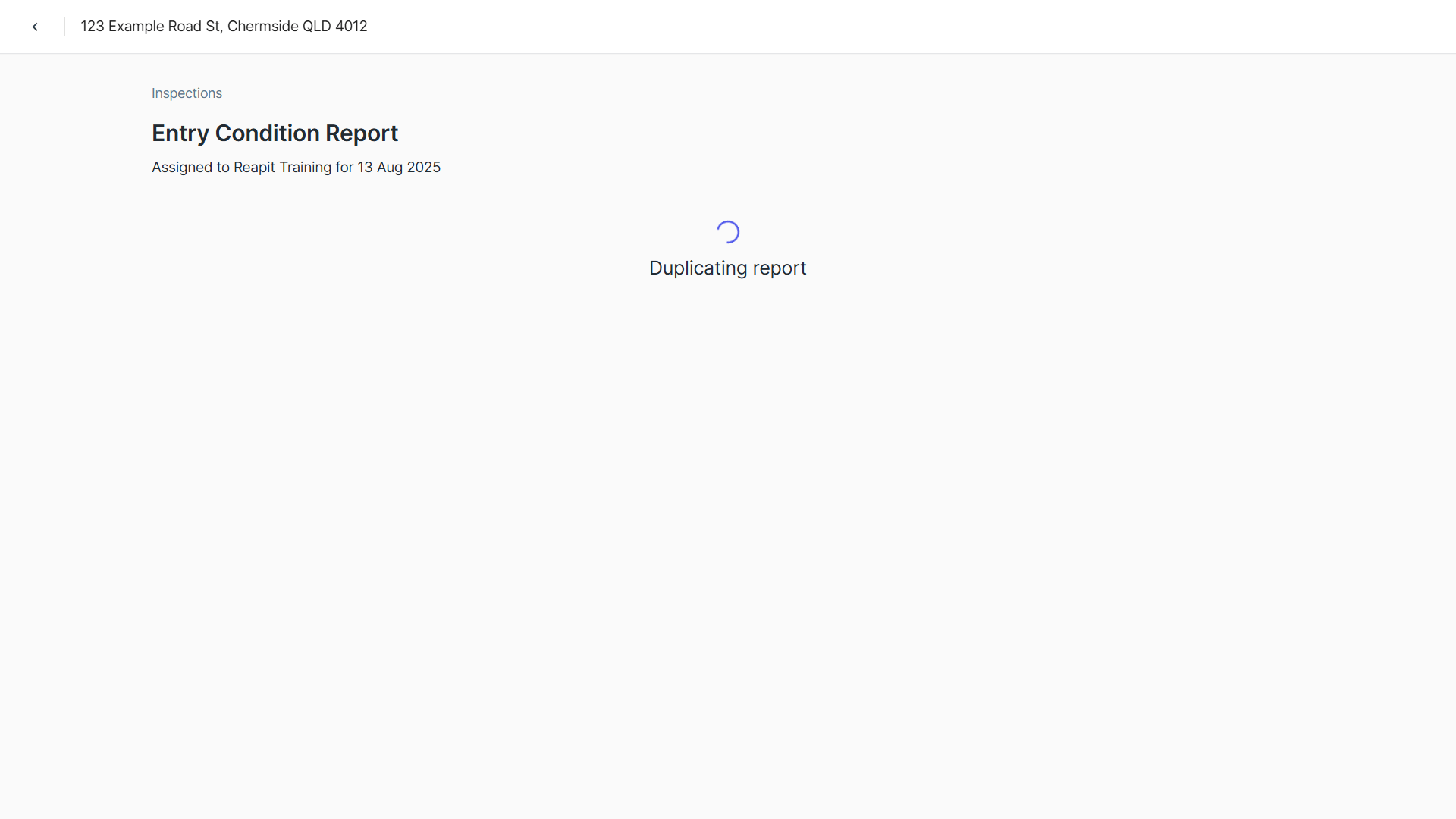
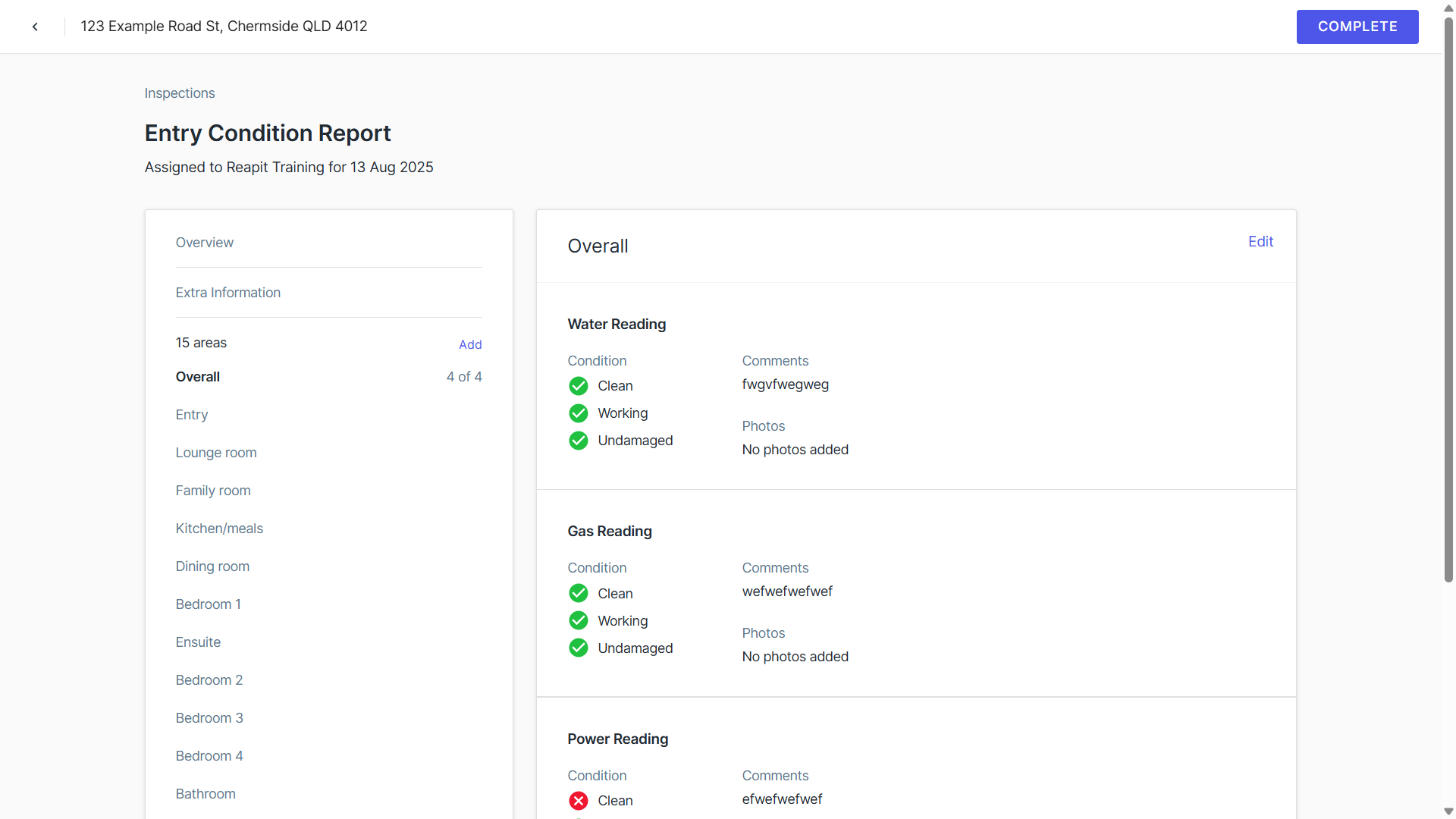
- Depending on your choices from the prepare report screen, your comments or comments & photos from the previously performed inspection will now appear on the new inspection. At this time, the inspection will have also updated from the Scheduled status to In Progress. You will be able to include any additional information in the inspection report if required.
- Click Complete to update the status to Inspected.