'%20d='M0%208a8%208%200%200%201%208-8h24a8%208%200%200%201%208%208v24a8%208%200%200%201-8%208H8a8%208%200%200%201-8-8V8Z'/%3e%3cpath%20fill='%23fff'%20d='M8.375%2013v14L20.5%2034l12.124-7v-7.737l-1.687-.975-2.806-1.62-1.082-.624v4.83l-.002%204.83H13.95V16.07l3.275-1.89%202.192-1.265%201.082-.625%203.275%201.877%202.192%201.256%201.083.62V9.782L20.5%206%208.376%2013Z'/%3e%3cdefs%3e%3clinearGradient%20id='reapit-pm__a'%20x1='20.702'%20x2='20.702'%20y1='.351'%20y2='31.228'%20gradientUnits='userSpaceOnUse'%3e%3cstop%20stop-color='%235573FD'/%3e%3cstop%20offset='.575'%20stop-color='%234E56EA'/%3e%3c/linearGradient%3e%3c/defs%3e%3c/svg%3e)
Tenant Paperless Inspection
Once the Property Manager has completed their inspection, you will receive an email with instructions on how to download the tenant app and how to view the inspection. The process in this article include: How to Complete your Inspection
Tenant Paperless Inspections
Once the Property Manager has completed their inspection, you will receive an email with instructions on how to download the tenant app and how to view the inspection.
Please note: You will need to open the link in the email using the device that has the tenant app installed.
It is also recommended that you always keep the app up to date.
The process in this article include:
- How to Complete your Inspection
How to Complete Your Inspection
Once you have logged into your tenant app, you will see any inspections ready for review at the top of the app.
Please Note: Take note of the due date as you will not be able to review your inspection after 11:59 pm on the date specified. If this date has passed, contact your property manager.
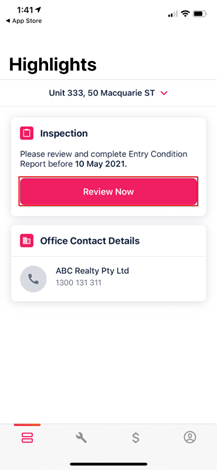
- To start reviewing your inspection, click Review Now.
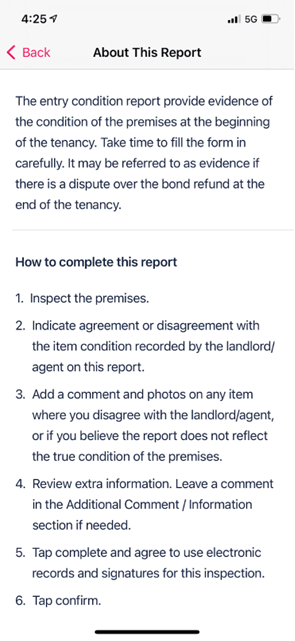
- Click About this Report. Read instructions before you start reviewing your inspection.
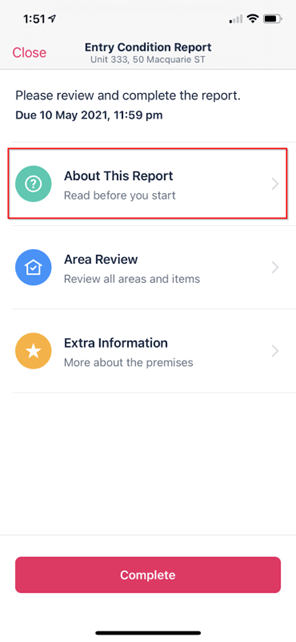
- Click Area Review to start reviewing your inspection.
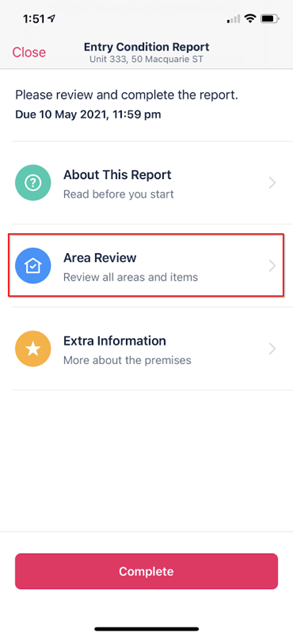
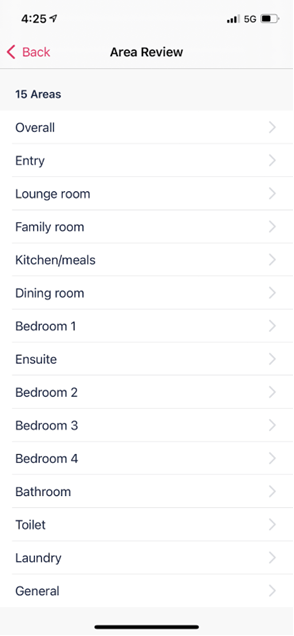
- Click on a specific area to start. You will see the condition from the agent and any comments. If you agree with the condition, select Yes, I agree. If not, select No, I disagree.
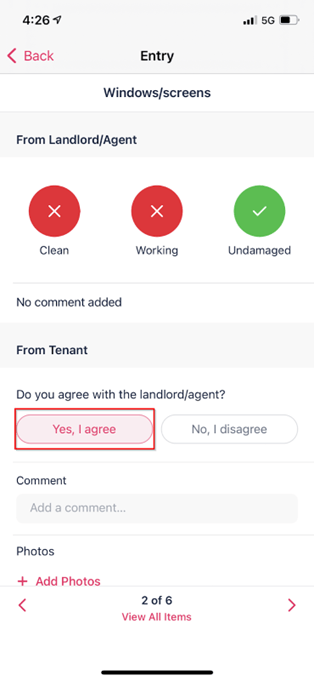
- If you select no, you will need to add photos and comments before continuing to the next page.
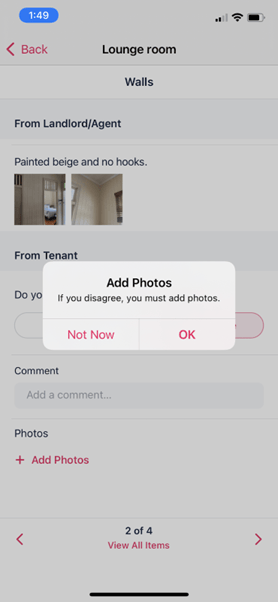
Once you have completed reviewing all areas, you will see a green tick next to each area.
Click Back to return to the main entry report screen.
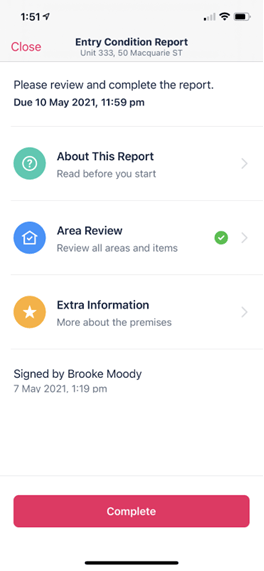
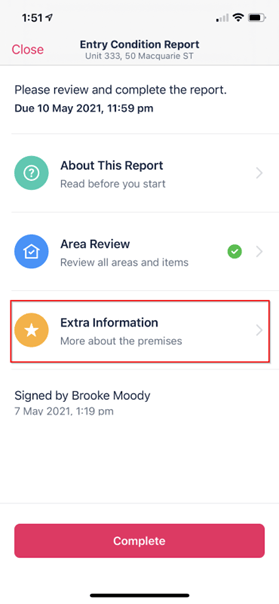
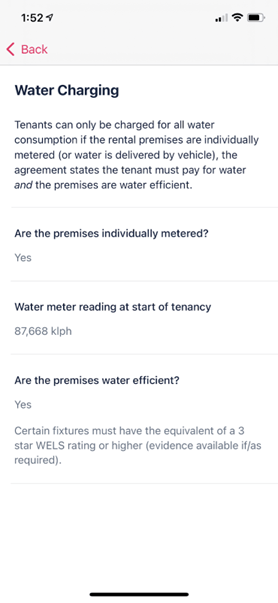
- To view extra information, click Extra Information.
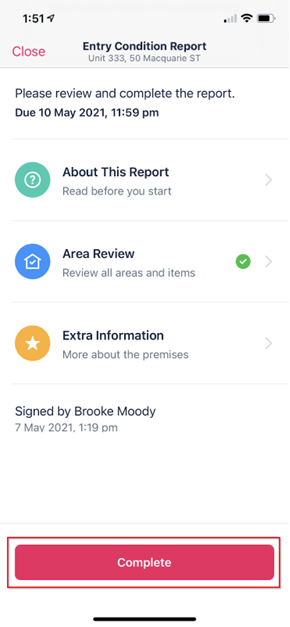
- To complete the inspection, tap Complete.
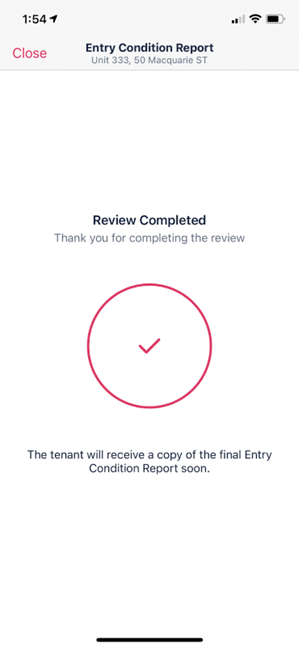
- Click Confirm to sign and complete.