'%20d='M0%208a8%208%200%200%201%208-8h24a8%208%200%200%201%208%208v24a8%208%200%200%201-8%208H8a8%208%200%200%201-8-8V8Z'/%3e%3cpath%20fill='%23fff'%20d='M8.375%2013v14L20.5%2034l12.124-7v-7.737l-1.687-.975-2.806-1.62-1.082-.624v4.83l-.002%204.83H13.95V16.07l3.275-1.89%202.192-1.265%201.082-.625%203.275%201.877%202.192%201.256%201.083.62V9.782L20.5%206%208.376%2013Z'/%3e%3cdefs%3e%3clinearGradient%20id='reapit-pm__a'%20x1='20.702'%20x2='20.702'%20y1='.351'%20y2='31.228'%20gradientUnits='userSpaceOnUse'%3e%3cstop%20stop-color='%235573FD'/%3e%3cstop%20offset='.575'%20stop-color='%234E56EA'/%3e%3c/linearGradient%3e%3c/defs%3e%3c/svg%3e)
Conversations – Unknown Participants
This article will cover the use of the unknown participants section in Conversations.
Overview
Conversations – Unknown Participants
This article will cover the use of the unknown participants section in Conversations.
Note: We recommend dedicating time to clean up your contact data by identifying and removing generic agency email addresses. To maintain accurate records, consider making these contacts inactive, ensuring they are not listed as active contacts within your office.
Maintaining clean data—such as ensuring each contact has a unique email address—is essential for emails to be assigned correctly and to prevent them from appearing in ‘Unknown Participants.'
For more contact management information, please see - https://help.console.com.au/s/article/Managing-Contacts
Note: Emails sent between users within the office will not appear in the Conversations tab, as they are assumed to be unrelated to properties or may contain highly sensitive information—provided that the users’ agency email addresses are not listed as Contacts.
The process in this article include:
- Managing Unknown Participants
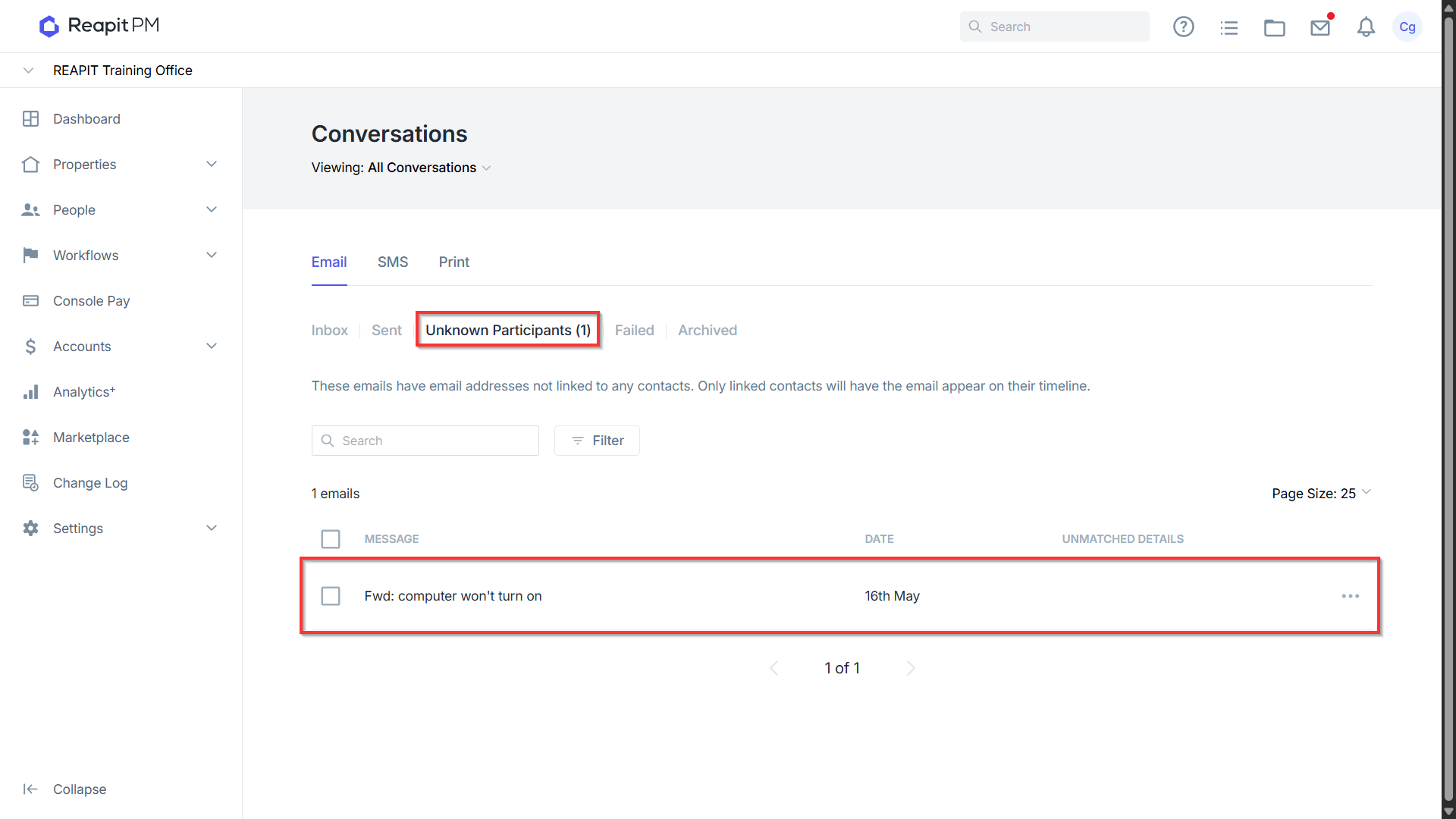
- To access the unknown participants list, navigate to Conversations.
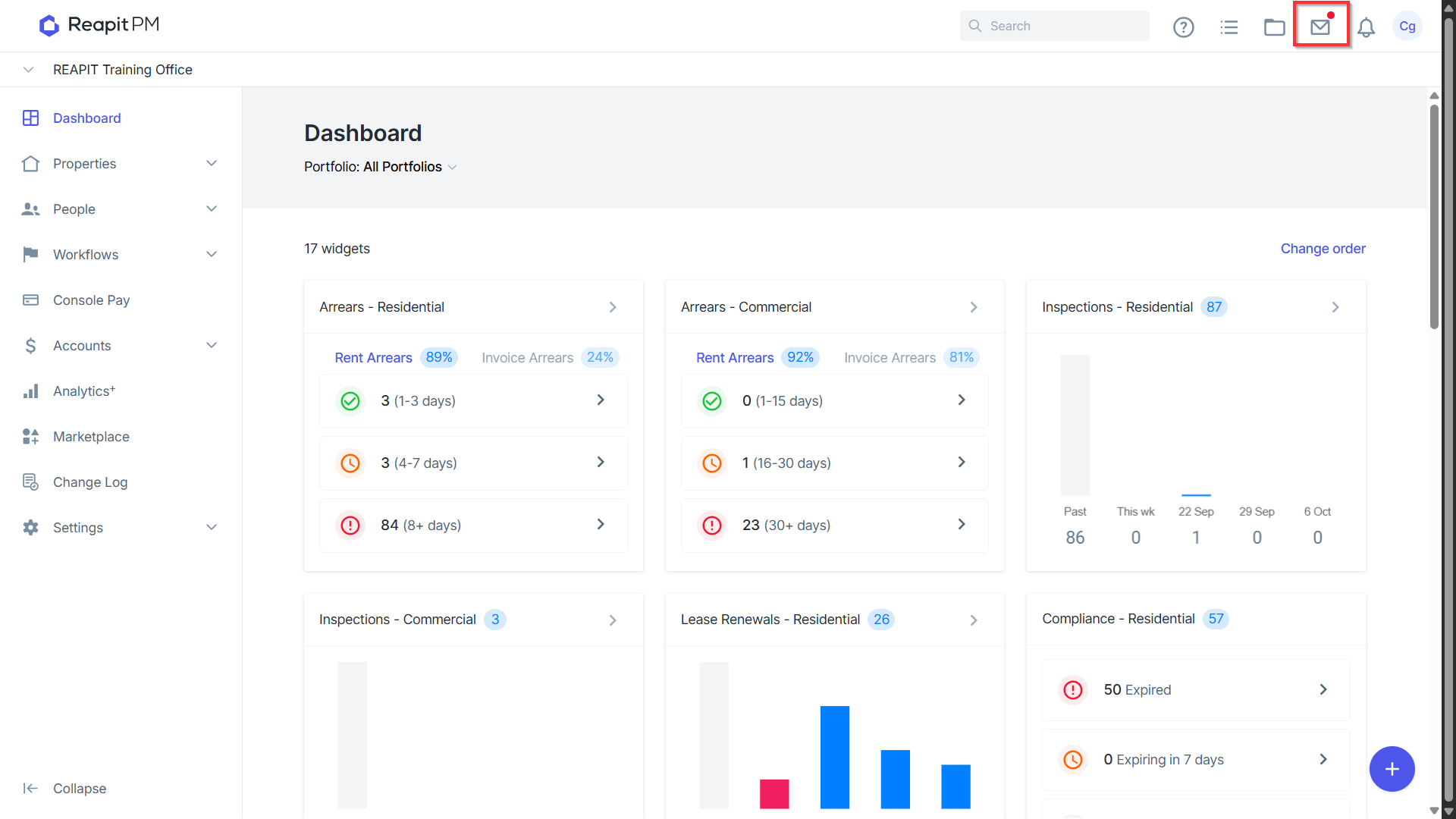
- Emails appearing as 'Unknown’ are caused by the email address being associated with multiple contacts in the system. To resolve this, navigate to Unknown Participants.
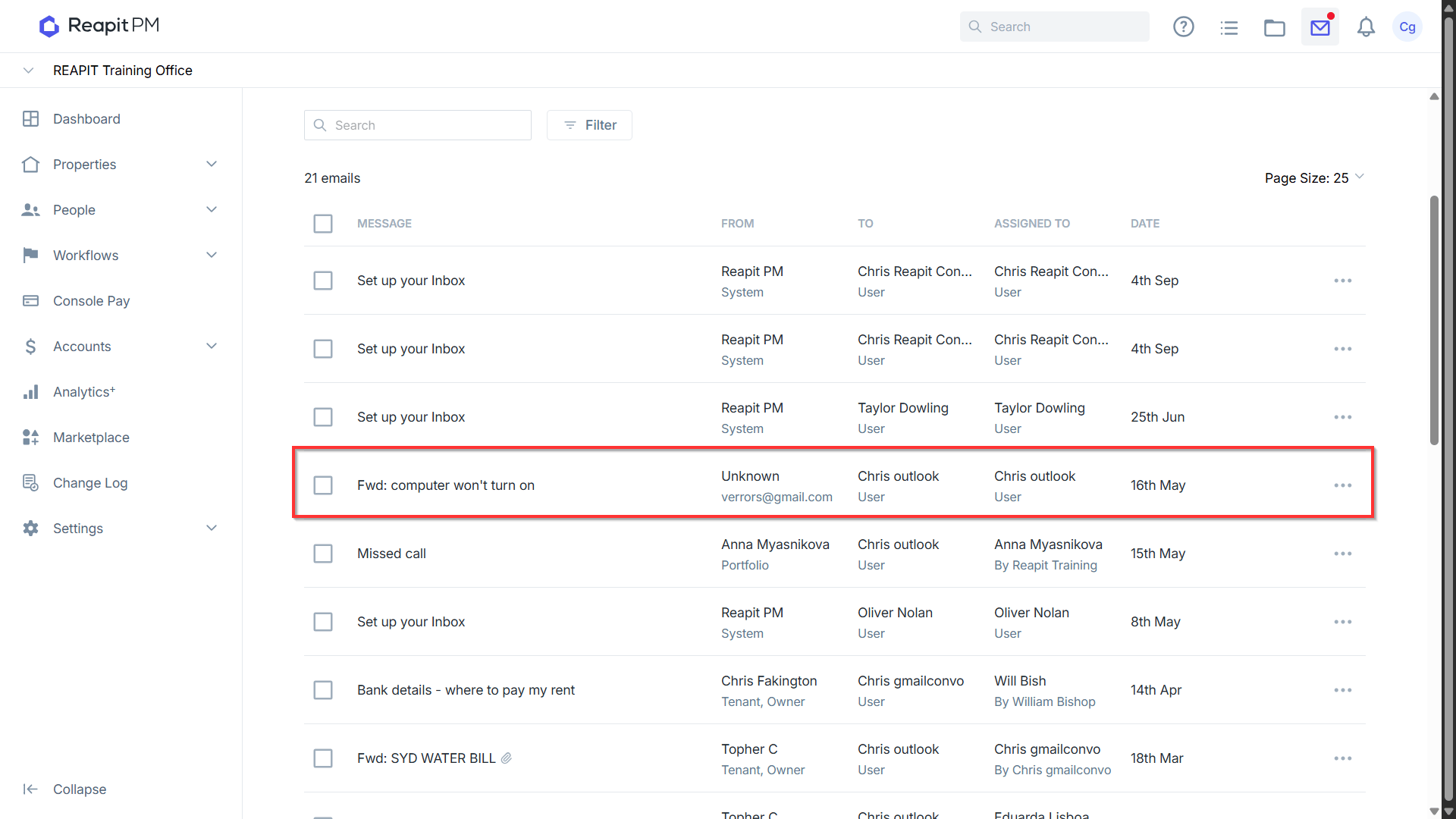
- The 'Unknown Participants' tab displays any emails that couldn't be directly linked to contacts. While in this tab, these emails will not appear in timelines for Contacts, Creditors, Owners, or Tenants.
Emails appear under 'Unknown Participants' for two primary reasons:
- Duplicate Contact: The email address is linked to more than one version of the contact in your database. To resolve this, open the email and select the correct contact to assign the conversation.
- Unknown Contact: The sender is not yet in your database. In this case, you can open the email and add the sender as a new contact if needed.
Click to view the email.
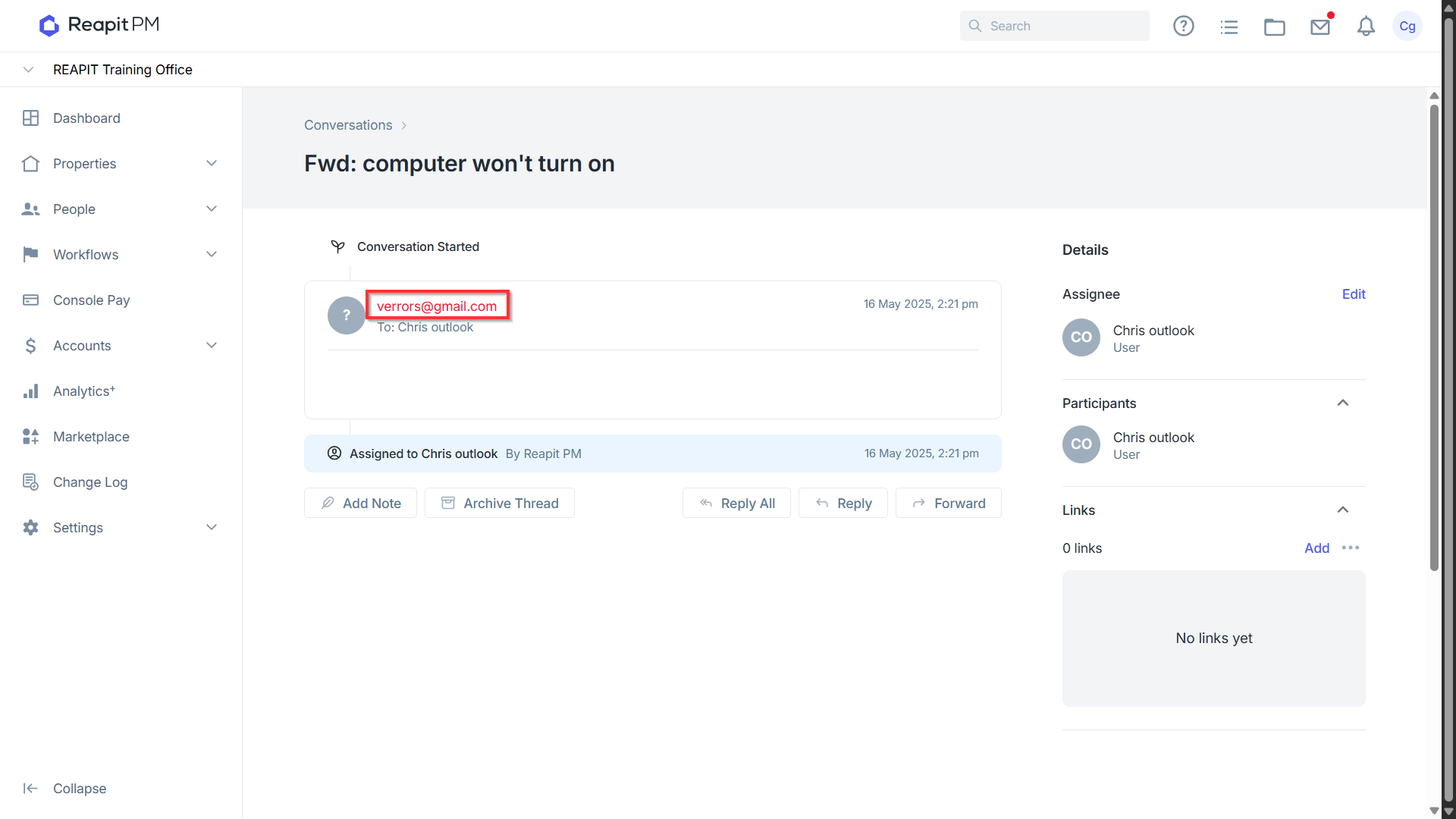
- The message will be displayed along with the email address in red to notify of the issue. Click on the email address.
- The Link to Contact drawer will appear displaying any contacts it can see with the same email address being used. This drawer can also be quite helpful to clean up contacts you may not need while assigning the correct card. Clicking View Details will take you into the contact card. Select the correct contact to assign to and press Save.
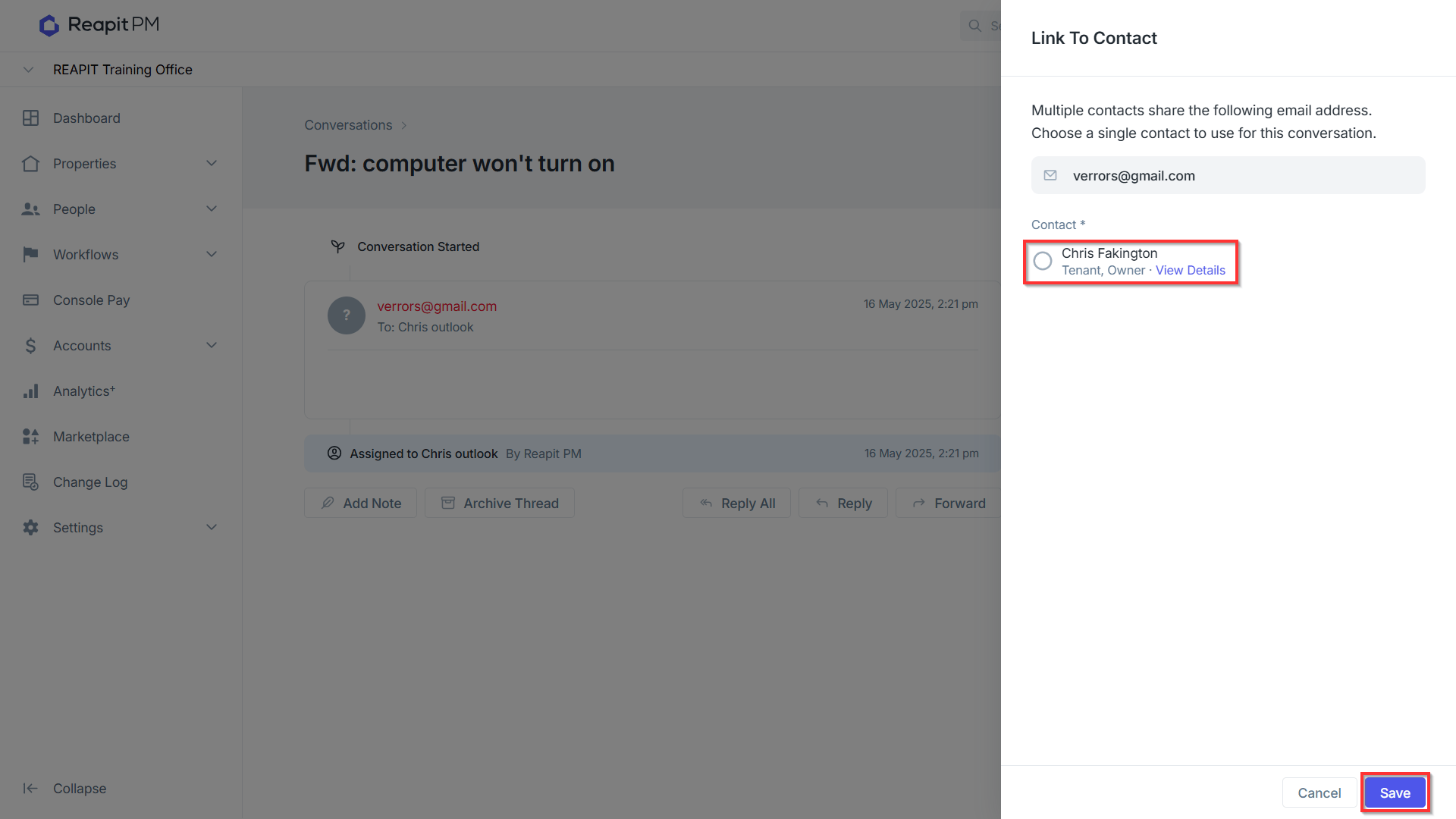
Note: If the email received does not exist in the system on any contacts, the option to create a new contact will be displayed.
Note: In most cases, the only scenario where multiple contacts for a single individual might be required is when Consolidated Statements are enabled for Owners, and an individual owner needs separate statements.
- The contact will now be linked and show on the conversation as a participant.