'%20d='M0%208a8%208%200%200%201%208-8h24a8%208%200%200%201%208%208v24a8%208%200%200%201-8%208H8a8%208%200%200%201-8-8V8Z'/%3e%3cpath%20fill='%23fff'%20d='M8.375%2013v14L20.5%2034l12.124-7v-7.737l-1.687-.975-2.806-1.62-1.082-.624v4.83l-.002%204.83H13.95V16.07l3.275-1.89%202.192-1.265%201.082-.625%203.275%201.877%202.192%201.256%201.083.62V9.782L20.5%206%208.376%2013Z'/%3e%3cdefs%3e%3clinearGradient%20id='reapit-pm__a'%20x1='20.702'%20x2='20.702'%20y1='.351'%20y2='31.228'%20gradientUnits='userSpaceOnUse'%3e%3cstop%20stop-color='%235573FD'/%3e%3cstop%20offset='.575'%20stop-color='%234E56EA'/%3e%3c/linearGradient%3e%3c/defs%3e%3c/svg%3e)
Notifying tenants by SMS after sending them an email
The article will cover the setup and use of the SMS notification after email communication is issued.
Overview
Notifying tenants by SMS after sending them an email
Advantages of SMS Notifications:
- High Engagement: SMS notifications boast a remarkable 98% open rate, ensuring optimal engagement.
- Efficient Response: The average response time for SMS is significantly lower than email, with SMS responses typically received within 4 hours.
- Minimised Disputes: SMS notifications help in reducing disputes arising from unread or misplaced emails, ensuring tenants are well-informed about inspections and other important matters. This demonstrates due diligence in maintaining effective communication with tenants.
- Reduced Arrears: The use of SMS notifications has been effective in decreasing arrears.
- Enhanced Tenant Relationships: The implementation of SMS communication fosters stronger and more positive relationships with tenants.
- Streamlined Communication: SMS notifications contribute to more streamlined and efficient communication processes, leading to increased tenant satisfaction.
SMS triggers are activated for the following:
- Inspection notice emails.
- Emails regarding arrears.
- Emails that are sent from the Communications Drawer, which can be accessed via the Message Tenant feature in the relevant property overview.
- When an automation feature of a workflow sends an email to a tenant, such as the Arrears Workflow or Lease Renewal Workflow.
SMS does not initiate messages for:
- Console Pay activation requests
- Onboarding request following a tenant application
- Email attaching inspection report
Office Admins can manage the settings for this feature. It can be disabled at any time. In addition, individual tenant notifications can be managed at contact level settings. For example, you can choose to send SMS notifications to:
- Individual or selected tenants only
- All tenants
The process in this article include:
- SMS Template Configuration
- Managing Notifications to Individual Tenants
- Enabling SMS Notifications for the Office
- Disabling SMS Notifications for the Office
Follow the below steps to set up SMS notification for email communications to tenants.
SMS Template Configuration
How to review and update the standard SMS notification template.
- Navigate to Settings > Templates and scroll down to find the template called Send SMS to contact to check email, and click to open it.
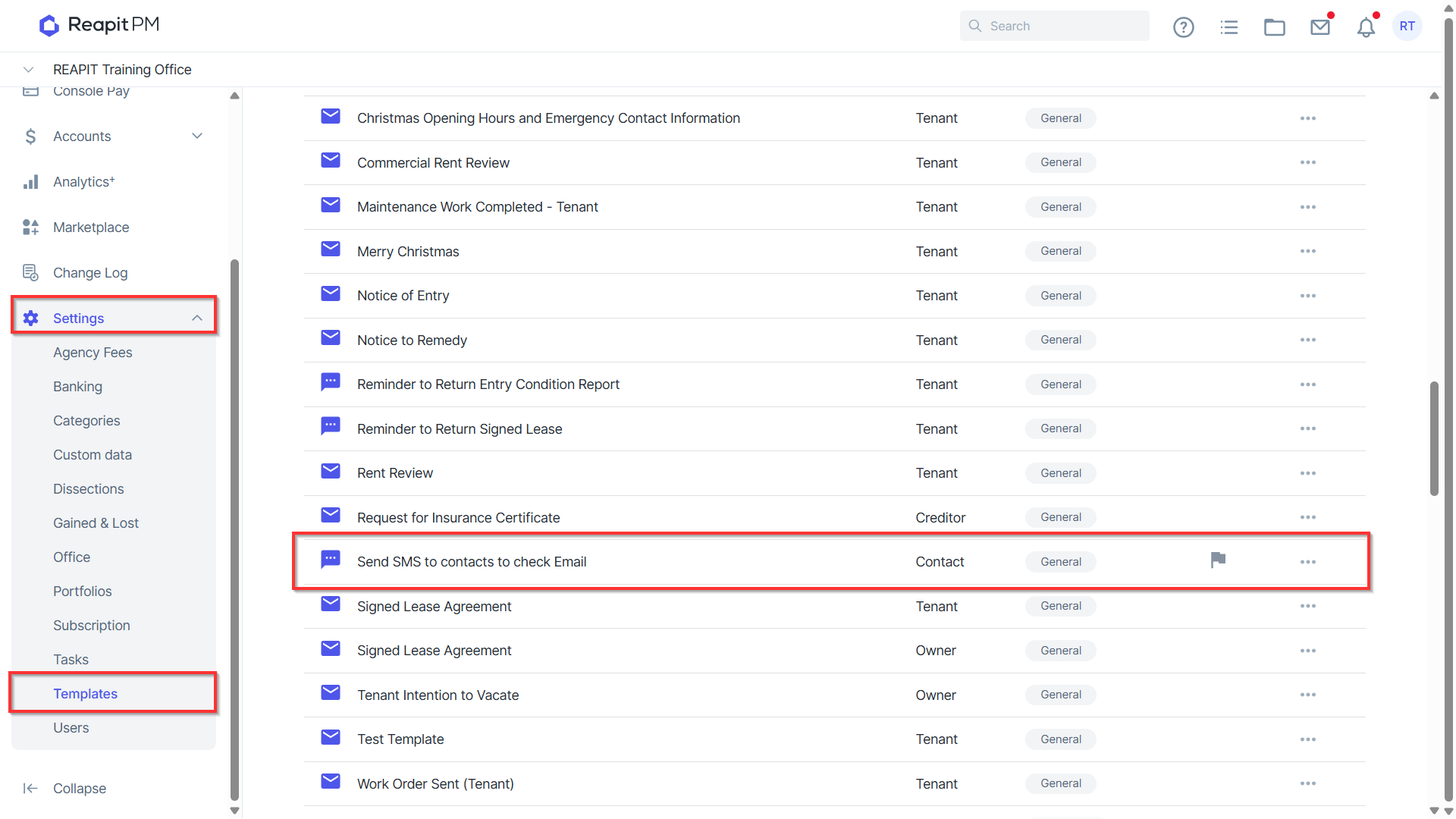
Note: You must have Office Administrator permissions to access the Settings.
- To modify the template, click on the 3 dots and click Edit.
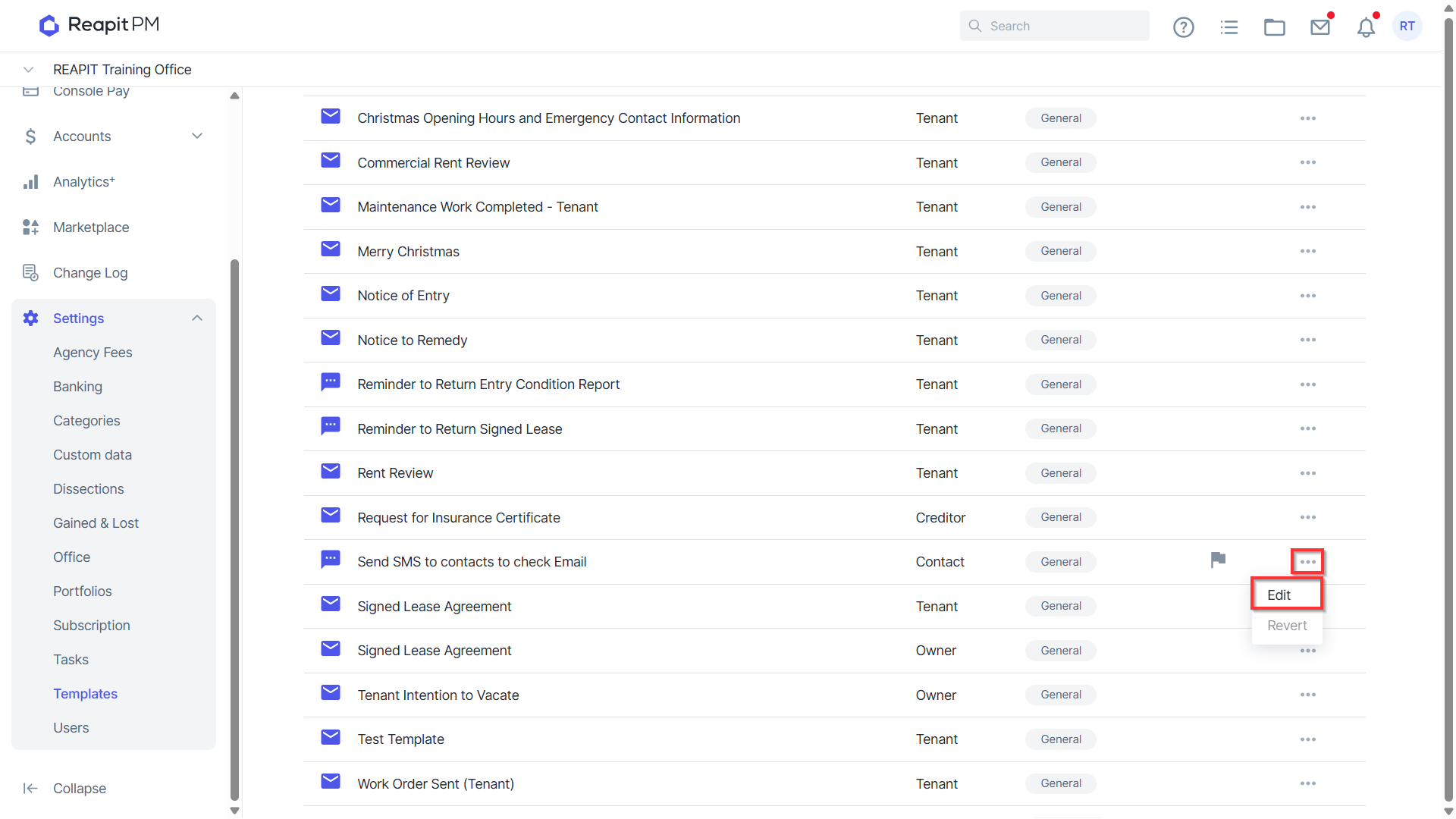
- Click Save when done.
The SMS template is ready for use.
Managing Notifications to Individual Tenants
To modify specific tenants to always or never receive SMS notifications follow the below steps prior to enabling the SMS notification at an office level.
- Go to the People > Tenants. Locate the relevant tenant and click to proceed.
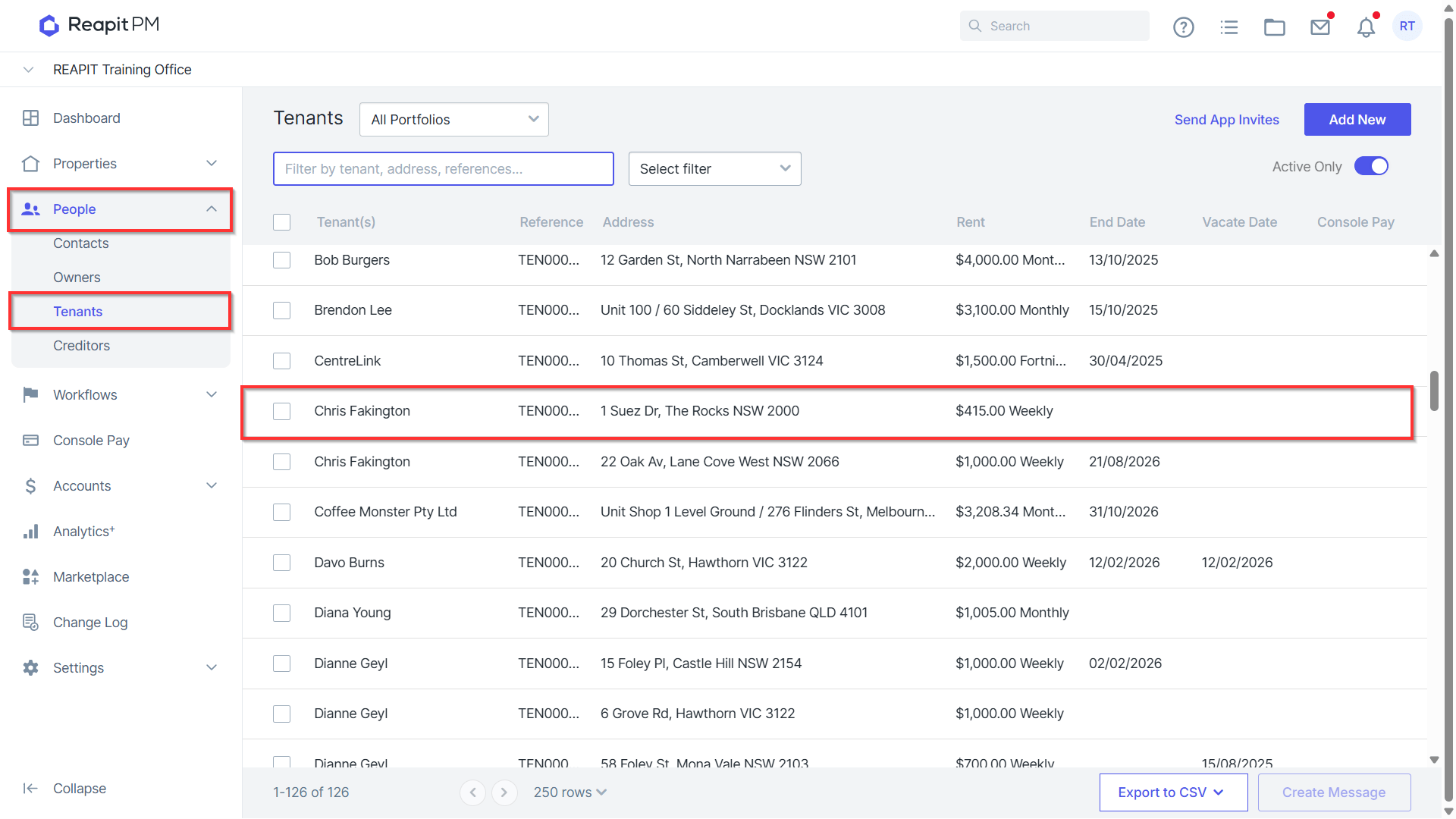
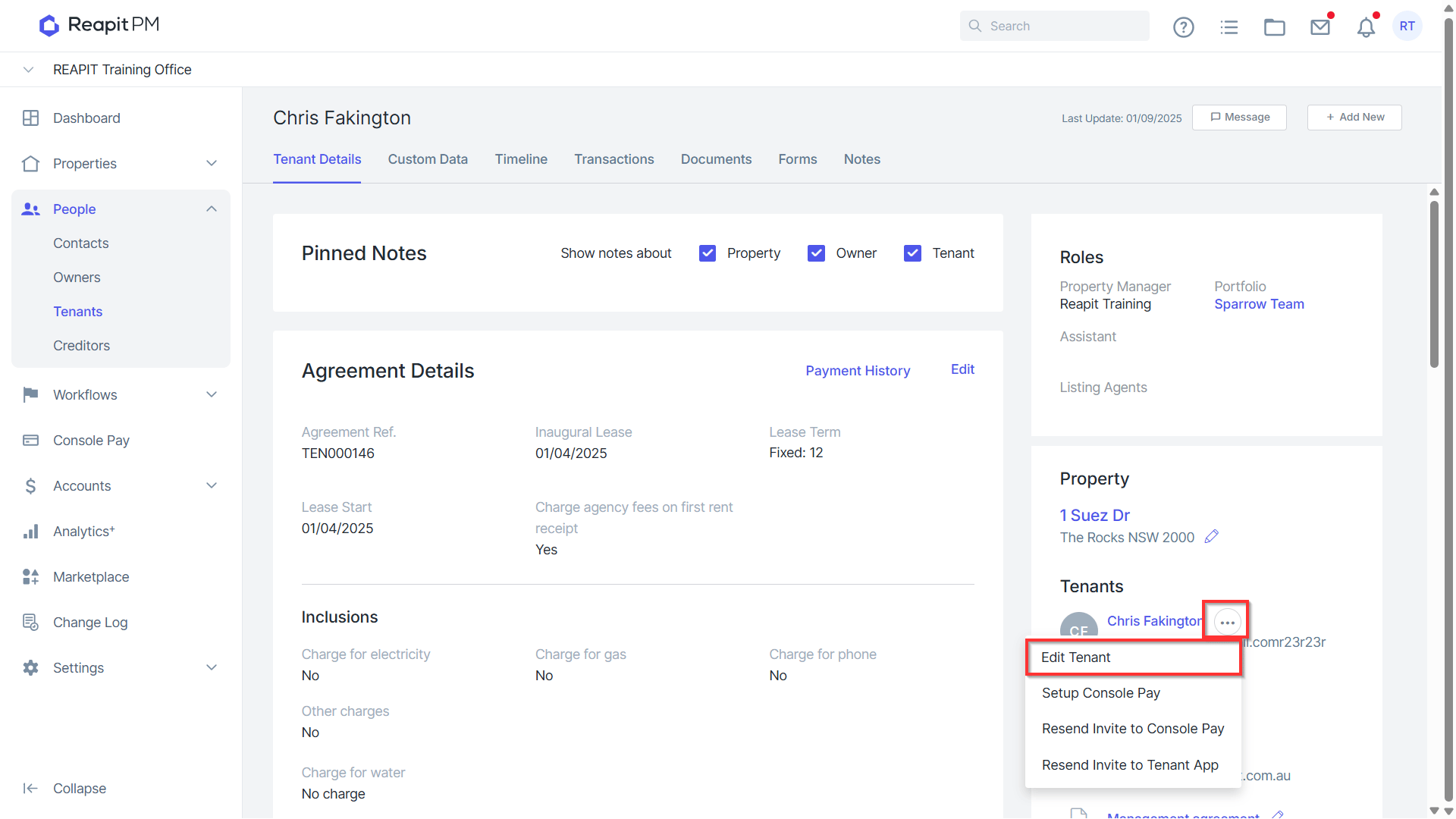
From the Tenancy, click the three dots next to the Tenant to edit.
In the Edit Contact screen navigate to SMS Notification.
Select the relevant option for this contact:
- Always follow office setting - this contact will default to the office configuration.
- Always send SMS notification - this contact will always receive SMS notifications for emails, regardless of office configuration.
- Never send SMS notification - this contact will never receive SMS notifications for emails
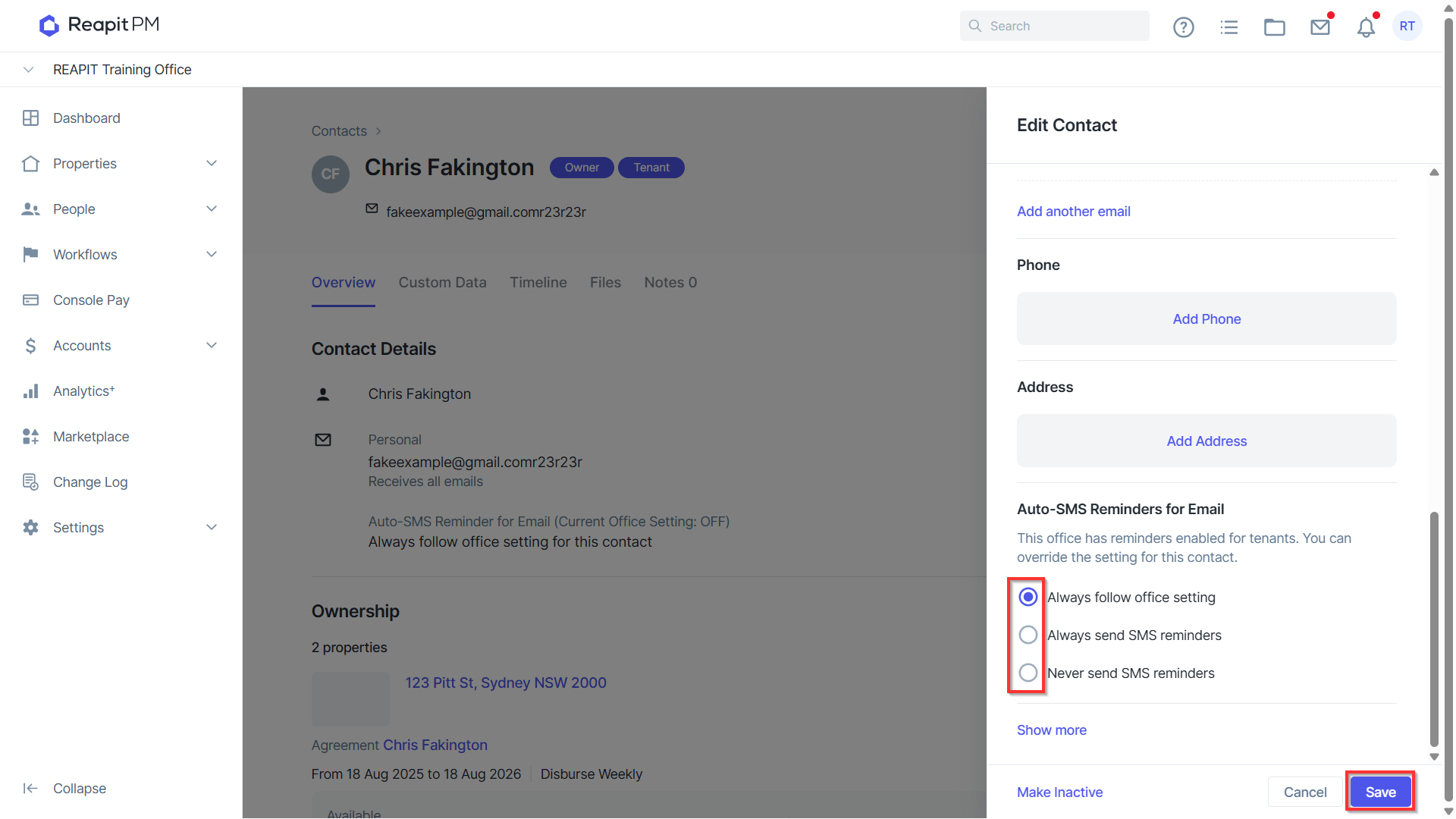
Repeat the process for other tenants you would like to set a preference for.
Enabling SMS Notifications for the Office
To enable SMS notifications for the office:
- Go to the Settings menu and click Office. 2. Scroll down and click Email & SMS to expand the section. 3. Under the section Auto SMS Reminders for Emails when an email is sent, click Notify tenants to turn on the option.
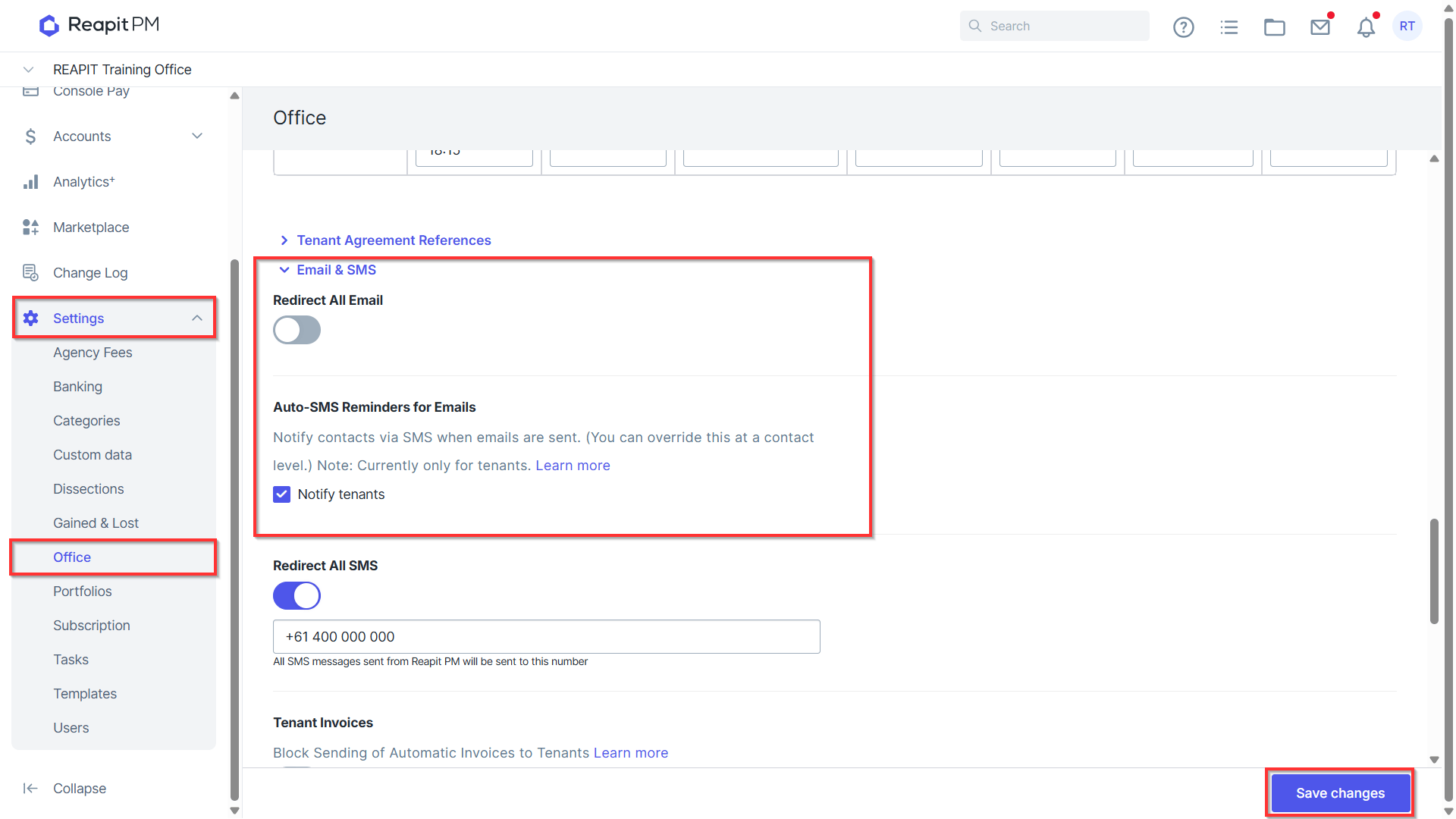
SMS notifications are now enabled. All tenants will be notified by SMS when an email is sent to them, except those with specific SMS notification settings.
Disabling SMS Notifications for the Office
- Go to the Settings and click Office 2. Scroll down and click Email & SMS to expand the section.
- Under the section Notify contacts via SMS when an email is sent, click Auto-SMS Reminders for Emails to turn off the option.
- Click Save changes.
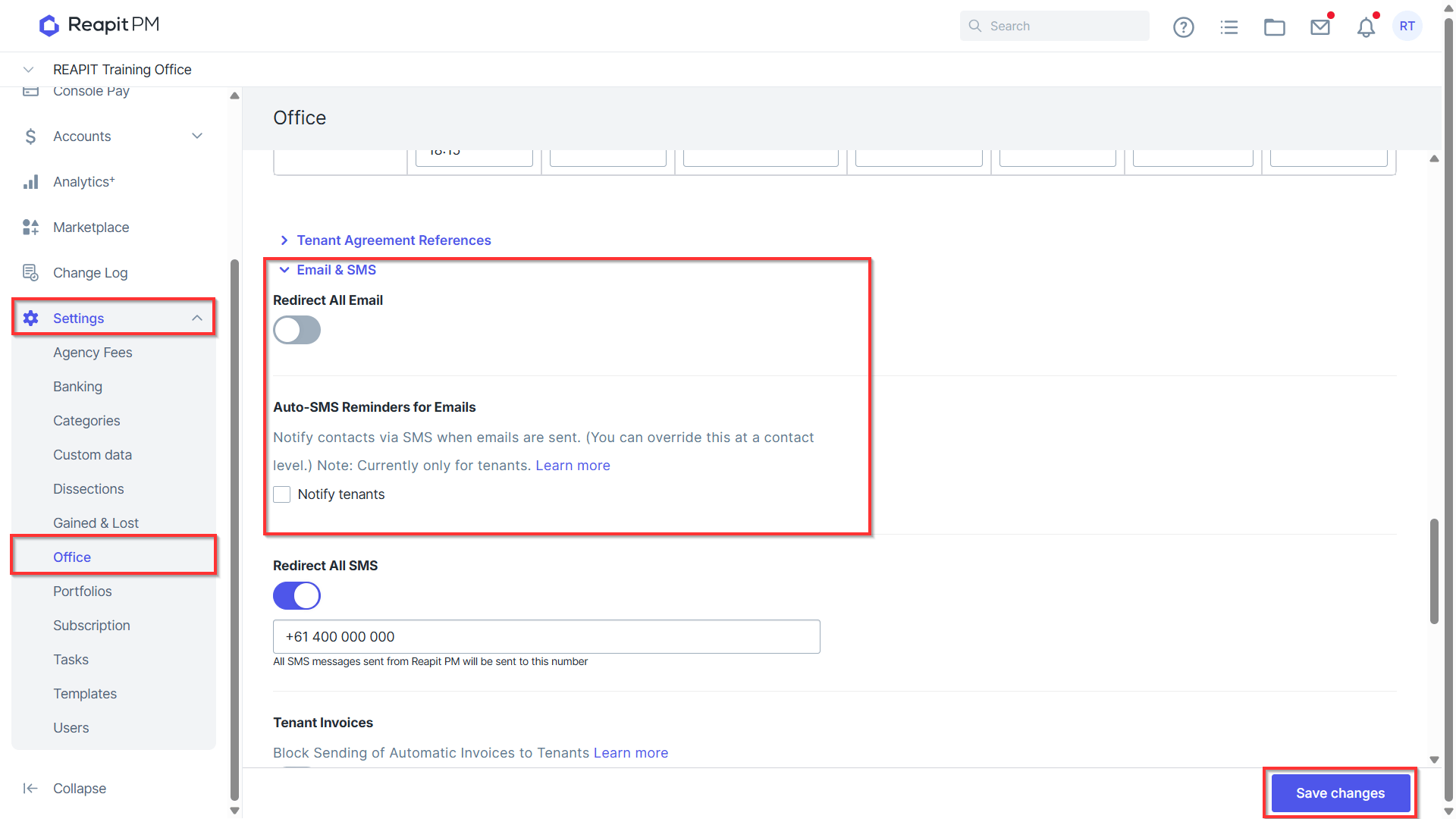
SMS notifications in general are now disabled. However, individual tenants who have the Always send SMS notification option selected will continue to receive SMS notifications for emails.