'%20d='M0%208a8%208%200%200%201%208-8h24a8%208%200%200%201%208%208v24a8%208%200%200%201-8%208H8a8%208%200%200%201-8-8V8Z'/%3e%3cpath%20fill='%23fff'%20d='M8.375%2013v14L20.5%2034l12.124-7v-7.737l-1.687-.975-2.806-1.62-1.082-.624v4.83l-.002%204.83H13.95V16.07l3.275-1.89%202.192-1.265%201.082-.625%203.275%201.877%202.192%201.256%201.083.62V9.782L20.5%206%208.376%2013Z'/%3e%3cdefs%3e%3clinearGradient%20id='reapit-pm__a'%20x1='20.702'%20x2='20.702'%20y1='.351'%20y2='31.228'%20gradientUnits='userSpaceOnUse'%3e%3cstop%20stop-color='%235573FD'/%3e%3cstop%20offset='.575'%20stop-color='%234E56EA'/%3e%3c/linearGradient%3e%3c/defs%3e%3c/svg%3e)
Move Me In Integration
This article will outlines the integration setup and processes between Reapit PM and Move Me In. The processing in this article include: Activating the Move Me In Integration How New Leads are Sent Viewing Sent Leads Receiving Leads in Move Me In
Overview
Move Me In Integration
This article will outlines the integration setup and processes between Reapit PM and Move Me In.
The processing in this article include:
- Activating the Move Me In Integration
- How New Leads are Sent
- Viewing Sent Leads
- Receiving Leads in Move Me In
Activating the Move Me In Integration
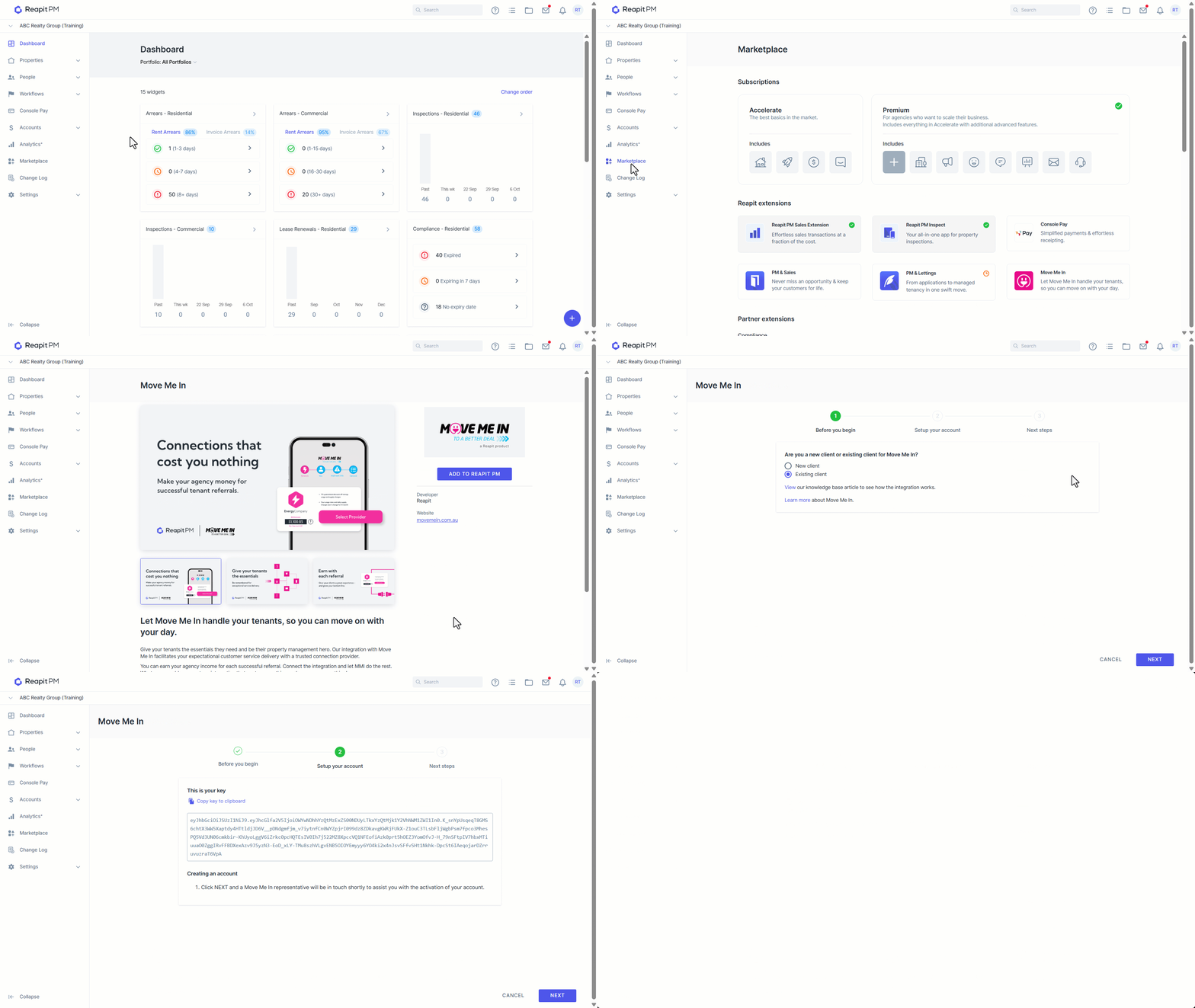
- Click on Marketplace.
- Navigate to the Reapit Extensions and select Move Me In.
- Click Add to Reapit PM.
- Select if you are a New or Existing Client.
- Click Next.
- If you are a New Client, The API key shows (and can be copied once you have a MMI account). Clicking Next will trigger an email to: support@movemein.com.au
- If you are an Existing Client, the API key shows and can be copied from PM and put into Move Me In.
How New Leads are Sent
Once the integration is active, users will see an option on new tenant agreements to “Allow leads to be submitted for this tenant to Move Me In”.
By default, neither “Allowed” and “Not Allowed” will be selected, and you will not be able to save until you have indicated your preference.
Viewing Sent Leads Leads that have been sent can be viewed by logging into the agencies Move Me In account.
The Property Manager may also be receiving commissions and can see this in their business portal.
Receiving Leads in Move Me In
On receipt of the lead in Move Me In any duplicates will be managed based on existing functionality, no further requirement here to manage duplicates.