'%20d='M0%208a8%208%200%200%201%208-8h24a8%208%200%200%201%208%208v24a8%208%200%200%201-8%208H8a8%208%200%200%201-8-8V8Z'/%3e%3cpath%20fill='%23fff'%20d='M8.375%2013v14L20.5%2034l12.124-7v-7.737l-1.687-.975-2.806-1.62-1.082-.624v4.83l-.002%204.83H13.95V16.07l3.275-1.89%202.192-1.265%201.082-.625%203.275%201.877%202.192%201.256%201.083.62V9.782L20.5%206%208.376%2013Z'/%3e%3cdefs%3e%3clinearGradient%20id='reapit-pm__a'%20x1='20.702'%20x2='20.702'%20y1='.351'%20y2='31.228'%20gradientUnits='userSpaceOnUse'%3e%3cstop%20stop-color='%235573FD'/%3e%3cstop%20offset='.575'%20stop-color='%234E56EA'/%3e%3c/linearGradient%3e%3c/defs%3e%3c/svg%3e)
Clearing Cookies and Caches in Google Chrome
This article will cover how to clear cookies and cache data in Google Chrome. The processes in this article include: How to Clear Cookies and Caches in Google Chrome How to Clear for Reapit PM Only What Happens After you Clear this Information How Cookies & Caches Work
This article will cover how to clear cookies and cache data in Google Chrome.
The processes in this article include:
- How to Clear Cookies and Caches in Google Chrome
- How to Clear for Reapit PM Only
- What Happens After you Clear this Information
- How Cookies & Caches Work
How to Clear Cookies and Caches in Google Chrome
- From your Google Chrome browser, click the three dots.
- Click Deletebrowsing data.
- Select a time range from the drop down.
- To delete everything, select All time.
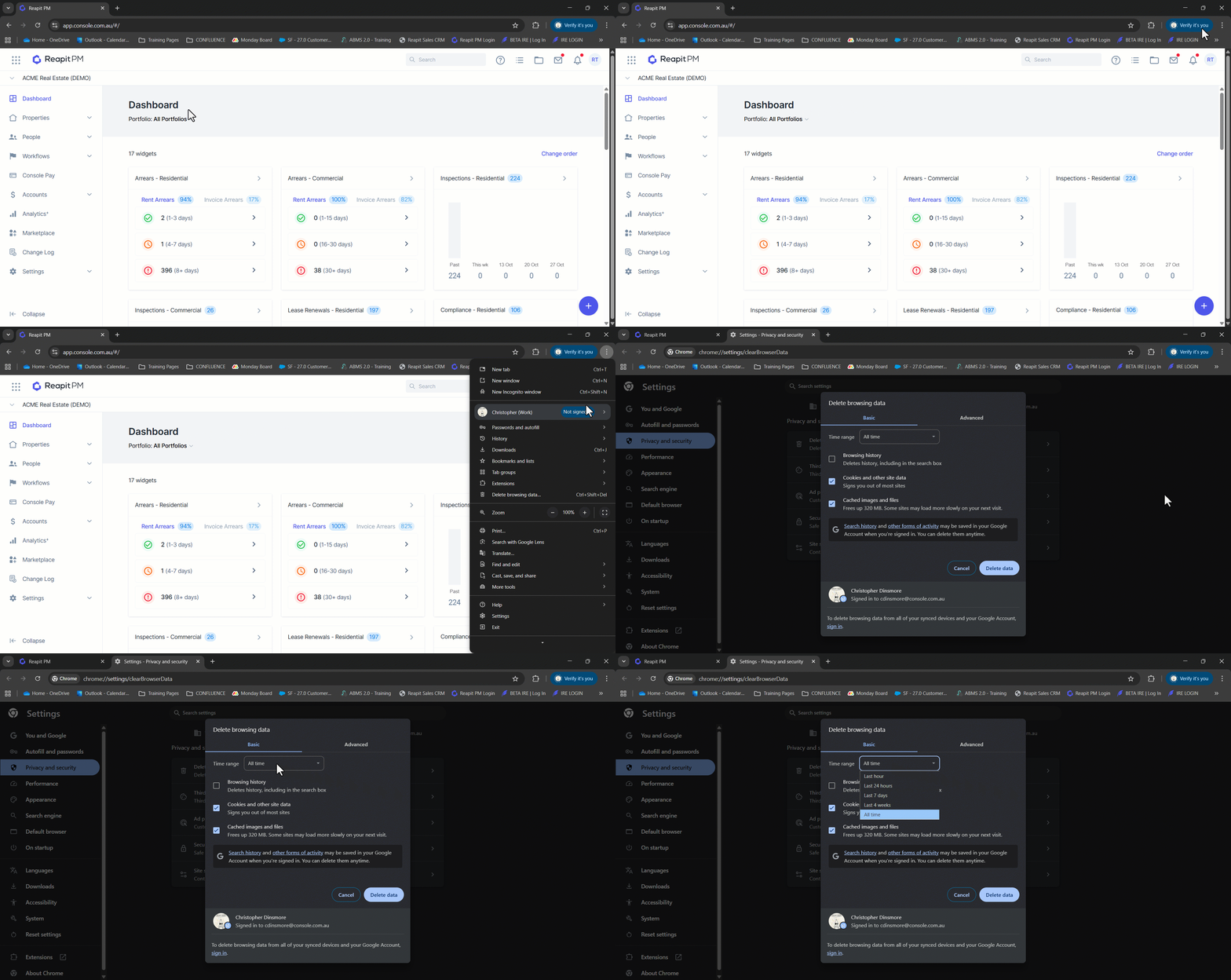
- Tick the boxes for Cookies and other site data, and Cached images and files.
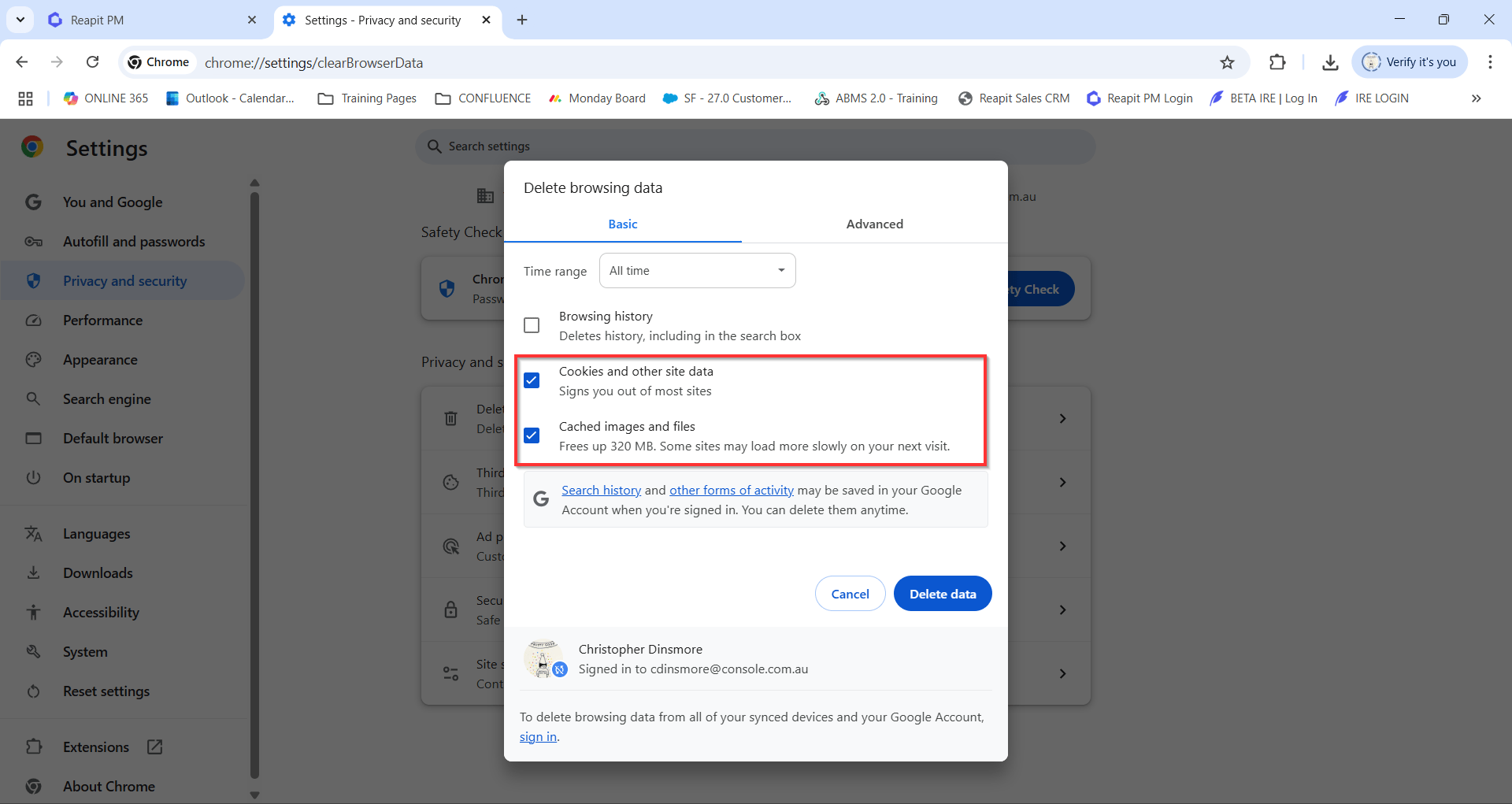
5. Click Delete data.
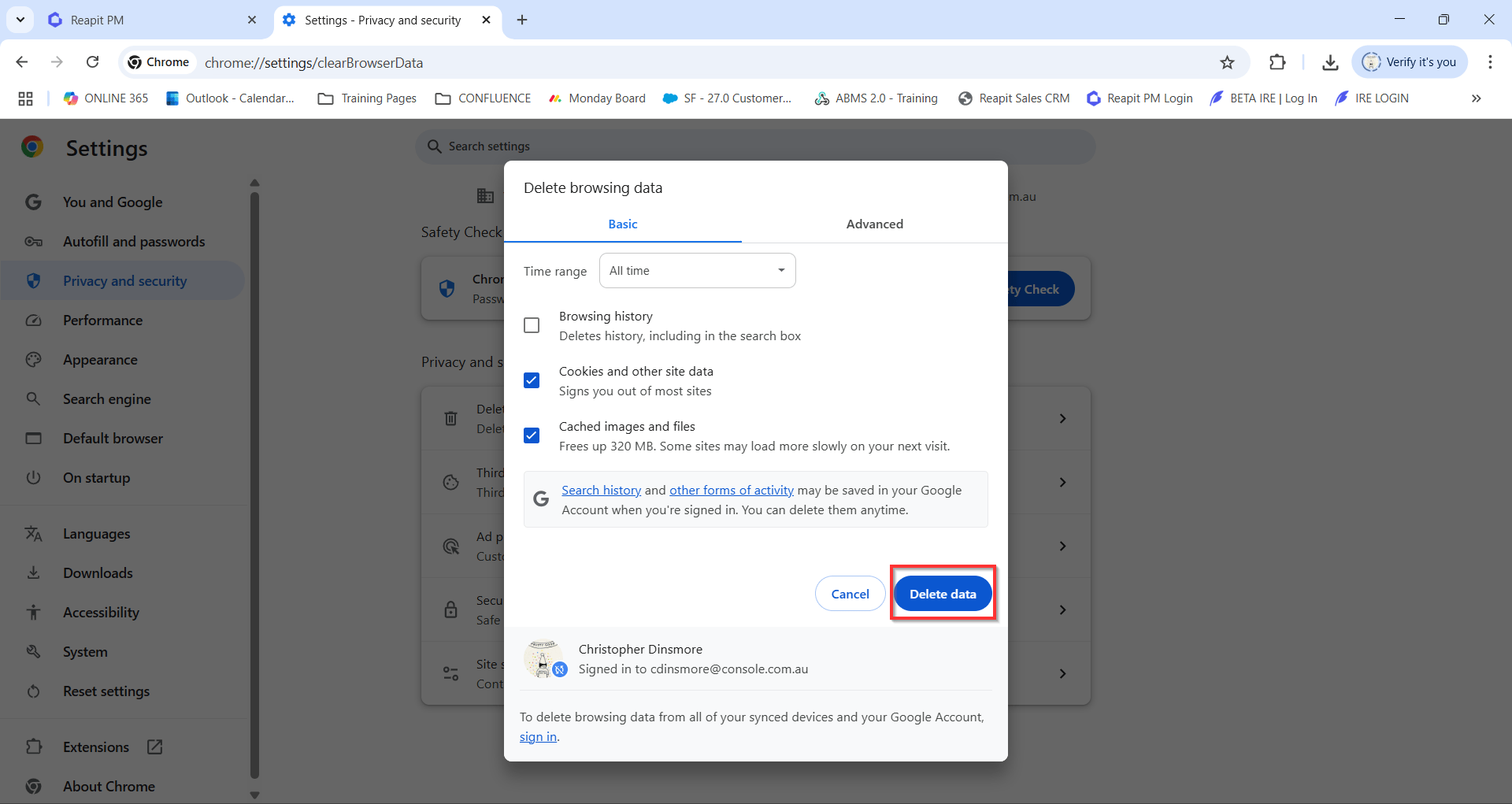
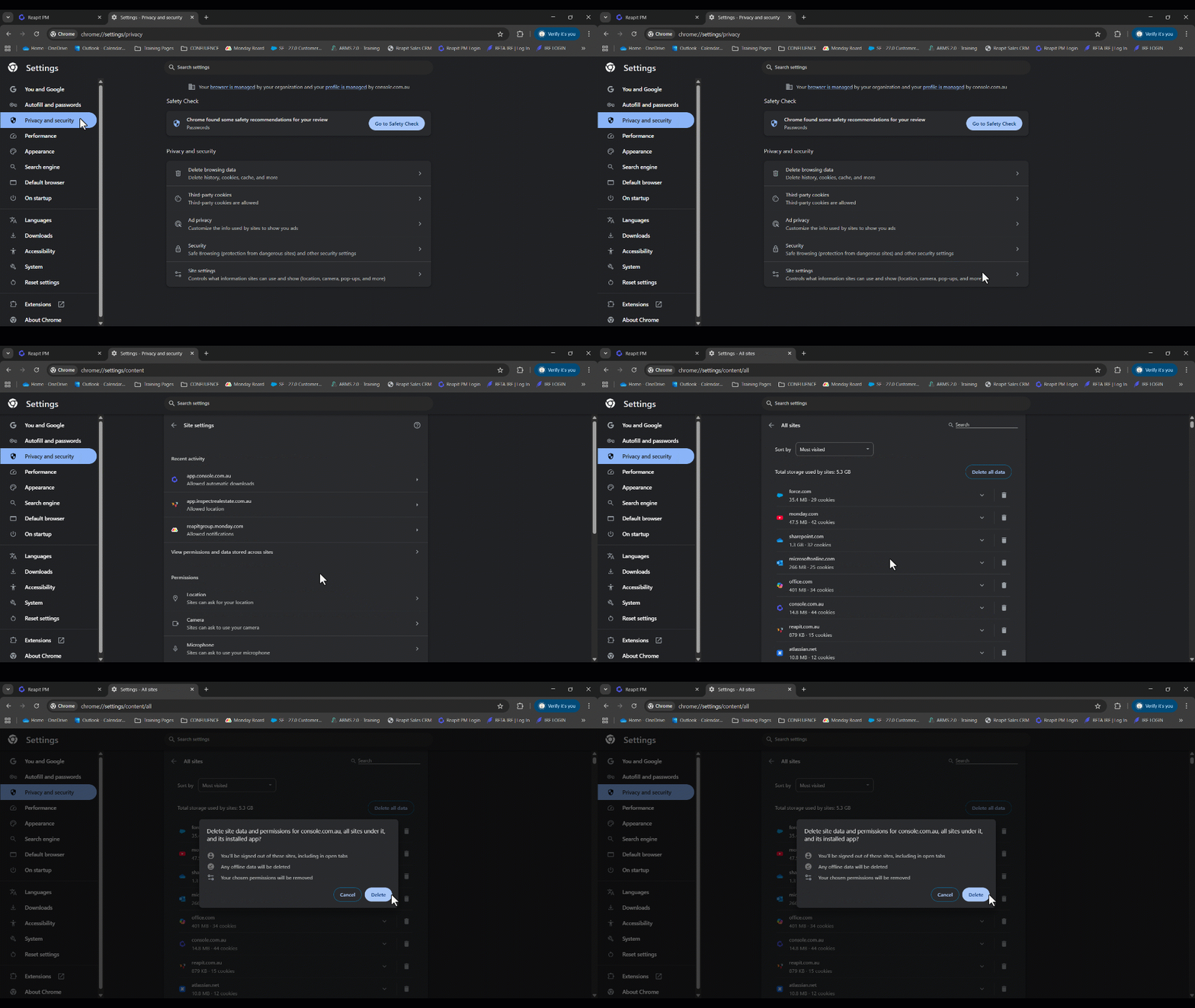
How to Clear Cache for Reapit PM Only
- From your Google Chrome browser, click the three dots.
- Navigate to Settings.
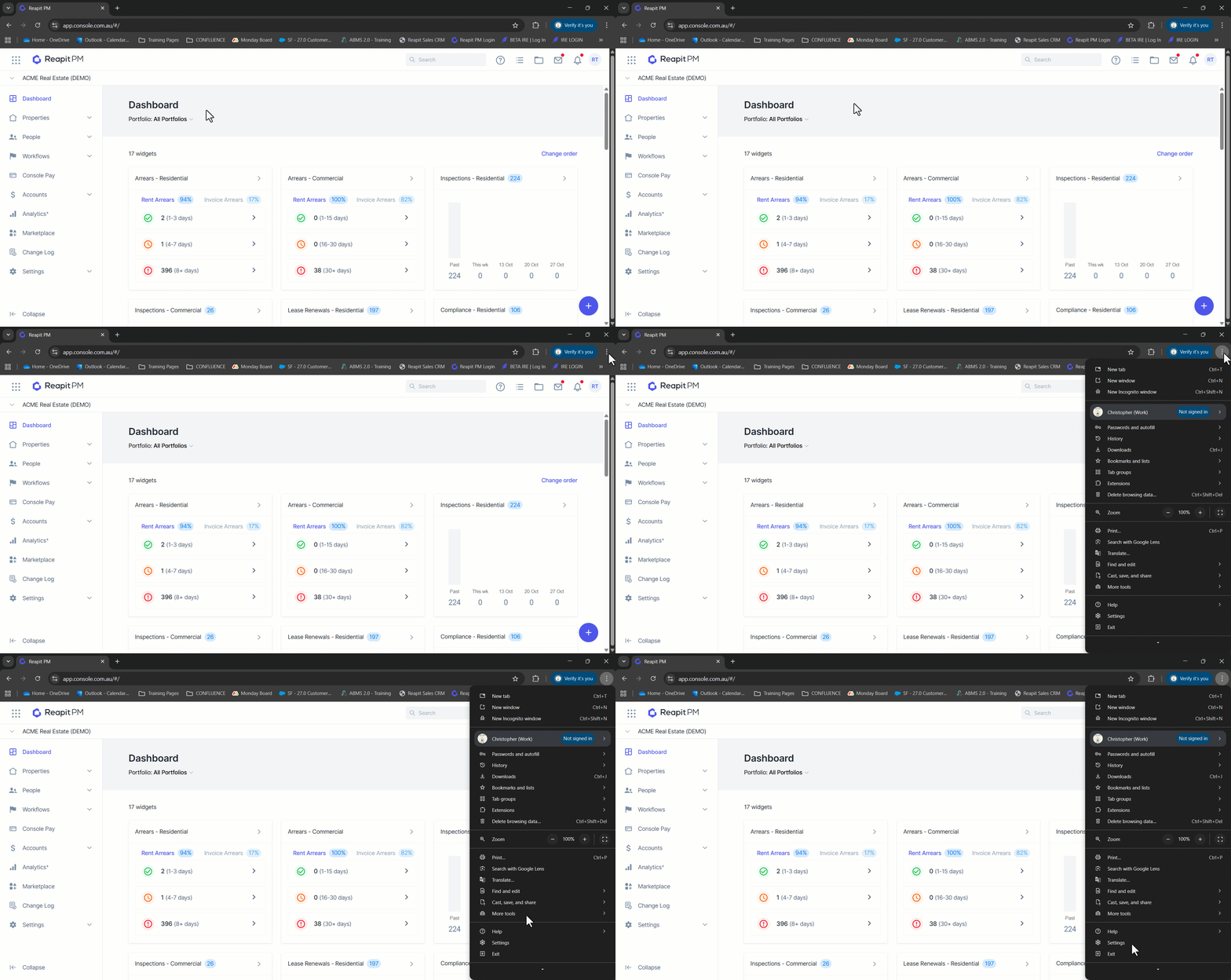
- Navigate to Privacy and Security
- Click Site Settings.
- Click view permissions and data stored across sites.
- Locate console.com.au and press the
- Click the bin icon.
- Click Delete.
What Happens After you Clear this Information
- Some settings on sites get deleted. For example, if you were signed in, you’ll need to sign in again.
- If you turn sync on in Chrome, you’ll stay signed into the Google Account you’re syncing to in order to delete your data across all your devices.
- Some sites can seem slower because content, like images, needs to load again.
How Cookies & Caches Work
- Cookies are files created by sites you visit. They make your online experience easier by saving browsing data.
- The cache remembers parts of pages, like images, to help them open faster during your next visit.