'%20d='M0%208a8%208%200%200%201%208-8h24a8%208%200%200%201%208%208v24a8%208%200%200%201-8%208H8a8%208%200%200%201-8-8V8Z'/%3e%3cpath%20fill='%23fff'%20d='M8.375%2013v14L20.5%2034l12.124-7v-7.737l-1.687-.975-2.806-1.62-1.082-.624v4.83l-.002%204.83H13.95V16.07l3.275-1.89%202.192-1.265%201.082-.625%203.275%201.877%202.192%201.256%201.083.62V9.782L20.5%206%208.376%2013Z'/%3e%3cdefs%3e%3clinearGradient%20id='reapit-pm__a'%20x1='20.702'%20x2='20.702'%20y1='.351'%20y2='31.228'%20gradientUnits='userSpaceOnUse'%3e%3cstop%20stop-color='%235573FD'/%3e%3cstop%20offset='.575'%20stop-color='%234E56EA'/%3e%3c/linearGradient%3e%3c/defs%3e%3c/svg%3e)
Activating and Processing Bond Payments with NZ Tenancy Services
This article explains how to process bond payments using the Tenancy.govt.nz integration within Reapit PM.
Activating and Processing Bond Payments with NZ Tenancy Services (NZ Only)
With the discontinuation of cheque payments for bonds in New Zealand, this article explains how to process bond payments using the Tenancy.govt.nz integration within Reapit PM.
Note: The Tenancy.govt.nz integration is designed to support new bond lodgements and top ups. It does not accommodate bond refunds. For refunds, you will need to use the Tenancy Services Webform: https://tools.tenancy.govt.nz/lodge-your-bond.
Please also note that any user in your office can activate this integration. Any user with Trust Accounting access or higher can perform the bond disbursement. (i.e. the integration is not limited to office administrator roles only).
The processes in this article include:
- Activating NZ Tenancy Services (NZ Only)
- General Bond and Pet Bond Lodgements
- Next Steps
- Journaling Deposit Balances to Bonds
- Bond Reporting
- How to Manage a Top-Up
- Troubleshooting
Activating NZ Tenancy Services (NZ Only)
1. Start by heading to the RealMe website and creating a RealMe login. Your credentials from this process will be used in step 5.
Note: We recommend creating one RealMe account per office. This allows all office users to connect to and lodge bonds through a single, unified login for the integration.
2. To begin the integration process in Reapit PM, navigate to Marketplace.
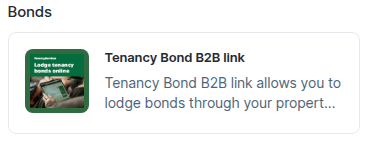
3. Under the Bonds menu, click the Tenancy Bond B2B link tile.
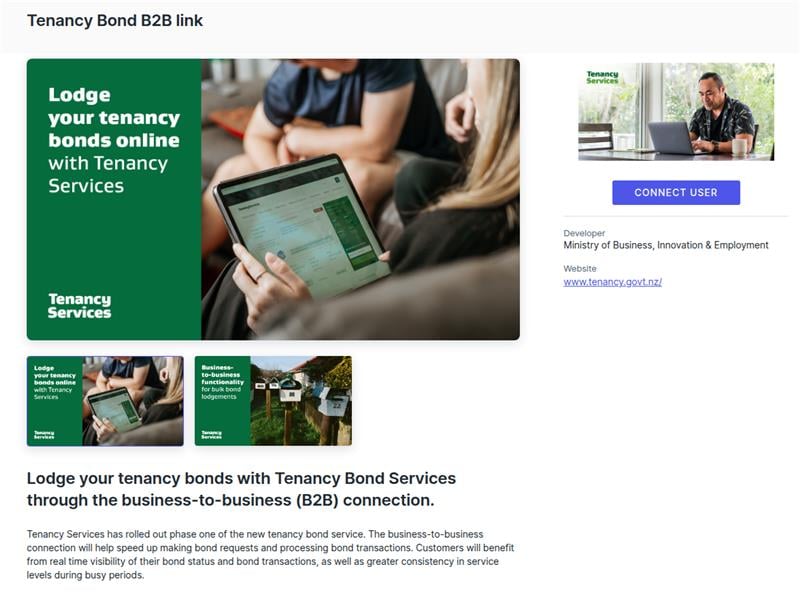
4. Click Connect User.
5. Your office will then receive a confirmation email with the required credentials. They will look like this:
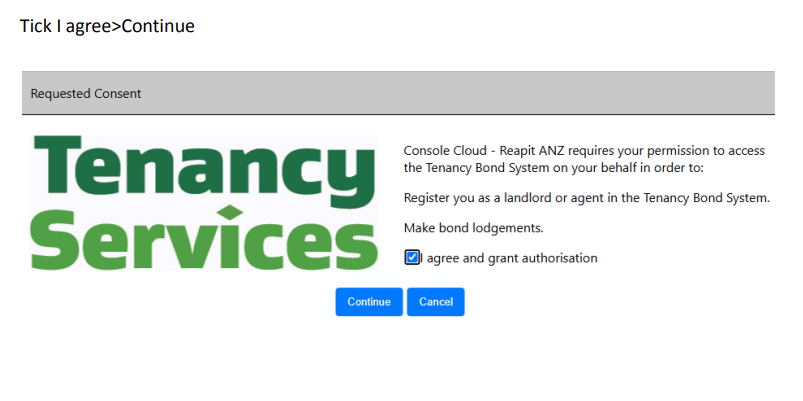
Landlord ID: LNL-xxxxxxx
Landlord Contact ID: LLC-xxxxxx
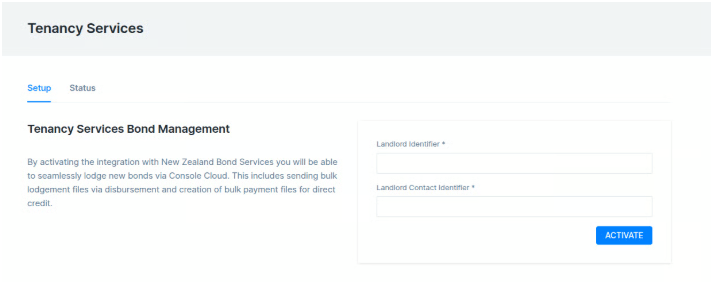
6. Enter the Landlord Identifier and Landlord Contact Identifier. Click Activate to proceed.
Note: Once the integration is enabled, the API key will remain valid for 14 days. After this period, you will need to reauthenticate. Reapit PM will show a prompt on screen when you attempt to disburse Bonds if the integration needs to be refreshed. Simply navigate to Marketplace by clicking on REFRESH, and re-click the Connect User button. You will be redirected to the REALME login page, where you will need to log in using the exact same REALME user credentials used in the initial setup. Once done and redirected, Reapit PM will store the user login Landlord Identifier credentials, so there will be no need to re-enter these.
General Bond and Pet Bond Lodgement
Note: Before lodging a Bond, please ensure the following mandatory information is stored in Reapit PM against the related Tenancy and Property:
Tenant:
- Tenant First Name
- Tenant Last Name
- Email address (only when the contact preference is set to email)
- Address (only when the contact preference is set to print; this will default to the property address if no address is entered on the tenant contact card)
Property:
- Type (house/townhouse etc)
- Address
- Bedrooms
1. Before receipting funds, open the Tenant file and confirm that the Bond or Pet Bond Required amounts reflect the correct bond value. Ensure the Bond Reference field remains empty, and click Save.
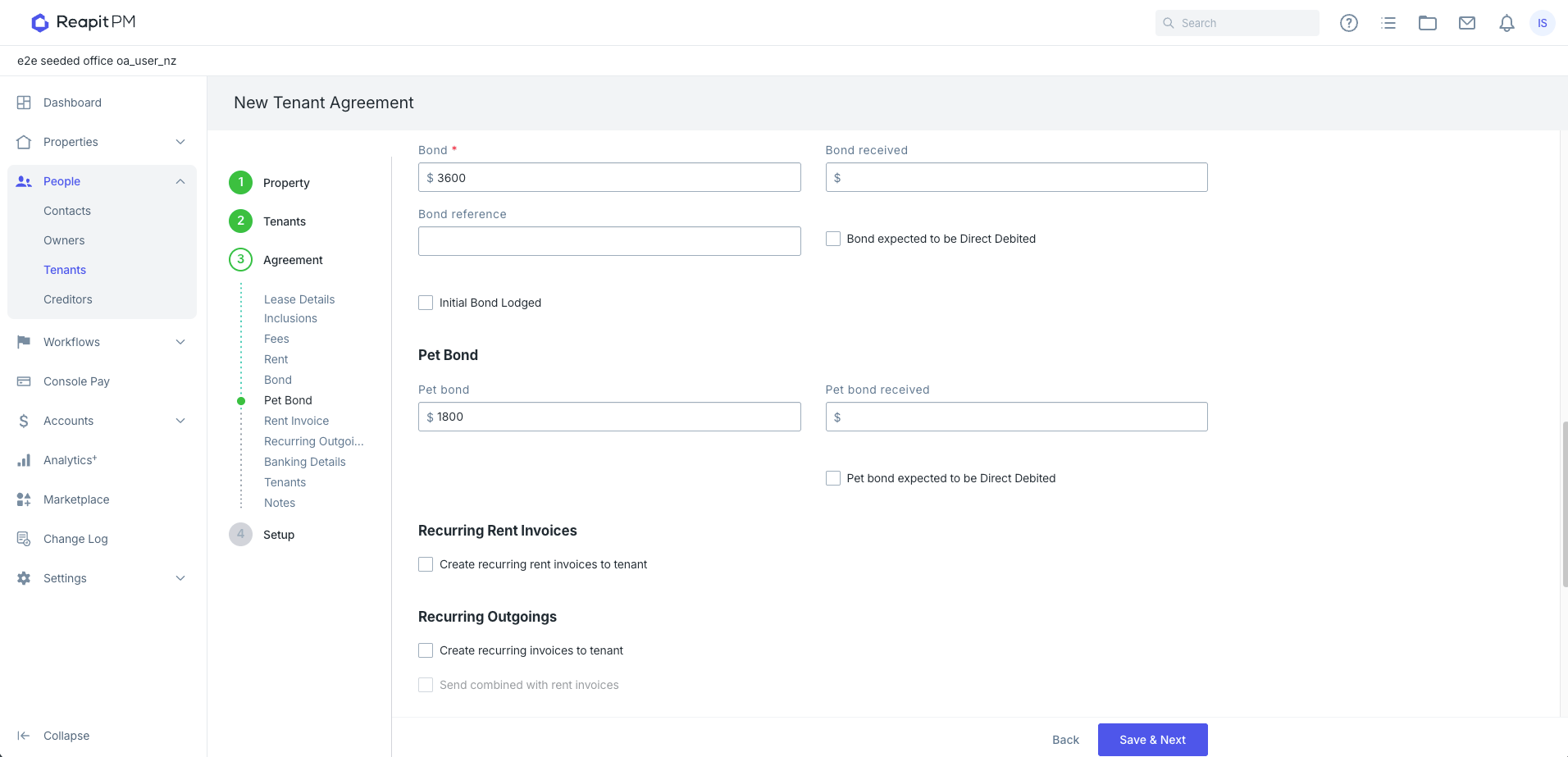
Note: Ensuring the Bond amount is accurate helps prevent disbursement screen errors that may occur when attempting to disburse more than the required bond amount.
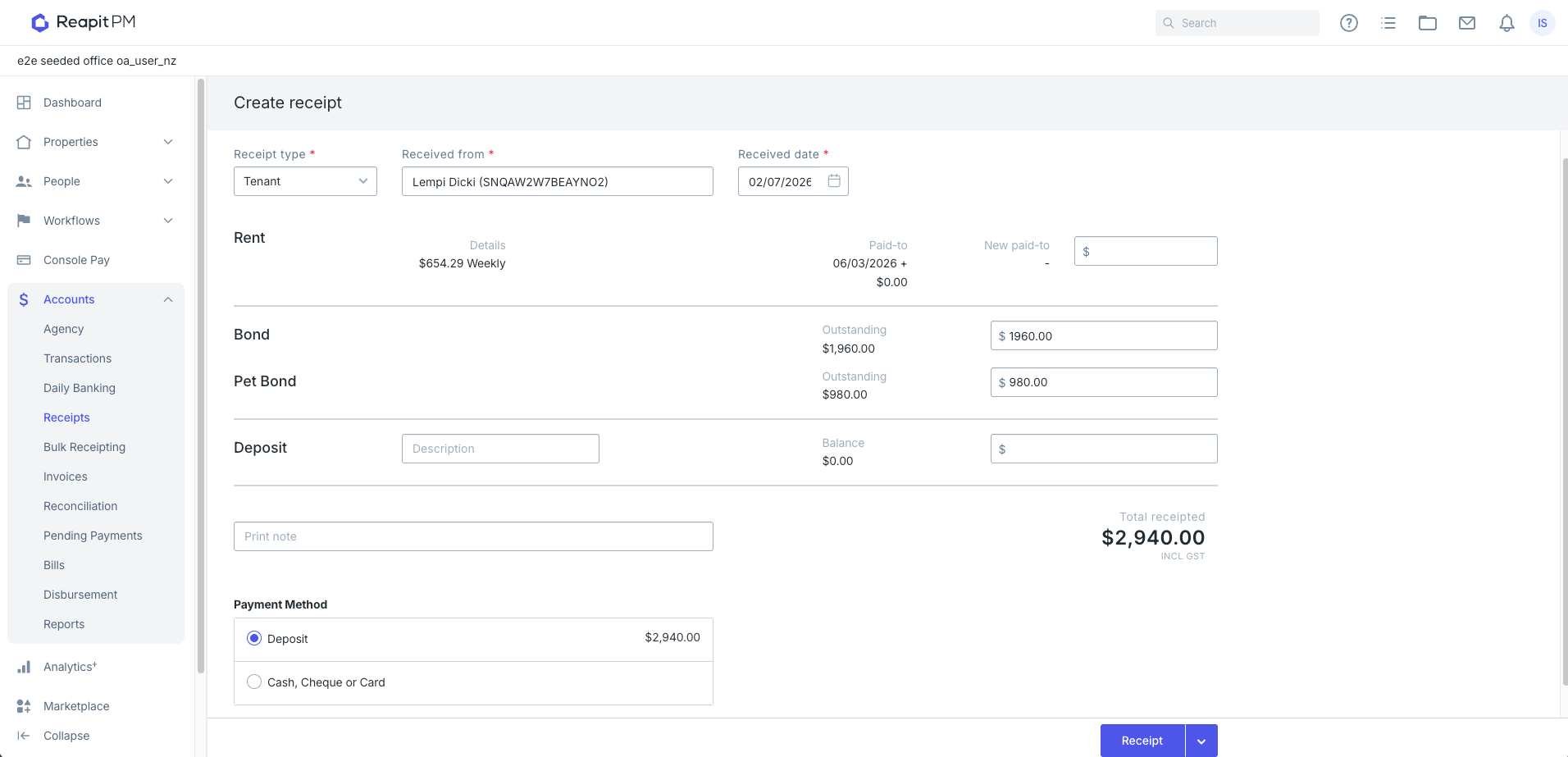
2. Navigate to Accounts > Receipts and proceed with receipting the received bond balance against the Tenancy.
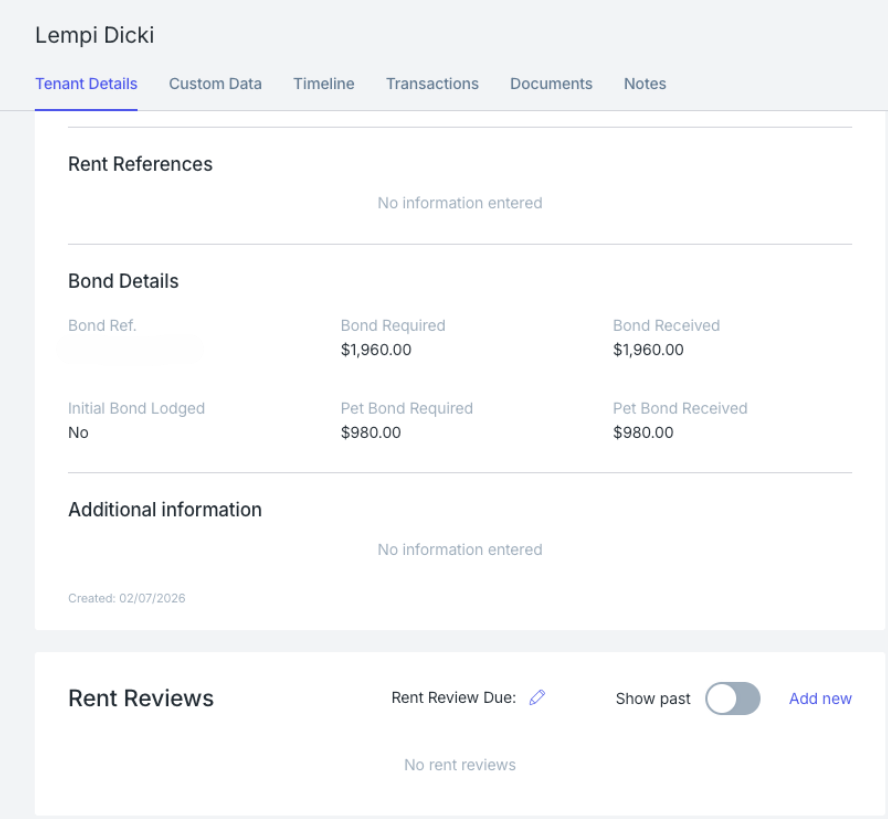
3. Receipted funds will display under the Bond Received amount on the Tenant file.
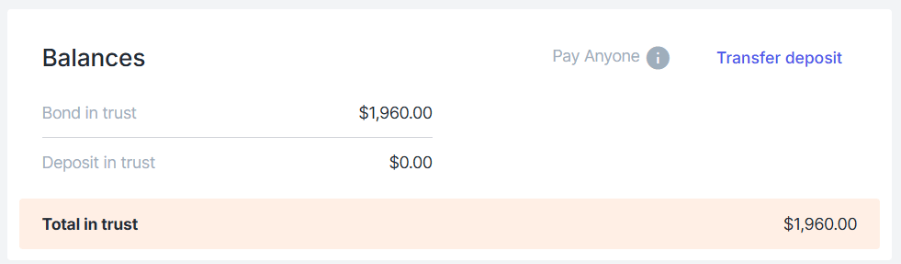
4. The available funds will show under the Bond in trust balance.
5. When ready to proceed with the bond lodgement, navigate to Accounts.
6. Click Disbursement.
7. Click Bond Authority.
8. Select the required Bond Disbursement.
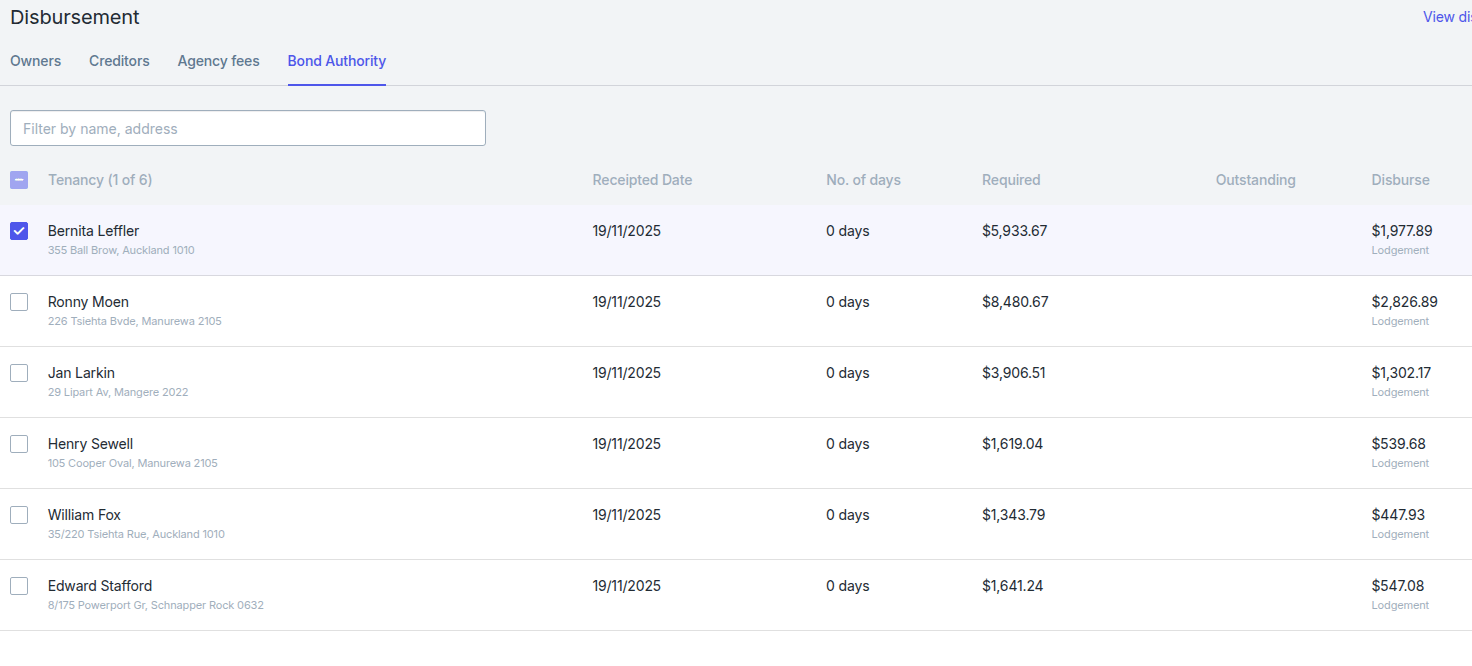
9. Click Next.
10. Confirm the reports to generate and click Disburse.
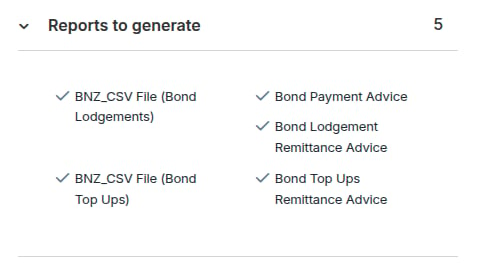
Note: You can process up to 50 bond payments per Disbursement. Any additional payments on the same day will need to be processed as a separate disbursement.
Once the disbursement is complete, the zip file will contain a copy of the bank files to process the payments, the banking file summary for bond lodgements disbursed and a copy of the NZ Bonds remittance.
Next Steps
Within the next three days, you will receive an email from NZ Bonds with detailed references for each bond. These references can then be stored in the Bond REF field against their corresponding tenancies.
Journaling Deposit Balances to Bonds
1. When the tenant has a deposit amount, it can be journaled through to bond as a payment or top-up, if required.
2. Navigate to the Tenant file.
3. Proceed to the Balances section at the bottom of the page and click Transfer deposit.
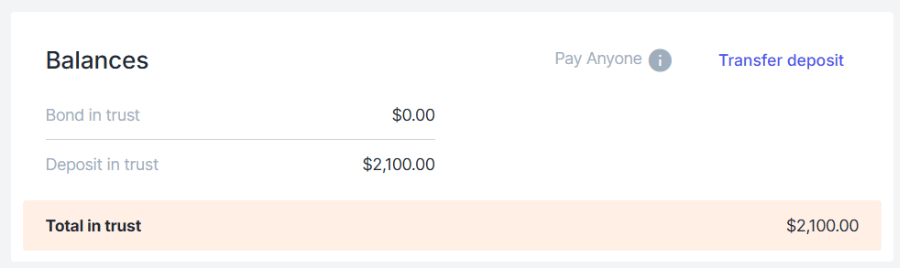
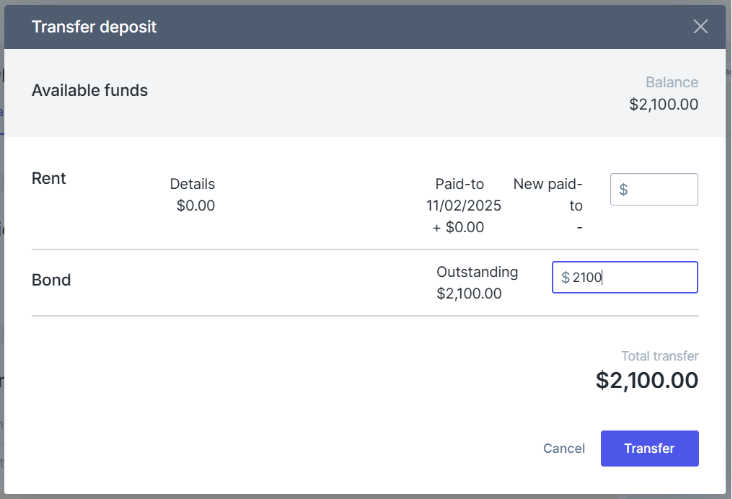
4. Enter the amount you wish to transfer from tenant deposit into bond or pet bond.
5. Click Transfer.
Bond Reporting
- To access bond reporting data, navigate to Accounts.
2. Click Reports.
3. Click Bond Listing
4. Click to Download PDF or CSV
5. The Bond Listing report will appear, displaying all bond details for tenants, including a combined value for both general and pet bond, along with individual values
How to Manage a Top-Up
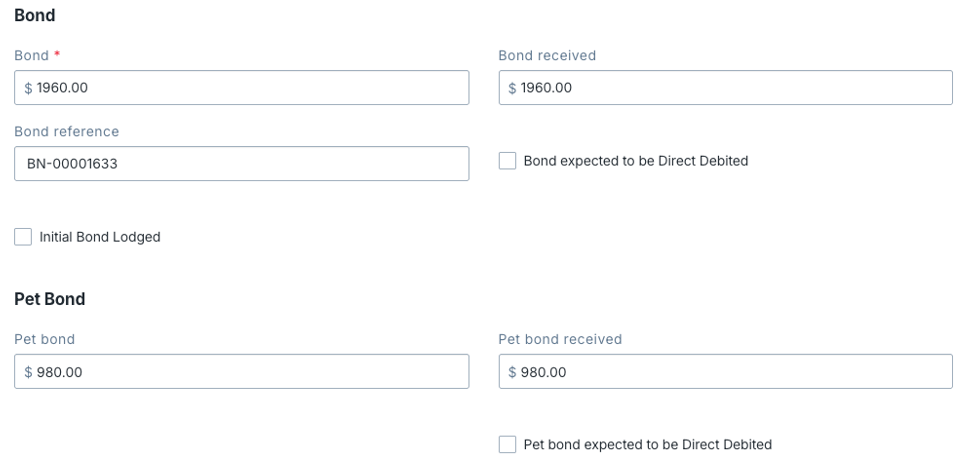
Note: Initial Bond Lodged - The initial bond lodged button should be left alone for new tenancies, as this will toggle itself on after the initial disbursement has been performed. For tenancies with an initial bond already lodged, you can toggle this manually to ensure all future payments are treated as bond top-ups, as long as the BN-# exists in the reference field.
1. Navigate to Accounts > Disbursement.
2. Navigate to Bond Authority. The balance under Disburse will display if it is a Bond Lodgement or a Bond Top Up. Click Next to proceed.
3. Confirm the details in the disbursement confirmation, then click Disburse. Separate payment files will be generated for Bond Lodgements and Bond Top Ups.
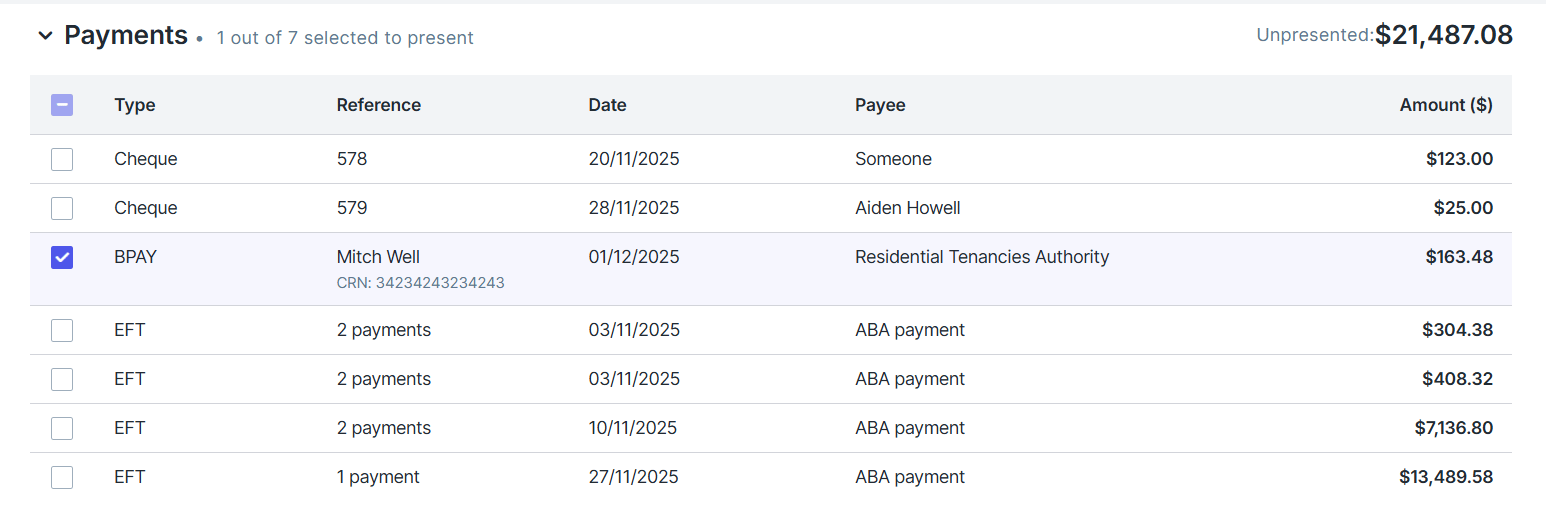
4. Once the payment is processed from the bank account, present the payment in the next reconciliation.
Note: Bond payments will still be visible from the Disbursement screen. It will disappear from the disbursement once you present the payment in Reconciliation.
5. Once done, you’ll have a simplified list with bond lodgements and top-ups through the API.
Troubleshooting
For troubleshooting bond scenarios, please visit - https://help.reapit.com.au/s/article/Troubleshooting-Scenarios-for-Bond-Payments-with-NZ-Tenancy-Services