'%20d='M0%208a8%208%200%200%201%208-8h24a8%208%200%200%201%208%208v24a8%208%200%200%201-8%208H8a8%208%200%200%201-8-8V8Z'/%3e%3cpath%20fill='%23fff'%20d='M8.375%2013v14L20.5%2034l12.124-7v-7.737l-1.687-.975-2.806-1.62-1.082-.624v4.83l-.002%204.83H13.95V16.07l3.275-1.89%202.192-1.265%201.082-.625%203.275%201.877%202.192%201.256%201.083.62V9.782L20.5%206%208.376%2013Z'/%3e%3cdefs%3e%3clinearGradient%20id='reapit-pm__a'%20x1='20.702'%20x2='20.702'%20y1='.351'%20y2='31.228'%20gradientUnits='userSpaceOnUse'%3e%3cstop%20stop-color='%235573FD'/%3e%3cstop%20offset='.575'%20stop-color='%234E56EA'/%3e%3c/linearGradient%3e%3c/defs%3e%3c/svg%3e)
Managing Advertising & Listings
This article will walk you through how to create, preview and publish a listing in Reapit PM. The process in this article include: Advertising Workflow Creating and Publishing a Listing Removing a Listing
Overview
Managing Advertising & Listings
This article will walk you through how to create, preview and publish a listing in Reapit PM.
The process in this article include:
- Advertising Workflow
- Creating and Publishing a Listing
- Removing a Listing
Advertising Workflow
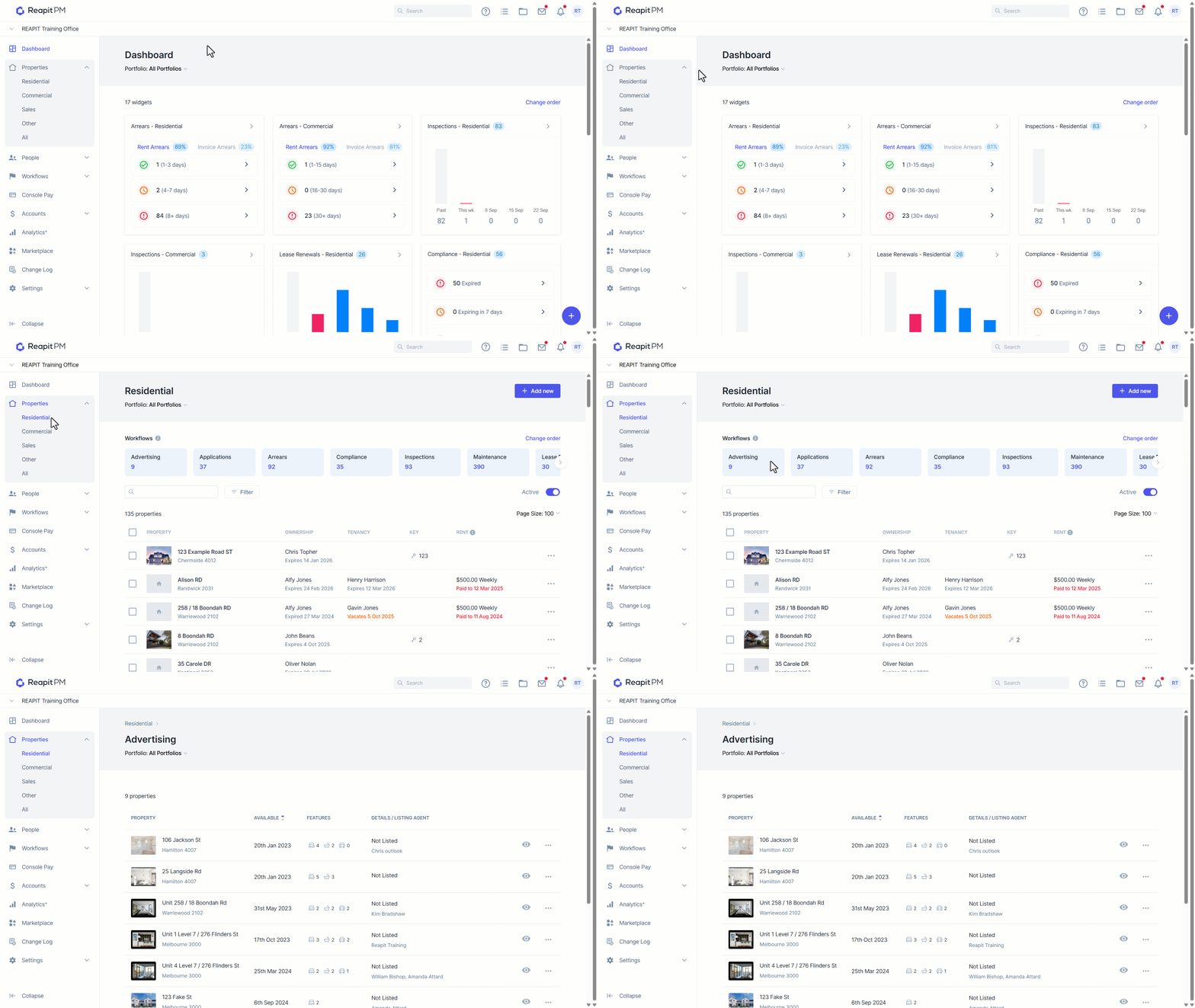
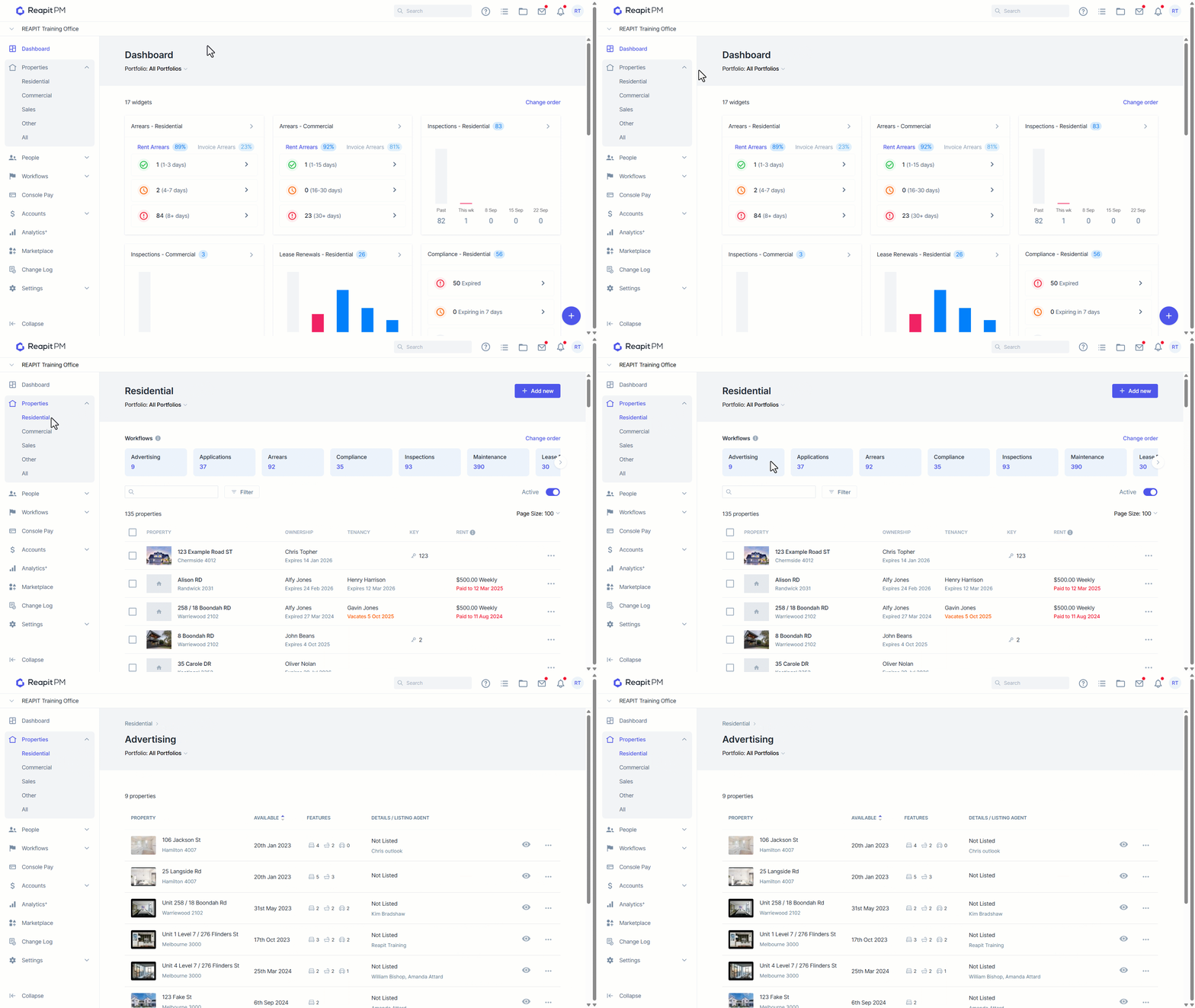
- Navigate to Properties > Residential and select Advertising.
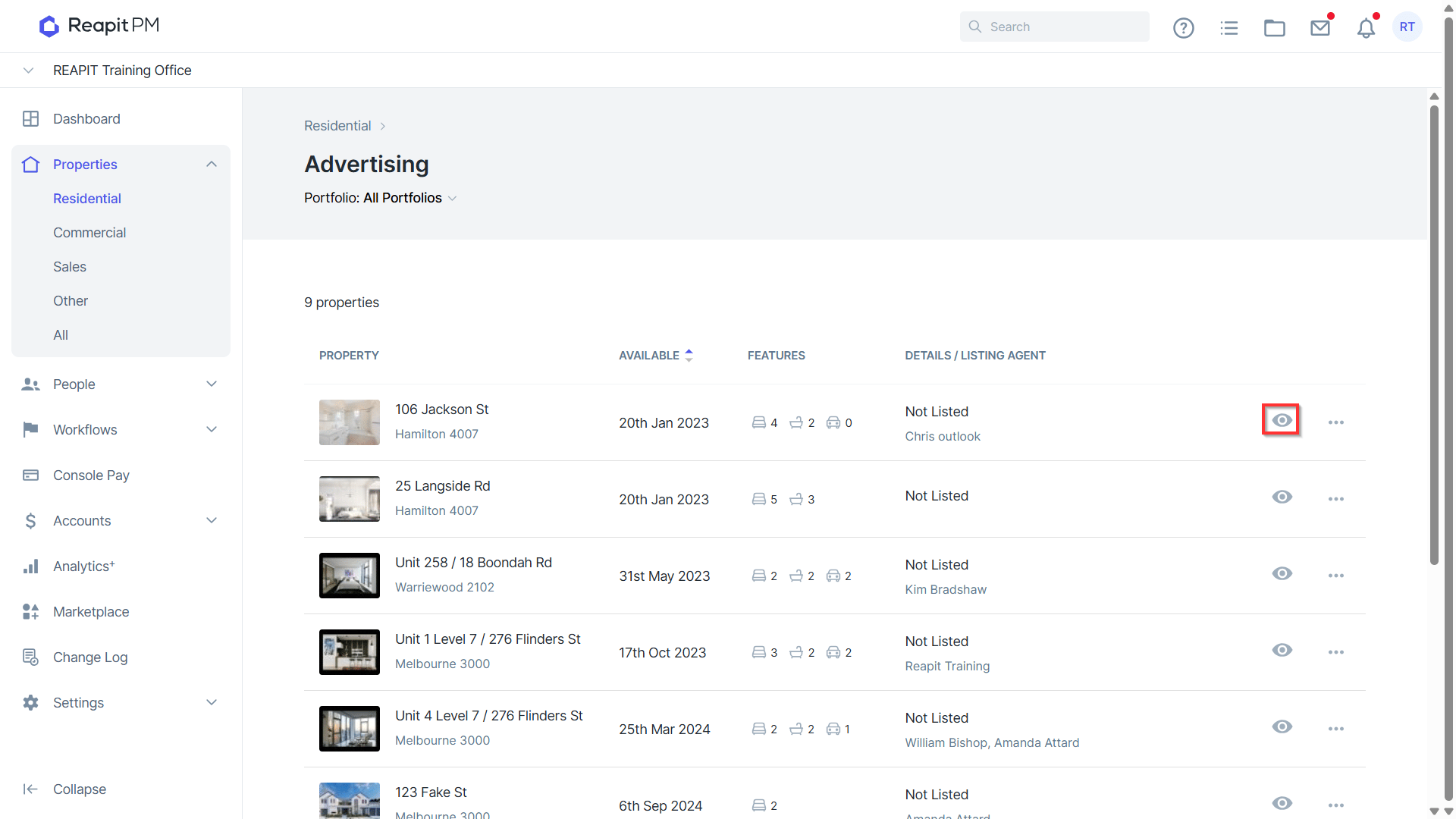
- Click on the eye icon to preview the listing and edit or amend any details and features.
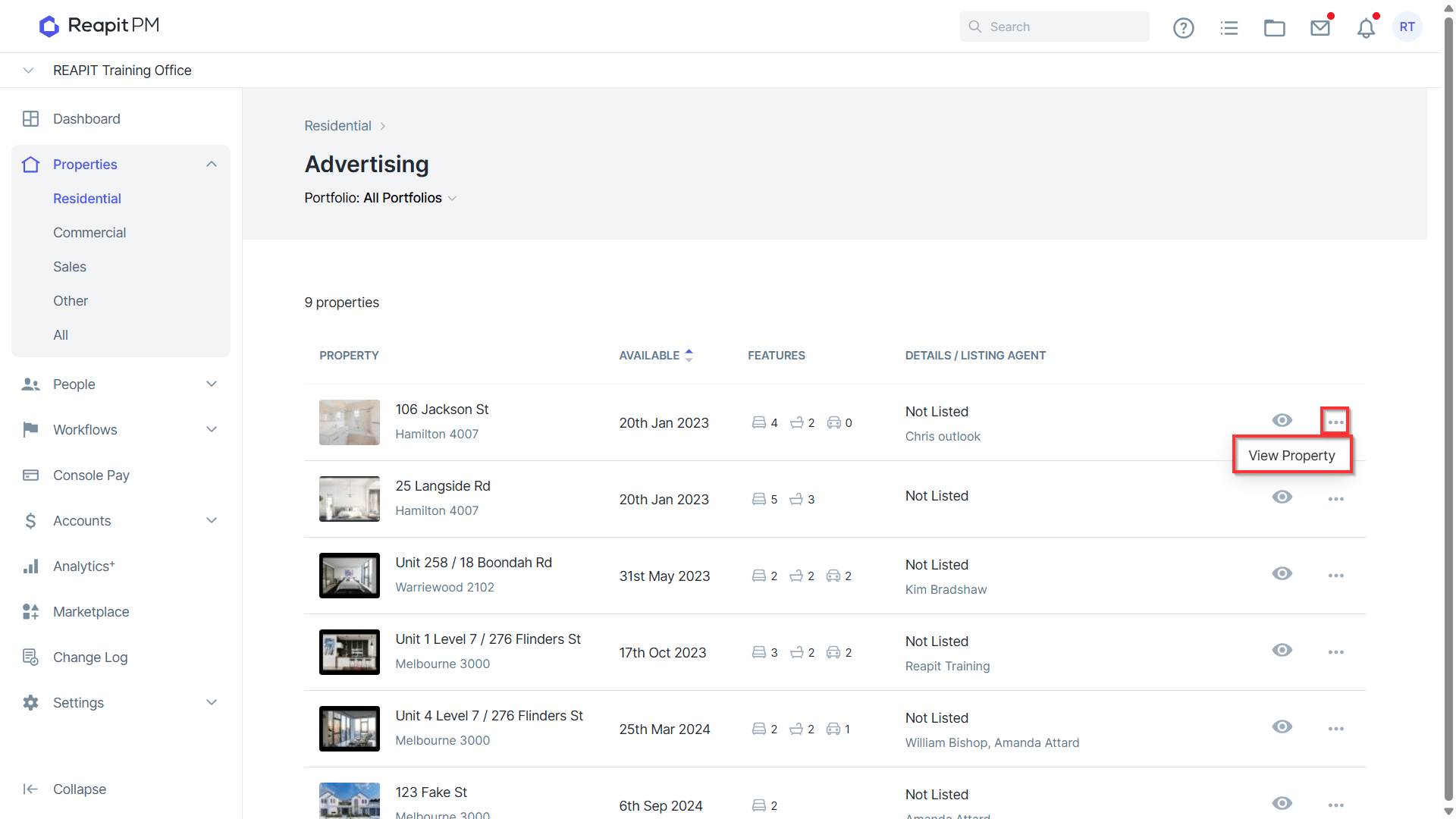
- Click on the 3 dots to view the property.
Creating and Publishing a Listing
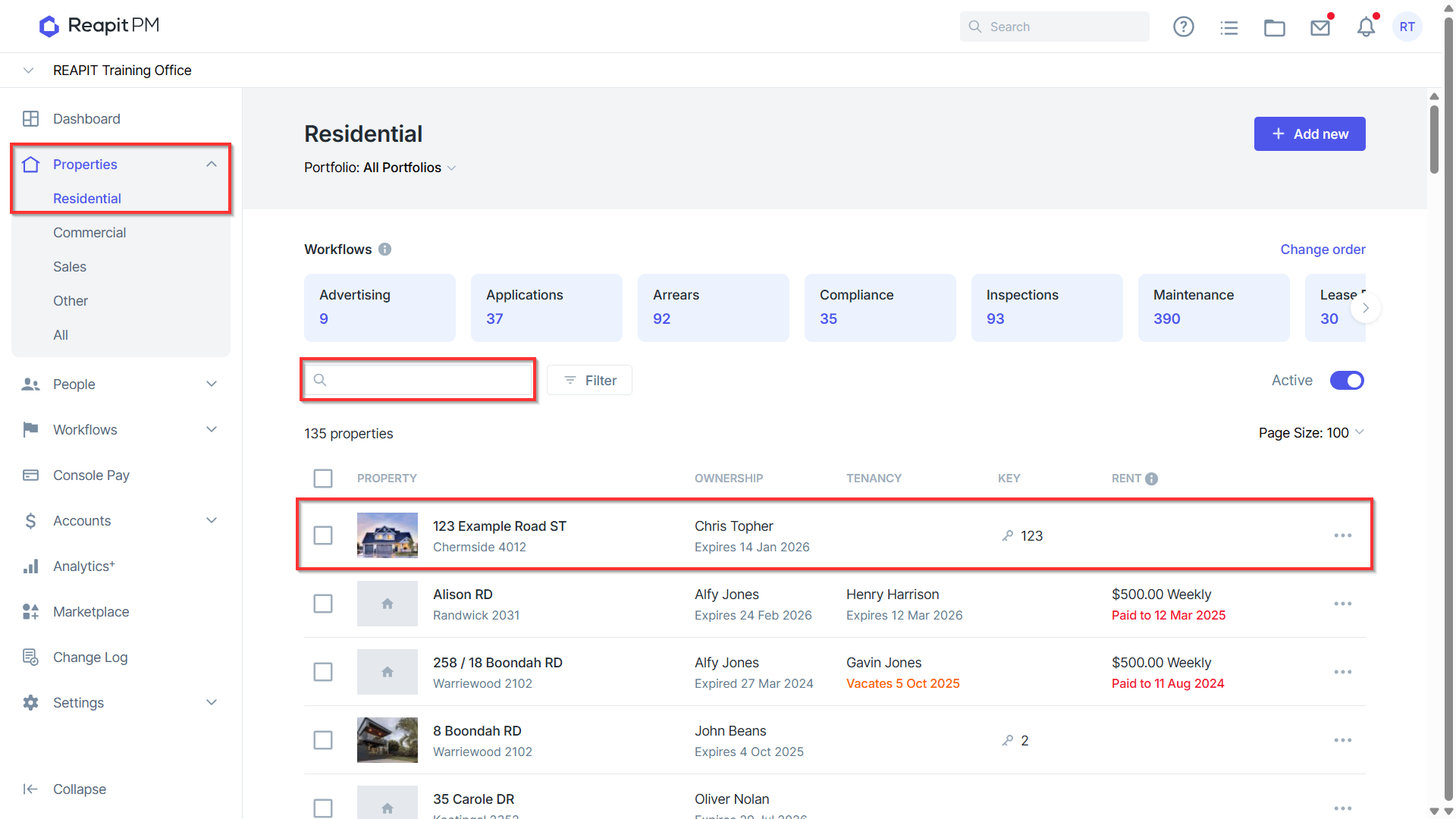
- Navigate to Properties > Residential.
- Search or Select your property.
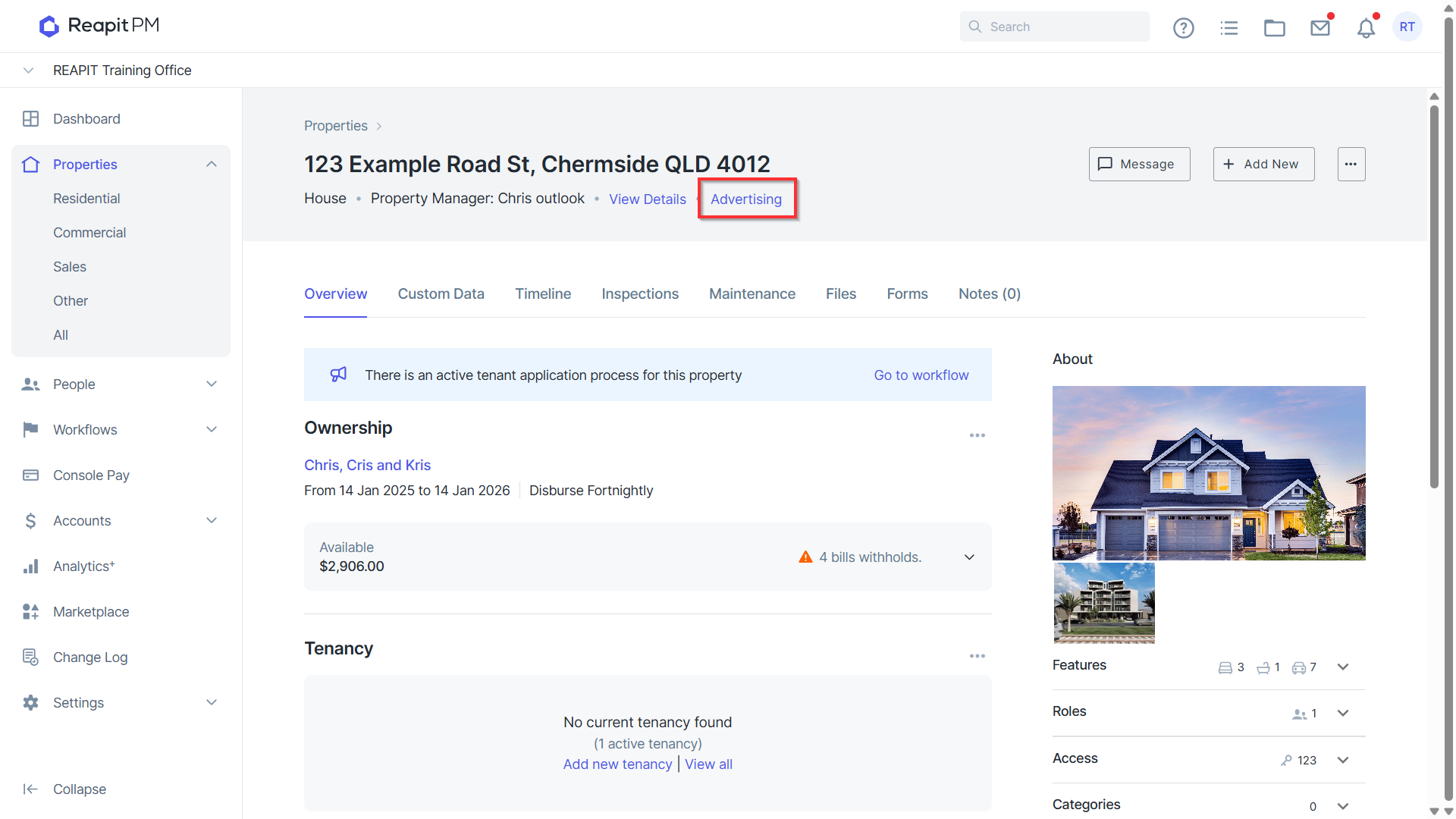
- Click Advertising.
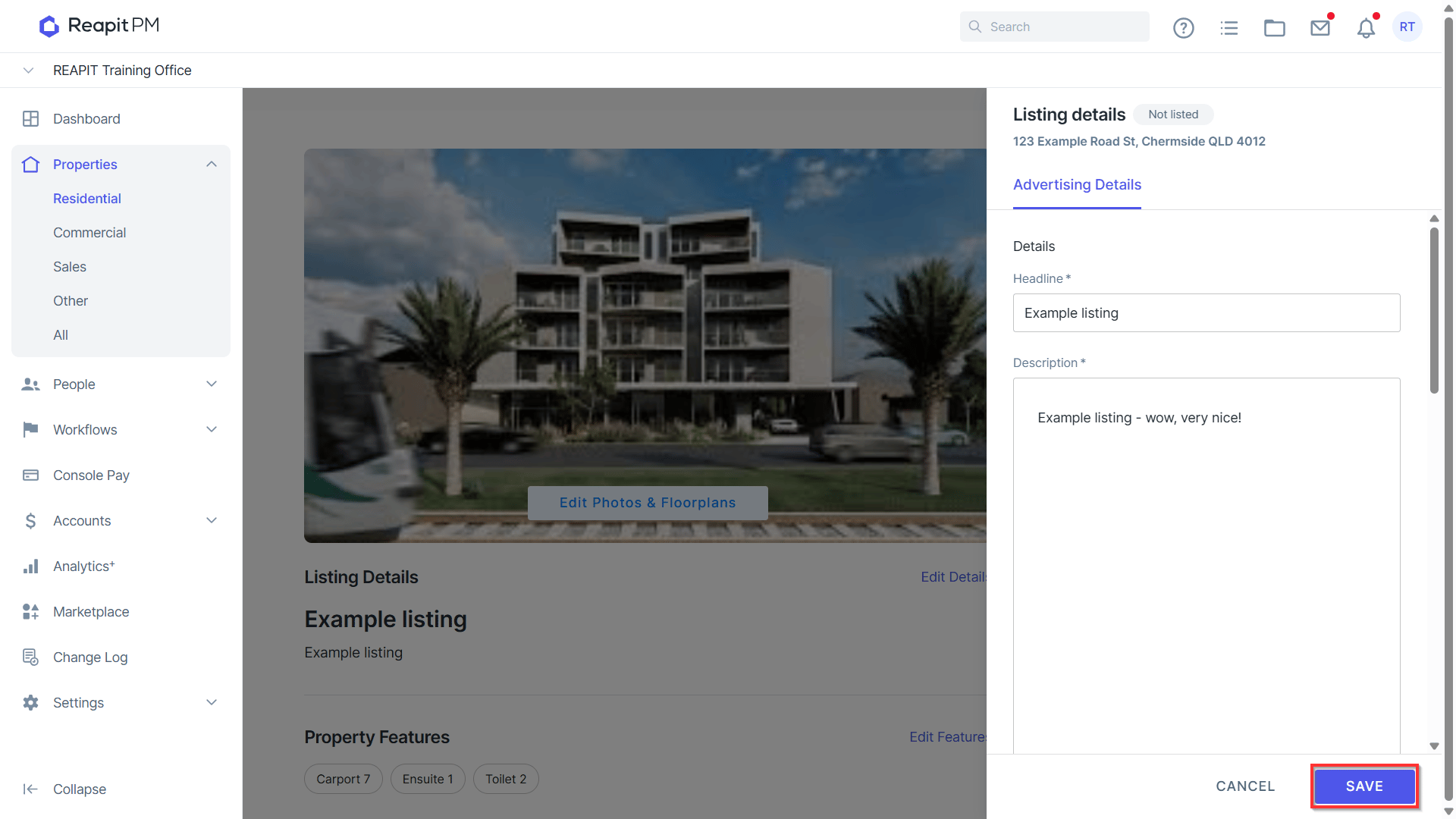
- Enter the Headline, Description, Address Options, Availability, Rent, Price Display, Bond Amount and Property Links. Click Save.
- After clicking Save it will then take you to the Property Listing page.
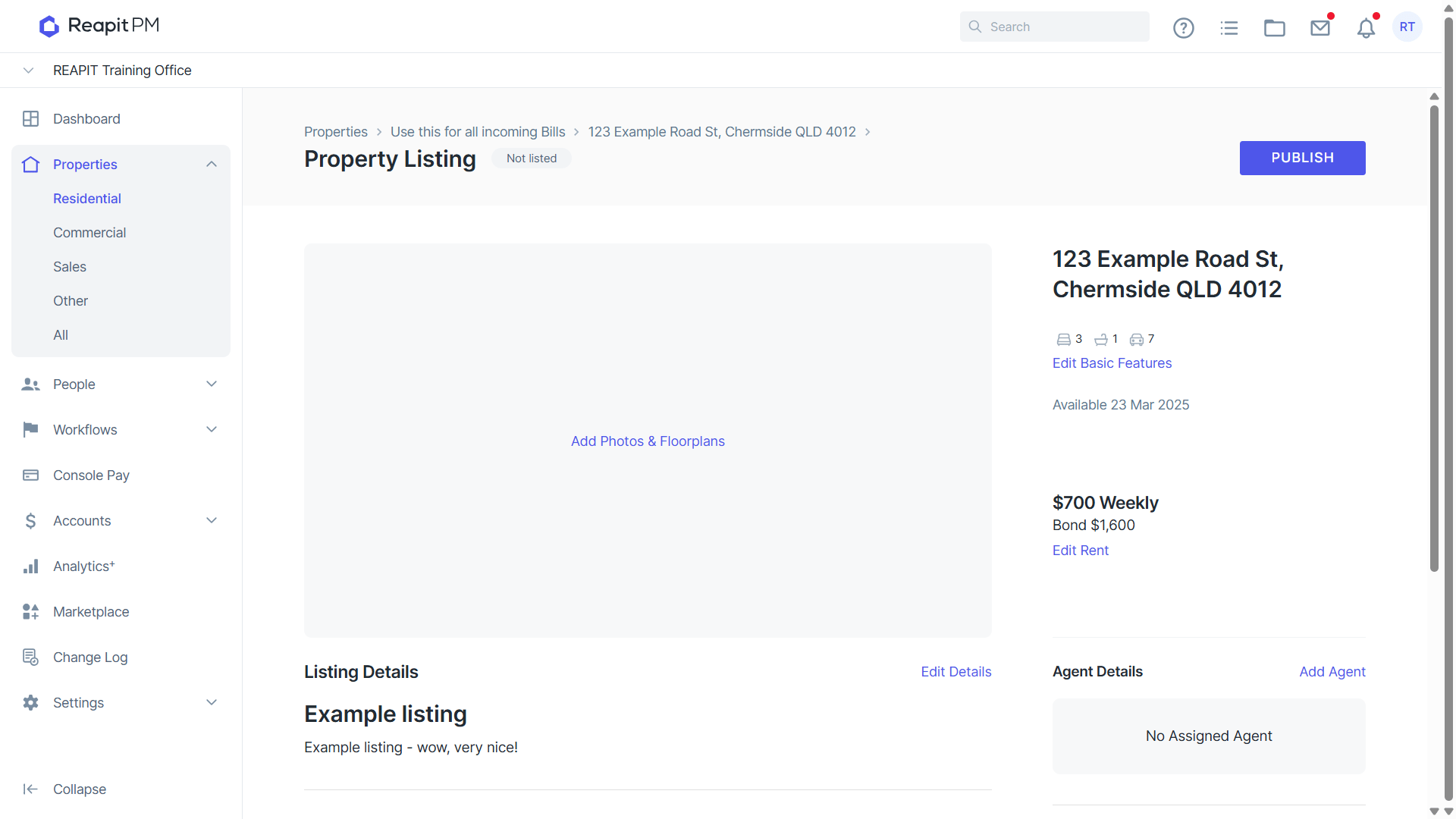
- Click Add Photos & Floorplans.
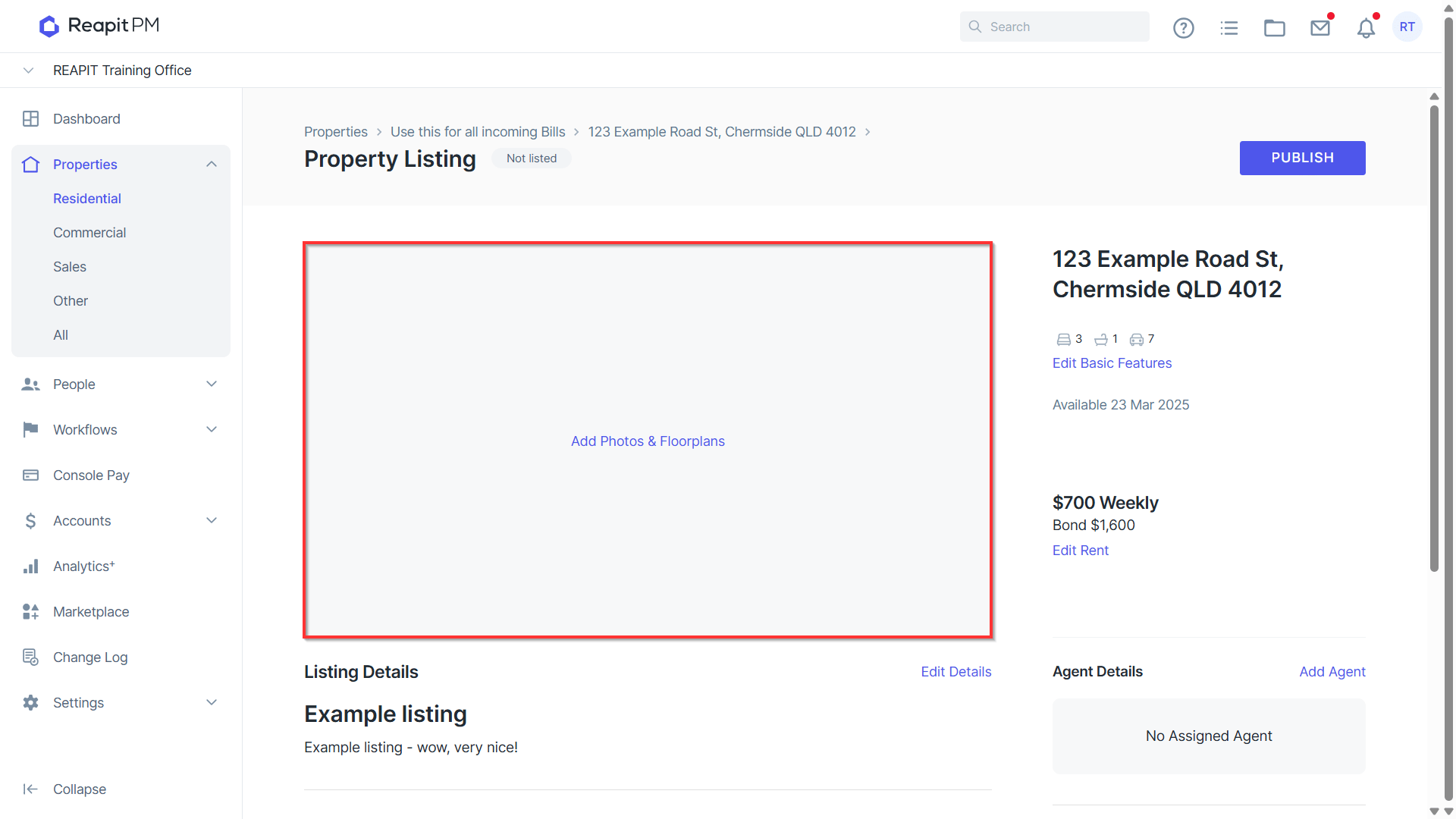
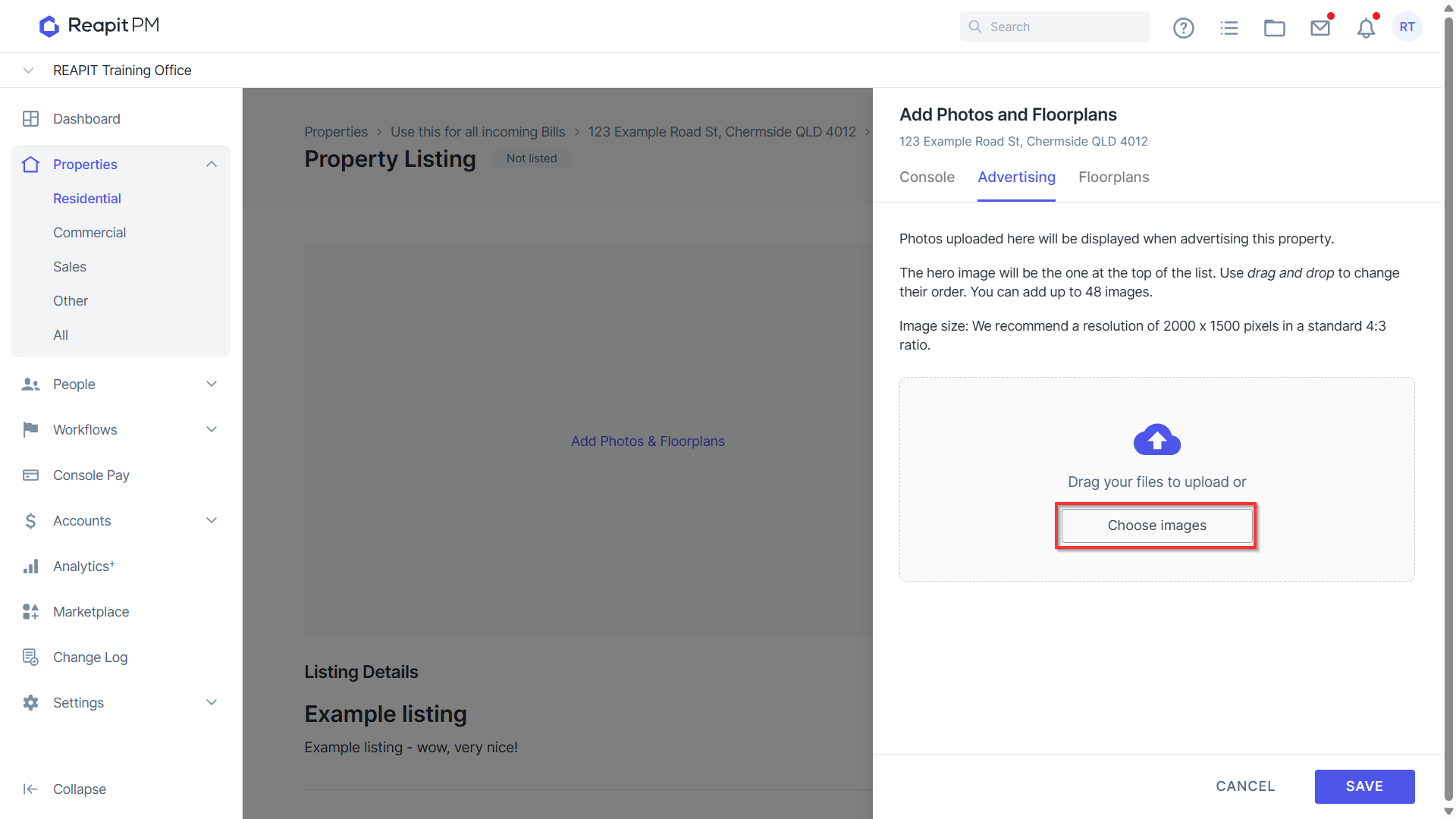
- Click Choose Images. Select your photos and click Save.
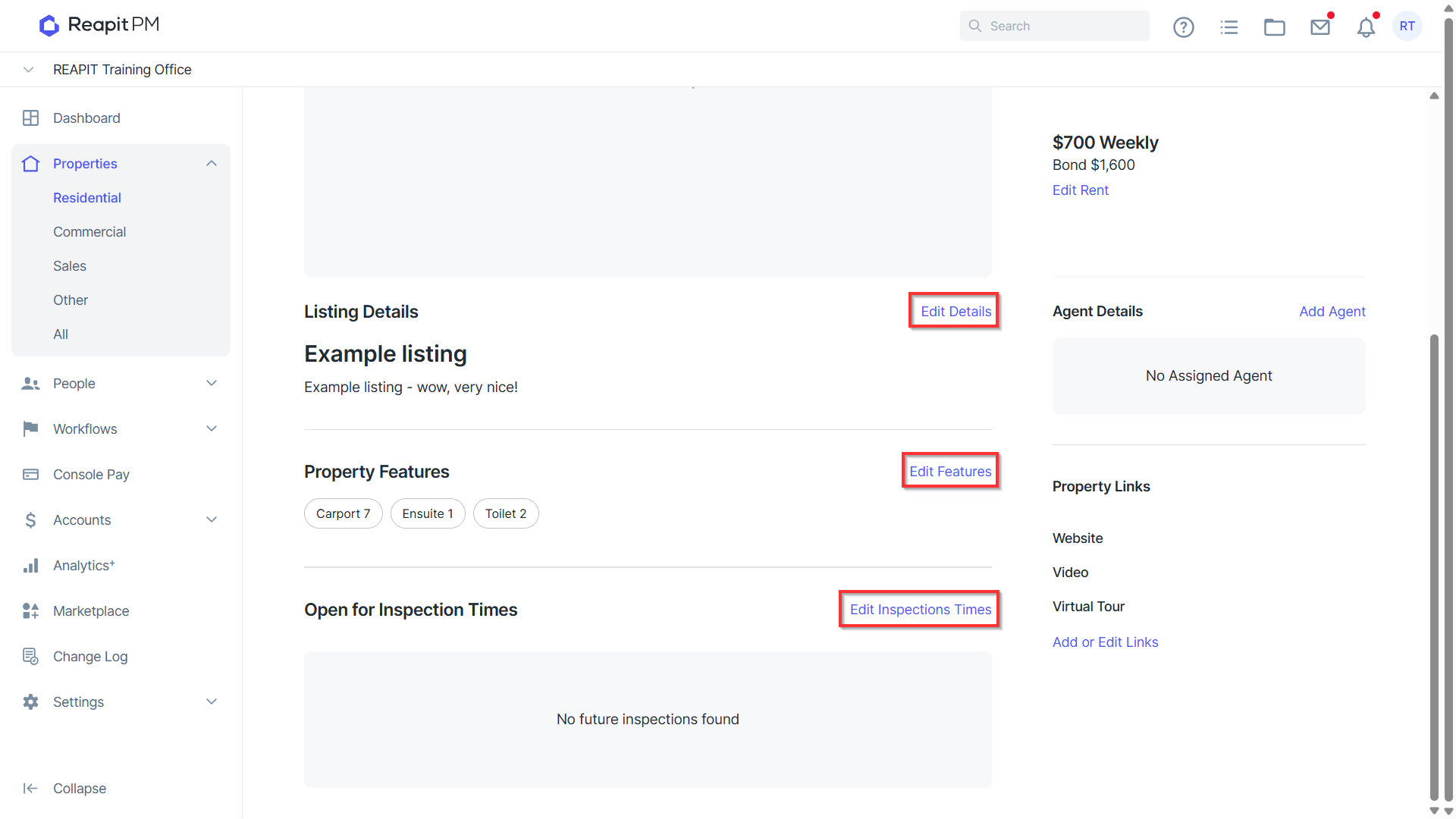
- To edit Details, Features and Inspection Times. Navigate to the appropriate section.
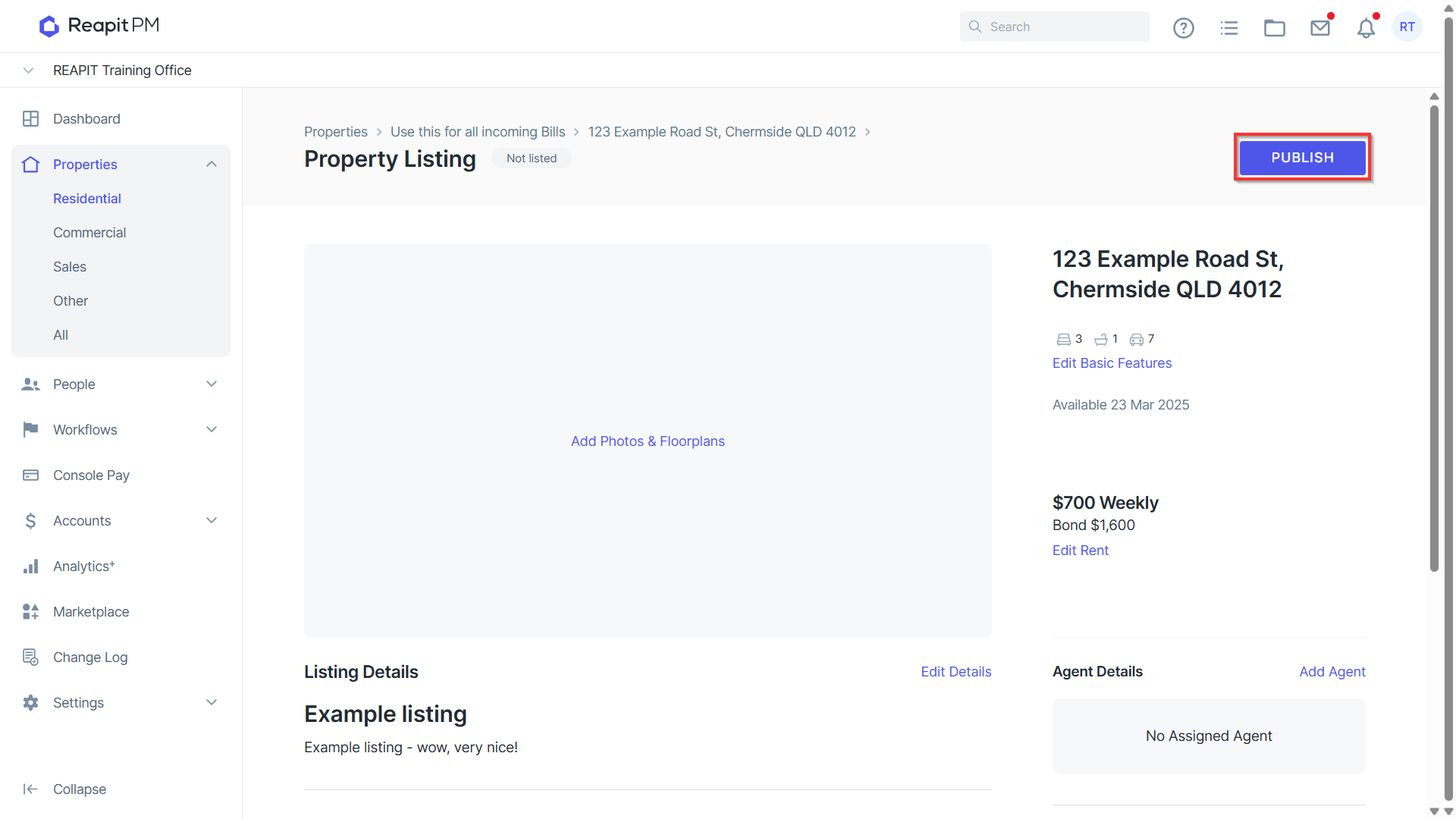
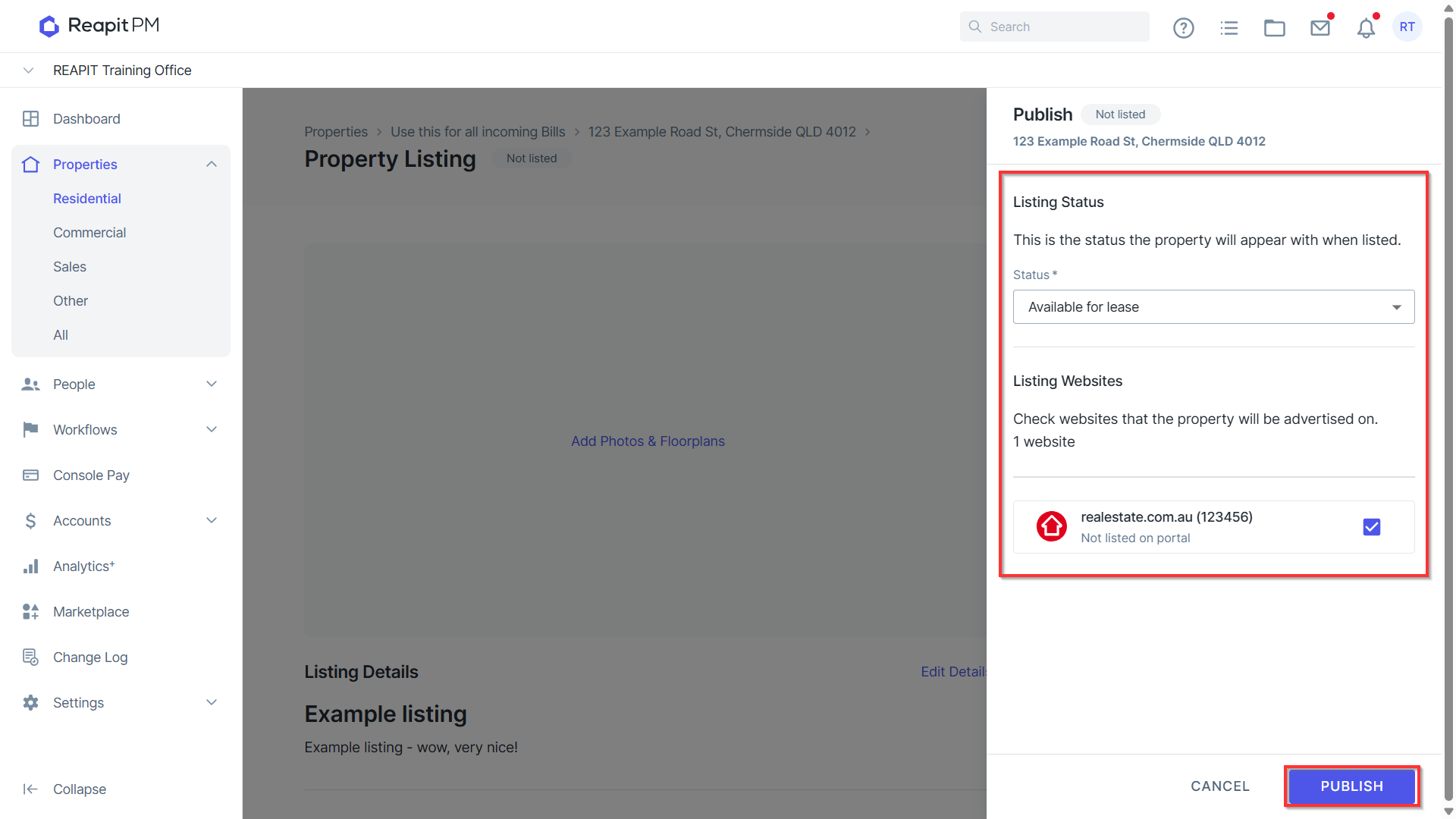
- Once you have finished editing, click Publish.
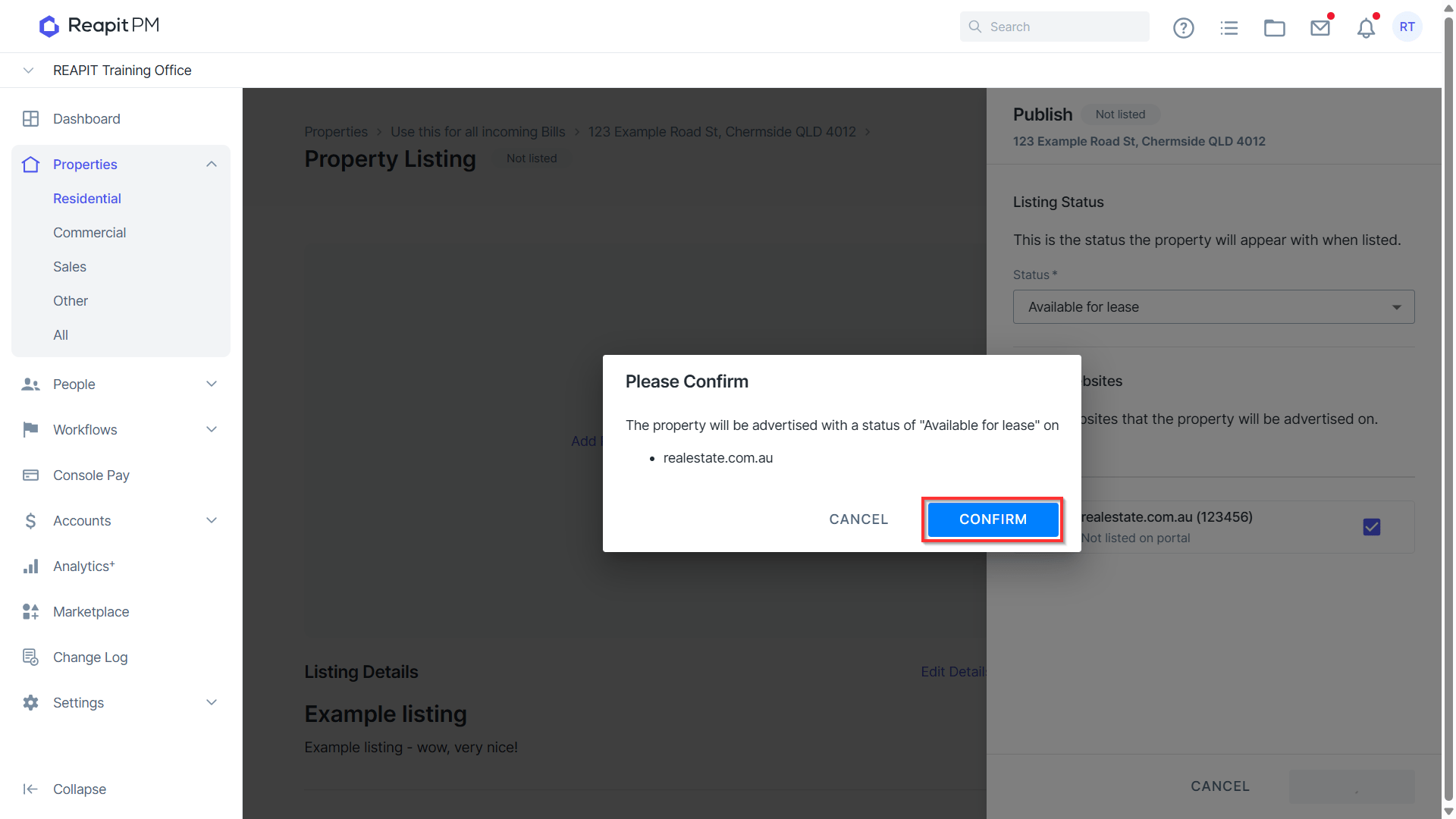
- Select Available for lease and tick which listing website you would like to publish your listing to. Click Publish.
- Click Confirm.
Removing a Listing
You can remove a listing from the Advertising Workflow under these conditions:
- Before publishing the Property to a listing website
- After the Property has been published and need to withdraw the listing
- Navigate to Properties > Residential > Advertising
- Locate and select the Property from the list
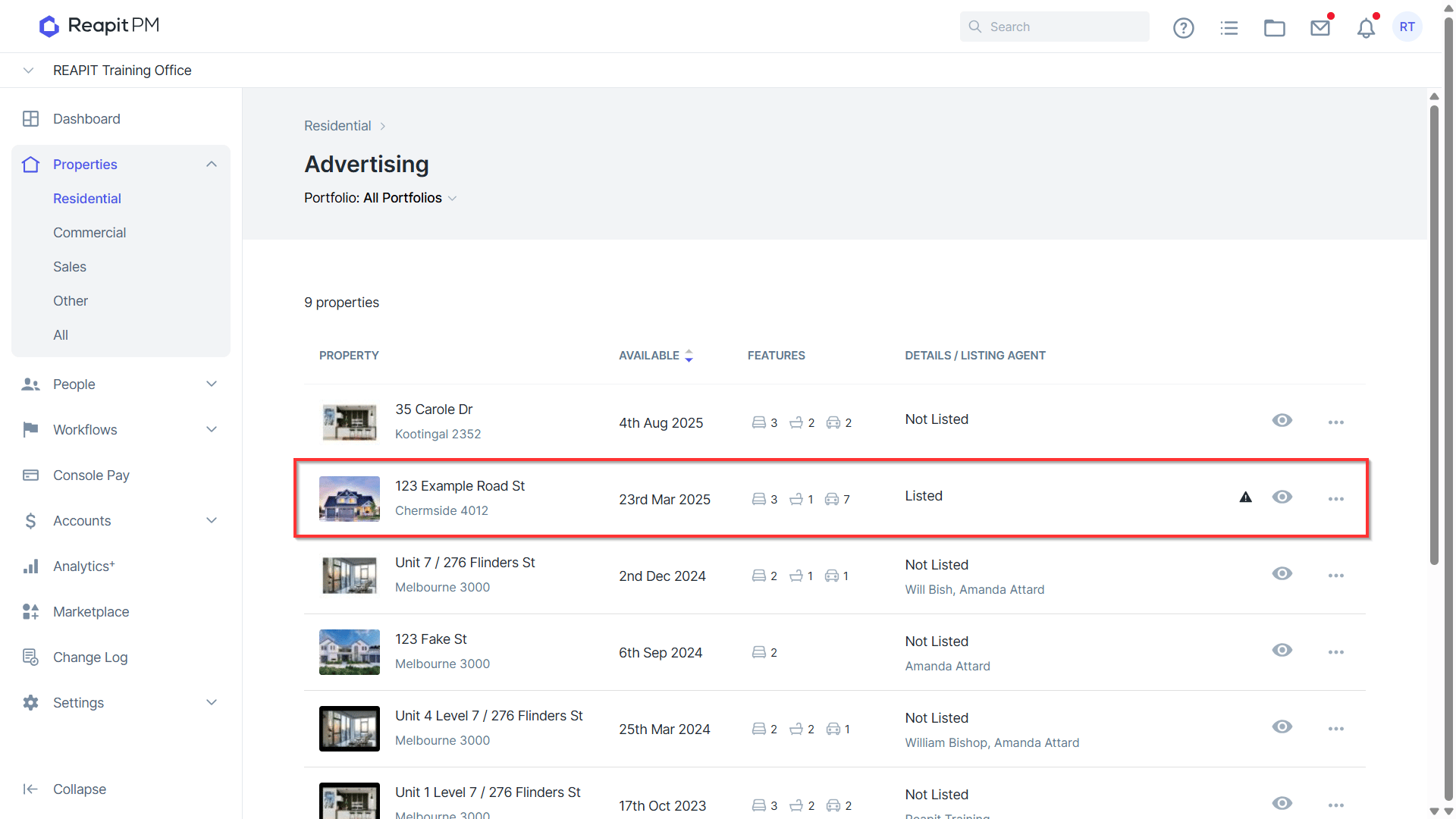
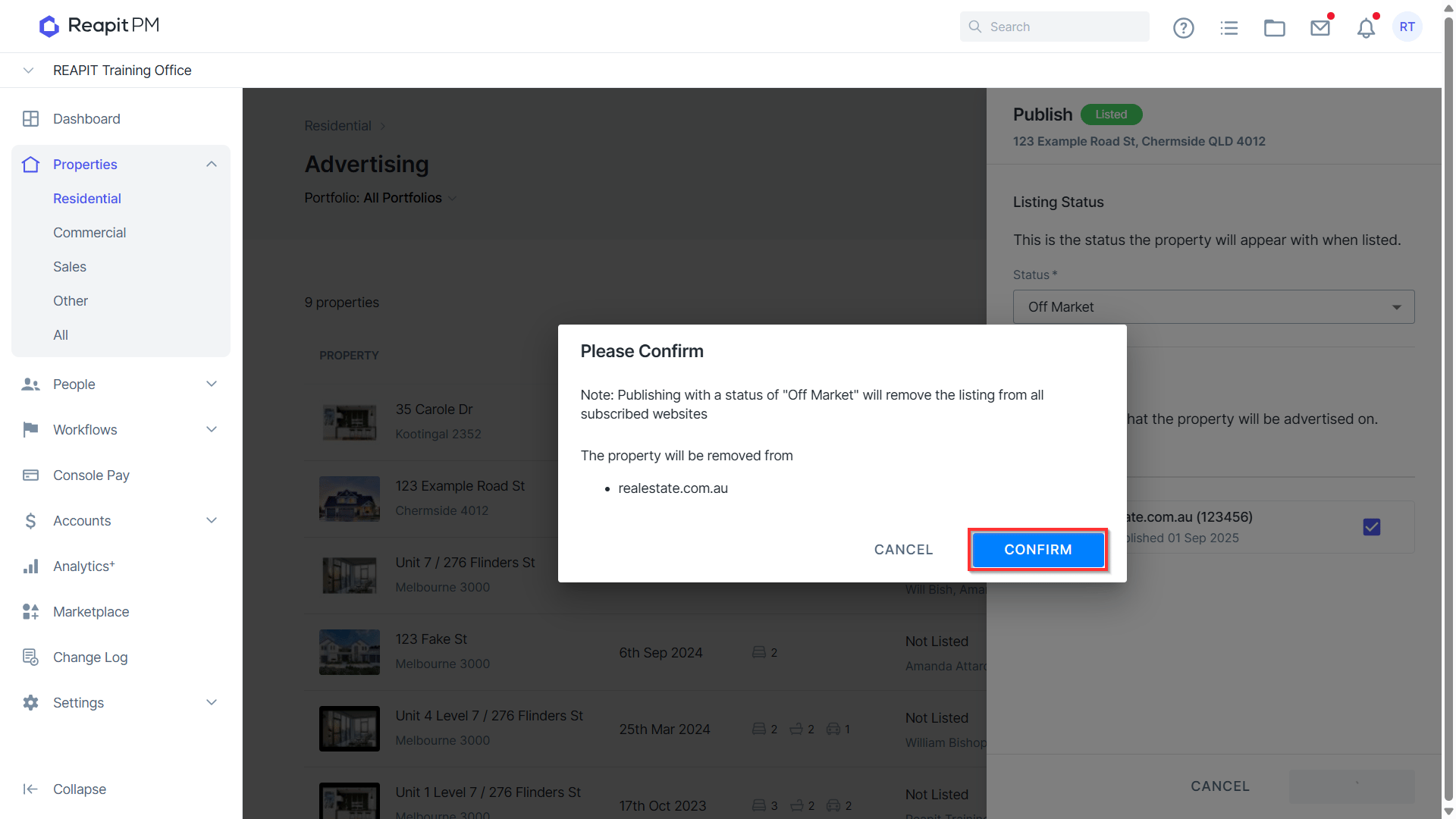
- The summary tab on the right-hand side will appear, click on the drop-down menu for Listing status > Update the status to Off Market and Publish.
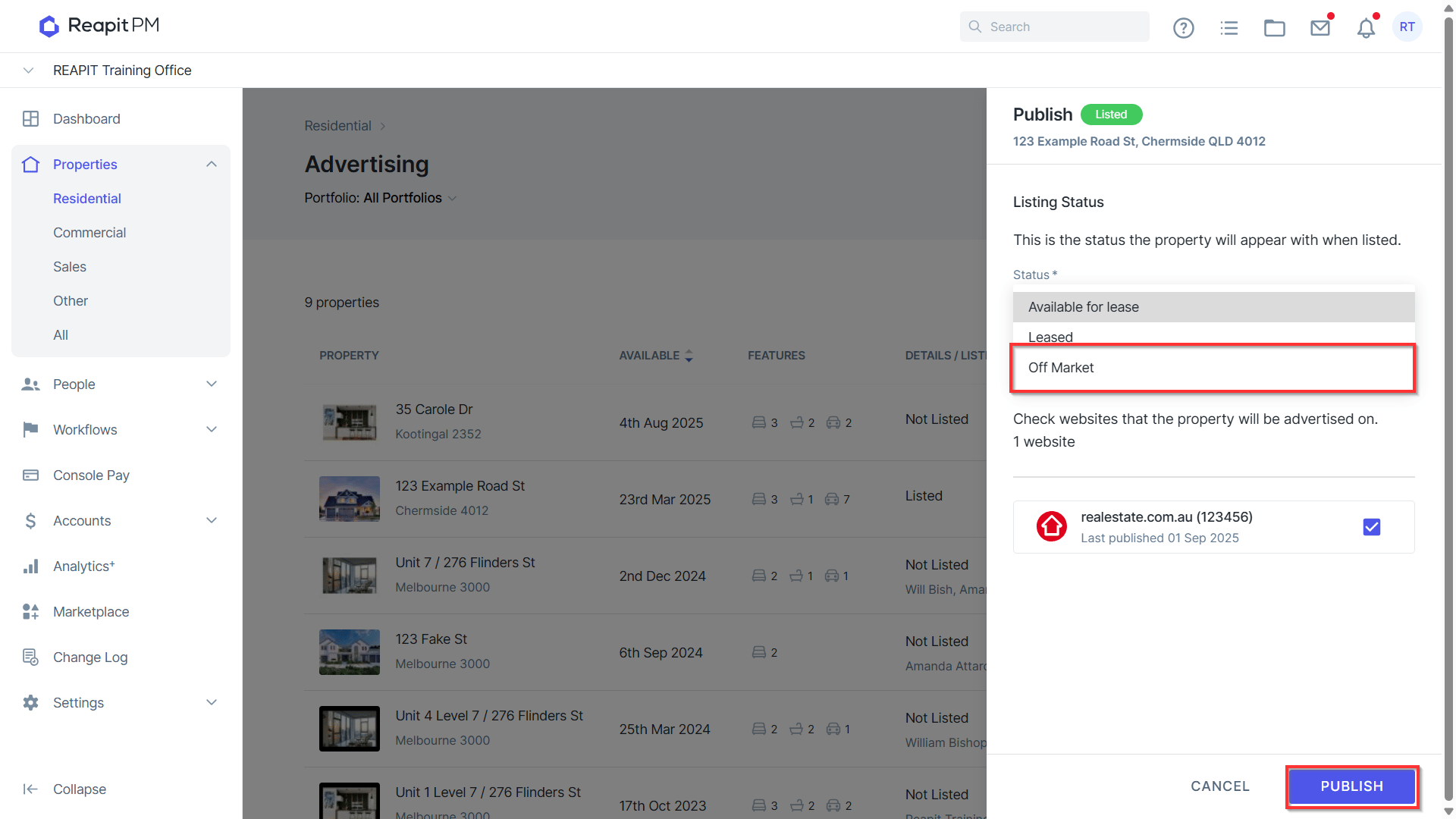
- A confirmation banner will appear with the changes that will take place. Click confirm to apply the removal of the listing