'%20d='M0%208a8%208%200%200%201%208-8h24a8%208%200%200%201%208%208v24a8%208%200%200%201-8%208H8a8%208%200%200%201-8-8V8Z'/%3e%3cpath%20fill='%23fff'%20d='M8.375%2013v14L20.5%2034l12.124-7v-7.737l-1.687-.975-2.806-1.62-1.082-.624v4.83l-.002%204.83H13.95V16.07l3.275-1.89%202.192-1.265%201.082-.625%203.275%201.877%202.192%201.256%201.083.62V9.782L20.5%206%208.376%2013Z'/%3e%3cdefs%3e%3clinearGradient%20id='reapit-pm__a'%20x1='20.702'%20x2='20.702'%20y1='.351'%20y2='31.228'%20gradientUnits='userSpaceOnUse'%3e%3cstop%20stop-color='%235573FD'/%3e%3cstop%20offset='.575'%20stop-color='%234E56EA'/%3e%3c/linearGradient%3e%3c/defs%3e%3c/svg%3e)
Using Pulse in Analytics+
Within Pulse, users can efficiently oversee their vital KPIs across multiple dashboards and set up data alerts for immediate notification.
Pulse offers a streamlined solution for you to effectively manage your KPIs and key metrics, irrespective of the number of dashboards in use. By integrating essential KPIs from diverse dashboards into the Pulse page, users gain a comprehensive and centralised view of your data within a singular location within Reapit PM.
The processes in this article include:
- Pulse Data Alerts
- How to Create a Data Alert
- Pulse Page
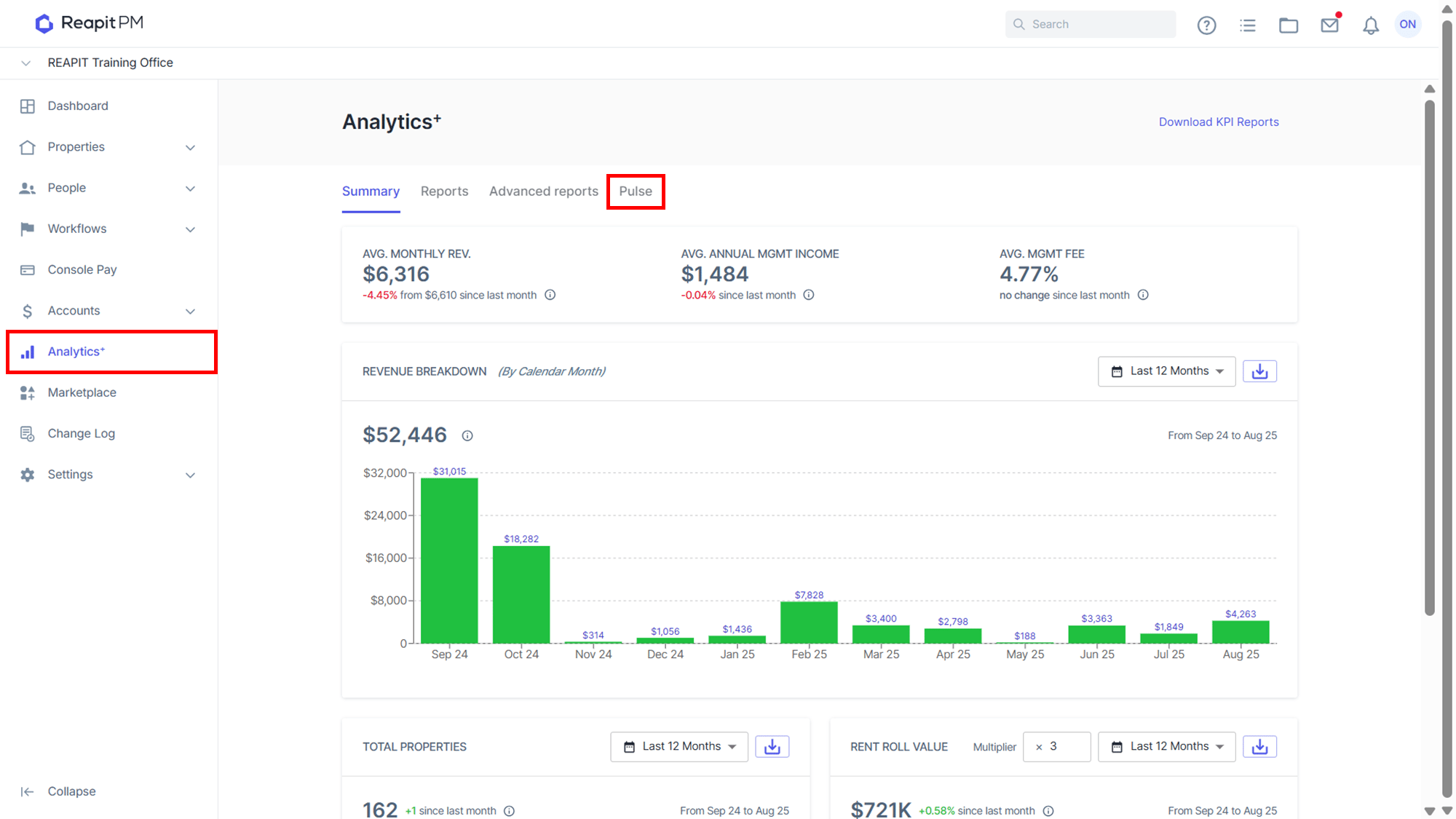
Within Pulse, users can efficiently oversee their vital KPIs across multiple dashboards and set up data alerts for immediate notification. This allows for proactive monitoring and timely response to noteworthy developments.
To set up a notification From the widget menu, navigate to Pulse Selections and select Add To Pulse from the 3-dot icon.
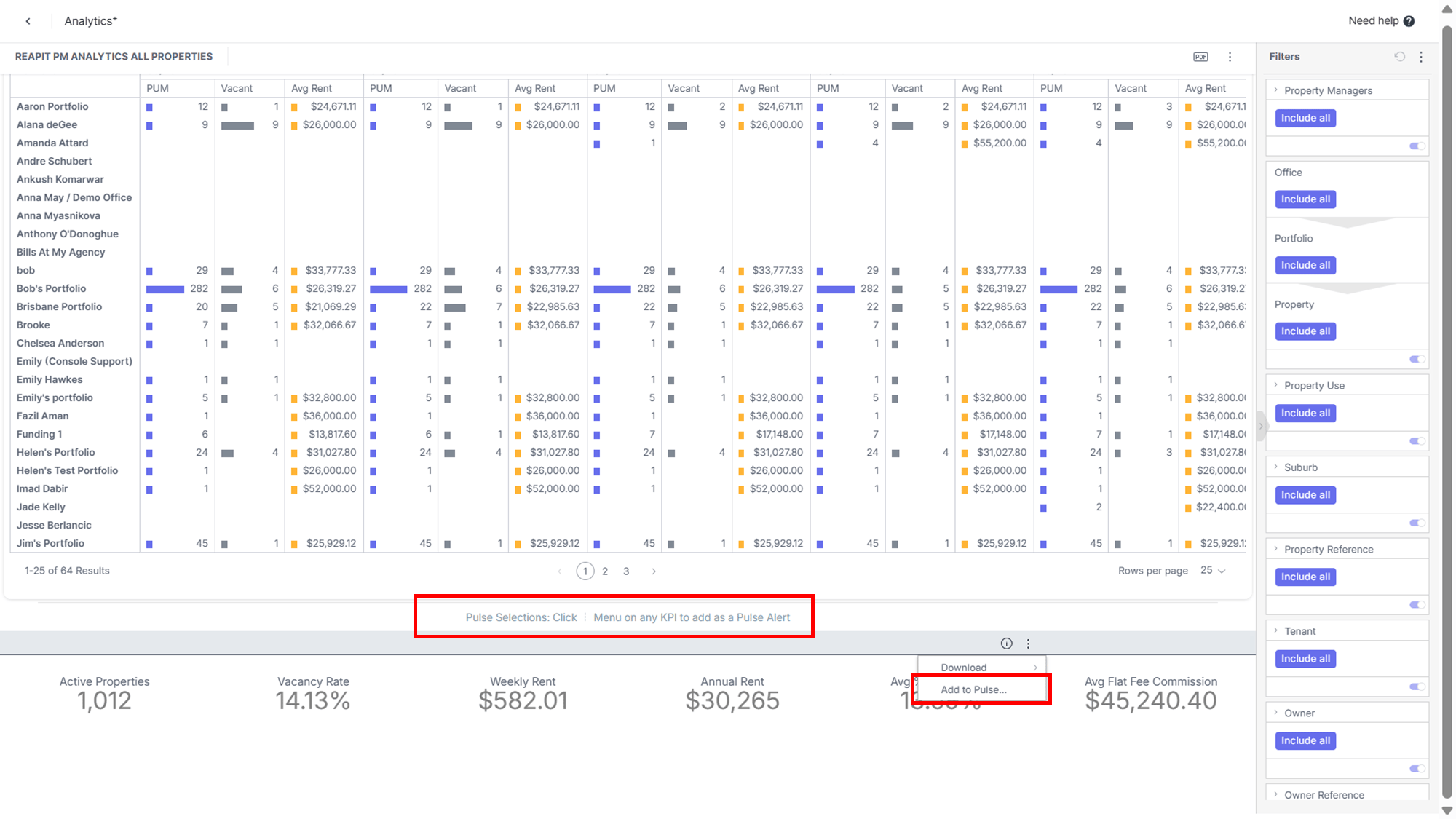
Pulse Data Alerts
Data alerts are initiated based on the parameters you establish for your widgets. To illustrate, consider an Indicator widget representing your agencies revenue; you have the capability to set up an alert that will promptly notify you should the revenue either exceed or dip below a predetermined threshold.
When establishing data alerts, you must specify the triggering condition for the alert. There are three distinct alert conditions capable of initiating an alert:
 Threshold
Alerts you when a threshold is reached, particularly handy for tracking recurrent metrics.
 Automatic
Automatic data alerts on your dashboard using advanced machine learning to spot anomalies in the data we provide. The more you use your dashboard, the better it gets at notifying you about any important changes in the data.
 Always
Notification alerts, whether your data changes or not.
How to Create a Data Alert
- Input a Notification In the Name field, enter a meaningful name that represents your alert.
- In the Alert Condition area, select the condition that triggers the alerts.
- Either by inputting, or using the up/ down arrows, indicate the criteria (value or threshold) the data needs to meet for a notification alert to be pushed through to you.
- Set the alert frequency
- Click Add to create the alert. The alert is added to Pulse.
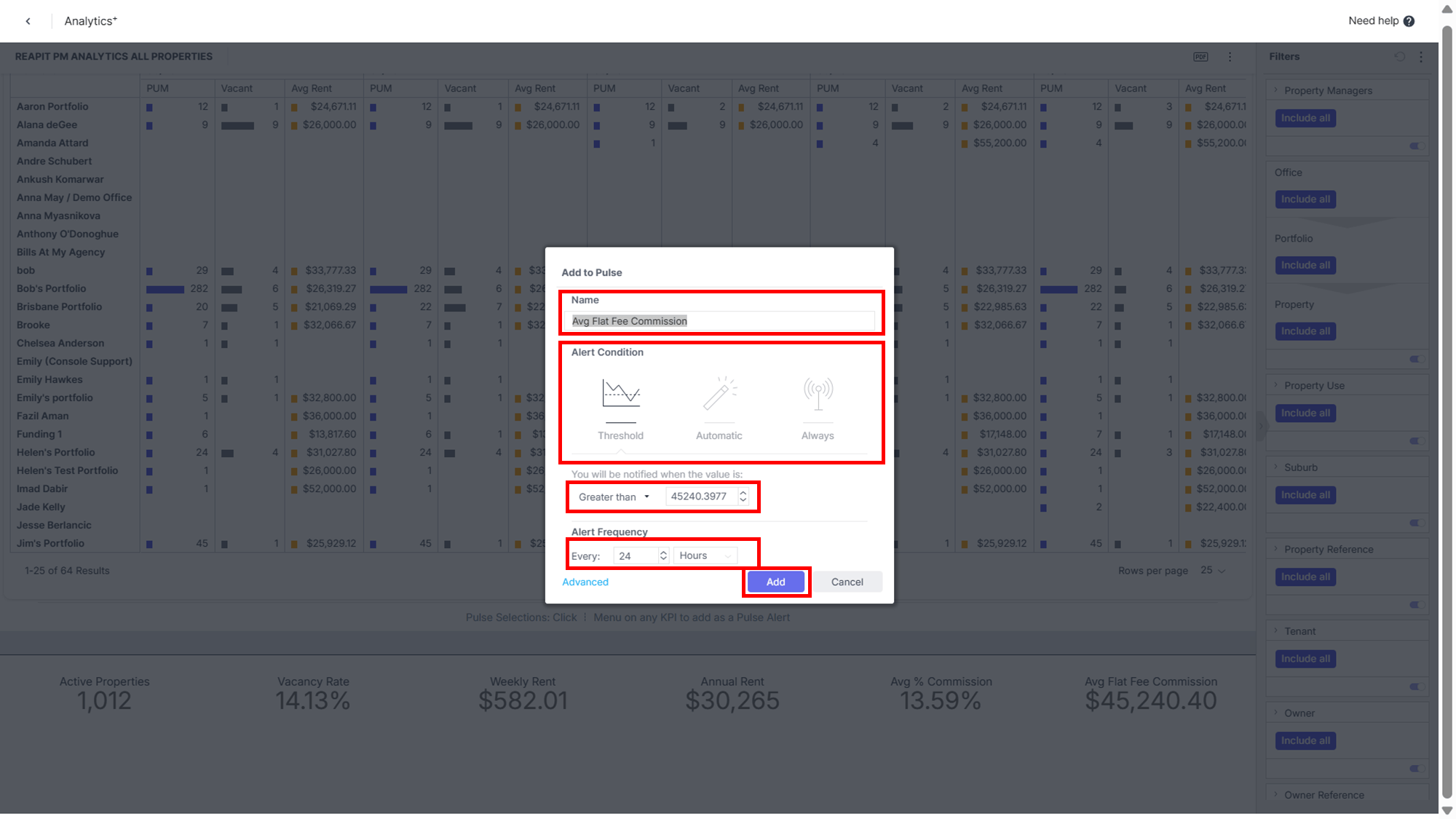
Note: You can configure to check if the alert condition is met every x minutes, hours or days and send an alert, if required. For all options, you must enter a whole number when selecting from the available options, such as '1' or '2', and refrain from using decimal values like '1.5' or '2.5'.
Pulse Page
If clicked will open the dashboard

Clicked If hovered over, will display high-level configuration settings.

If selected you can edit, duplicate, switch off or delete.

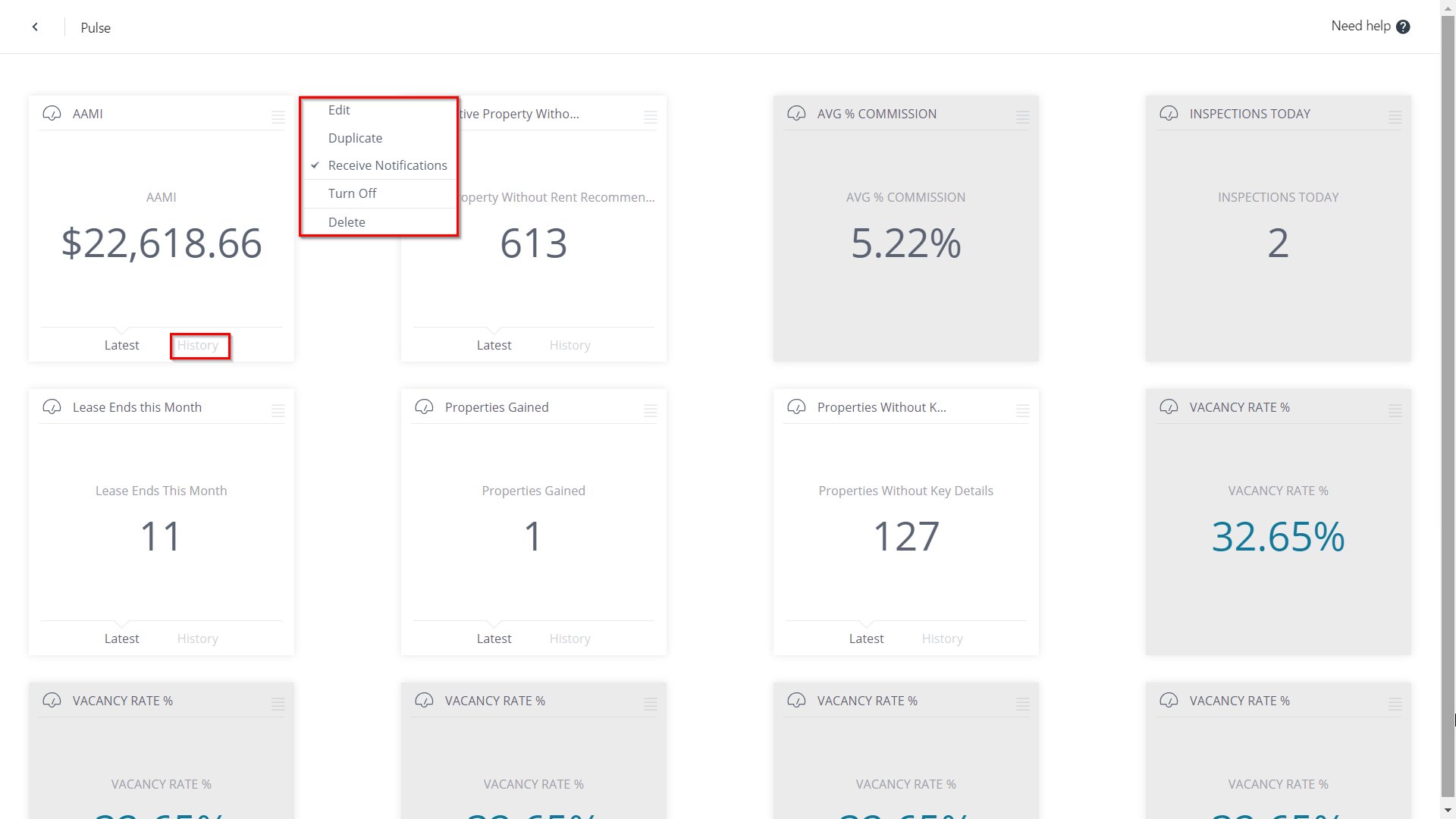
Note: You can select/ deselect receive notifications, if you click History, historical data will be displayed. you can select between latest and historical data simultaneously (latest data is aligned with the configuration settings you set).