'%20d='M0%208a8%208%200%200%201%208-8h24a8%208%200%200%201%208%208v24a8%208%200%200%201-8%208H8a8%208%200%200%201-8-8V8Z'/%3e%3cpath%20fill='%23fff'%20d='M8.375%2013v14L20.5%2034l12.124-7v-7.737l-1.687-.975-2.806-1.62-1.082-.624v4.83l-.002%204.83H13.95V16.07l3.275-1.89%202.192-1.265%201.082-.625%203.275%201.877%202.192%201.256%201.083.62V9.782L20.5%206%208.376%2013Z'/%3e%3cdefs%3e%3clinearGradient%20id='reapit-pm__a'%20x1='20.702'%20x2='20.702'%20y1='.351'%20y2='31.228'%20gradientUnits='userSpaceOnUse'%3e%3cstop%20stop-color='%235573FD'/%3e%3cstop%20offset='.575'%20stop-color='%234E56EA'/%3e%3c/linearGradient%3e%3c/defs%3e%3c/svg%3e)
Office Setup
In this article, you will learn how to enter office details in Reapit PM. The process in this article include: General Office Settings
Overview
Office Set Up
In this article, you will learn how to enter office details in Reapit PM.
The process in this article include:
- General Office Settings
- Navigate to Settings > Office.
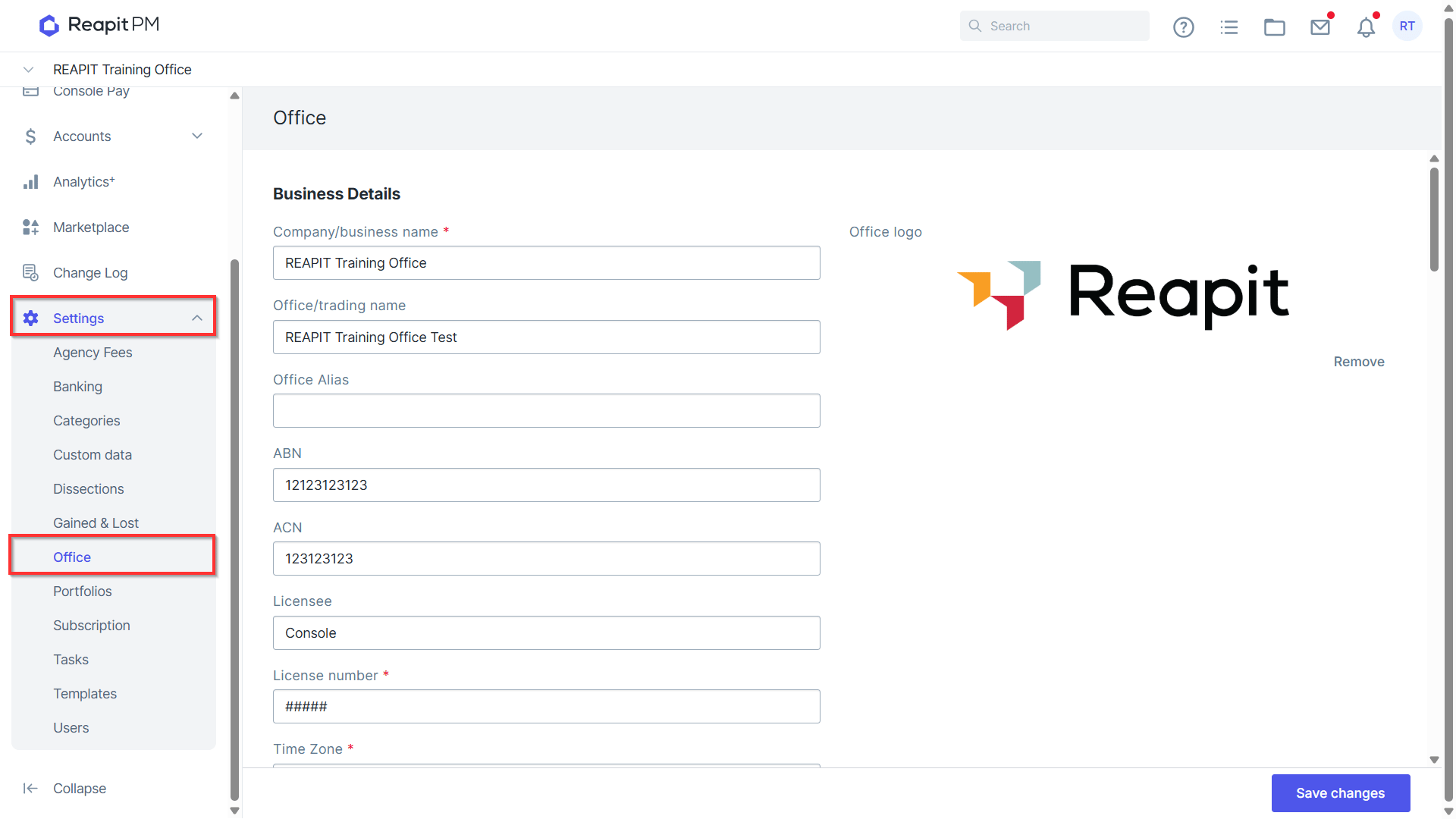
Note: Only office administrators can update office settings.
- Add/edit your business details, such as company name ABN, licence number, time zone and upload your company logo by dragging an image to the grey box or by using the browse option to select.
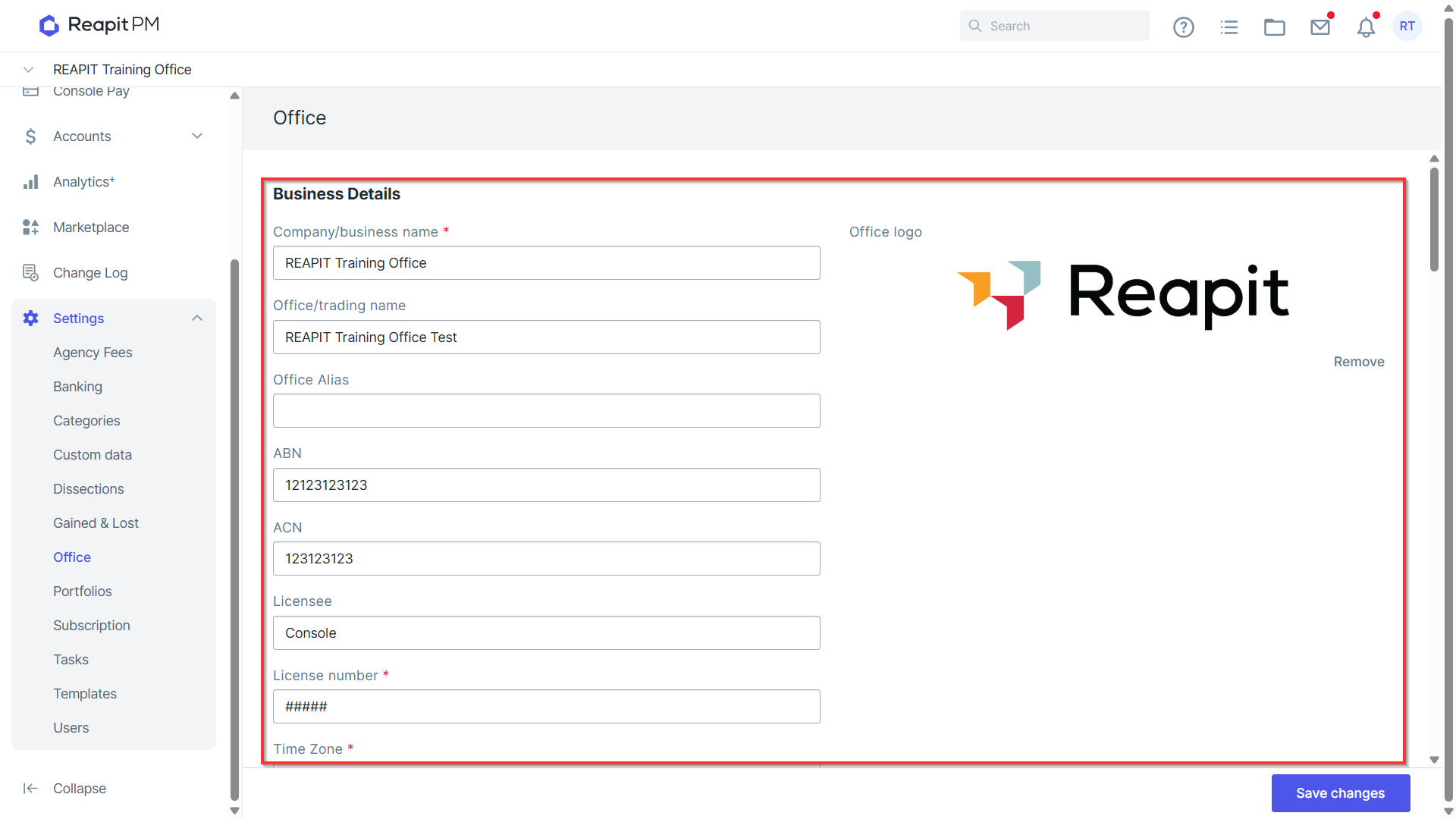
*Note: The Company/business name and Office/trading name fields will appear in certain sections generated in the system, such as reporting data, receipts, Owner/Creditor statements, work orders, and merge fields, if the appropriate merge field is used. If the Office/trading name field is left empty, the Company/business name will be only information to populate on the data.
- Add/edit your address details.
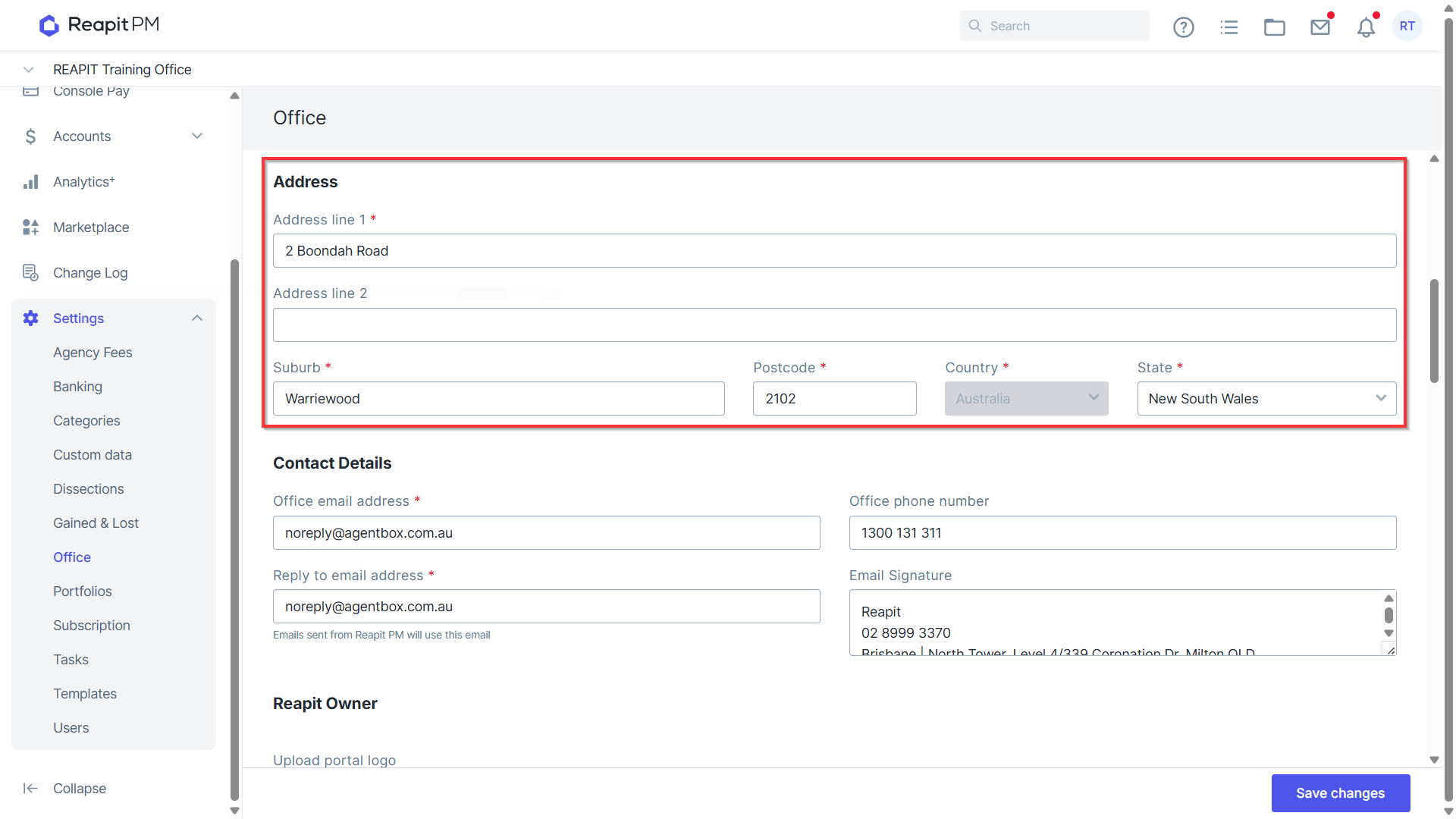
- Add/edit your office contact details, including email reply to signature and your email signature.
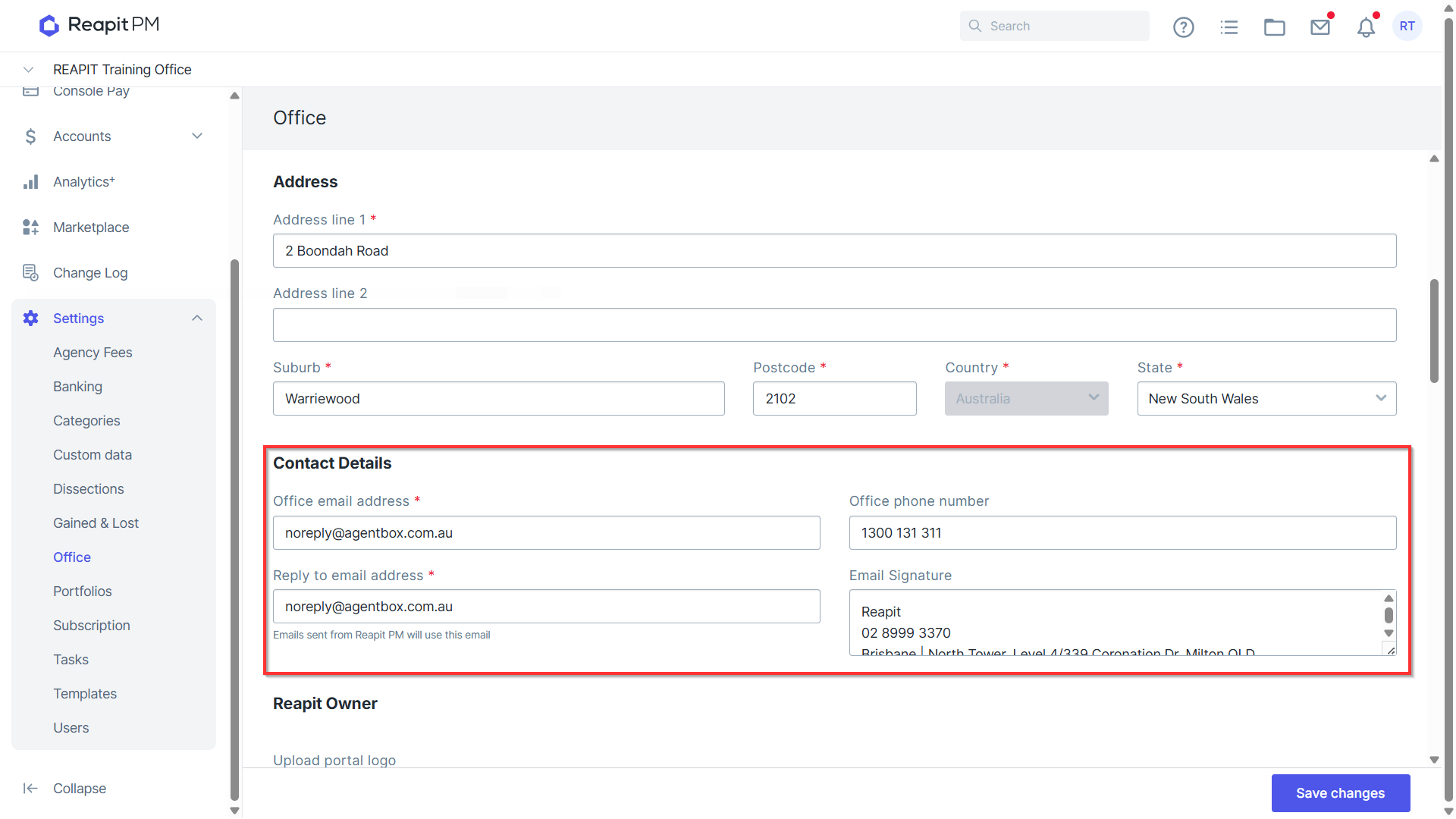
****Note: Add or edit your office contact details, including your email reply-to address and email signature. The information provided in this area will be used in specific situations, such as system templates where the merge fields for office email address or office phone number are used.
When there is no personal email signature set up under the user's communications or through a portfolio with a signature, the system will use the office email signature settings for outgoing communications from the system.
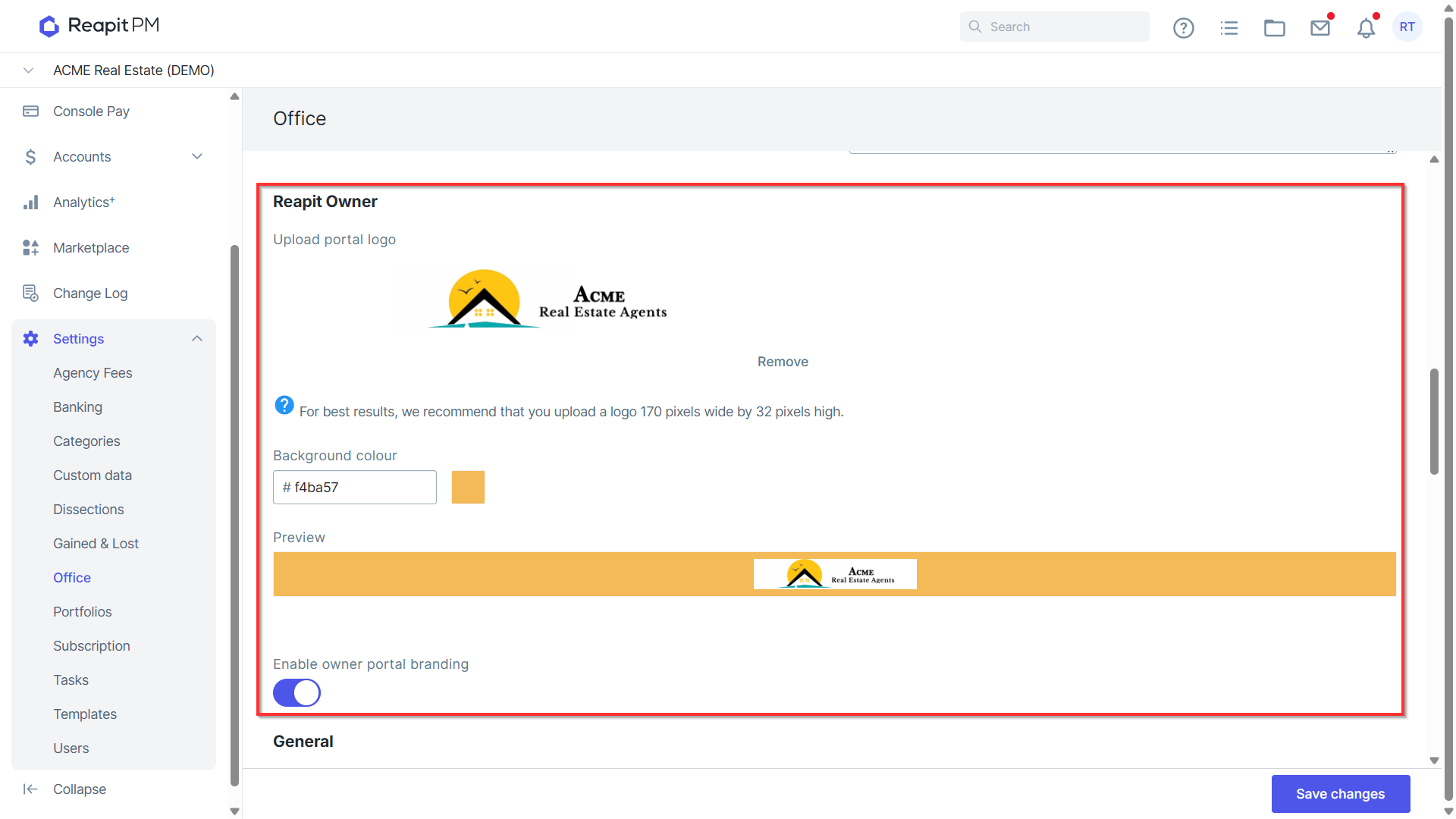
- For Reapit Owner, these settings will change the appearance of your owner portal and give you the option to customise with your own logo and colour bar.
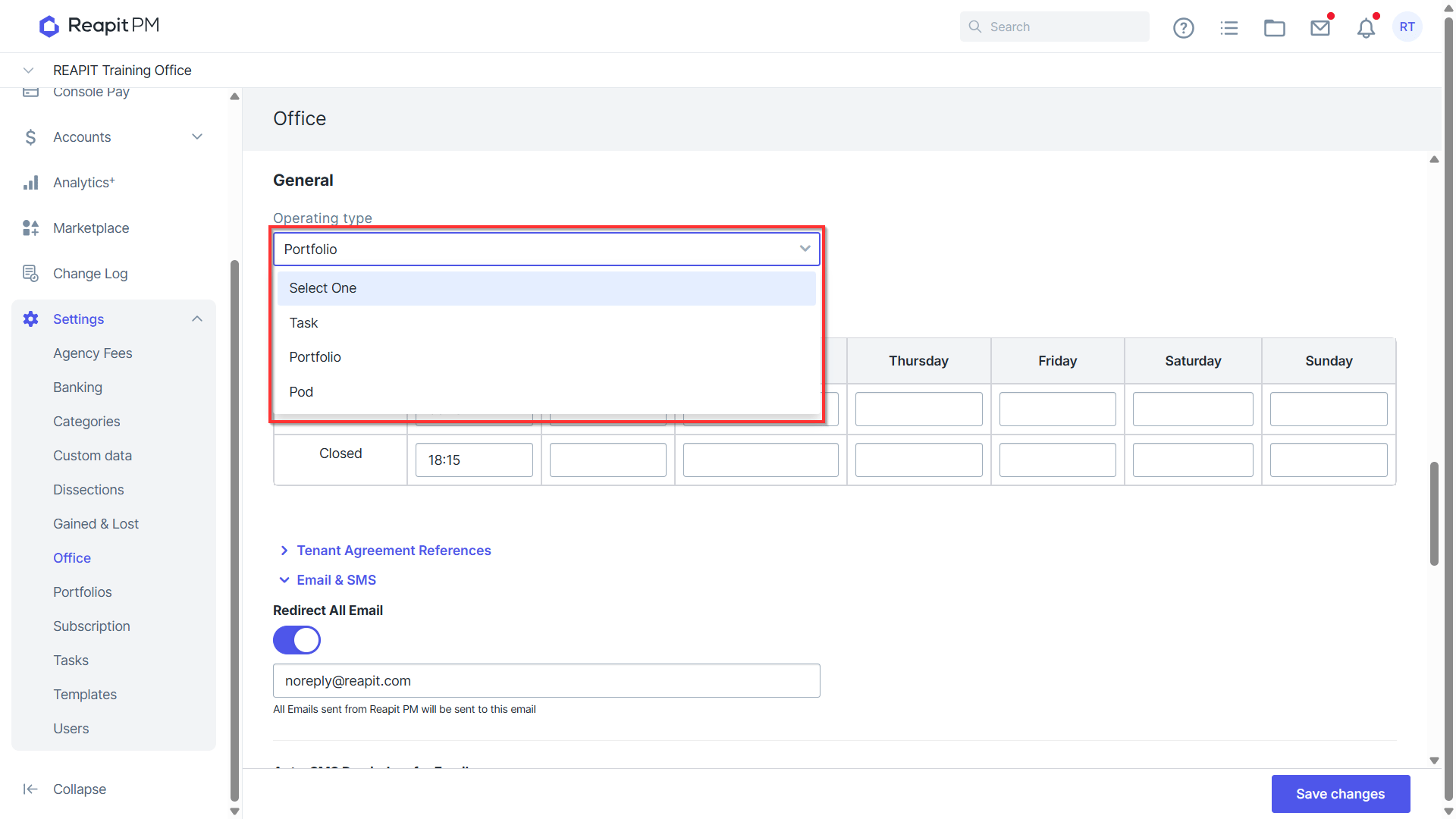
- For General, select your operating type. You can choose Task, Portfolio or Pod.
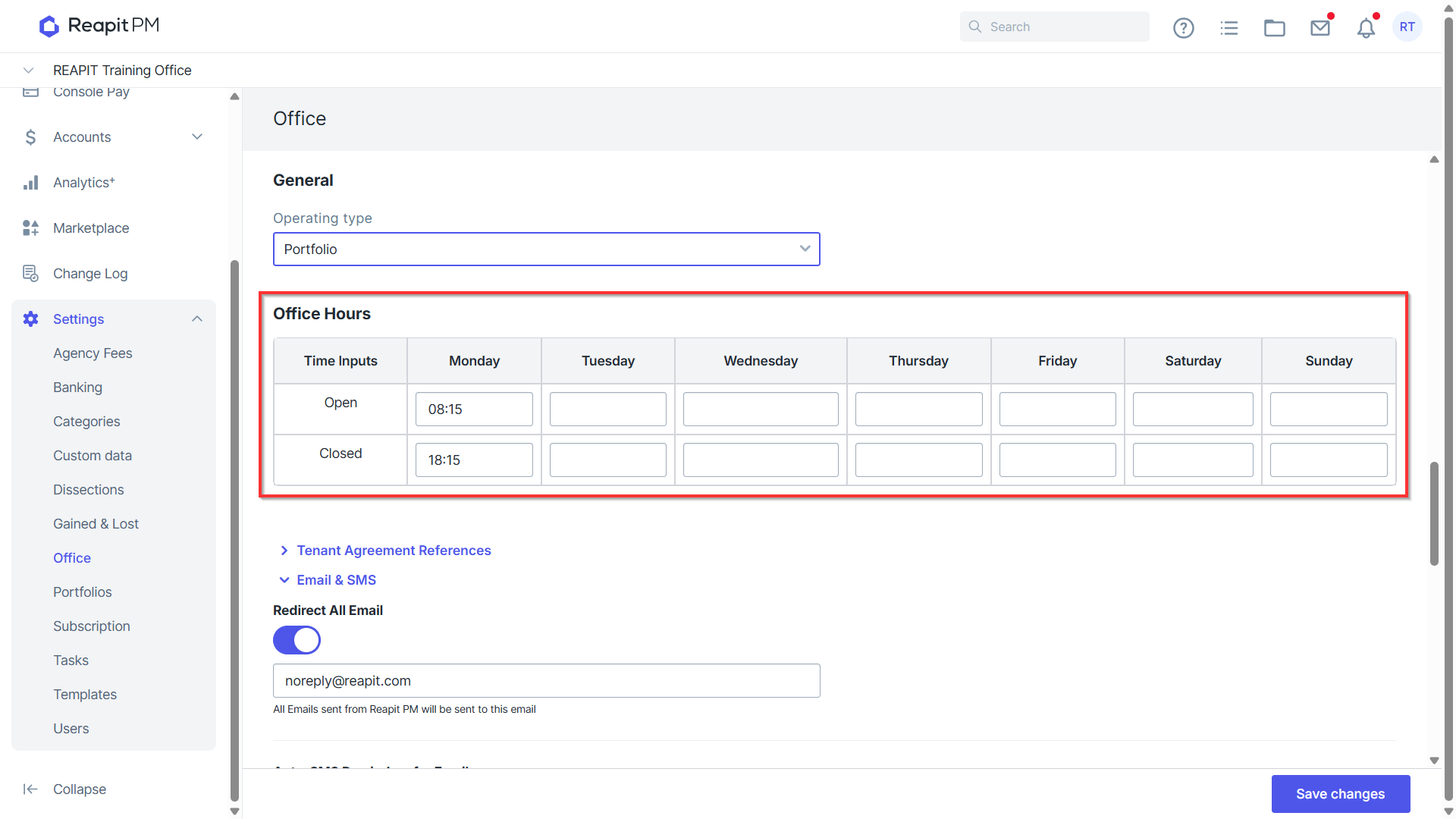
- For Office Hours, enter your opening and closing hours for the week.
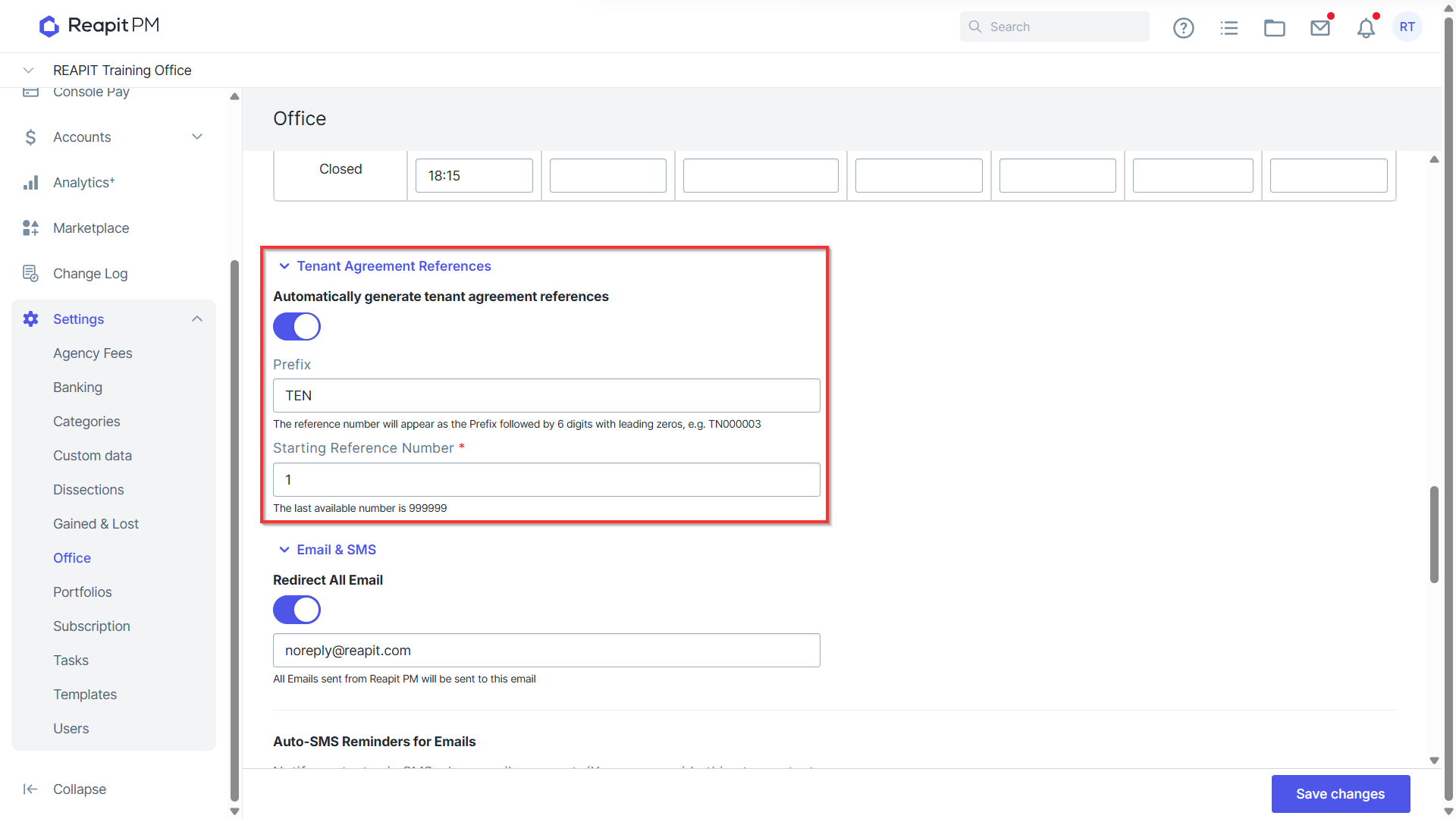
- Tenant agreement References allow for automatically generated references when enabled. For more information, please see - https://help.console.com.au/s/article/Configure-Tenant-Reference
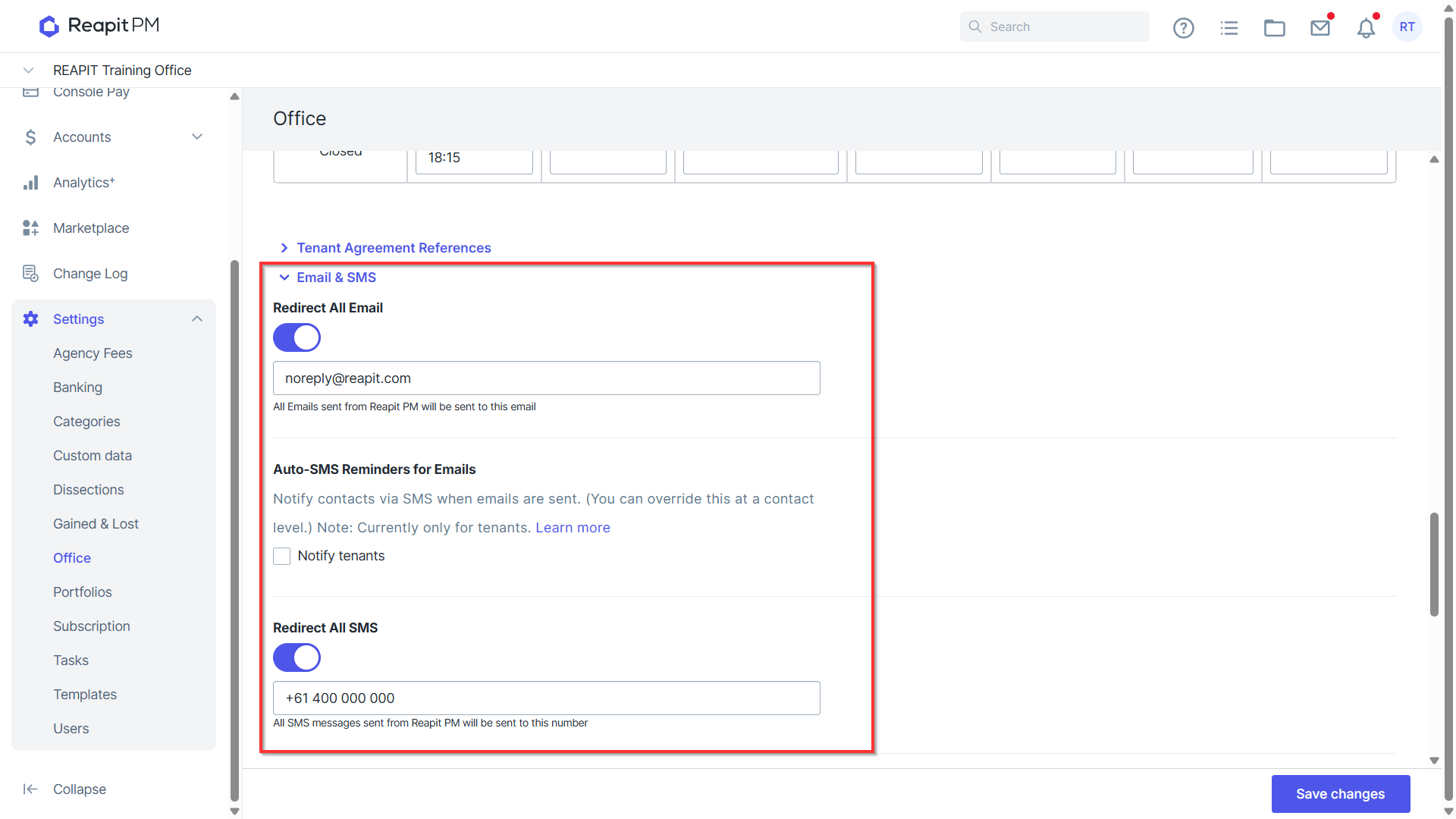
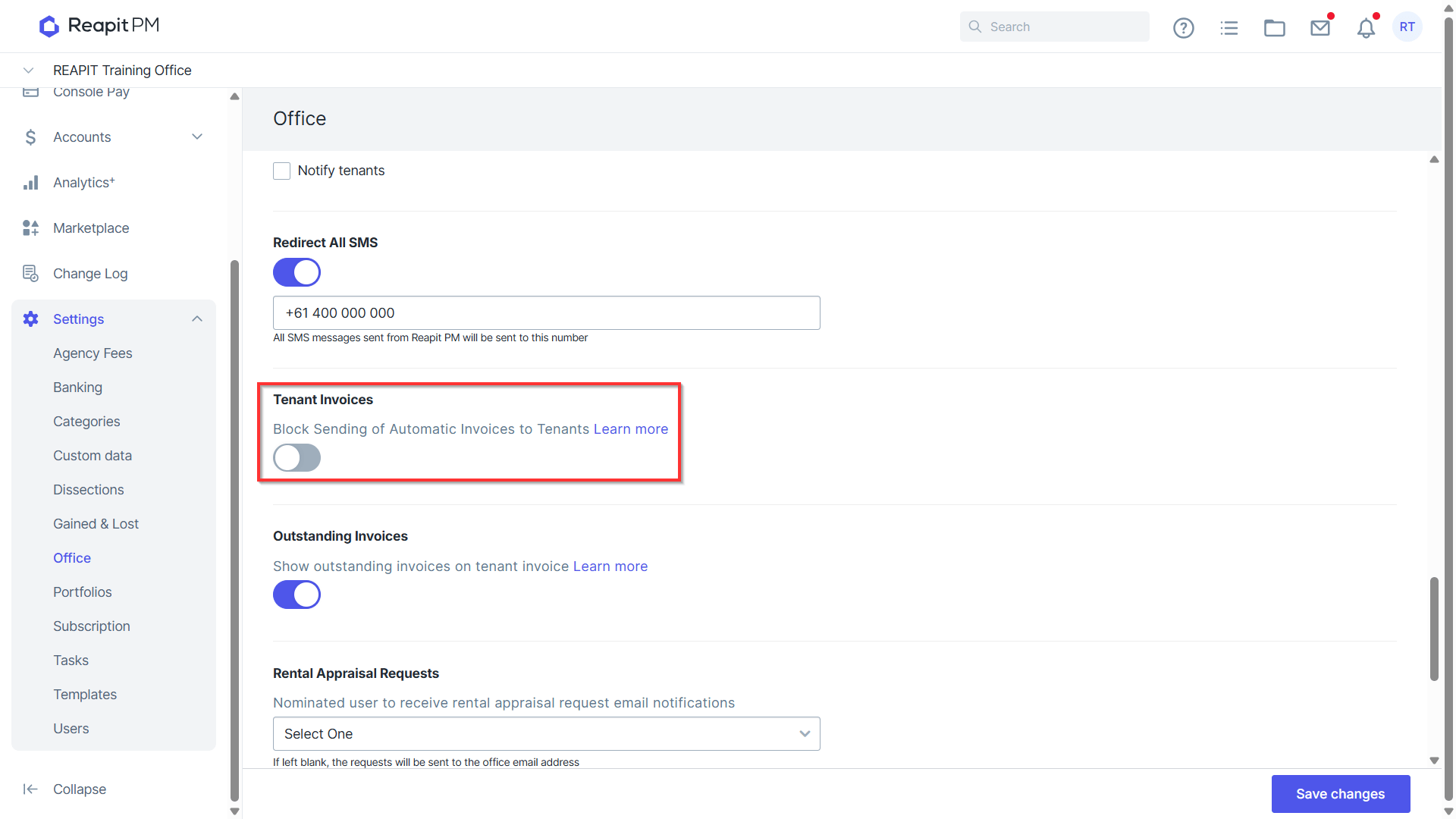
Redirect All SMS is generally used in a new office setup or trial office environment. When enabled, it will require a mobile number to be provided. Once enabled, any SMS communication (manual or automated) from Reapit PM will be sent to the mobile number provided instead of any contact numbers nominated to received the message. 10. For Tenant Invoices, slide the toggle on to prevent PM from sending recurring invoices to tenants. An example of where this may be used is an office may like to use the structure of recurring invoices for receipting rent and outgoings, but do not necessarily require tenants to receive the physical invoices. Note: When managing invoice arrears, you will need to delete the associated invoice attachments, as this setting does not effect invoice arrears.
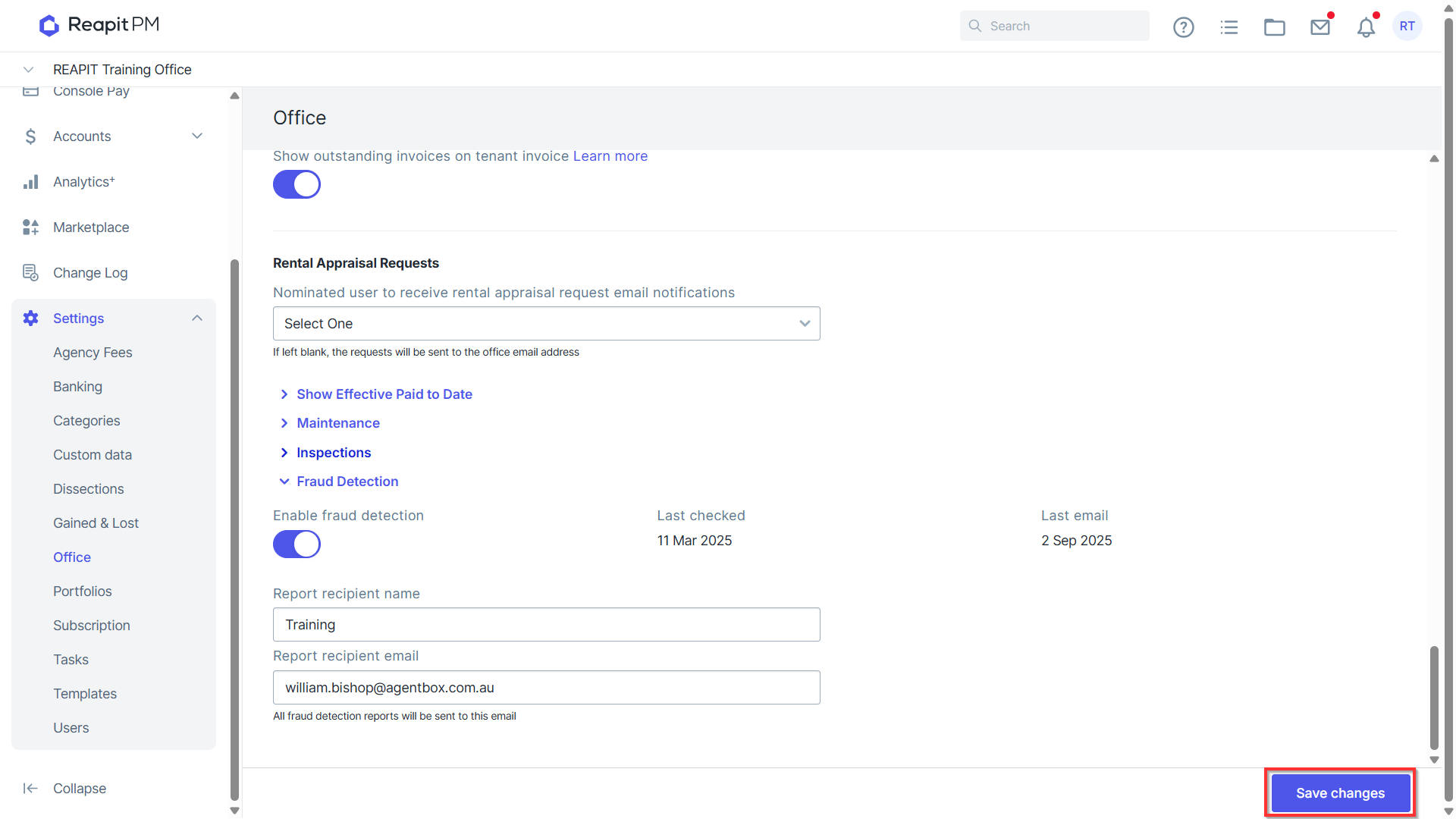
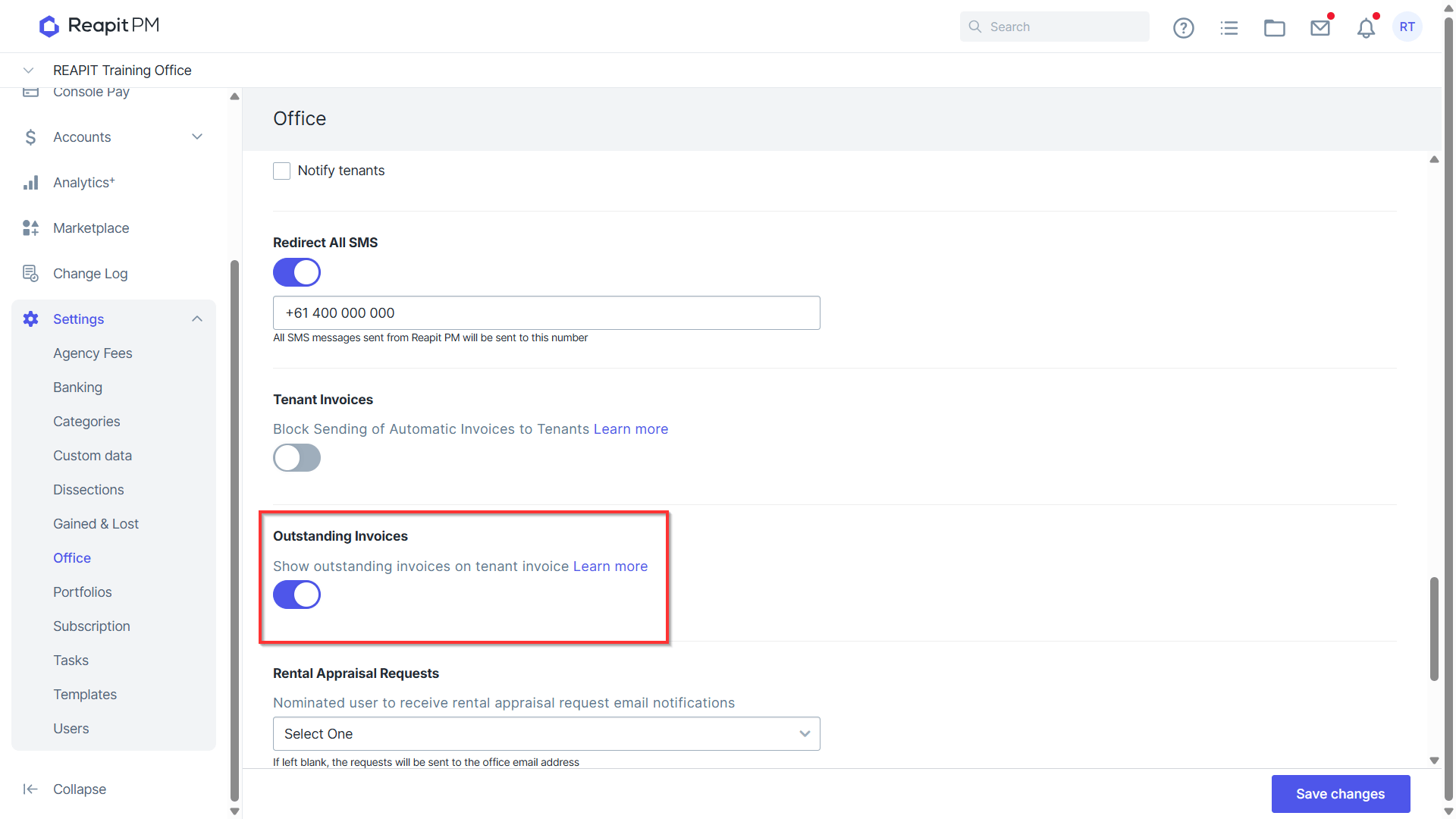
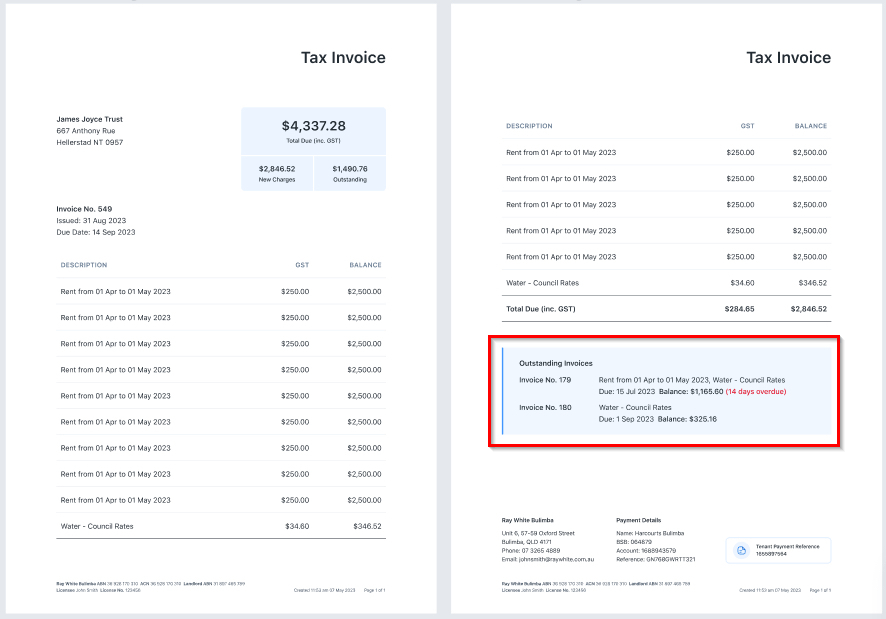
- For Outstanding Invoices, by toggling this on, any outstanding invoices will now display on all newly created or regenerated invoices for both Residential and Commercial tenancies.
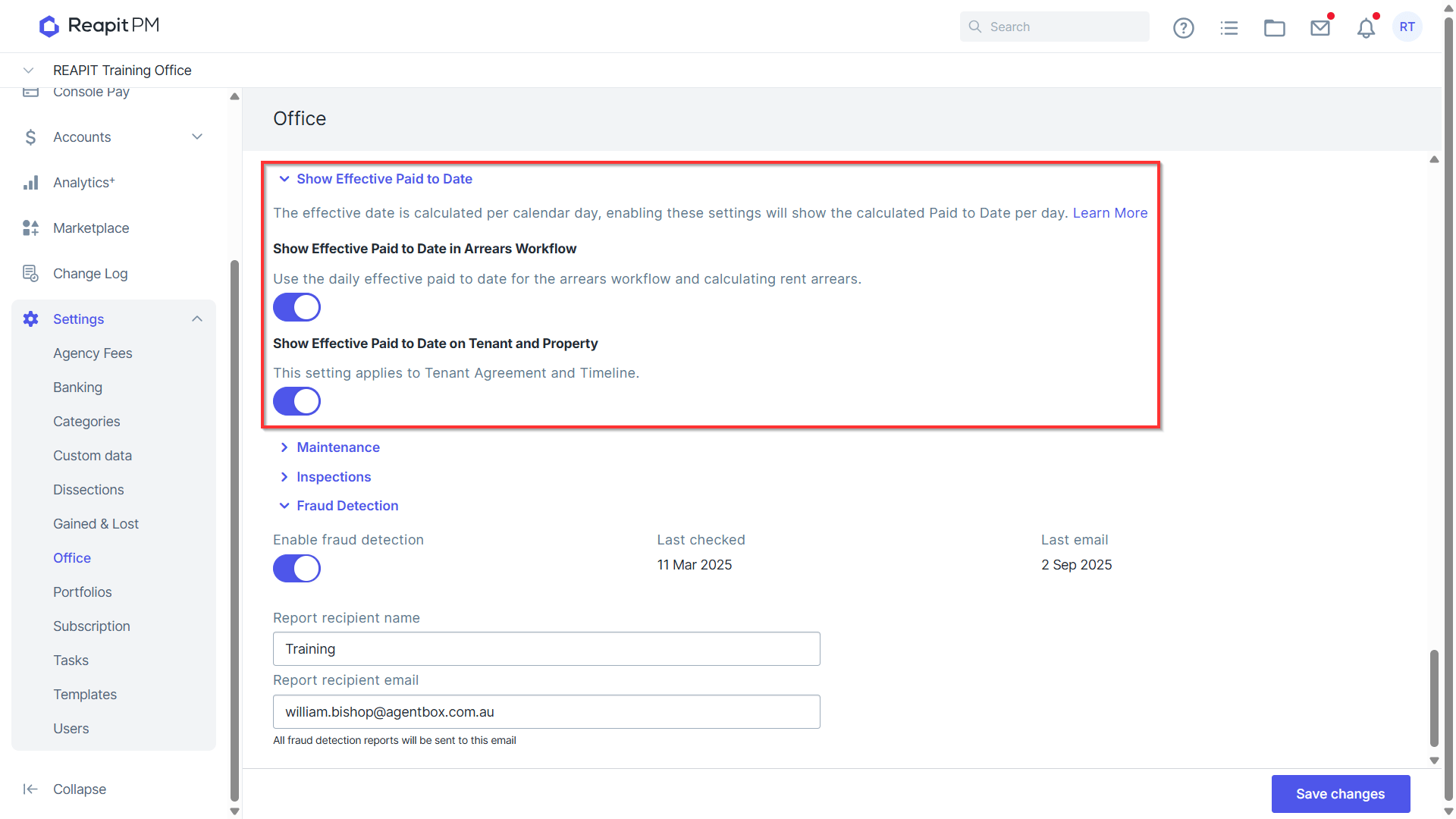
- Show Effective Paid to Date will provide you with two options.
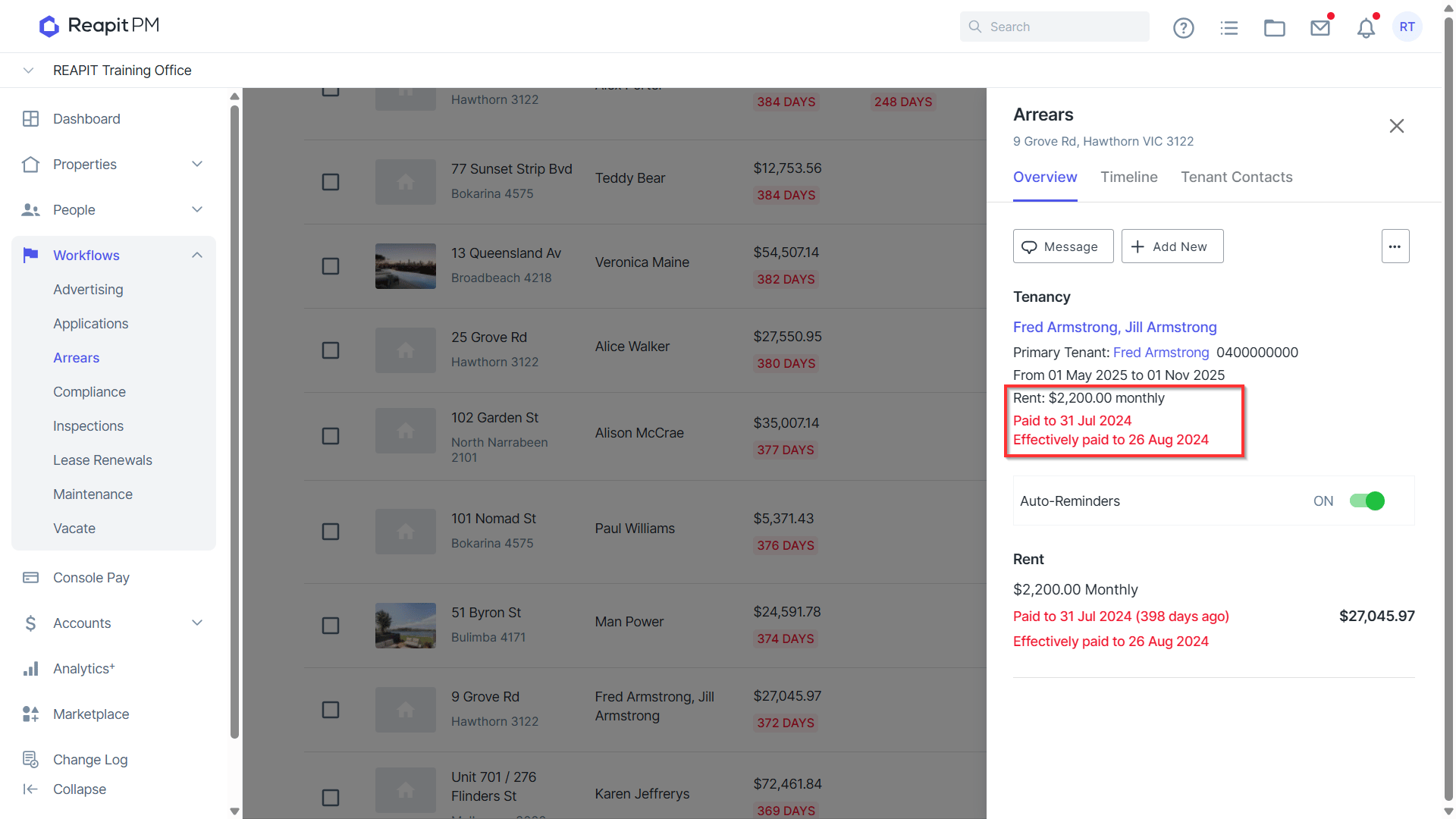
Show Effective Paid to Date in Arrears Workflow - By enabling this, the system will use daily rent calculation and display the Paid to Date and Effective Paid Date for tenants with any balance in part payment from the Arrears Workflow Page.
| Show Effective Paid to Date in Arrears Workflow - When Setting Enabled | Show Effective Paid to Date in Arrears Workflow - When Setting Disabled |
| Using this method, rent arrears is calculated as per the rent owed per day for the property. In other words, if the rent for a property is $420 per week, the rent owed per day is $60 ($420p.w. ÷ 7 days = $60 p/day). If a tenant’s paid-to date was 9 June, and a payment of $420 was due on 10 June, and the rent was not paid, then on 11 June, Reapit PM will calculate the tenant as being 2 days in arrears, to the value of $120: $60 per day x 2 days overdue = $120. Calculating part payments When a tenant makes part payments of rent, Reapit PM adjusts both the amount in arrears and days in arrears. If rent for a property is $420 p/week, and 9 June is the tenant’s current paid-to date, then a part payment of $120 ($60 per day x 2 days) made on 12 June (when the tenant is 3 days and $180 in arrears) will reduce arrears by 2 days and $120. After the part payment, the tenant is 1 day and $60 in arrears. On the other hand, if the same tenant was 3 days and $180 in arrears on 12 June, and made a part payment that day of $100 (i.e. less than 2 full days’ rent), Reapit PM would calculate that the tenant only reduced their arrears by 1 day, with $80 outstanding. | Using this method, arrears is calculated by the rent owed per period for the property (week/fortnight/month). In other words, if a tenant pays $420 weekly, their last paid-to date is 9 June, and they miss their payment of $420 on 10 June, the tenant will be 1 day in arrears to the value of $420. If they haven’t paid by 11 June (2 days after their last paid-to date), the tenant will then be 2 days in arrears, still to the value of $420 (where the rent period is per week). Calculating part payments Reapit PM ignores part payment amounts when calculating the number of days a tenant is in arrears, but accounts for part payments when calculating the amount of money owed. In other words, if the same tenant makes a part payment of $120 on 12 June, the tenant will still be 3 days in arrears, but the amount owed will be calculated as $420 less the $120 part payment, or $420 - $120 = $300. This means that until the tenant makes a full payment for the current rent period, the number of days in arrears will be counted from the last paid-to date for a full rent period. |
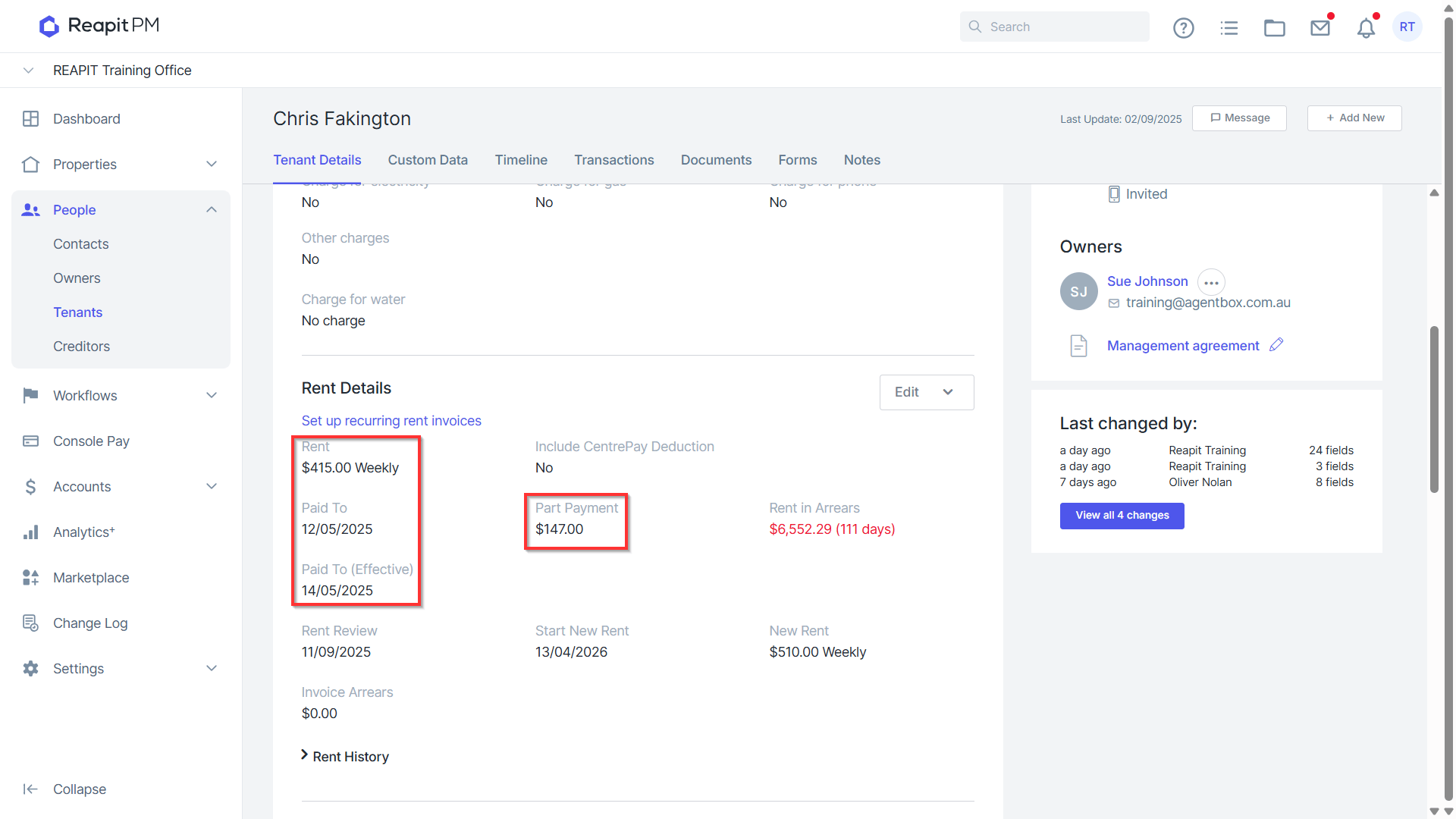
Show Effective Paid to Date on Tenant and Property - By enabling this, the effective paid to date will display on the property file, and the tenancy agreement.
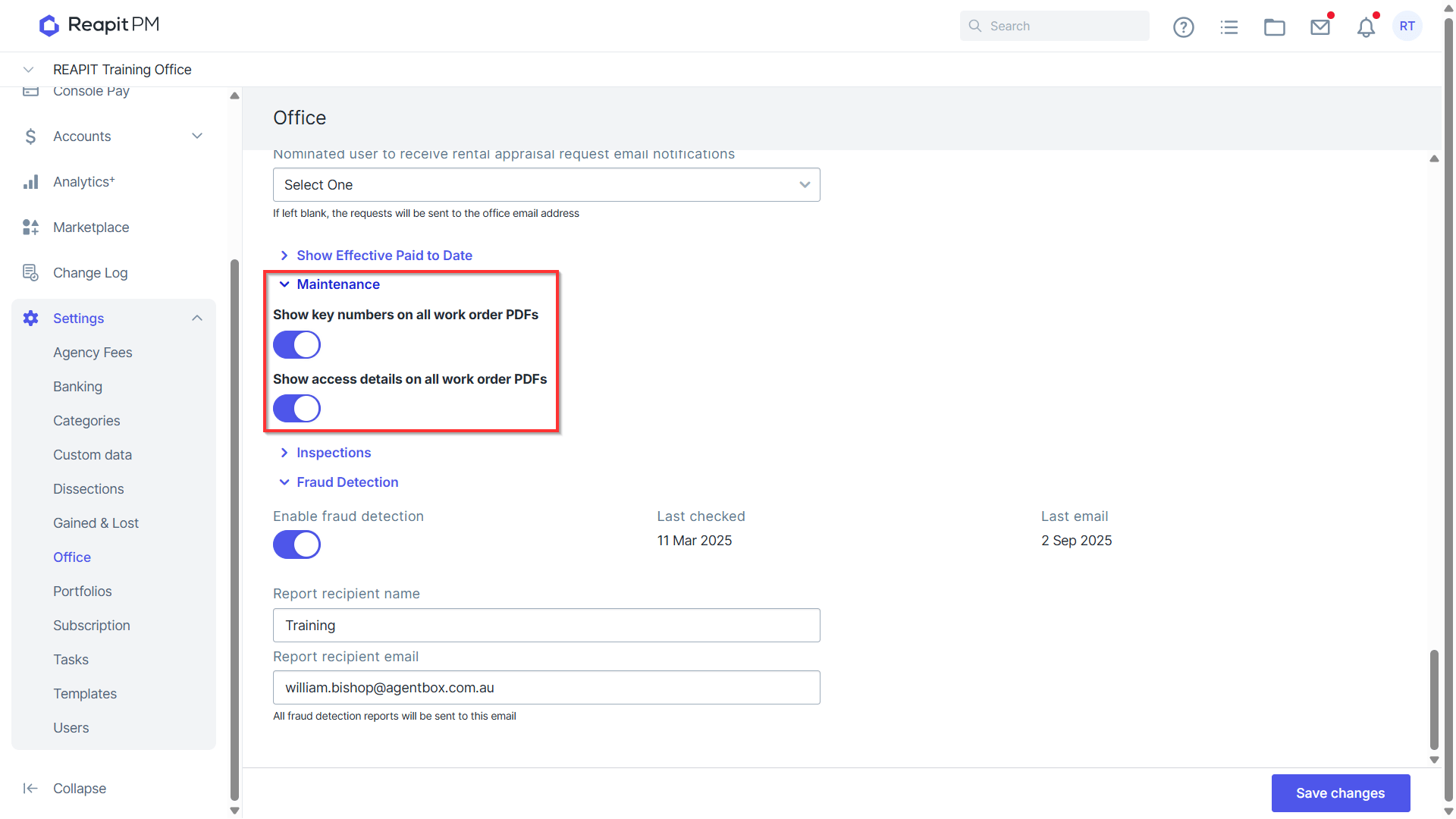
- Under Maintenance, select if you would like to show key numbers and access details on maintenance work order PDF’s.
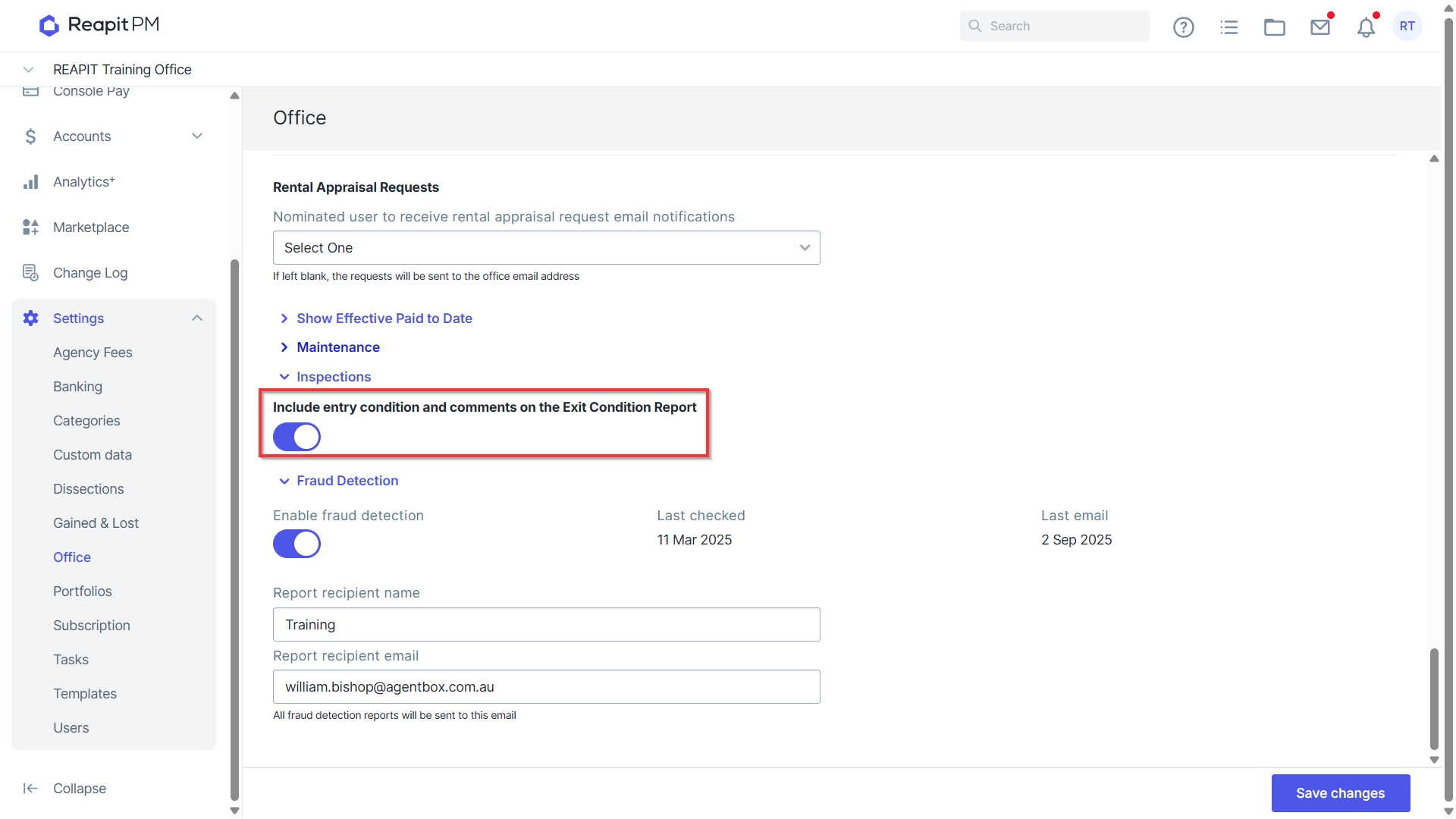
- Under Inspections, toggle on/off to include entry condition and comments on the exit Condition Report.
- Select if you would like to enable or disable fraud detection. When fraud detection is enabled, you will receive a report when the system flags items that may require further investigation.
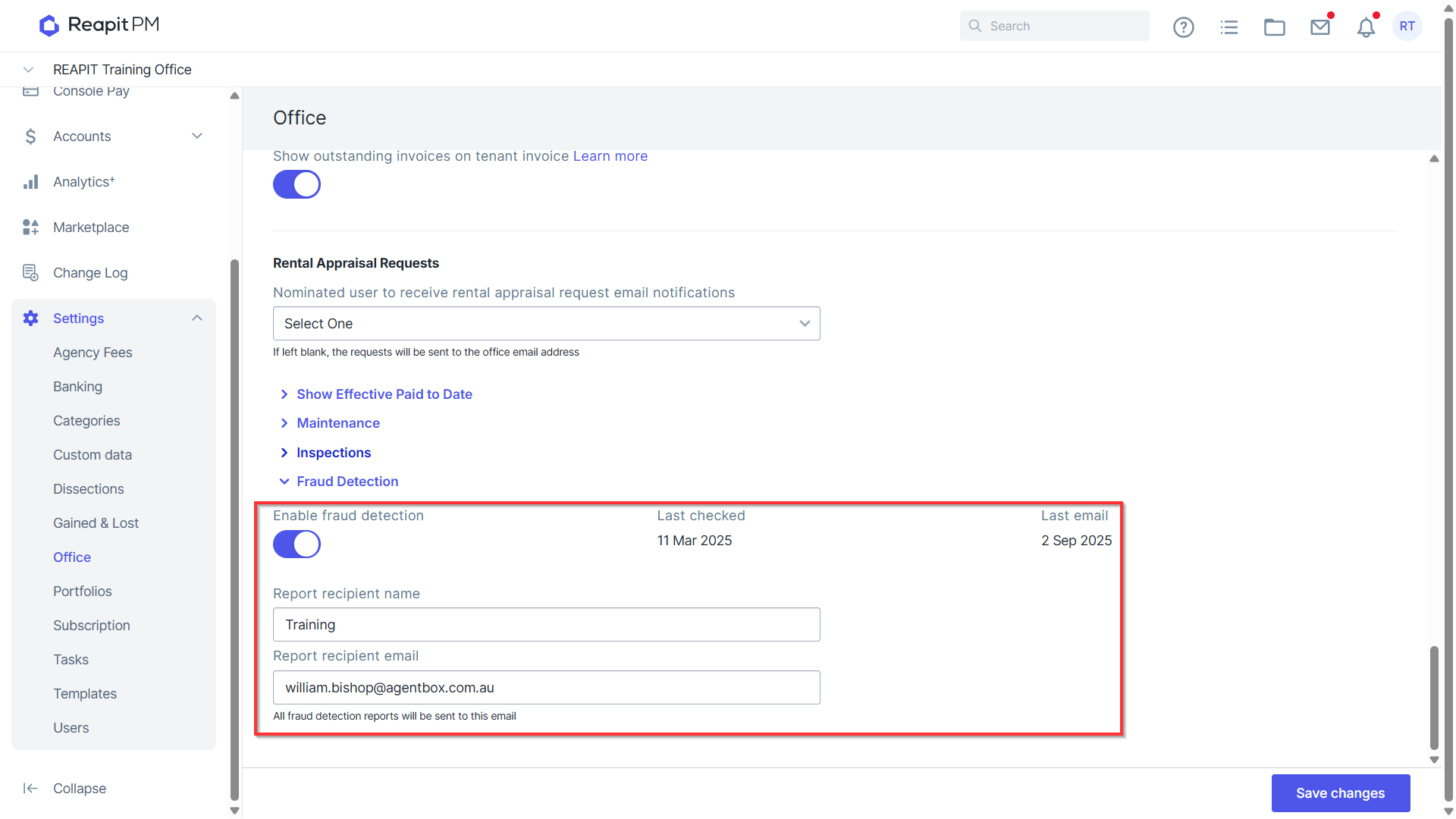
For more information around Fraud Detection, please visit - https://help.console.com.au/s/article/Fraud-Detection
- Click Save Changes.