'%20d='M0%208a8%208%200%200%201%208-8h24a8%208%200%200%201%208%208v24a8%208%200%200%201-8%208H8a8%208%200%200%201-8-8V8Z'/%3e%3cpath%20fill='%23fff'%20d='M8.375%2013v14L20.5%2034l12.124-7v-7.737l-1.687-.975-2.806-1.62-1.082-.624v4.83l-.002%204.83H13.95V16.07l3.275-1.89%202.192-1.265%201.082-.625%203.275%201.877%202.192%201.256%201.083.62V9.782L20.5%206%208.376%2013Z'/%3e%3cdefs%3e%3clinearGradient%20id='reapit-pm__a'%20x1='20.702'%20x2='20.702'%20y1='.351'%20y2='31.228'%20gradientUnits='userSpaceOnUse'%3e%3cstop%20stop-color='%235573FD'/%3e%3cstop%20offset='.575'%20stop-color='%234E56EA'/%3e%3c/linearGradient%3e%3c/defs%3e%3c/svg%3e)
Advertising in Reapit PM
This article will guide you through setting up advertising in Reapit PM.
Note:** Advertising is available to clients on a premium subscription only.
The processes in this article include:
- Setting Up Advertising
- Importing - Review Listing Details
Setting Up Advertising | Importing - Review Listing Details
Setting Up Advertising
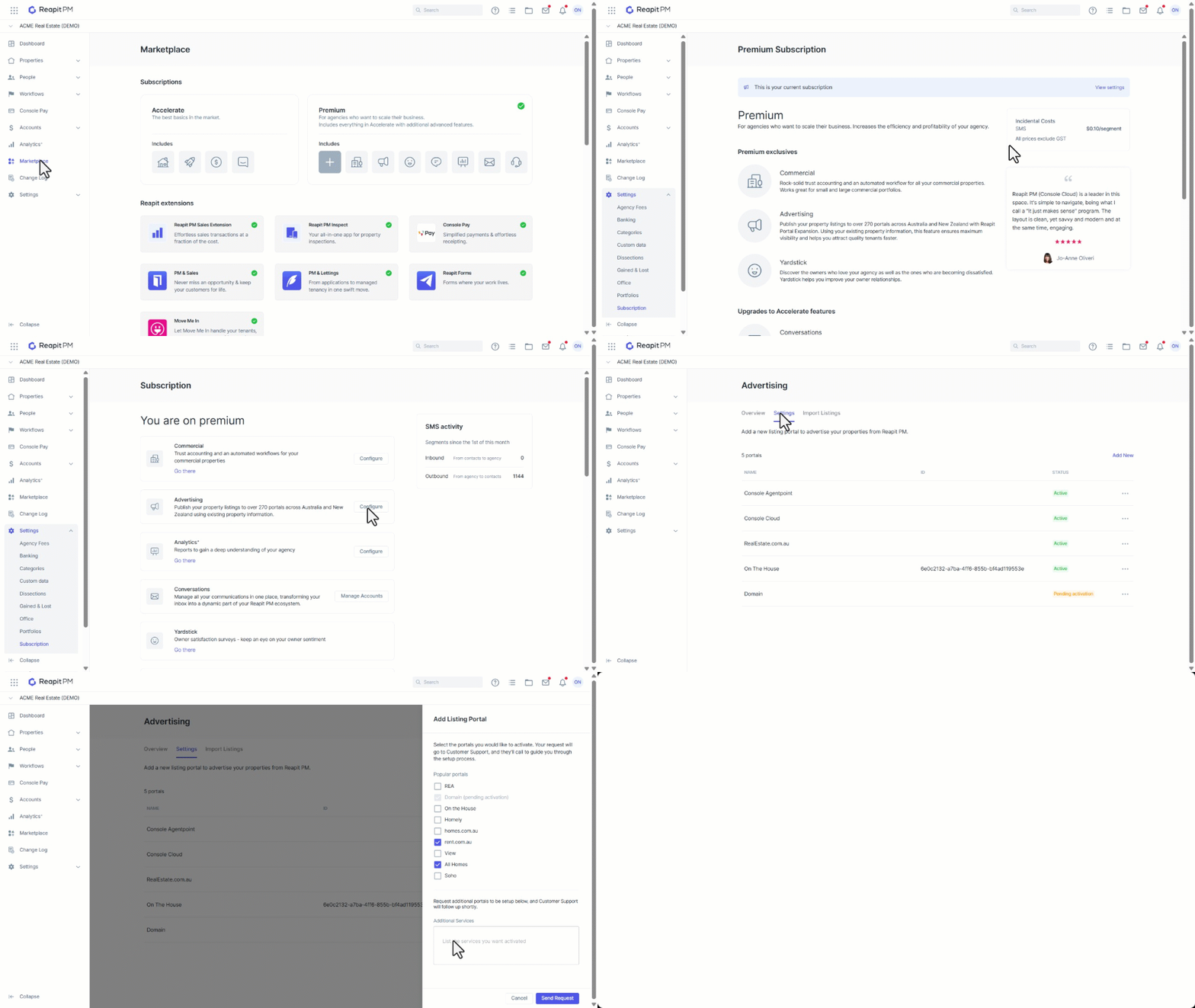
Advertising settings will display the most popular portals for you to select and easily have set up for you. This feature sends a request to the support team, who will guide you through the setup process. If the service you need isn’t listed, you can use the additional services text box to submit your request. The team will coordinate with the provider and facilitate the setup process with you, which typically takes 1–2 weeks, depending on communication between both parties.
- Click on Marketplace.
- Navigate to the Premium subscription summary and click on the Advertising tile.
- Click on View settings.
- Navigate to Advertising and click on Configure.
- Click on the Settings tab.
- The list of connected portals will display along with their current status. To add a new portal, Click on Add New.
- Tick your selections and click on Send Request.
Importing - Review Listing Details
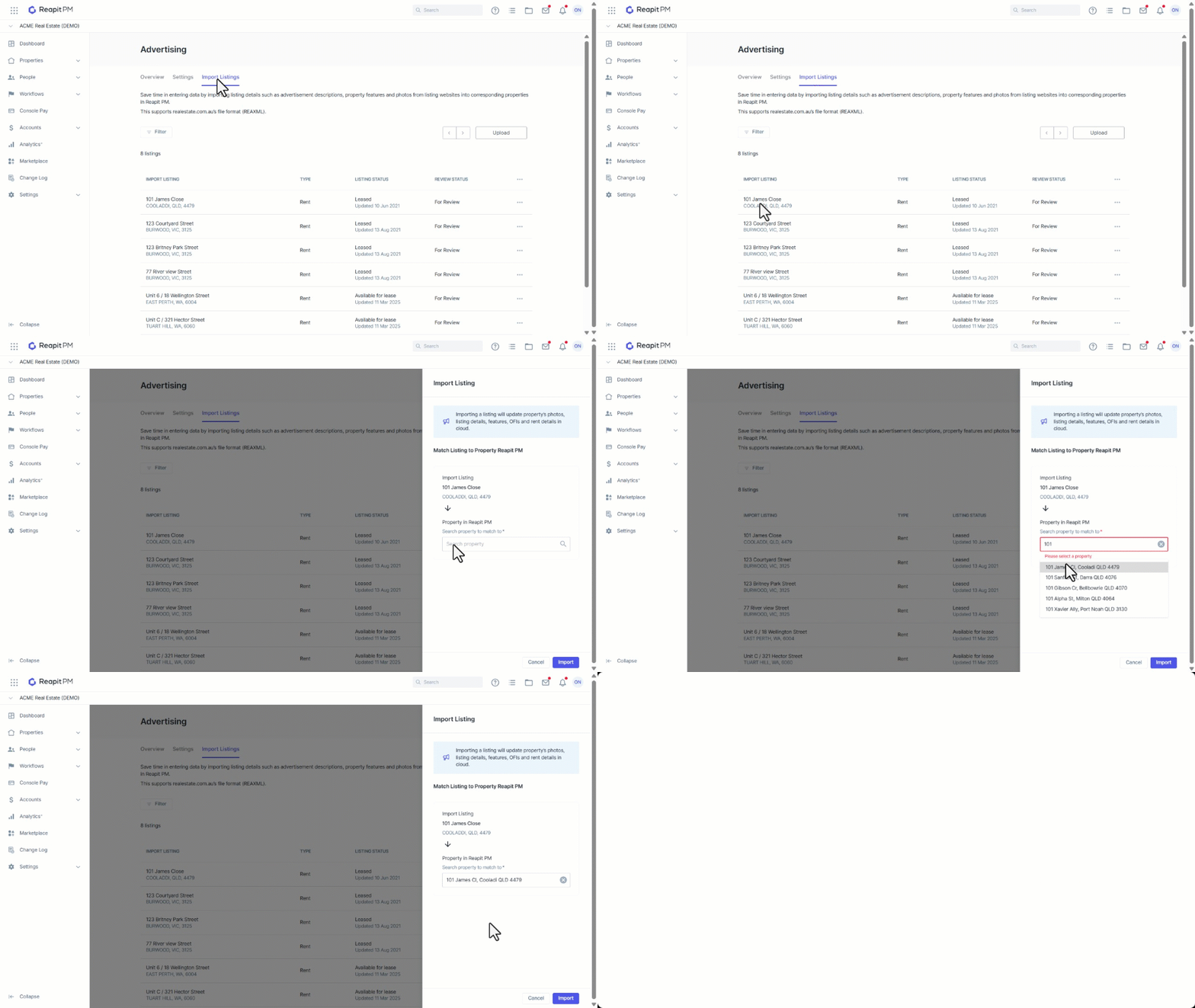
Note: Importing a listing will update the property’s photos, features, and listing details to match the information provided in the REA file. If your listings are imported into Reapit, you may need to manually match existing properties to prevent duplicate listings from being created.
- Select the property row from the Import Listings page.
- The Import Listing / Property Match drawer will appear.
- Search and select the property that the listing applies to. If it has not already been created in Reapit PM, navigate to Properties and create the property and management agreement first.
- Click Import to confirm the details and update the property.