'%20d='M0%208a8%208%200%200%201%208-8h24a8%208%200%200%201%208%208v24a8%208%200%200%201-8%208H8a8%208%200%200%201-8-8V8Z'/%3e%3cpath%20fill='%23fff'%20d='M8.375%2013v14L20.5%2034l12.124-7v-7.737l-1.687-.975-2.806-1.62-1.082-.624v4.83l-.002%204.83H13.95V16.07l3.275-1.89%202.192-1.265%201.082-.625%203.275%201.877%202.192%201.256%201.083.62V9.782L20.5%206%208.376%2013Z'/%3e%3cdefs%3e%3clinearGradient%20id='reapit-pm__a'%20x1='20.702'%20x2='20.702'%20y1='.351'%20y2='31.228'%20gradientUnits='userSpaceOnUse'%3e%3cstop%20stop-color='%235573FD'/%3e%3cstop%20offset='.575'%20stop-color='%234E56EA'/%3e%3c/linearGradient%3e%3c/defs%3e%3c/svg%3e)
Banking Settings
This article will run through the Banking Settings on Reapit PM.
Overview
Banking Settings
This article will run through the Banking Settings on Reapit PM.
Note: Banking settings are typically set up initially when you start using Reapit PM; however, some key settings can be changed at any time.
Banking settings contain all of your trust account, general account, owner settings & more and are set depending on how your office operates.
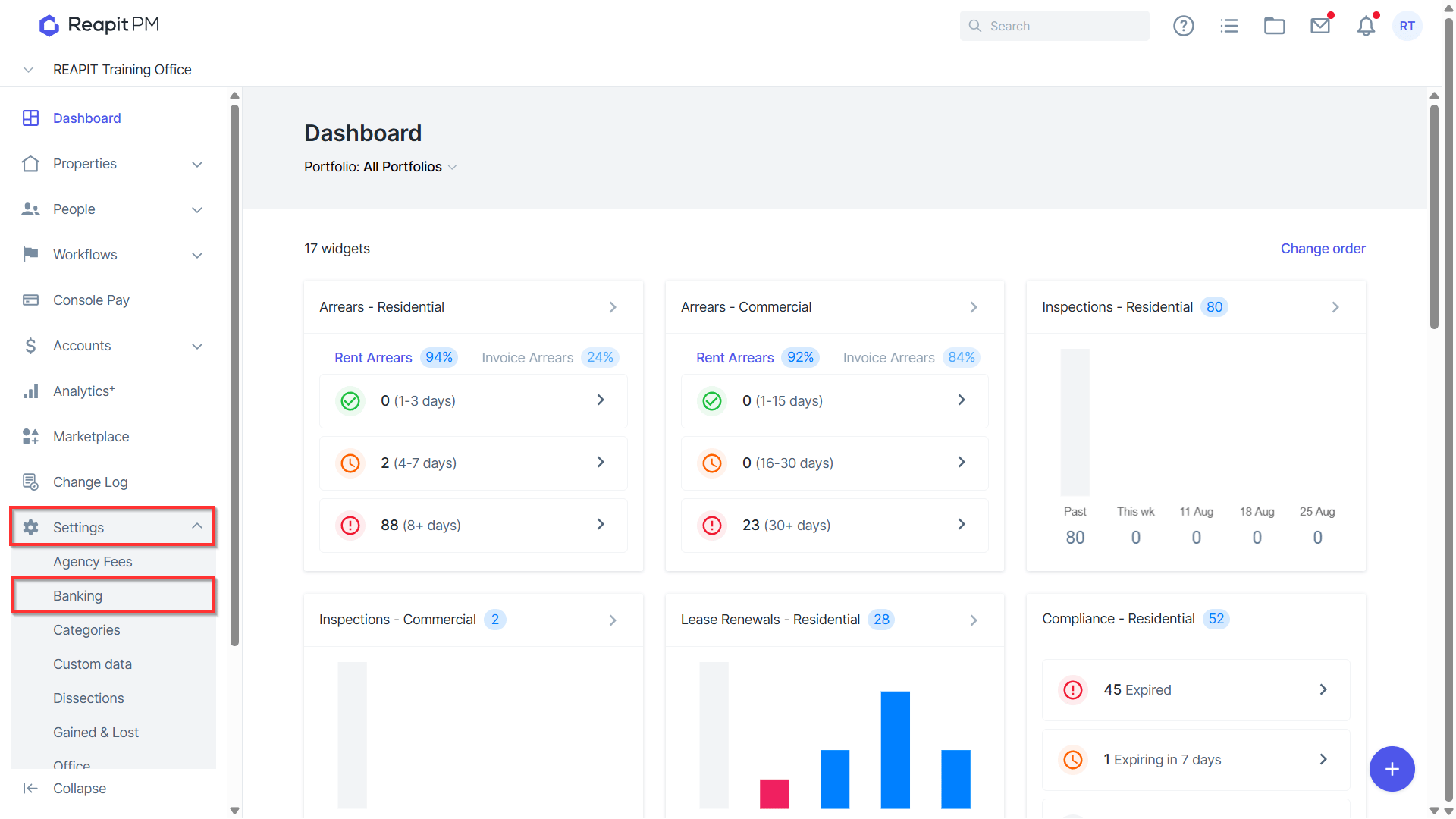
Banking settings can be updated or added at any time by going to your settings menu and clicking Banking. Note: To access Settings, you will need to have the Office Administrator permission level set on your user profile.
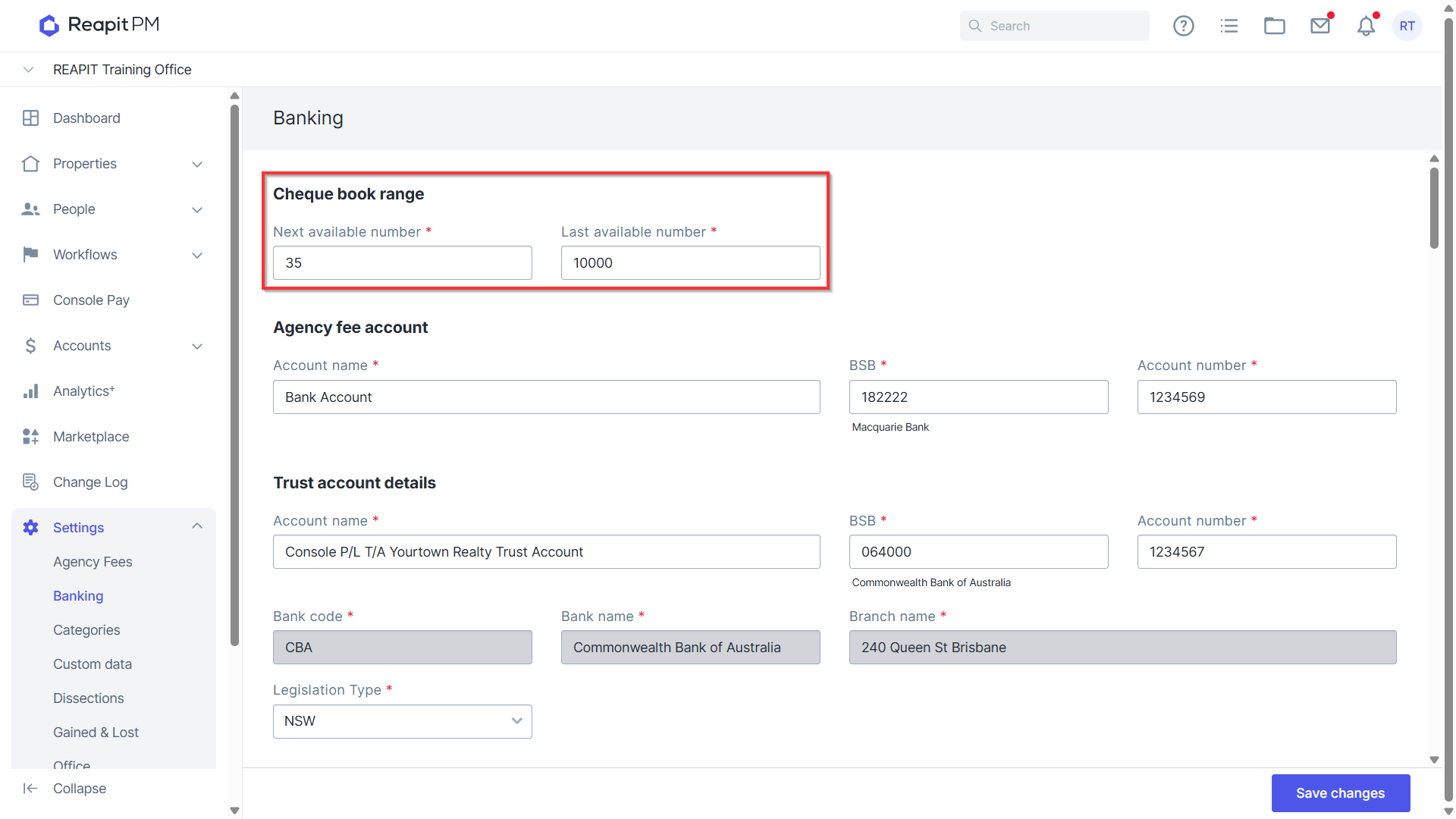
Cheque Book Range
This range is displaying your next and last cheque book number. It's important to take a look at your cheque book to ensure they marry up. As you draw cheques from Reapit PM, the next cheque number will sequentially move up. Once it reaches the last cheque number, you will be prompted to update to match your new cheque book.
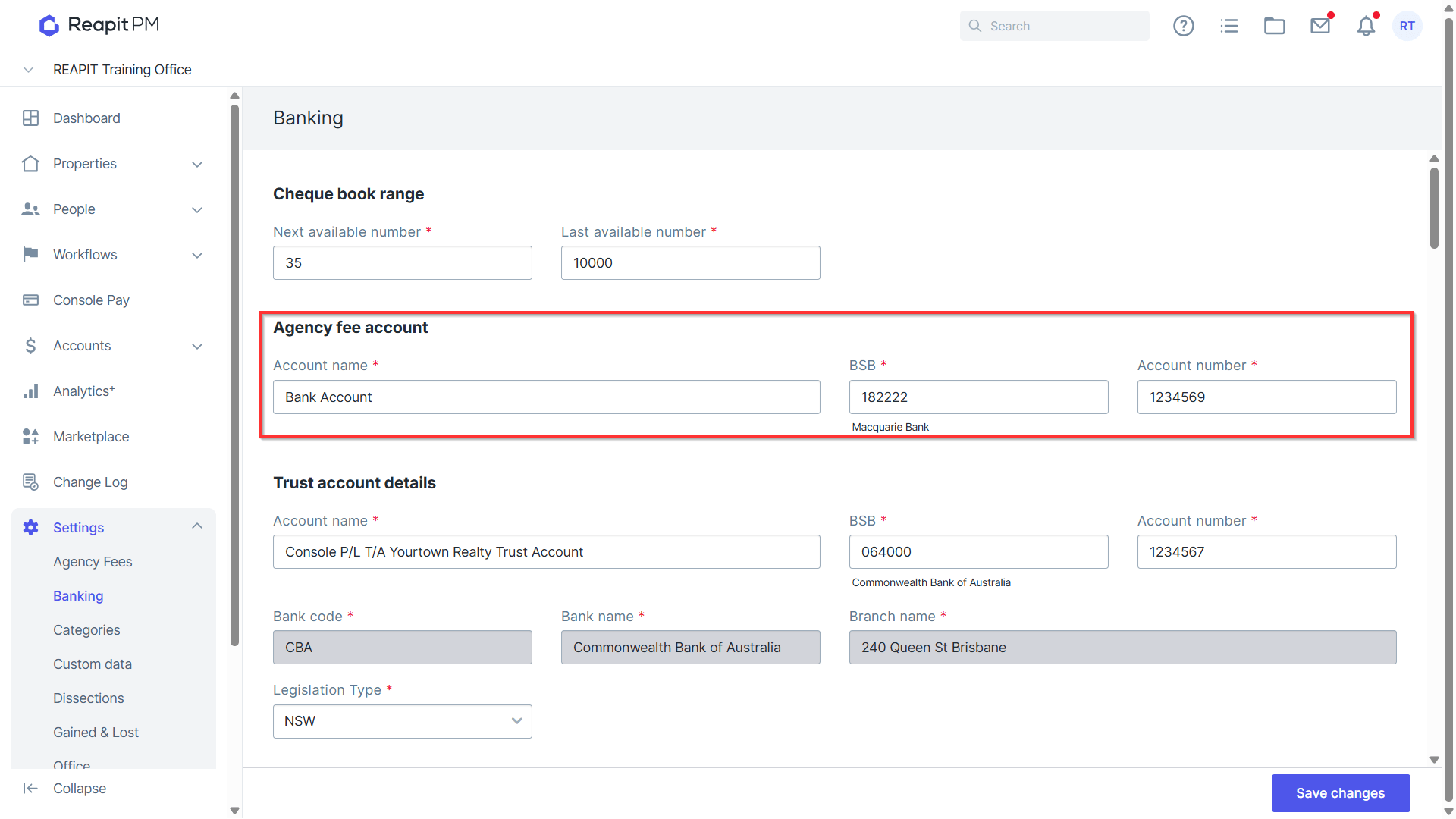
Agency Fee Account
This account displays the business account your agency fees will be disbursed to.
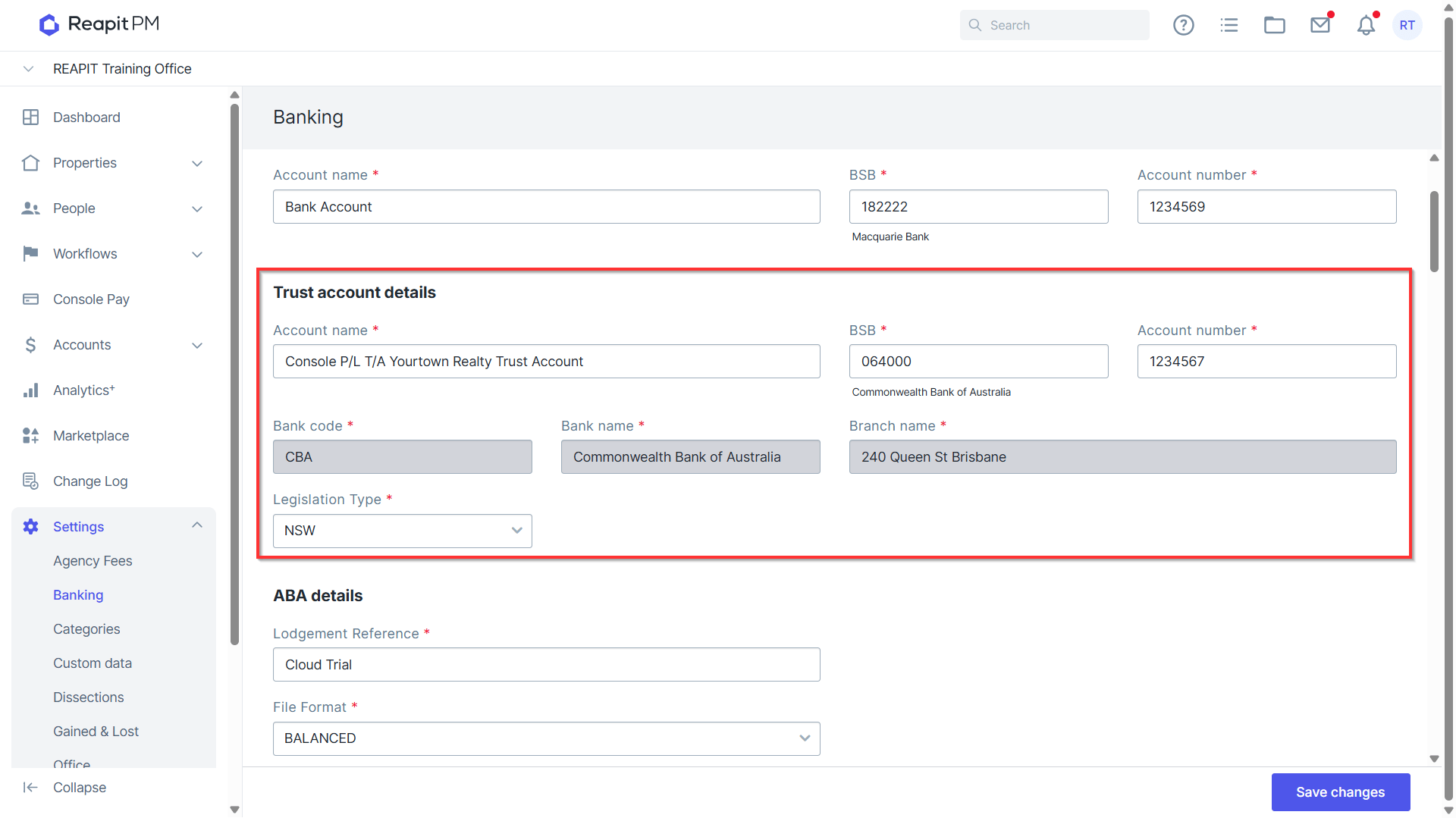
Trust Account Details
This account displays your trust account, only one trust can be managed per database to ensure reconciliation and auditing.
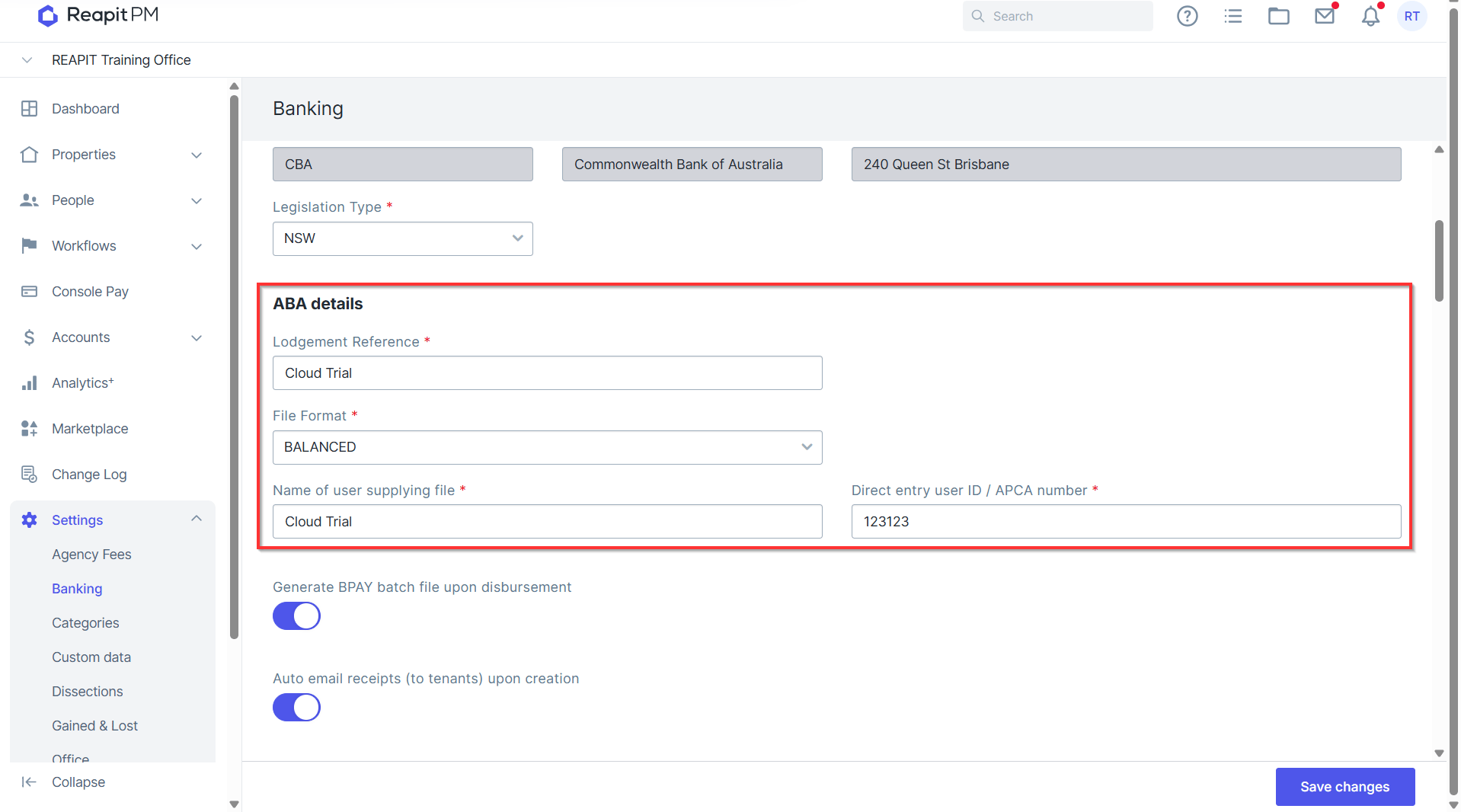
ABA Details
The ABA details is what is recognised in your internet banking when uploading the ABA file after a disbursement. The Lodgement Reference is what will appear on the receivers bank statement. The File Format can be Balanced or Unbalanced, this is individual to the bank, and if you're not sure, it's best to contact your bank to confirm. The name of the user supplying the file is your Company name, and your Direct Entry User ID / APCA Number is provided to you by your bank.
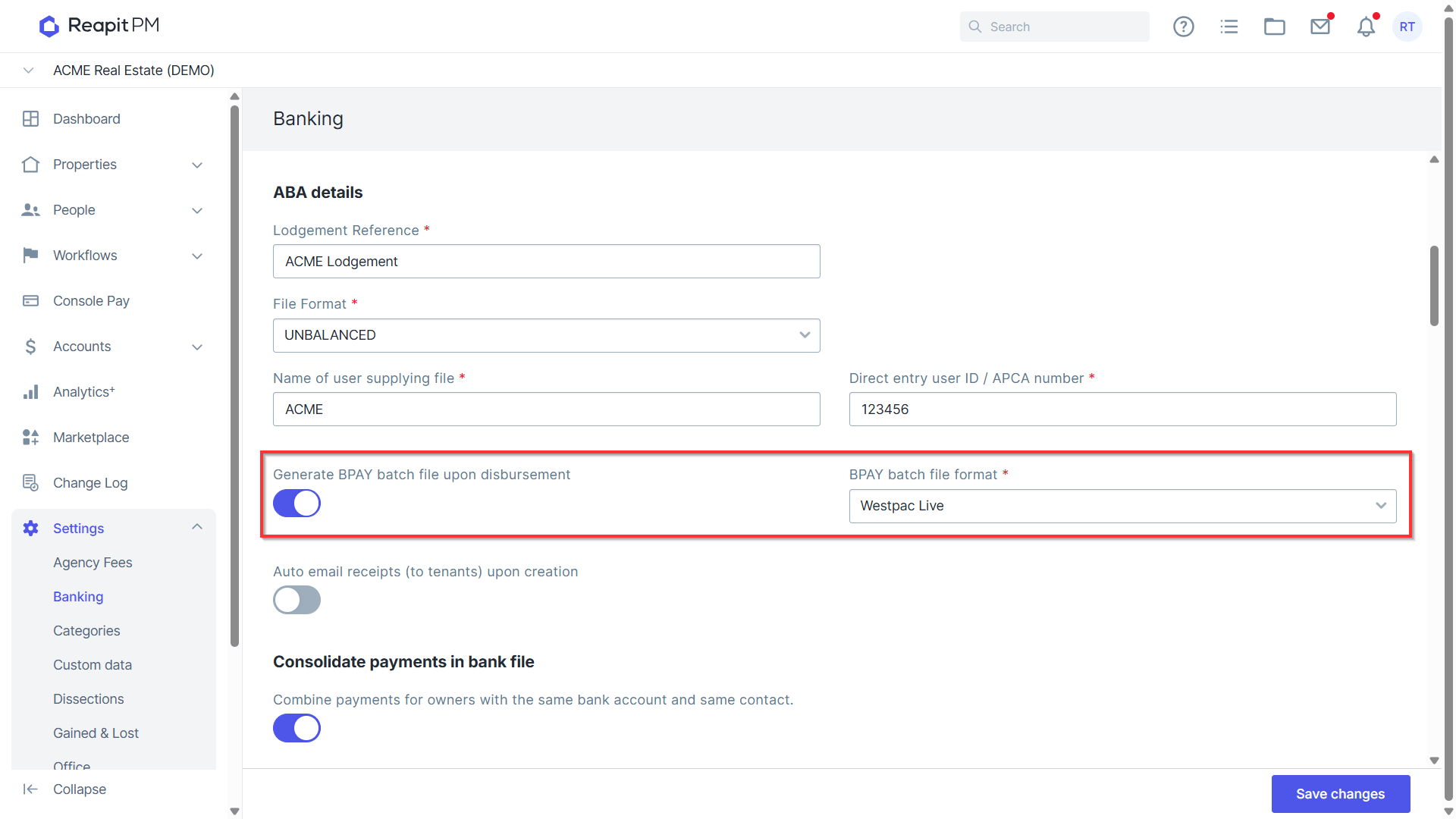
Generate BPAY Batch File Upon Disbursement
By turning this toggle on, when disbursing BPAY payments, this will provide you with the BPAY payment file and BPAY payment summary. If it's not enabled, the system will only provide you with the BPAY payment summary. You will also need to select the BAPY batch file format which is supported by your banking provider.
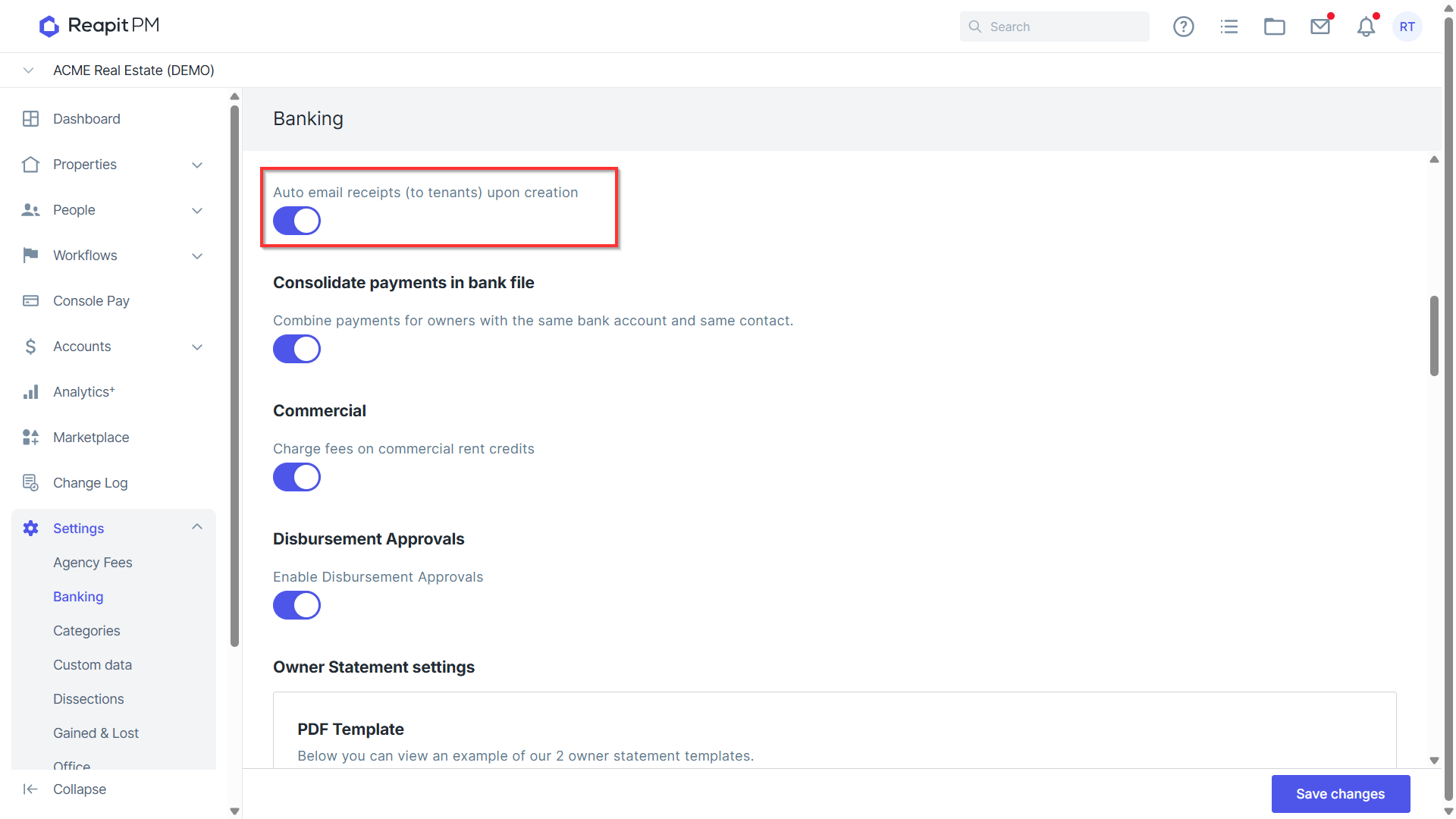
Auto Email Receipts to Tenants upon Creation
By turning this toggle on, upon receipting tenant receipts your tenants will automatically be emailed to the primary email address entered into their contact, a copy of their PDF receipt. When choosing within the Receipt screen to 'Receipt and Download' this will not email the receipt and instead download it for you even if this toggle is switched to on.
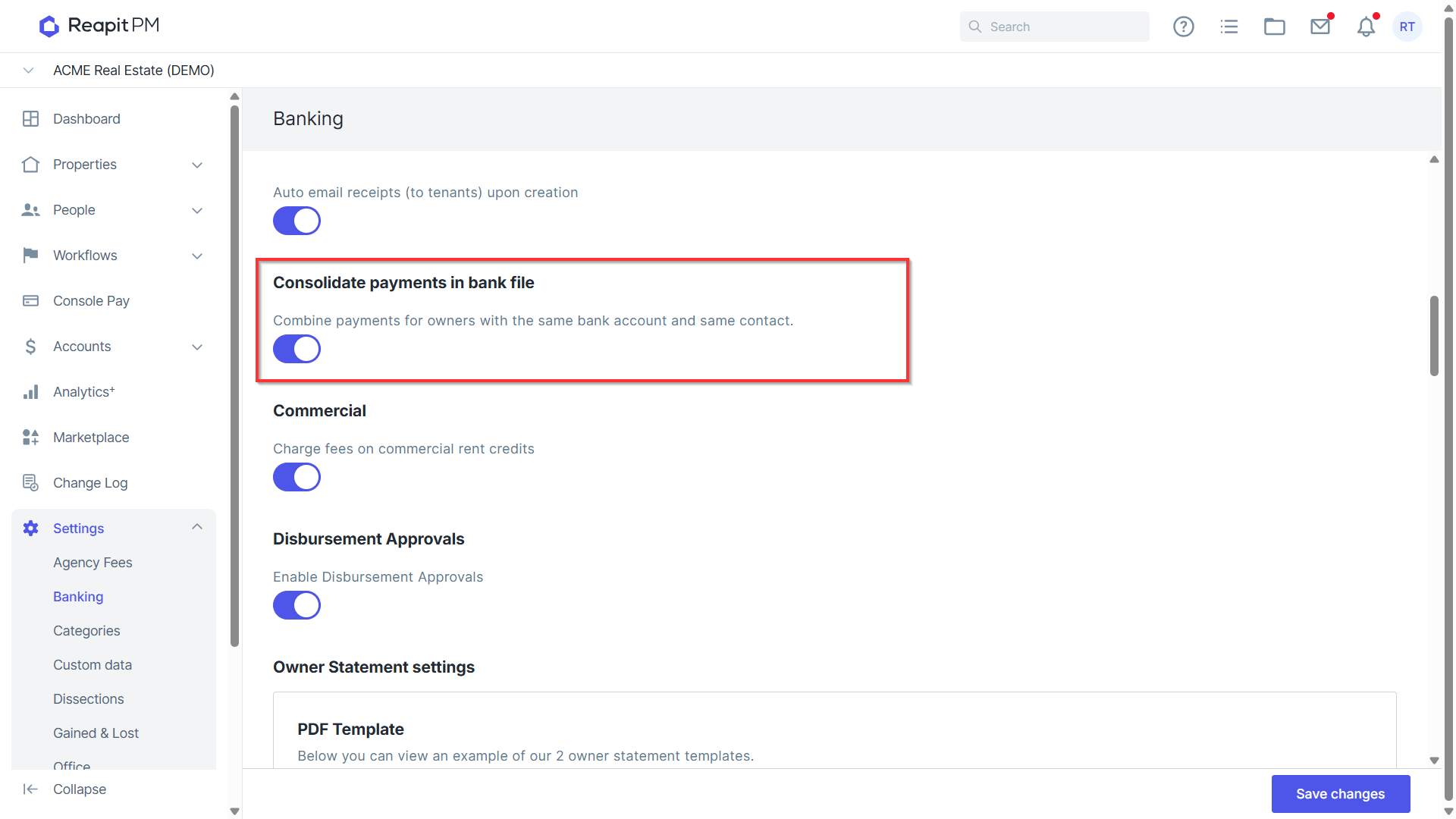
Consolidate Payments in Bank File
For owners with multiple properties, they may wish to only receive one payment come disbursement. If this is toggled on, then it will consolidate any owners with multiple properties that have the same bank account and the same contact into one payment. If switched off, they will receive separate payments in their account for each property they own.
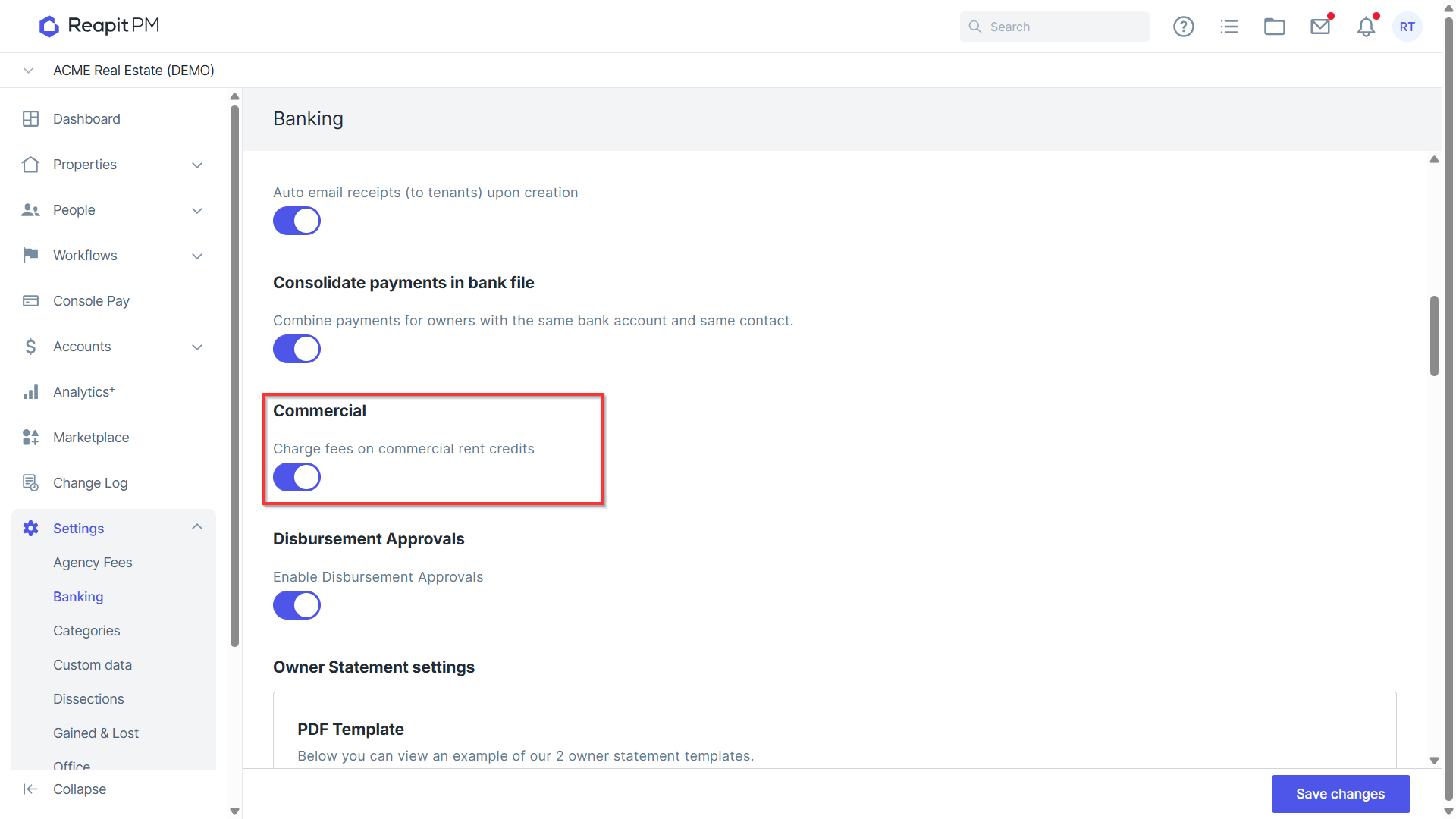
Commercial
If you wish to charge your rent commission fees to your owners on rent credits provided to commercial tenants, you can toggle this on to do so.
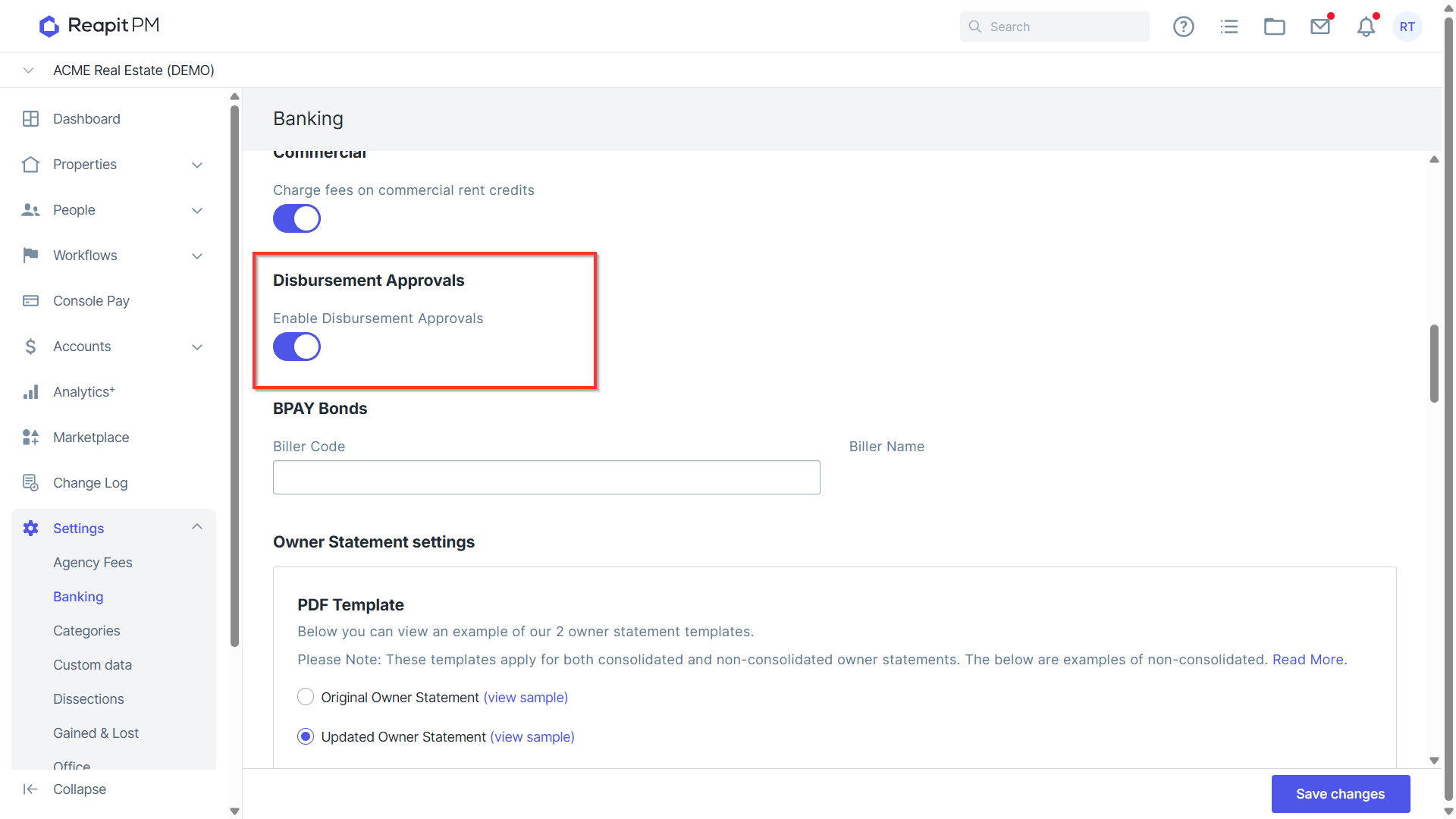
Disbursement Approvals
By toggling disbursement approvals on, you have the option in your disbursement screen to approve owner statements before finalising your disbursement. Check out ourDisbursement KB to find out how.
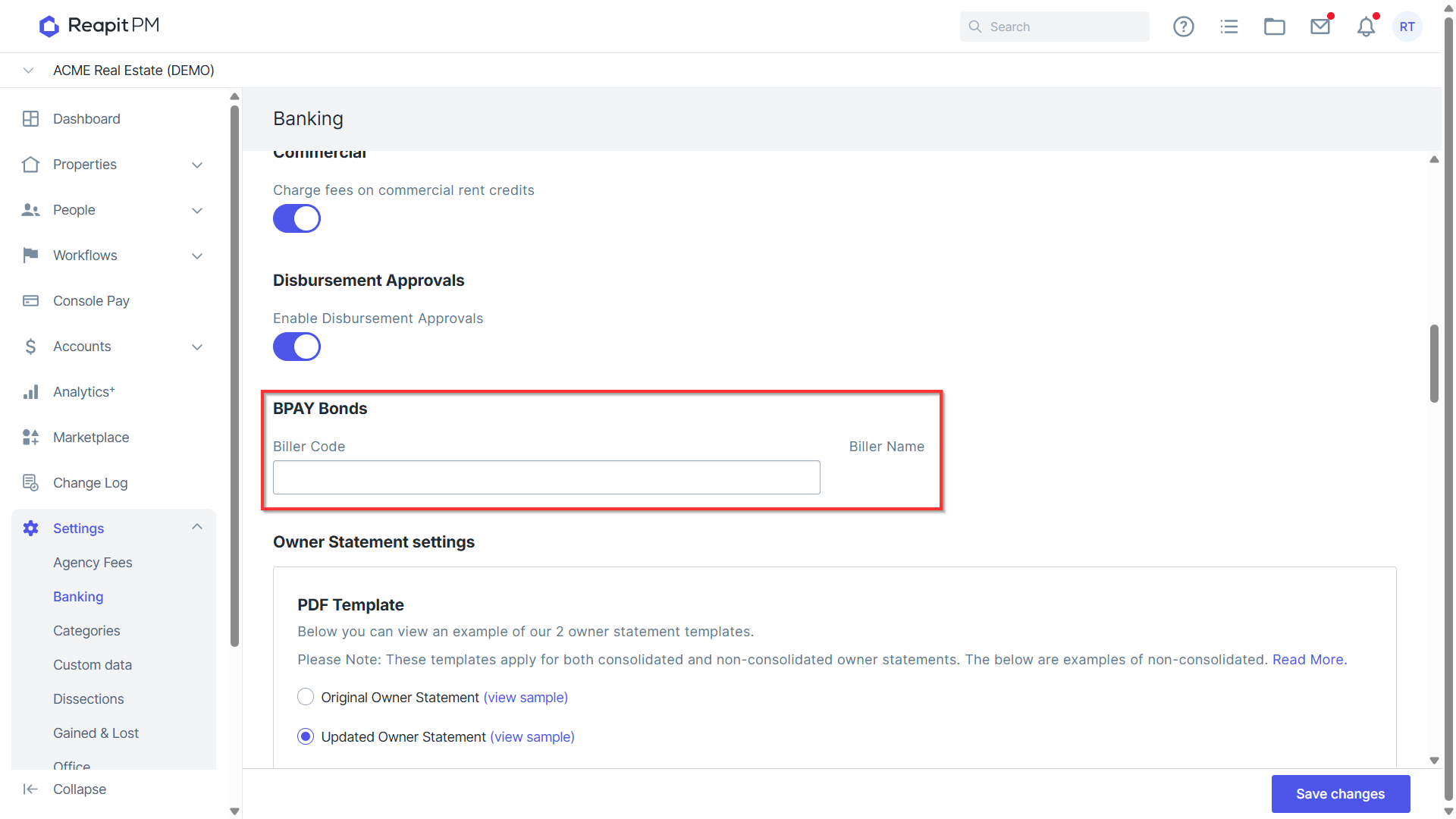
BPAY Bonds
If you would like todisburse bonds by BPAY, enter the RTA Biller Code here, you will also have the option then to enter the Tenants CRN number in their tenant agreement. Note: BPAY Bonds is currently supported in Queensland and Victoria.
Owner Statement Settings
There are multiple options available for your owner statement settings:
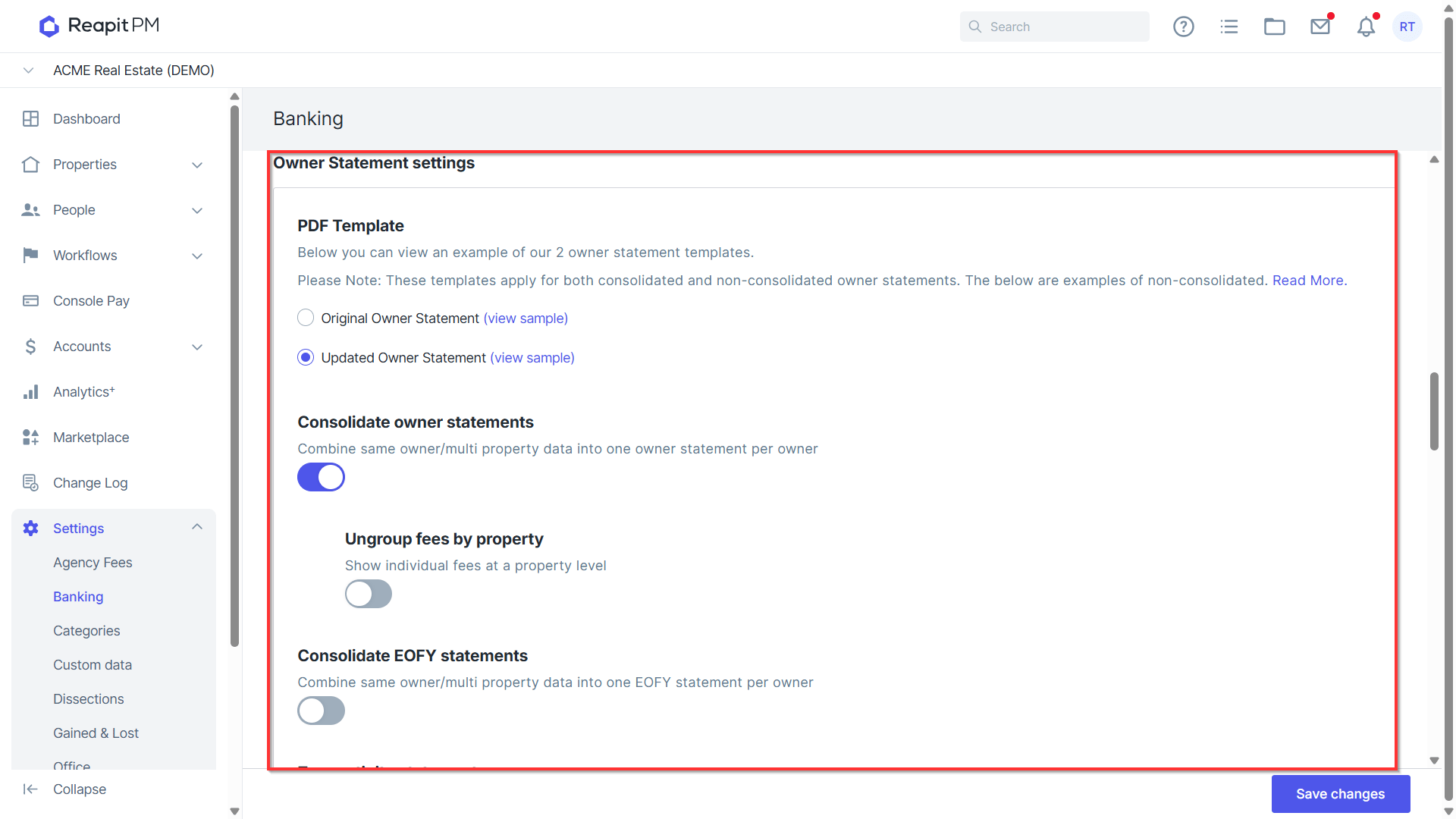
PDF Template These templates apply for both consolidated and non consolidated owner statements. This enables you to choose between 2 statement types. Version 1: ****Click hereto view Knowledge Base Article Version 2: Click here to view Knowledge Base Article
Consolidate Owner Statements When this is toggled on, it will combine any owner statements with multiple properties into one statement for them. This will also give you an additional option to Ungroup Fees By Property so when toggled on it will show fees at a property level and not a total figure.
Ungroup Fees by Property When enabled, owners with multiple properties will have the fees broken down per property. When disabled, all fees will be combined as long as they are the same type, e.g. Management Fees or Sundry.
Consolidate EOFY Statements Enabling this will combine the EOFY statement together for owners with multiple properties as long as they are linked to the property with the same contact card.
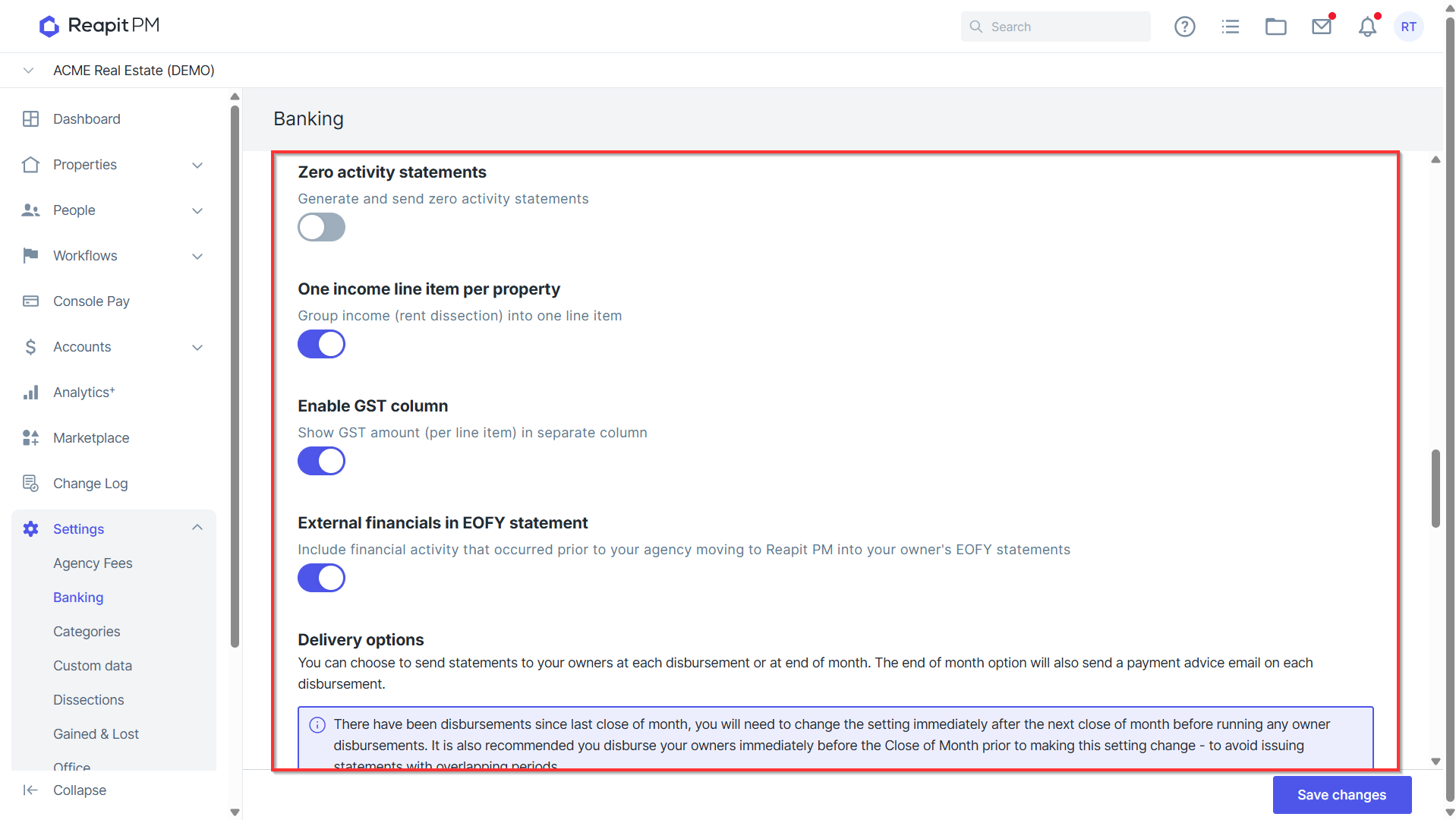
Zero Activity Statements When this is toggled on, any owners that have had zero activity throughout the month will be disbursed when selected in the disbursement screen. There is a difference between $0 balance and zero activity. Remember for any owners with a $0 balance, they may have still had expenses coming out that need to be accounted for in their statement. However if you have an owner who has received no rent or no payments, then toggling this on will still send them a statement with zero items to show for that period.
One Income Line Item per Property If you would like rent income to display as one item instead of broken down into receipts received, toggling this on will display as a Rent total income for your owner statements.
Enable GST Column To display the GST component of any incomes and expenses on your owners statements you can toggle this option on.
External Financial In EOFY Statement If you have migrated to Reapit PM and you'd like to add anyexternal transactions that were received in this financial year but not processed through Reapit PM, toggling this on will allow you to add these transactions so your owner will only receive one end of financial year statement.
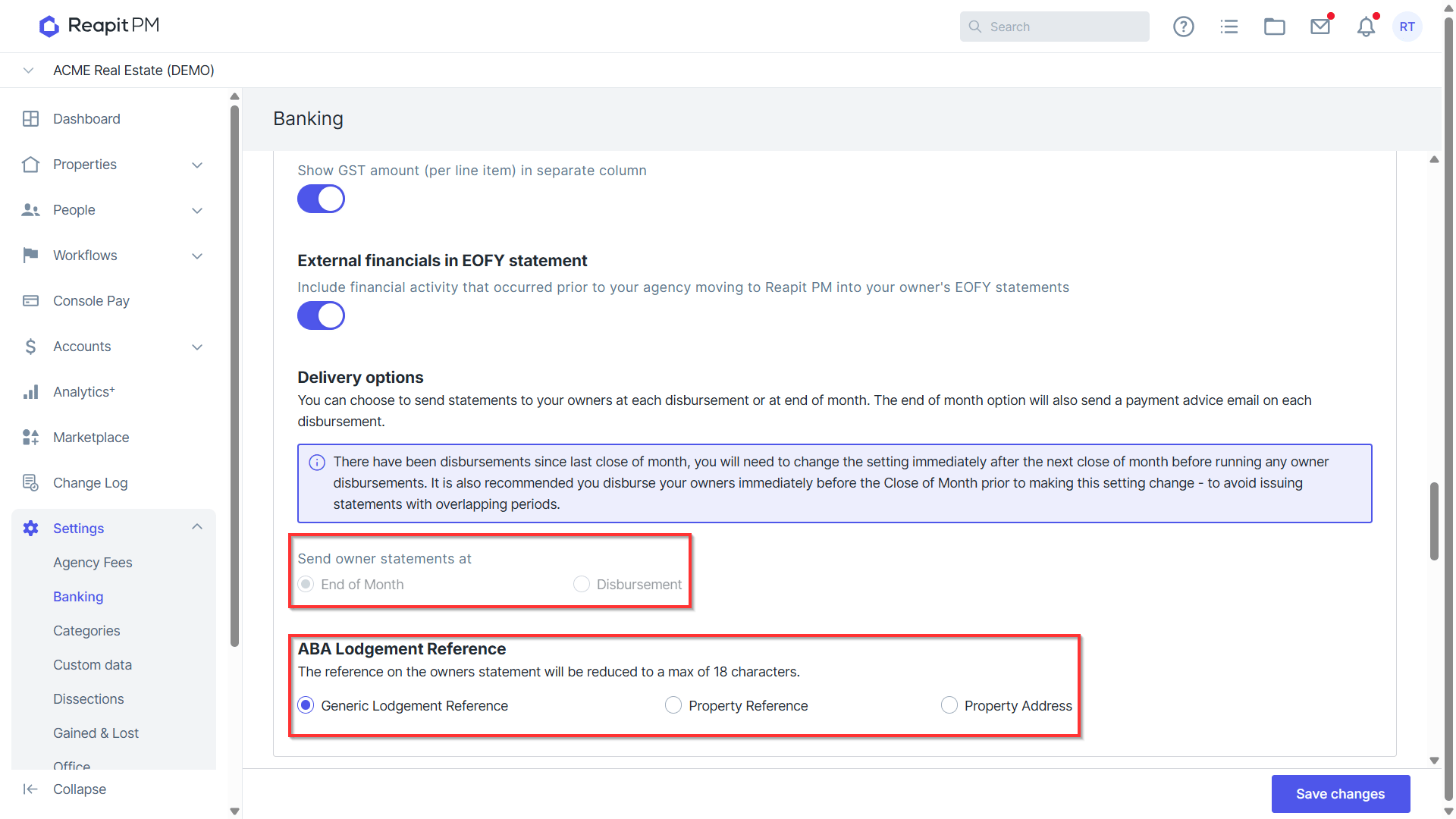
Delivery Options You can choose to send owner statements at each disbursement, or at end of month. So if you were doing multiple disbursements a month, say mid and end of month disbursements, then your owners would receive a statement at mid month and end of month when disbursed. If chosen to only disburse at end of month, then the statements will be consolidated into one statement when you close off the month and owners will receive a payment advice upon disbursements throughout the month.
ABA Lodgement Reference
Owner statement settings will determine how your statements display & delivered, including lodgement reference display.
The ABA lodgement option will determine how your transaction is displayed in the owner's bank
- Generic Lodgement Reference - will use the generic lodgement in your ABA settings above
- Property Reference - will use the reference entered in the property reference field
- Property Address - will use the property address
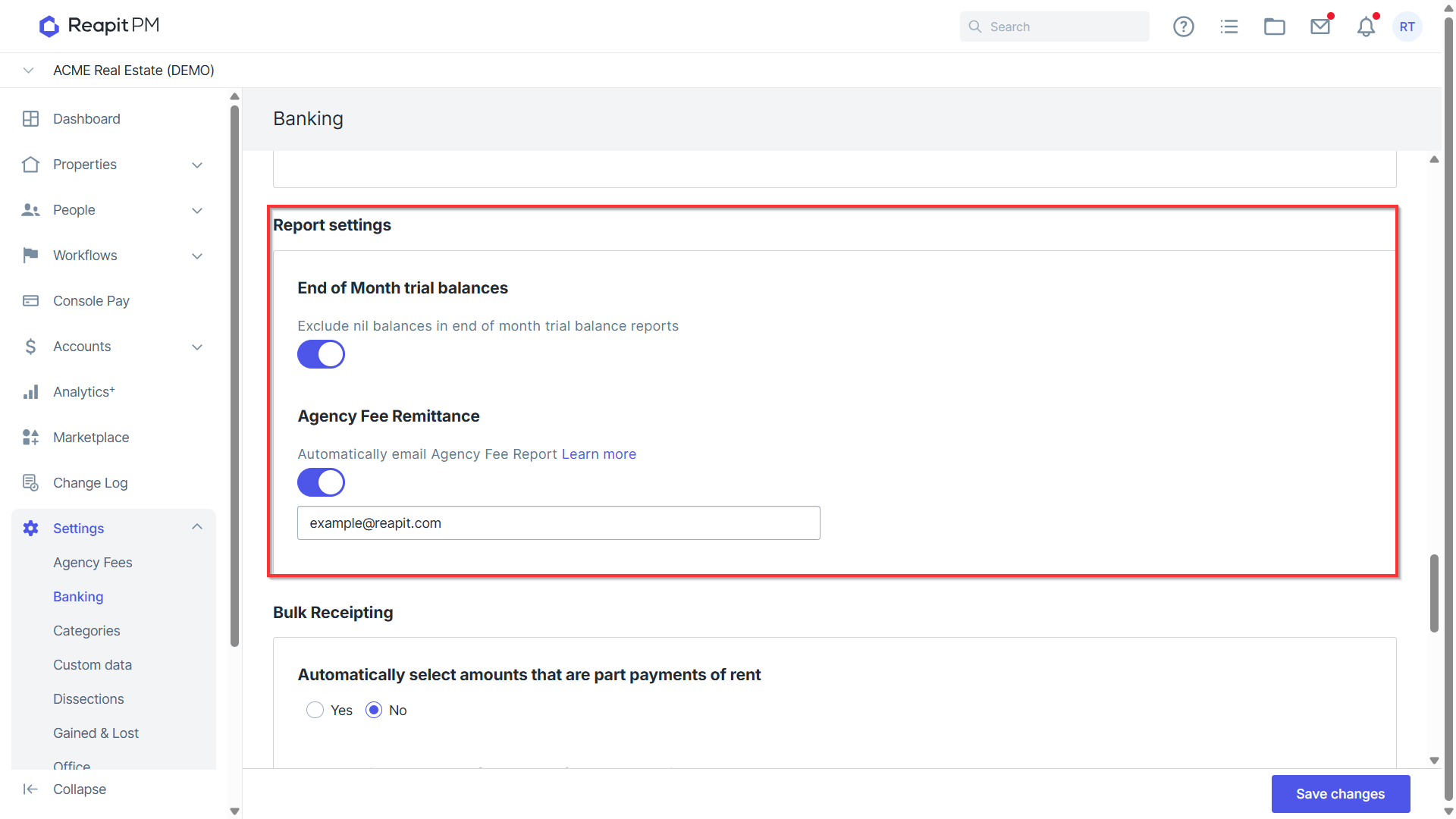
Report Settings
End of Month Trial Balances By enabling this, you have the option to exclude any balances that are nil in the end of month trial balance reports.
Agency Fee Remittance Reapit PM will now produce a report for Agency Fee Remittance when agency fee's are included in the disbursement. The screenshot below is an example of what will be included in the disbursement reports when agency fee's are paid.
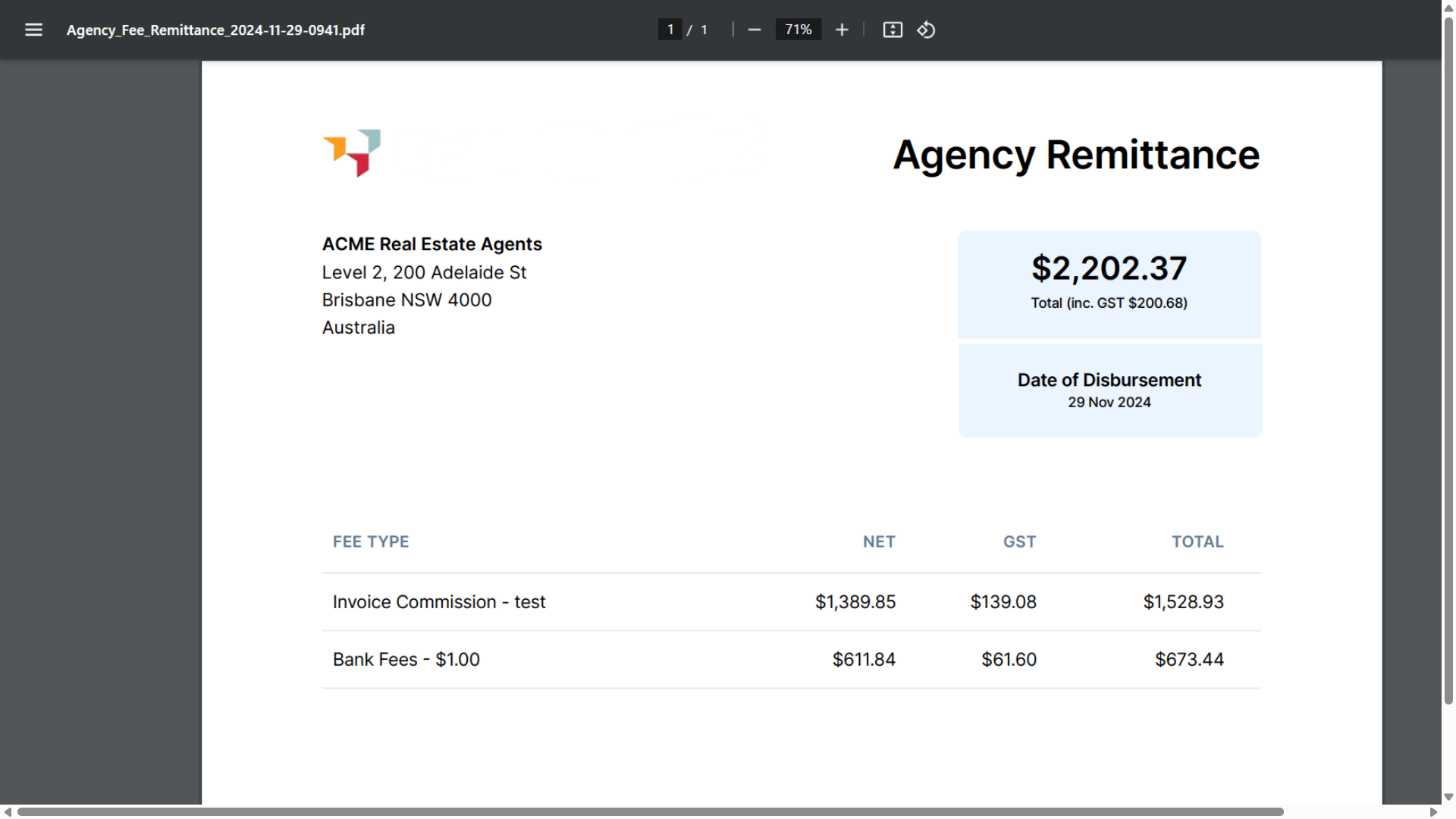
By enabling Agency Fee Remittance, when disbursing agency fee's, you can send a copy of the agency fee remittance generated to a desired email address. Enter in the email address you would like the report to be sent to.
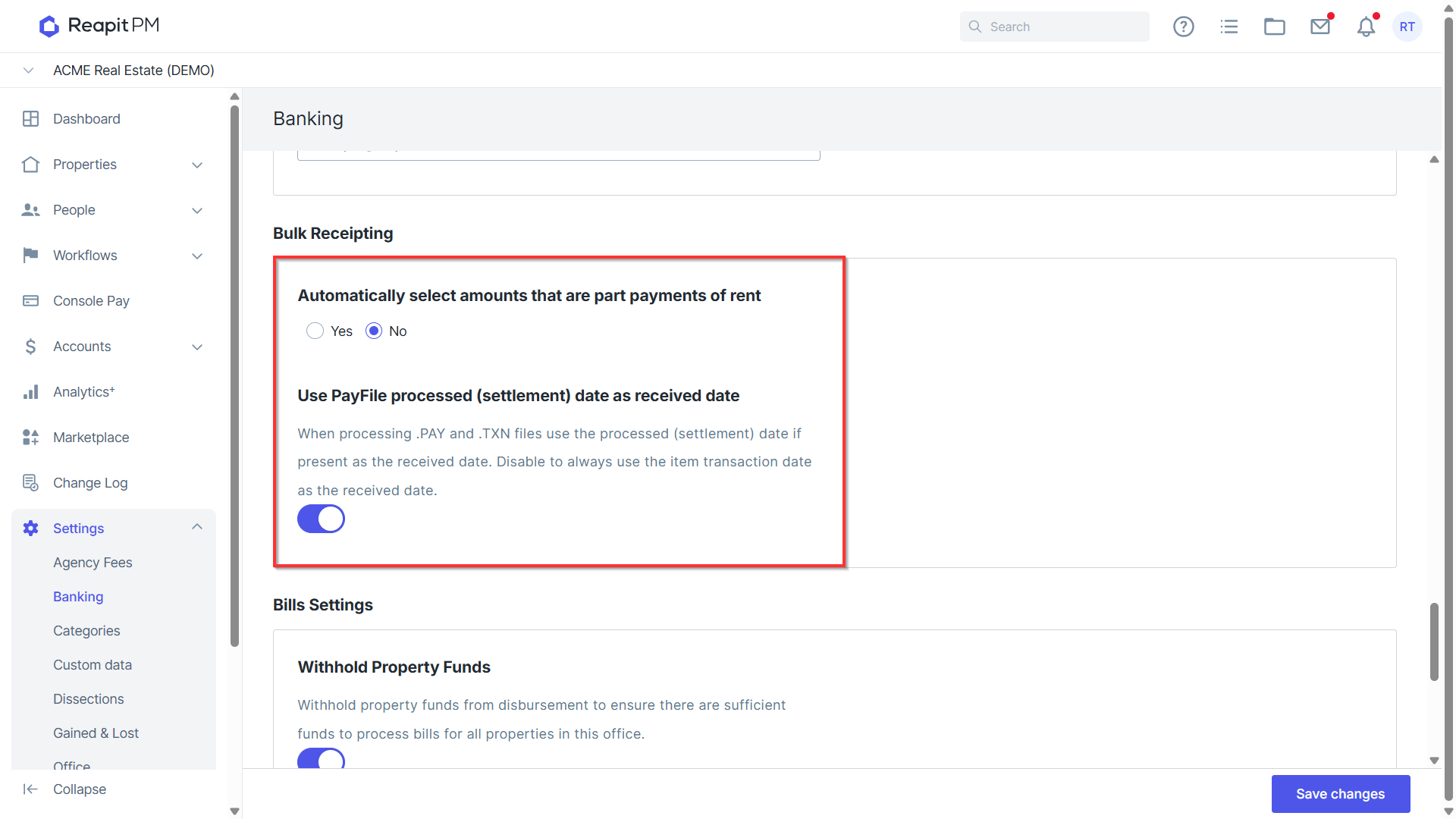
Bulk Receipting
You can automatically select amounts in your bulk receipting screen if they are part payments of rent to be receipted to rent, or select No to then untick those payments so they can be allocated appropriately. Note: This setting is useful so that invoice payments are not accidentally receipted to rent.
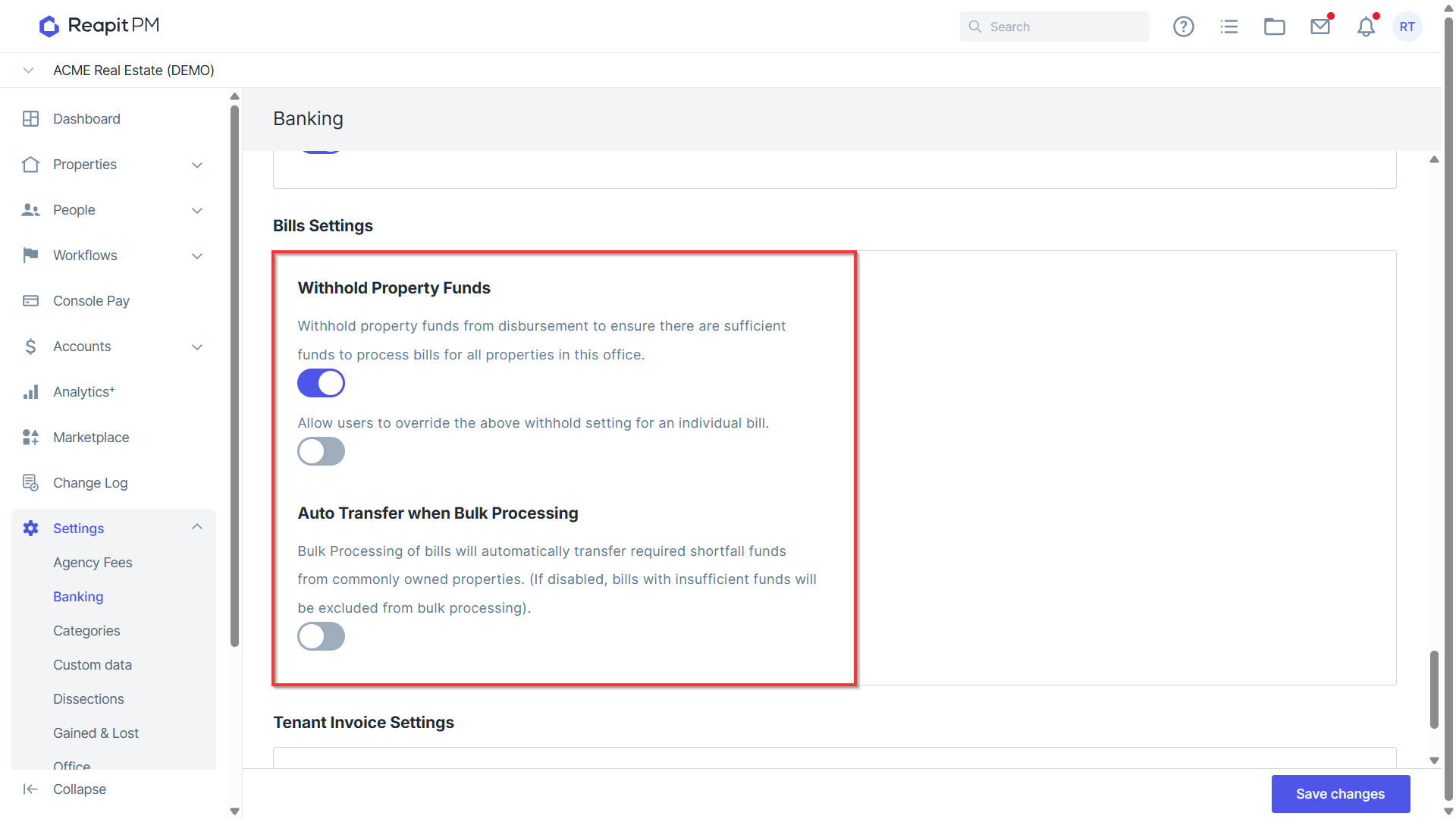
Bill Settings
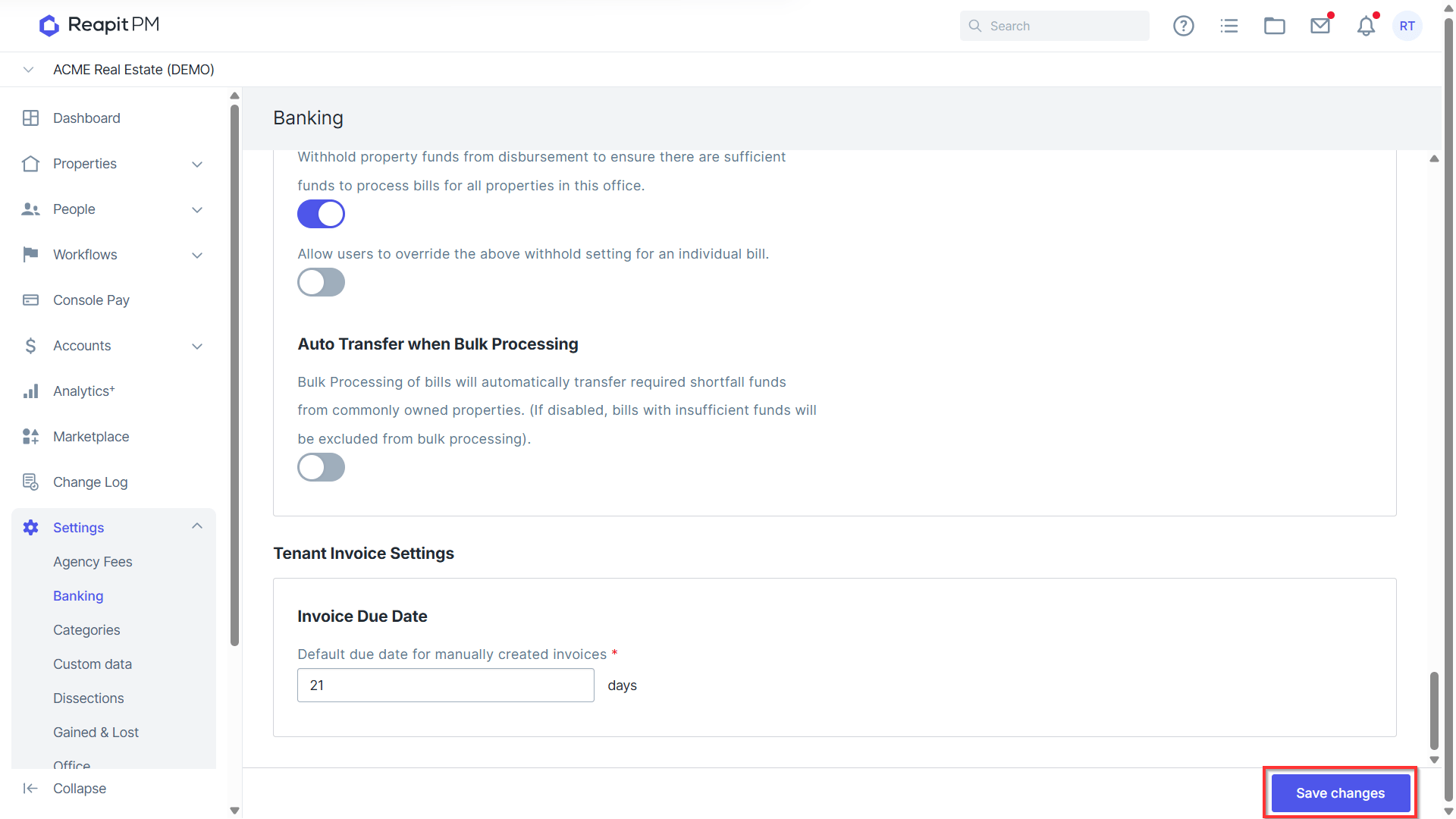
Withhold Property Funds Enabling Withhold Property Funds will place a bill withhold on any bill added to ensure the system will hold on to or collect the available balance required to process the Bill.
Override withhold settings for individual Bills Enabling this will allow users to click in to individual bills and switch off the bill withhold for that selected bill.
Auto Transfer When Bulk Processing When enabled, if a property has insufficient funds but is part of a group of commonly owned properties, the system will journal the shortfall from a property with available funds to the property with insufficient funds to process the bill. When disabled, processing bills in bulk, properties with insufficient funds will be excluded from bulk processing bills.
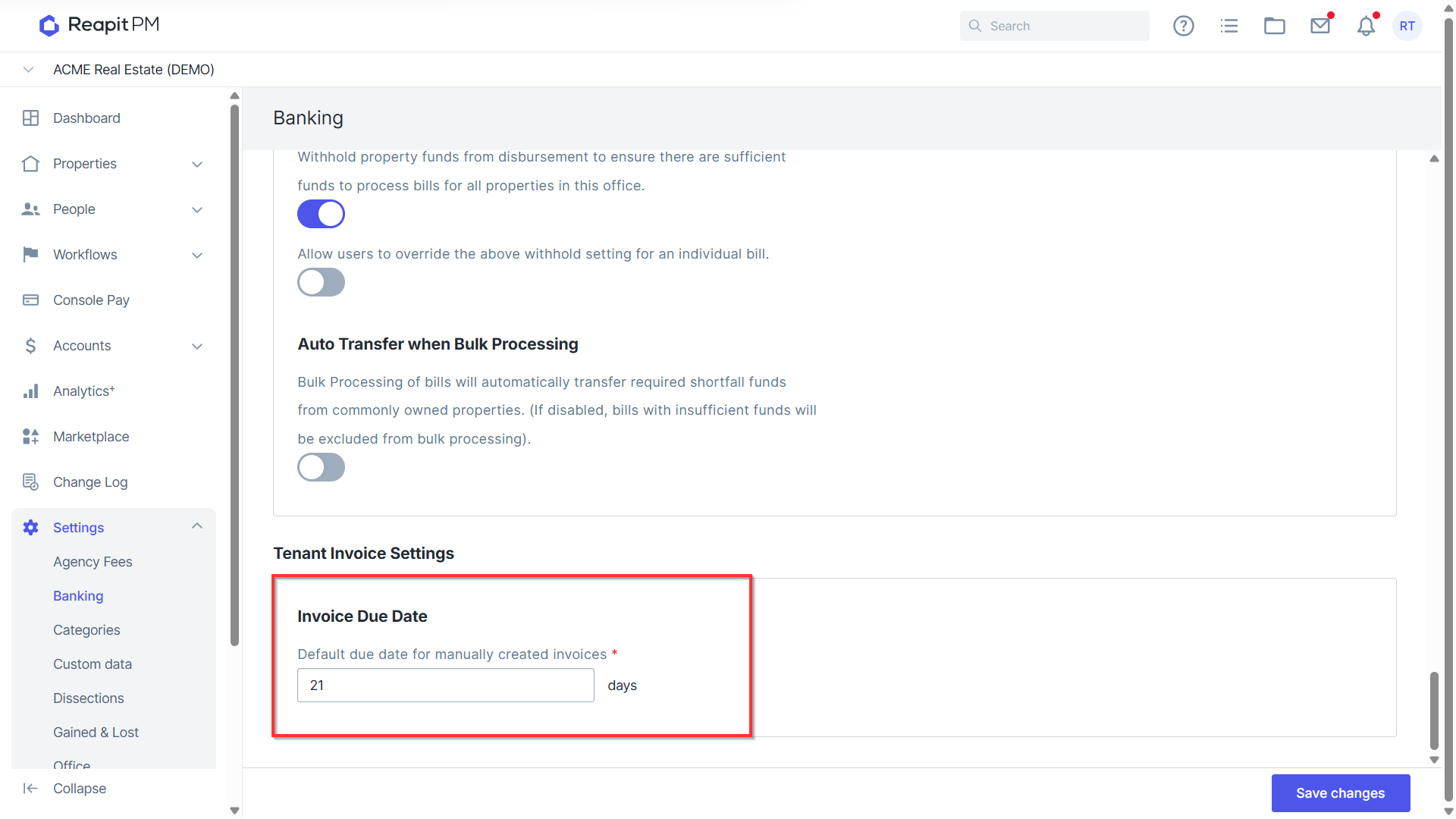
Tenant Invoice Settings
Invoice Due Date Set a default payment due date that suits your office’s needs, whether it's 7 days, 21 days, or any other period. This helps align payment schedules with your specific business requirements. Note: The due date you set in your tenant invoice settings will automatically apply to all types of invoice creation—manual and on-charged.
Once you have finished making changes in Banking, click Save Changes.