'%20d='M0%208a8%208%200%200%201%208-8h24a8%208%200%200%201%208%208v24a8%208%200%200%201-8%208H8a8%208%200%200%201-8-8V8Z'/%3e%3cpath%20fill='%23fff'%20d='M8.375%2013v14L20.5%2034l12.124-7v-7.737l-1.687-.975-2.806-1.62-1.082-.624v4.83l-.002%204.83H13.95V16.07l3.275-1.89%202.192-1.265%201.082-.625%203.275%201.877%202.192%201.256%201.083.62V9.782L20.5%206%208.376%2013Z'/%3e%3cdefs%3e%3clinearGradient%20id='reapit-pm__a'%20x1='20.702'%20x2='20.702'%20y1='.351'%20y2='31.228'%20gradientUnits='userSpaceOnUse'%3e%3cstop%20stop-color='%235573FD'/%3e%3cstop%20offset='.575'%20stop-color='%234E56EA'/%3e%3c/linearGradient%3e%3c/defs%3e%3c/svg%3e)
Conversations - What Timelines Are Emails Automatically Stored On
This article explains which timelines will display received emails from Gmail or Outlook in Reapit PM.
Conversations - What Timelines are Emails Automatically Stored On
This article explains which timelines will display received emails from Gmail or Outlook in Reapit PM.
The process in this article includes:
- What Timelines Are Emails Stored On
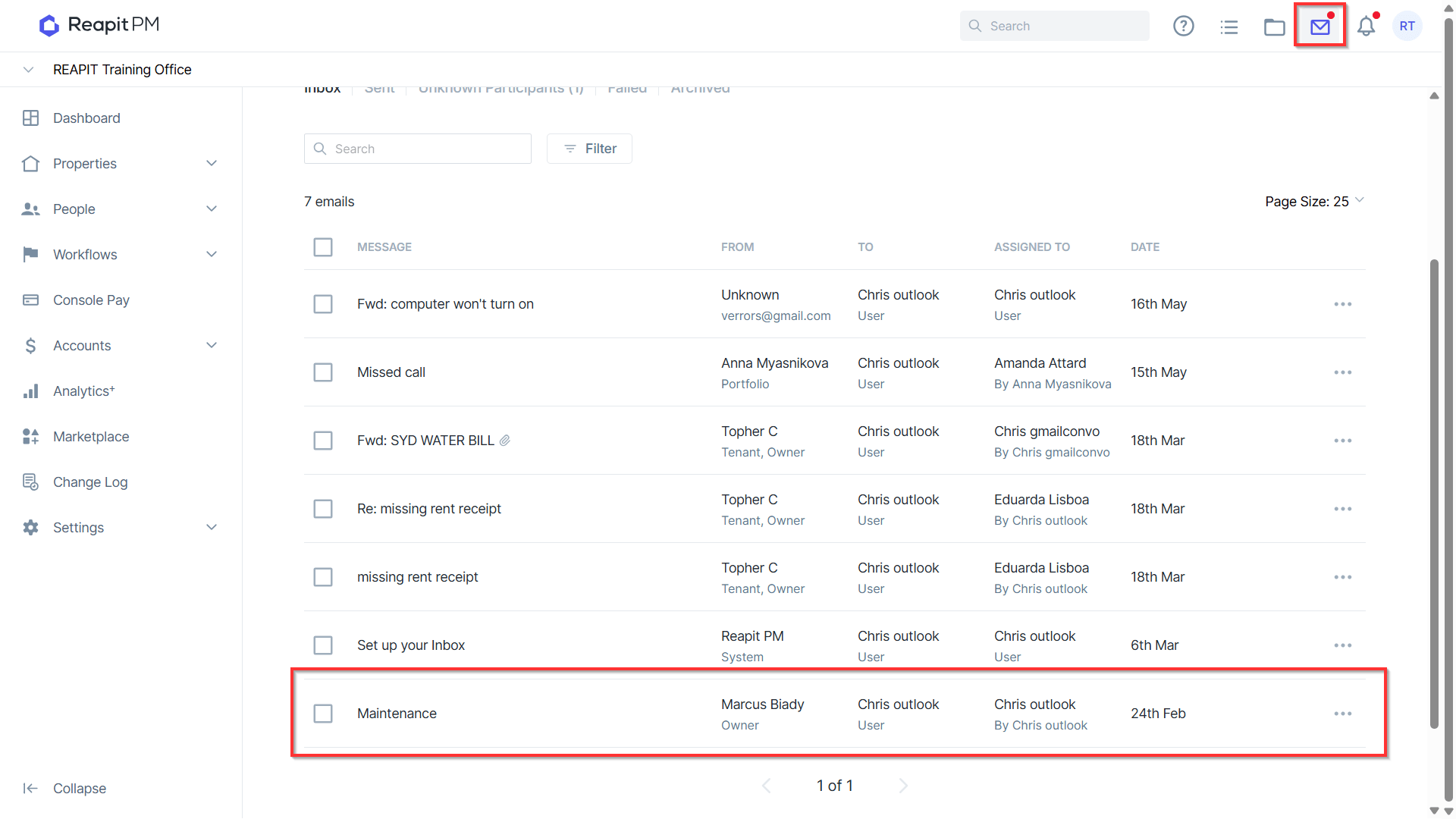
- Depending on what is required to be shown, emails can be stored on Contact, Tenant Agreement, Management Agreement, Creditor, and Property timelines. To view which timelines the emails will be stored on, navigate to Conversations and click on the received email linked with your Outlook or Gmail account.
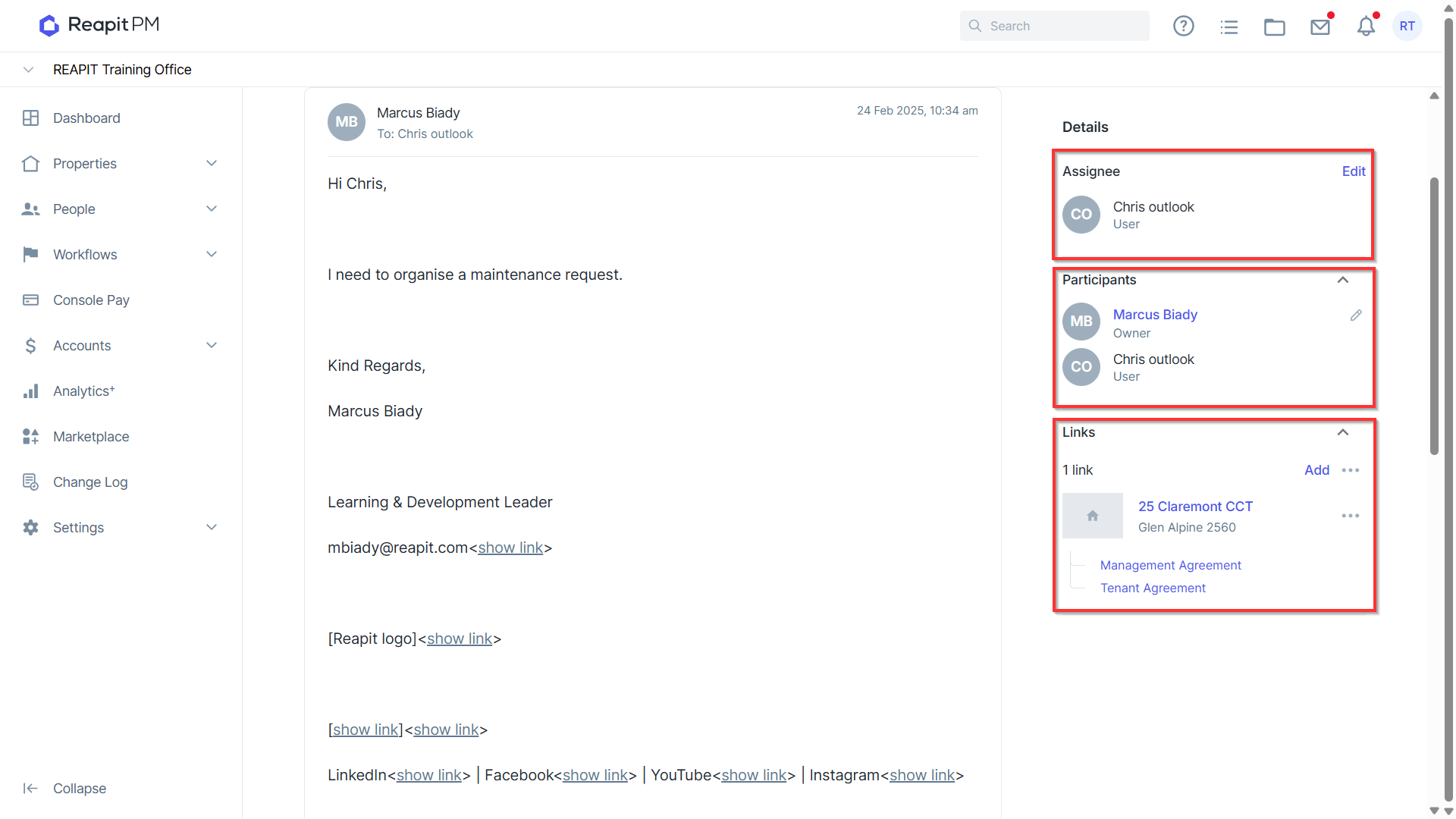
- The assignee is the recipient of the email linked to the Gmail or Outlook account. Participants include the assignee and the contact who has emailed you. Links will automatically populate with the property address related to the communication.
Note: If the property address not appear when viewing the email you can press the 'Add' ****button to search and attach the property to the details.
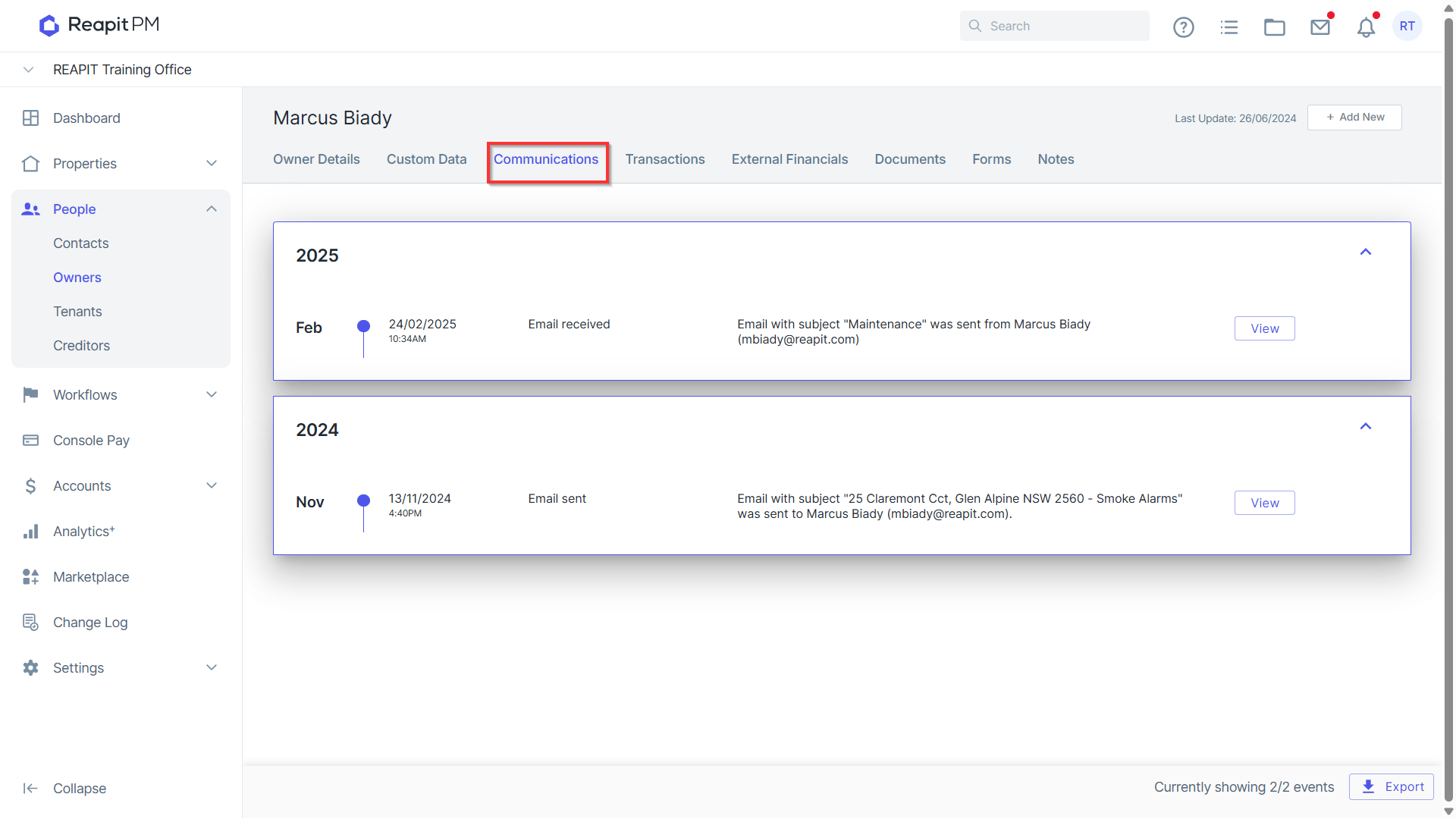
- With the Owner participant selected, this email will appear in a few locations including the Contact's timeline, the Property timeline, and the Owners Management Agreement communications tab.
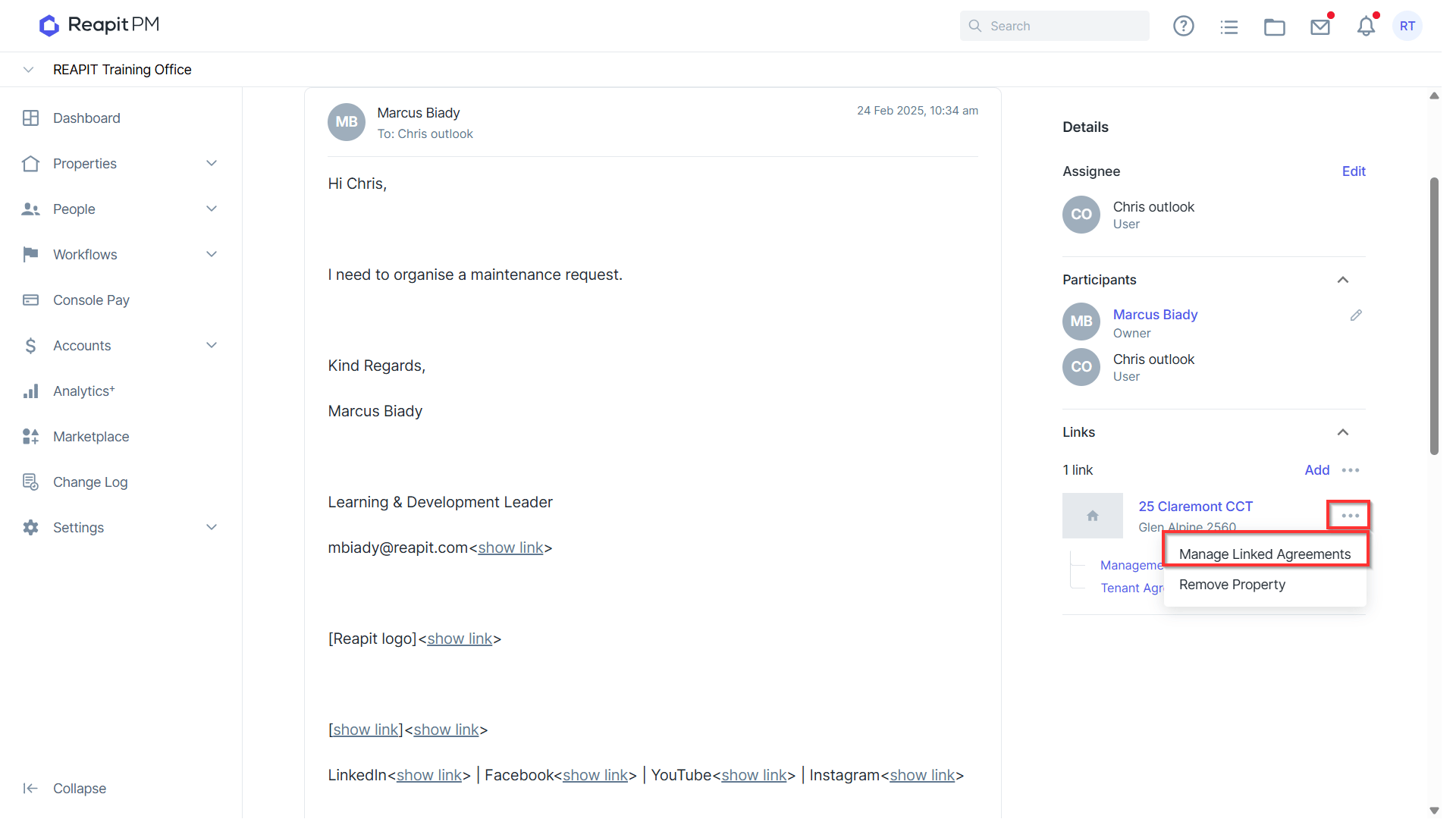
- If the received communication involves both the Owner and Tenant, we can include the communication to be displayed on the Tenant Agreement timeline by clicking the three dots and selecting Manage Linked Agreements.
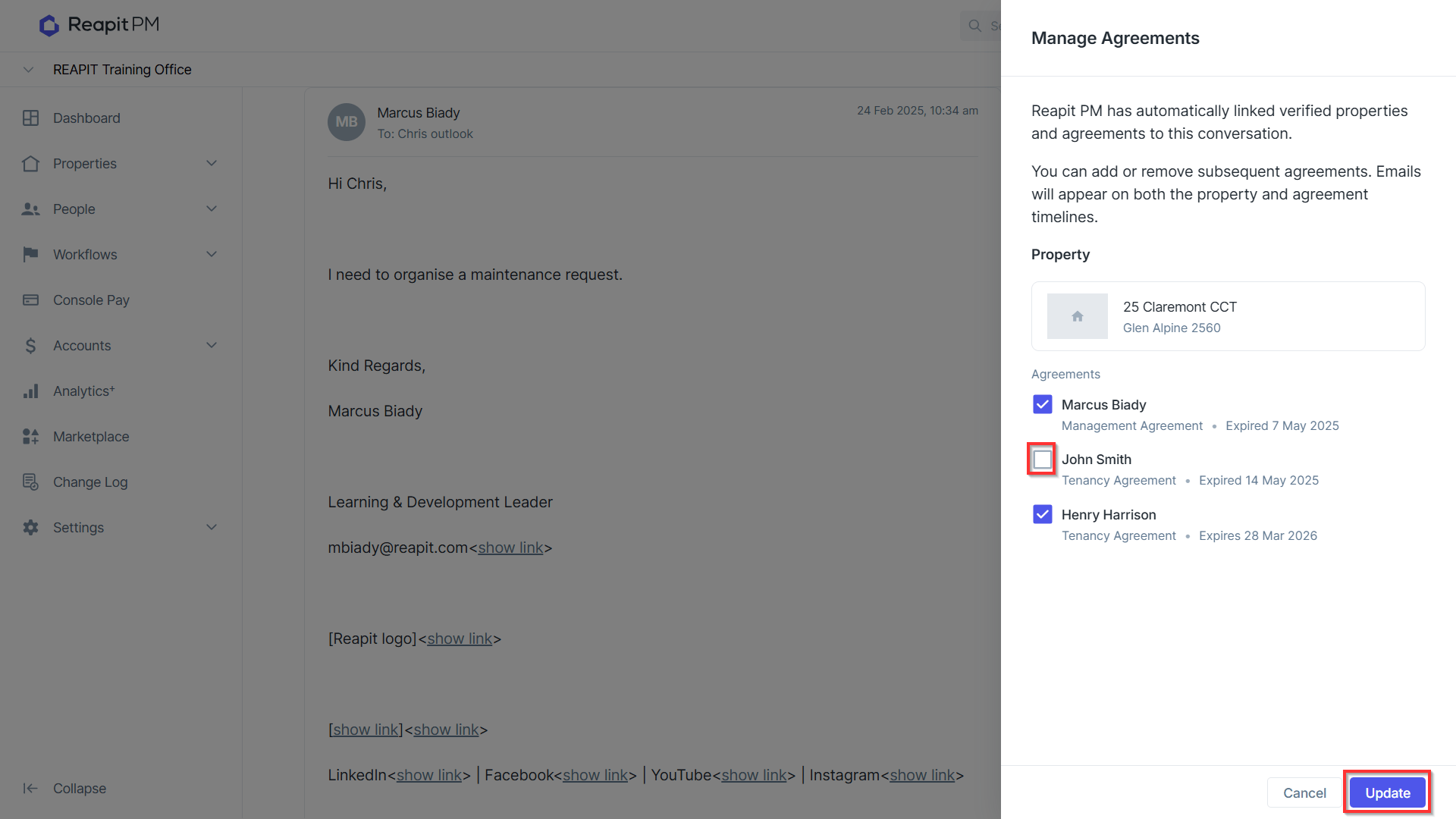
- Tick the box to include this conversation to be included on the required agreements. Click Update.
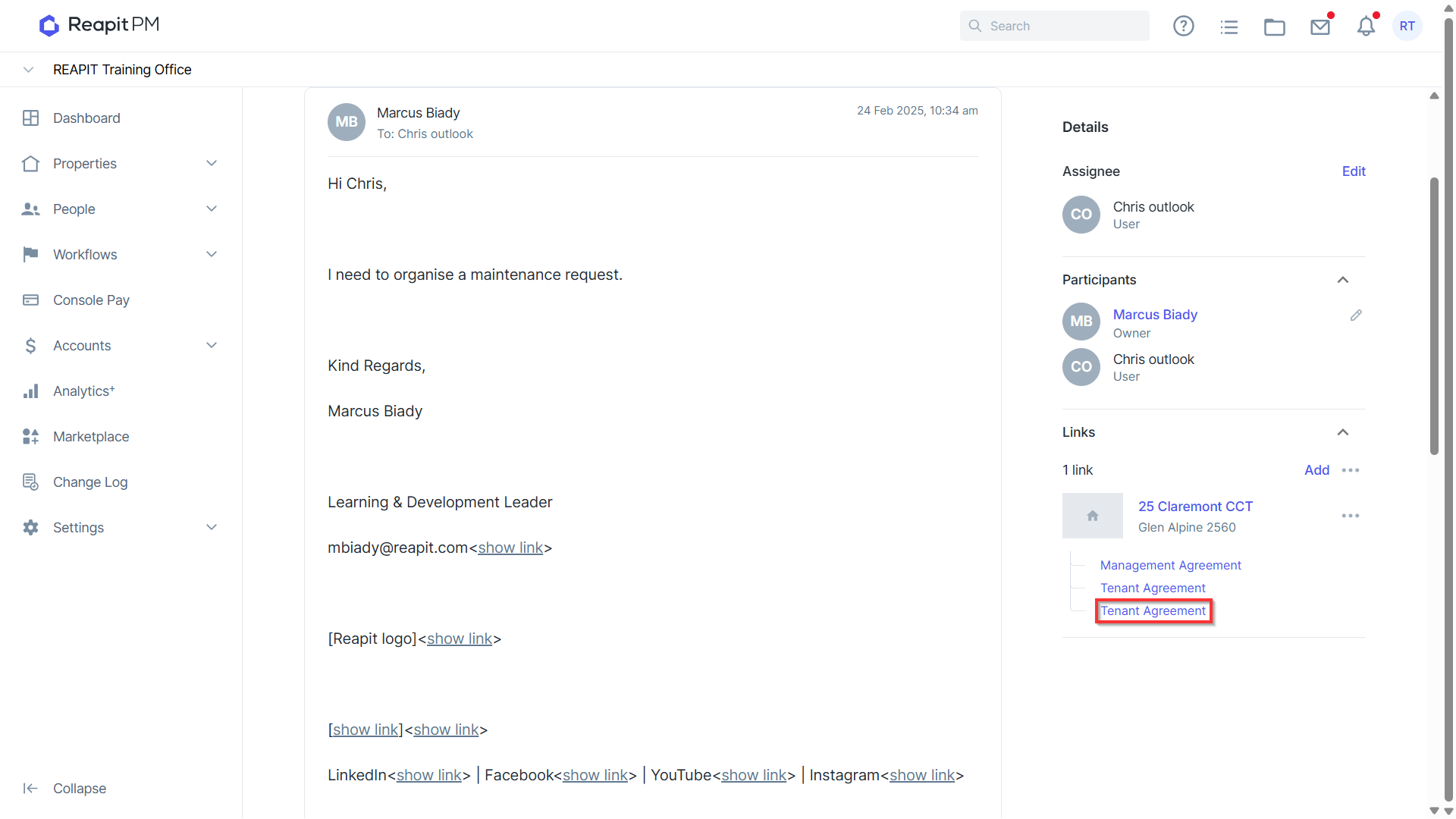
- The Tenant Agreement will now appear as linked to the property. Click on Tenant Agreement to access the tenant file.
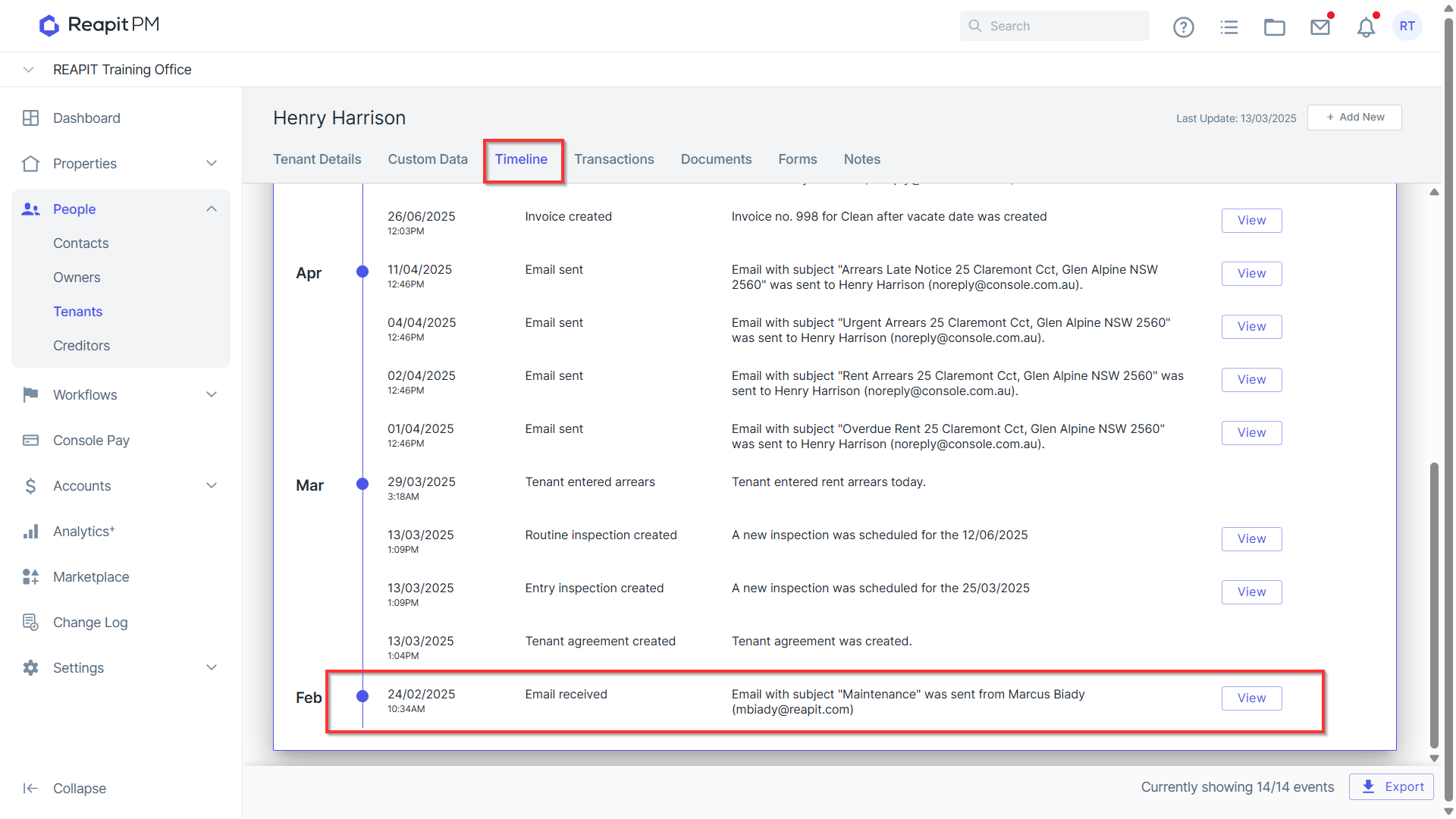
- Navigate and click on the Timeline to view the email received.