'%20d='M0%208a8%208%200%200%201%208-8h24a8%208%200%200%201%208%208v24a8%208%200%200%201-8%208H8a8%208%200%200%201-8-8V8Z'/%3e%3cpath%20fill='%23fff'%20d='M8.375%2013v14L20.5%2034l12.124-7v-7.737l-1.687-.975-2.806-1.62-1.082-.624v4.83l-.002%204.83H13.95V16.07l3.275-1.89%202.192-1.265%201.082-.625%203.275%201.877%202.192%201.256%201.083.62V9.782L20.5%206%208.376%2013Z'/%3e%3cdefs%3e%3clinearGradient%20id='reapit-pm__a'%20x1='20.702'%20x2='20.702'%20y1='.351'%20y2='31.228'%20gradientUnits='userSpaceOnUse'%3e%3cstop%20stop-color='%235573FD'/%3e%3cstop%20offset='.575'%20stop-color='%234E56EA'/%3e%3c/linearGradient%3e%3c/defs%3e%3c/svg%3e)
Creating an Adjustment in Reapit PM
This article explains how to Create and Adjustment and Present an Adjustment in Reapit PM. The processes in this article include: How to Create an Adjustment How to Present an Adjustment
Overview
Creating an Adjustment in Reapit PM
Adjustments are a way of entering miscellaneous or unknown transactions, or temporarily managing variances in Reapit PM.
It is recommend ensuring all steps are taken to avoid the necessity of entering an adjustment and check with your auditor prior to entering an adjustment.
The processes in this article include:
- How to Create an Adjustment
- How to Present an Adjustment
How to Create an Adjustment
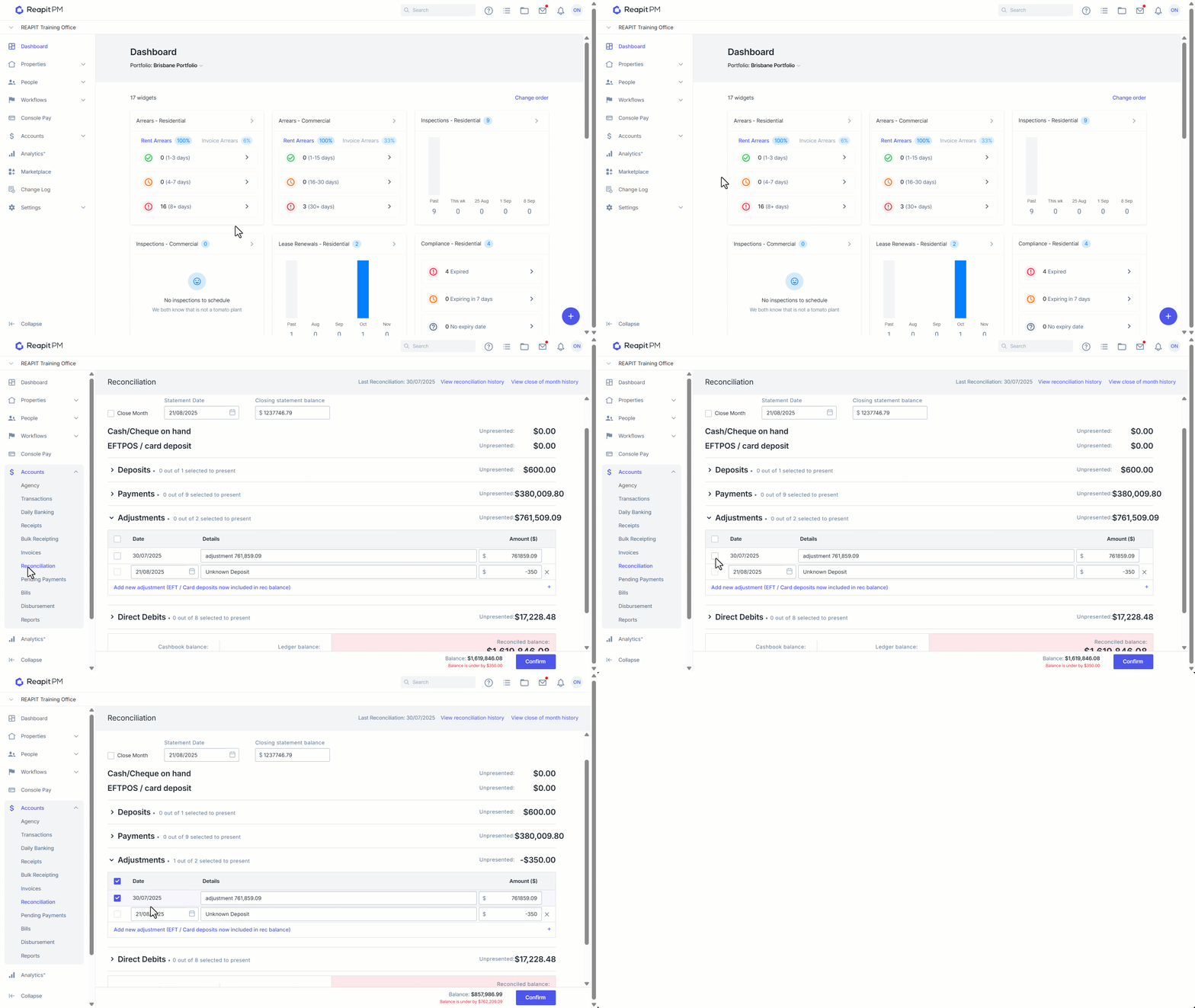
Click on Accounts.
Click on Reconciliation.
Select Adjustments and click on Add new adjustment.
Enter the Date, Details and Amount.
For an amount credited or deposited into your Bank Account, enter a Negative adjustment. For an amount debited or withdrawn from your Bank Account, enter a Positive adjustment.
Repeat the process as required and proceed with the rest of your Bank Reconciliation.
How to Present an Adjustment
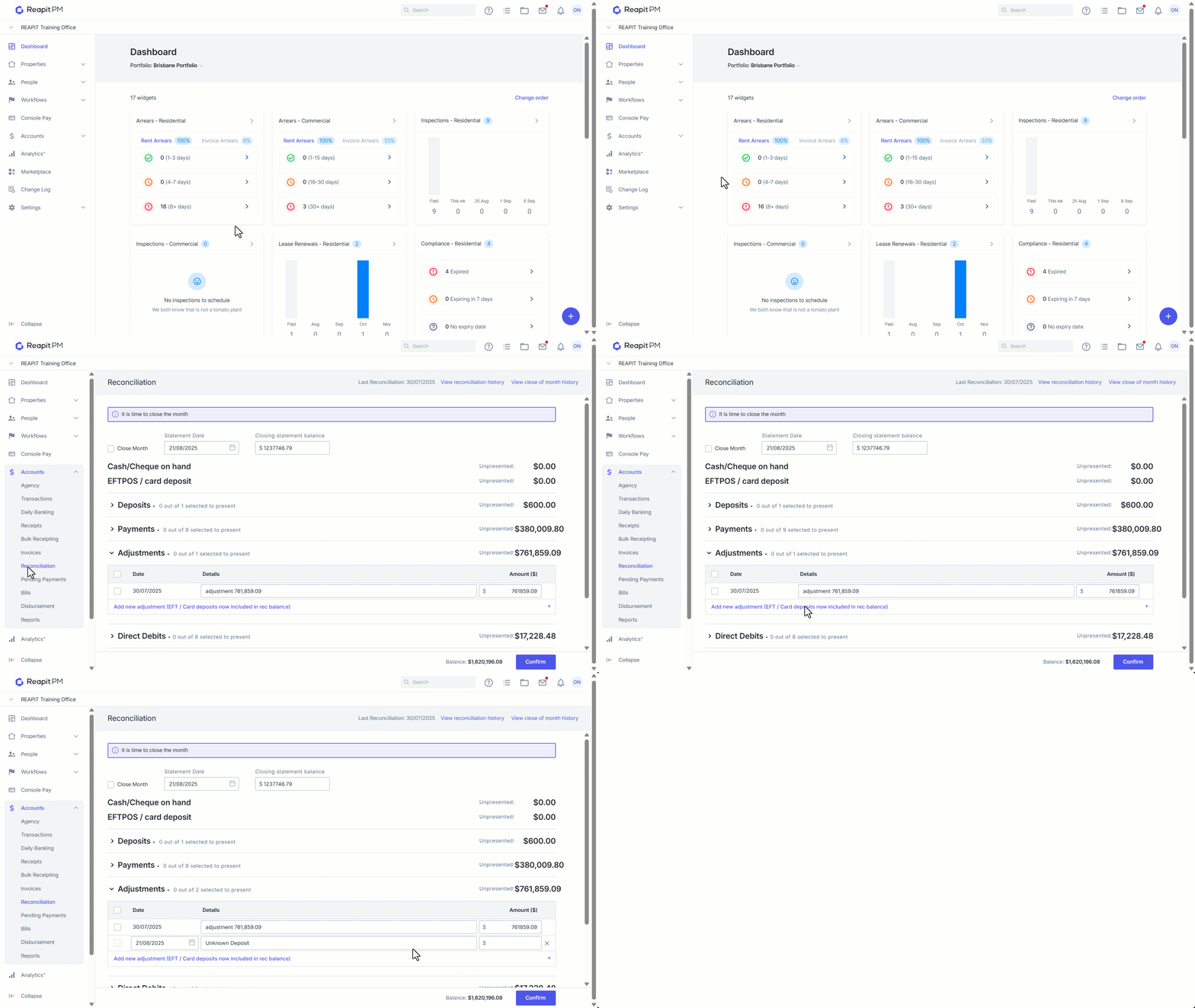
- Click on Accounts.
- Click on Reconciliation.
- Under the Adjustments section Select the check box next to the adjustment to present.
- Continue with your Bank Reconciliation and hit Confirm when finalised.