'%20d='M0%208a8%208%200%200%201%208-8h24a8%208%200%200%201%208%208v24a8%208%200%200%201-8%208H8a8%208%200%200%201-8-8V8Z'/%3e%3cpath%20fill='%23fff'%20d='M8.375%2013v14L20.5%2034l12.124-7v-7.737l-1.687-.975-2.806-1.62-1.082-.624v4.83l-.002%204.83H13.95V16.07l3.275-1.89%202.192-1.265%201.082-.625%203.275%201.877%202.192%201.256%201.083.62V9.782L20.5%206%208.376%2013Z'/%3e%3cdefs%3e%3clinearGradient%20id='reapit-pm__a'%20x1='20.702'%20x2='20.702'%20y1='.351'%20y2='31.228'%20gradientUnits='userSpaceOnUse'%3e%3cstop%20stop-color='%235573FD'/%3e%3cstop%20offset='.575'%20stop-color='%234E56EA'/%3e%3c/linearGradient%3e%3c/defs%3e%3c/svg%3e)
Managing External Financials
This article will show how to manage external financials for in Reapit PM. The processes in this article include: Creating External Financials Example External Financials Scenario How to Display External Transactions on the EOFY Statement How to Download and Send EOFY Statements Frequently Asked Questions
Overview
Managing External Financials
This article will cover how to manage external financials in Reapit PM.
External financials provide a way to make changes on the End of Financial Year Statement without reversing payments or receipts created in the system throughout that financial period.
Note: External Financials is available in Australia only.
The processes in this article include:
- Creating External Financials
- Example External Financials Scenario
- How to Display External Transactions on the EOFY Statement
- How to Download and Send EOFY Statements
- Frequently Asked Questions
Creating External Financials
- Navigate to People. ****
- Navigate to Owners.
- Search and Select the Owner.
- Click on External Financials.
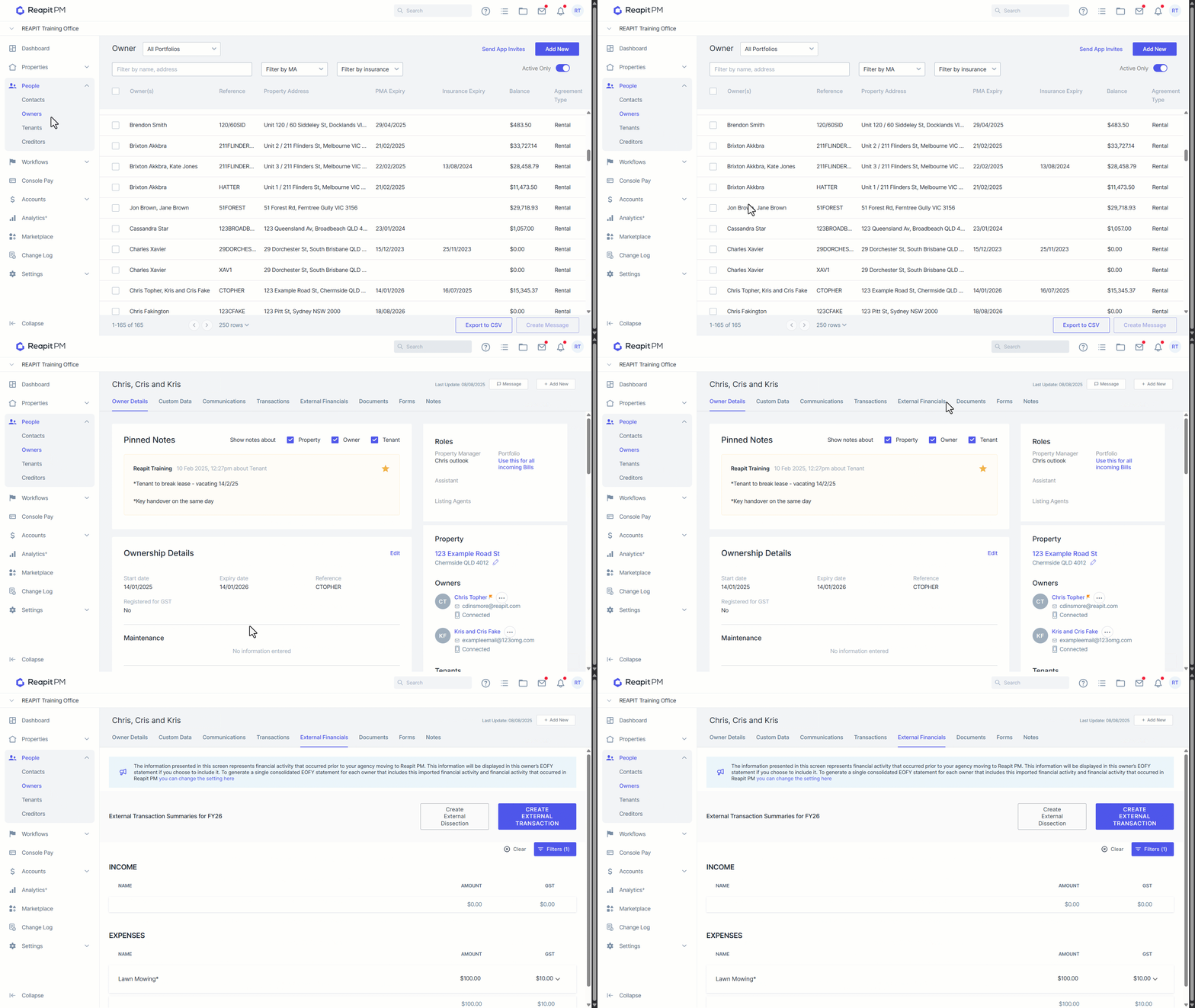
- Click Create External Dissection. You will need to create the external Income/Expense and save before you will see this appear in the External Transaction area.
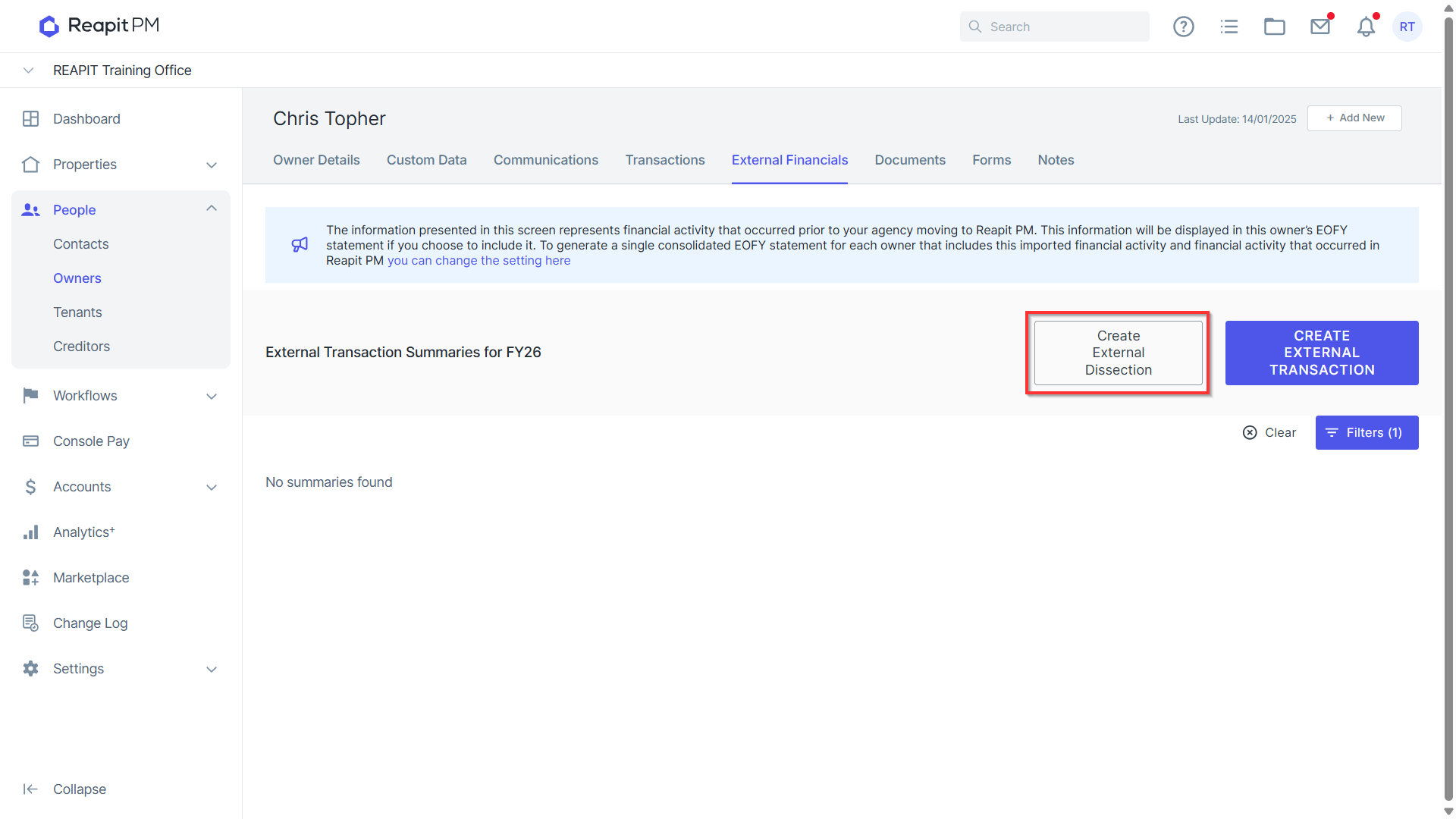
- Enter the Type (income or expense).
- Enter the External Dissection Name.
- Click Save.
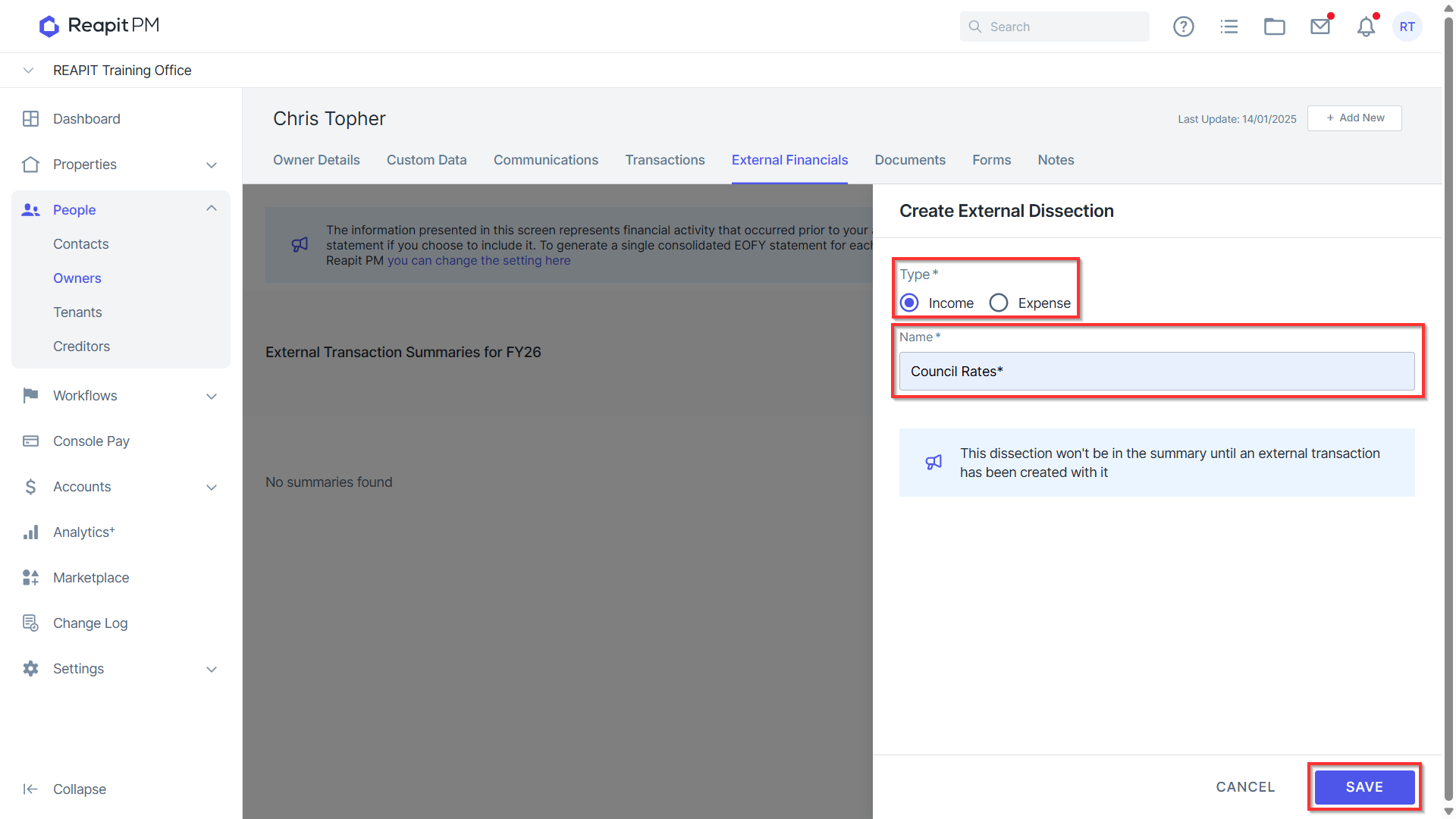
- Click Create External Transaction.
- Enter the Transaction Date for financial year the transaction should be included in.
- Enter the Amount and GST. ****Source System & Transaction Type are previously used fields which can be skipped over. Changing these will do nothing to the external transaction.
- Enter the details for what this external transaction is for. This information is only displayed in the external financials window and will not appear anywhere else. Dissection will only display external dissections created in step 6-8. Reference & Method(s) are additional information fields which are not required and will only display in the external transaction when viewed.
- Click Save to create the transaction.
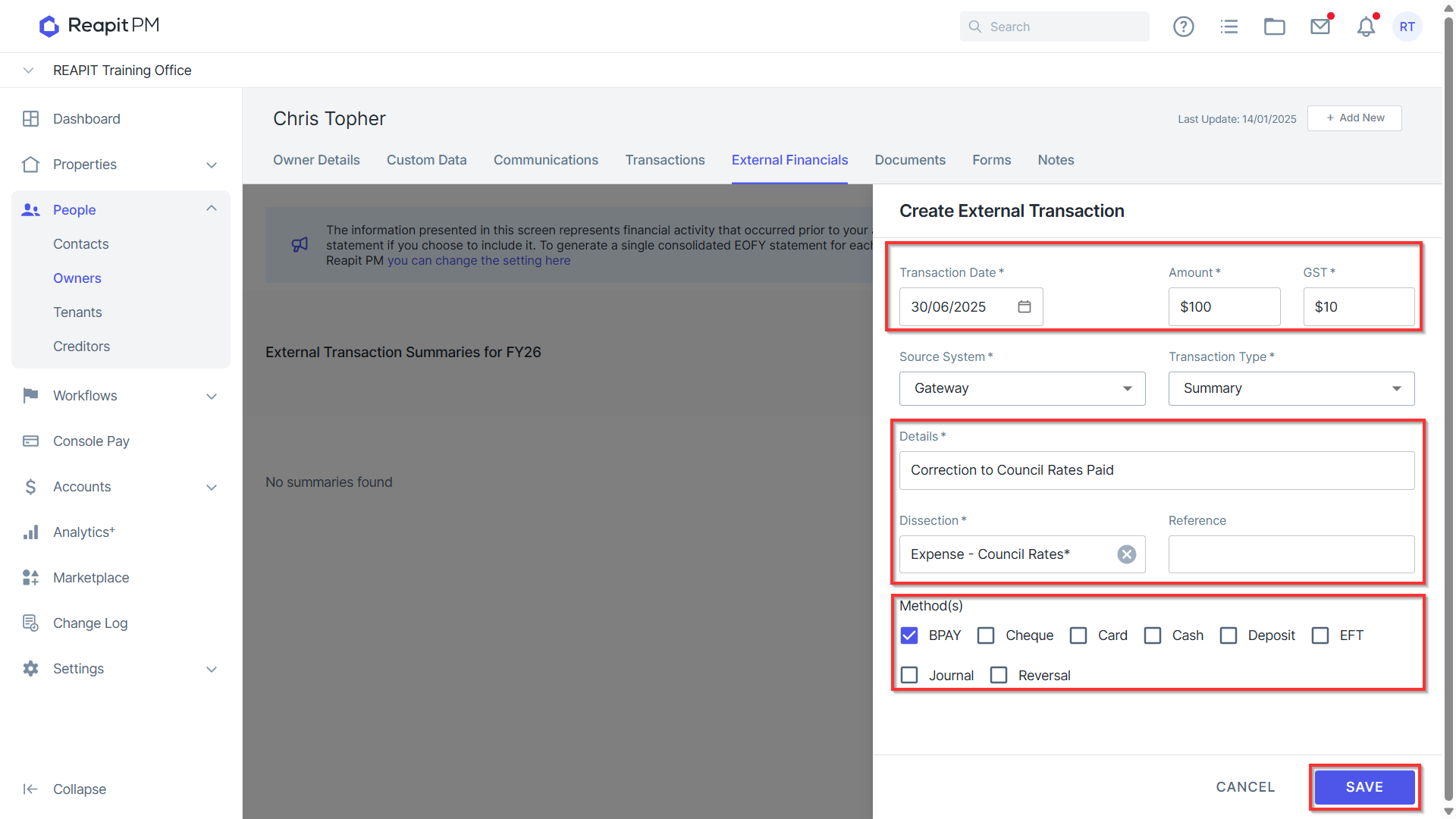
Important Note: External Dissections are case sensitive so it is recommended to Copy / Paste the dissection used and make sure there are no hidden spaces or characters when saving the dissection. As an example, "Rent" would be the true dissection name but if it's created as "rent " it will appear as a secondary income line.
Example External Financials Scenario
An owner has reported that the wrong dissection has been used to pay an expense “Lawn Mowing” when it should be “Maintenance” at the amount of $100 We would do the following;
- Open the owner file and navigate to External Dissections.
- Create external dissections for “Lawn Mowing” and “Maintenance” (case sensitive).
- Create a new external transaction and in the amount field, set it as a negative amount for incorrect figure. A positive amount would add $100 more to the total amount (correcting this would mean it’s $-100) be sure to include the GST if any and save. This would negate the original amount on the dissection (Lawn Mowing) allowing for us to recreate the dissection and transaction.
- Create one more new external transaction using the same figure amount and the new external dissection (Maintenance)
How to Display External Transactions on the EOFY Statement
Once the above steps have been completed to create the external transaction you will need to enable the option in settings to display these changes. You will need Office Administrator access to make these changes;
- Navigate to Settings
- Click on Banking.
- Navigate to External financials in EOFY statement.
- Click to Enable.
- Click Save changes.
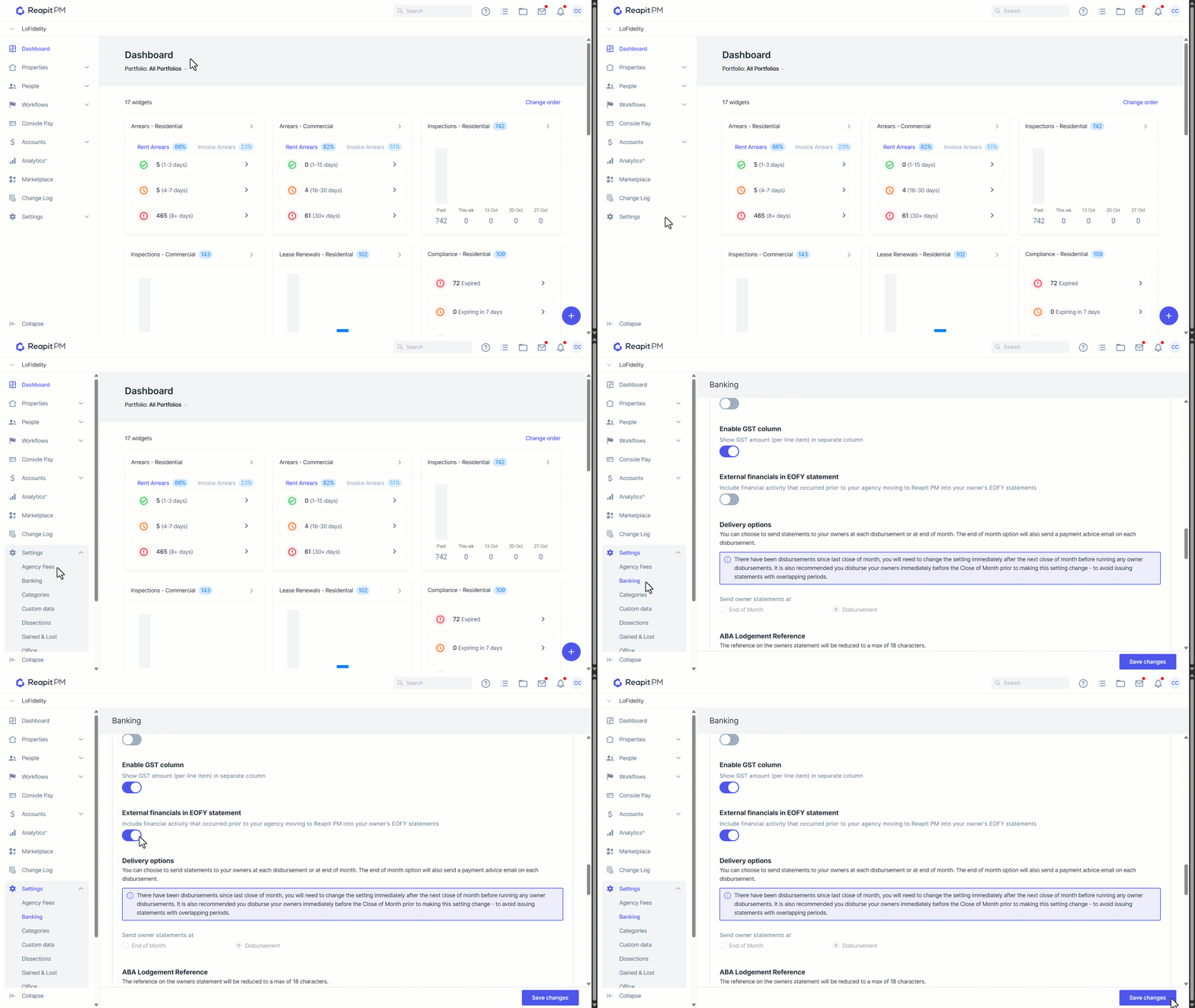
Note: The External Financials in EOFY statement toggle ****will not appear in the Settings menu if you have not added any external transactions.
How to Download and Send EOFY Statements
To email, print or view the EOFY statements you will need to do the following;
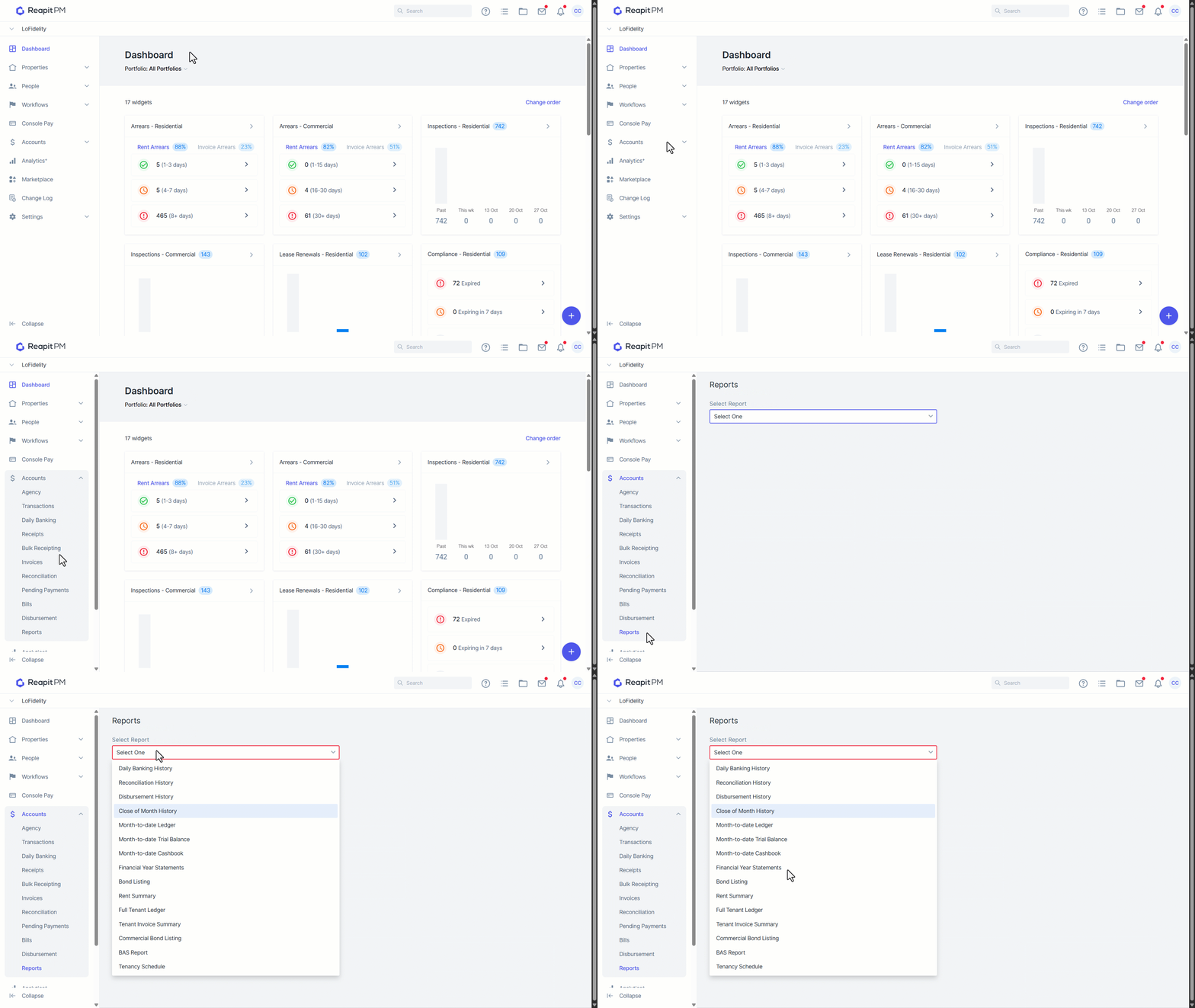
- Navigate to Accounts.
- Click Reports.
- Select report type Financial Year Statements.
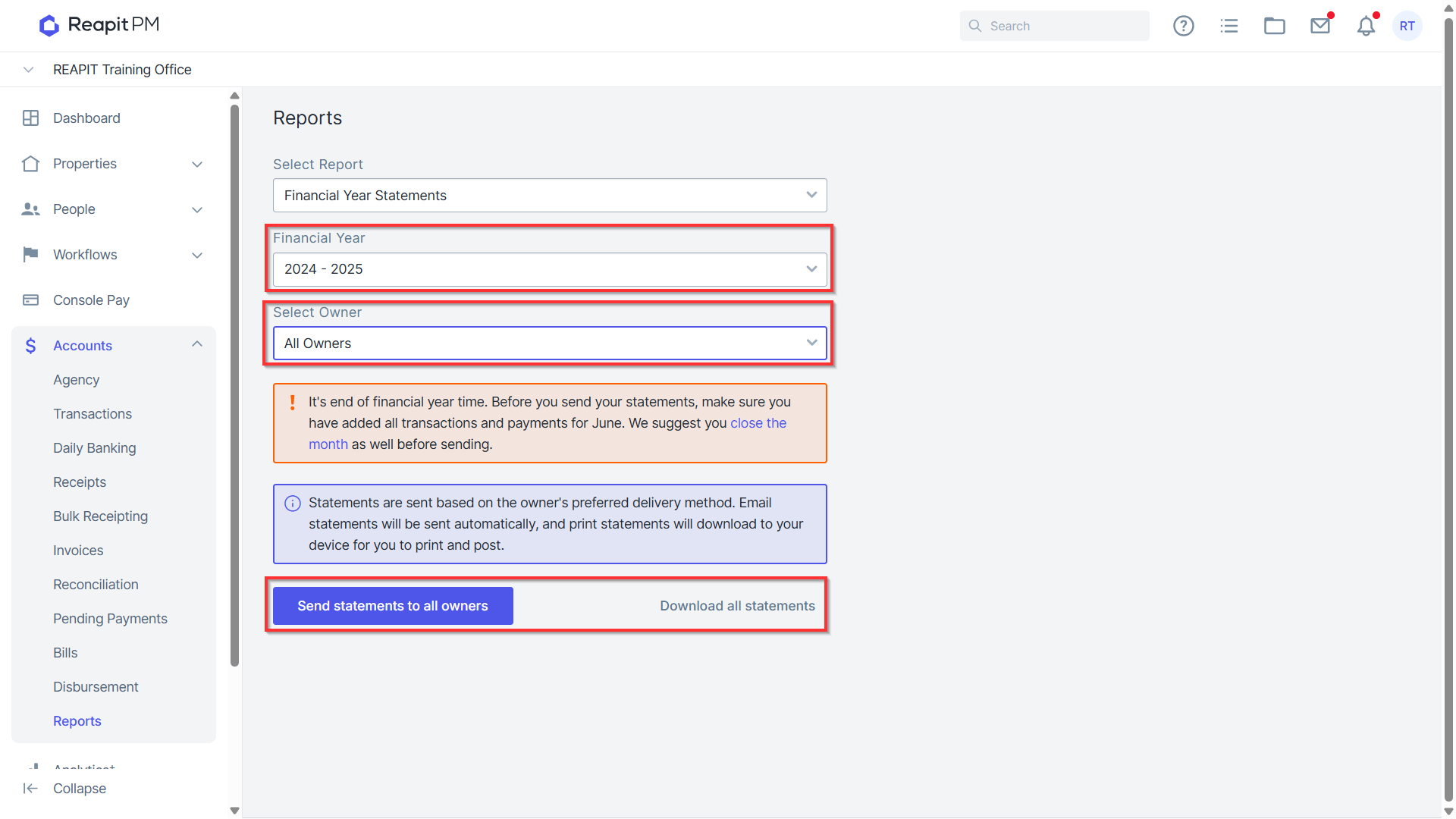
- Select the Financial Year you wish to generate the reports for.
- Select If you wish to generate the report for All owners or a Specific owner.
Frequently Asked Questions
Q - Do you have any webinars/training for EOFY?
A - Yes! We have training courses through webinars & knowledge base articles;
EOFY Essentials | Training Webinar on YouTube
https://help.console.com.au/s/article/End-of-financial-year-user-guide
Q - How should I perform my Disbursement / Close of Month for EOFY?
A - Close of month should be conducted as normal. Businesses should not modify their practices for EOFY. If disbursement is on the 1st - continue to do so. If disbursement is on the last day of the month, continue to do so. Closing the month will not have an impact on the FY statements. The disbursement and when choosing to process this will be the biggest factor due to fees that are charged on disbursement. Changing the process can cause reporting to be out when compared to other months. It is best to be consistent.
Q - Owner marked as inactive during the year due to lost management / ownership change. Will the system send out the EOFY statements to inactive owners?
A - No, EOFY statements will only go out to active owners. You will need to make anyone made inactive during this time active again to send out the summary and make them inactive again.
Q - Are EOFY statements viewable in the Owner Portal?
A - No. Due to feedback and agencies generally charging an EOFY statement fee we did not make them accessible in the Owner portal.
Q - Pending Bills & Pending Payments - Will these transactions display on the date they were created in Cloud or the date of being processed?
A - Processing Bills & Pending Payments will be from the date it's paid. So if the bill or pending payment is created on the 19/04/22 but processed on the 03/07/2022 This expense is going to appear in the next financial period.
Q - The EOFY statement does not add up to the monthly statements?
A - EOFY transactions are within 1/7 - 30/6 - typically, unless using custom dates.
Monthly statements can span multiple FY. The best way to cross-check the totals in EOFY and transactions in Cloud is to go to the transactions tab of the Owner file and filter to transactions within 1/7 - 30/6 > Export as CSV
Q - Can I use a custom date range on the EOFY statement?
A - Yes! Under Accounts > Reports > Financial Year Statements. When you click on the financial year there is now a custom date range Start & End date. This will also be the date periods which appear when you generate the report.