'%20d='M0%208a8%208%200%200%201%208-8h24a8%208%200%200%201%208%208v24a8%208%200%200%201-8%208H8a8%208%200%200%201-8-8V8Z'/%3e%3cpath%20fill='%23fff'%20d='M8.375%2013v14L20.5%2034l12.124-7v-7.737l-1.687-.975-2.806-1.62-1.082-.624v4.83l-.002%204.83H13.95V16.07l3.275-1.89%202.192-1.265%201.082-.625%203.275%201.877%202.192%201.256%201.083.62V9.782L20.5%206%208.376%2013Z'/%3e%3cdefs%3e%3clinearGradient%20id='reapit-pm__a'%20x1='20.702'%20x2='20.702'%20y1='.351'%20y2='31.228'%20gradientUnits='userSpaceOnUse'%3e%3cstop%20stop-color='%235573FD'/%3e%3cstop%20offset='.575'%20stop-color='%234E56EA'/%3e%3c/linearGradient%3e%3c/defs%3e%3c/svg%3e)
Creating a Comparative Market Analysis via Lease Renewal
This guide will walk you through how to create a Comparative Market Analysis (CMA) proposal as part of the Lease Renewal process when completing an owner intention with Reapit PM.
Note: this is available to clients with a Premium subscription, which includes Reapit PM and Reapit Sales products.
Creating a CMA via Lease Renewal
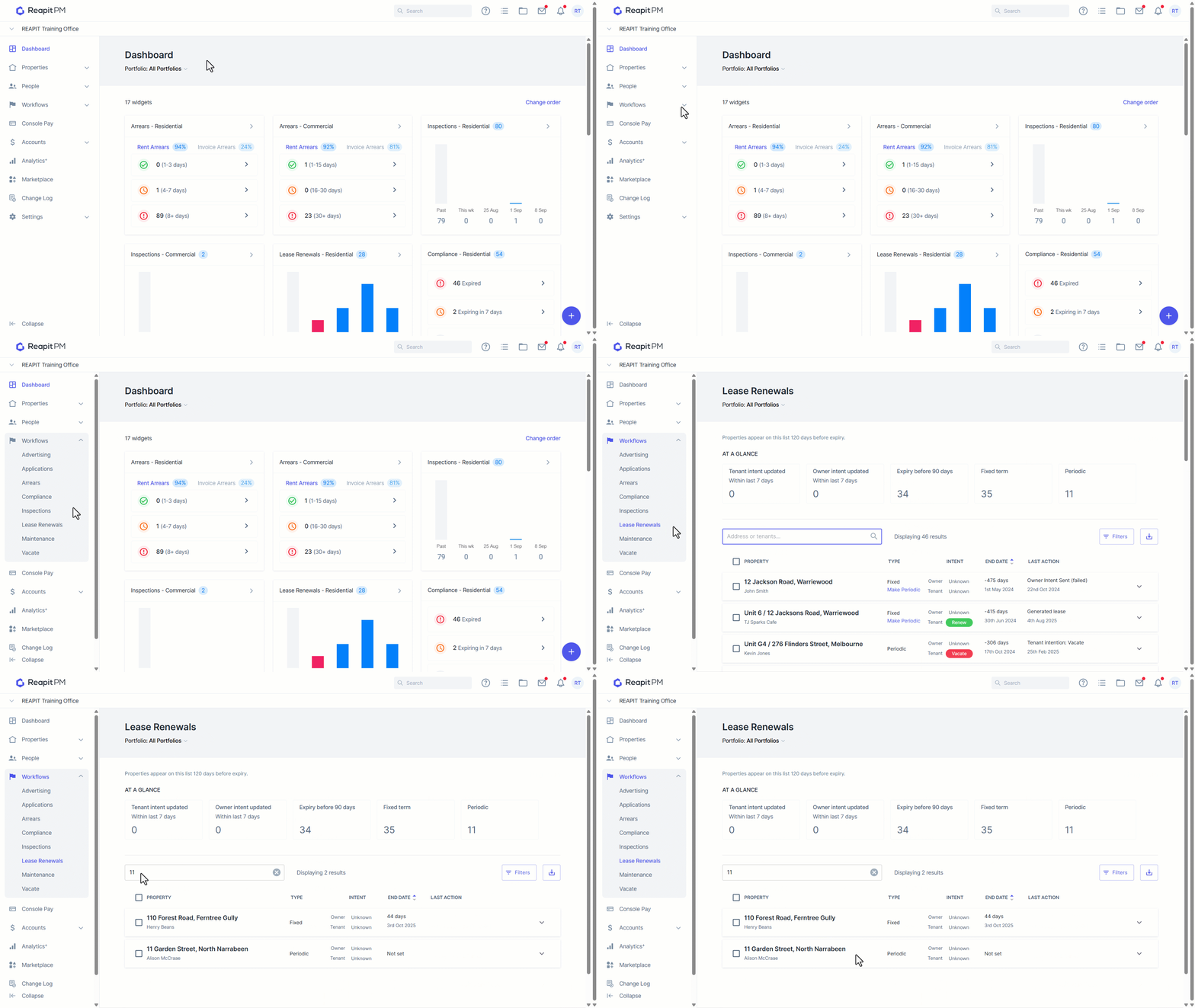
1. Navigate to Workflows > Lease Renewals, and select the desired property you wish to access.
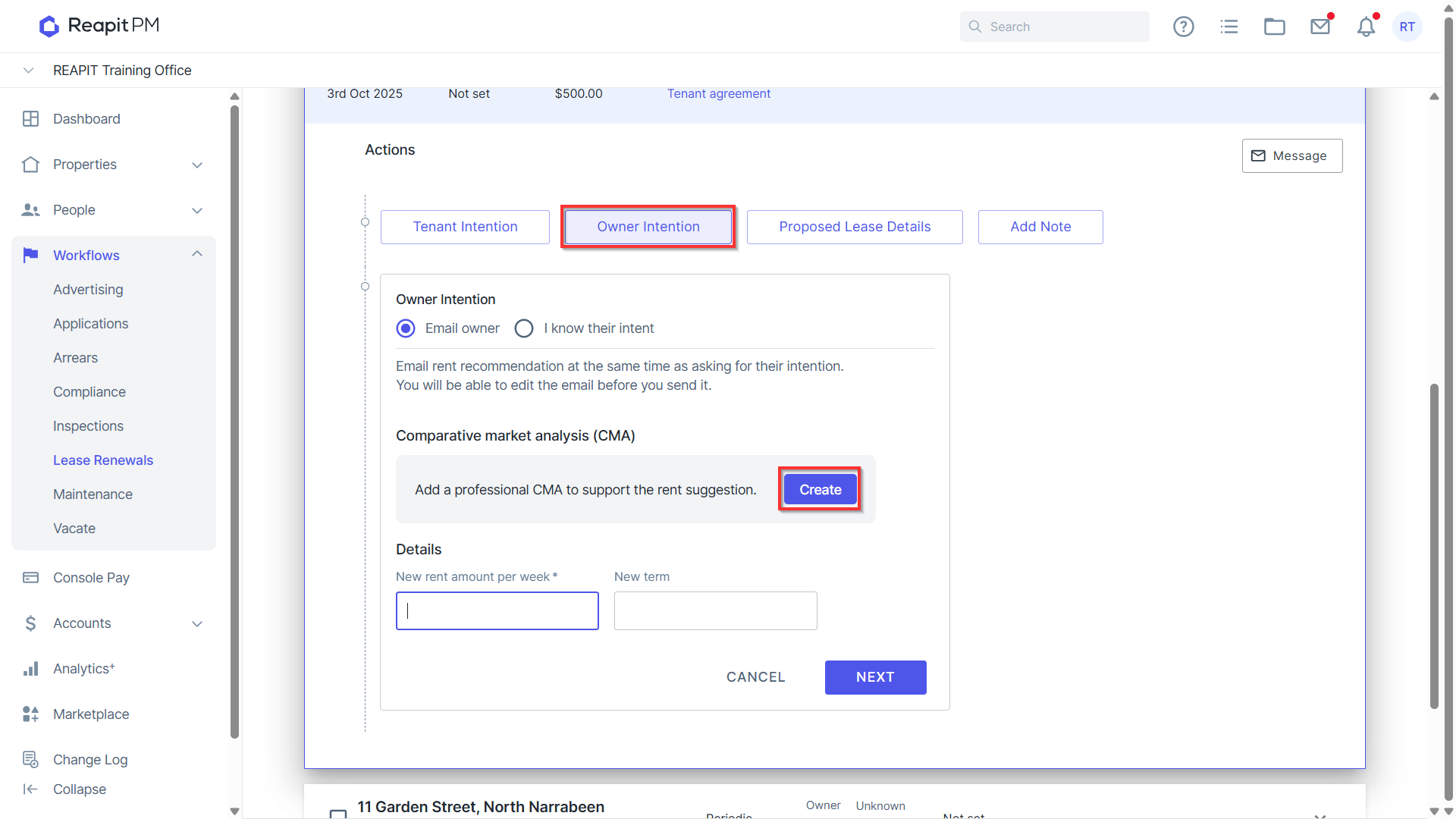
2. From the Owner Intention screen, click Create.
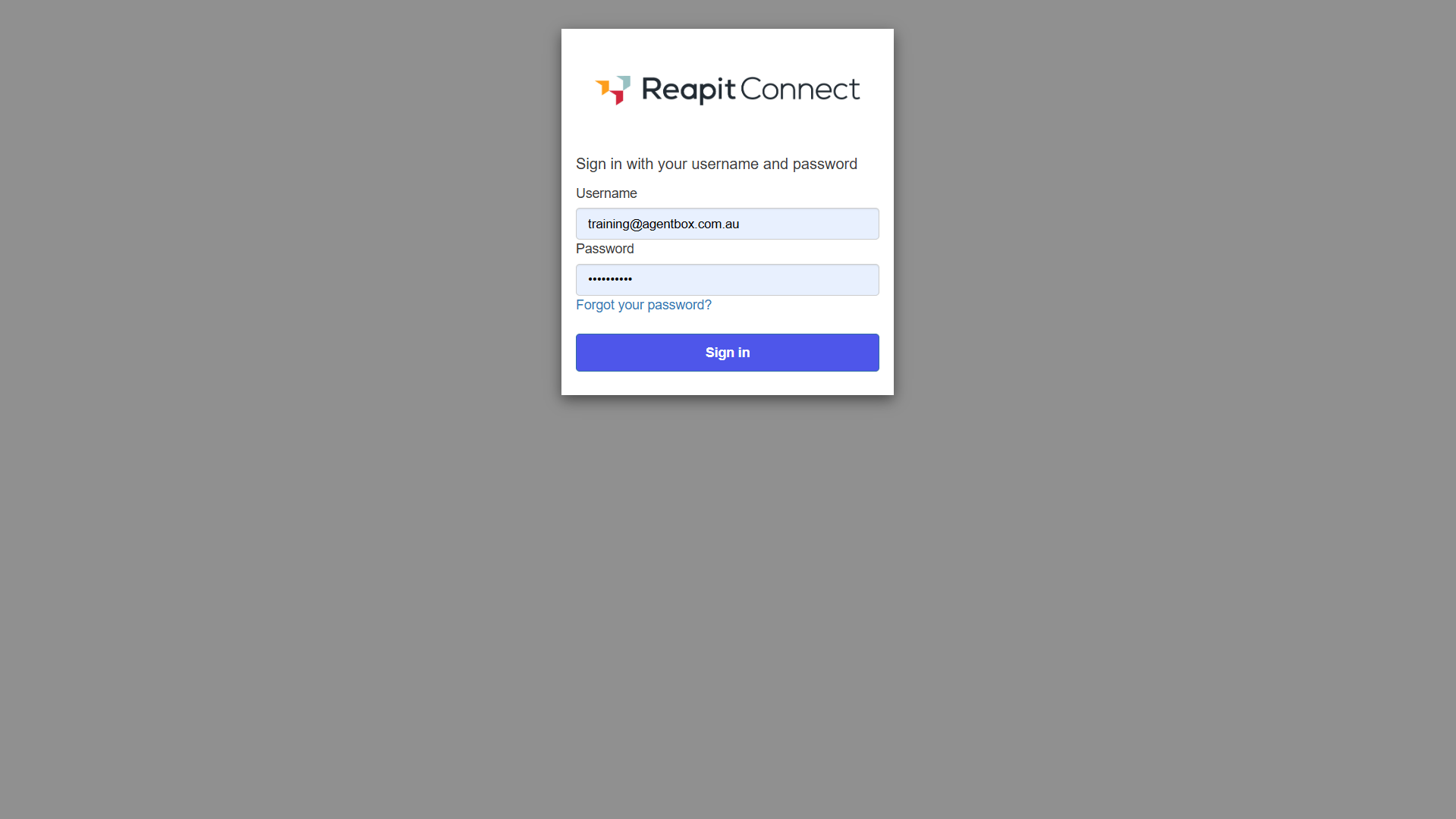
3. If you are an existing user of Agentbox Proposals, enter your email and password to log in.
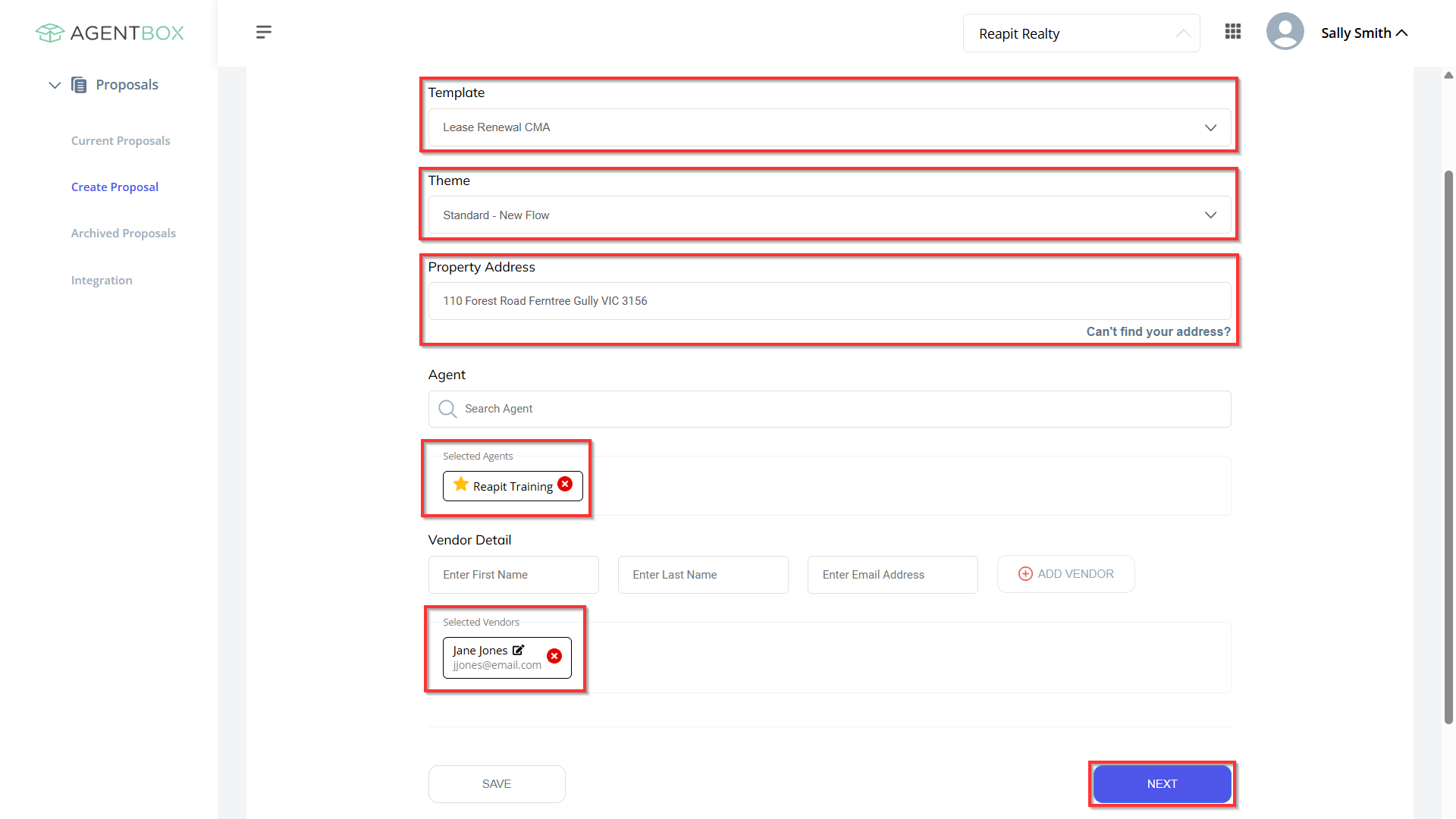
4. Upon CMA creation, the system selects the default template. You can choose the theme and, if prompted, select the matching address.
- Agent, Vendor, and property details auto-populate based on the property card in Reapit PM.
- Click Next to proceed with Proposal setup.
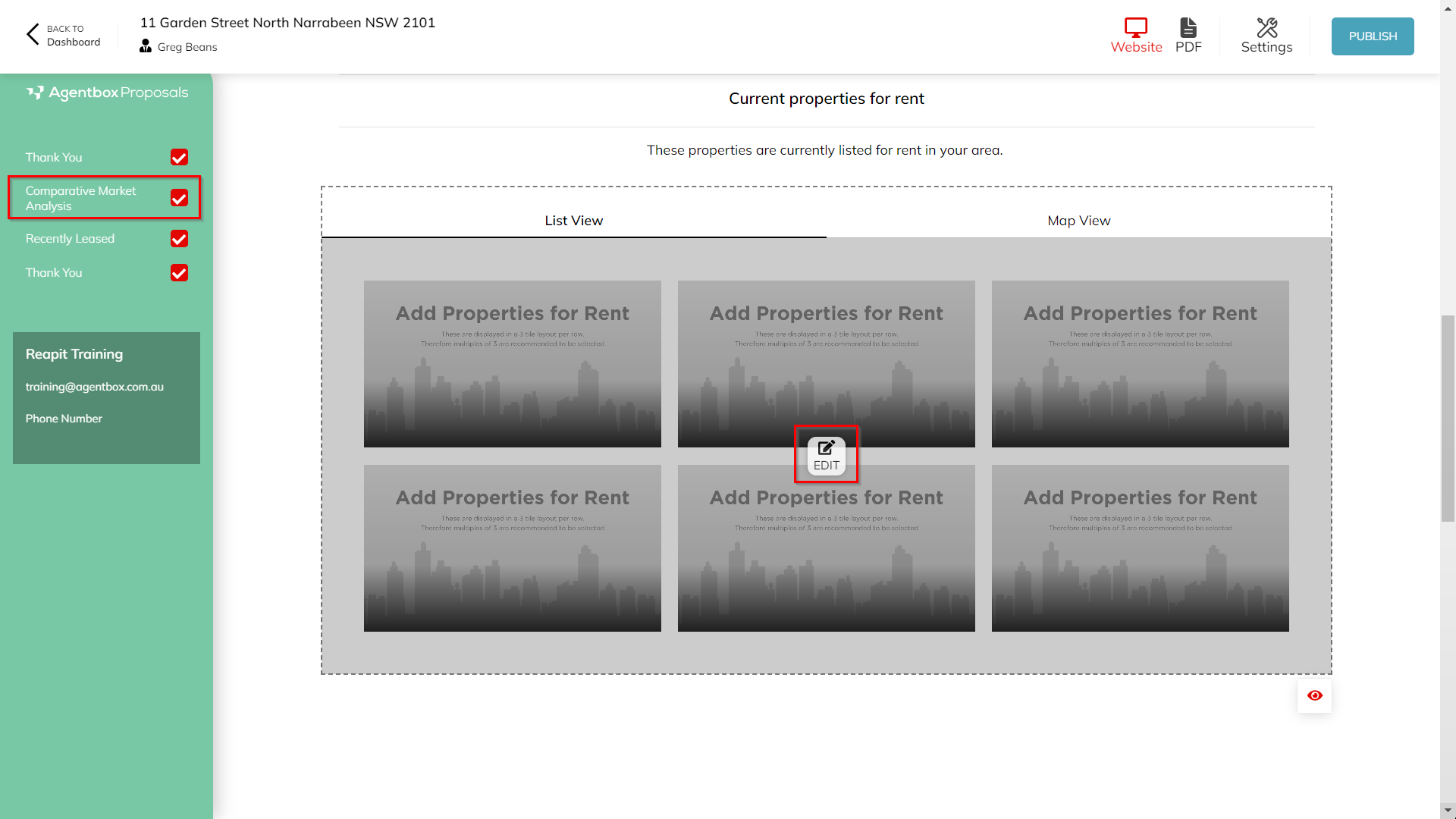
5. Select Comparative Market Analysis on the side bar, click into the add properties to rent tab and select the Edit icon.
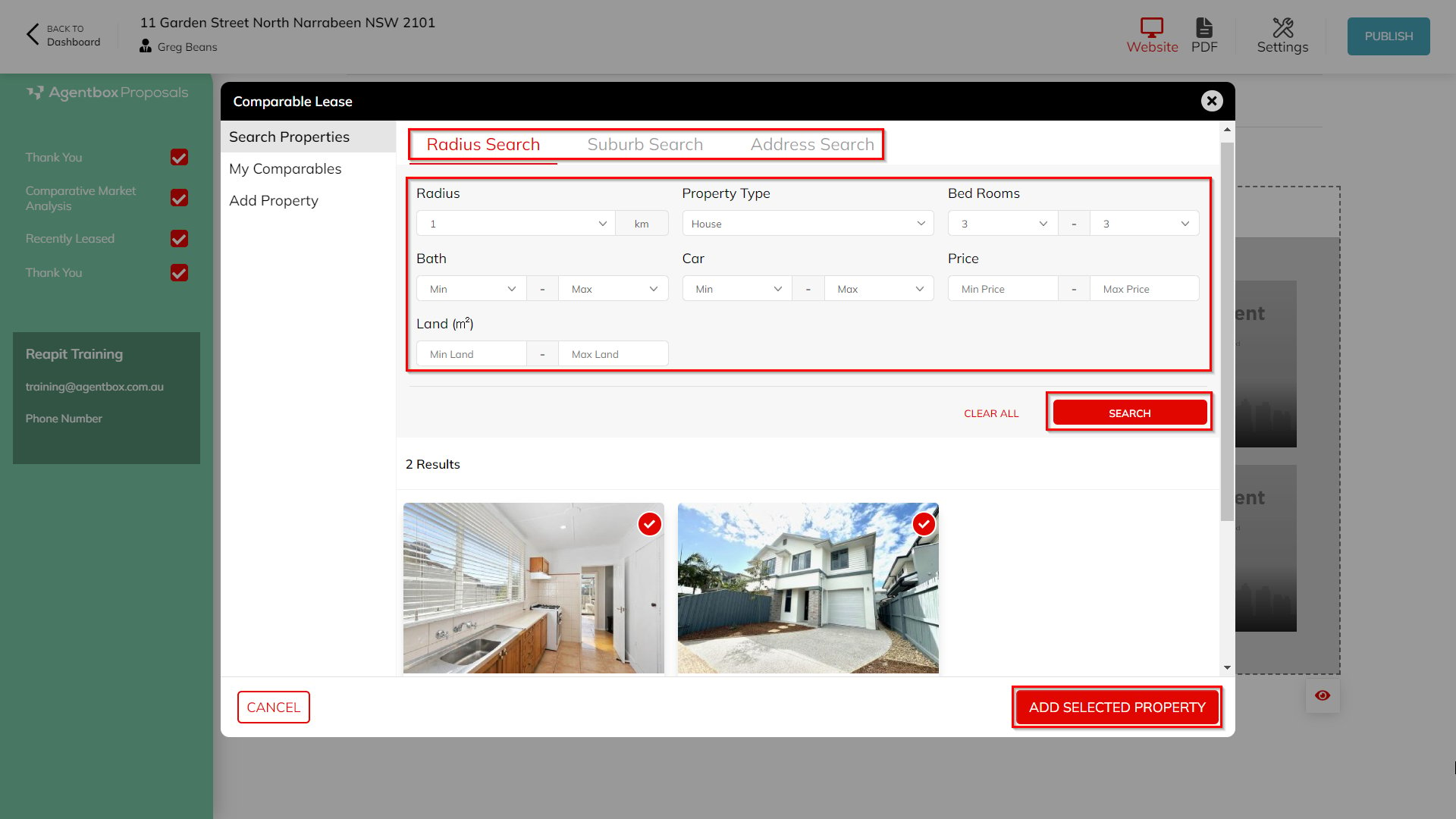
6. search for properties using either radius, suburb or address searching. Click Search once completed.
- Select the desired properties to include in your CMA proposal and click Add Selected Property.
- Click Save once completed.
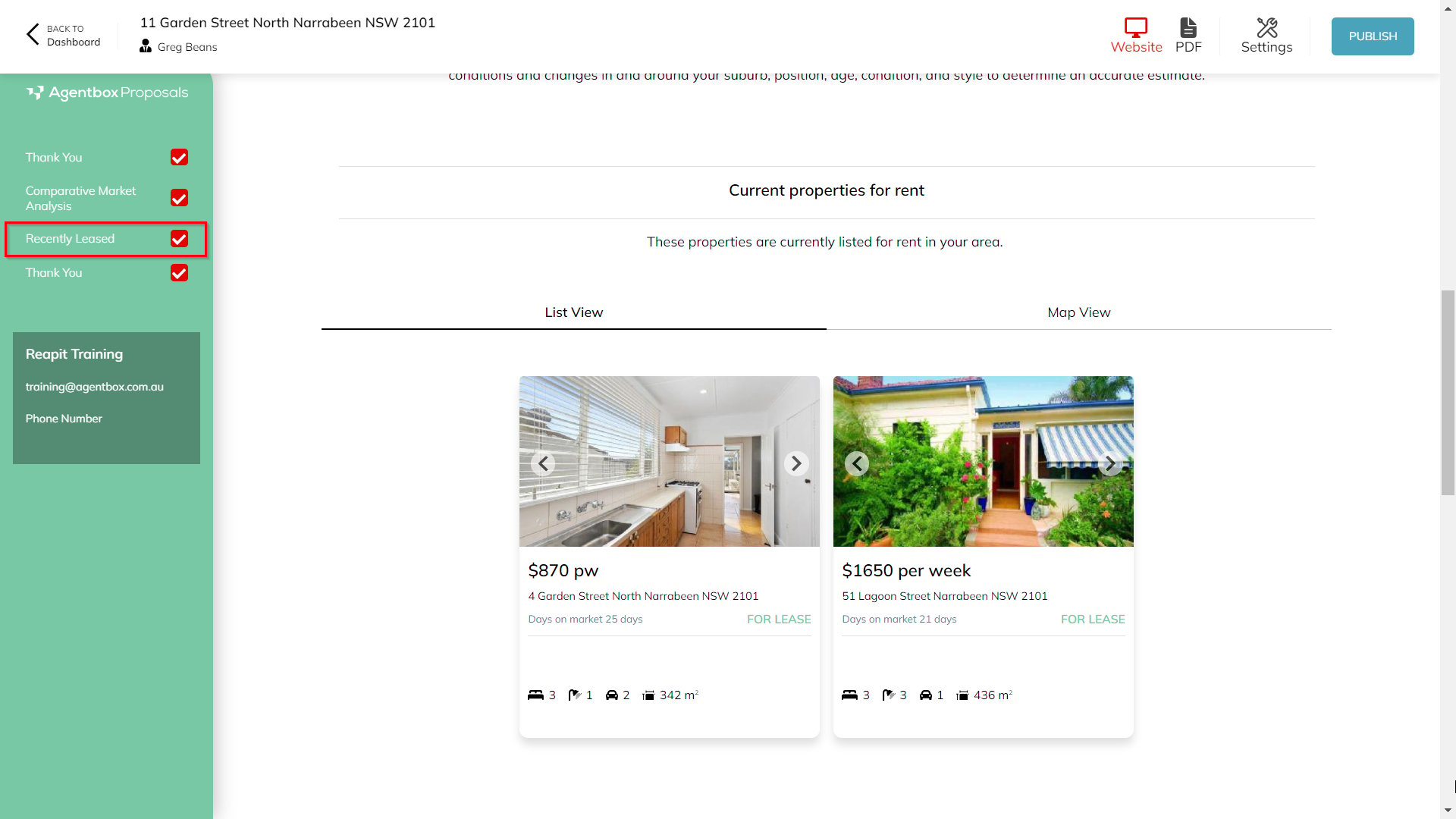
Note: Follow the same actions to include properties recently leased into your CMA proposal using the designated option on the side bar.
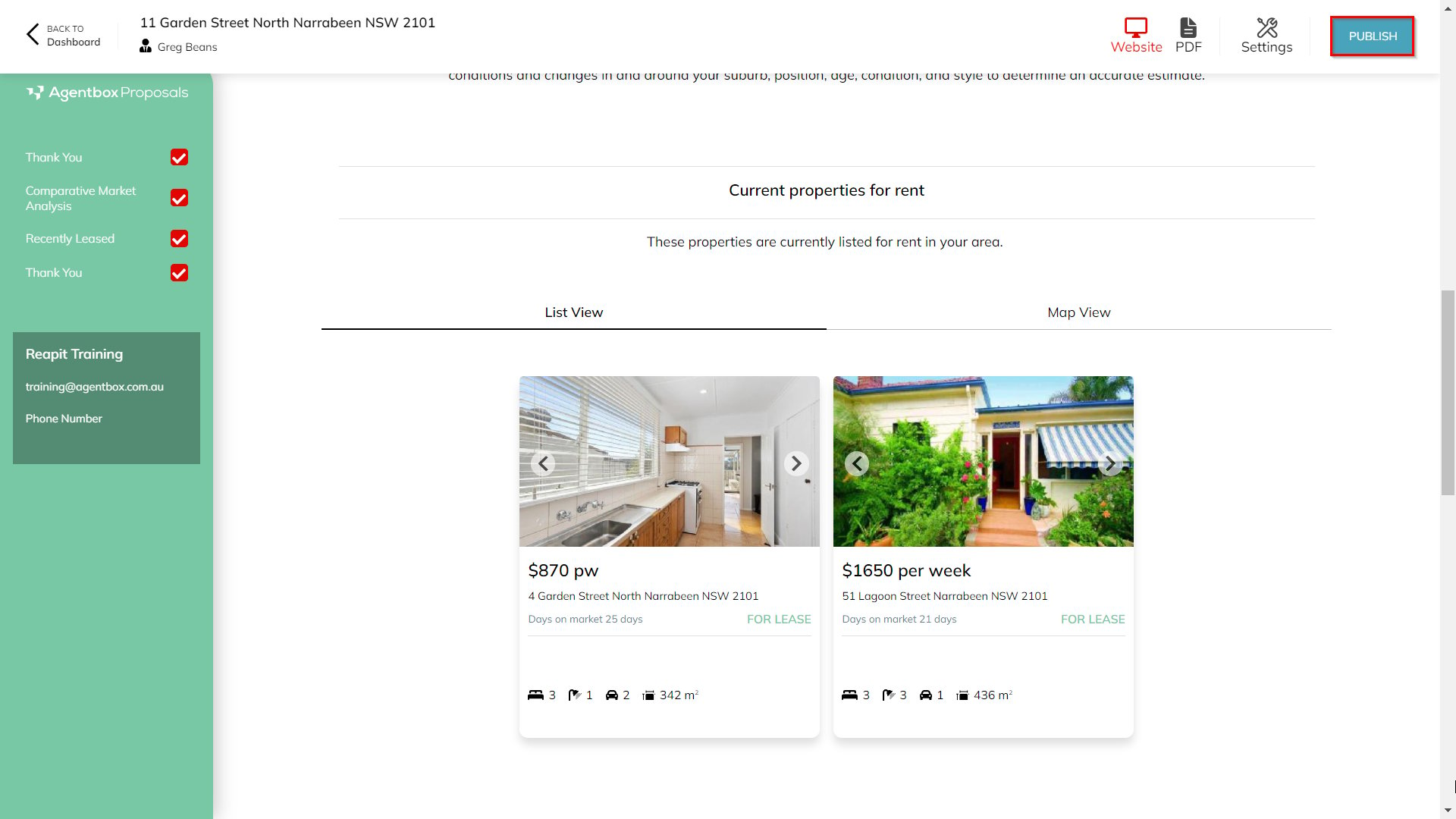
7*.* Once the Proposal is complete, publish the CMA. A copy will be pushed back to Reapit PM.
.
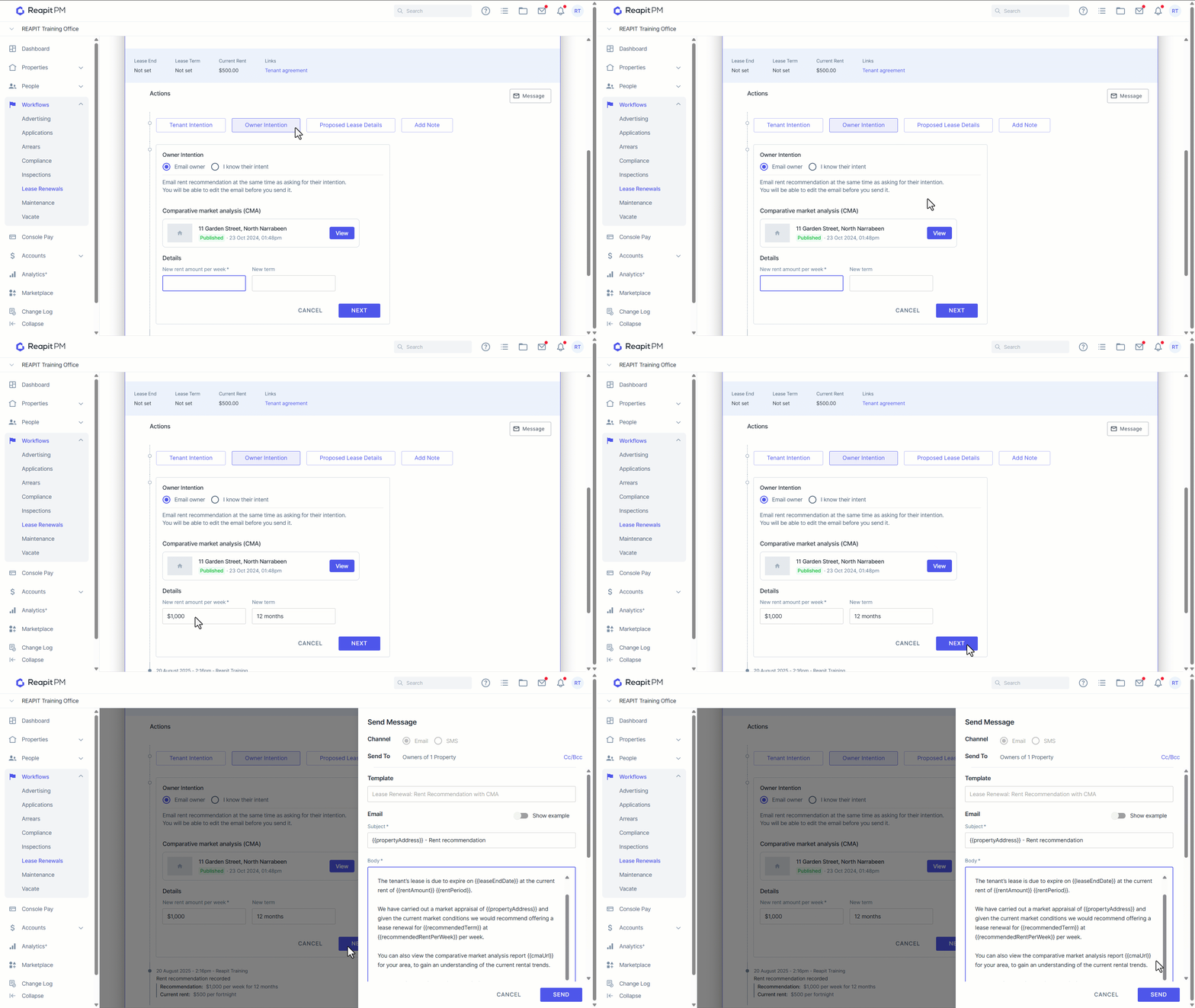
8. Refresh the Owner Intention screen in Reapit PM to view the published CMA.
- After refreshing, you will see the published CMA. To view your completed CMA, click View.
9. Within the Owner Intention email, a link to the online version of the CMA will automatically be included for the owner to view.
Need further assistance?
- Create a new user in Reapit Sales (Permissions apply) https://help.agentboxcrm.com.au/add-edit-staff
- Accessing a staff profile https://help.agentboxcrm.com.au/access-profile
- Updating proposal themes https://help.reapit.com.au/updating-templates