'%20d='M0%208a8%208%200%200%201%208-8h24a8%208%200%200%201%208%208v24a8%208%200%200%201-8%208H8a8%208%200%200%201-8-8V8Z'/%3e%3cpath%20fill='%23fff'%20d='M8.375%2013v14L20.5%2034l12.124-7v-7.737l-1.687-.975-2.806-1.62-1.082-.624v4.83l-.002%204.83H13.95V16.07l3.275-1.89%202.192-1.265%201.082-.625%203.275%201.877%202.192%201.256%201.083.62V9.782L20.5%206%208.376%2013Z'/%3e%3cdefs%3e%3clinearGradient%20id='reapit-pm__a'%20x1='20.702'%20x2='20.702'%20y1='.351'%20y2='31.228'%20gradientUnits='userSpaceOnUse'%3e%3cstop%20stop-color='%235573FD'/%3e%3cstop%20offset='.575'%20stop-color='%234E56EA'/%3e%3c/linearGradient%3e%3c/defs%3e%3c/svg%3e)
Conversations – Manage the Participant of a Profile and Portfolio Email Address
This article outlines how to update the participant against a linked Gmail or Outlook account to a user or a portfolio.
Overview
Conversations – Manage the Participant of a Profile and Portfolio Email Address
This article outlines how to update the participant against a linked Gmail or Outlook account to a user or a portfolio.
The process in this article include:
- Assigning Users and Portfolios
When the email address in your profile is also linked to a portfolio, the system defaults to assigning it to the most relevant participant, typically the user. The following steps outline how to reassign the email to a portfolio or another user participant.
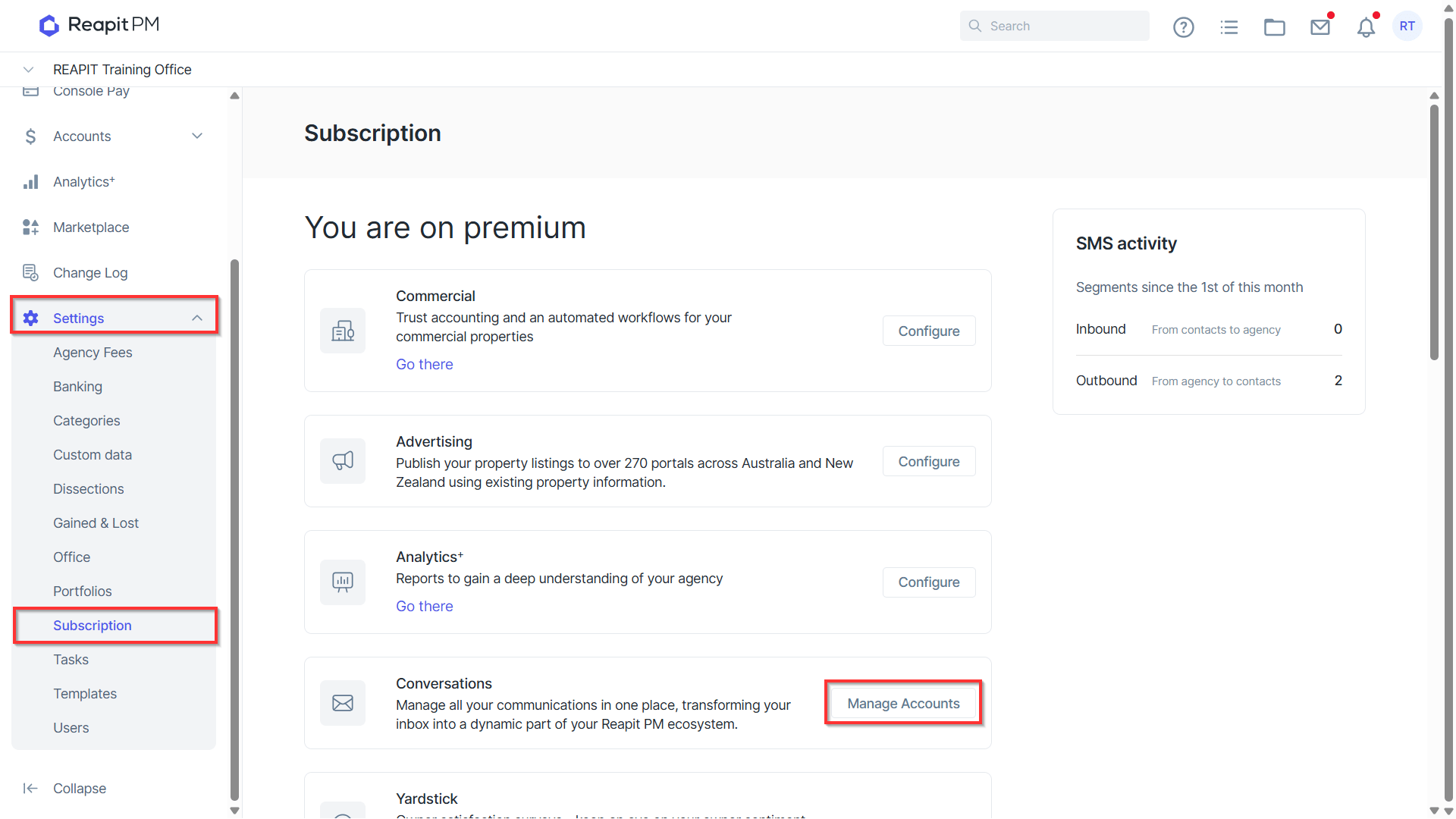
- To reassign or edit participants in Conversations, navigate to Settings > Subscription > Manage Accounts for Conversations.
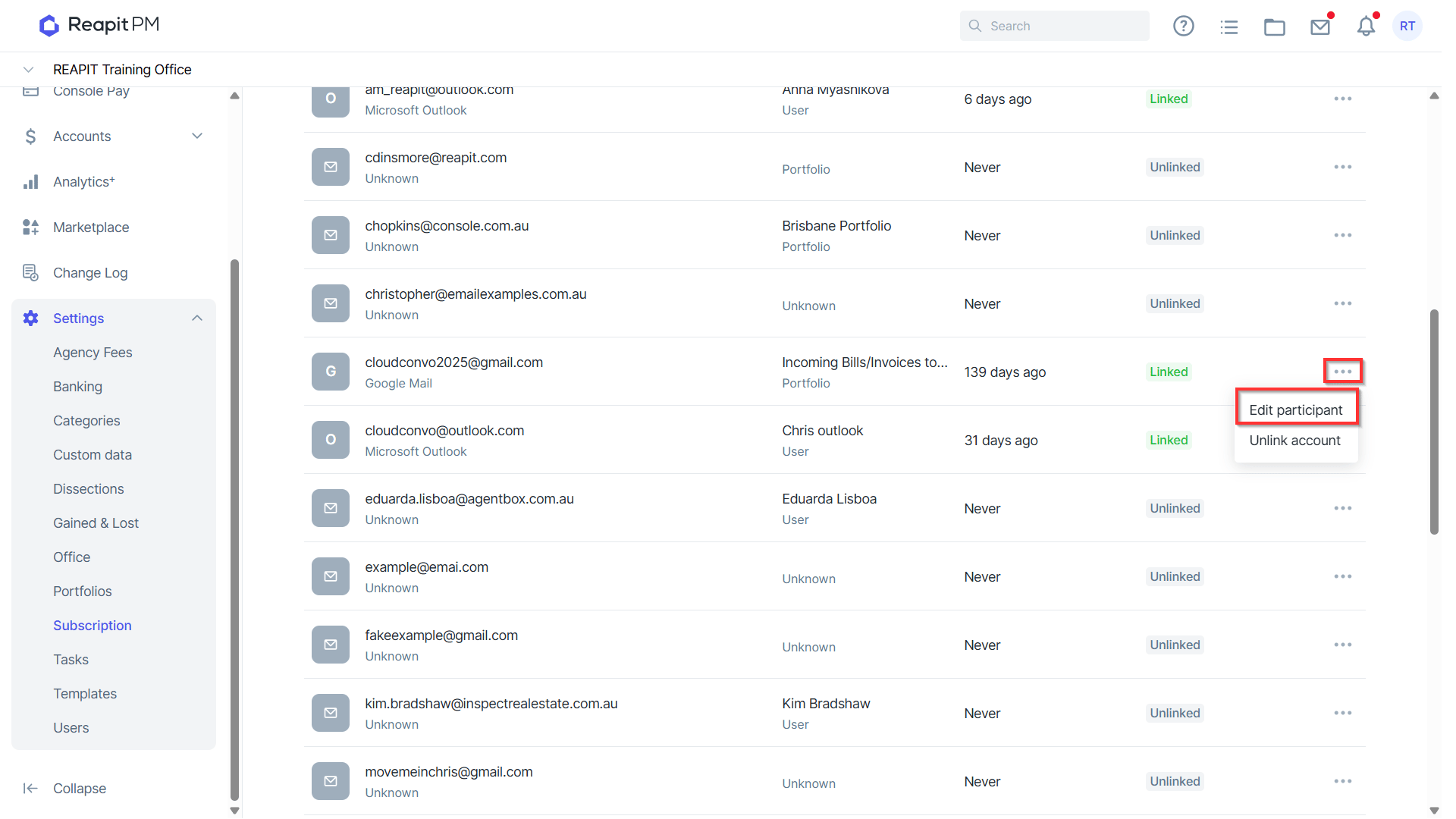
- The Linked Status will display anyone who has their Gmail or Outlook account synced with Reapit PM. By selecting the three dots to the right of a linked or unlinked email, you have the option to Edit the participants for that email or portfolio.
- From the Edit Participant drawer, toggle off the automatic participant and use the search field to locate the user or portfolio you would like to assign the email to. Click Save.
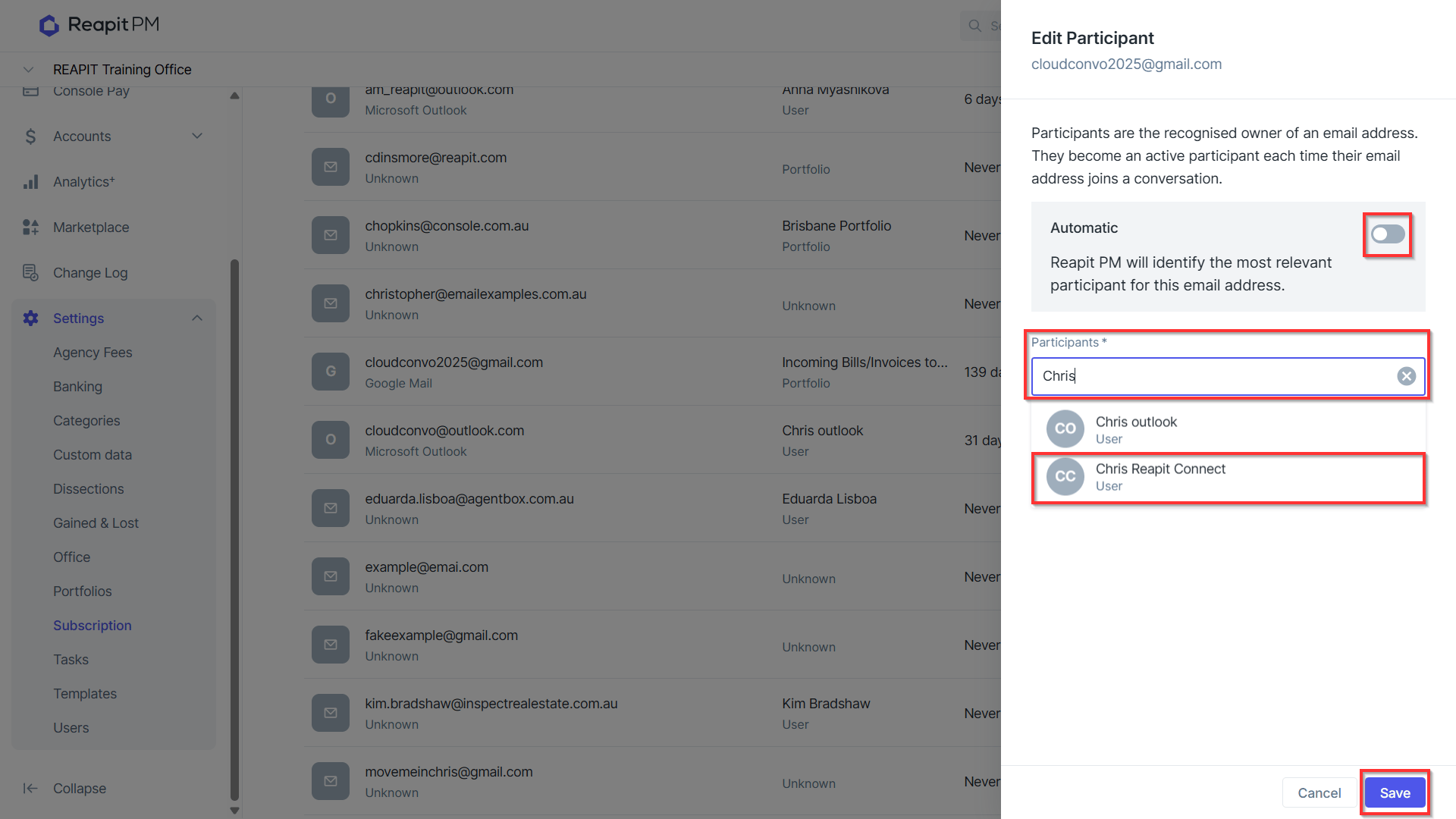
Note: When a linked email is associated with multiple portfolios, the Manage screen for Conversations allows you to assign the email to only one user or portfolio at a time. It cannot be linked to multiple portfolios simultaneously.
- The participant against the email address will now display the new user or portfolio it has been assigned to.