'%20d='M0%208a8%208%200%200%201%208-8h24a8%208%200%200%201%208%208v24a8%208%200%200%201-8%208H8a8%208%200%200%201-8-8V8Z'/%3e%3cpath%20fill='%23fff'%20d='M8.375%2013v14L20.5%2034l12.124-7v-7.737l-1.687-.975-2.806-1.62-1.082-.624v4.83l-.002%204.83H13.95V16.07l3.275-1.89%202.192-1.265%201.082-.625%203.275%201.877%202.192%201.256%201.083.62V9.782L20.5%206%208.376%2013Z'/%3e%3cdefs%3e%3clinearGradient%20id='reapit-pm__a'%20x1='20.702'%20x2='20.702'%20y1='.351'%20y2='31.228'%20gradientUnits='userSpaceOnUse'%3e%3cstop%20stop-color='%235573FD'/%3e%3cstop%20offset='.575'%20stop-color='%234E56EA'/%3e%3c/linearGradient%3e%3c/defs%3e%3c/svg%3e)
Lease Renewal Workflow
The Lease Renewal workflow in Reapit PM helps you to stay on top of leases due to expire. Lease Renewals give you a single timeline to keep a record of all steps and actions taken throughout this process. The processing in this article include: How to Access Lease Renewals Lease Renewal Workflow
Overview
Lease Renewal Workflow
The Lease Renewal workflow in Reapit PM helps you to stay on top of leases due to expire.
Lease Renewals give you a single timeline to keep a record of all steps and actions taken throughout this process.
The processes in this article include:
- How to Access Lease Renewals
- Lease Renewal Workflow
How to Access Lease Renewals
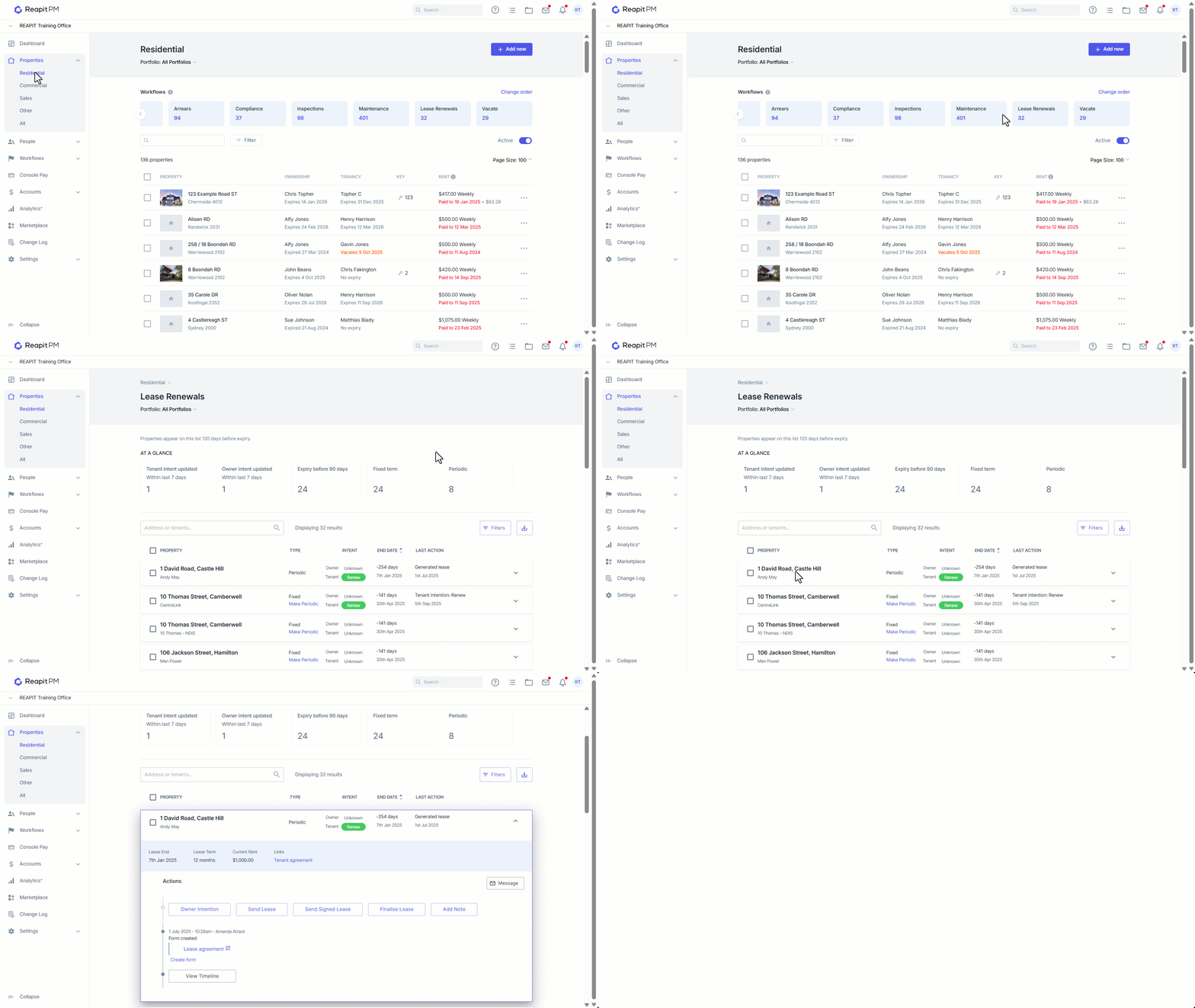
The Lease Renewals screen automatically displays properties 120 days before expiry.
- Click on Properties
- Select Property Type.
- Select the Lease Renewals ****workflow.
- Under At a Glance, you can click on each tab to narrow down the search. You can also click on the Filters icon to view Lease End Date.
- Search or Select the appropriate property.
Lease Renewal Workflow
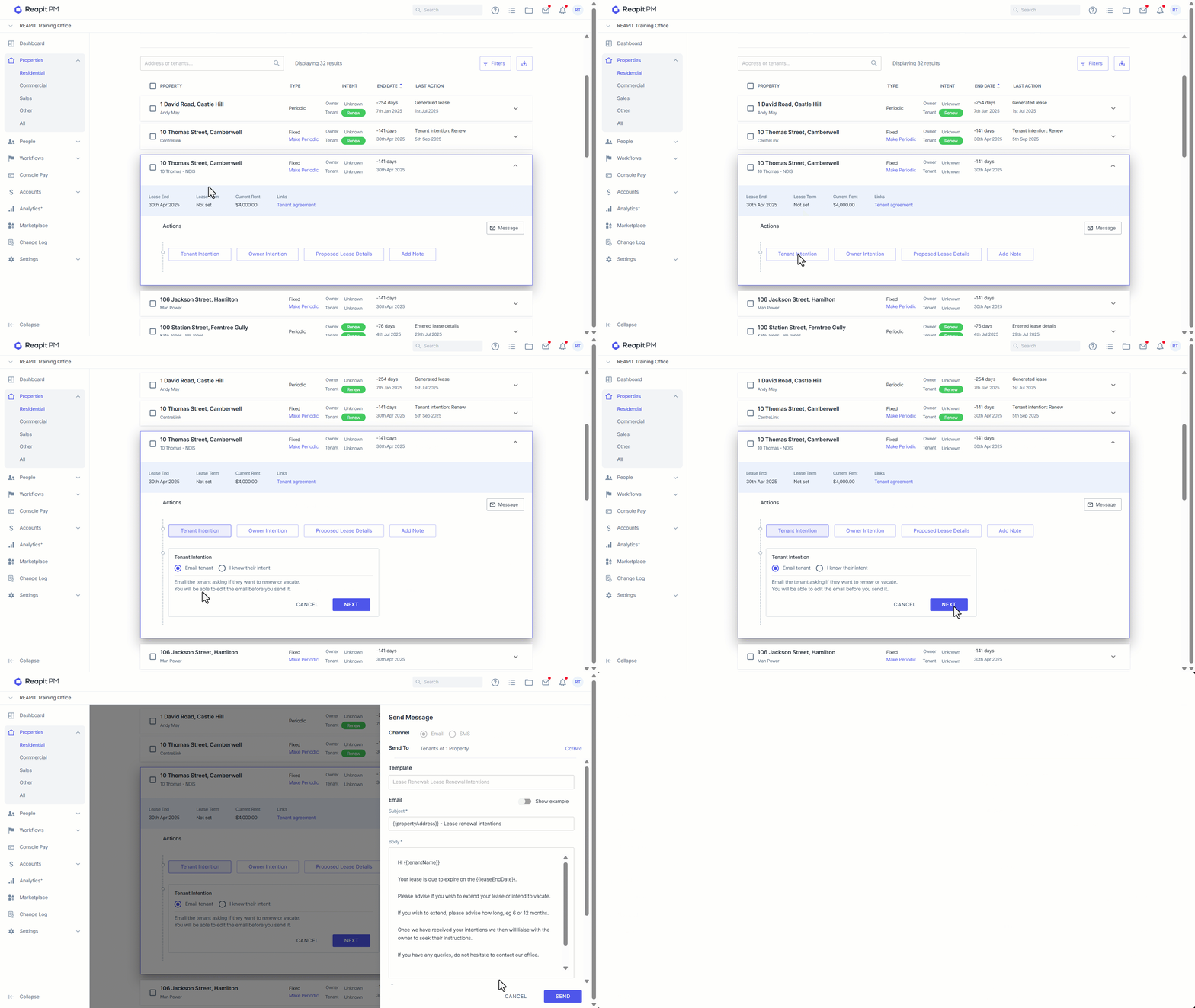
- Click on Tenant Intention to email the tenant asking if they want to renew or vacate. If you know their intent, click I know their intent. Click Next. Note: Once they flag their intention it flows back and updates the workflow and intent.
- Amend the body if required, include any attachments and click Send.
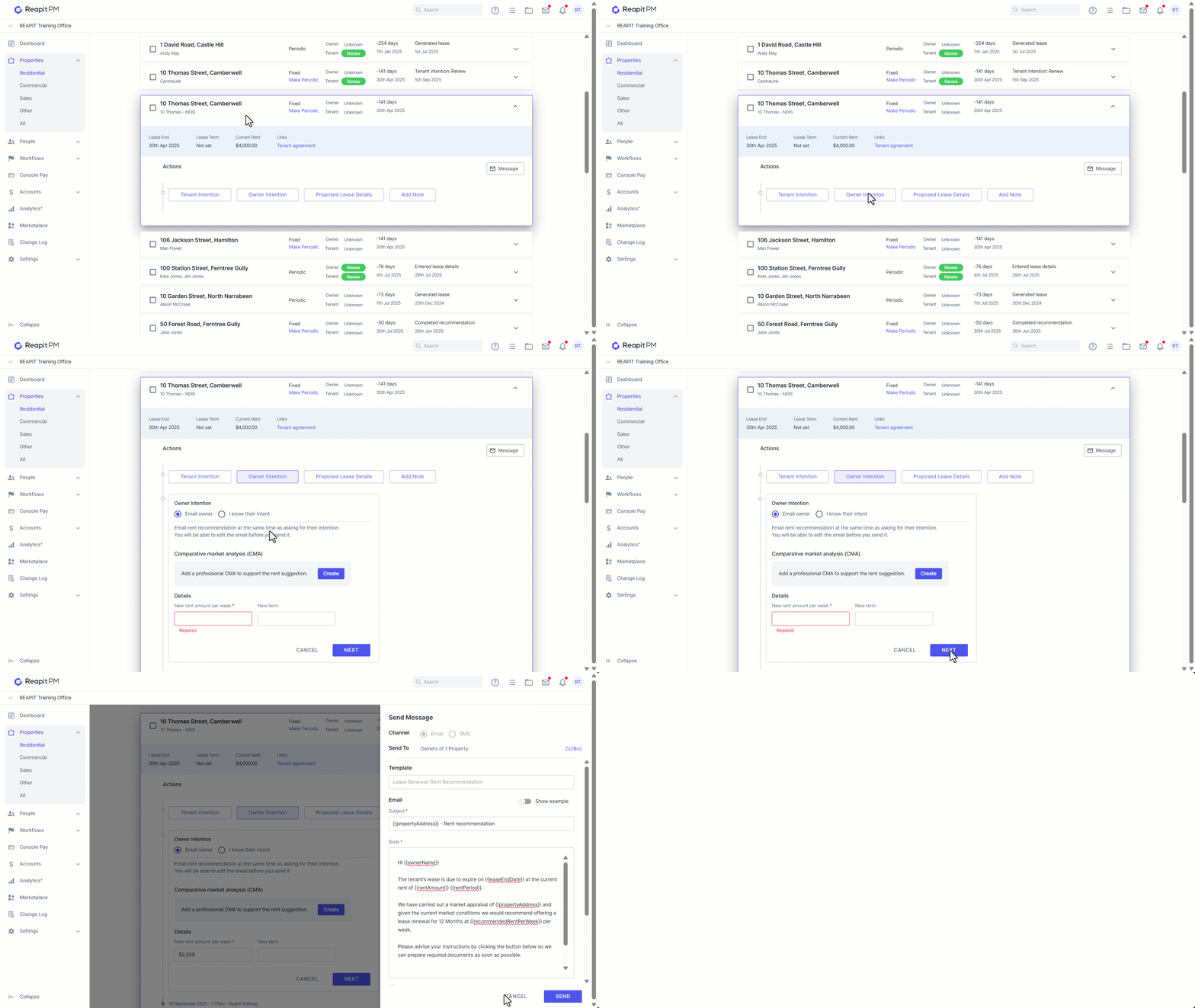
- Click Owner intention to email the rent recommendation at the same time as asking for their intention. Click Next.
- Amend the body if required, include any attachments and click send.
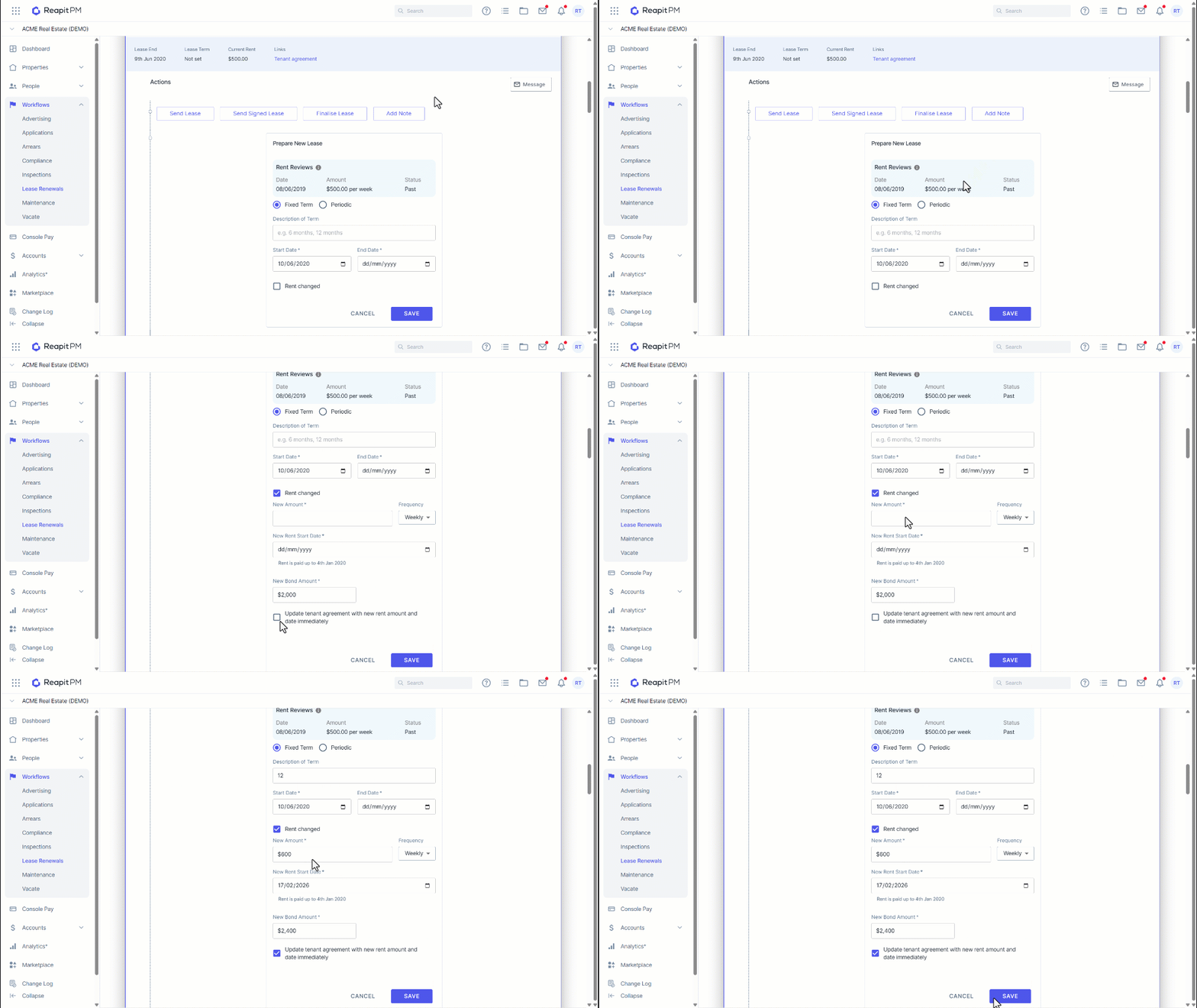
- Click on Proposed Lease Details to prepare a new lease. The proposed lease details will provide a view of the historic and upcoming rent increases. The start date is fixed to be the next day following the lease end date
- Click the Rent changed box if a rent increase will be added to the Lease Renewal. Enter the New Amount and the New Rent Start Date.
- Enter the new bond amount. Once saved, this will update on the tenancy immediately.
- Click to update the Tenant Agreement with the new rent and bond amount and date immediately.
- Click Save.
Note: The Update tenant agreement with new rent amount and start date box will apply the Rent Review value to the Tenancy once Saved. This ensures that the increase goes through at the correct time even if the Tenant does not return the signed lease documents on time.
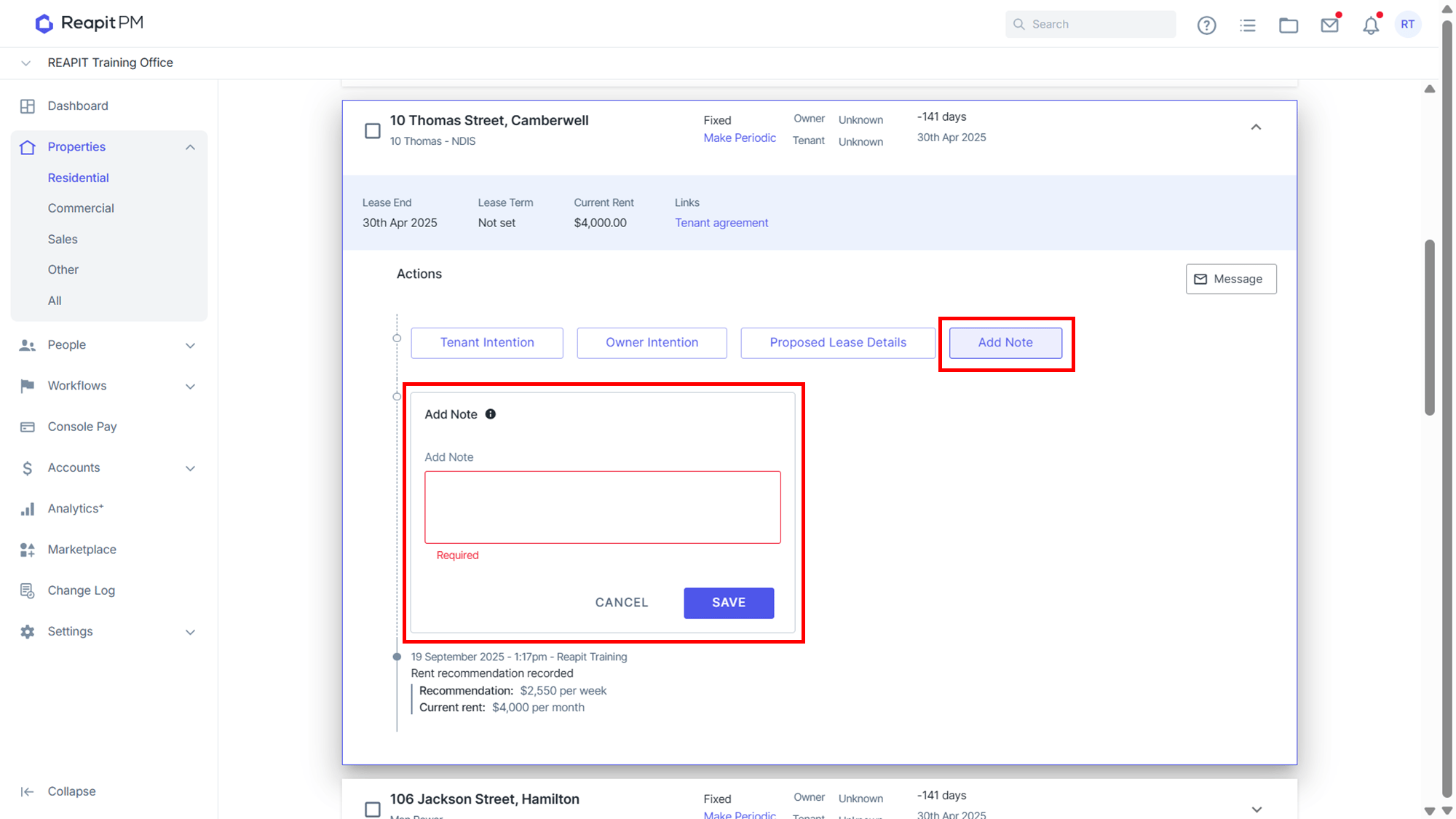
- Click Add Note to insert any notes. Click Save.
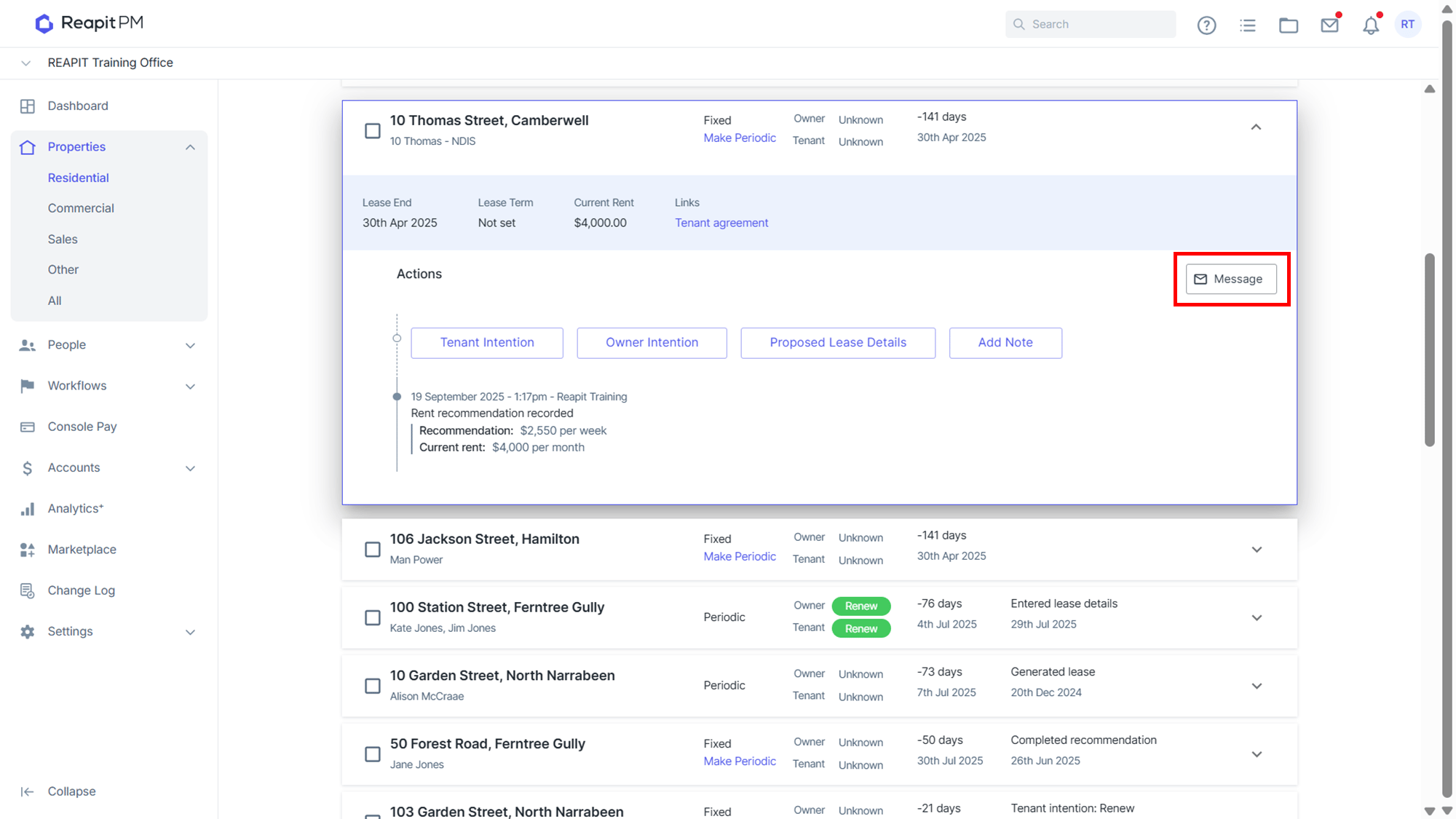
- To message the owner or tenant click Message.
- Once the owner and tenant have agreed on a lease renewal you can send the lease. Upload attachments and click Next.
- Amend the body if required, include the lease attachments and click Send.
- Confirm you want to finalise the lease by clicking Renew Lease.
- Click Send Signed Lease to send to either owner or tenant. Add lease attachments and click Next.
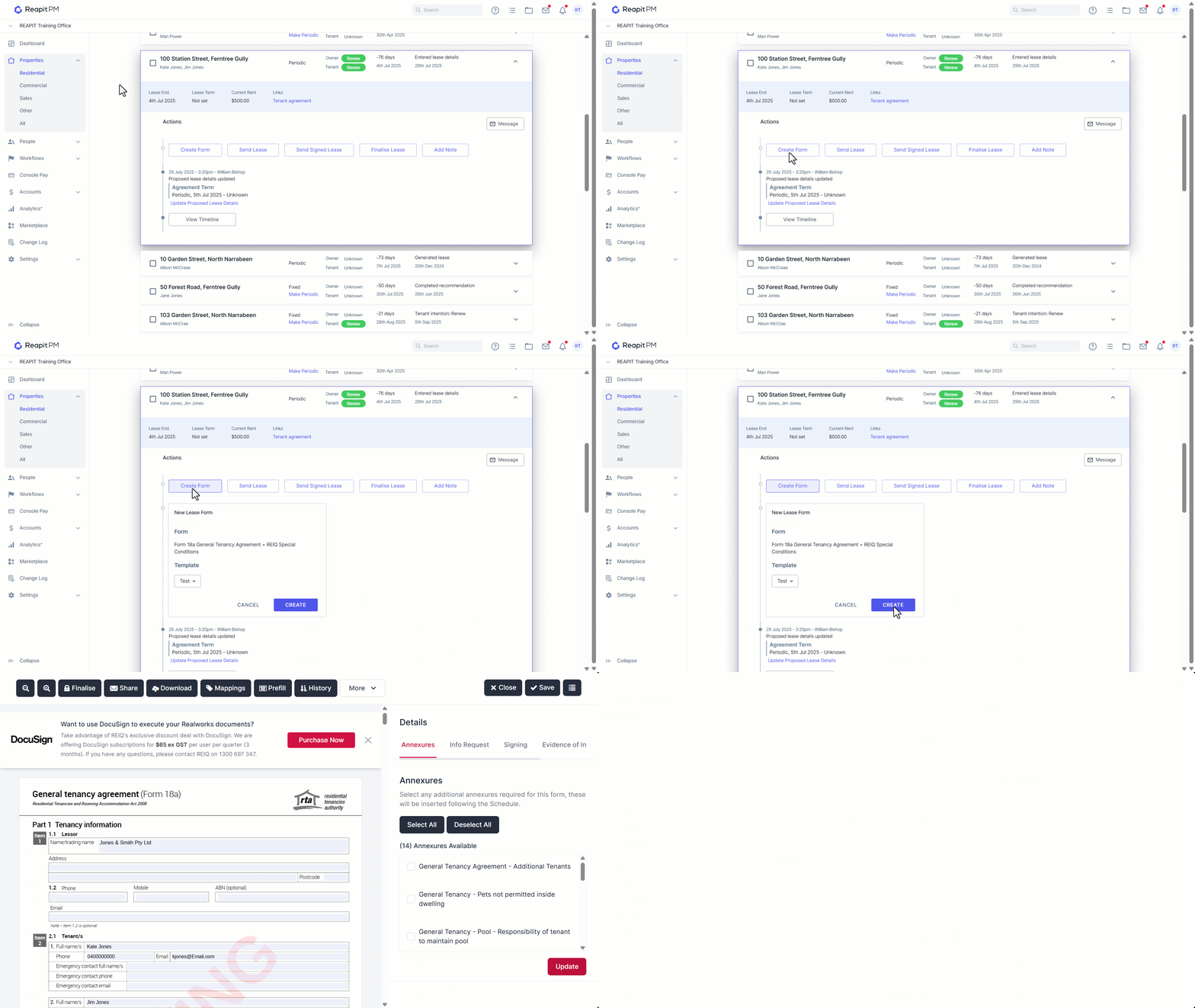
Note: If REI Forms Live is integrated, you can follow the prompts to create a lease agreement at this step in the workflow.