'%20d='M0%208a8%208%200%200%201%208-8h24a8%208%200%200%201%208%208v24a8%208%200%200%201-8%208H8a8%208%200%200%201-8-8V8Z'/%3e%3cpath%20fill='%23fff'%20d='M8.375%2013v14L20.5%2034l12.124-7v-7.737l-1.687-.975-2.806-1.62-1.082-.624v4.83l-.002%204.83H13.95V16.07l3.275-1.89%202.192-1.265%201.082-.625%203.275%201.877%202.192%201.256%201.083.62V9.782L20.5%206%208.376%2013Z'/%3e%3cdefs%3e%3clinearGradient%20id='reapit-pm__a'%20x1='20.702'%20x2='20.702'%20y1='.351'%20y2='31.228'%20gradientUnits='userSpaceOnUse'%3e%3cstop%20stop-color='%235573FD'/%3e%3cstop%20offset='.575'%20stop-color='%234E56EA'/%3e%3c/linearGradient%3e%3c/defs%3e%3c/svg%3e)
Gained and Lost Setup & How To
This article will run through how to set up and use Gained and Lost Reasons in Reapit PM. The processes in this article include: Setting up Gained & Lost Reasons, Referrers and Lost to Adding Gained and Lost Reasons to a Management Agreement
Overview
Gained and Lost Setup & How To
This article will run through how to set up and use Gained and Lost in Reapit PM. It focuses on adding reasons, referrers and ‘lost to’ people via settings. Additionally, it shows how to update properties with Gained and Lost information.
If you would like to learn how to report on Gained and Lost please review this article on Analyticsᐩ - Introduction to Analyticsᐩ.
The processes in this article include:
- Setting up Gained & Lost Reasons, Referrers and Lost to
- Adding Gained and Lost Reasons to a Management Agreement
Setting up Gained & Lost Reasons, Referrers and Lost to
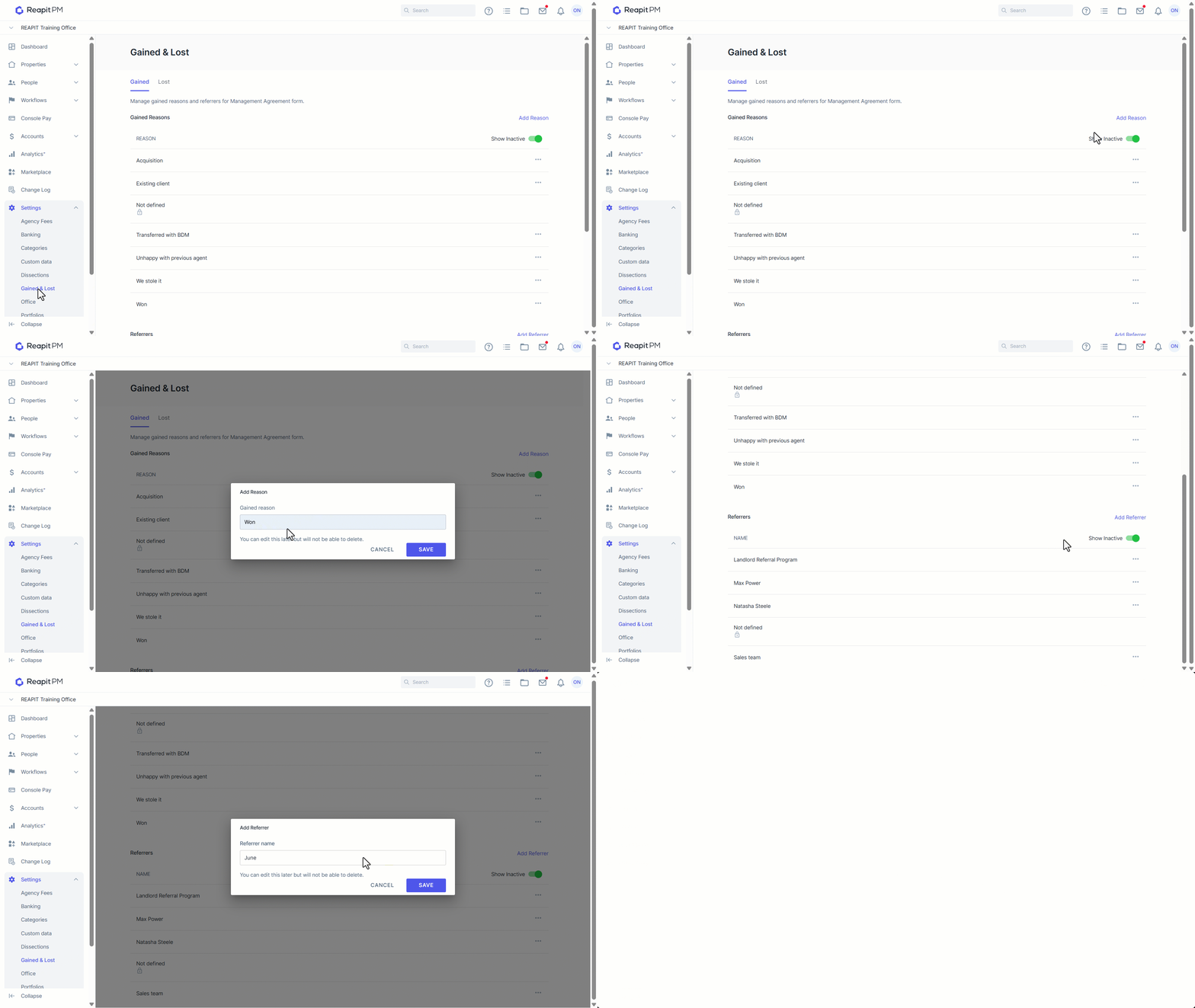
- Click on Settings.
- Click on Gained & Lost.
- Click Add Reason, enter the Gained reason and click Save.
- Click Add Referrer, enter the Referrer name and click Save.
- Select the Lost tab.
- Click Add Reason, enter the Lost reason and click Save.
- Click Add Lost To, enter the Lost To person/business and click Save.
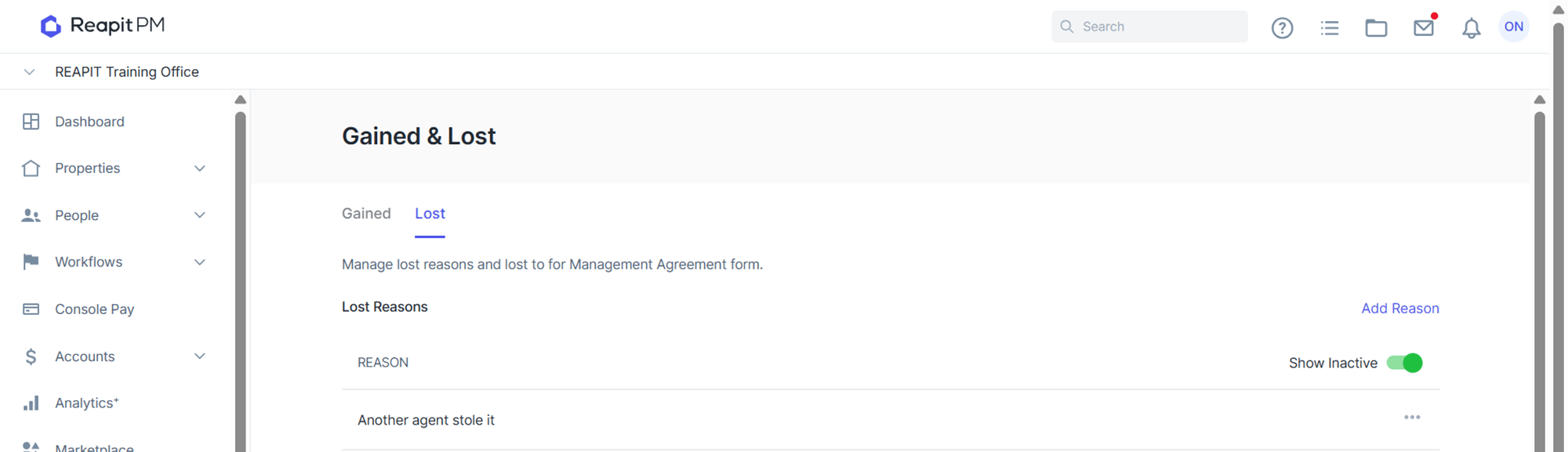
- To Edit or Mark Inactive, click the 3-dots next to the Reason, Referrer or Lost To to open the Edit/Mark Inactive drop-down menu. Either complete your Edit or Make Inactive, to finish click Save.

Adding Gained and Lost Reasons to a Management Agreement
- Click on People.
- Click on Owners.
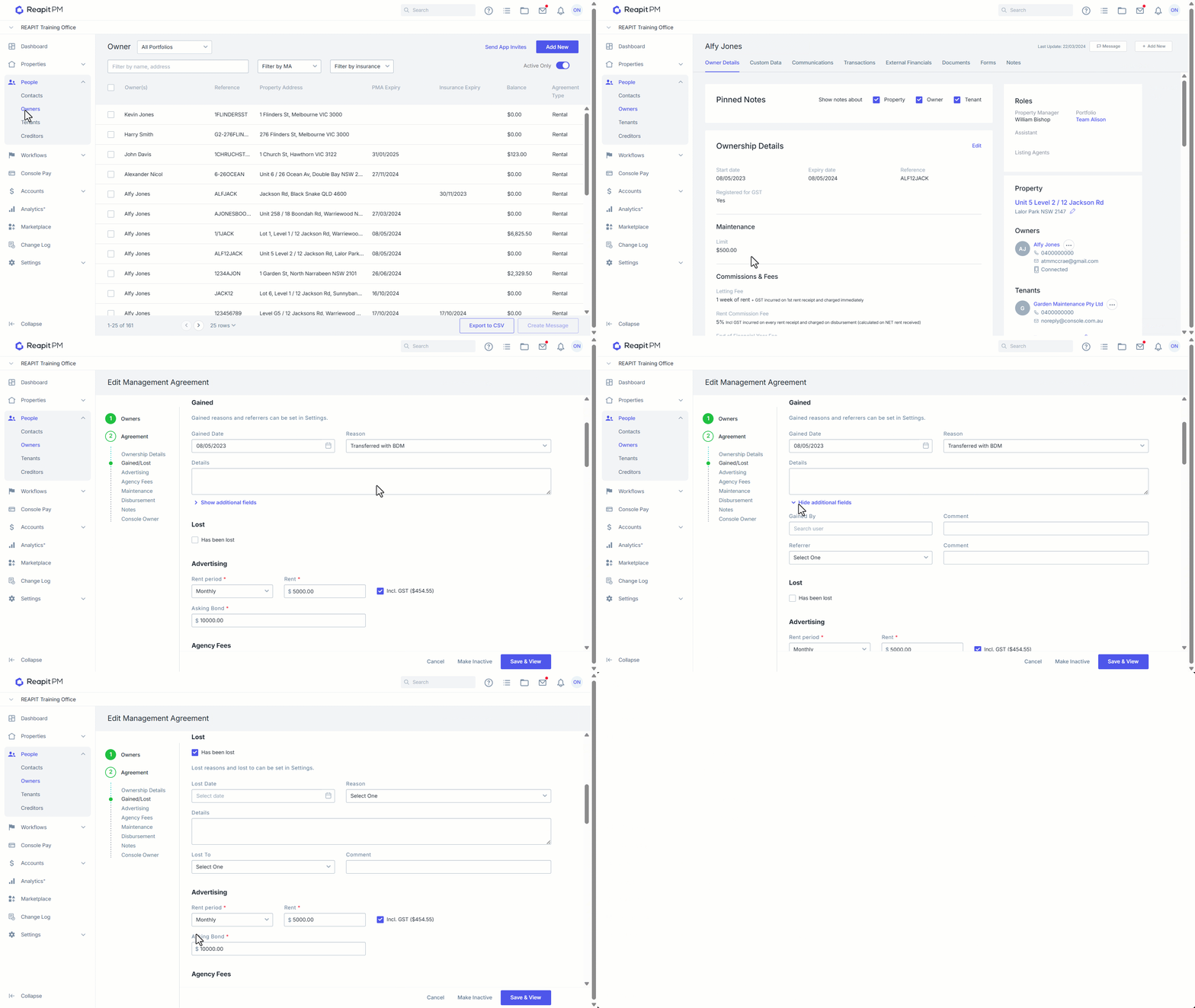
- Click Edit from the Ownership Details tab.
- Under Gained add the Date, Reason and Details and Tap ‘Show additional fields’ to open the drop-down.
- From the additional fields drop-down you can record Gained By and the Referrer along with comments if applicable. Click Save & View ****to finish. Gained By may be a user from within the system whereas a Referrer can be anyone outside of the system.
- When a management has been lost, tick Has been lost under the Lost subheading. Add the Lost Date, Reason, Details, Lost To and any Comments. Click Save & View ****to finish the update.