'%20d='M0%208a8%208%200%200%201%208-8h24a8%208%200%200%201%208%208v24a8%208%200%200%201-8%208H8a8%208%200%200%201-8-8V8Z'/%3e%3cpath%20fill='%23fff'%20d='M8.375%2013v14L20.5%2034l12.124-7v-7.737l-1.687-.975-2.806-1.62-1.082-.624v4.83l-.002%204.83H13.95V16.07l3.275-1.89%202.192-1.265%201.082-.625%203.275%201.877%202.192%201.256%201.083.62V9.782L20.5%206%208.376%2013Z'/%3e%3cdefs%3e%3clinearGradient%20id='reapit-pm__a'%20x1='20.702'%20x2='20.702'%20y1='.351'%20y2='31.228'%20gradientUnits='userSpaceOnUse'%3e%3cstop%20stop-color='%235573FD'/%3e%3cstop%20offset='.575'%20stop-color='%234E56EA'/%3e%3c/linearGradient%3e%3c/defs%3e%3c/svg%3e)
Linking Owner Contacts on Properties
This article will run through how to link the same owner contact on multiple properties within your account on Reapit PM.
Overview
Linking Owner Contacts on Properties
This article will run through how to link the same owner contact on multiple properties within your account on Reapit PM.
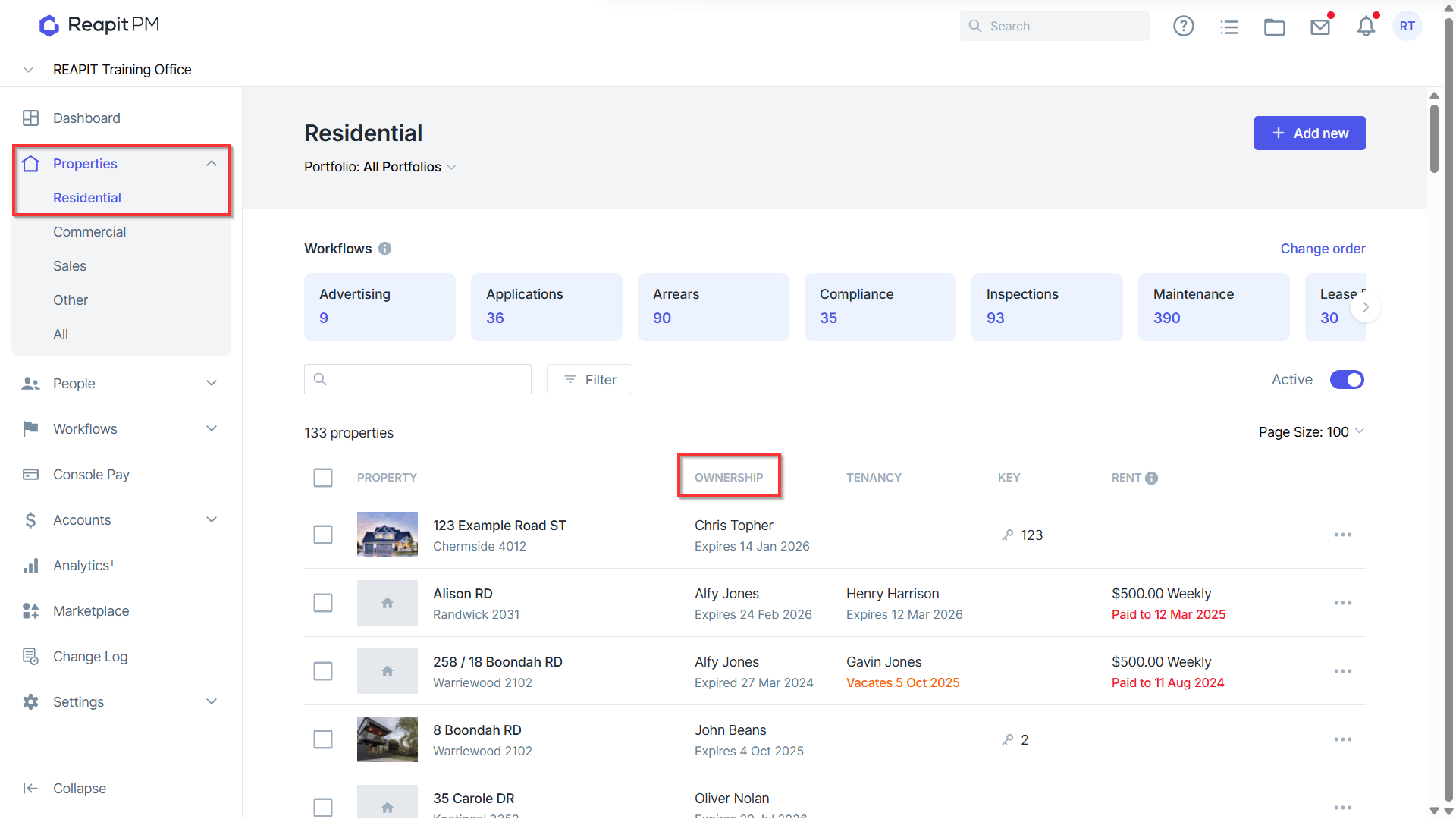
- Navigate to Properties > Residential, Select the Ownership you wish to access.
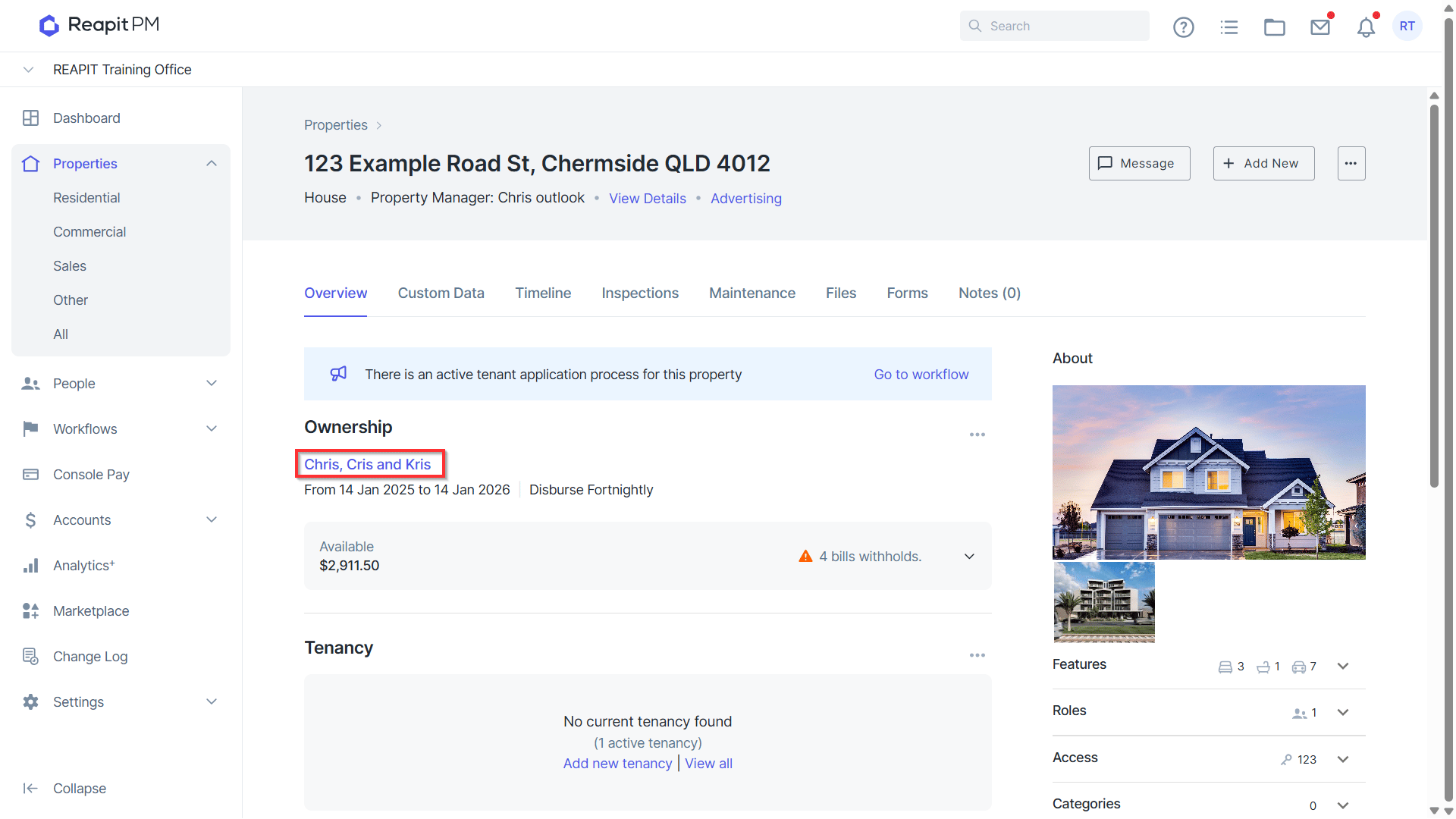
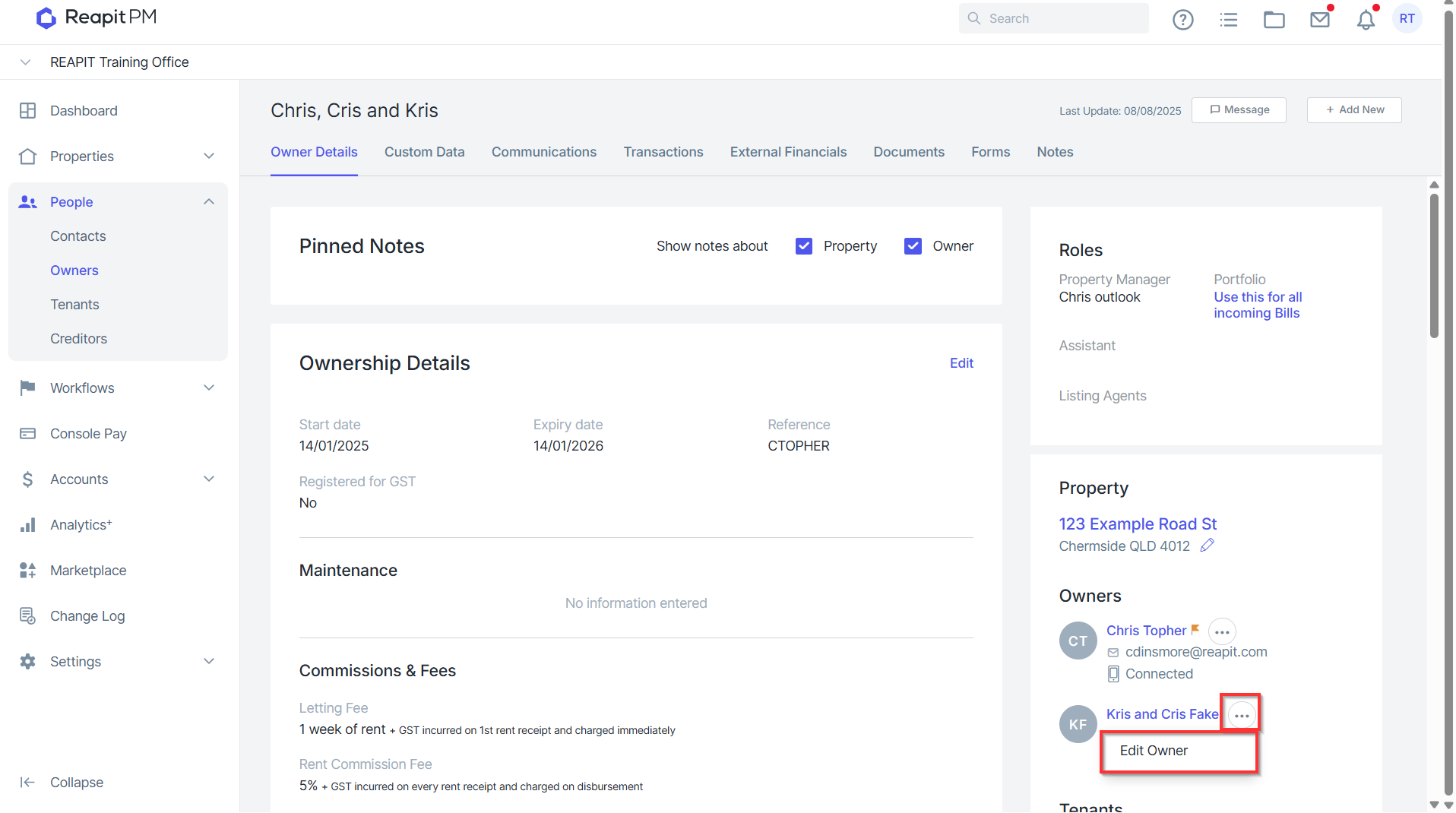
- In the Owner Details tab, scroll down, locate the 3 Action Dots next to the owner's name, and select Edit Owner.
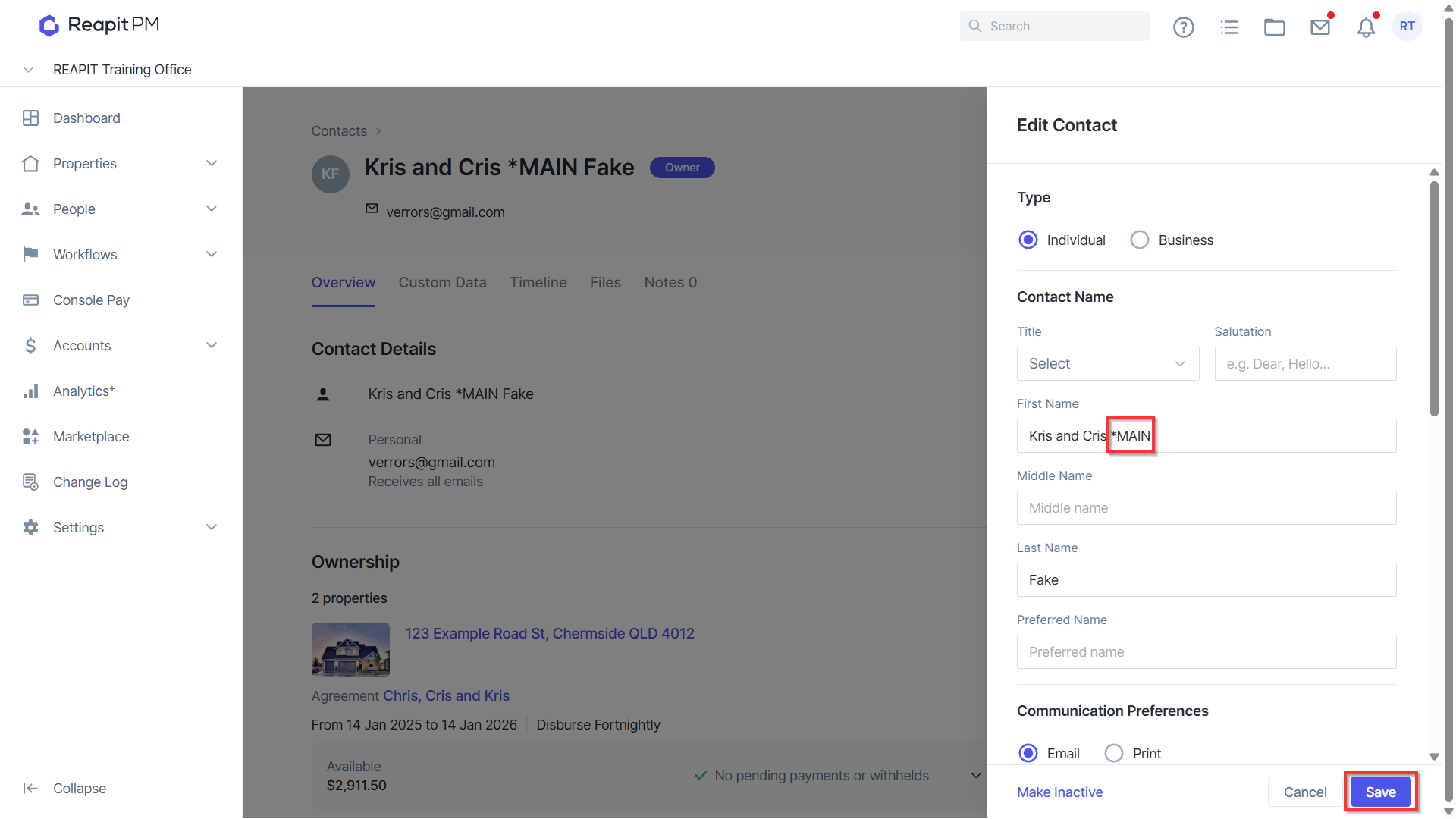
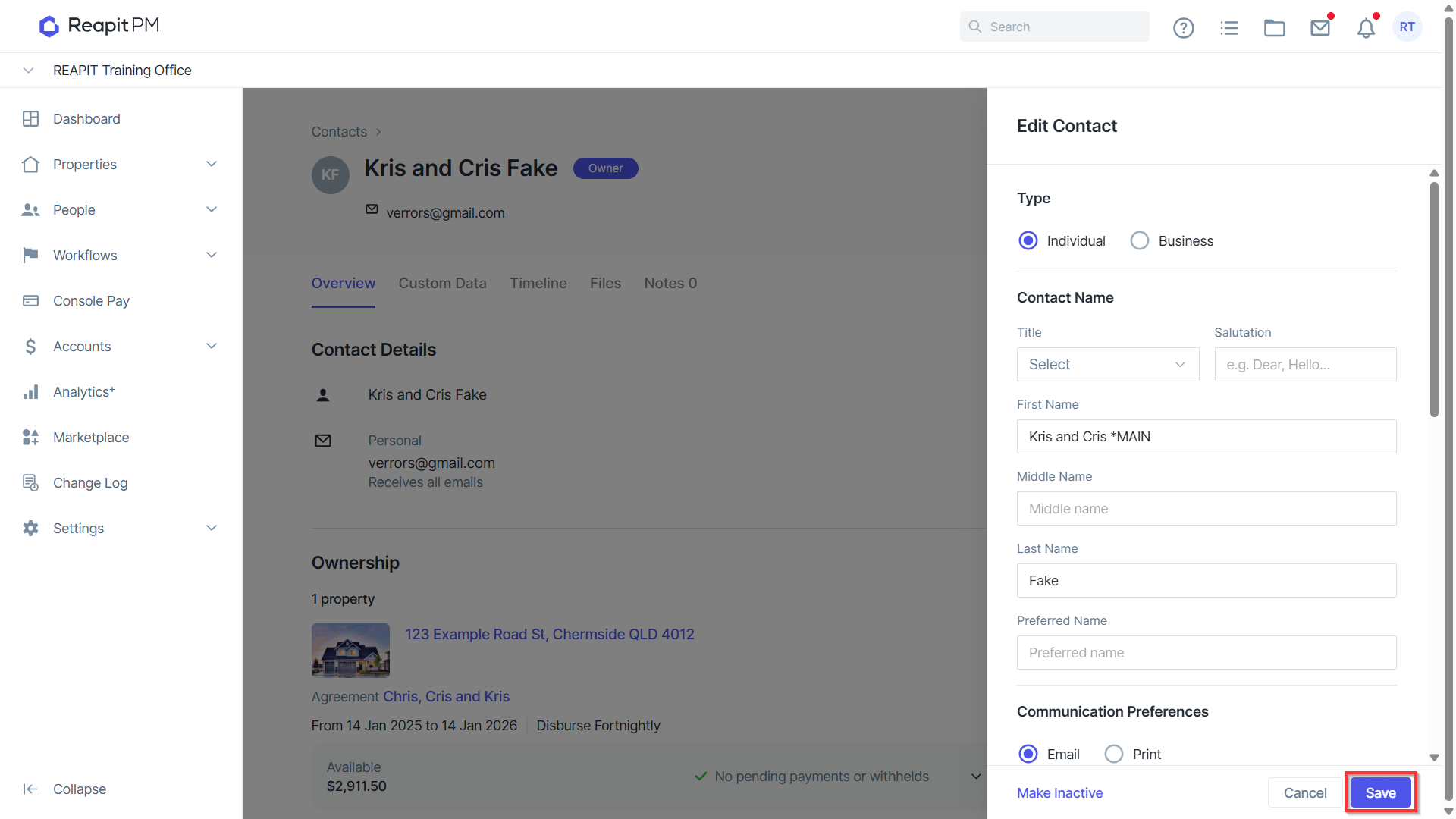
- Update the Name to include *MAIN. Click Save once completed.
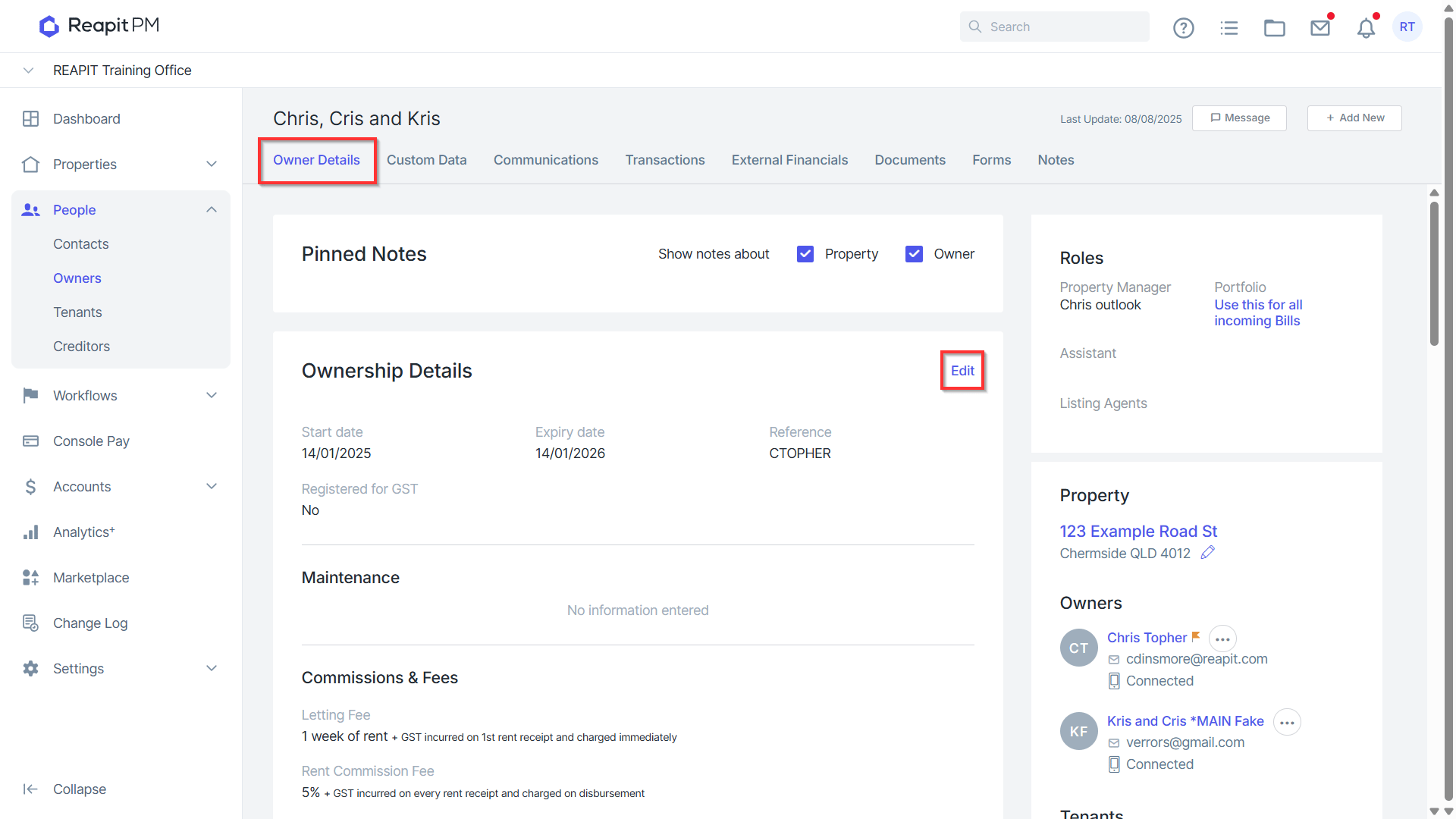
- Proceed to the second property listed under the same owner. Within the Owner Details tab, select the Edit option located in the Ownership Details section.
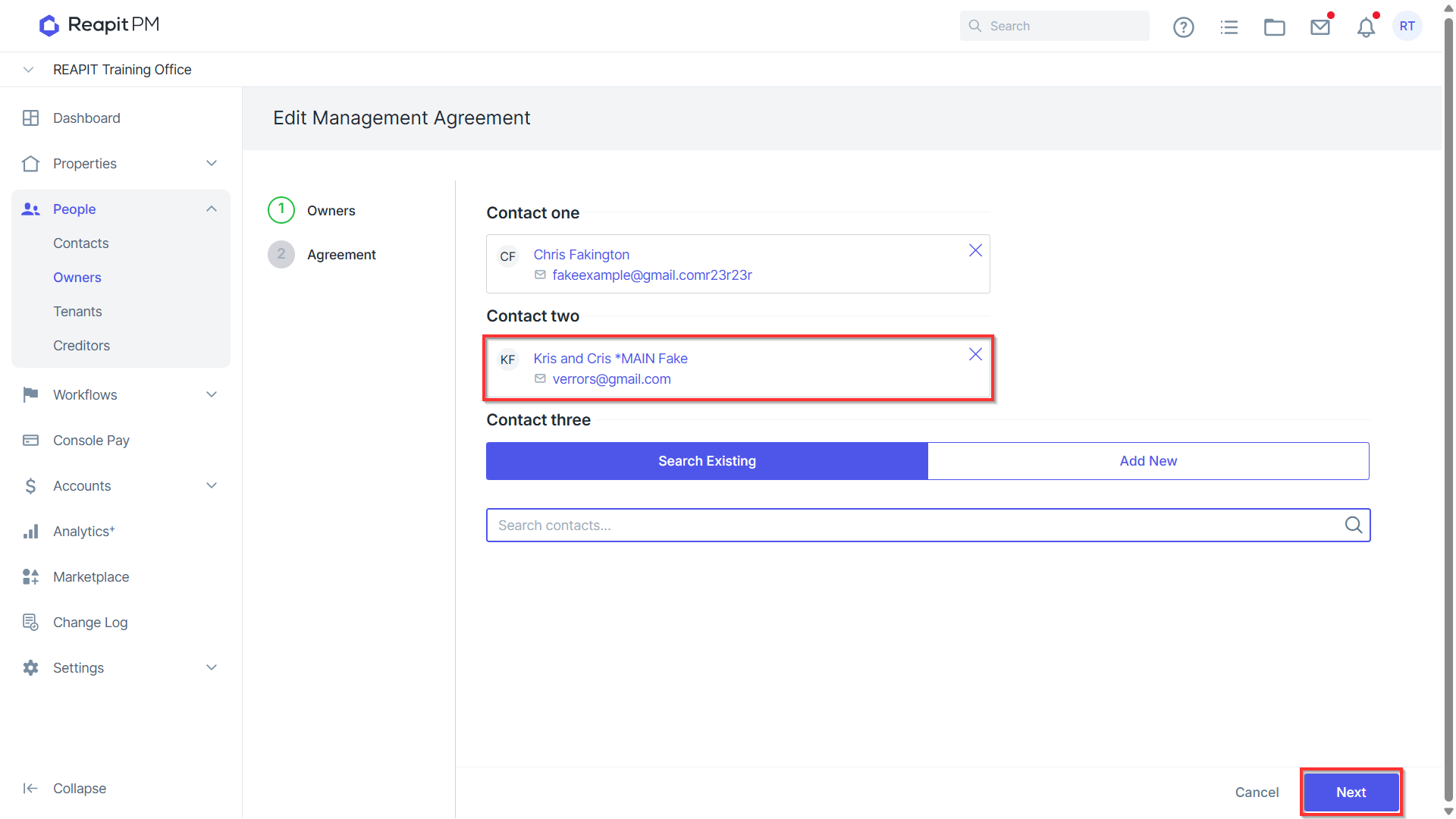
- To locate the contact details of the owner, enter their name including *MAIN in the provided search bar. Select the appropriate result to display the contact's name under the Contact listing. • Remove any existing contacts, and then click Next, and then Save & View on the subsequent page displayed.
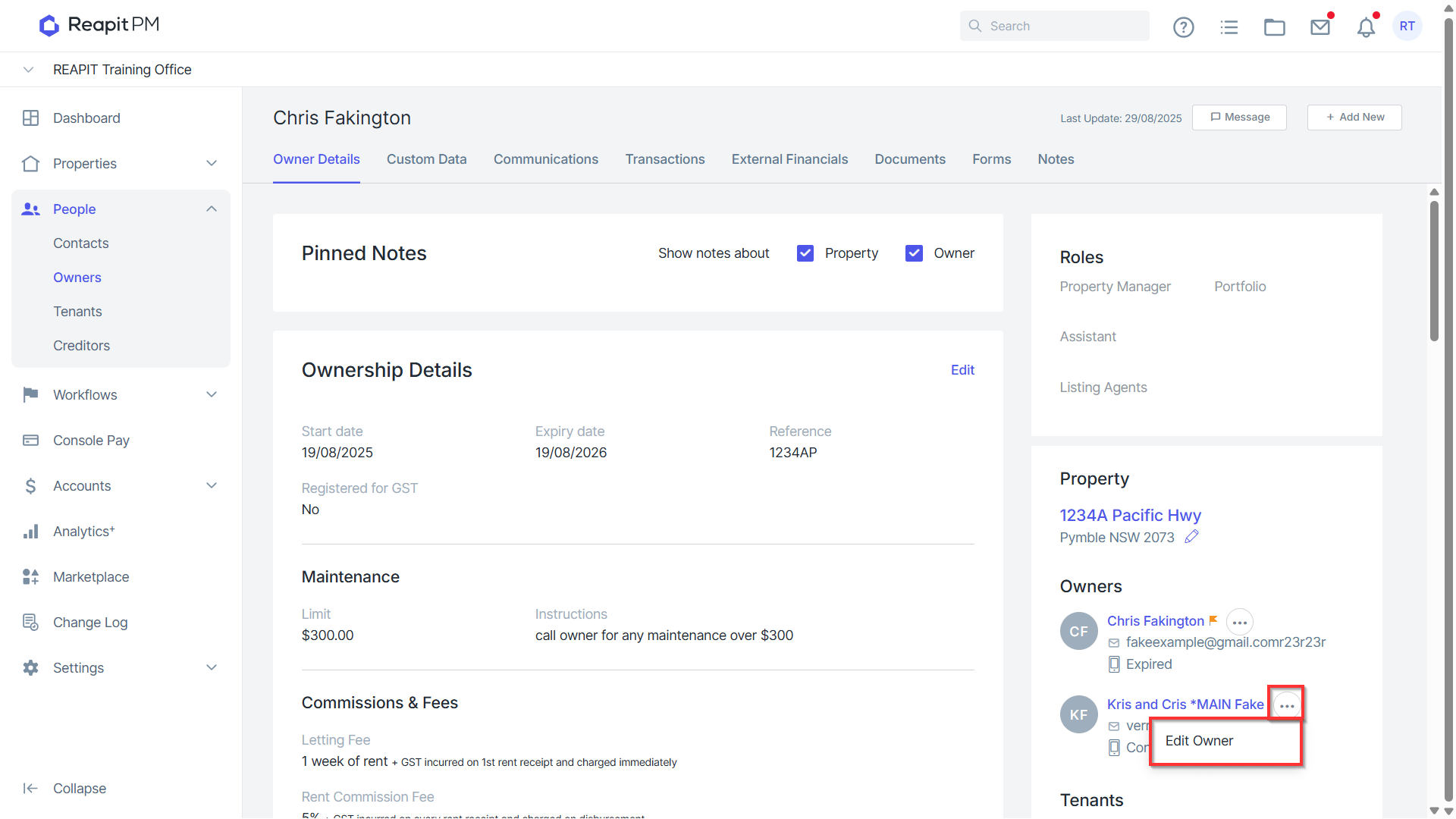
- Click the 3 Action Dots, select Edit Owner.
- Remove *MAIN from the Owners name in the designated field, and click Save.